How to turn off find my iPhone from computer remotely?
How to turn off Find My iPhone on iCloud remotely or directly from the device?
Today in this article I am going to show you how to turn off find my iPhone on iCloud remotely using a computer or directly on your device.
‘Find My iPhone’ feature, which is found in iOS and Mac OS devices, helps users to locate their lost or stolen devices. However, there are certain situations when this service becomes a potential inconvenience. If for some reason you decide to give away or sell your device, you need to turn Find My iPhone off. This is because, unless you turn off Find My iPhone, the iPhone you are going to give away or sell, cannot be restored to its original factory settings by the new owner.
Moreover, when you disable the Find My iPhone feature you also prevent the new owner from accessing your personal data and allow him to link the device in question to his own iCloud account. This is also true before sending the device to the repair center. You need to make sure that this feature is disabled before taking the device to the Apple service center for repair.
Before I go to show how to turn off find my iPhone from computer remotely or how to turn off find my iPhone directly on your device, let us first look into how ‘Find My iPhone’ works and why it is necessary to turn off ‘Find My iPhone’.
How does ‘Find My iPhone’ work?
When you activate ‘Find My iPhone’ on your device it includes a feature called Activation Lock. On activation of the app, the device is linked to the owner’s Apple ID. The Activation Lock prevents anyone from using or erasing your device without your Apple ID and password. It also prevents other users from turning off Find My iPhone or signing out of iCloud on your device.
The Find My iPhone feature uses your iPhone’s location services to relay its position to Apple’s servers so that when your iPhone is lost or stolen, you can log into Apple’s iCloud website to track down your iPhone. You can also track your device with the Find My iPhone app on another iDevice. With the Find My iPhone app enabled, the owner of the device can see its location on a map, lock it remotely, erase its contents, or send a message to the finder of the lost device to return the same.
Precautions to increase the chances of recovering your lost iPhone
To boost your odds of getting your lost iPhone back, it’s a smart idea to take some extra precautions before misfortune strikes. One effective step is adding a custom message with your contact details to your lock screen. This way, if someone finds your device, they can easily reach out to you—even if they can’t unlock the phone.
Here’s how you can do it:
- Go to the Settings app, tap on Wallpaper, and choose Add New Wallpaper.
- Use any photo or plain background, then use the markup or photo editing feature to overlay your contact number or an alternate email.
- Save the updated image and set it as your lock screen wallpaper.
Not just that, you might also want to activate Lost Mode in the Find My iPhone app if your device goes missing. This lets you display a custom message directly on the device’s screen, for example: “This iPhone is lost. Please call [your number] to return.”
Taking these small steps ahead of time can make it much easier for an honest finder to contact you and return your iPhone safely.
What is a Security Delay and how does it affect turning off Find My iPhone?
Apple has implemented an extra layer of protection known as a Security Delay. When you attempt to turn off Find My iPhone, you might encounter this security measure—especially if important account changes have recently been made, such as updating your Apple ID password or enabling certain security settings.
What does this mean for you? A Security Delay temporarily prevents you from immediately turning off Find My iPhone. Usually, you will need to wait about an hour before proceeding. This is a safeguard designed to keep your device secure in case someone is trying to disable tracking without your permission.
While waiting for the Security Delay to expire, you have two options:
- Wait for the delay period to end (generally about an hour), then try turning off Find My iPhone again. Once the timer expires, you’ll have a limited window to complete the process, so be ready to act quickly.
- Alternatively, if you prefer to handle things remotely, you can remove the Activation Lock through the iCloud website by following Apple’s instructions for removing a device.
The Security Delay is simply there to protect your data and ensure only authorized changes are made.
How to Enable ‘Find My’ Network to Locate Your iPhone Offline?
Wondering how to make sure you can track your iPhone even if it loses its network connection? Enabling the ‘Find My’ network allows your device to be located even when it’s offline, giving you extra peace of mind.
To set this up, simply follow these steps:
- Open Settings on your iPhone.
- Tap on your name at the top to access your Apple ID settings.
- Select Find My.
- Tap on Find My iPhone.
- Make sure the Find My iPhone option is switched on.
- Underneath, you’ll see the Find My network option—toggle this on as well.
Once you’ve done this, your iPhone can be found even when it’s not connected to Wi-Fi or cellular data. This feature uses secure Bluetooth signals from nearby Apple devices, updating your phone’s location on your iCloud account so you can always keep tabs on it—even if it’s hiding under the couch cushions or halfway across town.
Now that you know how to activate ‘Find My’ and the offline tracking option, let’s look at why it’s crucial to turn off this feature when you’re transferring ownership or preparing your device for repair.
Why it is necessary to turn Find My iPhone off?
As already mentioned, while ‘Find My iPhone’ is a great feature for finding your lost or misplaced device there are times when it will be necessary to turn off this feature. Before selling or giving away your iPhone, iPad, or MacBook, it is vital to turn off the Find My iPhone app and remove the device in question from the tracking service. This will allow the device to be restored to its original factory settings and the new owner will be able to link the device to his own iCloud account.
The next question is how to turn off find my iPhone on iCloud and remove your device from the app’s device list using your computer.
How to turn off find my iPhone on iCloud remotely using a computer?
In case you don’t have access to your device or your device is not turning on, you can turn off find my iPhone on iCloud and remove the device from the list remotely, using your computer. However, your iOS device needs to be offline or else you won’t be able to remove it.
Here’s how to turn off find my iPhone on iCloud remotely using a computer:
1. Use any web browser on your Windows PC or Mac to go to the iCloud website;
2. Sign in to your iCloud account using the same Apple ID and Password linked to the device you’re selling or giving away;
3. Click Find My iPhone on the iCloud website;
4. Click on All Devices at the top of the Find My iPhone screen;
5. Select the device you’re selling or giving away, from the device list;
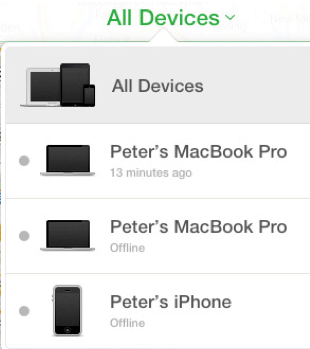
6. Click Erase the Device. When the device is erased, you now need to remove the device from your account. ;
7. Then click Remove from Account;
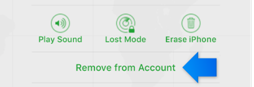
8. If you don’t see Remove from Account, click All Devices again;
9. This time you will see the delete button next to the device you have selected;
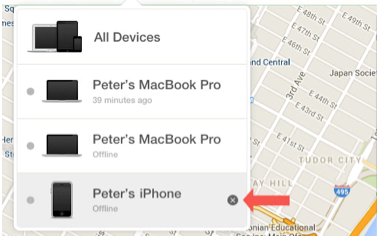
10. Click the delete button;
11. You will be prompted to remove the device;
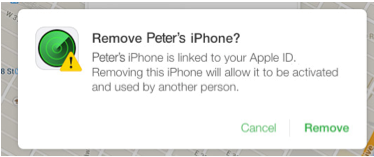
12. Click “Remove” and you’re done.
Troubleshooting Issues When Removing a Device from Find My iPhone
Occasionally, hiccups can happen when you try to remove a device from Find My iPhone using iCloud. Not to worry—most errors are easy to resolve with a few quick steps:
- Check your internet connection: A spotty Wi-Fi or lagging data connection often causes removal errors. Make sure you have a reliable connection before trying again.
- Refresh or restart: Try refreshing your browser or signing out and then back into your iCloud account. In some cases, restarting your computer can help clear up glitches.
- Wait if the device is still online: If your iPhone or iPad is still connected to the internet, you might not be able to remove it right away. Power it off (if possible) and wait a few minutes before attempting removal again.
- Update your browser: Outdated browsers may not play nicely with iCloud. Updating to the latest version of Chrome, Firefox, or Safari often solves compatibility issues.
- Contact Apple Support: If you still can’t remove the device after trying these suggestions, reach out to Apple Support for expert assistance.
A little patience and troubleshooting usually do the trick, so don’t be discouraged if everything doesn’t work on the first try.
How to Remotely Erase Your iPhone Using iCloud.com
Let’s say your iPhone is missing or you can’t physically reach it, but you want to make sure nobody can snoop through your apps, photos, and messages. No worries—you can wipe your iPhone remotely from any computer using iCloud.com and keep your personal data safe.
Follow these steps to erase your iPhone remotely:
- Power off your iPhone, if possible (but don’t worry if you can’t).
- Open a web browser on your computer and visit iCloud.com/find.
- Sign in with the same Apple ID and Password that’s linked to the lost or inaccessible device.
- Click All Devices at the top, then select your iPhone from the dropdown list. (If All Devices isn’t visible, just click the device name in the toolbar to see the list again.)
- Click Erase iPhone. Skip the phone number and message fields—those are just for lost devices.If your iPhone is offline, the erasing process will start as soon as it connects to the internet again.
You’ll get an email confirmation once the wipe is complete. - After the erasure, select Remove from Account. This step fully disconnects the device from your Apple ID and turns off Activation Lock.
That’s it—your iPhone is now wiped clean and unlinked from your account, providing peace of mind if it’s lost or outside your reach.
Troubleshooting: Still Can’t Deactivate Find My iPhone via iCloud?
If you’re still bumping into problems when trying to turn off Find My iPhone with iCloud, don’t panic just yet. Here are a few quick tips to help you get things back on track:
- Double-check your internet connection—sometimes a spotty Wi-Fi or slow network is the real culprit.
- Refresh the iCloud page or try signing out and signing back in to your account.
- Give a different web browser or device a shot, just in case it’s a local glitch.
- Restart your computer or your device; the classic fix for a variety of tech headaches.
If none of these work and you’re still stuck, reach out directly to Apple Support. They can walk you through more advanced solutions and help tackle stubborn issues.
What if Your Device Still Appears in Find My iPhone?
If you’ve followed the steps above and your iPhone still shows up in Find My iPhone, don’t panic—sometimes there’s just a delay. When a device is offline, it may take a little while for iCloud to register the change.
Here’s what you can do:
- Refresh the iCloud Find My iPhone page after a few minutes to check if the device status updates.
- Double-check that your device is powered off and not connected to the internet.
- If it still doesn’t disappear, try signing out and back into your iCloud account, then repeat the removal steps.
Usually, a bit of patience does the trick and the device will be removed from your account shortly.
Now let’s also see how can you turn Find My iPhone off directly on your device.
What if you can’t sign in to iCloud?
If you hit a roadblock signing in to iCloud—maybe the password slipped your mind—it’s nothing to panic over. Double-check that you’re entering the correct Apple ID and password tied to the device. If they’re not coming back to you, just click the “Forgot Apple ID or password?” link right on the iCloud sign-in page. Apple will guide you through a quick account recovery process so you can regain access and continue turning off Find My iPhone.
How to turn Find My iPhone off directly on your device?
Here’s how to turn Find My iPhone off on your device:
For iOS 10.2 or earlier
1. Go to ‘Settings’ on your device’s home screen;
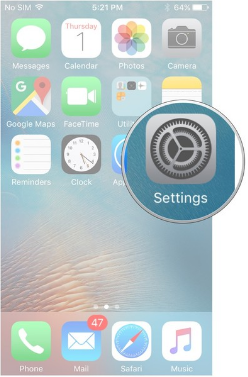
2. Tap ‘iCloud’ in the Setting menu;
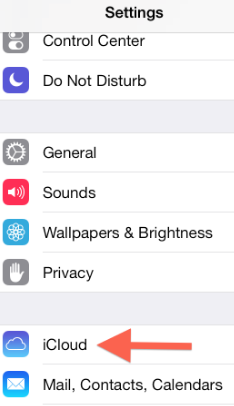
3. Tap the ‘Find My iPhone’ button and turn it Off;
4. Enter your Apple ID and Password in the Window that pops up and tap ‘Turn off’ to confirm;
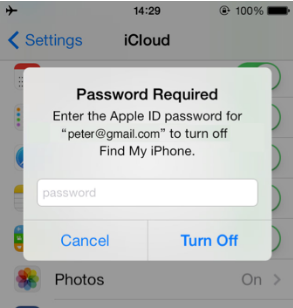
5. That’s it. Find My iPhone is now disabled for that iOS device, and you can now reset the device to its factory settings (if you’re going to sell the device) using Settings > General > Reset and Erase All Content and Settings;
For iOS 10.3 or later
1. On your device, go to Settings > [your name] > Find My > Find My iPhone;
2. Turn off Find My iPhone;
3. Enter your Apple ID and Password in the Window that pops up and tap ‘Turn off”;
To do this on a Mac device:
1. Go to Apple menu > System Preferences;
2. Tap iCloud;
3. Then deselect Find My Mac;
Note: To remove your iPhone or Mac from ‘Find My’ turn off ‘Find My’ in iCloud or Apple ID settings.
Frequently asked questions
Now that you know how to turn off find my iPhone on iCloud remotely using your computer or directly from the device before I conclude let me also address some related questions often asked by iPhone users.
Is it bad to turn off Find My iPhone?
If you turn Find My iPhone off, you won’t be able to locate your device using this feature, if it is missing or stolen. That means you can’t find its new location on a map or erase it remotely if your iPhone is ever stolen.
Is Find My iPhone automatically enabled?
If you want to find your missing phone, ‘Find My iPhone’ has to be enabled on your device. In iOS 9 and later versions, Find My iPhone is automatically turned on during the iPhone set-up process if you enable iCloud.
Can I restore my iPhone backup after erasing my device and getting it repaired or replaced?
Yes, you can. Once your device has been erased—whether for a repair, replacement, or a fresh start—you’ll still have the option to restore all your data from a previously saved iPhone backup. This means that after you set up your device again, either as new or after repair, you can log in with your Apple ID and choose to restore your information from an iCloud backup or from a backup you made in iTunes (or Finder on a Mac running macOS Catalina or later). So, all your photos, apps, contacts, and settings can be brought back, as long as your backup is up to date and accessible.
You might also like to read: How to restore iPhone from iCloud backup
Conclusion
Now that I have explained how to turn off find my iPhone on iCloud remotely or directly on your device, make sure that this feature is turned off before giving away or selling your device or before sending it to the Apple repair center for repair.
As mentioned earlier Find My iPhone is an app that assists in locating a missing iOS device from another iOS device or computer. During the initial setup and activation of an iPhone, the Find My iPhone app is normally pre-installed. In case the app is not pre-installed on your device then download and install the same from App Store.
To see all your listed devices when you sign in to Find My iPhone, each device must be set up with the same iCloud account information. Before the Find My iPhone feature can be used to locate devices, it must be enabled on each of your iOS devices.

Anthony Raya
Jul 07. 2017
Thank you for your advice most helpful