How can you use Chromecast without WiFi?
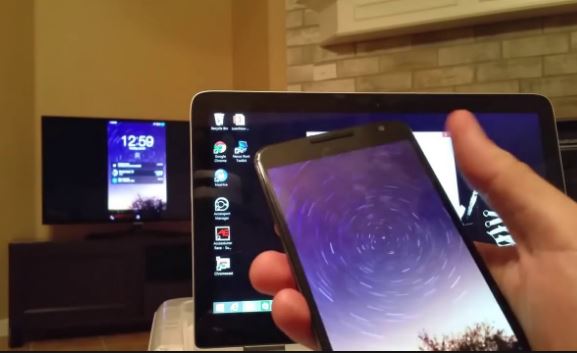
Does Chromecast need WiFi – read here the ways to use it without WiFi
Google’s Chromecast is a device that can cast anything from any WiFi- enabled device straight to your TV screen. As this streaming device is a great travel companion you may often hear a common query – does Chromecast need WiFi or do i need WiFi for Chromecast?
There are a few different ways of how can you Chromecast without WiFi. In this post, I will show how to Chromecast to TV without WiFi. Before I show you how can you cast without WiFi using Chromecast, let’s first see what is Google Chromecast.
What is Google Chromecast?
Google’s Chromecast is powered by a USB cable, which adds smart functions to your TV when connected to the TV’s HDMI port. You can cast anything from your iOS, Android, Mac, Windows, or almost any other WiFi-enabled device straight to your TV screen with the help of this Google Cast app.
Does Chromecast need WiFi?
There is a common query – does a Chromecast need WiFi for casting to TV similar to Amazon Fire Stick and Roku?
Chromecast typically does need an Internet connection for casting anything to a TV screen from your mobile or smartphone similar to the Amazon Fire Stick and Roku which also allow the beaming of content to a TV. But it has one key difference. You can stream content to your TV screen with Chromecast even without connecting to a standard WiFi network.
Chromecast supports multiple types of connections, allowing users to switch between a Wi-Fi connection, Ethernet, or Guest Mode depending on their needs. This flexibility ensures you can maintain connectivity and cast content even when a traditional Wi-Fi connection is unavailable.
If you don’t want to use your Hotel WiFi or public WiFi network while traveling, you can go for Chrome casting without WiFi or Internet using its new feature, called ‘Guest Mode‘. Now, how can you cast without WiFi using ‘Guest Mode’?
Before I explain how to Chromecast from phone to TV without WiFi using ‘Guest mode’, let me first explain what Chromecast Guest Mode is.
Is it possible to use Chromecast with Bluetooth for casting?
A common misconception is that you might be able to use Bluetooth to cast content to your Chromecast, but unfortunately, that isn’t the case. Chromecast does not allow media casting—like streaming videos, music, or mirroring your screen—over Bluetooth. Bluetooth on Chromecast is primarily handy for setting up your device or pairing things like remotes, but when it comes to actually getting your YouTube video or Netflix binge onto the big screen, you’ll need to use WiFi, Ethernet, or the Guest Mode feature.
If you’ve seen Bluetooth options on platforms like Roku or Amazon Fire Stick, keep in mind that those are typically for connecting headphones or accessories, not for casting content. So, for Chromecast, stick with its supported methods for a seamless viewing experience.
Before I explain how to Chromecast from phone to TV without WiFi using ‘Guest mode’, let me first explain what Chromecast Guest Mode is**.**
What is Chromecast Guest Mode?
In the latest Chromecast software version, there is a new ‘Guest mode’ feature that allows you for Chrome casting without WiFi.
To use this feature, you need to enable the guest mode setting on your Chromecast. Once guest mode is enabled, nearby devices can discover and connect to the Chromecast for casting, even if they are not connected to the host’s WiFi network.
Guest mode enables guest users in the same room to Cast Photos and Videos from their mobile devices to the screen of the host’s Television, without actually being connected to the host’s WiFi network. Chromecast Guest Mode allows a sender device (a mobile phone or tablet) to cast to it when that sender device is nearby, without requiring it to be connected to the same WiFi network as the receiver device i.e. the Chromecast. In places like hotels or stations where you don’t want to use the Hotel WiFi or public WiFi network, you can still Screen Cast without WiFi using this alternative option. Now how can you Chromecast without WiFi using this feature?
In order to use this feature you only need to set up Chromecast without WiFi. Now, how to set up Chromecast without WiFi for using the ‘Guest mode’?
Are there any minimum software or firmware requirements for using Guest Mode or screen mirroring on Chromecast?
Absolutely, there are a few technical requirements you need to be aware of before jumping into Guest Mode or screen mirroring with your Chromecast.
- Guest Mode: Your Chromecast must be running the latest firmware—older firmware versions simply won’t support Guest Mode. If you find that the option isn’t available, double-check for and install any pending updates through the Google Home app.
- Screen Mirroring: For Android users looking to mirror their device’s screen to Chromecast, you’ll need to have Android 8.0 (Oreo) or newer on your device. This ensures a smooth, low-lag experience when casting photos, videos, or presentations. Most modern Android devices already meet this requirement, but if you’re using an older phone or tablet, it’s worth checking your Android version first.
Keeping your Chromecast and smartphone up to date will make these features accessible and provide the best casting experience. Now, let’s dive into the step-by-step process for setting up Chromecast in Guest Mode without relying on WiFi…
How to set up Chromecast without WiFi for using the ‘Guest mode
Here are the steps to follow to set up for Chrome casting without WiFi using Guest mode:
1. Make sure that your Chromecast is updated to the latest version of its firmware
2. As a ‘Host’, set up the ‘Guest mode’ on the Chromecast device by following the steps below:
i. Make sure your mobile device or tablet is linked to the same account as your Chromecast;
ii. Open the Google Home app;
iii. In the upper right corner of the home screen tap Account> Devices > scroll down to see your available Chromecast device;
iv. In the top right corner of the Chromecast device on which you’d like to set the Guest mode, tap Settings > Recognition & sharing > Guest mode;
v. Turn on Guest mode;
Note: In some scenarios, you may need a second device, such as another smartphone or tablet, to complete the setup or casting process, especially if you are connecting via mobile data or a hotspot.
What to do if Guest Mode isn’t working on Chromecast
If you find that Guest Mode is missing or not functional on your Chromecast, don’t worry—there’s another way to cast content to your TV without connecting to a traditional WiFi network.
You can use the screen mirroring feature built right into the Google Home app on your Android device. This allows you to share your phone or tablet’s display directly to your TV through Chromecast, bypassing the need for a shared WiFi network—handy for those awkward hotel stays or WiFi-limited situations.
Here’s how you can get started:
- Open the Google Home app: Launch the app on your Android phone or tablet.
- Find your Chromecast: Scroll through the devices and tap on your Chromecast.
- Begin mirroring: Tap “Cast my screen,” then confirm by selecting “Cast screen.”
A few quick tips:
- Make sure your Android device is running at least Android 8.0 (Oreo) to use the screen mirroring option.
- Screen mirroring works well for sharing your device’s local photos, videos, or even presentations.
- Some streaming apps might still ask for an internet connection to work properly, so this method shines brightest when sharing content already stored on your device.
With this workaround, you can still make the most of your Chromecast—even if Guest Mode decides to take the day off. And if you’ve got all the essentials in place, there’s really no reason you can’t enjoy Chromecast without WiFi. If you ever get stuck or run into unexpected hiccups, remember that Google’s official support channels—including helpful live chat—are just a click away, ready to lend a hand.
How can you use Chromecast without WiFi using the Guest mode?
Follow the steps below on how can you Chromecast without WiFi using the Guest mode:
1. Download and install any Chromecast-enabled app, on your mobile device or tablet. (Ensure running the latest version of the Chromecast-enabled app. You can check for any app updates by visiting the Google Play Store or Apple App Store);
2. When the ‘Guest mode’ is turned on, Chromecast emits a special WiFi signal. After you launch the Chromecast-enabled app on your mobile device, the device detects the presence of the above special WiFi signal on the top of the video section and shows the ‘Cast’ icon within the application.The cast option can be accessed directly from the phone screen in supported apps;
3. Upon tapping the ‘Cast’ button, casting to a ‘Nearby Device’ will be listed as an available option. Once the casting device is found, select it and follow the prompts to connect;
4. The Chromecast will generate a random four-digit number using the ‘Guest mode’ to establish a connection. This four-digit number is to be entered in the given field.
When the selected nearby casting device tries to connect, the Chromecast automatically transfers this four-digit number using short, inaudible audio tones. Should audio tone pairing fail for a minute, you as a guest user will be given the option to connect manually by entering the 4-digit number that is displayed on the TV screen;
5. Your device should now be connected. This is how to cast without WiFi or internet any media, locally stored in your device, to the screen that’s connected to the Chromecast;
Note: As a guest user, you can cast content to the TV screen without being connected to the host’s WiFi network. However, you must be connected to the internet via a different WiFi network or your mobile data connection.Phones can cast to Chromecast even if they are not on the same WiFi network, as long as Guest Mode is enabled.
How to Chromecast without WiFi using an Ethernet cable?
Chromecast users sometimes make the query ‘Does Chromecast need WiFi’ if for some reason connection to the WiFi network is lost. Yes, Chrome casting without WiFi is possible in such a situation.
If you have connected the Chromecast stick to your TV and for some reason, WiFi is not working then you can use Chromecast without Internet access by using an Ethernet cable. Now, how can you cast without WiFi using an Ethernet cable?
Many Chromecast devices, such as the Chromecast Ultra, support Ethernet connections using a USB connection and the device’s USB port. The Chromecast Ultra even comes with an official Ethernet adapter in the box, making it easy to set up a wired connection for more stable streaming. However, not all Chromecast models support Ethernet connectivity, so users should check if their device supports this feature before attempting this setup.
When WiFi is not available you can connect the Chromecast directly to an Ethernet port of your router via an Ethernet adapter for Chromecast. This wired connection will create a faster and more reliable link for the Chromecast device. Using an Ethernet generally provides faster and more reliable speeds than WiFi, reducing buffering and improving streaming quality—especially important when watching high-resolution or 4K content. If you frequently experience weak WiFi signals or want the most consistent performance from your Chromecast, a wired Ethernet connection is a solid alternative to wireless streaming.
For Setting up Chromecast without WiFi via an Ethernet cable the only thing you have to do is – just connect the included USB cable from the Ethernet adapter to the Chromecast, and then run an Ethernet cable from the Ethernet adapter to your WiFi router. The adapter itself will need to be plugged into a power socket as well. Once this wired connection is done, the Chromecast device will automatically be set up to use an Ethernet connection instead of a WiFi network.
Step-by-Step Setup:
- Connect the Ethernet Adapter: Plug the USB end of the Ethernet adapter into your Chromecast. Make sure you’re using an adapter designed for Chromecast, which combines a USB power supply and an Ethernet port.
- Attach the Ethernet Cable: Connect an Ethernet cable to the adapter’s Ethernet port, then run the other end to your router or another network access point.
- Power the Adapter: Plug the adapter into an electrical socket to supply power to the Chromecast.
Once connected, Chromecast will automatically switch to the wired Ethernet connection, providing a stable and fast connection for streaming.
Important Considerations:
- Model Compatibility: While Chromecast Ultra includes an Ethernet adapter, standard Chromecast models require a separate purchase of a compatible adapter. Always confirm your specific Chromecast model supports Ethernet connections before purchasing any accessories.
- Network Requirements: Ensure your network supports DHCP, as static IP configurations are not supported on Chromecast devices.
- Performance: Ethernet typically delivers faster and more reliable speeds than WiFi, helping to reduce buffering and improve streaming quality, especially for 4K content.
Using a wired Ethernet setup is especially useful in environments with unstable or unavailable WiFi, or when you need the most reliable connection for uninterrupted streaming.
Troubleshooting Ethernet Connection Issues
If you run into problems while setting up your Chromecast with an Ethernet connection, don’t worry—there’s a simple fix you can try. Start by performing a factory reset on your Chromecast; this will erase any previous configurations that might be causing hiccups.
Once reset, you can begin the setup process from scratch using the Google Home app on your Android or iOS device—just as you would for a wireless connection. Follow the prompts in the app to reconnect your Chromecast via Ethernet, and you should be up and running with a stable wired connection in no time.
What If Chromecast Can’t Connect to WiFi?
Even with Wi-Fi available, you might sometimes see a pesky “Chromecast can’t connect to WiFi” message. Before you start pulling out cables, try these steps:
- Restart your devices: Unplug your Chromecast for about 30 seconds, then plug it back in. While you’re at it, reboot your router or mobile hotspot as well.
- Forget and reconnect to WiFi: On your phone, navigate to Wi-Fi settings, forget your current network, and reconnect manually.
- Check your router settings: Some routers have network isolation (like AP isolation or client isolation) that can prevent your Chromecast from communicating with other devices. Make sure these settings are turned off.
- Reset Chromecast: If all else fails, hold down the reset button on your Chromecast for about 25 seconds until the LED light flashes, then set it up again through the Google Home app.
Taking a deep breath and working through these steps should help resolve most connectivity headaches—whether you’re using Ethernet or Wi-Fi.
Additional Tips for Wired and Wireless Connection Issues
If things still aren’t working as expected, here are a few more troubleshooting steps that can help, whether you’re using Ethernet or Wi-Fi:
- Restart your devices: Unplug your Chromecast for about 30 seconds, then plug it back in. Reboot your router or mobile hotspot as well.
- Forget and reconnect to the network: On your phone or tablet, go into your Wi-Fi settings, “forget” the current network, and reconnect from scratch.
- Check router settings: Some routers have features like AP isolation or client isolation that block devices from talking to each other. Make sure these settings are disabled.
- Try a full reset: If all else fails, hold down the small reset button on the Chromecast for about 25 seconds until the LED starts flashing, then set up the device again from the Google Home app.
Taking these steps should help resolve most connection issues—wired or wireless—so you can get back to streaming without interruption.
A Few Extra Tips for a Smooth Wired Setup
- Use the Right Adapter: Make sure you’re using an Ethernet adapter that’s designed for your Chromecast model. Chromecast Ultra, for example, includes one in the box, but standard models may require a separate purchase.
- Check Network Requirements: For best results, plug the Ethernet cable into a router or network access point that supports DHCP; Chromecast doesn’t play nicely with static IP configurations.
- Power Matters: Ensure that your Ethernet adapter is plugged into an electrical outlet, as it needs to provide both power and network connectivity to your Chromecast.
- Connection Switches Automatically: Once the Ethernet cable is recognized, Chromecast will automatically switch over from Wi-Fi to the wired connection—no need to fiddle with extra settings.
- Test Your Network Speed: Wired connections generally deliver faster, more consistent speeds than Wi-Fi, which is especially handy for streaming high-quality or 4K content.
By following these steps and keeping these pointers in mind, you can sidestep the usual Wi-Fi woes and enjoy a seamless Chromecast experience—even in environments where wireless connections are less than reliable.
How can you use Chromecast without WiFi connection using a Travel Router?
People who travel a lot can make use of Chromecast via ‘Travel Router’ which is easier to carry all around. Now, do you need WiFi for Chromecast use via Travel Router?
You can stream the stored contents on your Android phone or iOS devices, without a WiFi connection with the help of a Travel Router. Travel Routers are used for creating a local WiFi network that can be used as a medium to connect the Chromecast to your casting device.
Here’s how can you Chromecast without WiFi or the internet using a Travel Router:
1. Setup your Travel Router by assigning it a network name (SSID) and a password;
2. Open the Google Home app on your casting device to connect the Chromecast with the Travel Router. The Google Home app is available for both Android and iOS devices;
3. When you plug in the travel router on a new location it will establish a new WiFi connection and you can connect your casting device to the Chromecast over this network without requiring any internet connection;
4. Now connect your travel router with the casting device. If you are in a hotel, select the router from the Television settings menu and enter the assigned password;
5. If the router does not appear automatically, enter the SSID and password manually through the network settings of your device;
6. Once your device is connected, the television should appear as a target for casting. Now select it as your streaming destination in the Chromecast App.
7. You should now be able to stream all your locally stored contents on your device to the television without an internet connection.
Note: Not all travel routers support Chromecast, so check the compatibility of your device. If you encounter issues, refer to official guidance or contact support for assistance. Alternatively, if a travel router is not available, you can use your phone’s hotspot to create a local network for Chromecast.
Can you screen mirror without WiFi?
Screen mirroring or screen casting is a function that allows the mirroring of contents of mobile devices to your TV screen. You can use a Chromecast to beam any display of your mobile screen to the TV screen through this mirroring function. But a common query is, can you screen mirror without WiFi?
No, you don’t need WiFi for the mirroring function. It is possible to screen mirror the display of your mobile screen to a Chromecast stick or player without using WiFi or the Internet. However, this ‘Chromecast mirror without WiFi’ feature, is available for Android devices only.
Unfortunately, there’s no way for iOS users to mirror on Chromecast without a WiFi connection. Not only does your iPhone need to be connected to the internet, but it needs to be connected to the same internet as your Chromecast to mirror.
However, you can use an HDMI cable for mirroring your iPhone to your TV if WiFi is unstable or not accessible. Simply plug the HDMI cable into your TV and adaptor on both ends. Plug the cable into your iOS device and set your TV with the right input. If you want your iOS device to last longer, plug in a charger to the additional Lightning port of the adaptor.
If you’re exploring different ways to connect your devices beyond Chromecast, it’s worth looking into other popular streaming devices like Fire Stick or Roku. Each has its own unique set of features and compatibility options, so if an HDMI cable solution doesn’t fit your needs or if you want more streaming flexibility, these alternatives may be worth considering for your setup.
Alternatives to Chromecast for Screen Mirroring and Casting
If you’re looking for options beyond Chromecast—especially if WiFi isn’t always available or you travel frequently—there are several good alternatives on the market that let you mirror your device’s screen to the TV with ease.
1. Miracast-enabled Devices
Miracast is supported by many smart TVs, Windows PCs, and some Android devices. It allows you to mirror your screen wirelessly without the need for an internet connection. Simply look for the “Screen Mirroring” or “Cast” option on your device, and select your Miracast-compatible TV as the destination. It’s a particularly handy solution if you want to avoid fiddling with cables.
2. Roku Streaming Stick
Roku offers its own screen mirroring capability for Android and Windows users. You’ll just need to connect your devices to the same WiFi network and enable screen mirroring in the Roku settings. While iOS support is more limited, certain apps can help bridge the gap.
3. Amazon Fire TV Stick
If you’re invested in the Amazon ecosystem, Fire TV Stick lets you mirror Android devices and Windows computers easily—again, so long as everything is on the same local network. The mirroring feature is tucked away in the Fire TV’s settings, but once enabled, it tends to be reliable for presentations and video sharing.
4. Apple AirPlay
For those in Apple’s world, AirPlay is the native choice. It supports casting from iPads, iPhones, and Macs to Apple TVs and various AirPlay-enabled smart TVs. You’ll get a smooth experience, though you do need to be on the same WiFi network.
5. HDMI or USB-C Direct Connections
When wireless just isn’t an option, old-fashioned HDMI cables (and USB-C to HDMI for newer devices) remain the universal fallback. This approach works for nearly any device—Android, iOS, Windows, Mac—simply by plugging directly into the TV. No WiFi, no compatibility headaches.
As with any casting or mirroring solution, double-check device compatibility and setup steps before investing in new gear. Whether you’re relying on Miracast’s independence from internet or the flexibility of Fire Stick, there’s an option to fit most needs and budget ranges.
How to screen mirror Android devices without WiFi using Chromecast?
Here are the steps to follow to use Chromecast without WiFi or the internet for screen mirroring of Android devices:
1. Open the Chromecast app on your Android device;
2. Tap on the burger menu in the top left corner (this looks like three lines together);
3. Tap on Cast Screen/Audio;
4. Click to select the Chromecast device in the cast option;
5. Now you will have a mirror of the display of your Android device to the Chromecast without WiFi or internet;
6. For this screen mirroring function your device must run Android version 4.4.2 and above. The working of this Chromecast feature of screen mirroring without the Internet is different from that of the wireless display as the resultant output is better than the wireless display;
It’s worth noting that this method uses the Google Home app (previously known as the Chromecast app) for mirroring, and is available only on Android devices. Here’s a bit more detail for clarity:
- Open the Google Home App: Launch it on your Android device.
- Select Your Chromecast: Find your Chromecast device from the list and touch and hold its icon.
- Start Screen Mirroring: Tap on Cast and then select Cast screen.
This approach is especially useful for sharing local photos, videos, or presentations stored on your phone, all without needing WiFi or the internet. The screen mirroring function offers smoother output and less lag compared to the older wireless display feature that’s been around since Android Jelly Bean 4.2. Most users today meet the compatibility requirement, as devices running versions older than Android 8.0 are now quite rare.
Keep in mind, while you don’t need WiFi for mirroring local content, some apps and services may still require an internet connection if you want to stream content from the web.
Pro tip: This method is most reliable for displaying content already saved on your device, like vacation photos, offline videos, or business slideshows—perfect for those times you’re away from a good WiFi connection but still want a big-screen experience.
Note: You can also cast content from a PC using the Chrome browser. This allows you to stream or mirror your PC screen to Chromecast, though the process and features may differ from Android device mirroring.
Keep in mind that Chromecast is designed primarily to work with mobile devices—either Android or iOS. For most Chromecast models (except Chromecast with Google TV), you’ll need a mobile device to set up and control your streams. Chromecast with Google TV, however, doesn’t require a phone for streaming, though using one during setup is still recommended.
It’s important to note that setting up a Chromecast directly from a PC is no longer supported. While you can cast from your computer via Google Chrome, initial device setup must be done through a mobile device for all models except Chromecast with Google TV.
Additionally, Chromecast with Google TV offers a different experience, as it does not require a mobile device for streaming and provides a standalone Google TV interface with its own remote and apps.
Using Chromecast for Presentations and Collaboration Without WiFi
If you’re looking to wow your colleagues in the boardroom—or just need a fuss-free way to share your screen at work—Chromecast can still come to the rescue, even when there’s no WiFi to be found. This flexibility makes it a smart pick for professional settings where reliable network access may be hit or miss, such as offsite meetings, shared offices, or venues with tightly controlled internet.
Wireless Presentations With Guest Mode
One handy feature is Guest Mode. With this enabled, you or your coworkers can cast presentations, slideshows, or documents directly from a mobile device to the big screen—no need to connect everyone to the company’s main WiFi (which IT probably appreciates). This makes impromptu collaboration as easy as a few taps, allowing anyone in the room to share content quickly, regardless of whose network their device is on.
Go Wired for Extra Stability
If you want a more rock-solid connection, consider plugging your Chromecast into the Ethernet port using a compatible adapter. This approach is perfect for important meetings: it ensures your slide transitions and video demos aren’t at the mercy of spotty wireless signals.
Bring Your Own Network
Alternatively, set up a mobile hotspot from your phone or another device. Simply connect your Chromecast and the device you’re presenting from to the same hotspot, and you’re ready to cast. This is especially useful when you’re traveling or making a guest appearance in a coworking space that doesn’t play nice with unfamiliar tech.
Bonus Tip: Even without WiFi, sharing local files like PowerPoint decks, PDFs, or offline videos is seamless using Android screen mirroring, as covered earlier. This means you won’t have to scramble for cables just because the hotel conference room’s WiFi is on the fritz.
Whether you’re brainstorming with your team, pitching to clients, or running a training session, these options make Chromecast a budget-friendly, travel-ready tool for all kinds of professional collaboration—no expensive meeting room overhauls required.
Pros and Cons of Using Chromecast Without WiFi
While Chromecast remains a remarkably handy gadget for untethered presentations, streaming-from-pocket adventures, and all-around media magic, it’s worth weighing the trade-offs when you’re running it without a WiFi connection. Here’s a quick rundown of the key advantages and a few hurdles to keep in mind:
Benefits
- Flexible in a Pinch: Whether the office WiFi is acting up, you’re at a hotel with complicated internet, or your Airbnb network’s password is lost to the sands of time, Chromecast still lets you cast local content, mirror screens, and collaborate—all without ever joining the house or office WiFi.
- Guest Mode Makes Collaboration Easy: With Guest Mode enabled, you sidestep awkward “what’s the WiFi password again?” conversations. Anyone in the room (with the right permissions) can quickly beam content from their device to the display without fuss.
- Secure and Isolated: No need to put every visiting device on a shared network—helping IT pros and paranoid uncles everywhere rest easy about network security.
- Hotspot Heroics: If you’ve got decent mobile data, you can set up a hotspot on your phone and connect both your device and Chromecast to your own private WiFi alternative—especially useful for on-the-go streaming or presentations.
Drawbacks
- Limited to Local Content: Since there’s no standard WiFi, you’re mostly confined to sharing photos, videos, or files already saved on your device. Streaming Netflix, YouTube, or other services from the web usually requires a working internet connection.
- Extra Equipment May Be Required: For wired connections via Ethernet, you’ll need a compatible Ethernet adapter and cable—not always items you’ll find hiding in your backpack at the last minute. Compatibility can vary, especially with older Chromecast models, so always check which adapters work for your device.
- Setup Can Be Clunky: Initial Chromecast setup and troubleshooting without WiFi might entail more trial and error than usual, and involve a mix of factory resets, switching between hotspots, or juggling multiple devices.
- Not One-Size-Fits-All: Some solutions, like Guest Mode or mobile hotspots, rely on features or devices you or your colleagues may not have at hand. And depending on your network environment, you might run into firewalls or security hurdles that block certain features entirely.
In short, Chromecast is certainly versatile outside traditional WiFi—but being prepared with the right adapters, a bit of patience, and some creativity goes a long way. If you hit a roadblock, Google’s support resources (and, sometimes, a trusty restart) are always there to help.
Frequently asked questions
Now that I have answered the common query- does Chromecast need WiFi for casting to TV let me also address some of the related questions often asked by Google Chromecast users:
Can You Use Chromecast With Mobile Data?
Yes, you can. If guest mode is enabled and you are the guest you can use Chromecast with Mobile Data. For this, you must be connected to the internet through a WiFi network using mobile data or a mobile hotspot.
Using Chromecast with an iPhone Personal Hotspot
You can also use a Chromecast with an iPhone by creating a personal hotspot. This lets your Chromecast connect to the internet using your iPhone’s data connection. Here’s how:
- Go to Settings on your iPhone.
- Tap Personal Hotspot and turn it on.
- Connect your Chromecast to the hotspot using your iPhone’s Wi-Fi name and password.
With this setup, your Chromecast works just like it’s on a regular Wi-Fi network, making it handy for streaming when no other internet connection is available. Just be sure your mobile data plan covers hotspot usage so you don’t get any surprise charges.
Essentially, by turning on your iPhone’s Personal Hotspot, you allow the Chromecast to connect using your iPhone’s Wi-Fi name and password. This tricks the Chromecast into thinking it’s connected to a standard home Wi-Fi, letting you stream videos and cast content as usual—perfect for hotels, road trips, or any place without traditional Wi-Fi. Just remember, not all mobile carriers allow hotspot use on every plan, so it’s wise to double-check before you start streaming your favorite shows on the go.
Does Chromecast use data?
When you use Chromecast to watch videos from streaming services like YouTube or Netflix it consumes data. Your Chromecast also consumes data when it streams content using your WiFi network.
Can I mirror my iPhone without WiFi?
No, you will need to have WiFi turned on. You don’t need a connection to the Internet, but your iPhone will need to be connected to the same WiFi network as the device you are going to mirror.
How to mirror iPhone to Chromecast with a WiFi connection?
To mirror your iPhone screen to a Chromecast device you need to use a third-party app. A good app for this purpose is Replica App, which is a free-to-use app, available on the App Store.
Here are the steps to follow on how to mirror iPhone to Chromecast:
1. Download the Replica app from the App Store and launch it from your iPhone;
2. Setup your Chromecast with the Google Home App;
3. Make sure both the Chromecast device and your iPhone are connected to the same WiFi Network;
4. Connect to the Chromecast device from the displayed list of devices;
5. Tap on the ‘Start’ option to start ‘Screen Mirroring’;
How to mirror the iPhone to Apple TV?
1. Ensure that both the Apple TV and your iPhone are on the same WiFi network;
2. On your iPhone, swipe up to open the ‘Control Center’;
3. Tap the ‘Screen Mirroring’ button;
4. Select ‘Apple TV’ from the list;
How to cast iPhone to Chromecast without WiFi?
You can cast your iPhone to Chromecast without connecting to WiFi by enabling the ‘Guest mode’ on Chromecast or by switching to use the personal hotspot option from your iPhone.
Here’s how to Set Up Chromecast using iPhone Personal Hotspot
If you’re in a pinch without WiFi but have a healthy data plan, your iPhone’s personal hotspot can come to the rescue for Chromecast streaming. Here’s a straightforward way to get up and running:
- On your iPhone, head into Settings and find Personal Hotspot. Turn it on.
- Make note of your WiFi name and password as displayed on your iPhone.
- Plug in your Chromecast and set it up using the Google Home App—when prompted for a WiFi network, select your iPhone’s hotspot from the list and enter the password.
With this setup, your Chromecast treats your iPhone’s hotspot just like any regular WiFi connection, so you can stream away even without a traditional internet connection handy. Do keep an eye on your mobile data usage, though—video streaming can eat through your allowance pretty quickly!
You may also like to read: ShowBox iOS download for iPhone – an easy step-by-step guide
Conclusion
It is hoped that after going through the post there should not be any more confusion in getting the answer to the query – does Chromecast need WiFi or Internet or do you need WiFi for Chromecast to cast to the TV screen?
You can easily stream locally stored content from your iOS, Android, or Laptop devices to the TV screen without accessing the internet by following the steps mentioned in the post under ‘How can you use Chromecast without WiFi using the Guest mode’.
If you’re looking for an affordable and simple way of streaming content to your TV, Chromecast is a great option. It gets useful when there is no internet access or has limited data packages so that rather than directly streaming the content online, it can be done using a phone or tablet provided one knows how to setup Chromecast without WiFi as mentioned above.
Moreover, while traveling you can also use Chromecast without Internet with the help of ‘Travel Router’ or you can use a third-party app like ‘Connectify’ software to stream locally stored content to the television screen.
Chromecast is a compact and affordable device designed to plug directly into your TV’s HDMI port, instantly turning a basic display into a smart one. Its portability and ease of use make it perfect for travelers, those setting up media in different rooms, or anyone needing a quick entertainment fix on the go. Whether you rely on a smartphone, tablet, or laptop, you can easily connect and cast media to your display—even in places where WiFi isn’t available.
In addition to personal streaming, Chromecast comes in handy for impromptu presentations or sharing content in meeting rooms that lack permanent video conferencing gear. It’s a cost-effective solution for both home and professional environments, letting you share your screen or media library without complex setup or expensive hardware.
Keep in mind that while screen mirroring does not require an internet connection for displaying local content, certain apps and services may still need internet access for streaming content. If your goal is to show photos, videos, or presentations stored on your device, you’re in the clear. However, if you open an app like Netflix or YouTube, those will typically require an active internet connection to fetch and play media. Always double-check your app requirements before heading offline.

Hartmut
Mar 28. 2019
As far as I have found out, the Chromecast itself needs an internet connection. Without an internet connection the Chromecast does not start up.
I have the following setup: Router with internet connection, Chromecast and Tablet connected to this router via WLAN. Chromecast connected to monitor via HDMI. I am able to mirror the tablet screen on the monitor. But when I cut the internet connection (router stays on and provides WLAN) it stops working.
How can I get the setup working – WITHOUT ANY INTERNET CONNECTION ?
radharenu ganguly
Mar 29. 2019
Hi, Hartmut
Follow the following guide:
1. Download and Open the Chromecast app (it is now known as Google Home app) on your android device;
2. Tap on the burger menu in the top left corner (this looks like three lines together);
3. Tap on Cast Screen/Audio;
4. Click to select the Chromecast device in the cast option;
5. Now you will have mirror of the display of your Android device to the Chromecast without Wi-Fi;
NOTE:This option, however, is available for Android devices only. Unfortunately no similar options for iOS devices are available at present.
PJAL
May 25. 2019
I am exploring using the built in hotspot of my Android to serve as the router since I can connect to a Chromecast via WiFi. I have got this to work but it is crude.
The Chromecast creates it own broadcast hotspot and will show up in the list of available hotspots. My Android uses the carrier cellular connection for Internet data with tethering enabled that connects to the Chromecast.
I must first turn off tethering and enable wifi. Then launch the Home app and proceed through the setup. Once I reach the wifi configuration I turn off wifi and enable tethering. I then select add a different wifi. This is where I manually enter the Android tethering wifi connection information.
The Chromecast returns with a message to confirm that the Chromecast should switch to the new wifi. Select ok and the connection works, at least for awhile. Using tethering eliminates the third party router and allows quasi point to point wifi.
What is need is an app that can bypass Home and issue the same command to Chromecast to 1) switch to a different wifi or 2) switch from hotspot mode (server) to client mode.
Is there documentation for the Chromecast commands?
Hartmut
Mar 30. 2019
I have it running. Tablet and chromecast connected via Wifi to a router. Router has no internet connection.
But if I switch chromecast off and on again, it does not work any more.
My obervation: Chromecast needs an internet connection for start up /initialisation.
So at least for the chromecast startup an internet connection is mandatory.
Or am I wrong ????
tom
May 10. 2019
This just doesn’t work as Hartman stated and as Ganguly is trying to promote. He’s leaving things out to make it function properly. No way can you set up Chromecast without internet.
radharenu ganguly
May 11. 2019
Hi Tom,
Follow the steps correctly mentioned under ‘How to setup and use ChromeCast without WiFi/Internet (using Guest Mode)
in the post,to make it work properly.
Use with potable monitor
Apr 30. 2022
Can I use Chromecast with portable monitor if yes please explain how
Thank you very much
radharenu ganguly
May 02. 2022
To use ChromeCast with portable Monitor follow the steps below.
Step 1:Connect the USB power cable into the charger. Connect the other end of the USB cable to the portable monitor
Step 2. Connect the HDMI Adapter to the ChromeCast power adapter and then to the HDMI cable. Connect the micro HDMI to the side of the monitor.
Step 3. Download the ChromeCast app and connect to ChromeCast’s Wifi. Enter the Chromecast app and choose your name. You can surf, watch videos, take pictures on your smartphone etc.
prabhath
Nov 19. 2020
is there any device which can cast to led tv without wifi at home?
radharenu ganguly
Nov 25. 2020
Hi prabhath
Yes you can cast a device without wifi.
Screen casting or screen mirroring does not require an internet connection. If your smart TV supports screen mirroring then you can cast a device like smart phone or windows notebook which also should support casting. Both devices will be connected using built in wi-fi and doesn’t need internet.
Heather
Jan 05. 2021
I have tried your instructions several times, restarting each time to no avail. I set up the device at home as instructed but as soon as I change locations to no wifi and plug in device again it wants to do a full start up. It is emitting a signal, but apps will not connect to it. Nor does it show a code.
I have it plugged into a projector via HDMI, and am trying to cast using an iphone. I did all set up via google home app.
Any other suggestions of how I might trouble shoot?
mike
Jan 14. 2021
I’ve downloaded the Chromecast app (Google Home), but when I open it there is no burger lines at the top left corner. Screen says I don’t have any rooms yet. I don’t understand.
Salman
May 22. 2021
thanks for sharing a helpful tips withus.
Bert
Mar 02. 2022
I don’t want to use WiFi at all. No WiFi on Chromecast, no WiFi on my iPad. I can’t get it to work that way.
My iPad is connected to my router with a patch cable. Chromecast is connected to my router with a cable and an adapter. I can use the setup of google home without using WiFi on my iPad or router. This works ok.
When I want to stream from my iPad to Chromecast this will only work when the WiFi on my iPad is turned on. The streaming is via the cable, not via the WiFi. I’ve checked this. But as soon is I disconnect the WiFi on my iPad the stream8ng stops. I think I tried everything, and I can’t get it to work.
Go2toppanel
Jul 23. 2023
I appreciate how the article offers step-by-step instructions and alternative methods, enabling users to enjoy their favorite content offline. This unique perspective sets the article apart from others I’ve read, making it a valuable resource for anyone seeking to optimize their Chromecast experience. Kudos to the author for sharing such a positive and practical guide!