Steps to fix Apple TV flashing light abnormally.
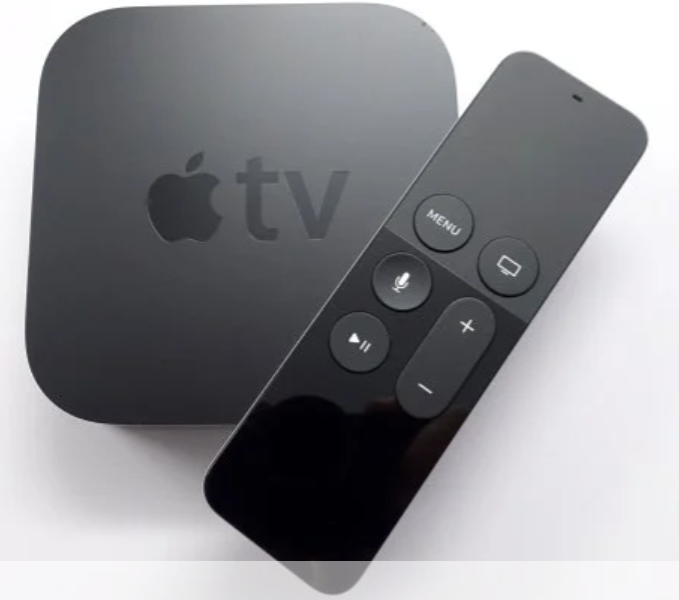
How to fix Apple TV light blinking issue?
You may often hear from the users of Apple TV box – why is my Apple TV flashing continuously causing my Television to exhibit strange behavior? If you see your Apple TV flashing abnormally resulting in flickering or black screen and sometimes not turning on then you have come to the right article to resolve the issue. An interrupted firmware update can also cause the light to blink abnormally. In this article, I am going to guide you on how to fix the ‘Apple TV light blinking‘ issue by following some pretty simple solutions to the problem. If the earlier steps do not resolve the issue, you should proceed to the next troubleshooting method. But before that, let’s first see what is an Apple TV.
What is an Apple TV?
Apple TV is a palm-sized black plastic box that connects to your television set via an HDMI cable. It is an HDMI-compliant streaming media player that takes content like TV shows, movies, photos, and other media items from the Internet and displays them on your HD Television via an HDMI cable.
Since the Operating System (OS) of the Apple TV box is optimized for the best possible performance and stability, normally, if the internet connection is alright, you will not have to deal with any troubles while using this device. However, if you see Apple TV light is flashing abnormally under any circumstances and the device is going unresponsive it means that there are issues with its settings or optimization. You need not, therefore, worry much about ‘why is my Apple TV flashing’ since it is not a hardware problem. Before suggesting the possible fixes for the Apple TV light flashing issue I will first explain what the light on the Apple TV box indicates.
What does the light on the Apple TV indicate?
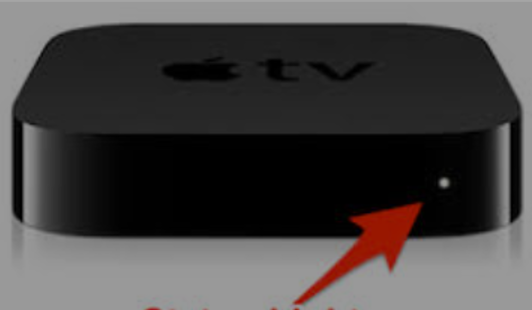
Apple TV status light
The Apple TV box has a small LED on the front which indicates the state of the Apple TV i.e. this indicator light shows what’s happening on the device. This Apple TV status light indicates the following:
1. When the Apple TV is ‘on’ and operating normally, the light glows;
2. When the Apple TV is in ‘power off or standby mode, the light is ‘off’;
3. When the Apple TV is starting up, you will see the Apple TV light is blinking /flashing slowly on the Apple TV box;
4. When the Apple TV is taking command from the ‘remote’, the status light flashes ‘once’;
5. When a software update is in progress the Apple TV light blinks rapidly; The state of the light is also a guide to the possible problems of the device and helps to fix the issues.
When the issue is resolved, the light stops blinking and remains steady, indicating normal operation
What if the Apple TV light keeps blinking without changing?
If, during your attempt to reset the Apple TV, you notice that the status light continues to flash at the same pattern or speed—without any shift as you hold down the Menu and Home (or TV) buttons—this actually points to a deeper issue. Specifically, a continuously blinking light during a reset suggests that your Apple TV might be stuck in a boot loop or experiencing a system startup failure.
Here’s what this means:
- Boot-up Failure: The device cannot complete its startup process, even after disconnecting and reconnecting power or attempting a force restart.
- Unresponsive to Reset: If holding the reset buttons for the usual 6–10 seconds doesn’t produce a change (no different blinking pattern, no pause before restarting), it indicates the standard reset is not reaching the system as expected.
- Stubborn Glitch or Firmware Trouble: This problem is often related to corrupted firmware or an interrupted software update.
If this situation arises and the light refuses to behave, the usual at-home fixes likely won’t get your Apple TV running. For most models, you might be able to connect the box to your computer and reinstall the firmware using iTunes or Finder. Updating the tvOS via iTunes using a computer can fix firmware corruption and potentially restore a device stuck in a boot loop or suffering from a failed update. This process involves connecting your Apple TV (using the appropriate cable—USB-C for the 4th generation, Micro-USB for earlier versions) to your Mac or PC, opening iTunes or Finder, and following the prompts to restore or update the software.
However, if you own the Apple TV 4K, self-servicing is not an option due to the absence of a compatible USB port. In these scenarios, it’s best to bring your device to an Apple Store or reach out to Apple Support for further assistance.
Now that you know reasons ‘why is my Apple TV blinking’ you may try the following troubleshooting steps to resolve the abnormal Apple TV flashing light issue. After each step, you need to check if the ‘light on Apple TV blinking’ issue is resolved.
The steps to follow to fix the Apple TV light blinking issue
1. Restart the Apple TV
Typically, a simple restart of an iOS device has been found to resolve most of its problems. This is because when an Apple device is rebooted the iOS checks its every working component. A simple restart of the Apple TV, therefore, can fix the ‘flashing light on Apple TV’ issue. To restart the device do the following:
i. Navigate to ‘Settings’ on your Apple TV which has an icon that looks like a gray gear;
ii. Scroll down and click on ‘System’ or ‘General’ (depending on the version);
iii. Then select ‘Restart’;
iv. The Apple TV will take a moment to restart;
If the above method can’t restart your Apple TV, then you can try the most direct way which is to unplug the Apple TV and then wait for 5/6 seconds to plug it back in.
Note: When your Apple TV restarts and the Home screen appears, remember to wait for a minimum of two minutes before using the device otherwise Apple TV blinking light may start again.
2. Check the HDMI cable, HDMI input, and HDMI switch or receiver
If rebooting does not solve the blinking light on Apple TV, your HDMI cable may be causing the flashing light on Apple TV. To see if the cable is causing the issue, unplug both ends of the HDMI cable and then firmly plug them back in, or try using a different HDMI cable.
Make sure that in the television menu, the selected HDMI input matches the HDMI port connected to the Apple TV. However, you can also try a different HDMI port on your television, starting with HDMI 1 or Input 1
When using a receiver or HDMI switch, one of these might be the issue. Therefore, instead of using a receiver or an HDMI switch, connect your Apple TV directly to the television. If you can view the Apple TV Home screen, connect the receiver or HDMI switch one at a time. After each additional device is connected, make sure that you still see the Home screen on your television.
Tip: If the blinking light persists, try moving your Apple TV remote to a different room in your house to check if remote interference is causing the issue.
If the blinking stops once the remote is farther away, your remote may be the culprit. In that case, consider using your iPhone or iPad as a temporary remote and avoid bringing the faulty remote near your Apple TV. If your device is still under warranty, this could be a good time to request a replacement.
If you want to troubleshoot further, you can attempt to reset the remote. Bring it back into the room—without aiming it directly at the Apple TV—and press the front of the remote against your body to help block the signal. Then, press and hold both the TV and Volume Down buttons for about 10 seconds. If your TV displays “Remote Disconnected,” try pairing the remote again and see if that resolves things.
If the blinking light continues even when the remote is out of range, it’s safe to rule out the remote as the problem and move on to the next troubleshooting step.
3. Perform a Cold Restart of Apple TV
If moving the remote to a different location hasn’t resolved the persistent blinking, the next advisable step is to do a cold restart (also known as a hard reset). Sometimes, simply cycling the power can jolt the Apple TV out of a stuck state and restore normal behavior.
Here’s how you can cold restart your Apple TV:
- Begin by using your Apple TV remote: press and hold both the TV and < buttons together (or the Menu button for older remotes) until you see the status light on the Apple TV blink rapidly.
- After releasing the buttons, unplug the Apple TV from its power outlet.
- Wait for about 60 seconds—use this moment to contemplate life, make a cup of tea, or simply count “one-Mississippi” to “sixty-Mississippi.”
- Reconnect the power cable and let the device boot up once more. Give it a couple of minutes to work through its startup.
Often, this simple step is enough to resolve the blinking light. If so, congratulations—normal viewing can resume.
If Problems Persist:
Should your Apple TV still be flashing its little white distress signal, don’t give up hope. The culprit may be something more substantial, such as a glitch in the system software. This means it may be time to consider restoring your Apple TV to its original factory settings, especially if you own an Apple TV HD or 3rd Generation model.
Before proceeding, note: For Apple TV 4K, restoring via computer isn’t an option—if you reach this stage and the reset doesn’t resolve your issue, contacting Apple Support is your best bet.
To restore your Apple TV HD or 3rd Generation:
- Disconnect the HDMI cable from your Apple TV.
- Use a USB-C cable (Apple TV HD) or Micro-USB cable (3rd Generation) to connect your device to a computer (Mac or PC).If you’re using macOS Catalina or newer, open Finder. For earlier MacOS versions and Windows, open iTunes.
- Once your Apple TV appears in the sidebar or top panel, select it.
- Click ‘Restore Apple TV’ and follow the on-screen prompts.
Tip: Not all USB cables are created equal! Ensure the cable you use supports data transfer, not just charging.
Restoring will wipe the device and return its software to the original state—this often resolves persistent blinking issues not fixed by a restart.
If you stumble across restore errors, double-check your cable (try swapping for an official Anker, Belkin, or Apple-certified cable, as not all third-party cables work correctly).
Once complete, the status light on your Apple TV should revert to a steady, reassuring glow.
4. Change the device resolution
Improper resolution may sometimes be the cause behind the ‘light on Apple TV blinking’ issue. Hence, changing the resolution of your Apple TV may be one of the solutions.
To change the displayed resolution hold the Menu and Volume Down buttons on the ‘Remote’ for 5 seconds and then release. The Apple TV will now change to a new resolution every 20 seconds. Select ‘OK’ to choose the right display resolution.
5. Restore Apple TV to factory settings
If rebooting or other steps cannot solve the Apple TV blinking white light issue, as a last resort, try to restore your Apple TV to factory settings by following the steps below:
Step 1: Disconnect from Power your Apple TV;
Step 2: Next, connect the Apple TV to a PC through a Micro-USB cable and power it ‘on’;
Tip: Not every Micro-USB cable works reliably—if the connection isn’t recognized, try another cable (sometimes, only certain brands like Anker or AmazonBasics do the trick). If you have only one cable handy, consider borrowing one from a friend or checking with a local electronics shop.
Note: In most cases, you’ll also need to plug the Apple TV back into its power cord, though some users have managed without this step. If your PC doesn’t detect the device, adding power usually helps.
Once you’re connected, your computer may pop up a window asking how you’d like to open the files—just close that for now. Wait a moment to see if your device is recognized by your update software. If it isn’t, swap out the cable for another and try again.
If none of these steps work, your best bet may be to seek help at a service center.
Step 3: Now iTunes will open automatically;
Step 4: Next, Click on ‘Restore Apple TV’;
Step 5: Confirm the action by hitting ‘Restore and Update’;
Step 6: Wait for the restore and updating process to complete when the latest firmware will be downloaded and installed on your Apple TV;
Step 7: Disconnect the Apple TV from the PC;
The above restore process will erase your Apple TV and remove all information on it including the applications. Hence, after this reset process, you’ll be required to go through the initial setup process again and reinstall your apps.
If you encounter restore errors such as 1603 or 1611 during the restoration process, this often points to an issue with the cable you’re using to connect your Apple TV to your computer. Not every USB-C or Micro-USB cable is equipped to handle data transfer; some are limited to charging only, especially ones bundled with non-Apple devices or certain accessories.
To fix this:
- Try a different USB-C or Micro-USB cable—preferably one you know supports both power and data transfer, like those from trusted brands such as Anker, Belkin, or the original Apple cable.
- Avoid cables that feel unusually thin or came free with other devices, as these are often not meant for syncing data.
- Once you’ve switched cables, repeat the restore steps and check if the error persists.
Ensuring a proper cable connection can resolve most restore-related errors and get your Apple TV back up and running.
Note: It’s important to note that not all Apple TV models can be restored using a computer. Specifically, if you own an Apple TV 4K, you won’t find any USB-C or Micro-USB port for connecting it to your PC or Mac. In this case, the factory restore option described above isn’t available—if the blinking light issue persists after trying the standard troubleshooting steps, you’ll need to reach out to Apple Support or visit an Apple-authorized repair center for further assistance. Owners of Apple TV HD or third-generation models can still use a computer to perform a restore, but for the 4K version, professional help is your best bet.
If none of these troubleshooting steps work, you may need to seek professional repair for your Apple TV. Sometimes, despite your best efforts—restarts, restores, and resets—your device just won’t cooperate. Some users have reported persistent issues after software updates, such as a rapidly blinking light and failed restores, even when following all the official instructions.
If you find yourself in this situation, and professional repair isn’t a viable solution, you might consider alternative streaming devices. Options like Google Chromecast, for example, offer a budget-friendly alternative if replacing your current device becomes necessary. Ultimately, it’s important to choose what works best for your setup and peace of mind.
Finding Authorized Repair for Your Apple TV
If you’ve tried all the troubleshooting tricks and your Apple TV light is still blinking—or you suspect a deeper hardware or firmware issue—it’s time to call in the experts. The most reliable route is to visit an Apple-authorized repair center or make an appointment at your local Apple Store. These certified technicians are equipped to handle both hardware and software issues that home solutions can’t resolve.
To locate a service provider near you, simply head to Apple’s official website and use their store locator tool. This lets you search for Apple Stores and authorized repair centers in your area, making it easy to find a convenient location. If you prefer to get help without heading out, Apple also offers online and phone support, where they can guide you through your options—including mail-in repair, if that’s available.
Whether you choose to visit in person or connect online, reaching out to certified Apple professionals will give you the best shot at restoring your Apple TV to working order—and hopefully, keeping that blinking light at bay for good.
Preventing Future Issues with Apple TV Light Blinking
Keeping your Apple TV running smoothly and avoiding the dreaded blinking light is all about regular maintenance and a few smart habits. First, make sure your Apple TV, whether it’s an Apple TV HD or Apple TV 4K, is always updated to the latest version of system software. Regularly checking for updates and installing them can help prevent many common issues, including the persistent white light or flashing status light that signals a problem.
If you ever notice your Apple TV light blinking unexpectedly, try a cold restart: simply disconnect your device from the power source, wait several minutes, and then reconnect it. This quick step can often resolve minor glitches and get you back to enjoying your favorite movies and TV shows without delay.
When it comes time to restore your Apple TV or update its software, always use a reliable micro USB cable and connect it securely to the USB port on your computer. Whether you’re using a Mac or a Windows PC, iTunes is your go-to tool for restoring your device. Make sure your computer recognizes your Apple TV—if it doesn’t, check your settings, try a different USB cable, or restart your computer to resolve the issue. If you encounter errors like “cannot restore,” swapping out the cable or rebooting your system can often fix the problem.
To further reduce the risk of the Apple TV light blinking in the future, handle your device with care and avoid exposing it to extreme temperatures or physical shocks. Regularly inspect and clean your power cord, and always use a stable power source to keep your Apple TV running reliably. If you continue to experience issues, don’t hesitate to visit an Apple Store or reach out to Apple Support for expert help—sometimes a professional touch is needed to get your device back in top shape.
Don’t forget about your Apple TV remote! The menu button can be used to restart your device or temporarily stop the blinking light. If your remote isn’t responding, try replacing the batteries or resetting the remote itself. Staying on top of these small details can make a big difference in your overall experience.
Resetting Your Apple TV Remote to Fix the Blinking Light: Sometimes, the culprit behind that stubborn blinking light isn’t your Apple TV itself, but the remote. If your remote seems unresponsive or is acting up, a quick reset might do the trick—and no, you won’t need to juggle with advanced tech wizardry to make it happen!
Here’s how to reset the Apple TV remote:
- Hold the remote so it isn’t pointed directly at your Apple TV, just to avoid sending any wayward signals mid-reset.
- Press and hold both the TV button and the Volume Down button simultaneously for about 10 seconds.
- Watch for the “Remote Disconnected” message on your TV screen—this cues that the reset’s underway.
- Once you see the prompt, try pairing the remote again by bringing it close to your Apple TV and holding down the Menu (or Back) button until the TV indicates that the remote is connected.
Spotting the Home Button on Your Apple TV Remote
Not sure which button is the Home button on your Apple TV remote? Look for the one with a TV screen icon—it’s usually placed right above the Menu button, near the middle of the remote. This is the button you’ll use alongside the Menu (or Back) button whenever a reset is required.
If the remote still refuses to cooperate, it might be time to consider replacing it or using the Apple TV Remote app on your iPhone as a handy backup.
With your remote reset, you’re back in the driver’s seat—ready to get back to streaming without interruption.
By following these preventive tips and taking a proactive approach to maintenance, you’ll greatly improve your chances of avoiding the Apple TV light blinking issue. Your efforts will be greatly appreciated every time you sit down to watch your favorite shows and movies without interruption. Enjoy seamless streaming and peace of mind knowing your Apple TV is in excellent working order!
Troubleshooting Flashing Lights and No Signal on Other Devices
It’s not just Apple TV owners who find themselves squinting at a blinking light and a stubborn “no signal” message—nearly every home entertainment device can throw a similar tantrum from time to time. If you’re facing a constantly flashing LED or can’t seem to get a response from another device (like a Blu-ray player, game console, hard drive, or even a cordless phone with a persistent message indicator), don’t panic! The strategies you’ve used for your Apple TV can often be adapted for these situations. Here’s a quick guide to extend your troubleshooting powers:
- Unplug and reset: Give the device a full power cycle—unplug it, wait a minute or two, and plug it back in. This simple step works wonders for everything from Roku and Xbox consoles to cable modems and external hard drives.
- Check connections: Make sure all cables (HDMI, USB, power cords) are securely connected and not damaged. Swapping out cables is often the unsung hero of technical fixes.
- Try different inputs or ports: If your television or monitor says “no signal,” test other HDMI or AV ports. Sometimes, an individual port can go rogue, while others function perfectly.
- Update firmware/software: Like with your Apple TV, many devices (think PlayStation, Samsung smart TVs, or WD hard drives) rely on up-to-date firmware. Check for available updates through the device’s settings menu or the manufacturer’s support site.
- Restore or reset settings: If possible, reset the device to factory default settings; consult the user manual or support websites for guidance on your specific model.
- Consult indicator lights: Many electronics have a “status light” glossary in their manual or online support guide—refer to these to decode exactly what those blinks mean.
- Test with another device: If possible, try the device with another TV, port, or power outlet to rule out problems with your original setup.
A little patience and methodical troubleshooting can often bring even the most stubborn devices back to life. And if things are still looking grim, customer support from brands like Sony, LG, or Panasonic (or a friendly neighborhood electronics technician) can be a lifesaver.
You may also like to read: How to Jailbreak Roku to stream media content
Frequently asked questions
Now that the possible fixes for the ‘Apple TV blinking light’ issue have been suggested, I will also address some of the related queries often made by Apple TV users.
Why is my Apple TV light flashing?
Apple TV light flashing shows that your firmware update was interrupted may be due to cutting off the power before the update finishes. You can solve this problem by restarting the television or restoring it to factory settings.
Why is my Apple TV blinking white light?
It is common to see the blinking light on Apple TV when connected to the Apple TV remote. Apple TV light is blinking white light indicates that the device might need to be restored to factory settings. It is not uncommon to see your Apple TV is blinking white light continuously and also see a message on your TV screen asking you to connect your device to iTunes.
Beyond interrupted firmware updates, there are a couple of other potential causes for that persistent blinking white LED on your Apple TV:
- Remote issues: Sometimes, your Apple TV remote may be malfunctioning and sending repeated signals to your Apple TV, which can prevent it from working correctly and cause the light to blink.
- Software or hardware hiccups: The blinking could also signal a software or hardware problem—perhaps triggered by a recent power surge, loss of power, or a failed update. In some cases, the Apple TV simply won’t start up properly.
If you’ve tried all the usual troubleshooting steps—resetting your remote, restarting your Apple TV, checking for stuck buttons or loose power connections—but the blinking persists, it may be time to escalate the issue. At this point, a full restore can sometimes resolve stubborn glitches. However, if your Apple TV still refuses to cooperate, seeking professional support is a smart next step. Apple’s in-store technicians or support team can provide advanced troubleshooting and, if necessary, arrange for a repair or replacement, ensuring you get back to seamless streaming as soon as possible.
How to Perform a Factory Reset on Your Apple TV
If your Apple TV still won’t start up and the white light continues to blink, a factory reset can often do the trick:
- Disconnect all cables from your Apple TV, except for the power cord.
- Using your Apple TV remote, press and hold the Menu and Home buttons at the same time.
- Continue holding until the light on the Apple TV flashes rapidly.
- Release the buttons and reconnect the HDMI cable.
This process will erase all settings and restore your device to its original state, which can resolve many startup or firmware issues. Once you’ve completed these steps, check if your Apple TV starts up normally. If not, you may need to consider further troubleshooting or professional repair options.
How to force restart the Apple TV
To force restart your Apple TV, press and hold both the Home and Menu buttons of the Apple TV Remote. After you hold both the buttons for about 10 seconds and you see the Apple TV white light blinking, release both buttons and the Apple TV will restart.
How do I fix an unresponsive Apple TV?
To fix an unresponsive Apple TV you can try these steps:
i. Unplug both ends of the HDMI cable, then firmly plug them back in. If a faulty cable causes the issue try using a different HDMI cable;
ii. Unplug your television and your Apple TV from power and plug both, back in again;
iii. Restore your Apple TV to factory settings;
How do I reset my frozen Apple TV?
Using the Remote, you can force your frozen Apple TV to restart. To do this simply hold down the Menu and Home (TV screen) buttons for about 6 seconds. The front light on your Apple TV box will start flashing rapidly. Your Apple TV will restart after you release the buttons.
If your Apple TV remote has stopped working or become unresponsive, don’t worry—you’re not out of options. You can still operate your Apple TV using your iPhone, iPad, or even select Android devices with compatible remote apps. Many users find the iOS Control Center remote feature especially handy, turning your phone or tablet into a reliable stand-in controller. Simply connect your device to the same Wi-Fi network as your Apple TV and launch the built-in remote functionality.
Additionally, some universal remotes from well-known brands like Logitech Harmony are compatible with Apple TV. If your original remote needs to be replaced, check if your device is still under warranty; Apple often provides free replacements within the warranty period.
Until you get a new remote, keep your mobile device nearby and avoid bringing the faulty remote near your Apple TV, as it may interfere with proper operation. This way, you’ll stay in command of your streaming experience, even if your remote has called it quits.
You may also like to read: How to install Spectrum TV app on Firestick – an easy guide
Conclusion
This troubleshooting guide is found to work in most cases when you see your Apple TV light blinking continuously. However, for any reason, if the Apple TV flashing light continues abnormally and you still can’t see a picture on your television, hear the sound, or only see the Apple logo, the only alternative left for you is to contact Apple support service to check if there is something wrong with the device hardware.
If you find this article to help fix the Apple TV blinking light issue, you may please leave your comments below to help other readers.
