How to share WiFi password on iPhone?
How to share WiFi on iPhone with other Apple devices?
iPhone users often make the query – how to share WiFi on iPhone or how to share WiFi password on iPhone? In this article, I have explained how you can go for iPhone WiFi password sharing easily with other Apple devices (iPad and Macs) without manually typing a password i.e. you won’t have to tell anyone your WiFi password for sharing WiFi iPhone.
It is important to have a strong Wi-Fi password so that no one can access your network. However, when friends or family members want to use your Wi-Fi, typing in a long password can be tedious.
Earlier, Apple devices were required to download a third-party app to share WiFi on iPhone. However, after the update to iOS 11, Apple has come up with a feature that allows iPhone share WiFi connection easily with other Apple users without using third-party apps.
Now let’s see how to share WiFi iPhone to iPhone and with other Apple devices
Hotspot Sharing vs Wi-Fi Password Sharing: What’s the Difference?
Before you dive into sharing your internet connection, it’s important to understand the difference between sharing your Wi-Fi password and creating a hotspot from your iPhone.
Wi-Fi password sharing lets another device connect directly to your home or office Wi-Fi network. The connection comes from your Wi-Fi router, so your guest enjoys the same internet you do—without ever seeing the actual password. This is great for friends visiting your house, or if you’re at the office and want to quickly help a colleague get online.
Hotspot sharing, on the other hand, turns your iPhone into a mini Wi-Fi access point using your mobile data. When you enable your personal hotspot, you’re essentially creating a temporary Wi-Fi network powered by your cellular data plan. This feature shines when you’re out and about—think airport lounges, park benches, or anywhere traditional Wi-Fi is unavailable.
Let’s break it down:
- Wi-Fi Password Sharing:
>Uses your existing Wi-Fi network.
>Only works if both devices are in range of the router.
>No need to reveal or type your password.
Hotspot Sharing:
>Uses your phone’s cellular data plan to create a network.
>Ideal for internet access on the go, away from home Wi-Fi.
>Others connect using a temporary network name and password set on your phone.
Depending on your situation—cozy at home or jet-setting across town—you can choose the method that fits best. In the next section, let’s focus on how to quickly share your Wi-Fi password from iPhone to another Apple device, without typing, texting, or sticky notes.
How to share WiFi password on iPhone with other Apple devices (iPhone or iPad)
Here is how to share WiFi password on iPhone without texting, emailing, or typing the password. First, go through the following steps:
1. Make sure that both the devices (your iPhone and the other person’s iPhone or other Apple device) have the latest version of iOS. This is because iPhone WiFi password sharing is only possible with a device that has version iOS 11 or higher.
2. Turn on WiFi and Bluetooth on both devices;
3. Keep both the devices close by (within Bluetooth and WiFi range);
4. Turn off Personal Hotspot if enabled on any of the devices;
5. Sign into iCloud with your Apple ID;
6. Make sure that the email address you use for your Apple ID is saved in the other person’s Contacts. Also, ensure that the email address of the other person is saved in your Contact list;
Now, follow the steps below on how to share WiFi password from iPhone to iPhone or with other Apple devices.
1. On the primary iPhone (your iPhone which is sharing the WiFi), go to Settings;
2. Enable ‘WiFi’ and sign in to your WiFi network;
3. Next, go to Settings on the other Apple device and tap WiFi;
4. Select the same WiFi network to which your iPhone is connected;
5. When prompted to enter the password go to your iPhone, open WiFi, tap ‘Share Password’ on the pop-up window (both the devices must be within Bluetooth range), and then tap ‘Done’;
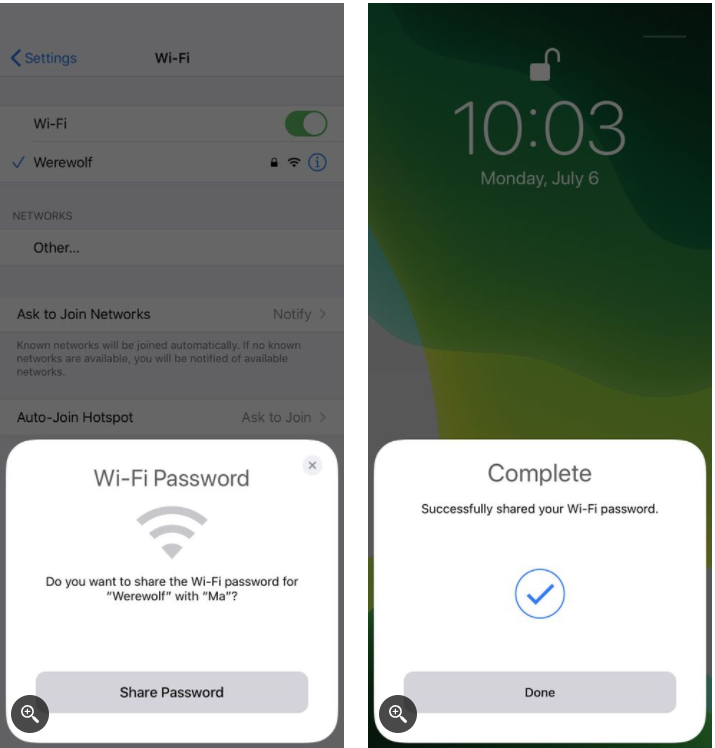
6. Now the other device can connect to the same WiFi network as your iPhone;
How to share WiFi password on iPhone using a QR code (iOS 17 and above)
If you’re running iOS 17 or later, Apple now lets you share your WiFi password even more quickly using a QR code—perfect for when your friend isn’t in your Contacts or you just want to skip all the setup steps. Here’s how you can generate and share a WiFi QR code right from your iPhone or iPad:
- Open the Settings app on your iPhone or iPad.
- Scroll down and tap Passwords (you may need to use Face ID, Touch ID, or enter your passcode to access this section).
- Find and select the WiFi network you wish to share from your list of saved networks.
- Tap the option labeled Show QR Code—your device will generate a QR code on screen.
- Now, have your friend open the Camera app on their device and point it at the QR code. A prompt should appear to join the same WiFi network instantly, no password typing required!
This method works seamlessly for sharing your WiFi with friends using both Apple and many Android devices—just scan and connect!
How to share WiFi password iPhone to Mac
Before you begin, make sure that your iPhone (the one sharing the password) is unlocked and connected to the WiFi network. Next, follow the steps below to share password WiFi iPhone to Mac.
1. Click on the WiFi icon located in the menu bar on the Mac;
2. Select your WiFi network from the list;
3. You don’t need to enter the password on Mac when prompted;
4. When prompted to enter the password go to your iPhone, open WiFi, and tap ‘Share Password’ on the pop-up window;
5. Once ‘Share Password’ is tapped on your iPhone, the password on your MacBook will be filled automatically;
6. Next, tap ‘Done’ to finish the process;
This will allow the MacBook to connect to the same WiFi network as your iPhone;
You may also like to read: iPhone personal hotspot not working – easy steps to fix
How to find your current Wi-Fi password on iPhone
Ever found yourself scratching your head, trying to recall the Wi-Fi password you set ages ago? Fortunately, there’s an easy way to view any saved Wi-Fi password on your iPhone—no more frantic searching for that scrap of paper or digging through old emails.
Just follow these steps:
- Open Settings on your iPhone and tap on Wi-Fi.
- Find and tap the name of the Wi-Fi network you’re currently connected to.
- You’ll see a field labeled Password—tap it.
- To view the actual password, your iPhone will likely ask for Face ID, Touch ID, or your passcode for security.
- Once authenticated, you’ll be able to see your Wi-Fi password. If you want to share it via text, email, or a QR code app (like Qrafter or Visual Codes), simply tap Copy Password.
That’s all—now you have your Wi-Fi password ready to share, remember, or jot down for future use!
How can I revoke Wi-Fi access after sharing it with someone?
If you’ve shared your Wi-Fi and want to prevent someone from connecting again, the simplest solution is to change your Wi-Fi password. Once you update the password on your router, all devices—including the ones you previously shared the password with—will be disconnected and will need the new password to reconnect.
If your router allows, you can also manage connections by using parental controls or by blocking specific devices based on their MAC address via your router’s admin settings. This can come in handy if you want to block just one device without changing the password for everyone.
Either way, you’ll regain control over who can hop onto your network.
Curious if someone else is hitching a ride on your Wi-Fi? Thankfully, it’s not as mysterious as it sounds—you can easily check which gadgets are lurking on your network.
Here’s what you need to do:
- Locate your router’s IP address (commonly something like 192.168.0.1 or 192.168.1.1).
- Type this address into any web browser on your device and hit Enter.
- Log in to the admin panel using your username and password (often printed on the router, unless you’ve changed it).
- Once inside, look for sections labeled “Connected Devices,” “Device List,” or “Network Map.”
You’ll see a list of all devices currently connected, usually identified by their names or MAC addresses. If you spot any unfamiliar devices, most modern routers let you disconnect them or even block them outright.
Pro tip: Some third-party smartphone apps (like Fing or NetSpot) also let you scan your Wi-Fi network for connected devices, making this process even quicker.
Frequently asked questions
Now that I have explained how to share WiFi on iPhone let me also address some of the related questions often asked by Apple device users.
How to share WiFi password on iPhone to Android?
Apple devices don’t have a built-in feature for iPhone WiFi password sharing with Android phones. To do this, you need a third-party app to generate a scannable QR (Quick Response) code. Therefore, to share password WiFi iPhone with Android you’ll need to download a QR code generating app on the iPhone. You can use the Apps like ‘Visual Codes’ or ‘Qrafter’ for this purpose. Launch this app after downloading and create a QR code for your WiFi network’s password.
This is how to share WiFi password iPhone to Android – Open the QR code on your iPhone and then point the Android phone’s camera at the QR code displayed on your iPhone to scan it. A notification will pop up on the Android phone’s screen asking if it wants to join the iPhone’s WiFi network. Tap this notification and then hit the “Join” button to connect it to the shared WiFi network.
How to share your mobile hotspot using a QR code (iPhone & Android)?
If you want to let friends or family connect to your mobile hotspot without spelling out a long password, creating a QR code is a quick and secure way to go—regardless of whether you’re using an iPhone or Android device.
Sharing a hotspot from iPhone
On iPhones running iOS 17 or later, Apple has made QR code sharing super simple. Just follow these steps:
- Open Settings and tap on Personal Hotspot.
- Turn on Allow Others to Join.
- You’ll see an option to show a QR code—tap it to display your hotspot credentials as a code.
- Anyone who needs to connect simply scans the QR code using their device’s camera.
Sharing a hotspot from Android
Android users also have this handy feature (usually on Android 10 and above):
- Open Settings and go to Network & Internet (or a similar option, depending on your device).
- Select Hotspot & tethering or Wi-Fi hotspot.
- Enable your hotspot and pick a network name and password if prompted.
- Tap the QR code icon to generate a scannable code containing your hotspot details.
- Have your guest scan the code with their smartphone to connect instantly.
This method not only saves time but also keeps your password secure—no more shouting complicated strings of numbers across the room!
Can I share WiFi password from Mac to iPhone?
Since MacBook and iPhone both are Apple devices WiFi password sharing between them can be done easily without telling your password.
Here’s how to share a WiFi password from Mac to iPhone – Connect your MacBook to the WiFi network and place your iPhone close to it. On the iPhone, choose the WiFi network that the MacBook is connected to. On your Mac, you will get a pop-up message requesting access to the WiFi password. Now click the ‘Share Password’ option to grant access to the iPhone.
Note that for this process you’ll need to run macOS High Sierra or a newer version.
Why can’t I share WiFi iPhone?
If you are having problems sharing WiFi on iPhone with other devices here are a few things you can try:
1. Restart both the devices;
2. Ensure that both the devices have the latest software updates;
3. Disconnect from WiFi and then reconnect;
4. Reset network settings on your iPhone;
5. Reboot the WiFi router;
6. If you still cannot share your WiFi password, have the other person enter the password manually;
If you don’t see the setup animation for WiFi sharing, restarting both devices often resolves the issue. Testing each step one at a time can help pinpoint what’s causing the hiccup. Sometimes the simplest solution—just entering the password manually—gets you connected when all else fails.
If you don’t see the setup animation or sharing prompt, begin by restarting both devices and try the process again. Sometimes a simple reboot is all it takes to get things working. If the issue persists after going through these steps, manually entering the WiFi password is a reliable fallback to ensure the other device can still connect.
How to Copy a WiFi Password From Your iPhone?
If you need to use your WiFi password elsewhere—maybe to send it in a text, email, or jot it down for a guest—here’s a straightforward way to find and copy it on your iPhone:
- Open the Passwords section in your phone’s settings.
- Browse and select “Wi-Fi” to view the list of networks you’ve connected to, with your current one right at the top.
- Tap on the network whose password you want to grab.
- Under the password section, you’ll see the option to reveal the password.
- Once it’s visible, tap the “Copy” button next to it.
Now you can paste your WiFi password anywhere you need—whether that’s into a message, a note, or a third-party app like WhatsApp or Telegram. This comes in handy if you need to quickly share access without fumbling to retype a string of random characters.
How to View Saved WiFi Networks and Passwords on Your iPhone?
If you ever need to check which WiFi networks you’ve connected to in the past—or you’ve forgotten that extra-long password—your iPhone makes it pretty simple to access this information:
- Open the Passwords app on your iPhone (you can find it in Settings > Passwords).
- Once inside, tap on Wi-Fi.
- At the top of the list, you’ll notice the WiFi network you’re currently connected to.
- Below that, you’ll see all the WiFi networks you’ve saved previously, complete with their passwords, so you won’t have to dig through scraps of paper or old notebooks.
This handy feature is a lifesaver when you’re setting up a new device or trying to help out a friend who needs to get connected. Just remember to keep your device secure, since all your saved networks and passwords are stored here for easy access.
You may also like to read: How to get WiFi without Internet Provider
Conclusion
After you have gone through how to share WiFi on iPhone described in the post, it should be clear that sharing a WiFi password between Apple devices without manual password entry is a quick and seamless process. The advantage of this WiFi sharing for iPhone is that you give access to your WiFi network without explicitly revealing your WiFi password to the other person.
This modern approach to WiFi sharing makes life a lot easier—and more secure—than simply handing out your password. Instead of writing it down or sending it in a message, Apple’s Share Password feature lets you connect trusted friends or family in just a few taps, while keeping your password hidden from view.
Why Use WiFi Password Sharing?
More Privacy: Sharing your network without showing the password means you don’t have to worry about it being seen, copied, or passed along to others.
Fewer Errors: No more struggling with long, complicated passwords or typos that make connecting a hassle.
Faster Connections: Guests can hop online in seconds, with no need to repeat or retype the password.
Added Security: Access is granted using Apple’s secure protocols, so your actual password stays private.
Of course, you can always look up your WiFi password in your device’s saved settings, password manager, or Keychain if you need to share it another way. Just keep in mind—those methods do reveal the full password, so there’s a greater chance it could be seen or shared unintentionally. That’s why built-in sharing features are the best choice when you want to keep things simple, safe, and private.
But one important point that needs to be remembered is that Apple added a new feature called ‘Share Your WiFi’ after the update to iOS 11. This feature allows you to share the password of your WiFi network only with a device that has an iOS 11 or later version as well as Mac OS High Sierra or a later version of MacBook. Therefore, to share WiFi password iPhone with other Apple devices, you need to make sure that you have the latest version of the Operating Systems running on both devices. Otherwise, this feature won’t work.
If you know about any other tips, tricks, or helpful resources on how to share WiFi from iPhone to other Apple devices please share the same in the comment section below to help our readers
