All you need to know about iPhone call forwarding.
How to set up Call Forwarding on iPhone?
In this post, I am going to explain how to enable iPhone call-forwarding feature in an easy and quick way. But before that let me explain what is call forwarding on iPhone and when it is required.
What is call forwarding on iPhone?
Call forwarding from iPhone is a feature that lets you forward your incoming mobile calls to a landline or another mobile phone. This smart feature is useful when you are traveling or you are too busy to answer the calls on your regular phone, but you don’t want to miss an important call.
Call forwarding helps businesses and busy individuals by making sure that all their calls are answered. When this feature is enabled, when you get a phone call, the call will be automatically redirected to the number you have set up for receiving your forwarded calls.
How does call forwarding work on iPhone?
When you turn on call forwarding on your iPhone, all incoming calls are redirected to your chosen forwarding number. This ensures you never miss a call, no matter where you are.
There are actually two types of call forwarding available:
- Default call forwarding: All calls are forwarded automatically to another number, so your primary phone won’t ring at all.
- Conditional call forwarding: You have more control and can set calls to be forwarded only in specific situations, such as:
>When you don’t answer the phone
> When your number is busy
>When your number is unreachable
This flexibility makes call forwarding a handy tool whether you’re heading out of the country, stuck in long meetings, or simply want to make sure important calls reach you wherever you are.
The method you use to set up iPhone call forwarding depends on your cellular service. The rules for setting up call forwarding on an iPhone in the U.S. for AT&T and T-Mobile having cellular service through a GSM (Global System for Mobile) network is different from Verizon and Sprint having cellular service through a CDMA (Code-Division Multiple Access) network.
If you have cellular service through a GSM network you can set up call forwarding feature on your iPhone using the Settings app. But if you have cellular service through a CDMA network, you are to contact your carrier for information about enabling and using this feature.
How much does call forwarding cost on iPhone?
The cost of using call forwarding on your iPhone often depends on your carrier and the specifics of your phone plan. In most cases with major U.S. Carriers like AT&T, T-Mobile, Verizon, and Sprint, the feature itself is included at no additional charge. However, it’s important to note that some carriers might bill you for minutes used or for each forwarded call—especially if the calls are forwarded to a number outside your usual service area or internationally.
To avoid any surprises on your next bill, I recommend checking with your mobile provider’s customer support or reviewing your plan details. Rates and charges can vary, so a quick call or website visit can save you some headaches down the road.
What is the difference between call forwarding and call waiting?
Before we dive into setup, let’s clear up a common confusion: call forwarding vs. Call waiting.
- Call forwarding is all about rerouting your incoming calls to another phone number—like your office line or a backup cell—so you never miss an important ring, even if your iPhone is off or out of reach.
- Call waiting, on the other hand, lets you know if a second call is coming in while you’re already chatting. Instead of bouncing the call elsewhere, your iPhone gives you the option to put the first caller on hold and answer the second call, all from the same device.
Both features are handy, but they serve different purposes: one keeps the calls coming to you, the other lets you juggle them without missing a beat.
How do virtual phone numbers let you receive calls from anywhere?
Virtual phone numbers are a handy tool for anyone who needs to stay connected around the globe—or just outside the office. Think of a virtual number as a regular phone number, but instead of being tied to a SIM card in your iPhone or a landline in your kitchen, it routes calls over the internet.
Here’s how it works:
- When someone dials your virtual number, the call is transmitted online (using VoIP, or Voice over Internet Protocol) instead of traveling through traditional telephone lines.
- You can pick up these calls on almost any device—your iPhone, iPad, laptop, or even a desktop computer—so long as you have a reliable WiFi or mobile data connection.
- Headed somewhere with patchy internet? Most virtual number services allow you to set up call forwarding, so calls get rerouted to any other phone number you choose. That way, you don’t miss important calls even if you’re in a WiFi dead zone.
This flexibility is especially popular for business travelers, remote workers, and anyone juggling calls on the go. Whether you’re using Google Voice, Skype, or another reputable provider, virtual numbers make sure your calls reach you wherever you roam.
Now that you know what is call forwarding on iPhone let us see how to set up the iPhone call forwarding feature on your device.
How to set up call forwarding on iPhone having cellular service via a GSM network (like AT&T and T-Mobile)
Follow the steps below to turn on call forwarding from iPhone via GSM networks:
1. Go to settings on your iPhone;
2. Scroll down to the ‘Phone’ option and tap it;
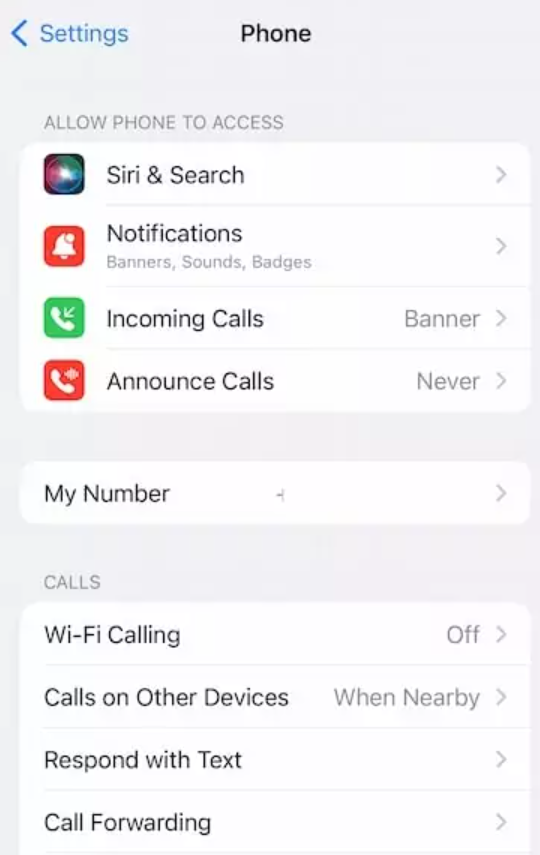
3. Next go to ‘Call Forwarding’;
4. Turn Call Forwarding ‘on’ (green) by moving the button next to it to the right;
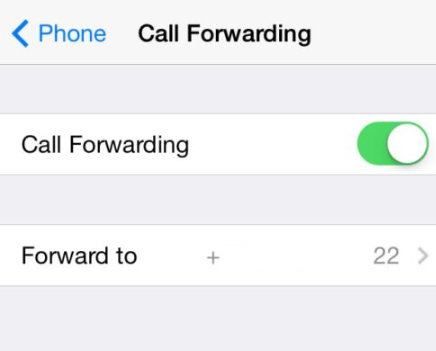
5. Tap ‘Forward To’;
6. Enter the phone number where you want to divert your calls using the virtual keypad;
7. Tap the ‘Back’ button to save the changes and return to the previous screen;
8. You’ll now see the phone number you entered listed next to ‘Forward To’;
9. If everything has been done properly, a phone icon with an arrow should appear at the top of your iPhone screen to confirm that call forwarding is now on;
10. If your model has dual SIM, you need to choose a line;
Note: Make sure you are in the range of the cellular network when you set your iPhone to forward calls otherwise calls won’t be forwarded.
How does conditional call forwarding work for T-Mobile, AT&T, and Verizon users?
For times when you only want calls forwarded if you don’t pick up, your phone is busy, or you’re out of reach, conditional call forwarding comes to the rescue. Instead of sending every single call elsewhere, it steps in just for those “missed connections.”
Here’s a quick rundown of how conditional forwarding options look across the big three carriers:
T-Mobile:
You can set your iPhone to forward calls only when you’re busy, unreachable, or don’t answer. This involves dialing specific codes (using your Phone app’s keypad) depending on your need:
- If you want unanswered calls forwarded, use a code to set it up—and another to turn it off when you’re back.
- For times you’re out of coverage, there’s a separate code.
- And when you’re on a call and your line is busy, yet another code handles those calls for you.
AT&T:
Much like T-Mobile, AT&T gives you unique dialing codes for different scenarios—say, if you’re already on the line or don’t answer after a few rings. Just punch in the designated code plus the number where you want your calls to go. Need to disable it? There’s a code for that, too.
Verizon:
Verizon makes it possible to forward calls only when you can’t answer or your line is tied up. You’ll dial a specific shortcut with your forwarding number for conditional forwarding. If you ever want to forward all incoming calls (not just the missed ones), another code takes care of that. And when you’re done, a quick keypad command cancels forwarding completely.
So, whether you’re stepping into a meeting, expecting an important call on another line, or simply making sure no client lands in voicemail limbo, these conditional setups keep your call handling flexible. Just remember—each carrier uses a different sequence of numbers or symbols, so double-check your provider’s support page if you need the exact code.
How do you set up conditional call forwarding on an iPhone?
Sometimes, you don’t want every single call to be forwarded—maybe you only need calls sent elsewhere if you’re busy, unreachable, or you accidentally left your phone at home during a coffee run. That’s where conditional call forwarding saves the day.
Unlike standard call forwarding, conditional call forwarding lets you direct calls away from your iPhone only under certain circumstances, such as:
- When you don’t answer after a few rings
- If you’re already on the line
- When your phone can’t connect to the network (think: out of service, dead battery, or airplane mode)
Most U.S. Carriers don’t give you a fancy toggle for this in Settings, but you can easily set these up by dialing a few special codes in your Phone app. Here’s how it works for the big players:
For T-Mobile, AT&T, and Verizon
Each carrier uses its own set of shortcodes. Just open the Phone app, punch in the code for your situation, and hit the call button. Here’s what you’ll typically use:
- Forward calls when unanswered:
>For T-Mobile:
>For AT&T:
- Forward calls if your line is busy:
>For T-Mobile:
>For AT&T:
- Forward calls if unreachable:
>For T-Mobile:
If you ever want to turn off conditional forwarding, just dial the corresponding cancellation code—your carrier’s support page or customer service can supply these if you forget. Verizon users, for example, use *73 to turn off call forwarding altogether.
Note: Conditional call forwarding isn’t available everywhere. Some prepaid and regional carriers may not support it, and you can’t manage these options directly in your iPhone’s standard settings. If in doubt, it’s worth a quick check with your carrier.
Now you’ve got the power to forward calls only when you need to—not every time your phone rings.
Can you set up call forwarding to an international number on an iPhone?
You may be wondering if it’s possible to forward your iPhone calls to an international number. In most cases, the answer depends on your mobile carrier. While the iPhone’s settings allow you to enter any valid phone number, many carriers—including AT&T, Verizon, T-Mobile, and Sprint—restrict call forwarding to domestic numbers only. Some carriers may support international call forwarding as an extra feature, but it often comes with additional charges or special requirements.
If you need to set up call forwarding to an international number, it’s best to contact your carrier’s customer support first to check if this option is available under your current plan. Keep in mind that even when permitted, forwarding calls internationally may result in higher costs, so it’s wise to confirm the rates before enabling the feature.
How to enable iPhone call forwarding with cellular service via CDMA network (like Verizon and Sprint)
To enable call forwarding from iPhone via a CDMA network, you need to know the proper carrier code. Here are the steps for Sprint, Verizon, or any other CDMA service users:
1. Tap the Phone icon and then tap the keypad button at the bottom of the screen;
2. Enter *72 followed by the number you want to forward to;
3. Tap the dial button;
4. Now you will get a confirmation via a tone, or a message that call forwarding is in effect;
Code Setup for AT&T and T-Mobile
Customers of AT&T and T-Mobile in the US can also set up call forwarding by using Carrier’s codes although each company uses different codes.
For T-Mobile accounts, enter *21 followed by the number you want to send your calls to. If you use AT&T, dial *72 followed by the new number you want to forward to.
How to disable Call Forwarding
If you used the Settings app to set up call forwarding from iPhone, you can turn off the feature by toggling the Call Forwarding option to the off position, in the Phone section of the app and start to receive calls on your iPhone as normal.
If you instead used the 72 code, dial *73 with no phone number afterward to turn off call forwarding. To cancel T-mobile call forwarding enabled with the 21 code, use ##21#.
Frequently asked questions
Now that I have explained what is call forwarding on iPhone and how to set it up, I will also address some of the related queries often made by iPhone users
Why is there no call forwarding option on my iPhone?
If you don’t have call forwarding option on your iPhone – it means your carrier has not provided it on your account. Not all carriers support call forwarding. In such a case, you are to contact your carrier and ask to add it or to set it up.
How do I forward my iPhone calls to another phone remotely?
To forward your calls to another phone remotely,
i. Go to your phone’s settings and tap the ‘phone’ option;
ii. Turn ‘Call Forwarding’on by toggling the button next to it to on position (green);
iii. You will see the ‘Forward To’ option and tap it;
iv. Enter the phone number to which you would like to forward your calls remotely, and you are ready to go;
What is *#21# on iPhone?
When you dial *#21#, it shows the status of call forwarding from iPhone. It tells you whether or not call forwarding is enabled on your device.
Does call forwarding also forward text messages?
No, call forwarding on your iPhone only affects regular phone calls. Your incoming calls will be redirected to the number you’ve specified, but text messages—including SMS and iMessages—won’t be sent along for the ride. If you want your messages to show up elsewhere, you’ll need to explore other options. For example, Apple’s “Text Message Forwarding” lets you forward texts to other Apple devices logged in with your Apple ID. If you’re after something more universal (like forwarding SMS from iPhone to an Android phone), you’ll need to look at third-party apps or carrier-specific features, but there isn’t a built-in solution for SMS forwarding on iPhones.
Can you schedule call forwarding on iPhone for certain times or shifts?
A common question is whether you can set up call forwarding on your iPhone to activate automatically during specific hours—say, after work or just for meetings. Unfortunately, the built-in iPhone call forwarding feature doesn’t support scheduling. It’s a simple on/off switch, so if you want calls diverted only during certain times, you’ll need to turn it on and off manually each time.
For those who need more flexibility—like setting up forwarding only after business hours or during your lunch break—Apple’s settings alone won’t get you there. Some carriers might offer advanced features through their own apps or portals, so it’s worth checking with Verizon, AT&T, or T-Mobile if they provide such an option. Alternatively, third-party services and apps can offer scheduled call forwarding if you need this level of automation.
What are the benefits of using virtual phone numbers instead of standard call forwarding?
While traditional call forwarding on iPhone is a handy way to redirect calls, virtual phone numbers offer even greater flexibility and convenience—especially for those who need advanced features or regularly juggle multiple lines.
Here’s why you might consider a virtual phone number as your go-to solution:
- No need for carrier codes or manual toggles: Virtual numbers simply work over the internet, so you can make and receive calls from anywhere you have Wi-Fi or mobile data, without dialing special codes or depending on a single SIM card.
- Smart features that save you time: Many virtual number services provide extras like pre-set replies, voicemail-to-text transcription, and automated greetings. These can be incredibly helpful for business owners or anyone needing a more organized call setup.
- Seamless teamwork: If you manage calls with a group—think of real estate teams, small businesses, or remote work setups—virtual numbers are a game changer. They allow multiple people to access and manage calls through a shared number, control ring order, or assign calls as needed.
- Call management made easy: With features like searchable call logs, instant tagging, call recording, and automatic summaries, it’s much easier to keep track of important conversations and never miss a detail.
- Always have a record: Virtual number services often let you track and log every incoming and outgoing call—complete with caller info, timestamps, and duration—making it simple to review who called, when, and why. For professionals in fields where compliance or accountability is key, this built-in call history is a lifesaver.
- Stay organized and compliant: Some services even offer automated call transcripts and call recording options, so you can keep accurate records of what was discussed. This is especially useful for resolving disputes, surfacing recurring issues, or just remembering customer preferences.
In short, virtual numbers take the hassle out of call management and help you stay organized—whether you’re handling business calls, managing a team, or just want a better way to keep track of your communications.
Advanced Call Routing and Auto-Attendants
Virtual phone numbers can also solve a problem that standard call forwarding can’t: routing incoming calls to the right person or department without playing phone tag. Many services offer phone menus (also known as auto-attendants) that greet callers and let them choose where to be connected—perfect for businesses with multiple departments, or even families who want to separate personal and work-related calls.
Never Miss a Call—Even When You’re Busy
Some platforms go even further, using AI voice agents or advanced voicemail systems to handle calls when you’re unavailable. These tools can answer common questions, take messages, provide information, or even send SMS follow-ups to make sure important details don’t fall through the cracks. This way, your business (or your sanity) doesn’t depend on you catching every ring in real time.
Whether you’re coordinating a busy family, running a side hustle, or just want to separate work from personal life, virtual numbers can offer the flexibility traditional iPhone call forwarding sometimes lacks.
You may also like to read: iPhone no sound on calls – fix it in 9 easy steps
Conclusion
I hope the article has addressed most of the questions on call forwarding on iPhone including how to set it up. If you are not sure whether your cellular service is GSM or CDMA, a quick check on their websites should tell you the same.
Call forwarding is a very important iPhone feature which helps you to stay connected when you are not in a position to answer incoming calls on your regular phone, by sending the calls to another phone so that all the calls are answered. But sometimes, iPhone call forwarding may not work properly due to conflicting settings and system issues or due to a bug in the system. The best way to fix the issue is to turn the call forwarding feature off and then turn it on again. This will hopefully refresh the feature and make it work again.
If you have any other questions on the issue you may please share the same in the comment section below.
