Charging Port on iPhone not working – 4 easy steps to fix.
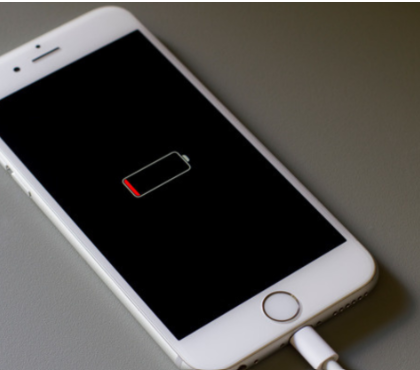
How to fix iPhone charging port not working?
One of the most common iPhone charging problems many iPhone users face is their iPhone charging port not working. It is an annoying and frustrating issue for you if you’re having trouble getting your iPhone to charge.
However, if you find the iPhone charger port not working properly you need not worry about it. In this post, I will give a comprehensive guide to fix the issue of the charging port on iPhone not working, It will walk you through the potential causes behind the issue and their effective solutions to help you get your device back on track.
Common signs your iPhone charging port isn’t working
Before you go hunting for solutions, it’s helpful to recognize the symptoms of a malfunctioning charging port. Here are some telltale signs that your iPhone’s port might be at fault:
- Your iPhone refuses to charge when connected to the cable.
- Charging only works if you wiggle or hold the cable at a very particular angle.
- You spot messages like “Accessory Not Supported” or warnings about moisture or liquid in the port.
- The device charges slower than usual or charging suddenly stops and starts for no apparent reason.
If you notice any of these frustrating issues, your iPhone’s charging port could be the culprit. Let’s take a closer look at what could be causing this problem and how you can resolve it.
What are the possible causes for the iPhone charging port not working?
Before discussing the device charging solutions and fixing the ‘iPhone charger slot not working’ issue, you need to identify the possible causes of why your iPhone charger port not working or malfunctioning. Some of the common iPhone charging faults are:
1. Software glitch: Occasionally, software issues such as out-of-date firmware can interfere with the normal functioning of the charging port;
2. Hardware issues: The charging port may encounter physical damage caused by accidental droppings, such as bent or broken pins or there may be corrosion and rust in the pins which may cause the phone to fail to recognize the charger and prevent it from connecting;
3. Charging port blocked by dust and debris: Accumulation of dust or debris over time in the iPhone charging port may prevent the charger from making a proper connection;
4. Debris and Dust Build-Up: Carrying your iPhone in pockets, bags, or even leaving it on dusty surfaces can lead to small particles like lint, dirt, and dust working their way into the charging port. Over time, this build-up can obstruct the connection between your charging cable (like those from Apple, Anker, or Belkin) and the port, making it difficult—or even impossible—for your iPhone to charge properly. Frequent exposure to environments such as the beach, workplace, or public transportation tends to increase the risk of debris accumulation.
5. Faulty Cable or Adapter: A damaged charging cable or USB adapter can cause the ‘charging port on iPhone not working’;
6. Loose Connection: A loose connection between the charger and the port can cause your phone to fail to recognize the charger and prevent it from connecting;
Why you should always be gentle when unplugging your iPhone charging cable
Unplugging your charging cable may seem like a small and simple act, but how you do it actually matters for the health of your iPhone’s charging port. Yanking, pulling at odd angles, or twisting the cable when you unplug doesn’t just risk damaging the cable from trusted brands like Apple, Anker, or Belkin—it can also harm the delicate pins and internal connectors inside your device’s port.
A forceful or careless removal can:
- Bend or break the tiny metal pins inside your iPhone’s port, leading to unreliable charging or an outright dead port.
- Loosen the port connection over time, creating those frustrating scenarios where charging only works at a certain angle—or not at all.
- Reduce the overall longevity of both your cables and your phone, ultimately leading to more frequent replacements and added expense.
Instead, always grip the connector firmly and pull straight out without wiggling or bending. Using a cable protector is also a smart move for preventing unnecessary wear and tear, especially if you tend to charge on the go or in busy environments.
Taking this simple precaution will help ensure a solid connection every time and keep your iPhone ready for action when you need it most.
Why You Should Back Up Your iPhone Before Trying Any Fixes
Before you roll up your sleeves and dive into troubleshooting mode, take a moment to back up your iPhone. You might be eager to fix the charging port, but backing up your data is like having an insurance policy for your precious photos, contacts, app data, and all those notes you promised you’d organize someday.
Here’s why it matters:
- Peace of Mind: If the fix doesn’t go as planned—or if a reset or repair becomes necessary—you won’t lose anything important.
- Accidents Happen: Sometimes, a fix can lead to unexpected outcomes, like a factory reset or data corruption.
- Easy Recovery: With a backup, all your information is just a restore away, no matter what happens next.
In short, back up before you tinker, just in case your iPhone’s issues require more than a quick port clean or reset.
What should be done if your iPhone charging port is not working after water exposure?
If your iPhone charging port has come into contact with water, it’s crucial to act quickly but carefully. Here’s what to do:
- Power Off Immediately: First, switch off your iPhone right away to prevent any risk of short-circuiting.
- Avoid Charging or Connecting Accessories: Do not plug in the charging cable or attempt to connect headphones until the port is completely dry.
- Let It Dry Naturally: Place your iPhone in a dry, ventilated spot. Using silica gel packets (you know, the ones that come with new shoes) around the device can help absorb residual moisture. Avoid using heat sources like a hairdryer, as high temperatures can damage internal components.
- Wait It Out: Give it ample time—at least several hours, or preferably overnight—before you try charging again. For best results, let gravity help by positioning the phone so the port faces downward.
By following these steps, you minimize the risk of damaging your iPhone’s charging port or other internal circuitry due to moisture.
Keep Your iPhone Dry
To prevent water damage in the first place, steer clear of using your iPhone in wet environments like bathrooms, pools, or out in the rain. If your phone does get wet, dry it off immediately—don’t just give it a quick wipe. Make sure it’s thoroughly dry before even thinking about charging it or plugging anything in. Patience here can make all the difference between a working phone and an expensive repair.
If you’re still experiencing issues charging after it’s fully dried, it might be time to seek professional help from Apple Support or a certified technician.
Can water damage affect your iPhone charging port, and what should you do if it happens?
Yes—water exposure can seriously impact the functioning of your iPhone’s charging port. Moisture inside the port can prevent your phone from recognizing the charger, or worse, may cause a short circuit. If you suspect your iPhone charging port isn’t working after any contact with liquids—whether it’s a splash at the beach or an accidental swim—take these steps:
- Immediately power off your iPhone to prevent further internal damage.
- Do NOT plug it in. Charging while moisture is present can lead to more severe issues.
- Place your iPhone in a completely dry location. For best results, set it near packets of silica gel, if available, as they’re excellent at absorbing moisture (far better than the classic “bowl of rice” trick).
- Allow your device plenty of time to dry out—sometimes up to 48 hours. Resist the urge to check it too soon.
- Once you’re confident it’s dry, inspect the port with a flashlight to ensure there’s no lingering moisture before reconnecting any cables.
If after drying, your charging port still refuses to cooperate, professional help from an authorized Apple service provider is your best bet to get your iPhone back in working order.
How to fix an iPhone charger port not working issue
If you see the charging port on iPhone not working, here are some effective troubleshooting tips to help you fix an iPhone charger port not working issue.
Why Testing After Each Step Matters
After you try each of these fixes, it’s a good idea to check whether your iPhone is finally charging as it should. Testing after every step helps you pinpoint exactly which trick did the job—whether it was diligently cleaning the port with a toothpick or updating your iOS. Even better, it avoids wasted time (and frustration) by ensuring you don’t keep tinkering when the fix has already worked. Plus, if your iPhone still won’t charge after running through all the options, you’ll have a clearer idea of what’s not the issue—crucial info if you end up seeking help from Apple Support, the Genius Bar, or your neighborhood repair shop.
How to fix iPhone charger port?
1. Clean the Charging Port: Use a small non-metallic object like a toothpick, a soft and dry brush, or compressed air to gently clean out the port by removing any debris from the charging port. While it may be tempting to use a pin or needle to clean the charging port, it’s important to avoid metal objects. Metal can easily scratch or damage the delicate pins inside the port, making the situation worse. Take care not to insert anything metal or apply too much force, as this could damage the delicate pins inside. If you notice the port feels loose, or if you’ve recently dropped your phone, inspect the charging port with a flashlight for any signs of physical damage or misalignment. If you spot visible damage—such as bent pins or a wobbly port—it’s best to avoid further DIY attempts and visit an Apple Store or authorized service center for a professional assessment.
How Often Should You Clean Your iPhone’s Charging Port?
You might be surprised at how quickly pocket lint, dust, and the occasional stray crumb can find their way into your iPhone’s charging port (pockets and bags are notorious culprits—looking at you, denim jeans and backpack owners). For most users, giving the port a quick check and light clean every month or two is a sensible habit, especially if you frequently carry your phone in your pocket or bag.
If you’re in an environment where dirt is a frequent visitor—think sandy beach trips or dusty worksites like construction zones—or if you have pets that shed, consider inspecting the port even more regularly. As a general rule of thumb:
Monthly: Standard cleaning for the average user.
After Exposure: Clean after trips to the beach, outdoor hikes, or any situation where debris could sneak in.
If Charging Feels Inconsistent: If you need to wiggle your cable or notice unreliable charging, check for blockages immediately.
A soft, dry brush (such as a small paintbrush or a dedicated electronics cleaning brush), or a gentle burst from a can of compressed air (like those made by Dust-Off or Falcon), works wonders. Always avoid toothpicks or metal objects for regular cleaning, reserving those for urgent troubleshooting only.
Keeping the charging port clean not only prevents charging headaches, but can also help dodge those “Why won’t my phone charge?!” moments at the worst possible times.
2. Restart your iPhone: Sometimes, a simple force restart can resolve the iPhone charging port not working issue. Restarting the iPhone will resolve any software issues that might be hindering the phone from taking charge.
If you’re unsure how to restart your device, here’s how:
- For iPhone X or later: Press and hold both the side button and either volume button until the power off slider appears. Slide to turn off, then press and hold the side button again until you see the Apple logo.
- For iPhone 8 or earlier: Press and hold the top (or side) button until the power off slider appears. Slide to power off, then hold the top (or side) button again to restart.
Once your iPhone powers back on, plug in the charger to see if the problem is resolved.
3. Update iOS to the latest version: Your iPhone charging port may not be working due to bugs in your version of iOS software. Since new software updates contain bug fixes, make sure that you have the latest version of iOS. Software updates are very important for the normal functioning of your phone.
To check for updates, go to Settings > General > Software Update. If an update is available, install it. Apple regularly releases updates to address charging issues and other glitches, so keeping your device up to date can help prevent or resolve charging problems.
4. Reset settings: If none of the above steps work, you can try resetting all settings on your iPhone. This won’t delete your data but will go back to settings to their defaults. To do this,
Go to Settings > General > Reset > Reset All Settings;
Advanced troubleshooting steps if your iPhone charging port still isn’t working
If the usual tips haven’t brought your iPhone back to life, it may be time to try a few more in-depth solutions. Here’s what to consider if you’re still stuck:
- Double-check for software updates: Even if you think your iPhone is up to date, pop into Settings > General > Software Update and give it another look. Sometimes, a bug fix rolls out after you’ve already started your troubleshooting, and applying the latest patch can clear up charging issues you thought were hardware-related.
- Try wireless charging (if your iPhone model supports it): Place your device on a reliable Qi-certified wireless charger, such as those from Belkin, Mophie, or Anker. If it charges wirelessly but refuses to cooperate with a cable, you can be fairly certain the culprit is a faulty Lightning or USB-C port rather than a deeper phone problem.
- Factory reset your iPhone (as a last resort): Only go this route if absolutely necessary, and be sure to back up your data first. Head to Settings > General > Transfer or Reset iPhone, and select “Erase All Content and Settings.” This resets your device to its original factory condition, wiping out all personal data and customized settings. Occasionally, a stubborn software glitch interfering with charging can only be squashed with a reset—but it’s smart to save this for last.
Alternative Ways to Charge Your iPhone if the Charging Port Isn’t Working
A non-functional charging port doesn’t necessarily mean you’re out of luck—especially if you’re using a more recent iPhone model. Here are a couple of clever workarounds to keep your device powered up:
- Try wireless charging: If you have an iPhone 8 or newer, Qi wireless chargers from reputable names like Belkin, Mophie, and Spigen can keep your phone juiced up. Simply place your iPhone on the charging pad and let the coils do the rest. It’s a simple, cable-free solution that sidesteps the need for the charging port entirely.
- Use a battery case: Battery cases (sometimes called charging cases) snap onto your phone and give it a helpful power boost while you’re on the move. These cases often charge through contact pins or built-in connectors, so you may not need to rely on the compromised port to get your device running again.
While these alternatives can come to the rescue in a pinch, they’re temporary fixes. If your iPhone’s charging port remains unresponsive, it’s a good idea to look into repairs to restore full functionality.
If you’ve exhausted these steps and your charging port is still stubbornly inactive, further DIY efforts might do more harm than good. At this stage, it’s best to consider professional repair.
Should You Factory Reset Your iPhone for Charging Issues?
If you’ve worked through all the basic fixes—cleaning your port, rebooting your device, and installing the latest iOS updates—but your iPhone charger port still won’t cooperate, you might be tempted to reach for the ultimate troubleshooting move: the factory reset.
When is a factory reset worth considering?
A factory reset is generally a last resort, best reserved for situations where:
- Your iPhone still refuses to charge even after ruling out physical damage, debris, cable issues, and outdated software.
- Alternative charging methods, like using a certified Qi wireless charger (for supported models), work just fine—pinpointing the problem specifically to the charging port or its software controls.
- You’ve already reset your settings without success and software glitches remain the likely culprit.
What to keep in mind before resetting:
A factory reset erases all your personal data and settings, returning your iPhone to its original state.
Before you take this step:
- Back up everything—use iCloud or iTunes (for the retro crowd) to save your photos, apps, contacts, and more.
- Make sure you’ve truly exhausted all other troubleshooting avenues. For most folks, factory resetting is overkill unless it’s clear no other option remains.
How to factory reset safely:
- Go to Settings > General > Transfer or Reset iPhone.
- Choose “Erase All Content and Settings.”
- Follow the prompts and let your iPhone do the heavy lifting.
If your charging woes persist even after a full reset, it’s a strong sign the issue is hardware-related. At that point, put down the DIY toolkit and let a professional take a look.
Seeking professional help to fix charging port iPhone not working issue
If you still see the iPhone charger slot not working even after following the troubleshooting steps mentioned in the post on how to fix iPhone charger port, it may be a hardware issue. In such cases, if you are not sure about fixing the issue yourself with necessary caution, it’s best to seek professional assistance.
Before heading for repairs, take a moment to inspect your charging port for any visible signs of damage—especially if your phone has been dropped or the charging cable feels unusually loose when connected. Physical damage to the port is a common culprit and, unfortunately, not something that can be fixed with home remedies.
It is advisable to visit an Apple Store or Authorized Service Provider for evaluation of the problem to fix charging port iPhone. This ensures your device is handled by trained professionals who can safely diagnose and repair any underlying hardware issues.
It is advisable to visit an Apple Store or Authorized Service Provider for evaluation of the problem to fix charging port iPhone.
Should You Try Replacing the iPhone Charging Port Yourself?
Tempted to break out the tiny screwdrivers and YouTube tutorials? While DIY repair videos make it look almost easy, replacing an iPhone charging port yourself is not for the faint of heart—or the faint of toolkit. iPhones are famously intricate inside, with components packed tighter than a rush-hour subway. Even a well-intentioned pry of the wrong cable can spell disaster.
Unless you have experience with electronics repair, the specialized tools, and plenty of patience, tackling this task at home carries a real risk of making things worse. A misstep could lead to more expensive problems—think broken screens, stripped screws, or questionable battery connections.
In short: saving a buck sounds good until you’re holding a surprise jigsaw puzzle of iPhone pieces. To keep your device (and your sanity) intact, professional repair is the way to go. Trained technicians at an Apple Store or a certified repair shop can swiftly assess and fix the issue—no guesswork or misplaced parts required.
If You’ve Already Tried Everything Else
Before you start shopping for tiny screwdrivers or watching repair videos, make sure you’ve exhausted all safe troubleshooting steps. If restarting your iPhone, updating the software, and even performing a full factory reset hasn’t brought your charging port back to life, there’s one last-ditch software step you can try: resetting all settings.
- Go to Settings > General > Transfer or Reset iPhone > Reset > Reset All Settings.
- This will return your iPhone’s settings to their defaults (without erasing your data), which can sometimes clear up persistent software gremlins.
- Just a heads-up: you’ll need to reconfigure things like your Wi-Fi passwords, wallpaper, and other preferences afterward.
If even that doesn’t do the trick, your charging woes almost certainly trace back to a hardware problem lurking inside. At that point, step away from the toolkit and let the pros handle it—you, your phone, and your nerves will thank you.
How much does it typically cost to repair an iPhone charging port?
The typical cost to repair an iPhone charging port can range anywhere from $50 up to $150, depending largely on your iPhone model and where you choose to have the repair performed. Independent repair shops often offer competitive pricing and may complete the fix quickly, but prices can vary. For peace of mind, opting for an Apple Store or an Authorized Service Provider may cost a bit more, but you’ll benefit from technicians using genuine replacement parts and following strict quality standards. Be sure to get an estimate beforehand, and always confirm that any parts used are high quality for the best long-term results.
You may like to read: How to fix iPhone Force Restart Not Working
Frequently asked questions
Now that it is explained why you may sometimes find your iPhone charging port not working and how to fix charger port iPhone, let me also address some of the related questions often asked by iPhone users.
How can I fix iPhone charging port?
When the charging port on iPhone not working, follow the steps below to fix it:
1. Remove any debris from the charging port;
2. Restart your iPhone;
3. Try a different USB cable or charger;
Sometimes, the problem lies not with your iPhone but with the cable or charger itself. Inspect your charging cable for any visible signs of wear—such as fraying, bending, or damage at the ends. Even minor damage can prevent proper charging. If possible, swap out your current cable and charger for another one (preferably an official Apple cable or a reputable, Apple-certified option) to see if your iPhone begins charging. Using third-party or uncertified accessories may also lead to charging issues, so sticking to reliable brands is a good troubleshooting step.
4. Update to the latest version of iOS;
Sometimes, a simple software update can resolve charging issues if they’re being caused by a bug or glitch in iOS. To check for updates, go to Settings > General > Software Update. If an update is available, download and install it. Keeping your iPhone’s software current ensures compatibility with charging accessories and can fix issues that might prevent your device from charging properly.
5. Contact Apple Support for help;
Additional Troubleshooting Tips
To make sure you cover all bases, consider these extra troubleshooting steps:
- Check the Connection:
Ensure the cable sits firmly in both your iPhone and the power adapter. A loose or wobbly connection can cause charging to start and stop unexpectedly. Push it in until you feel a secure fit. - Test Another Power Source:
Try plugging your charger into a different wall outlet, USB port, or charging hub. Sometimes, the outlet or port is to blame, not your iPhone. - Try a Different Cable and Adapter:
Swap your current cable and adapter for another set—ideally, Apple-certified or from trusted brands like Belkin or Mophie. Many charging issues come from worn-out, frayed, or incompatible accessories, so don’t overlook this simple fix. - Check for iOS Updates:
Go to Settings > General > Software Update to make sure your iPhone is running the latest version of iOS. Apple frequently releases updates that address various charging or hardware bugs. - Look for Physical Damage:
Inspect your charging port closely with a flashlight. If you see bent or missing pins, corrosion, or anything unusual—especially after drops or exposure to moisture—these may require professional repair.
How do I charge my iPhone wirelessly?
Charge your iPhone wirelessly as below:
1. Place the charger on a level surface or as recommended by the manufacturer;
2. Place your iPhone on the charger with the display facing up;
3. For best performance, place the iPhone in the center of the charger;
Why do iPhone charger stop working?
The most common reasons for your iPhone failing to charge are,
1. A faulty cable;
2. Faulty charger or adapter;
3. Dirt or debris in the charging port;
4. Charging process interrupted by third-party apps;
In addition to these, several other factors can prevent your iPhone from charging as expected:
Physical damage to the charging port: Drops or rough handling can bend or break the pins inside the port, making it impossible for the charger to connect properly.
Dust or lint buildup: Tiny particles can accumulate over time, blocking the connection between your charger and the phone.
Non-certified or frayed cables: Using third-party or damaged cables—especially those not certified by Apple or reputable brands—often results in unreliable charging or no charging at all.
Moisture exposure: Water or humidity can corrode the charging port, disrupting the electrical connection.
Loose connections: The charging cable might not be fully inserted, or may wiggle loose during use, preventing a steady charge.
Software glitches: Sometimes, a bug or system error can prevent your iPhone from recognizing a connected charger, even when everything else appears fine.
By understanding these possible causes, you can troubleshoot more effectively and restore your iPhone’s charging capabilities.
Risks of Using Non-Certified Charging Accessories
Opting for non-certified charging cables and adapters—especially those that aren’t approved by Apple or reputable brands like Belkin or Mophie—can actually do more harm than good for your iPhone. Here’s why:
- Potential for Port Damage: Cheap or uncertified accessories often don’t fit your iPhone’s charging port snugly. This can lead to wobbly connections, increased wear and tear, or even bent pins inside the port over time.
- Unreliable Charging: These accessories may fail to deliver consistent power, causing intermittent charging or complete failure to charge.
- Compatibility Issues: Non-certified cables might lack the right chipsets to communicate with your iPhone, which can trigger warning messages or stop charging altogether.
- Safety Hazards: Poorly made cables might overheat or short-circuit, risking damage to your device—or worse, personal safety.
To avoid these headaches, always stick to MFi-certified accessories or trusted brands whenever possible. This helps keep your charging port—and your iPhone—safe and functioning as intended.
Limiting Charging Cycles: Why It Matters for Battery and Port Health
If you’ve ever wondered why tech experts recommend keeping your iPhone’s charge between 20% and 80%, here’s the scoop: It’s all about maximizing battery longevity and reducing stress on your charging port. Each time you plug in and recharge, your iPhone completes part of a “charging cycle.” Over time, too many full cycles (from 0% to 100%) cause the battery to age more quickly, which means it won’t hold power as well.
But there’s another benefit—charging less frequently also means fewer times inserting and removing the cable. This simple habit cuts down on wear and tear inside the port itself, lowering the risk of loose connections, bent pins, or debris building up. In short, by being mindful of your charging habits, you’re protecting both your battery’s lifespan and the physical health of your iPhone’s most-used port.
Conclusion
By properly following the troubleshooting steps suggested in this post you can fix the iPhone charging port not working issue yourself with ease and your iPhone charging port will be back in action in no time. But before trying these ultimate solutions, you can try some easy things to solve the issue in minutes. Here are some of them:
1. Sometimes, the issue might be with the Lightning cable connectivity. When the charging accessories are faulty or not supported, your iPhone will fail to charge. Therefore, for proper connectivity use only a genuine Lightning Cable certified by Apple as it is designed specifically for it; using third-party or low-quality chargers can damage your iPhone’s charging port. Stick to official Apple chargers or certified alternatives like Belkin or Mophie to ensure your iPhone is charged safely and effectively. Avoid using generic or uncertified accessories, as these can cause charging errors, compatibility issues, or even long-term damage to your device’s charging port;
2. Try using a different charger and see if it helps to fix your iPhone charger slot not working problem;
3. Sometimes, the ‘charging port on iPhone not working’ may be due to iOS device power problems. Therefore, try a different power source such as a different wall adapter or a USB port on a computer using the same accessories, and see if it works;
4. Try using a wireless charger. This is an easy and convenient way to charge your device without worrying about cables or ports. If the wireless charging works on your iPhone, it means that there is a problem with your iPhone’s charging port;
Why use wireless charging?
Switching to wireless charging not only gets your phone powered up quickly, but it also helps reduce wear and tear on the physical charging port over time. Many wireless chargers are designed to charge your iPhone, Apple Watch, and AirPods all at once, letting you cut down on cable clutter and keep your devices organized. Give this a try—if your phone charges wirelessly but not through the port, it’s a strong sign the issue lies with the port itself.
Additional Tips to Prevent Charging Port Issues
To keep your iPhone charging port working well and avoid future headaches, consider these preventive tips:
- Keep Your iPhone Clean: Regularly clear away lint, dust, or debris from the charging port using a soft brush or a burst of compressed air. Avoid using sharp or metal objects that might damage the connectors.
- Be Gentle with Charging Cables: Always unplug your cable by holding the connector, not by yanking the cord. Sudden pulls or twists can strain and loosen the port over time.
- Stick to Quality Chargers: Steer clear of low-quality or uncertified third-party chargers, as these can damage your iPhone’s charging port or battery. Official Apple accessories or trusted certified brands are the safest bet.
- Keep Your iPhone Dry: Moisture is the enemy of electronics. Avoid charging your device if it’s wet, and make sure your hands and the port are dry before connecting a cable.
- Consider Wireless Charging: If your iPhone supports wireless charging, it’s a handy option that reduces wear and tear on the charging port. It also keeps your setup tidier and limits the risk of port damage.
By following these steps and preventive measures, you’ll not only fix the current charging port issue but also extend the lifespan and reliability of your iPhone’s charging system.
