Internet keeps disconnecting and reconnecting.

My Internet keeps disconnecting every few minutes – here are the causes and how to fix them.
While using the Internet, the users sometimes ask – why my Internet keeps disconnecting every few minutes, or why does my Internet keep disconnecting without any apparent reason? If you also see your Internet keeps disconnecting and reconnecting randomly and you are not sure about ‘why does my Internet keep going out without any apparent reason’, then you have come to the right place.
This article answers the frequent query of iPhone users – why does my Internet keep disconnecting and reconnecting or why is my Internet constantly disconnecting and what are the proven fixes for such Internet outage.
When you are to use your browser quite often it’s a matter of great frustration if you see your Internet constantly disconnecting.
Moreover, the functionality of Internet telephony, which is now widely used for communication purposes, depends on the Internet connection. Losing internet connection intermittently can lead to problems like dropped calls and voice distortion.
What is more, losing network connection intermittently and if your Internet connection keeps dropping and reconnecting frequently, it can also lead to system errors and ultimately result in Windows slow speed and even crashing.
In the early days, phone lines were the only connection used to access the Internet. With time, technology has advanced rapidly and now better ways of connecting to the Internet are available. Broadband as opposed to the old ‘Dial-up’ is an advanced technology regarding the way you connect to the Internet. The most common types of Broadband connections are DSL, Cable, and Wireless. With so many different types of hardware and software involved, it can be quite challenging when you want to find out – why my Internet keeps disconnecting every few minutes.
Nevertheless, if your wireless Internet keeps disconnecting and you are not sure about why your wireless network keeps disconnecting, with a little patience and know-how it is possible to find out what is going wrong and the reason for such unstable Internet connections.
You may also like to read: How to scan documents on iPhone – a step-by-step guide
My Internet keeps disconnecting every few minutes – common causes
‘Why does my internet keep going out’ is not a very uncommon query by Internet users, be it on smartphones, Tablets, or Computers. I have also come across Spectrum Internet users often asking – why my Spectrum Internet randomly disconnects or why does my Internet keep dropping Spectrum without any apparent reason.
There could be several reasons why at times your Internet keeps disconnecting and reconnecting without any visible cause. When your Internet keeps going out frequently, it may be a connection issue or a computer issue.
Therefore, when your wireless internet connection keeps disconnecting and you are not sure why my Internet keeps disconnecting every few minutes, the first thing to do is to check your local connection and its strength. To check this you need to connect another computer, a tablet, or any Smartphone to your network and try with the same Internet connection. If you still find your Internet connection keeps disconnecting and reconnecting for all the electronic devices after connecting to the network, then you have a connection issue.
In such case of loss of Internet connection due to a connection issue, one of the following three things usually may be the cause why you keep losing network connection :
i. Cable/DSL modem;
ii. Network router (essentially the driver for the router);
iii. ISP issues;
But, if you see that your Internet goes in and out for computers only and not for other devices, then the issue is likely with your Computer. In such a case check your PC for possible hardware issues or issues with the operating system, which can result in an Internet lost connection. Sometimes network card in your computer may be having some problems. Moreover, when your Internet constantly disconnecting the following common causes also need checking:
1. Radio interference with your wireless signal;
2. Layer of dust inside your dusty PC causing overheating of chips resulting in an unwanted reset of the system;
3. The ‘default gateway’ address has abruptly altered at your ISP;
4. ‘DNS tables’ needed to be flushed for updating DNS records and name servers of your website;
5. Dynamic reassignment of your computer’s IP address could not be done correctly by the ‘DHCP’ server;
6. Wireless interference;
7. The wireless router is old and defective and needs replacement;
A quick note for gamers and heavy PC users:
If you notice that your connection drops mainly while gaming or performing demanding tasks on your PC, this could be a clue. Sometimes, certain activities—like online gaming—put extra load on your network card or even your modem, which might trigger restarts or brief connectivity drops. Interestingly, these issues may not appear when using other devices or during light browsing, making them harder to spot. If your Internet drops only when your PC is under load, consider checking for overheating components, outdated network drivers, or even faulty cables connecting your PC to the router or modem.
Keeping these points in mind can help you narrow down the culprit when your connection seems selective about when to drop out.
Could modem or router overheating be causing internet drops?
Another frequently overlooked culprit could be overheating of your modem or router. Electronic devices like these generate heat while operating, and if placed in a confined space without adequate airflow, they can become excessively warm. Overheating can cause your connection to drop intermittently or even force complete device resets, leading to frustrating service interruptions.
If you suspect overheating, try these steps:
- Touch the modem or router after your connection drops—does it feel unusually hot?
- Check that your modem and router are placed in a well-ventilated area, away from direct sunlight and not stacked on other electronics.
- If your equipment is new and still gets hot, make sure it’s not surrounded by clutter or tucked into a closed cabinet.
Ensuring proper ventilation can often resolve these types of mysterious disconnects. If the devices still feel hot or the connection keeps dropping, it may be worth trying a different power outlet or consulting the manufacturer’s guidelines for ideal operating conditions.
What do blinking lights on a modem mean?
Another possible reason you might find your internet connection dropping—especially if you notice blinking lights such as white or blue on your modem—is related to what those indicator lights actually signify. These lights are a modem’s way of telling you the current status of your connection and can provide valuable clues.
- Blinking DS/US (Downstream/Upstream) lights generally mean your modem is trying to establish or re-establish its link with your Internet Service Provider (ISP).
- A blinking “Online” light typically indicates the modem is attempting to connect to your ISP’s network but hasn’t yet achieved a stable connection.
If these lights continuously blink, it suggests your modem is having trouble maintaining a steady link. This can occur intermittently and cause your connection to drop out and return, much like a radio trying to find a clear signal. In many cases, this behavior points to issues with either the connection coming into your home, temporary interruptions from your ISP, or occasional hardware hiccups with the modem itself.
For troubleshooting, it’s also worth noting whether these blinking lights show up only when using certain devices (like a PC via Ethernet) or persist across all devices. If the blinking is device-specific, you may want to investigate your cables, network card, or even possible power interruptions to your modem.
Keeping an eye on these lights can help you pinpoint whether the culprit is inside your home network or stems from your provider’s end.
Is your modem overheating? How to check and why it matters
Another often-overlooked reason why your internet keeps disconnecting is modem overheating. Just like any electronic device, modems generate heat during regular operation. If your modem isn’t in a well-ventilated area, or it’s surrounded by clutter (think: dusty bookshelves or tucked inside crowded cabinets), it may start running excessively hot.
Signs of an overheating modem can include:
- The exterior feels unusually warm or hot to the touch
- Internet drops become more frequent after the modem has been running for a while
- The modem’s indicator lights blink erratically or turn off unexpectedly
If you suspect overheating, unplug the modem for a few minutes and let it cool down. When you power it back up, see if the connection stabilizes. To prevent future issues, make sure your modem has room to breathe—avoid stacking items on top of it—and consider giving it a gentle dust-off. If you continue having problems, despite taking these steps, the device may be nearing the end of its useful life and could need replacing.
Keeping your modem cool may seem basic, but a bit of airflow can save you from a world of internet headaches.
When is it time to upgrade your modem or router?
If your internet seems sluggish, keeps dropping out, or your devices are slow to connect—especially after you’ve ruled out other obvious culprits—it might be time to retire your modem or router. As a general rule of thumb, consider replacing your networking gear every three to five years. Technology moves fast, and older equipment may not keep up with newer standards or the increasing speeds offered by your Internet Service Provider.
Here’s what to look for:
- Your router or modem doesn’t support current Wi-Fi standards (like Wi-Fi 5 or Wi-Fi 6).
- You’re experiencing frequent disconnections, even after troubleshooting.
- Firmware updates have stopped coming from the manufacturer.
- Your household has more smart devices than it did a few years ago, and you notice lag with simultaneous use.
Upgrading to a newer model—for instance, something supporting DOCSIS 3.1 for cable modems or Wi-Fi 6 for routers from trusted brands like NETGEAR, TP-Link, or ASUS—can deliver noticeable improvements in speed, stability, and security. You don’t have to chase the latest and greatest every year, but if your modem or router is pushing five years old, you’re likely missing out on easier, faster, and more reliable internet.
Sometimes, a simple swap is all that stands between you and a smoother online experience.
How can unused but active coaxial lines impact your internet connection?
Another less obvious—yet surprisingly common—reason for internet instability at home is the presence of unused but still active coaxial lines. If you have extra coaxial outlets in your home that are not connected to any equipment, but are left open and still live, they can actually act like small antennas. Rather than helping your connection, these open ends can introduce unwanted radio interference into your network, degrading your signal quality.
It’s a bit like having a leaky pipe in your plumbing—water (or, in this case, your internet signal) can escape or get muddied along the way. This interference can sometimes cause your internet connection to drop unexpectedly or your speed to fluctuate without warning.
A good practice when setting up your internet, especially after moving or making hardware changes, is to ensure that any unused coaxial ports are either properly terminated with a cap (sometimes called a terminator) or disconnected altogether. If you’ve had a technician from providers like Comcast, Spectrum, or AT&T visit for installation, it’s a good idea to confirm that all unused lines have been capped. This simple extra step can spare you from ongoing connection headaches down the line.
What is Wi-Fi Auto-Switching and how can it affect internet connection?
Another often-overlooked culprit behind frequent disconnections is something called Wi-Fi auto-switching. Many devices—be it your laptop, iPhone, or Android—are programmed to automatically hop between saved Wi-Fi networks in search of the strongest signal. While this may sound helpful in theory, in practice it can lead to your device abruptly dropping its current connection and latching onto another available network, even if only for a moment. The result? You experience unpredictable drops or brief interruptions in your internet access.
If you find your internet cutting out even though your signal strength looks fine, check whether your device is set to auto-join or “smart switch” between networks. Especially in places with multiple networks (offices, apartments, or even homes with range extenders), this feature can create instability.
How to Fix:
- Head into your device’s Wi-Fi settings and look for any options labeled “auto-join,” “auto-connect,” or “smart network switch.”
- Turn off these settings and manually select your preferred network to ensure your connection remains steady.
- Apple devices allow you to disable “Auto-Join” for specific networks; on Android, look for “Auto Connect” or similar options in your Wi-Fi menu.
Taking this small step can help eliminate one common source of those mysterious disconnects, bringing a bit more calm to your browsing experience.
Can background processes on my computer cause internet connectivity issues?
Yes, background processes on your computer can sometimes be the unseen culprits behind those pesky internet dropouts. Windows, for instance, often juggles several tasks behind the scenes that may gobble up network resources or even conflict with your firewall settings.
Programs like cloud backup tools, software updaters (hello, Adobe!), and various utilities tend to run quietly in the background. If one of these decides to take a hefty bite out of your available bandwidth, you might find your connection stuttering or disconnecting altogether.
To see if background tasks are causing trouble:
- Open the Task Manager by pressing
Ctrl + Alt + Deleteand selecting Task Manager. - Head over to the Processes tab.
- Sort the list by the Network column to see which programs are using the most bandwidth.
- Keep an eye out for anything unfamiliar or unexpectedly hogging your connection. If you spot something suspicious, right-click on it and check its properties to identify the host program—then shut it down to see if your connection stabilizes.
Taking a few moments to review and tame these resource-hungry processes often goes a long way towards calmer, more reliable internet connectivity.
Network congestion – is your home network overloaded?
Another sneaky culprit behind frequent internet dropouts is simple network congestion. Just like rush hour traffic slows everyone down on the highway, too many devices competing for your router’s attention can choke your connection—especially during those peak Netflix-and-chill or work-from-home hours.
You might notice your connection stalling or cutting out when everyone in the house is online at the same time: video calls in the kitchen, gaming consoles in the bedroom, smart TVs streaming in the living room, and a handful of phones all sniffing for updates. If your router or your internet plan isn’t built for this level of action, it’s no wonder things start sputtering.
How to diagnose if network congestion is the problem
- Check your device count: Start by counting how many gadgets are connected to your network. Laptops, smartphones, tablets, smart speakers, gaming consoles, smart thermostats—each one uses a slice of your bandwidth pie.
- Test at different times: Notice if your connection is worse during evenings, weekends, or right after school. If problems only show up during the busiest times, congestion is a likely suspect. Evening hours often bring peak usage when many people in your area hop online at once—streaming, gaming, or scrolling through social feeds. This kind of network congestion can slow speeds dramatically or even cause random disconnections. If you consistently run into trouble during these busy hours, consider reaching out to your internet provider about upgrading to a higher-tier plan or see if switching to a fiber service is available in your area.
- Compare your internet plan: Look up your current speed (e.g., 200 Mbps, 500 Mbps, etc.), and do a quick calculation—generally, you’ll want about 50-100 Mbps per heavy internet user in your household (even more if everyone’s streaming in glorious 4K).
- Router capability matters: Your router itself might just not be up for the job. Older models or basic routers (especially those provided free by ISPs) often can’t keep up with modern device counts. Brands like Netgear, TP-Link, or Asus often offer “dual-band” or “mesh” systems that handle multiple devices much better.
If you find your speeds are consistently lower than what’s promised—even after disconnecting a few devices—it may be time to upgrade your internet plan or invest in a beefier router. By taking stock of your household’s online habits and your hardware, you can often identify congestion as the cause behind those maddening internet dropouts.
Data Caps and Limited Internet Plans—Are They to Blame?
Let’s not forget another sneaky pothole on the road to reliable internet: your data plan itself. Many ISPs love to tout big speeds, but if your plan comes with a data cap, you could unknowingly hit a digital brick wall. Exceeding your monthly limit doesn’t always bring a dramatic slowdown—sometimes, providers will start throttling (slashing your speeds), or in truly frustrating cases, periodically disrupt your connection until the next billing cycle.
Here’s what to watch out for:
- Sudden slowdowns: If your once-zippy YouTube streams and Zoom calls suddenly crawl, check your usage—especially if it’s late in the month.
- Connection interruptions: Some providers may temporarily drop your link when you breach your cap, especially with budget or prepaid plans.
- Notices from your ISP: Keep an eye on emails, texts, or in-app alerts warning you that you’ve burned through your data for the month.
If this sounds all too familiar, log in to your internet account and review your data usage. Consider opting for unlimited plans if your streaming and gaming habits are a bit… enthusiastic. If that’s not an option, at least plan your heavy internet days with your cap in mind—so your connection doesn’t simply vanish without warning.
Which programs frequently causing connection drops?
Another lesser-known culprit for intermittent Internet disconnections can be certain software running quietly in the background. Programs that frequently synchronize data with remote servers—such as cloud storage services and applications that regularly check for updates or license validation—can sometimes cause your connection to drop. Suites like Adobe Creative Cloud or other cloud-based platforms may trigger these brief disruptions each time they try to phone home for updates or verify credentials.
Keep an eye on background applications—anything involving real-time synchronization or regular online verification can potentially interfere with your Internet stability. If you notice frequent drops, try disabling or pausing these updates temporarily to see if your connection improves.
You may also like to read: Spectrum Router blinking red – fix it in easy steps
Can gaming on your PC cause the modem to lose connection?
It’s a fair question: could your PC gaming sessions be the real culprit behind those mysterious modem restarts? While it might sound a bit like blaming the messenger, there’s actually some logic to it. High-intensity online games often demand steady, persistent connections, and can generate loads of data traffic—especially if you’re playing competitive titles that rely on real-time updates.
If your router or modem is already teetering on the edge—maybe it’s an older model or struggling with firmware quirks—the extra push from gaming traffic can sometimes trigger crashes or forced reboots. In some cases, network-intensive games can even flood certain routers’ memory buffers, causing them to hiccup and drop the connection.
Here’s what to watch for:
- Games that require constant syncing or massive updates (think Apex Legends, Fortnite, or large multiplayer titles).
- Devices sharing the network at the same time (especially if others are streaming or file-sharing).
- Outdated firmware or lower-end routers lacking enough horsepower for heavy gaming traffic.
If these dropouts only happen when you’re gaming on your PC, and not during lighter online activities, it may be time to check for router updates, tweak your network settings, or consider a hardware upgrade. Sometimes, a simple restart or changing your router’s location can make all the difference in gaming without interruption.
Why does it only happen on your PC?
It’s not uncommon to notice that the modem restarts only when you’re actively gaming on your PC—particularly if it’s connected via Ethernet. If you haven’t seen these disconnects when using other devices or performing less demanding tasks, this pattern offers a clue. It suggests your PC’s gaming activity is creating unique network traffic loads or electrical demands that aren’t present during ordinary browsing or streaming.
A few things to consider:
- Direct wired connections (like Ethernet) can push more consistent, high-bandwidth data than Wi-Fi, which might stress your modem/router differently.
- If your modem and router are new and not overheating, that rules out some of the most common hardware issues—making the PC’s activity itself a prime suspect.
- Some PC network cards or drivers may interact poorly with certain routers, especially under heavy gaming loads, triggering unexpected resets.
If you’re only seeing this issue when gaming on your PC, and your hardware is otherwise healthy and up-to-date, don’t rule out the possibility of a subtle incompatibility or a firmware update that could solve the problem. In tricky cases, isolating your PC on a separate network segment or testing with a different Ethernet cable can help pinpoint the culprit.
My Internet keeps disconnecting every few minutes – proven fixes
Following are some of the proven fixes when your Internet keeps disconnecting and reconnecting without any apparent reason:
1. It has been found that the router keeps dropping Internet once in a while due to internal programming issues.
If your broadband modem/router keeps dropping Internet due to such programming issues the same can be fixed by restarting the modem. This fix also occasionally works for any connection issue between a broadband modem and a router. Thus restarting the devices can fix a probable cable modem or router issue in most cases.
To restart modem router, turn off your computer and then unplug the power cables from the back of the modem and router and leave the modem and router off for 30 seconds (just pressing the power buttons to turn off power can at times put modems or routers into standby mode only rather than killing the power). Next, reconnect the modem’s power cable to restore its power. Wait a few moments for the modem to carry out self-checks or renegotiate its connection to the Internet and establish a solid link. Then plug the power cord back into your router, wait for a few moments, and then turn on your computer. Now the Internet connection on your PC should become steady if the problem is with the broadband modem.
If you’ve restarted your modem and router but your Internet woes persist, the next thing to look at is your modem’s ability to talk with your Internet provider’s network. Sometimes, what seems like random disconnects is actually a case of your modem failing to authenticate or maintain a steady handshake with your ISP. This is especially common if you’ve recently changed modems—maybe you picked one up from the store or your provider swapped it out for a new shiny model.
Having clear answers to the following will tell you whether your modem is properly squared away:
1. Is your modem registered and tied to your account?
2. Is your modem model approved and fully supported by your provider?
3. Is your modem maintaining a healthy, steady link with the network?
Knowing these, you can confidently rule out—or zero in on—your modem as the root of your connectivity chaos.
Digging into Router Settings: What Could Be Causing Wired Disconnects?
If your Internet keeps cutting out—especially when you’re hardwired via Ethernet—it’s worth poking around your router’s internal settings. Sometimes, the culprit isn’t just external interference or modem handshakes, but a quirk hidden deep in your router’s configuration.
Here are some router settings and factors to investigate:
- Quality of Service (QoS) Settings:
Many routers offer QoS options meant to prioritize certain types of Internet traffic. If QoS is misconfigured, it may inadvertently throttle or deprioritize your device, even over a wired connection. Try toggling QoS settings or giving your computer higher priority. - Device Limits or Parental Controls:
Some routers have limits on the number of concurrent connections or devices. If these features are enabled, extra devices—or even just a sudden spike in activity—can force others offline. Check if any device-limiting settings or network filters are active. - Ethernet Port Health:
If it’s only your wired connection dropping (while others on WiFi remain unaffected), try switching the Ethernet port on your router or testing with a known-good cable. Sometimes, one port can be faulty or loose. - Firmware Oddities:
Outdated or glitchy firmware can wreak havoc on even basic wired connections. Head into your router’s admin page and look for update options, or check the manufacturer’s site for the latest version. A simple firmware update can banish a lot of mysterious disconnection issues. - Connection Logs:
Many modern routers keep simple logs you can review. Look for entries tied to network drops, errors, or device disconnects. These logs might pinpoint if something within the router is blocking or rebooting your connection unexpectedly.
If you’re not sure where these settings live, check the router’s documentation or support resources online—brands like TP-Link, Netgear, or ASUS each have their own quirks, but the principles are broadly similar.
By taking a quick tour through these areas, you might find just the rogue setting or firmware blip causing the headaches. And if all else fails, resetting the router to factory settings—after backing up your config—can sometimes clear out years’ worth of accumulated gremlins.
Additional Troubleshooting Steps
If your Internet connection continues to drop, consider these further checks:
- Check for Overheating: Sometimes, the culprit is as simple as heat. Touch the modem when your Internet goes out—does it feel hot to the touch? Modems and routers need ventilation, so ensure they’re not tucked away in a cramped, unventilated spot. If the device feels unusually warm, moving it to a cooler area or ensuring adequate airflow may help.
- Test Direct Connection: When the problem strikes, disconnect the Ethernet cable from the router and plug it directly into your PC, bypassing the router altogether. If your connection stabilizes when connected directly, your router may be at fault rather than your modem or ISP.
- Review Connected Devices and Bandwidth: Too many users or devices on your network can create congestion and frequent drops. Most modern routers come with Quality of Service (QoS) settings—these let you prioritize critical traffic (like video calls or streaming) when bandwidth is limited. If you’re noticing slowdowns or drops during peak usage, check your router’s QoS settings through its admin interface.
Consult the Modem and Router Manuals for Troubleshooting Guidance
If your connection headaches continue, don’t underestimate the value of your modem and router manuals. These documents are more than just a footnote in your junk drawer—they’re packed with troubleshooting tips, wiring diagrams, and explanations for those cryptic status lights.
Typically, the manuals will help you with:
- LED Status Interpretation: Manuals demystify the flashing lights on your devices, showing you exactly what it means if the “Online” or “WAN” indicators go solid, blink, or go rogue altogether.
- Physical Setup and Connectivity: They walk you through proper cabling, including which ports to use and how to avoid common missteps.
- Default Access Instructions: You’ll find step-by-step guides for logging in to your device’s web interface (those 192.168.x.x addresses), which is often the first stop when you need to reboot, reset, or check your network status.
- Diagnosing Errors: There’s usually a section devoted to common problems—like frequent disconnects, poor signal, or authentication failures—along with solutions tailored for each one.
- Firmware and Updates: Manuals will explain how to check your device’s firmware and update it if necessary—a surprisingly effective fix for persistent connectivity gremlins.
So, before you reach for a hammer or channel your inner IT specialist, crack open the digital version of those manuals. You might just spot the exact symptom (and fix) hiding in their troubleshooting tables.
If still you see your modem/ router lose Internet connection daily, then go to the next step.
2. You may often hear from the users – why does my WiFi keep disconnecting and reconnecting without any apparent reason?
There are many reasons which may cause random Wi-Fi disconnections from your devices. Following are some of the most common issues that answer the users’ query – why do I keep disconnecting from my WiFi randomly?
i. Weak Wi-Fi Signal;
ii. Wi-Fi Network overload;
iii. Wireless interference;
iv. Outdated Router firmware;
v. Outdated wireless card drivers;
There are a good number of ways to fix the issue if your router loses Internet connection daily without any apparent reason. When your modem or router keeps dropping Internet randomly you can try the following fixes to resolve the causes why your WiFi keeps disconnecting and get stable connection of your WiFi again:
Weak WiFi Signal – Weak signal of WiFi may sometimes be the cause of your WiFi going in and out. As the distance increases between your router providing the WiFi signal and the device on which you face the Wi-Fi disconnection issue, the signal strength becomes poorer and your Wi-Fi keeps going in and out due to poor signal strength. Therefore, to make strong signal try to shorten the distance between the two by moving your devices closer to the Wi-Fi router or position the router in a more central location in your home. and check if the issue is resolved;
WiFi network overload – Overloading of the router or WiFi network congestion is also one of the common causes why your WiFi keeps going in and out from the devices despite a strong WiFi signal. If your Wi-Fi keeps disconnecting, especially during peak usage times, it may be because too many devices are competing for bandwidth.
If more devices are connected to your WiFi network the available bandwidth for each connected device becomes limited which causes an increased possibility of your WiFi going in and out. Therefore, to free up some bandwidth, some of the devices need to be taken off the WiFi network to stabilize your WiFi connection;
Reduce Network Load by Managing Connected Devices
When your network gets crowded—think laptops, smart TVs, smartphones, tablets, and smart home gadgets all online at once—your router can struggle to keep up. This “traffic jam” can slow down speeds or even cause devices to disconnect. To keep things running smoothly, try limiting the number of devices connected at any one time, especially during periods of heavy use, like streaming high-definition videos or downloading large files.
Prioritize essential devices and temporarily disconnect those that aren’t in use. By controlling how many active connections are on your network, you can help ensure each device gets enough bandwidth, resulting in a faster and more reliable WiFi experience for everyone.
Wireless interference – With the range of WiFi signals growing with the improvements in technology, Wireless interference is one of the major causes why your router loses internet connection daily. It’s easy for your signal to cross paths with your neighbors. You can reduce such interference from neighboring networks by bringing your wireless devices closer to your WiFi router and by avoiding the use of your wireless devices near common sources of interference.
It is also possible that several networks in your vicinity are operating on your same Wi-Fi channel which are conflicting with each other. The good news is that setting the Modem/Router to a specific Channel is not difficult. If you are using a router (especially a dual-band router), go to the wireless network settings under ‘setup’, look for a channel, and specify a channel. Use a Wi-Fi channel other than the default one and try setting a higher channel (i.e. if it was 1 change it to 2 or if it is 5 change it to 6), and if that doesn’t work, try different channels. It should work after a few goes. Never use the “auto” setting.
Then save your network settings. The process is similar for most routers but will differ slightly depending on the make and model;
Outdated version of Router Firmware –
Outdated firmware of the router is one of the major causes behind the issue in many cases when someone asks – why does my WiFi keep disconnecting.
Outdated firmware of the router causes poor functioning of the Wi-Fi network. Since the firmware carries out the integral functions of your router, periodic firmware updates can help to solve connectivity issues and keep your router secure. This will enable your router to operate proficiently as well as fix any software glitches or bugs that could be causing your Wi-Fi network to slow down or shut off randomly.
To update your router’s firmware, go to the manufacturer’s website and download the latest available firmware. Finally, reboot the router after updating the firmware for a stable Internet connection. It is not advisable to download firmware updates from any third-party site.
If you’re unsure whether your router or modem is running the latest firmware, you can check by logging into the device’s web interface—typically using any modern browser. Here’s a quick step-by-step guide:
i. Open a web browser.
ii. Input your router or modem’s IP address or login URL. This is usually printed on a sticker attached to the back or bottom of your device.
iii. Enter the username and password. These details are also often found on the same sticker.
iv. Locate the firmware version number. This is often displayed on the main settings page, usually in the upper-right corner.
v. Compare your version to the latest available. Visit your device manufacturer’s website or do a quick web search for your model plus “latest firmware” to confirm you’re up to date.
If your internet provider supplied your modem, updates may be installed automatically, but it’s still wise to double-check. Even though most ISPs push firmware updates remotely, occasionally a device can miss an update or require a manual restart to apply changes. Logging into your modem’s web interface lets you confirm if the latest firmware is in place and helps you stay ahead of any lurking issues. This extra step only takes a minute and can prevent frustrating connection drops or security gaps down the line.
Your internet provider automatically updates your modem, but it’s still worth double-checking to make sure the latest firmware is installed. Taking a moment to verify gives you peace of mind that your device is running smoothly and securely, rather than simply assuming all updates have gone through without a hitch.
For stand-alone routers you purchased yourself, updating the firmware is especially important to avoid connection drops and security vulnerabilities.
Regularly keeping your router and modem firmware updated ensures not only smooth Wi-Fi performance but also protects your network from emerging threats and annoying interruptions.
If you’re unsure whether your router or modem needs an update, you can usually check the firmware version by logging into your device’s web interface. Most routers have a sticker on the back or bottom that lists the default IP address (like 192.168.1.1 or 192.168.0.1), along with the username and password. Open a web browser, enter this IP address, and log in with the credentials provided.
Once inside the settings page, look for the firmware version—often displayed near the top or in a dedicated “Firmware” or “About” section. Compare this version with the latest one available on your manufacturer’s website to ensure you’re up to date. If an update is needed, follow the instructions provided by the manufacturer to safely install it. Regularly checking for updates can help prevent random disconnections, improve security, and fix software bugs that might be affecting your Wi-Fi performance.
Outdated wireless card drivers – If your WiFi disconnects randomly, outdated or corrupted wireless card drivers may be one of the causes behind the issue. It is, therefore, possible to fix the issue by updating the outdated drivers of your devices. The latest version of network drivers for your wireless network adapter will assure the best performance, reliability, and functionality. To update your wireless card drivers, visit your wireless card manufacturer’s website for the installation of the latest drivers.
Modem firmware updates
Just as outdated router firmware can give your Wi-Fi a headache, an outdated modem can also cause frequent Internet disconnections. Thankfully, checking for modem firmware updates is straightforward. Follow these steps to ensure your modem is running the latest firmware:
- Access your modem’s settings: Open any web browser on your connected device and type your modem’s default IP address into the address bar. You’ll usually find this IP address printed on a sticker at the bottom or back of your modem (commonly something like or ).
- Login to the modem interface: Enter the default username and password—these are often also printed on the modem itself unless you’ve changed them before.
- Locate the firmware information: Once logged in, look for the section displaying the current firmware version (sometimes labeled as “software version” or “firmware version”), usually found on the main dashboard or under a section such as “System Information.”
- Compare with the latest version: Visit your modem manufacturer’s official website—such as Netgear, TP-Link, or Motorola—and search for your specific model to check the most recent firmware version available.
- Update if necessary: If you discover your modem’s firmware is outdated, follow the manufacturer’s instructions to download and install the update. Avoid using third-party sources to ensure security. After updating, reboot your modem for changes to take effect.
By making sure both your modem and router firmware are up to date, you minimize the risk of random disconnections and keep your home network running smoothly.
By systematically addressing these potential issues, you can hopefully resolve the problem when your router loses internet connection daily.
If you suspect outdated firmware is behind your connectivity woes, it’s fairly straightforward to check and update it right from your modem or router’s web interface. Here’s how you can go about it:
- First, open a web browser on a device that’s connected to your network.
- Next, type the router or modem’s IP address into the browser’s address bar. Common addresses include 192.168.0.1 or 192.168.1.1, but you’ll often find the exact address printed on a sticker located on your device.
- When prompted, enter the username and password—these are usually “admin” or “user” by default, or again, you may find them on the sticker.
- Once logged in, look for a section labeled “Firmware,” “System Update,” or “Advanced Settings.” Here, you’ll typically see your current firmware version displayed.
- To know if a new update is available, visit your modem or router manufacturer’s official website (for example, TP-Link, Netgear, ASUS, or Linksys) and check the latest firmware version for your specific model.
If an update is available, download it directly from the manufacturer’s site and follow the provided instructions to apply it. Always remember to reboot your device after updating and avoid downloading firmware from third-party sources. Keeping things current is one of the surest ways to prevent annoying disconnects and boost your network’s overall stability.
Check Your Modem or Router’s Firmware Version
To ensure your modem or router is running the latest firmware—and to rule out any firmware-related connection drops—it’s a good idea to verify which version is currently installed. Here’s how you can easily check the firmware version of most routers or modems:
1. Access the Device’s Settings Page:
Start by opening your preferred web browser on a device connected to your network. Type in your device’s IP address (often something like 192.168.0.1 or 192.168.1.1). In most cases, you’ll find this IP address on a sticker at the bottom or back of your modem or router.
2. Log In with Admin Credentials:
Enter the username and password when prompted—these are often printed right on your device or provided in its instruction manual. For many brands (such as TP-Link, Netgear, or ASUS), the default login is usually “admin” for both fields until changed.
3. Find the Firmware Information:
Once logged in, look for sections labeled “Device Information,” “System Status,” or “Administration.” Within one of these tabs or pages, you should see the current firmware version displayed—sometimes near the top of the screen or under “Firmware” or “Software Version.”
4. Compare with the Latest Release:
Visit your equipment manufacturer’s official support website (e.g., tp-link.com, netgear.com, asus.com) and search for your specific model. Compare the number listed as your current firmware version to the latest version available online to determine if you are up-to-date.
By using these steps, you’ll know whether you have the newest firmware or if it’s time to perform an update, which can often resolve random connectivity issues.
If the problem persists despite troubleshooting, contacting your router manufacturer’s support or seeking assistance from a professional technician may be necessary.
Check Your Router’s internal Logs
If you’ve tried the steps so far and your connection issues persist, it’s time to take a closer look at your router’s internal logs. Routers keep a record of essential network events, which can be valuable when diagnosing intermittent internet dropouts.
To access the log, you’ll need to log in to your router’s admin interface using a web browser—simply enter your router’s IP address, often found on a sticker underneath the device. After logging in with your admin credentials, look for a section labeled “Logs” or “System Log.” The exact menu might differ by router brand, but common sections to check include Advanced Settings, Administration, or Troubleshooting.
Once inside the logs, scan through the entries for anything out of the ordinary. Key things to look for include:
- Entries mentioning “failures” or “authentication errors”
- Messages related to lost connections or “disconnections”
- High frequency of repeated warnings or error codes
- Mentions of “attacks” or “malicious activity”
If you come across cryptic terms or repeatedly see the same error, copy the exact wording and search online for specifics. Often, community forums or the router manufacturer’s official help pages will reveal what those messages mean and what’s likely causing your internet to cut out. This step can shine a light on issues ranging from faulty connections and incorrect setup to possible security threats.
Optimize Router Settings to Prevent Internet Drops
Sometimes, the root of your internet woes lies in how your router manages the connected devices and network traffic. If your household is brimming with phones, laptops, smart TVs, and a parade of other gadgets, these devices can all compete for bandwidth—causing sluggish speeds or frequent drops, especially during peak hours.
One handy tool built into most modern routers is Quality of Service (QoS). QoS settings allow you to prioritize certain types of traffic or devices—so your video calls or gaming sessions don’t get interrupted every time someone else starts streaming or downloads a hefty update.
To check and fine-tune your router’s QoS settings:
- Log into your router’s admin panel using your web browser and device’s IP address (just as you did when checking the firmware and logs).
- Look for menu items labeled “Quality of Service,” “QoS,” or sometimes “Traffic Control” or “Bandwidth Management.”
- Enable QoS, if it isn’t already on. Routers from brands like Netgear, TP-Link, and ASUS typically provide simple on/off options as well as more advanced configurations.
- Assign priority to devices or specific activities (like video conferencing, online gaming, or streaming). This may involve dragging and dropping devices into a “High Priority” list or designating which services matter most.
- Save your changes and reboot the router if prompted.
These tweaks can go a long way toward minimizing congestion and ensuring that your most important internet activities get first dibs on available bandwidth. If your connection still drops, consider limiting the number of devices connected or scheduling intensive activities during off-peak times for even smoother sailing.
Update Device Software and Network Drivers
Another common culprit behind persistent Internet hiccups is outdated software or drivers on your devices. Much like how routers benefit from fresh firmware, your computer and other gadgets need up-to-date system software and network drivers to keep everything humming smoothly. Old software versions can leave security holes, cause strange glitches, and prevent devices from communicating efficiently with your network—leading to sporadic or unreliable connections.
Here’s how to make sure you’re running the latest versions:
Operating System Updates:
Both Windows and macOS (as well as Linux distributions) roll out regular updates that tackle performance issues and fix known network bugs. To check manually, head into your system settings—look for “Update & Security” on Windows, or “Software Update” under “About This Mac” for Apple computers.
Network Adapter Drivers:
Your network adapter (whether for Wi-Fi or Ethernet) relies on drivers to function properly. While most systems update these automatically, it doesn’t hurt to double-check:
On Windows, open Device Manager, expand “Network adapters,” then right-click your adapter and choose “Update driver.”
For Mac, driver updates are bundled with system updates.
If you suspect the driver is still outdated, visit the official website of your adapter’s manufacturer (like Intel, Realtek, or Broadcom) to download the newest driver version directly.
Other Connected Devices:
Don’t forget about smart home devices, phones, or gaming consoles. Each typically has a settings menu option to check for updates—keeping these current can prevent hidden conflicts or compatibility issues.
Taking a few minutes to ensure all your devices are running the latest software and firmware versions can nip a surprising number of internet problems in the bud. Just like checking the router firmware earlier, establishing a regular update routine makes troubleshooting easier in the future.
If updating doesn’t fix the drops or slowdowns, there could be a deeper issue at play—possibly outside of your home network.
Check for Bandwidth-Hogging Background Processes in Windows
If your internet connection keeps dropping out or feels sluggish—despite all your best efforts—it’s worth peeking under the hood of your Windows PC. Often, the real culprit lurks in the background: programs and processes quietly gobbling up precious bandwidth or clashing with your firewall behind the scenes.
Some usual suspects that love to run amok include cloud backup tools (like Dropbox or OneDrive), automatic updaters (think Adobe, Steam), and the oddball utility you installed ages ago and forgot about.
Here’s how to sleuth out and tame unruly background processes:
- Open Task Manager:
PressCtrl+Shift+Escto bring up Task Manager instantly. Sort by Network Load:
Click the “Processes” tab, then tap the “Network” column header. This rearranges all active programs, with the hungriest at the top.Investigate Suspicious Activity:
Spot an app that’s scarfing up bandwidth? Right-click it and choose “Properties” to get the details, or “Open file location” if you’re extra curious. If it’s something you recognize (say, a stuck cloud sync), close it out—either from within the program itself or by right-clicking its entry here and selecting “End task.”Test for Changes:
Once you’ve closed a likely troublemaker, try using your internet as usual. If the dropouts or slowdowns disappear, you’ve fingered the source.
Be wary of shutting down system-critical processes (when in doubt, stick to programs you know). For repeat offenders, consider tweaking their settings so they update or sync overnight, or during off-peak hours.
This quick check is especially handy if your connection woes seem to flare up randomly—often timed with an auto-update or backup you didn’t even realize was running.
If nothing conclusive pops up, or the entries seem confusing, you may wish to note down the suspicious messages and share them with a tech-savvy friend or your router manufacturer’s support team for further interpretation.
You may also like to read: iPhone connected to WiFi but no Internet – 9 proven solutions
3. If your computer is still experiencing Internet connection problems and your wireless Internet goes in and out as before, your ISP may be a good source to check. ISP issues like network congestion, infrastructure problems, or outdated service plans can also cause frequent disconnections.
The ISP’s technical support team can determine if there are any issues between your ISP and your computer by running system checks and line check-ups. After making sure that the problem is not between your ISP and your home computer and that other devices on your network are working fine, continue with the steps below.
Test Direct Connection to Bypass the Router
Before moving on, it’s a good idea to determine if your router might be at fault. When you’re facing persistent connection drops, try disconnecting the Ethernet output of your modem from the router and plugging it directly into your PC. This bypasses the router entirely and can help pinpoint whether the issue lies in your router or elsewhere. If your Internet stabilizes with a direct connection, your router may be the culprit; if not, the problem could be with your ISP or your computer’s network hardware.
4. There is a possibility that the Network Card in your computer is having issues when your wireless Internet goes in and out. You can try the following two things to fix this:
i. Re-seat the removable PCI (Peripheral Component Interconnect) card in the motherboard by removing and reinstating it back into the PCI slot making sure that the card is firmly seated into the slot;
ii. If you see your Internet going in and out even after this, try to delete the network card from your computer’s Device Manager and re-install the card and its drivers. This can sometimes solve any device driver issues like corruption etc. and stabilize the broader internet connectivity problem. Test the Internet stability on your computer after the device is re-installed by rebooting Windows;
If this intermittent Internet connection problem persists and your Internet keeps going out randomly even after trying all the above-suggested fixes, you may try a few additional troubleshooting steps as given below for getting stable Internet connection:
> Sometimes your computer’s Internet Protocol settings can be configured improperly or become damaged or corrupted. If your Internet connection is unstable and your Internet keeps going on and off of your PC even after trying all the above fixes to the problem, resetting your TCP/IP settings might help. To reset TCP/IP manually, press Windows+R on the keyboard to open the Run window, type ‘netsh int IP reset resetlog.txt’ (without the quotes), and restart the Computer. When you run this command, it’ll rewrite your computer’s registry keys used for TCP/IP settings. This achieves the same result as removing and reinstalling the protocol.
Make sure to create a system restore point and to backup your registry before trying this reset;
> Power-cycle your hardware: Another thing you can try is to Power-cycle all your hardware on the network. Simply shut down all the hardware i.e. Laptop or PC, Modem, Router, etc., and then power them back in the order given below. It is found that power on-off reset works and fixes connection issues most of the time if the Internet keeps disconnecting intermittently:
Modem > Router > PC (wired connection) -> Laptop (wireless) and see if that fixes the issue;
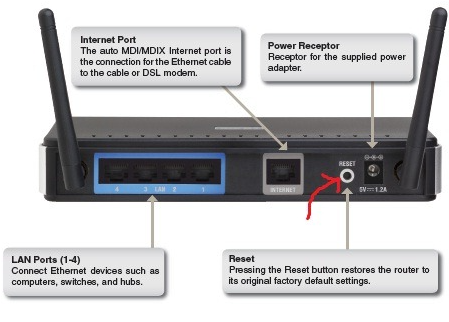
Reset the wireless router settings to factory settings: Reset your router by inserting a pin in a little hole at the back of the router, and holding it down for about 10 seconds. All the lights on the front of the router would flash indicating that the router settings have been reset to default factory settings. After the reset, power-cycle all your hardware on the network as shown previously;
Use Windows’ Network Troubleshooter
If you’re still battling a stubborn connection and none of the earlier fixes have done the trick, let Windows lend a hand with its built-in Network Troubleshooter. This tool can automatically search for and resolve a variety of common network issues with just a few clicks.
Here’s how to give it a whirl:
- Click the Start button, then open your Settings.
- Navigate to Troubleshoot, then choose Other troubleshooters.
- Find Network and Internet in the list and hit Run.
- Simply follow the on-screen instructions; Windows will scan for problems and recommend steps to set things right.
With a bit of luck, the Troubleshooter will sniff out exactly what’s keeping your connection from behaving. If so, go ahead and test your internet stability before moving on to more technical fixes.
In rare cases another possible reason for your PC not being able to connect to the Internet is due to corrupted Windows system files. In such cases you have to install an antivirus program and scan the threat to solve the issue;
Malware or viruses can also be sneaky culprits behind stubborn connection problems. Infection doesn’t always announce itself loudly—sometimes, malicious software quietly hogs system resources, hijacks your network adapter, or causes erratic connection behavior that makes troubleshooting a headache. Running a reputable antivirus scan is essential if you suspect something suspicious, as it can uncover hidden threats and ensure your system files are intact.
Check Antivirus Interference in Your Internet Connection
Sometimes, your antivirus software might mistakenly interfere with your Internet connection, causing it to drop unexpectedly. If you find that disabling your antivirus temporarily restores your Internet access, you’ve likely identified the culprit.
Here’s what you should do next:
- Re-enable your antivirus immediately after confirming it’s responsible—staying protected is always important.
- Check your antivirus settings for any firewall or web protection features that could be blocking your connection. You may be able to add your web browser or network as an exception or trusted source.
- If the issue persists, visit the support website for your antivirus provider (for example, Norton, McAfee, Bitdefender, Kaspersky) to see if there are any updates or patches available, or consult their troubleshooting guides for network issues.
- In some cases, you may need to uninstall the problematic antivirus software and switch to an alternative security program that is known to be less aggressive or more compatible with your system.
Keep Your Antivirus Updated
While we all rely on antivirus programs to shield us from the internet’s darker corners, it’s easy to overlook how crucial it is to keep them updated—not just for security, but for a smooth connection, too. Outdated antivirus software can sometimes mistake normal web traffic for a threat, blocking sites or cutting your connection without warning. Think of it as an overzealous bouncer who doesn’t have the latest guest list; legitimate data might get caught in the crossfire.
To avoid this, always let your antivirus handle its updates automatically. This ensures it recognizes trusted websites, apps, and network traffic, keeping accidental blocks (and the resulting internet trouble) to a minimum. Regular updates also arm your software with new threat definitions and bug fixes, which means fewer chances of your antivirus causing unnecessary interference. It’s a simple habit—but one that can spare you endless frustration when troubleshooting vanishing internet.
Taking these steps can help you resolve the conflict without sacrificing your device’s safety online.
Safeguard your home network from bandwidth bandits
If you’re still finding your internet vanishing faster than free pizza at a tech meetup, it’s time to check if your network is playing host to some uninvited freeloaders. An unsecured WiFi connection is like leaving your front door wide open—any neighbor (or passerby) with curiosity and a device could be tapping into your bandwidth buffet.
Here’s how to lock things down:
- Change the default WiFi password. Use a strong, complex password—think letters (upper and lower case), numbers, and a few special characters thrown in for good measure. This is your first and best defense against would-be moochers.
- Enable WPA2 or WPA3 encryption on your router. These security protocols scramble your internet traffic, making it far harder for outsiders to sneak in.
- Regularly review your connected devices. Most routers have an admin page where you can see every device currently on your network. Spot something that isn’t yours? Boot it and change your password immediately.
- Update your password every few months, and especially after any suspicious activity. Think of it as spring cleaning for your home network.
- If you suspect persistent intruders, don’t hesitate to reset your WiFi password and, if needed, contact your ISP for help.
Calculate the right internet speed for your household
Wondering if your current plan is up to speed—literally? Here’s how you can size up exactly how much bandwidth your household needs (without the guesswork or resorting to arcane speed-testing spells).
- Add up your users and activities: Start by counting how many people regularly use your connection. Next, consider what everyone’s doing online—streaming 4K shows, gaming, endless Zoom calls, or just checking emails and doomscrolling social feeds. For example, maybe your home looks like this: five smartphones, one tablet, one smart TV, two laptops, and a desktop plugged in via Ethernet, with everything else riding the WiFi waves. That’s a modern digital household if ever there was one.
- Estimate your bandwidth appetite: As a good rule of thumb, budget at least 100 Mbps for each heavy-duty user (think 4K streaming, video conferencing, or online gaming), and around 25-50 Mbps for more casual usage like web browsing or HD video streams.
- Do the math: Multiply your number of high-demand users by 100 Mbps and add in the lighter users at 25-50 Mbps each. For example, a family of three—two Netflix bingers and one casual web surfer—should look for a plan around 225–250 Mbps (100 Mbps + 100 Mbps + 25–50 Mbps).
- Compare with your current plan: Match your total needed bandwidth with your provider’s advertised speeds. If your household sum overshoots your current plan, it’s time to consider an upgrade—especially if there’s any lag, buffering, or household bickering over slow WiFi.
And if crunching the numbers gives you a headache, most ISPs and third-party tech sites have free tools or calculators to help you gauge your needs in seconds. Plug in your details, and let the (digital) math wizards do the rest.
By tightening up security, you not only keep your personal data safe, but also make sure all that precious bandwidth is going to your Netflix binge and never to a stranger’s Fortnite marathon.
You may also like to read: iPhone keeps disconnecting from WiFi- here’s why & how to fix it
Frequently asked questions
Now that you got the answer to your query – why my Internet keeps disconnecting every few minutes and got the proven solutions for the same let me also address in short some of the related questions often asked by net users:
Why does my Optimum Internet keep dropping?
If your Optimum Internet keeps dropping there may be several reasons for this. Here are the 4 major ways to fix it and improve your Optimum WiFi connection.
1. Restart Your Router: This will allow the signals to be refreshed and restored;
2. Replace faulty cables: Faulty or broken wires can lead to a slower speed and delayed signals. Hence replacing faulty cables can improve internet speed and Optimum WiFi connection;
Check for damaged or loose cables – Inspect all networking cables—look for tears, chew marks (pets are notorious for this), kinks, or frayed ends. Make sure your coaxial cables are screwed in snugly to both the modem and wall outlet. Don’t forget the Ethernet cable connecting your modem to your router or computer; it should make a satisfying “click” when fully inserted and not wiggle free easily. Loose or damaged cables can cause intermittent drops, so give them a quick once-over and replace any that look suspicious.
Try a direct ethernet connection
If you’re still having trouble, try plugging your device directly into the modem with an ethernet cable. A direct ethernet connection often sidesteps common wireless issues, giving you a faster and more reliable internet experience. Not only does this help you get online in a pinch, but it’s also a handy way to pinpoint what’s actually causing the problem—if your connection is stable over ethernet, the culprit is likely the WiFi signal or router, not your internet service itself. This test can save you a lot of troubleshooting time (and frustration) down the line.
3. Pay Bill on Time: To get the most out of your Internet, ensure that your bill has been paid on time;
4. Check for Outages: Service outages are some of the most common challenges that Internet service providers face. If your WiFi keeps dropping, directly contact a customer service representative.
Internet outages can crop up without warning and come in all shapes and sizes—sometimes your connection disappears for hours, sometimes it flickers on and off. Before spending too much time troubleshooting at home, it’s smart to rule out any widespread issues in your area. You can usually check for outages through your provider’s app, your online account portal, or by calling their support line.
If you do call, ask the representative if there have been any recent or ongoing outages in your neighborhood. Most ISPs keep detailed logs of connection problems, so a support agent should be able to tell you exactly how many outages have affected your address and when they occurred. With any luck, they’ll also have an estimate on when things will be back to normal.
What does connected without Internet mean?
Connected without Internet means your device is connected to a local network (router or modem) but it cannot access the Internet and communicate with other systems on the Internet such as servers or websites.
The Common Causes of ‘connected without Internet’ are,
1. Faulty Wi-Fi adapter;
2. Issue with Internet service provider;
3. Incorrect IP address;
4. Outdated wireless drivers;
5. Wrong DNS server settings;
6. Defective router;
How to get Internet where there is no service?
In case no service of any ISP is available in your area you can go for one of the options given below which show how to get Internet where there is no service to access the Internet
1. Use Mobile Hotspot;
2. Use Public WiFi;
3. Tether your Smartphone;
4. Use WiFi USB Dongle;
5. Buy a Portable Cellular Router;
6. Share neighbor’s Internet;
If you need to get online quickly, using mobile data as a temporary fix could be a good idea. While this is often not the best choice for long-term or high-bandwidth needs, it can help you stay connected until a more permanent solution is found. Tethering your smartphone or using a mobile hotspot usually works well for checking emails, browsing, or light work.
You can also try connecting your device directly to the internet using an ethernet cable if you have access to a wired connection, even temporarily. A direct ethernet connection is often faster and more reliable than wireless, and can help you troubleshoot whether the problem is with your wireless network or with the internet service itself.
Each of these solutions can help you bridge the gap when access is limited, so you’re not left totally disconnected.
How to get WiFi without cable?
If you don’t have a cable connection to the Internet at your home there are several options by which you can still connect to the Internet with a wireless connection. Here are the available options for how to get WiFi without cable:
1. Fixed wireless;
2. 4G and 5G home Internet;
3. Mobile hotspots;
4. Satellite;
Why my spectrum WiFi keeps disconnecting?
Some of the major causes why your spectrum WiFi keeps disconnecting are,
1. The router or modem is incorrectly plugged into an electrical outlet;
2. Outdated firmware of the router or modem;
3. Wireless Interference when too many devices use the same WiFi network;
4. Use of the wrong WiFi Password for your WiFi network;
5. Problem with the WiFi card or adapter;
Wireless interference can be especially tricky. Some electronic devices, such as microwaves, garage door openers, and baby monitors, can also interfere with your WiFi signal, causing slowdowns and disconnects. If you notice your connection drops whenever you heat up leftovers or someone opens the garage, you might have found your culprit! Keeping your router away from these devices and minimizing the number of electronics between your router and your devices can help maintain a stable connection.
But interference isn’t the only possible reason for those annoying disconnects. Here are a few more culprits worth checking out:
Check Your Modem’s Health
A misbehaving modem can disrupt your entire connection. If your modem isn’t properly registered, compatible with your internet service, or communicating well with your provider, you’ll likely experience frequent dropouts. This is especially common if you’ve just received a new modem or are using your own. If in doubt, call your provider and ask:
- Is my modem registered and up to date?
- Is it compatible with your service?
- Is it communicating correctly with your network?
Restart Your Devices
Sometimes all it takes is a good old-fashioned reboot. Restarting your computer, phone, or tablet can flush out stubborn glitches—including those affecting your network connection.
If you’re still experiencing frequent disconnects, try giving your modem a reset as well. Unplug it from power, wait about 30 seconds, and then plug it back in. This can often clear temporary issues and reestablish a stable connection. However, if you notice that the fix only lasts for a short while—say, about 20 minutes—before things go haywire again, that’s a clue there may be a deeper problem with your modem or network setup. In that case, you might want to reach out to your provider for further troubleshooting or consider replacing outdated equipment.
Keep Your Device Updated
Outdated device software can cause unexpected internet hiccups. Make sure your operating system and network drivers are up to date. On Windows, you can update your network adapter drivers by:
- Right-clicking the Start button and selecting Device Manager.
- Expanding “Network Adapters.”
- Right-clicking your adapter and selecting “Update Driver.”
- Following the prompts.
If you get a “best drivers already installed” message, double-check the manufacturer’s website for newer versions.
Watch Out for WiFi Channel Crowding
In crowded areas, like apartment buildings, multiple routers might be fighting for the same WiFi channel, leading to interference and disconnections. Tools like WiFi analyzer apps can help you spot congested channels. Switching your router to a less crowded channel can sometimes provide relief.
How WiFi Channels Affect Your Speed
Most modern routers broadcast on either the 2.4 GHz or 5 GHz frequency bands. Each band is divided into channels—think of them as different lanes on a highway. When too many routers use the same lane, traffic jams (read: slow speeds and dropped connections) happen.
How to Change Your Router’s Channel
- Use a WiFi analyzer app (such as NetSpot or WiFi Analyzer) on your phone or laptop to scan for the least crowded channels in your area.
- Log into your router’s settings—usually by typing its IP address into your web browser.
- Locate the wireless settings section and select a less congested channel based on your scan.
- Save your changes and restart your router to apply the new settings.
By picking a channel with less “traffic,” you can often boost your connection’s reliability and speed, especially if you live in a densely populated area.
Mind the Network Auto-Switching
Your device might automatically jump between available WiFi networks if it’s set to do so, which can briefly disconnect you. Disabling auto-join or auto-switch features and manually connecting to your preferred network can help.
Consider a Network Reset
If all else fails, a full network reset on your computer might clear up persistent issues. Just remember, this will erase all saved WiFi networks and might require you to reinstall VPNs or security software. Make sure you have your passwords handy before taking this step.
Don’t Forget About Antivirus Software
Antivirus programs protect you, but sometimes they can go a little overboard and interfere with your connection. Make sure your antivirus is up to date. If you suspect it’s causing trouble, temporarily disabling it can help identify the issue—but remember to turn it back on afterwards!
By methodically checking each of these potential issues, you’ll have a much better shot at banishing those random WiFi dropouts for good.
Why my modem keeps dropping Internet?
If your modem keeps dropping Internet, it may be because you are connected to an overloaded wireless connection.
What are the causes of the Internet dropping out randomly?
When you are in doubt about ‘why my Internet keeps dropping’, the problem with the wireless Router (essentially the driver for the router) is one of the most common causes.
You will often hear – why does my router keep disconnecting the Internet. In such cases, it’s more than likely that an old wireless card driver is the cause of this. So you have to update the wireless card to fix frequent internet dropping.
Why does my Internet keep going out?
If you keep losing Internet connection the most common reasons are,
1. You are far away from your router;
2. Your router is clogged with dust and dirt;
3. You have a slow Internet plan;
4. Your software updates needed;
5. Your modem needs a restart;
Another big reason for repeated disconnects is not having enough bandwidth for all your connected devices—especially if your household is full of people streaming, gaming, or video-calling at the same time. If your plan can’t keep up, your connection will start dropping out.
To see if your internet speed is the culprit, try running a speed test using a tool like Speedtest by Ookla or Fast.com. Compare the numbers you get to the speed you’re actually paying for. If you’re consistently getting lower speeds than promised, it’s a sign that it might be time to call your internet provider. Sometimes, upgrading to a faster plan solves the problem and makes your connection much smoother and more reliable.
If your speeds seem fine, double-check for any of the other issues above—you might be surprised how much difference a quick router cleaning or a simple restart can make.
How can I extend my Wi-Fi range?
Here are the six ways to extend your Wi-Fi shorter range:
1. Reposition your existing router to a better position;
2. Upgrade to a better router (look for WiFi6);
3. Get a Wi-Fi mesh networks kit;
4. Buy a wireless extender/booster;
5. Use a power line networking adapter set with Wi-Fi;
6. Switch to 2.4 GHz from 5 GHz bands;
What equipment upgrades or accessories can help improve Wi-Fi coverage?
If you’re looking to boost your Wi-Fi coverage across your home, a few strategic equipment upgrades and accessories can make a world of difference:
- Upgrade to a Modern Router: Older routers often lack the range and processing power needed for modern homes. Switching to a newer router—especially one with WiFi 6 or WiFi 6E support—can provide better coverage and faster speeds for multiple devices.
- Try a Mesh Wi-Fi System: Mesh networks, like those from Eero, Google Nest Wifi, or TP-Link Deco, use multiple access points to blanket your entire space in strong, consistent signal. These are especially helpful for larger homes or those with tricky layouts.
- Add a Wi-Fi Extender or Booster: Plug-in extenders or signal boosters, such as those from NETGEAR or Linksys, can help fill dead zones by repeating your existing network. Just be sure to place them halfway between your main router and the area with weak coverage.
- Use Powerline Networking Adapters: Brands like TP-Link and Netgear offer powerline adapters that use your home’s electrical wiring to create new Wi-Fi hotspots—perfect for rooms far from your router.
- Switch Between 2.4 GHz and 5 GHz Bands: Some devices work better on different frequency bands. If you’re struggling with range, connect devices to the 2.4 GHz band, which travels farther than the faster but shorter-range 5 GHz option.
A combination of these upgrades can help clear up dead zones, boost overall performance, and keep everyone connected—no matter where they are in the house.
Why does my router keep disconnecting?
You may sometimes find your WiFi router disconnected from the Internet because of frequent disconnection of the router. The issue is usually caused due to one of three things – the old driver for your wireless card, the outdated firmware version on your router (basically the driver for the router), or settings on your router. Problems at the ISP end may sometimes also be the cause of the issue.
Why does my WiFi keep disconnecting from my laptop?
Power-cycle can solve many such Internet disconnection and software issues. When your laptop keeps disconnecting from WiFi, simply shut down your Laptop, Modem, and Router and then power them back in the order given below to help network reset and fix the issue.
Modem > Router > Laptop and see if that fixes the issue;
It is found that power on-off reset works and fixed connection issues most of the time if your computer keeps losing network connection intermittently:
If you’re experiencing frequent internet dropouts—where the connection cuts out for a few minutes and then comes back—it’s not an uncommon problem. Many users have reported that their all-in-one modem/routers periodically restart, causing the status lights (like DS/US or Online) to blink, before reconnecting after a few minutes. This cycle can repeat throughout the day and affect all your devices, not just your laptop or PC.
You might have already tried the basics: resetting the modem, calling your ISP, or even having a technician replace lines or swap out equipment. In some cases, switching from a combined modem/router unit to separate devices has helped for a short time, but the disconnects may return, especially during high-usage activities like gaming.
What should you do?
- Power-cycle your devices: Shut down your modem, router, and computer. Power them back on in the following order: Modem > Router > Laptop. This can help reset your network and often resolves intermittent connection issues—at least temporarily.
- Monitor status lights: If you notice the modem’s online light blinking (often white or blue) during disconnects, it indicates the modem is trying to re-establish a connection with your ISP.
- Document the issue: Note when the disconnects happen and what the lights on your modem/router are doing. This information will help if you need to escalate the issue with your ISP or a technician.
While a power-cycle is a tried-and-true fix, if the issue keeps returning, it may point to deeper problems—either with your equipment, your ISP’s line quality, or compatibility between devices. Persistent issues after trying these steps warrant a follow-up with your provider, using the details you’ve gathered to help them pinpoint the cause more effectively.
Why do I keep disconnecting from my WiFi randomly?
There may be several reasons why your WiFi keeps disconnecting. Some of the common issues are,
1. Too many devices on the WiFi network;
2. Too many obstructions to the signal path;
3. Incompatibility between the router and the device’s wireless adapter;
4. The router is aging and its signal output is weakening;
5. Problem with the router’s power source;
Why does my spectrum Internet keep going out randomly?
If your Spectrum Internet keeps dropping now and then the major causes of such Internet disconnection are, a bad WiFi hotspot, poor strength of WiFi hotspot, overloaded WiFi network, defective cable from modem/router to your computer, etc.
Another common culprit is simply having too many devices sharing the connection. When multiple users are competing for bandwidth—streaming, downloading, or gaming at the same time—your network can get overloaded and start dropping connections.
Most modern routers offer a feature called Quality of Service (QoS), which can help manage this traffic by prioritizing certain types of data or devices. For example, you can set your router to give streaming video or work-related video calls top priority, so they don’t get interrupted when someone else starts a big download or online game.
So, if you find your connection frequently dropping, consider not only checking for hardware issues and WiFi strength but also reviewing how many devices are connected. Enabling and configuring QoS on your router can go a long way toward stabilizing your Spectrum Internet when the network gets busy.
Why my Xfinity Internet keeps going out?
If your Xfinity Internet keeps going out the major reasons are,
1. Unreliable cable modem: Replacing the modem provided by Xfinity, which is not always reliable, with your modem may fix the issue; sometimes the modem/router combo units supplied by ISPs can be a source of persistent headaches. In some cases, technicians have tried replacing the lines outside the house, swapping out the combo units, or even just resetting things, but the fix doesn’t always last. One effective solution is to switch from an all-in-one modem/router to separate devices—a dedicated modem paired with a stand-alone router. This can stabilize your connection and eliminate compatibility issues that often arise with combo devices, especially if you do a lot of streaming or gaming. However, even after such upgrades, if you notice your connection dropping after heavy use (like during a long gaming session), it may indicate that the underlying problem wasn’t just the hardware, but perhaps a deeper issue with the signal quality or wiring that still needs attention.
2. Splitting of the cable: Often the cable running from outside is cut and spliced one or more times before connecting to the modem. There may be also one or more splitters in the line for using the cable both for TV as well as for the Internet. Every splitter reduces the signal level significantly. Therefore, there should not be more than 1 splitter between the source and the modem;
3. Low signal: Sometimes the Internet keeps going out due to a low signal. If a low signal level is a problem some of the wirings might need to be replaced. If the problem is reported to Xfinity they will come and replace the line for you;
Why my CenturyLink Internet keeps disconnecting?
There are several reasons why your CenturyLink Internet keeps disconnecting. When it comes to connecting to the Internet via WiFi following are some of the major causes why does WiFi keep disconnecting:
i. Interference (channel overlap) with other WiFi hotspots or nearby devices;
ii. Outdated modem/router or outdated firmware of your router;
iii. Too much distance between the device you’re trying to connect and the router/modem;
iv. Materials that may prevent WiFi signals from passing through, like a concrete wall or hollow wood;
How to report a Suddenlink outage?
If you see a Suddenlink outage in your area you can call tech support at 1-877-794-2724 to resolve the issue
When is it time to switch your internet provider?
If you’ve tried all the usual fixes—restarting your equipment, updating drivers, checking cables, relocating your router to dodge mischievous microwaves and overzealous baby monitors—and still find yourself in a constant battle with dropped connections, it may be a sign that your internet provider simply isn’t cutting it.
Here are a few tell-tale signs it’s time to consider changing providers:
- Frequent, unexplained outages: If your internet drops more often than your neighbor’s unreliable lawn mower, even after ruling out home-based issues, it’s likely not your fault.
- Consistently slow speeds: Paying for high-speed internet but stuck watching videos buffer endlessly? That’s a red flag.
- Unresponsive customer service: Hours spent on hold only to be told “try turning it off and on again” isn’t going to restore your faith—or your connection.
- Regular maintenance interruptions: All ISPs have the occasional hiccup, but if “scheduled maintenance” becomes part of your weekly routine, it might be time to look elsewhere.
How to Check for Provider Issues
Before you break up with your internet company, it’s wise to confirm whether the connection problems are actually due to outages or issues on their end:
- Check for outages: Most providers let you review outage reports through their customer portal, app, or by calling support directly. Ask for details about recent and past outages—they typically keep solid records and can tell you how many times your address has been affected and when.
- Get an ETA: If there’s an ongoing issue, customer support may be able to give you an estimate of when things will be back to normal, so you’re not left staring at a blinking modem in despair.
Exploring Your Options
The internet landscape is always changing. With new technologies like fiber and 5G home internet, you might have more choices than you realize. Before making the leap, check reviews for providers like Xfinity, Spectrum, AT&T, Verizon Fios, and CenturyLink in your area. Sometimes, a switch to a more reliable ISP can resolve long-term connectivity headaches that simple troubleshooting just won’t solve.
Before making the leap, check reviews for providers like Xfinity, Spectrum, AT&T, Verizon Fios, and CenturyLink in your area. Sometimes, a switch to a more reliable ISP can resolve long-term connectivity headaches that simple troubleshooting just won’t solve.
You may also like to read: How to get WiFi without Internet Provider
More Troubleshooting Resources
If you’re still wrestling with WiFi woes or want to dive deeper into home networking fixes, check out these helpful guides:
- How to Troubleshoot Internet Issues: Step-by-step strategies for diagnosing and resolving common connectivity headaches.
- How to Fix Your Slow Internet: Practical tips to speed up your connection—no magic wands required.
- Can I Install Internet by Myself? A beginner-friendly walkthrough for setting up your own service, whether you’re a DIY enthusiast or just tired of waiting for the technician.
Conclusion
Hopefully, on going through the post you got the answer to your query – why my Internet keeps disconnecting every few minutes or why my Internet keeps disconnecting and reconnecting without any apparent reasons.
Once you know the possible causes of your query – why does my Internet keep going out frequently, you should be able to fix the issue yourself as suggested in the post.
However, even after trying all the fixes mentioned in the post if you still find your router or modem keeps dropping Internet, there is a strong possibility that your Cable/DSL Modem /Router Network Card is defective and needs replacement. However, before you try with new devices to resolve the issue of losing Internet connection intermittently, you need to be fully satisfied that this Internet problem is not with your ISP or somewhere in between them and your home network.
Double-Check: Is Your Modem the Culprit?
Sometimes, the issue isn’t just a faulty device—it might be that your modem isn’t communicating properly with your ISP. Modems that aren’t correctly registered or compatible with your provider can cause ongoing connection drops, especially if you’re using your own equipment or have recently upgraded. In such cases, your modem and the provider’s network may get stuck in an endless handshake, leaving you offline.
It’s worth remembering that your internet connection is the result of several components working together in a chain: your modem connects to your ISP’s network, your router distributes that connection throughout your home, and your devices connect to the router. If any link in this chain fails—whether it’s a misbehaving modem, a finicky router, or simply a miscommunication with your provider’s systems—you could experience those maddening, random disconnects. So, before blaming just one device, make sure each part of your setup is playing nicely with the others.
What to Ask Your Provider
Whenever your Internet keeps turning on and off randomly, you should also try calling your Internet Service Provider who will be able to tell you whether it’s an issue that other users are also having or whether it’s a problem at your end only. When you call, be sure to get clear answers to questions like:
- Is my modem properly registered on your network?
- Is my modem still compatible with your current service?
- Is my modem successfully checking in and communicating with your systems?
If customer service can’t answer these questions or run the appropriate tests remotely, don’t hesitate to request a technician visit or escalate your concern for a deeper check.
By thoroughly ruling out both device and provider-side issues, you’ll have a much better shot at banishing those frustrating, unexplained disconnects for good.
Please share your feedback in the comment section below if you see something I have missed out in suggesting the possible reasons in reply to the query – why is my Internet going in and out frequently without any visible cause?

Brian Rinker
Dec 27. 2015
Removed the latest Windows 10 update (12/17) and wireless disconnects are now resolved.
Amit
Mar 18. 2016
Call the ISP and check the signal of your internet.net disconnect problem is for poor signal of broadband connection.
noggin
Jul 04. 2016
My internet connection (both wired and wireless) was flawless until my provider upgraded my router and broadband speed, after which my wired PC (Windows 10) started to continually disconnect and connect every 2-3 minutes. However since both laptops in the house continued to work fine wirelessly (in fact faster after the upgrade) the problem was obviously not the router but the PC itself. All the usual recommendations ie. ipconfig, netsh etc had no effect so by a process of elimination I figured that the problem must lie with the particular network adapter (a Realtek PCIe model). The culprit turned out to be a setting called “Energy efficient ethernet”. Once that was disabled I never had any further issues whatsoever. This is obviously Realtek specific but it seems that a lot of other manufacturer’s kit has a similar option, maybe labelled “Green ethernet”. So – go to Network and Sharing Center then Change Adapter settings, right click on the connection, then Properties then Configure. After that its all manufacturer-specific but look under either the Advanced or Power Management.
Interesting question is, why did this not happen with my previous, older router but to be honest I’m not really concerned!
radharenu ganguly
Jul 08. 2016
Hi noggin
Thanks for sharing your valued experience.
Eric
Jul 30. 2016
Thank you Noggin!!! Turning off the “Green ethernet” option worked 😀
I MIGHT HELP
Oct 29. 2016
(typically for cable connection guys)Some reason is that because you have a dynamic IP, your dynamic IP address constantly changed whenever another person turns on his/her modem and steal your dynamic IP address and in the process your connection is interrupted for a few second while your modem is looking for another free dynamic address to use. To solve this, call you ISP and request for a static IP (an address of your very own, and no one will dare to steal it from you)
vinh nguyen
Mar 08. 2019
i have same problem and call cable company many times but they cound not solve it every time dsl loss signal and turn on red light dispapiontment.
Bailey
Nov 07. 2016
All my friends had this problem after the most recent windows update, fixed itself after a short time, but don’t now how to do an immediate fix
DRKASI
Nov 20. 2016
*Theoretically what I’ve done is not right, however its work well for the past 3 months as at to date.
I’m using Aztech router & gave me the problem with the wifi signal loss while my modem is still providing internet connection. In other word, my modem works perfectly as it should.
Troubleshooting shows the problem caused by my Aztech router which I used for less than 6 months which I believed should not be damaged that soon.
Believe it or not by taking consideration on my 1st sentence…*
Its the power supply. Originally the router powered by output 9V === 0.5 A adaptor. I changed it with a 12V === 2.0 A & it works perfectly. A few weeks past its still works & I have a concern of the over powered issues including high ampere flowing into my router. I made another experiment. I changed it again with a 5V === 2.5 A adaptor. There you go it passes 3 months now with no issues.
I’m not a technician neither electrician, but I don’t understand why such various voltage & ampere combination allows the issues to be solved?
DRKASI
Nov 20. 2016
to avoid confusion with my writing English error …. the 12V === 2.0A is working well for the pass few weeks. I just volunteering to experiment it with a 5V === 2.5 A adaptor. Both works.
Keep losing internet
Mar 28. 2022
Keeps disconnecting. Have to turn WiFi of and then on to get internet back which lasts about 5 minutes then have to repeat again.?
Joseph
Dec 21. 2016
i have both EEE and Green Ethernet under Advanced tab. hmmm trying to disable both, see if it will work
Linda
Dec 22. 2016
I was having a problem with my internet on my desktop switching from wireless to Ethernet, back to wireless,to no internet. I deleted the wireless and replaced my Ethernet cable, and the problem was solved. It was quite frustrating, as everyone told me that that cable hardly ever goes bad, but I guess mine did. I am now HAPPY!
praful
Dec 28. 2016
problem with internet connection when i use internet in my win 7 computer
my computer is always connected to internet but but it down only when i open any page in browser.
and after that i compulsory restart my router then my internet is work again.
please help me.
radharenu ganguly
Jan 01. 2017
Hi Praful,
If web pages will not open in any Internet browser, your computer may have a virus or malware infection. Some viruses and malware will prevent web pages from opening or loading in any Internet browser. It is recommended that you check for and remove viruses or malware potentially on your computer. This may resolve the issue and allow you to open web pages again.
Ebaa Momani
Mar 28. 2017
That was helpful. Thank you for the valuable information.
fast proxy list
Sep 20. 2017
What’s up,I log on to your new stuff named “My Internet keeps disconnecting intermittently- simple steps to fix” regularly.Your writing style is awesome, keep up the good work! And you can look our website about fast proxy list.
Robert Davis
Jul 06. 2018
These are really helpful tips to recover the internet connection. I would not have ever thought of attempting this myself until I read your step by step guide. Thanks for sharing..!!
peter parker
Oct 08. 2018
thanks for sharing the steps to solve the Internet disconnecting issue. this is most of the common issue faced by the user. i am also facing this issue than i found your blog and follow the steps to solve the disconnection issue of the internet.
Anna
Nov 13. 2018
internet disconnect ongoing issue. have had IPS check in recheck. gave me new routers twice, new cords twice, had service ,had computer rebuilt, still ongoing.. every five to t2 minutes disconnect.. IPS here yesterday they say it is my computer… I somehow think it is the fiber optic line that is the problem.. suggestion was to get a new network card, have the drivers updated… buy a new computer….I am at a loss
Ben Shimon
Nov 25. 2018
I had this same problem…very frustrating…tried everything I could find on the Internet – no help. Out of desperation I opened Device manager and uninstalled EVERYTHING listed under Network Adapters. Doing so disabled my mouse (USB) and other USB devices so I held the power button for five seconds to shut my PC down. I then started my PC again and gave Windows time to reinstall everything. Not one problem since doing that. I suspect that this problem is caused by corrupted USB port drivers but don’t know for sure.
levy
Dec 02. 2018
it solved mine by changing the channel to 2. Thanks a lot it works!
radharenu ganguly
Dec 02. 2018
Hi Levy,
Thanks for your comments. I am glad hat the article helped you.
mtbdog666
Mar 21. 2021
I just changed channels. Hope it works. Interference would seem to make sense as there are many strong router signals that I’m seeing.
Spectrum tested my modem. It’s OK. Suggested changing to Cat 5E from Cat 5 between modem & router. Will try that later today.
I have a D-Link router purchased several months ago. Changed to my several-years-old router, which was always very stable. Issue didn’t go away.
Issue started about two months ago. If memory serves, I saw the Spectrum installation truck across the street around that time. That (in my mind) also suggests the interference issue.
I’ll report back.
Mario Morrissey
Dec 28. 2019
The following article is illustrative.I have a query to bring to notice that I am unable to access the Linksys router login page in my Hp pc with the windows 10 version.Suggest us what did we missed to follow regarding the Router Reviews?
Norm Balog
Apr 29. 2020
This just started with the latest iteration/update of Apple’s macOS 10.15.3 Catalina.
I’m sitting here listening to my iPhone play internet radio, but on my desktop (fall 2019 model), it cuts out about every 3 minutes (0953 to 0956 last time I checked).
Not sure where to look next.
Thanks.
NB
Gopi
Jul 15. 2020
I am also facing the same issue.. My MAC (10.13.1 ) keep disconnecting every 4 to 5 minutes and reconnect itself..
Other laptops and mobile works fine in my house except this mac. So no issues with ISP.. where to look and rectify?
you got any remedy for this?
Thanks
Jaeid Sabit Pranto
May 09. 2020
Thank You
MATTHEW CHAPMAN
Jun 06. 2020
I’d like to add that you should move all hardware related stuff to the bottom of this list of trouble shooting advice. I have an issue when I’m gaming my Xbox or Nintendo switch my internet just cuts off and kicks me from matches. I’m sure a lot of people are having this problem that dont have a desktop PC and in all likelihood even if they did faulty hardware isn’t the first place to start since more devices use the internet besides PCs or maybe retitle to PC touble shooting. Just a Suggestion
radharenu ganguly
Jun 06. 2020
Hi Matthew,
Thanks for stopping by and for your suggestion
Internet Cabling Auckland
Jul 03. 2020
This article provide us information regarding internet keeps disconnecting how to fix. You will get the best review over here.It plays a vital role in taking us through. It can be really great for people like me who are looking for grabbing more knowledge about it.
BuyTVInternetPhone
Jul 17. 2020
It may be the issue with your internet wire. If you are using wifi internet so possibly it may be the issue of your router. I face the same issue and found that my internet wire is damaged and not working properly causing disconnectivity again and again.
AutoCarsIndustry
Jul 24. 2020
During the drive car your internet going disconnect you should little bit open the door mirror. I hope your internet will not disconnect
Maxwell
Jul 28. 2020
I have had comcast out several times because of constant dropping of internet (10-20 times a day). They gave me all new cabling and I have a brand new modem and router (Arris SB8200 and Google Mesh). However my internet keeps dropping, forcing the modem to restart. We have no idea what is going on. Anyone ever encounter this?
Alexander
Aug 22. 2020
I have exactly the same problem with Spectrum, their technician came and “fixed” everything, but the problem returned a few hours later.
The Internet goes in and out for 30-60 sec. every 10 -15 min. I am unable to solve the problem, no matter what.
Thomas
Mar 09. 2022
I have spectrum internet 400 MBPS ultra plan wired and wireless connections max out at around 480 down and 23 up. My modem is an Arris G36 Mesh Router Modem Gateway brand new top of the line from Arris and my internet keeps dropping and coming back every few hours. Spectrum came did line test twice the second time the tech said there was a lot of noise in the coax cable that were preexisting. So the apartments gave permission and Spectrum came and ran brand new coax from their hub box on the side of my building directly into my apartment and to the modem. It seemed to work after they left but around 3-4 hours after they had left my modem started flashing the internet connection stopped and my separate router that’s connected also goes down and comes back a little later. Can anyone please tell me what to do to fix this. I’m an IT expert for the most part and only ask for help when I’ve done everything possible to make it work.
natalie
Sep 02. 2020
I am here for exactly the same reason I have Xfinity (Spectrum) and for the last few months, my internet intermittently drops. Sometimes only a few times a day, then days like today it is CONSTANT! I have had my modem replaced twice, my lines replaced and that includes the ones running from the street up to the house. The problem persists. It is obviously a Spectrum problem that they refuse to find a solution to.
Martin
May 25. 2022
Hey Natalie, unfortunately I am having the same issues as you were with Comcast. Has it been resolved for you (if so what did it take?) or are you still dealing with it?
Nehru Omalie
Sep 05. 2020
Gosh, you write exactly like a bot. Well done.
radharenu ganguly
Sep 06. 2020
Hi Nehru,
Thanks for your comment! I’m glad you found the article interesting
Abizar
Oct 19. 2020
I have exactly the same problem with internet, their technician came and “fixed” everything, but the problem returned a few hours later.
The Internet goes in and out for 30-60 sec. every 10 -15 min on both medium (wirelessly and wire). I am unable to solve the problem, no matter what.
Sam here with Optimum
Dec 10. 2021
Same problem here with Optimum
asd
Oct 25. 2020
I exactly had this same problem…
Barreto
Oct 27. 2020
I found this article really useful as I was struggling to get Wifi connections.
jeff
Oct 29. 2020
i had the same problem i was connected on my laptop (windows 10) with vodafone wifi and it suddenly lost the connection and it didnt connect ever since and about a week ago it went wireless and the next day it stopped working again. Please help
Phone & Voice Cabling Auckland
Feb 12. 2021
Here we get to know about when internet keeps disconnecting than how to fix it in detail. It helps us to decide that which one is best among its types. I enjoyed reading this article and would suggest others it as well. Thank you for this article! This is really very informative for us.
Cheryl
Feb 19. 2021
You talked about random disconnects. What about disconnects that are obviously not random? My laptop was fine until last week. Now two minutes after my VPN first connects, it disconnects/reconnects, and then every five minutes after like clockwork. I had thought it might have started Thursday 2/11. I was off on 2/10. I just discovered that on 2/9, we received the update kb2267602. I’m convinced it’s related. If it’s not, why the sudden change? I’d not had VPN issues since I started telecommuting in June. Why am I asking you and not IT? IT tried closing my ticket yesterday because they felt by me receiving a new router (new week, mind you) that it would resolve the problem. Unfortunately, not the first time I’ve had to find a solution for them. Help?
Jennifer Payne
Mar 18. 2021
The information is very helpful, now I got solution and my internet is working fine
sofia jones
Jul 29. 2021
This Information is very helpful and i have solve my centurylink
internet problem thank you for this imfomation.
oggmeista
Sep 23. 2021
Why has no “expert” site ever to my knowledge sighted os ie windows updates as a soirce for these problems?
Why do i say this beause i have had a device continuous internett disconnecting problem now ever since a major windows update over 6 months ago now, Also slightly off topic but a video nvidia driver update caused my steering device yo stop functioning, and i never had it working since..
So quit being ignorant and identify that updates to the operating system can play havoc with a pc’s functionality, and i should know
Fred Scott
Dec 29. 2021
The article provides information on fixing connectivity problems caused by internet disconnecting. This website will provide you with the best reviews. It plays a crucial role in guiding us through the process. If you’re like me and looking for more knowledge about it, this can be useful.
hoya
Jan 20. 2022
I have had the same problem with Suddenlink. 5 times of technicians’ visits in a month and changing all the modem & the cable box was useless. I still have the same problem with internet and tv pixelation. They just kept asking the same questions and the same procedures whenever I contact them. It is so annoying and frustrating experience.
it happens here and there according to this site, but seems no technicians know what happened.
cory
May 12. 2022
I had this issue and my fix wasn’t listed here. what i did to solve the issue was: in device manager, find my wireless adapter>properties
find and uncheck [allow windows to turn this off to save power]
m.g.
Jun 09. 2022
I see that many others have also appreciated the excellent coverage of the numerous possibilities for an internet connection repeatedly resetting and/or disconnecting and reconnection. I appreciate that you have provided so many possibilities OTHER than equipment failure. Given there are no moving parts that not a realistic first possibility. Neither is paying one of their technicians to come out to check the line outside that goes into the house which also has no moving parts, and is rarely the problem.
My ethernet connection started doing this ONLY after I got a different computer earlier in the year and started using the new Windows 10 instead of the old Windows 7 computer.
I have been able to go back to my Windows 7 computer to reset the modem when it was not possible to access it on the windows 10 computer. Obviously, in my case, the windows 10 did something to the modem.
I almost always find that the modem WAN DNS has been reset to 0.0.0.0. When I plug in the modem address and the CL DNS address as secondary, the connect returns. However, then the upstream rate is under 1 when it was 5+ (with the 40+ downstream connection I’m paying for) before disconnect.
IT
May 01. 2026
see
Do you think that upgrading to Wi-Fi 7 hardware in 2026 has significantly reduced these interference issues, or are we still at the mercy of crowded channels in apartment buildings?