Why is my iPhone battery draining so fast?
How to fix iPhone Battery draining fast?
In this article, I have shown 10 proven fixes when someone finds his iPhone battery draining fast or his iPhone not holding charge for long. If you are also facing the same issue and you see your iPhone battery draining faster then you have come to the right place.
You may often hear from iPhone users – why is my iPhone battery draining so fast all of a sudden? I also found my iPhone 6 battery draining fast even when not in use. It is often reported that iPhone 7, iPhone 6, or iPhone 6s battery drain fast after up-gradation of the devices to iOS 10, 11, or 12.
If you see your iPhone draining battery fast and you can’t even make it through the day without charging the device, it is suggested that first you follow the general performance tips given below as recommended by Apple, which is applicable for all iOS devices including iPad.
1. Avoid extreme ambient temperatures. iPhone, iPad, iPod, and Apple Watch work best at 0° to 35° C (32° to 95° F) ambient temperatures. The recommended storage temperature is –20° to 45° C (–4° to 113° F). Avoid exposing your device to ambient temperatures higher than 35° C (95° F), which can permanently damage battery capacity;
2. Remove your device from its case during charging. If you charge your device when it’s inside its case it may generate excess heat, which can affect battery capacity;
3. If your device is in storage for a long time, the environmental temperature and the percentage of charge on the battery when it’s powered down for storage, may affect the overall health of your battery.
It is, therefore, recommended,
i. Do not charge or discharge your device battery fully when stored for an extended period. In such cases charge the battery to around 50 percent only.
If you store the device when its battery is fully discharged, it could fall into a deep discharge state, rendering it incapable of holding a charge. Conversely, if you store it fully charged for an indefinite time, you may see your iPhone battery discharge fast leading to shorter battery life;
ii. Power down the device to avoid additional battery use;
iii. Place your device in a cool, moisture-free environment that’s less than 32° C (90° F);
iv. If you plan to store your device for longer than six months, charge it to 50 percent every six months;
What is Optimized Battery Charging and How Does it Help?
Another handy feature worth enabling is Optimized Battery Charging. Apple introduced this clever option to slow down battery aging, especially if you tend to charge your iPhone overnight or keep it plugged in for prolonged hours.
Here’s how it works: Optimized Battery Charging studies your daily charging habits and tries to keep your battery at around 80% until you actually need to use your phone. This reduces the amount of time your iPhone battery spends sitting at 100%, which, over the long run, helps preserve its overall health and longevity.
So, if you often wake up to a fully charged phone each morning, this feature ensures your battery isn’t constantly topping off the last 20% all night, saving you precious battery capacity in the long run. If you’re aiming to make your iPhone battery last as long as possible before its first replacement, turning this on is a no-brainer.
To enable it, go to Settings > Battery > Battery Health & Charging and switch on Optimized Battery Charging.
iPhone battery draining fast – how to fix it?
If your iPhone battery drains fast without any apparent reason and your phone gets hot, try the 16 proven tips given below on how to fix iPhone battery draining fast. If followed correctly, these would make your battery last longer without sacrificing its functionality. These are also definitely going to improve the battery life of your iPhone significantly.
1. Check Battery Usage
If you see your iPhone drains battery fast, the first thing would come to your mind – why is my iPhone battery draining so fast and what drains my iPhone battery?
If you are using iOS 9 and the later version it has an excellent new feature, called Battery Usage which helps to find the cause of why your iPhone battery draining fast. When you are not sure, why your iPhone battery drain quickly and what is draining your iPhone battery, then this feature will identify the guilty app responsible for why your iPhone battery drains quickly and help to reset battery on iPhone.
Once you find what drains your iPhone battery, as a first step, update the guilty app for which your iPhone battery draining quickly. If the app still causes problems, you can eventually remove it. You can always re-download these apps at a later date if you find that these apps are not responsible for why your iPhone battery draining faster.
Follow the steps below to check battery usage on your iPhone or iPad and clear your doubt – why is your iPhone won’t hold charge for long?
i. Go to Settings > tap on Battery;
ii. On the Battery screen, wait for a few seconds for the Battery Usage feature to load;
iii. Tap the “Last 7 Days” option to see the percentage of battery used by each app in the last 7 days;
iv. Tap the ‘time’ sign to see the detailed information of each app;
v. Find out which apps eat your iPhone battery the most;
vi. Now you can decide whether to update or remove the guilty apps. If you find any app that you seldom use is draining your battery abnormally uninstall it;
Stop Podcasts from Downloading in the Background
Just like email, the Podcasts app can quietly drain your battery by refreshing in the background and auto-downloading new episodes. All of this activity adds up, even if you don’t always notice it happening.
Here’s how to take control and prevent podcasts from sneaking in unwanted downloads:
- Turn off Background App Refresh for Podcasts:
Go to Settings > Podcasts and switch off Background App Refresh. This ensures the app isn’t constantly updating itself when you’re not even using it. - Disable Automatic Downloads:
Within the Podcasts settings, disable the option called “Enable When Following.” This stops every new episode from downloading automatically, so you only get the ones you truly want—ideally when you’re on WiFi and near a charger. - Prevent Downloads Over Cellular Data:
Downloading lots of audio files on data can seriously affect your battery. Make sure to enable “Block Downloads Over Cellular” in the same Podcasts settings menu. This way, episodes only download when your iPhone is connected to WiFi, saving both battery and data.
Following these steps will help cut down on unnecessary background activity and give your battery life a welcome boost.
Adjust Podcast Settings to Prevent Unnecessary Battery Drain
Podcasts can be sneaky battery hogs, quietly updating and downloading new episodes in the background, just like Mail and other apps. If you’re subscribed to multiple shows, those background refreshes can add up—and you might not even realize it.
Here’s how you can tweak your podcast settings to help your battery last longer:
- Disable Background App Refresh:
Head to Settings > Podcasts and turn off Background App Refresh. This stops your iPhone from constantly checking for new episodes when you’re not actually using the app, saving valuable battery life. - Turn Off Automatic Downloads:
If every new episode of every show you’re following keeps auto-downloading, that’s a steady drain. Switch off the option that enables automatic downloads, so new episodes only download when you decide to—ideally, when your phone is plugged in. - Block Cellular Downloads:
Downloading podcasts using mobile data can eat up more battery (and data) than doing so over Wi-Fi. In your podcast settings, make sure to block downloads over cellular, ensuring all updates and episode downloads wait until you’re on Wi-Fi.
By setting these limits, you give your iPhone fewer reasons to work overtime in the background and help stretch each charge a little further.
2. Remove Unnecessary Widgets
Widgets can be quite handy, but they often refresh in the background for live updates—weather, calendar events, news, and more. Over time, these constant updates can quietly contribute to faster iPhone battery drain, especially if you have multiple widgets running at once. While each individual widget may only use a small amount of power, together they can add up, particularly if you’ve added dynamic options like weather forecasts or live activity trackers.
How to Remove Widgets
To help extend your iPhone’s battery life, it’s a good idea to trim down any widgets you don’t regularly use or need. Here’s how:
- Touch and hold the widget you want to remove until a menu appears.
- Tap ‘Remove Widget’ and confirm when prompted.
If you want to tidy up several widgets at once, tap and hold any empty area on your Home Screen or Today View until everything starts to jiggle. Then, simply tap the minus (“–”) symbol on each widget you want to delete. You can also swipe right from your Home Screen to edit widgets found in the Today View and remove them the same way.
Reducing the number of active widgets means fewer background refreshes and less unnecessary battery use—leaving more power for the things that really matter.
3. Enable “Low Power Mode”
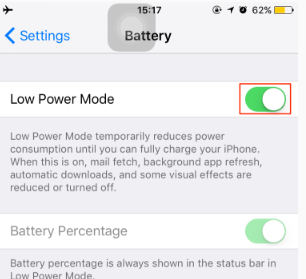
Enabling Low Power Mode reduces iPhone battery drain and makes your iPhone battery last for several hours longer than in normal mode. When Low Power Mode is on, mail fetch, background app refresh, automatic downloads, and some visual effects are reduced or turned off automatically. This will greatly increase your iPhone battery life. When it is enabled you will see a Yellow battery bar on iPhone. To enable this, go to settings > tap Battery > toggle the switch next to ‘Low Power Mode’ to turn it on.
This feature is only available on iPhones that are running with iOS 9 and later versions, and the iPad doesn’t have this feature.
Disable Automatic Downloads and Updates
Another culprit for battery drain is the Automatic Downloads feature, which can quietly work behind the scenes to update your apps or content even when you aren’t actively using your phone. If Automatic Downloads is turned on, your iPhone will automatically download purchases (like apps) made on other devices linked to your Apple ID, and will also update apps automatically. While convenient, this background activity can chip away at your battery life over time.
To stop this, head to Settings > App Store. Here, you can toggle off both ‘Apps’ and ‘App Updates’ to prevent automatic downloads and updates. This way, you take control—choosing when to update your apps manually, which not only saves battery but can also help you avoid unwanted data usage.
Turn off ‘Raise to Wake’
The ‘Raise to Wake’ option in your iPhone settings is turned on by default with iOS 10. The ‘Raise to Wake’ feature automatically wakes your iPhone or iPad screen as soon as you pick it up from flat on a surface. If you move around a lot with your iPhone in your hand, your iPhone screen wakes up automatically and remains constantly turned on which is one of the causes why your iPhone battery discharge fast. Therefore, if you see your iPhone battery drain quickly, turn off the ‘Raise to Wake’ feature to save iPhone battery life.
To do this, go to Settings > tap Display & Brightness > toggle the switch next to ‘Raise to Wake’ to turn it off.
4. Enable “Reduce Motion”
Another useful trick to extend your iPhone battery life is enabling the “Reduce Motion” setting. When this feature is switched on, it limits the movement of user interface elements such as app transition animations and parallax effects on your Home Screen. These subtle effects may look appealing, but they actually require extra processing power and—surprisingly—can contribute to faster battery drain.
By minimizing these visual effects, you help your iPhone conserve more energy for the tasks that truly matter. To activate it, simply go to Settings > Accessibility > Motion, then turn on Reduce Motion. This small change is barely noticeable in day-to-day use but can make a difference for those looking to squeeze a bit more life out of every charge.
5. Turn off ‘Raise to Wake’
The ‘Raise to Wake’ option in your iPhone settings is turned on by default with iOS 10. The ‘Raise to Wake’ feature automatically wakes your iPhone or iPad screen as soon as you pick it up from flat on a surface. If you move around a lot with your iPhone in your hand, your iPhone screen wakes up automatically and remains constantly turned on which is one of the causes why your iPhone battery discharge fast. Therefore, if you see your iPhone battery drain quickly, turn off the ‘Raise to Wake’ feature to save iPhone battery life.
To do this, go to Settings > tap Display & Brightness > toggle the switch next to ‘Raise to Wake’ to turn it off.
6. Place Your iPhone Face Down to Save Battery
If you’ve ever wondered whether putting your iPhone face down actually saves battery, the answer is yes—it does! Thanks to Apple’s clever design, when your iPhone is placed screen-down, notifications won’t automatically light up your display. This subtle trick helps prevent unnecessary battery drain from the constant screen wake-ups every time you receive an alert, message, or call.
To take advantage of this feature, simply lay your device with the screen facing your desk or table. Worried about scratching the glass? No problem—using a good quality screen protector (like those from Belkin or ZAGG) or a protective case helps keep your display safe. This small habit can extend your battery life, especially on busy days when notifications never seem to stop buzzing.
7. Update apps (including iOS updates)
Sometimes outdated apps can be the cause when your iPhone 8, iPhone 7, iPhone 6, or iPhone 6s battery drains fast suddenly. Normally software updates often include bug fixes some of which at times may be the cause of why your iPhone battery dying fast. When Apple releases a new iOS update, developers also prepare and optimize their apps for the latest version. Therefore, ensure that your iPhone or iPad is working with the apps with the latest iOS version. Taking time to update all the available apps may affect your iPhone or iPad battery life considerably.
To update apps, open App Store > Tap ‘Updates’ at the bottom right of the screen > Tap ‘Update All’ in the upper right corner.
Should You Update iOS Right Away or Wait?
Before you rush to install the latest iOS update, it’s often wise to pause and see how things unfold for other users. When a brand-new iOS version debuts, early adopters occasionally discover bugs, glitches, or unexpected quirks that can affect battery life, performance, or even app compatibility. These issues are often temporary and quickly patched—but if you depend on your device running smoothly each day, you may want to hold off on updating immediately.
In my experience, waiting a few days (or even a week) gives you time to check online reviews and community forums to catch any common problems before taking the plunge. I learned this lesson the hard way years ago, watching my own device struggle after an early update dropped. Trust me—a little patience can save you from battery woes and a lot of frustration!
8. Turn off “Background App Refresh”
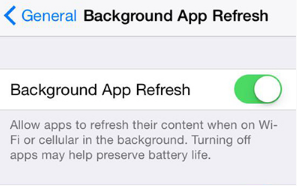
The ‘Background App Refresh’ feature refreshes the apps on your iPhone in the background which is to say your apps continue to update even when you’re not using them. This is intended to save the loading time of the apps. But allowing all your open apps to continually update and refresh in the background also becomes one of the causes why your iPhone battery not holding charge. Therefore, you should turn this feature off to extend the battery life on your iPhone or iPad.
To turn it off go to Settings> General> Background App Refresh> Toggle ‘Background App Refresh’ to the off position.
9. Limit Push Notifications
Push notifications are another silent culprit behind rapid iPhone battery drain. Every time an app sends a notification, it wakes your iPhone, checks for new information, and often lights up your screen—sometimes even when you don’t need it. With countless apps vying for your attention, these frequent nudges can quickly add up and eat away at your battery.
To reduce this drain, it’s a good idea to review which apps are allowed to send notifications and turn off notifications for any non-essential apps. Here’s how you can do it:
Go to Settings > Notifications.
Scroll through the list of apps to see which are enabled for notifications.
For each app, ask yourself if it’s truly necessary to receive real-time alerts. If not, switch off “Allow Notifications” for that app.
Keep important notifications active for apps you use for communication, banking, or reminders, but restrict those from shopping apps and games that you don’t need to hear from instantly.
By cutting down on unnecessary push notifications, your iPhone will stay idle more often—saving both battery and your sanity.
10. Disable “Location Services”
iPhone Location Service may also be one of the causes of why your iPhone battery is draining fast.
iPhone’s location service determines your approximate location using GPS, Bluetooth, WiFi hotspot, and mobile tower location and passes on the information to different apps that help to find restaurants and more for you. But, like any service that sends data over a network, it needs battery power to work. Therefore, if you don’t need to use Location Service and don’t plan to use it right away, turn it off to prevent your iPhone battery draining quickly.
To turn it off go to Settings > tap Privacy > tap Location Services > toggle the switch next to ‘Location Services’ to the off position.
What Is Location Services and Why Does It Drain Your Battery?
Location Services is a feature on your iPhone that uses a mix of GPS, WiFi, Bluetooth, and mobile networks to figure out where you are. Apps love tapping into this, whether it’s finding nearby restaurants, tagging your location in social media posts, or pulling up weather updates. While this is undeniably handy, it comes at a cost: every time your phone pings these networks for your whereabouts, it draws power from your battery.
If you don’t need apps to know your exact location all the time, you can cut back on battery drain by disabling Location Services entirely or limiting its use to only the apps that genuinely need it.
Here’s how:
- Go to Settings > Privacy > Location Services.
- To turn off the feature completely, toggle off Location Services at the top.
- If you’d rather pick and choose, tap on individual apps and select options like “Never” or “While Using the App” based on what makes sense for you.
Keep in mind that disabling Location Services may affect certain features in apps like Maps or Weather, but for most, a little restriction goes a long way in prolonging your battery between charges.
11. Turn off Bluetooth altogether to give your battery a break
Bluetooth is another sneaky culprit that can quietly drain your iPhone battery, especially if you’re not fully aware of which apps are using it. Many apps request Bluetooth access for things like location-based promotions or features you might not even need. If you’re not currently connected to Bluetooth accessories such as headphones, speakers, or an Apple Watch, consider turning off Bluetooth altogether to give your battery a break.
However, if you do need Bluetooth for certain devices, you can still save battery by restricting Bluetooth access for apps that don’t truly need it. Here’s how:
Open Settings.
Tap Privacy.
Select Bluetooth.
Review the list and toggle off Bluetooth access for apps you rarely use or that shouldn’t need it.
If you get a prompt from an app asking for Bluetooth access and it seems unnecessary, simply choose ‘Don’t Allow.’ This extra step helps reduce unnecessary battery drain and gives you more control over your device’s power usage.
12. Turn on “Airplane Mode”
If you see your iPhone battery dying quickly, one of the major reasons may be poor cellular service. When you are in a place of low signal, your iPhone will increase the power to the antenna to stay connected enough to receive calls and maintain a data connection. This depletes your iPhone battery in no time.
When you see the battery on iPhone is draining fast, to prevent it, turn on ‘Airplane mode’ by swiping up from the bottom of the Home screen of your device to access Control Center and tapping on the Airplane mode icon or go to Settings > Airplane Mode > Toggle ‘Airplane Mode’ to ON position. Once you’re back in an area with a strong signal, use the same steps to turn off Airplane mode.
But please bear in mind that when your iPhone’s Airplane mode is turned on, you cannot make or receive any phone calls.
13. Turn off ‘vibration’
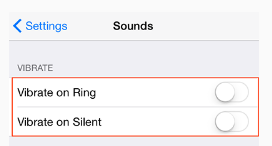
Vibration alerts can drain your iPhone battery more than anything else especially when you get a lot of push notifications. If you turn off vibration alerts on your phone, you’ll notice a considerable improvement in battery life. To turn off vibration go to Settings > Sounds > turn off ‘Vibrate on Rings’ and ‘Vibrate on Silent’.
14. Turn off the ‘Auto-brightness’ feature
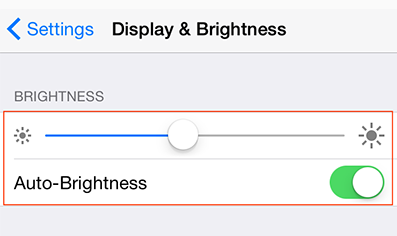
The Auto-Brightness feature of your iPhone may be also one of the reasons why your iPhone battery not holding charge. This feature of your iPhone adjusts the display brightness of the device according to the lighting of your existing surroundings. It always keeps the display brightness at its highest level depleting your battery life. Therefore, if you see your iPhone battery discharge fast turn Off the Auto-Brightness feature and adjust the brightness yourself to a lower level according to your requirements.
To turn it off go to Settings > tap on Display & Brightness > Turn off Auto-Brightness and adjust the brightness to a lower level by swiping to the left.
Alternatively, if you prefer your iPhone to automatically adjust screen brightness based on ambient light—which can actually help conserve battery when used correctly—you can enable Auto-Brightness through a different path:
- Go to Settings > Accessibility > Display & Text Size.
- Scroll down to the bottom and turn Auto-Brightness on.
If you often move between bright and dim environments, letting your iPhone manage the brightness can be more convenient and energy-efficient. However, for maximum control and battery savings, manually keeping the brightness low is usually the best bet.
Reduce Screen Timeout with Auto-Lock
Another trick to squeeze more life out of your battery is adjusting how quickly your iPhone screen goes dark when not in use. The Auto-Lock feature determines how long your device waits before turning off the display—and the shorter the interval, the more battery you save.
To adjust this setting, head to Settings > Display & Brightness > Auto-Lock. Select a shorter time limit, like 30 seconds, to minimize unnecessary screen usage. This small tweak can make a surprising difference, especially if you tend to set your phone down between uses.
15. Switch to Dark Mode to Save Battery
You might be surprised, but switching your iPhone to Dark Mode can help extend your battery life—especially if you have a device with an OLED display (like the iPhone X or newer). Dark Mode uses less power by lighting up fewer pixels, reducing strain on your battery during regular use.
Want to give it a try? Here’s how:
- Open Settings > Display & Brightness.
- Tap ‘Dark’ under the Appearance section to switch your phone’s theme instantly.
- For even more convenience, you can enable Automatic mode, which lets your iPhone shift between Light and Dark based on the time of day. Choose ‘Automatic,’ then set your own custom schedule or have it switch at sunset and sunrise.
Making the jump to Dark Mode not only gives your screen a sleek look but adds a bit more juice to get you through the day.
16. Turn off WiFi when not in use
If you do not turn off WiFi when you are not connected to a WiFi network it makes the WiFi of your iPhone or iPad hunt around for WiFi networks it could join. This will consume battery power. Therefore, when you are not using WiFi you should turn it off to stop unnecessary iPhone battery drain.
To do this go to Settings > tap WiFi > toggle WiFi to the off position.
Prefer WiFi Over Cellular for Battery Savings
Whenever possible, connect your iPhone or iPad to a WiFi network instead of relying on mobile data. Using WiFi generally consumes less power than maintaining a cellular connection, especially if you’re in an area where the cellular signal is weak and your device has to work harder to stay connected. Opting for WiFi not only helps conserve battery life, but it can also help you avoid using up your mobile data allowance.
Limit Downloads to WiFi for Battery Efficiency
Here’s another savvy move for protecting your iPhone’s battery—avoid downloading podcasts, music, or other large files over your cellular connection. Downloading content using mobile data can put a real strain on your battery, since your device has to work harder to maintain that data connection—especially in areas with spotty signal.
Instead, opt to download episodes or files only when you’re connected to WiFi. Not only does this conserve your data plan, but your device uses less energy transferring information over WiFi compared to cellular networks. To make this automatic, you can enable the option to block downloads over cellular in your app settings, ensuring bigger transfers happen only on WiFi. Your battery (and data allowance) will thank you for it!
Try seeking out trusted networks at home, work, or your favorite local spots like Starbucks or the library—your iPhone (and your monthly data plan) will thank you.
Limit Background Data: Disable iPhone Analytics Sharing
Another subtle, often-overlooked battery drainer is your iPhone’s analytics sharing feature. By default, your device may automatically send diagnostic and usage data back to Apple, which helps them improve their products but also quietly sips at your battery and data in the background.
If you’re keen on maximizing your iPhone’s efficiency (and aren’t too fussed about participating in Apple’s improvement efforts), consider turning this off. When analytics sharing is disabled, your iPhone won’t constantly collect, bundle, and upload logs—saving a bit of energy that adds up over days and weeks.
Here’s how to do it:
- Head to Settings > Privacy & Security > Analytics & Improvements.
- Toggle off “Share iPhone Analytics”.
While you likely won’t notice any immediate change in daily performance, this simple step trims background activity, contributing to better overall battery life—especially helpful if you’re already stretching every last percent.
Besides the above fixes, another point also needs mentioning in this connection is that all kinds of viruses consume lots of power and may be the cause of why the battery on iPhone is draining fast. Therefore, when you are not sure, why is my iPhone draining battery fast all of a sudden, a virus or malware infection may also be one of the reasons. However, the likelihood of such happening is extremely low in the case of iOS devices.
Here is how to check for viruses on iPhone.
You might also like to read this related post: Why does my phone die so fast – how to fix the issue
Frequently asked questions
Now that the discussion above has addressed the query often made by iPhone users – why is my iPhone battery draining so fast and how to fix this problem of iPhone battery draining fast, let me also address some of the related questions often asked by iOS users:
Why my iPhone battery drain so fast?
Most battery problems on an iPhone are mainly related to software issues and not due to faulty batteries. Only a small percentage comes from faulty batteries. Apple has designed the batteries of its devices to be strong and safe for use. The main cause of concern for the battery issues of iPhones is the downloaded apps. More specifically, the cause of iPhone battery draining fast is how these apps perform and their various settings.
Why is my iPhone battery draining fast?
When your iPhone battery drains quickly the question may come up in your mind – why my iPhone battery is draining fast without any apparent reason?
There may be two possibilities as to why your iPhone battery dying quickly. Either the battery is depreciating or something in the system is draining your battery power more than usual. To fix the issue, you need to look into both the hardware and software aspects of your device and follow the fixes suggested in the post.
Here are some of the major reasons why your iPhone battery draining fast,
1. Poor battery health;
2. Some apps consume too much battery power;
3. Too high screen brightness;
4. Enabled location services when not in use;
Should you close apps to save battery—or does it actually make things worse?
You’ve probably heard that force-quitting apps can help improve your iPhone’s battery life. Surprisingly, that’s a common myth. According to experts—even Apple themselves—manually closing your apps does not conserve battery. In fact, swiping away apps in the App Switcher may actually use more power, as the system will need to fully reload the app from scratch next time you launch it.
So, unless an app is frozen or acting strangely, it’s best to let iOS manage your apps in the background. Apple’s software is designed to pause and efficiently handle background apps, so frequent closing isn’t just unnecessary—it could be working against you in your efforts to keep your charge lasting longer.
How long do iPhone batteries last?
As per Apple, an iPhone 5, from full charge condition, offers up to eight hours of talk time and Internet use on 3G, 10 hours of Internet use on WiFi, 10 hours of video viewing, or 40 hours of using audio besides 225 hours of standby time. The Battery life of earlier models may, of course, vary.
How do I know if my iPhone battery is bad?
If you see your iPhone not holding charge as long as it used to, then you can check about this in the iOS settings. For this, go to Settings > Battery.
If it’s in bad condition, you’ll see a notification at the top of the screen that says, your battery needs to be serviced.
How to check if my iPhone battery needs replacement?
To check if your iPhone battery needs replacing
1. Go to Settings > Battery;
2. Tap on Battery Health;
3. Here you will see the “maximum capacity” of your battery in percentage which is a measure of your battery capacity relative to when it was new;
4. Below that you can see your battery’s present ‘Peak Performance Capacity’;
You’ll also want to keep an eye out for specific battery health messages that your iPhone might display. For instance:
- “This iPhone has experienced an unexpected shutdown because the battery was unable to deliver the necessary peak power.”
- “Your battery’s health is significantly degraded. An Apple Authorized Service Provider can replace the battery to restore full performance and capacity.”
If you see messages like these, it’s a clear sign your battery may be struggling — and it might be time to consider a replacement to keep things running smoothly.
How can I tell if my iPhone is charging properly?
To ensure your iPhone is charging as it should, it’s helpful to check both visually and through your device’s settings.
Start by plugging your iPhone into the charger, then look for the lightning bolt symbol on the battery icon at the top-right corner of the screen. This indicates that charging has started. If you don’t see the symbol, try reinserting the charging cable or using a different wall adapter—sometimes a faulty cable (like those from Anker or Belkin) can be the culprit.
For a more detailed check, go to Settings > Battery and take a look at the battery graph. When your iPhone is plugged in and gaining charge, you’ll notice a distinct segment—usually marked in green—showing when charging occurred. A steady increase in battery level during this period means charging is happening correctly.
If your battery percentage doesn’t rise or you don’t see any indication of charging, inspect your charging port and cable for dust or debris, as these can sometimes hinder proper connection. Trying another certified cable or adapter is also a good troubleshooting step.
Check the Charging Port and Cable
If you’re still having trouble, take a closer look at the charging port and cable:
- Loose or Damaged Cable: A cable that’s frayed, bent, or otherwise damaged can prevent your iPhone from charging. Swapping out the cable for another (preferably MFi-certified) one can help rule out this issue.
- Clogged Charging Port: Sometimes, the charging port itself is the culprit, especially if it’s clogged with lint, dust, or other debris. Use a clean, dry brush or a gentle burst of compressed air to clear out the port. Avoid using anything sharp that might damage the internal components.
- Physical Damage: If you notice any bent pins or obvious physical damage inside the port, it’s best to stop trying to charge and seek professional help to avoid further harm.
Carefully checking these aspects ensures you’re not overlooking a common culprit for charging issues—and helps keep your iPhone powered up and ready for action.
Carefully checking these aspects ensures you’re not overlooking a common culprit for charging issues—and helps keep your iPhone powered up and ready for action.
Why should I avoid using non-certified (non-MFi) cables and chargers?
It’s tempting to grab whatever charging cable is closest at hand—especially when you’re in a hurry. But using non-certified (non-MFi) cables and chargers can actually do more harm than good to your iPhone’s battery health.
Non-certified accessories often lack the proper safety checks and quality controls found in Apple-certified products. They can deliver inconsistent power, which might lead to slower charging, unexpected battery drains, or in some cases, overheating. The risk here isn’t only about diminished battery life—poorly made cables or adapters can even cause physical damage to your device’s charging port, or at worst, create a fire hazard.
For peace of mind (and a healthier battery), stick to MFi-certified cables and chargers from reputable brands like Anker or Belkin. They’re designed specifically for your device and meet Apple’s reliability standards, reducing the risk of charging woes down the line.
At what percentage should I charge my iPhone battery?
The ideal charge level for a stable battery is between 40 and 80 percent. It would be best if you could maintain your battery charge in the upper mid-range of the above. Keeping your battery in the above range will help you to get the most out of your battery. Leaving your phone plugged in when it’s fully charged (like charging overnight) is bad for the battery in the long run.
Resetting All Settings Without Losing Data
If you’ve noticed odd battery behavior after a software update—or want to clear up quirky issues without wiping your whole device—a simple reset of your settings can often do the trick. The handy part? This won’t erase your photos, apps, or personal files. What it does is restore things like network preferences, keyboard dictionaries, privacy, and location settings back to default, letting you start fresh while keeping your important data safe.
Here’s how to reset all settings on your iPhone without deleting anything personal:
- Open the Settings app.
- Tap General.
- Scroll down and select Transfer or Reset iPhone.
- Choose Reset, then tap Reset All Settings.
- Enter your passcode to confirm.
After your phone restarts, you’ll need to reconfigure Wi-Fi networks and adjust any custom preferences, like wallpaper or location permissions. This process is a non-destructive way to clear up system-level issues—and one of the quickest troubleshooting steps if your battery or other features aren’t behaving as expected.
How to fix iPhone 13 not charging
Try the following steps to fix when your iPhone 13 not charging:
1. Hard Reset your iPhone;
2. Check your iPhone Lightning Cable;
3. Check the iPhone Charger;
4. Check your iPhone’s Charging Port;
How to Back Up Your iPhone Before a Full Reset?
If a hard reset hasn’t solved your charging woes and you’re gearing up for a full reset, protecting your data should be your first priority. Backing up ensures you won’t lose your photos, messages, or apps in the process. There are two main ways to safeguard your info—using iCloud or your computer.
Backing Up with iCloud:
- Connect your iPhone to Wi-Fi.
- Head to Settings, tap your name at the top, then choose iCloud.
- Scroll down to iCloud Backup. If it’s turned off, switch it on.
- Tap Back Up Now and wait for the process to finish.
- Make sure the latest backup appears under “Back Up Now” with today’s date and time before continuing.
Backing Up with a Computer:
- Plug your iPhone into your computer using a Lightning cable (it could be from brands like Anker or Belkin).
- Open Finder (on macOS Catalina or later) or iTunes (on older Macs or Windows PCs).
- Select your iPhone when it appears, then choose Back Up Now.
- Wait for the backup to complete, and verify the backup date and time before proceeding.
Backing up before a reset gives you peace of mind—if anything goes sideways, you can easily restore your iPhone without missing a beat.
Is using Safari better for battery life than Chrome and other browsers?
Yes, opting for Safari over third-party browsers like Chrome or Firefox can help your iPhone battery last longer. The reason is simple: Safari is specifically built and optimized by Apple to work efficiently with iOS, making it less demanding on your device’s resources. On the other hand, browsers like Chrome and Firefox, while popular for cross-device syncing and familiar interfaces, tend to consume more battery due to their heavier background processes and less integration with iOS.
So, if your goal is to maximize battery life, stick to Safari for your web browsing needs. This small change can have a noticeable impact, especially if you spend a lot of time online.
Why is my iPhone 12 battery draining fast?
If you see your iPhone 12 battery draining fast even when it’s not in use you can take some of the following steps to fix the problem:
1. Go to Settings > Battery and see which apps are consuming the most battery. If you see any particular app using a high amount of battery in the background it might be the cause of the drain;
2. Some apps refresh their content in the background, which can consume battery. You can disable background app refresh for specific apps by going to Settings > General > Background App Refresh and toggle off the apps you don’t need to refresh in the background;
3. If you have multiple email accounts set up on your iPhone and use the push email feature, it can drain your battery; instead of having your iPhone constantly connect to your email provider to check for new messages, consider adjusting your settings to fetch emails less frequently.
To do this, go to Settings > Mail > Accounts > Fetch New Data. Here, you can turn off Push and choose a schedule for how often your device fetches mail—every 15 minutes, 30 minutes, hourly, or manually. By selecting a longer fetch interval, you’ll reduce how often your phone checks for new emails in the background, which can help conserve battery life without causing you to miss important messages. If you use the Mail app, these options will appear in your settings.
This small tweak can make a noticeable difference in your daily battery usage.
4. Some apps constantly track your location in the background, which can consume significant battery power. You can manage and restrict the location access for apps by going to Settings > Privacy > Location Services and adjusting the settings for individual apps;
For best results:
- Keep Location Services enabled only for essential apps like Maps or navigation tools.
- Set most other apps to “While Using the App” rather than “Always.” This prevents unnecessary background tracking.
- Review the list of apps under Location Services and tap each one to customize its permissions.
- Turn off Precise Location for apps that don’t need your exact whereabouts—this can help conserve battery and adds a bit of privacy.
Taking a few minutes to fine-tune these settings can make a noticeable difference in your iPhone’s battery life.
5. Sometimes, a simple restart can resolve temporary software glitches; if you notice your iPhone battery draining unusually fast, it’s worth giving this a try. To restart your iPhone, follow these steps based on your model:
- For iPhone X and later: Hold down the Side button along with either the Volume Up or Volume Down button until the “slide to power off” slider appears. Swipe to turn off your device, wait about a minute, then press and hold the Side button again to turn it back on.
- For older models (like iPhone 6/6S/7/8/SE 2nd Gen): Just hold the Side (or Top) button until the slider appears. Swipe to power off, wait a minute, and then press and hold the same button to restart.
A quick restart can often clear out minor bugs or background processes that might be causing your battery to drain more quickly than usual.
You may also like to read: Why is my iPhone battery yellow
When Should You Erase Your iPhone (and How to Do It Safely)?
If you’ve tried all the usual fixes and your iPhone’s battery is still draining at a suspiciously rapid rate, you might be dealing with a stubborn software glitch or an issue that just won’t quit. In such cases, completely erasing your device can sometimes clear out any hidden bugs or corrupted settings standing in your way. But don’t jump in headfirst—this is the most drastic step and should only be considered when nothing else has worked.
Here’s how to safely erase your iPhone while protecting your data:
1, Back Up Your Data First
Before wiping your device, make sure you’ve backed up everything important. You can use iCloud or connect your iPhone to your computer and back up via Finder (on macOS Catalina or later) or iTunes (on older Macs and Windows PCs).
To back up with iCloud: Go to Settings > [your name] > iCloud > iCloud Backup, then tap “Back Up Now.”
To back up on your computer: Plug your iPhone in, open your backup software, and follow the on-screen prompts to create a backup.
2. Erase All Content and Settings
Once you’ve backed up, head to Settings > General > Transfer or Reset iPhone > Erase All Content and Settings.
This will wipe everything from your device, restoring it to a clean, factory-fresh state. Be aware: this is permanent unless you have that backup handy!
3. Set Up Your iPhone Again
After erasure, your iPhone will restart as if it’s brand new. You can either set it up from scratch or restore from your backup during setup.
When should you pull the trigger on a full erase? Only after trying all other troubleshooting steps without success. It’s a reliable way to eliminate persistent issues, but it should be a last resort given the time and effort involved.
If you’re still noticing rapid battery drain after a clean slate, the culprit may be hardware—specifically, a worn-out battery. At that point, consider reaching out to Apple Support or a reputable repair provider for a battery replacement. Alternatively, if you’re mostly in need of a little extra juice on the go, a portable magnetic charger like Anker or Belkin can give your iPhone an emergency top-up without the hassle.
Conclusion
Now that you know – why is my iPhone battery draining so fast all of a sudden, try to follow the following tips besides the fixes mentioned in the post:
> Turn off as many background apps as possible;
> Turn off Bluetooth & WiFi if you aren’t using them;
> Turn your screen’s brightness down as low as possible without straining your eyes;
> Don’t use battery-hogging apps like Facebook too much;
> And finally, don’t unnecessarily check your phone frequently;
As far as my experience goes, it can be assured that when you find your iPhone battery draining fast and you follow the tips given above, you will be able to stop your iPhone battery drain in most cases and save your iPhone battery life significantly under normal circumstances.
If you see your iPhone battery draining quickly even when not in use and the issue cannot be resolved following the above fixes, the only way to tell if your battery is defective is to take your phone to an Apple Store or an Authorized Apple Service Center and have them test it.
If the iPad or iPhone battery drains fast even after following the tips above your best option is to purchase an external battery pack or a battery case. I have found ‘Anker PowerCore 20100’ to be the best external battery pack so far in the market. It is not too heavy and it can be carried easily into different kinds of pockets in your bag. It can recharge an iPhone up to 7 times from 0 to 100% depending on the model.
Please share in the comment section below if you have any other better solutions when you see your iPhone battery is draining fast or when your iPhone won’t hold charge for long.
You might also like to read this post: Why won’t my iPad charge?

Gen
Aug 22. 2019
You make it sound like a user problem when in fact it is entirely a scummy Apple tactic that they always use right before a new phone model is about to come out. Just call out Apple for what it is (a dodgy company)… all works well, new ISO update comes right before a new iPhone release, and battery magically starts draining faster than normal. I seriously can’t stand Apple and I’m thinking of going to Android.
CD
Oct 24. 2019
I tend to agree with you. Not only that, but its always the same 10 things they recommend doing to extend battery life. I’m not talking slow drain under regular use, I’m talking nearly 1% a minute during use. It’s ridiculous.
The only thing I haven’t done yet is factory reset my phone, which I shouldn’t have to do that to fix a battery drain issue either.
Sharon
Dec 14. 2021
I agree as well. I bought an iPhone 7 new less than 2 years ago. Was doing wonderful. No new apps. Just the last 14 update I think in October. Ever since, the battery is just draining every day quickly. I do Not do any social media. I do very little on the phone other than a couple calls and a few texts, and a little web browsing. Just doesn’t make sense. I’m sure it has something to do with the last update.
Jeb
Jan 28. 2022
Totally disagree with the android comments. I have both apple & android phones. Android are not difficult to use/navigate, they are far more user friendly than apple. You have never had battery problems with apple? Bullsh@t…. You either work for apple or are a complete kn@b! How do you explain the thousands of google hits for battery issues with iPhones and iPads? And also it’s every time they do an update before a new release.. it’s clear they are doing it deliberately, they even admitted to slowing previous models before!
Greg
Apr 29. 2021
Switching from Apple products is not the answer.
I guarantee you will have more issues when using an android product, plus you will hate the unintelligent operating system. Androids are not as friendly as apple products.
I would research other avenues in your settings. something is running in the background that you are unaware of. Or somehow, your battery has been compromised.
As you add new apps, be sure to never allow notifications or location unless absolutely necessary for the use of each specific app.
I have owned iPhones since their inception. I have never noticed any major battery drains after iOS updates or when a new iPhone is soon to be released.
I never buy the newest iPhone just because a new one is released. I still have an iPhone 7 and the 13 should be released later this year.
After a new iOS update is released, simply take the time to learn what is changed, review your settings again and tweak it to better aid your iPhone and battery usage
Resh
Nov 11. 2019
Siri also running in background learning from every single app you downloaded. I’m disabling Siri and it’s ability to learn how I use every single app which is uploaded to iCloud. They make you turn that off one by one in each app instead of a universal way to turn off globally across all apps under Settings/Siri & Search/
quiao
May 25. 2020
Resh you are so right about that! my siri shows it takes 55% of my batery usage, and i never even use siri!
Alan
Dec 20. 2019
iPhone 6s running 13.3. Phones will go from >80% to less than 5% in seconds, and crash.. If I don’t plug it into a charger, it won’t reboot. Plugging it into a charger it boots up and within seconds goes from about 5%, back to 80%. Sounds like a software issue. I backed up to cloud (10 hours), did a hard, factory reboot, reinstalled all apps, updated all apps. Everything I could find online, and still had the same issue. This all started two weeks ago. I upgraded my iOS a few weeks earlier, and now feel it was a mistake. Last night I put it in airplane mode and took it off the charger. It was fine this morning until about 10 seconds after I took it off airplane mode, then it crashed. I have only installed one new (news) app in the past 2 months, and I removed it on the chance that it might have issues, but it made no difference. Currently, my phone can’t be used more than 5 minutes without crashing, unless tethered to a charger, or in airplane mode. I had power issues (heating up and discharging rapidly) 1 year ago, and had the battery replaced by Apple. No problems since then until now. I am out of the country for another year (in Mexico), and will either dump Apple when I get back, or get a new phone and never upgrade the iOS again. It is hard to go android when all the kids and grandkids have iOS and use FaceTime to communicate with me.
MOHAMMAD BASHA
Sep 22. 2020
hi alan
last week I have faced the same issue as yours after updating ios 13.7 to 14.0 suddenly fall to 1% my battery health is 99% now the apple center is telling me that there is an issue in the IC of the mother board.
what did you do? is there any solution for this kind of problem.
or should I have to replace the battery ?
Abu
Dec 26. 2019
I have the exact same problem that Alan described above. Got a new battery installed less than a year ago and now my phone keeps loosing power rapidly. To me it looks like a Apple tactic to buy a new phone 🙁
Uthayaraj
May 09. 2020
Same problem with my iphone 6. After I upgraded, it’s worst! Now it doesn’t reboot! I am packing it & keeping it in the fridge for a day as a friend advised to do so to make the battery work again! We all know that batteries wear off, but it cannot wear off suddenly like it’s happening with Apple! Apple needs to answer the customers!
Lah
Aug 03. 2020
I have the exact same problem described above by Alan. Frustrating!
Sy Walton
May 11. 2020
There is another issue with older iPhones such as the iPhone 5s where the U2 charging chip in your phone can be damaged by using a non-apple charger or charging through your car’s USB port. This happened to me and now my phone, with a brand new battery mind you, goes from 100% to 10% battery capacity in less than six hours. There is nothing that can be done. Getting it fixed would cost too much. I am planning on getting a new phone.
Also, there should never be a reason to do all of the things listed in this article. It just shows you what a crappy product the iPhone is.
Ian N Abrams
Jul 25. 2020
This is an excellent article! Thanks so much for all the tips!
radharenu ganguly
Jul 25. 2020
Hi Ian,
Thanks for stopping by and for your comments
Cheap Samsung NZ
Aug 25. 2020
This blog helps you to know about the iphone battery draining fast how to fix. These are must read for all . This article is a good one to look at. You will get best review over here and would suggest others too. Great blog indeed, will visit again future to read more!!Find an incredible site Mobilecitynz.net having lots of ideas and tips that can be handy.
radharenu ganguly
Sep 12. 2020
Hi
Thanks for the comment! I’m glad you found the article useful.
RCS
Nov 13. 2020
brand new iPhone SE is a space phone that I use to go in the internet via wifi, it always in airplane mode and the batter is now draining due to low cell cignal phone it always in airplane mode all apps close and are all manual push to update. Any thoughts?
radharenu ganguly
Nov 19. 2020
Hi RCS,
Putting the phone in Airplane mode does not shut down apps. Any app can run in background, and can attempt to access data for updates. Thus, airplane mode can cause battery drain just by being enabled, and can potentially use more energy than if it could connect to data. Usually it is a rogue app constantly running in the background.
To fix the issue,
Go to Settings > Battery and scroll down to ‘Battery usage’ to see the apps that are consuming your battery. If any of the apps have unusually high usage they can be shut down.
RCS gentlemen,
Mar 17. 2022
Needier updates needier another fact described here, most important on all devices with display and Li-Ion battery, is to keep low light on Screen because the Screens from all devices consume enormous because of Backlight (under the LCD Screen for you can see what LCD Screen show) and another fact is: when is made the battery I mean the date (day, month, year) when manufacture release the battery and how many months keep in store until come in hands of Customer because if it’s come to Customer after 3, 5, 6 months, the Li-Ion battery it’s already consumed and after 1 month 3 months the battery is depreciated and refer to all kind of batteries less Ni-Cd which is important to be stored with low capacity possible. And do not forget anybody from this forum, all Li-Ion batteries have inside an Safety Electronic device based on little Processor to analyze carefully all the time the stage of Battery in Safety terms because the Li-Ion batteries are very dangerous then, check the date of manufacture to be with maximum one month in storage or, in the seller store more than 2 months and with 50% charge also the Li-Ion battery become soon obsolete.
Rob
Dec 03. 2020
I have an iPhone 7 (10 months old) as well as an iPhone 6 ( 4 years old – original battery).
iPhone 7 battery suddenly discharged quickly about 2 months ago.
After frustrations with Apple I fully charged iPhone 7 and turned power off for 12 hours. When I turned iPhone on again battery was at approx 50%
To double check I did the same test with old iPhone – 98%
Apple say no problem with battery – I agree
Apple say no problem with iPhone because diagnostics say so.
Despite reinstallation and resets by Apple my problem persists. Apple say there is no problem
I am about to go to Consumer Affairs Department armed with video and screen shots to prove my point.
Just because diagnostics can’t find a problem this doesn’t mean that there is not a problem.
Any suggestions?
Purna Duwal
Dec 13. 2020
I have iphone 6 . my phone’s battery draining fast even in night mode and airplane mode. battery health is still 90% . what to do/
radharenu ganguly
Dec 17. 2020
Hi Duwal,
Sorry for the delay to reply.
Low Power Mode is an easy way to extend the battery life of your iPhone when it starts to get low. You can enable it by going to Settings > Battery. Low Power Mode reduces display brightness, optimizes device performance, and minimizes system animations. Apps including Mail will not download content in the background, and features like AirDrop, iCloud sync, and Continuity will be disabled. When your phone charges up again, Low Power Mode automatically switches off.
Additionally, doing a forced restart can sometimes reset a runaway process.
Geegee
Dec 21. 2020
I recently did an upgrade to IOS 14.2 which I had not uodated for a very long time. I have a 6s plus. At 3:00 AM to 3:15 AM EVERY morning, while I am sleeping my battery goes from 60%-100% to 1%.
Even when turn my phone off at night and this still happens EVERY night unless I keep my phone plugged into the charger all night. My battery reads I have 82% life left. This only started after this latest update. I am on low power mode, battery saver mode and followed all the suggested fixes and it still drains at around 3:00 AM
1- is there a way to delete the update? 2- Is there any fix? 3- what you do if this was happening to you?
radharenu ganguly
Dec 24. 2020
Hi Geegee,
Sorry for the delay in replying.
While iOS 14 is far from bug-free and it would be wise to wait a few days for developers to catch-up. The issue was for developer beta version and it has many bugs. Due to UI Changes the older models get battery drain issue which is very common in beta versions. Please get back to iOS 13 to avoid the battery drain issue.
Jamie
Jan 19. 2021
I have a I phone 8 it’s at 100% and then all the sudden it’s at 10 % and shuts off I turn it back on it’s at 15% how do I fix this my battery is draining fast
darren
Feb 15. 2021
I have iphone 6s with same battery drain issues after ios 14.4 update , how do I go back to a previous version ?
radharenu ganguly
Feb 17. 2021
Hi Darren,
Apple recently stopped signing on iOS 14.3 which means you can no longer downgrade from iOS 14.4 to iOS 14.3
gary
Mar 03. 2021
My phone Xr quickly loses power from 50% to shut down.
– I charged it to 90 % overnight and it holds the charge till morning. I started using the phone till battery drops to ~50% and then suddenly the phone switched off.
Mostly this happens when I’m on the video call or zoom or FB. Software is 14.1 and battery health shows 90%. Is there any calibration issue here, I use the phone while charging most of the time. Appreciate your suggestion. Thanks.
gary
Mar 03. 2021
also, I noticed that after plugging the charger, phone shows ~10 -15 % battery and quickly charged to ~ 50 % within10 min and then it takes usual ~an h time to 100% charge. hmm I’m curious. thanks for any suggestion.
p miller
Mar 31. 2021
SOLVED (at least for me)!
Over several weeks after upgrading from 13.7 to 14.4.x I tried turning off MANY Settings and offloading all 3rd-party apps etc — to no avail. Still sluggish, overheating, and fast battery drain anytime screen was on.
An apple-support tech mgr suggested doing a full Settings&Content Reset (after a backup) to confirm if a hardware problem. Phone worked fine as as empty new phone… so was definitely confused software.
So I re-did the full reset and restored from iCloud backup and it SOLVED this problem on my iPhoneSE(1st gen).
So do THIS:
– do a full icloud-backup (pay 99 cents for 1 month of increased icloud storage)
– Settings/General/RESET ALL CONTENT AND SETTINGS
– Follow new-phone setup steps and login into your apple ID and restore from the iCloud backup.
After doing those my SE was back to normal!! 🙂
Ethicks
May 28. 2021
I recently changed my iPhone X battery.. the battery capacity says 100 Percent.. but I notice that my battery drain so fast even after the replacement ..! Sometimes when I fully charged and gets stuck at 100 percent.. and never suddenly decreases to 93 or 94… can you please help me to resolve this problem .. I have reset my phone and did so many thing but never fixed
radharenu ganguly
May 29. 2021
Hi Ethicks,
Thanks for your comments. There are several reasons which can drain your battery fast. You can try the following fixes to solve the issue:
1. Update iOS and wait for a day to sync all settings;
2. Find the apps that are consuming your battery and take action accordingly. For this go to Settings>Battery and see which app is consuming the highest percentage of your battery;
3. You may have apps running in the background that are draining your battery. Try background app refresh to see if that helps. For this go to Setting> General> Background App Refresh;
4. If you have WiFi and/or Bluetooth turned on but not connected to anything, that can drain your battery faster than normal;
5. Another reason may be that the battery is not yet calibrated because you just replaced it. You need to fully charge and fully discharge the battery 3 times so that the battery is fully calibrated and shows a more accurate battery percentage charge. Go through 3 full charge cycles, from 100% to 1% and the battery should be normal;
6. Even after trying the above fixes if still the battery drains, then it’s possible you got a LOW QUALITY battery that wasn’t built with high quality standards;
Prairie
May 10. 2022
I have a iPhone 8 Plus upgraded a year or so on it’s been fine it’s only now the passed 2 days my battery has been draining fast and ive looked at my capacity and it says it’s 82% so I don’t know what it is but it all of a sudden just started happening!😕
L. Abud
Jun 08. 2022
I’m moving to a Jitterbug!! (it’s a smart phone for seniors). I just can’t handle all this technology in the palm of my hand. If you have any respectful advice, I’d take it!
radharenu ganguly
Jun 08. 2022
Hi Abud,
You can visit this website for all kinds of support: https://www.lively.com/support/
Isaac
Aug 03. 2022
I have an iphone 6s. on the locked screen, it says 100% charged but the battery percentage says otherwise. Please what could be causing this?
John geary
Oct 01. 2022
The sudden battery drain is a programmed feature in certain Apple updates that was designed to compel users to buy the latest iPhone. If you have sudden battery drain I would recommend updating all your data to the cloud and then wiping your phone and then re-download in all of your data/contacts. This put my phone back to normal function ability. Thanks