Why is my iPhone screen green?
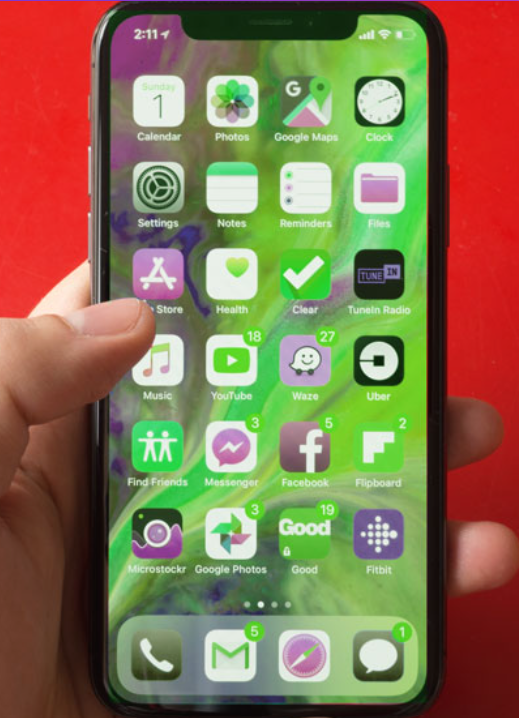
How to fix Green Screen on iPhone issue?
You may find an iPhone user sometimes asking why my iPhone screen turned green and how to fix Green screen on iPhone issue. The issue of your ‘iPhone screen gone green’ is an annoying problem as it significantly affects the display on your iPhone. Green screen issues are common among iPhones and can affect screens due to various software issues.
You may notice green lines on iPhone screen when the display brightness is set at a lower level. In this article, I have explained the possible causes of your query ‘Why is my iPhone screen green’, and how to fix iPhone green screen.
Green on iPhone screen may result from several reasons. Though it is difficult to determine which particular reason is causing this strange iPhone with green screen, the common reasons why your iPhone screen turned green, are improper display settings, iOS system bugs, or just some physical damage to the device.
Why is my iPhone screen green? – The possible causes
There are several reasons why your iPhone might develop a green screen issue. Sometimes, the problem is related to software glitches or bugs in the iOS system, which can cause the display to malfunction. Hardware defects, such as issues with the GPU or display controller, can also lead to a persistent green screen. Physical damage, like dropping your iPhone or exposing it to water, is another common culprit—especially if you notice the green screen after an accident. Other factors include firmware corruption, overheating, incorrect display settings, outdated iOS versions, battery issues, or even a faulty power button. To fix the green screen, it’s important to pinpoint the underlying cause. If you’re unable to resolve the issue on your own, reaching out to Apple Support or visiting an Apple Authorized Service Provider can help you get a professional diagnosis and repair.
Additionally, a damaged or aging battery might cause display issues, such as screen flickering or discoloration—including a green tint on your iPhone. While this is less common, it’s worth considering if your device is older or has shown signs of battery degradation. Keeping your iPhone updated and monitoring battery health can help prevent some of these display anomalies from developing in the first place.
Here are some of the possible causes why you may see green lines on iPhone screen or why your iPhone screen turned green. In some cases, the green screen can be a death issue, requiring more advanced troubleshooting.
i. iOS system bugs: This may occur due to a software issue attributed to iOS updates. You may notice an iPhone screen green tint or green lines on iPhone screen without any warning if you use an outdated iOS version on your device;
ii. Improper display settings: Wrong display settings of your iPhone may sometimes cause a green screen iPhone;
Sometimes, tweaking your iPhone’s display settings—like using Dark Mode for extended periods, disabling True Tone, or making drastic changes to color filters—can unexpectedly trigger the green screen issue. These settings alter how your device manages color balance and brightness, which, in some cases, may lead to display anomalies such as green lines or an overall green tint. If the problem occurs after adjusting your display options, try reverting to default settings or toggling features like True Tone and Night Shift to see if it resolves the green hue.
iii. Damaged screen: The green on iPhone screen may result from physical damage to your iPhone such as water damage or a broken display. If your iPhone is dropped accidentally in water ‘iPhone screen green tint water damage’ issue may occur unless you get water out of your iPhone immediately. A persistent green screen may also indicate a hardware issue that requires professional inspection.
You may like to read Steps to Prevent iPhone water damage to save your iPhone from the ‘iPhone screen green tint water damage’ issue.
iv. Application conflicts and bugs;
v. Physical damage to the driver circuit;
Distinguishing Software vs. Hardware Green Screen Symptoms
Noticing a green tint or green screen on your iPhone can be unsettling, but the symptoms you observe can actually offer important clues about the root cause. Understanding these differences can guide you toward the right solution—whether it’s a simple settings adjustment or a trip to the Genius Bar.
Signs of a Software-Related Green Screen
A green tint problem linked to software typically presents as a faint, uniform greenish hue overlaying the entire display. In these cases, your iPhone remains fully functional—touchscreen responses, swiping between apps, and button presses should all work as expected. You might spot the issue after a major iOS update, or notice it coinciding with changes in display features like Night Shift or True Tone. Often, this kind of green screen comes and goes, or appears under certain lighting conditions.
If your device is otherwise operating normally but just looks a little greener than you’d expect, chances are high the issue is rooted in a misconfigured setting or an iOS bug. Adjusting display settings or updating your software usually resolves the problem.
Symptoms Pointing to Hardware-Related Green Screen
By contrast, a hardware-triggered green screen tends to be much more severe. This version is often unmistakable: you might see bright green lines, unresponsive sections, complete green washouts, or even a flickering screen. Touch might not register at all, or you could notice the screen behaving erratically—especially if your device recently experienced a fall, water exposure, or has a history of battery or display repairs.
Other telltale hardware signs include:
- A green screen immediately following a physical accident (drop, impact, or liquid exposure).
- Screen remains green or flickers even after restarting the iPhone or resetting settings.
- The display won’t turn on, or only shows green regardless of app or brightness adjustments.
If these symptoms sound familiar, software fixes are unlikely to resolve the issue. Physical repairs—ranging from a screen or connector replacement to a more in-depth inspection by Apple Support—are typically required.
Why Does the iPhone Screen Turn Green After Updating to iOS 26?
If you noticed your iPhone screen turning green, flickering, or showing discoloration after updating to iOS 26, you’re not alone. This issue can often be traced back to a few potential causes related to the update process:
- Software Glitches Introduced by Updates: Sometimes, an iOS update—like iOS 26—can trigger unexpected compatibility issues, leading to display anomalies such as a green tint or screen flicker. Bugs in the newly installed system may not always be ironed out immediately, especially if your device model is older or has unique hardware configurations.
- Incomplete Installation or Update Interruptions: If the update process was interrupted or didn’t install cleanly (for instance, due to a low battery or unstable Wi-Fi connection), some system files may become corrupted, affecting how the display operates.
- Conflicts with Existing Apps: Applications that aren’t updated or optimized for the latest iOS version can sometimes conflict with display drivers, resulting in green screens or other visual glitches.
- Hardware and Age-Related Issues: If your device already had underlying hardware wear, particularly in the display or battery, a software update can magnify these problems, making symptoms like green lines more apparent.
To minimize the risk, ensure your iPhone is fully charged, connected to a stable Wi-Fi network, and that all apps are up to date before initiating any iOS update. If the problem persists, a force restart or system restore may help; otherwise, reaching out to Apple Support or visiting an Apple Authorized Service Provider is the best step forward.
How to Distinguish Between a Green Tint and Green Screen of Death on Your iPhone
Understanding whether you’re dealing with a simple “green tint” or the more severe “green screen of death” can make all the difference when troubleshooting your iPhone’s display.
Spotting a Green Tint Issue
A green tint often appears as a faint, translucent green filter across your iPhone’s display. If your device still responds normally to your touch, launches apps, and doesn’t show any lag, the issue is likely related to software. This green overlay is usually most noticeable after an iOS update or when display settings like Night Shift or True Tone go awry. Fortunately, this tends to be a relatively mild problem that can often be solved by adjusting your display settings, disabling certain features, or updating your software.
Key signs of green tint:
- The screen looks greenish, but images and icons are still visible.
- The touchscreen remains fully responsive.
- The discoloration often changes or disappears with adjustments to brightness or display settings.
Recognizing the Green Screen of Death
On the other hand, if your iPhone’s screen suddenly turns a vivid, opaque green, becomes unresponsive, or starts flickering—in some cases accompanied by a complete lack of touch response—you may be facing the infamous green screen of death. This is often a warning sign of a more serious hardware failure or a severe iOS crash, especially if the issue follows a significant drop or water exposure.
Key signs of green screen of death:
- The screen is completely green and may flicker, or you only see a solid green light.
- Touch input is unreliable or doesn’t work at all.
- The device may not progress past the green display, even after repeated restarts.
What to Do Next
- If you’re seeing a green tint and your phone still works: Start with a software check—adjust your display settings, turn off Night Shift or True Tone, and ensure your iOS is up to date.
- If your screen is fully green and unresponsive: Try a force restart. If that doesn’t help, it’s time to consult Apple Support or visit an authorized service center for further diagnosis.
By identifying the differences early, you can save time and determine whether you’re facing a software hiccup or a hardware headache.
Vi. Can a virus cause a green screen on an iPhone?
The chances of a virus being responsible for a green screen on your iPhone are extremely slim. Apple’s iOS is designed with robust security features that make it highly resistant to traditional viruses and malware. In most cases, green screen issues are caused by software glitches, hardware failures, or physical damage—not by malicious software. If you’re seeing a green screen, it’s far more likely that a system issue or a hardware component is to blame, rather than a virus.
How to Check for Malware or Unusual Activity
While viruses are very rare on iPhones, it’s still smart to rule out any possible software interference. Here’s what you can do:
- Check for Unusual Behavior: If your device is acting strangely beyond the green screen—such as random pop-ups, apps you don’t remember installing, or rapid battery drain—those could be signs of malware or a compromised app.
- Update iOS: Make sure your device is running the latest version of iOS. Apple frequently releases security updates that patch vulnerabilities.
- Remove Suspicious Apps: If you recently downloaded an unfamiliar app before the problem started, delete it to see if the issue resolves.
- Restart Your iPhone: Sometimes a simple restart can clear up temporary glitches or software hiccups.
- Reset Settings: Go to Settings > General > Reset > Reset All Settings. This won’t erase your data, but it will clear out any system-level glitches.
If after trying these steps the green screen persists, the cause is almost certainly a hardware problem or a deep system glitch—not a virus. At that point, reaching out to Apple Support or visiting an authorized service provider is your best bet.
How to check your iPhone’s battery health and spot overheating issues?
If you suspect your iPhone’s green screen problem may be related to battery health or overheating, checking these areas can provide useful clues before seeking repairs. A worn-out battery or frequent overheating can stress internal components like the GPU, which may trigger glitches such as screen discoloration or faint green lines. Here’s how to do a quick check:
Check your battery health:
- Go to Settings and scroll down to Battery.
- Tap Battery Health & Charging.
- Review the Maximum Capacity percentage. If it’s dropping below 80%, your battery may no longer deliver peak performance, contributing to display issues.
- Under Peak Performance Capability, check for any notifications about performance management being applied. If there’s a message about unexpected shutdowns or reduced performance, it’s a sign your battery or device is struggling.
Monitor overheating:
- Pay attention to how hot your device feels during regular use. Overheating not only drains battery faster but can also impact the display.
- If your iPhone feels unusually warm, remove it from its case to help it cool down.
- Avoid using demanding apps or charging while in direct sunlight, as both can raise temperature and potentially worsen display problems.
If you spot any warnings in the battery settings, or your device regularly runs hot, consider having the battery assessed or replaced at an authorized service center. Resolving battery or overheating issues may clear up some green screen sightings—especially on older devices prone to power-related glitches.
Which iPhone Models are most prone to the Green Screen of Death?
If you’re wondering which iPhone models are particularly susceptible to the infamous Green Screen of Death, it’s most frequently reported on the iPhone X, iPhone 12, and iPhone 13 series. Users of these models have encountered sudden green tints, lines, or complete discoloration more often than those with other devices. However, it’s important to note that while these models are the usual suspects, no iPhone is completely immune—display issues can potentially arise on any generation depending on usage, age, and exposure to factors like drops or water damage.
Common Mistakes That Can Lead to iPhone Screen Problems
Just as certain habits can drain your battery, there are a few common missteps that may unknowingly contribute to green screens, flickering, or display glitches on your iPhone. Knowing what to avoid can prolong your device’s life and help you sidestep unnecessary headaches.
Beware of These Screen-Damaging Habits:
- Cheap Charging Accessories: Using uncertified or poorly-made chargers and cables can cause voltage fluctuations, potentially damaging your display components over time. Always opt for genuine Apple or reputable third-party accessories that are MFi-certified.
- Extreme Temperatures: Leaving your iPhone in hot cars, direct sunlight, or freezing environments can cause the display and internal parts to expand or contract, sometimes triggering color issues or outright failure.
- Overusing High-Brightness Settings: Keeping the brightness cranked all the way up for extended periods may not only drain your battery but could also degrade your OLED screen faster, leading to color distortion or persistent tints.
- Ignoring iOS Updates: Software updates often include critical bug fixes targeting display performance. Skipping these can leave you vulnerable to glitches like the notorious green screen.
- Physical Stress: Regular drops (even with a case), pressure on your screen, or stuffing your phone in over-crowded bags can flex the device’s internals and trigger display malfunctions or loose display connectors.
A Few Extra Tips:
- Avoid charging your device while using intensive apps or games, as this can heat things up quickly.
- Don’t ignore warning signs—flickers, lines, or color shifts should be addressed early, before they worsen.
By steering clear of these common pitfalls, you’ll stand a much better chance of keeping your iPhone’s display clean, crisp, and decidedly un-green.
How to fix green screen on iPhone?
If your iPhone screen turns green or your iPhone screen is flashing green under some conditions then you can try the following troubleshooting steps on how to fix green screen on iPhone issue. But before performing the fixes make sure to backup your important data so that you don’t accidentally lose them while carrying out the process.
1. Force Restart your iPhone
Force restarting your iPhone causes all services and applications on your device to turn off which can fix several minor issues like unfreezing your iPhone if its display is stuck at the green screen or getting rid of software glitches that may be causing the iPhone green screen issue. Here’s how you can restart your device.
The restart procedure differs depending on the model of your iPhone. Here are the steps to follow based on different models:
For iPhone 8 and later versions: Press and quickly release the ‘Volume Up’ button. Next press and release the ‘Volume Down’ button. Then press and hold the ‘Side button’ until you see the Apple logo.This process is also known as a forced restart or hard reset, and you will know the device is rebooting when the Apple logo shows;
For iPhone 7/7Plus: Press and hold both the Power button and the Volume Down button simultaneously for at least 10 seconds until you see the Apple logo. This is also called a forced restart or hard reset, and the Apple logo shows as the device restarts;
For iPhone 6S or earlier version: Hold down both the Power button and the Home button at the same time for at least 10 seconds. Release the buttons as soon as the Apple logo appears. This is referred to as a forced restart or hard reset, and the Apple logo shows during the reboot;
2. Update your iPhone to the latest iOS version
You may encounter the iPhone green screen issue if you run an outdated iOS system on your phone. The green iPhone screen may be caused by a software problem attributed to iOS updates which can be fixed by updating your current iOS version. The steps below will guide you on how to update your iPhone.
Go to Settings > Tap General > Tap Software Update > On the available updates, click the option to ‘Install Now’;
Make sure to update iOS system to fix persistent issues that may cause display problems.
Downgrade iOS to a Previous Version
In some cases, users have noticed the iPhone green screen appeared after updating to a newer iOS version—particularly when a recent update introduces software bugs or compatibility issues. If you suspect the problem began after installing the latest iOS, downgrading to an earlier, more stable version can sometimes resolve the display issue.
Many iPhone 13 users face this problem after updating to iOS 17. If your device is still under warranty, it might be wise to back it up and consider a replacement.
It’s important to note that Apple only allows downgrading to iOS versions that are currently being signed. To check if your desired version is eligible, visit websites like IPSW.me for up-to-date signing status. If downgrading is an option, you’ll need:
- A Mac or Windows PC with the latest version of iTunes or Finder (for Macs running macOS Catalina or later)
- A compatible signed IPSW firmware file downloaded from a trusted source
- A reliable Lightning or USB-C cable
Before you begin:
Downgrading your iOS can erase all data on your device. Make sure you back up your important files and settings to iCloud or your computer, so you don’t lose anything critical.
How to downgrade your iPhone’s iOS:
- Connect your iPhone to your computer.
- Open iTunes or Finder, and put your device into Recovery Mode.
- Select your device when it appears, then hold the Option (Mac) or Shift (Windows) key and click “Restore iPhone.”
- Choose the downloaded IPSW file, and follow the prompts.
Consider using reputable third-party tools like Tenorshare ReiBoot, Dr.Fone, or AnyFix to simplify this process if you’re not comfortable using iTunes or Finder directly. Always ensure any third-party software you use is well-reviewed and reputable.
Downgrading isn’t guaranteed to fix every iPhone green screen situation, but if the issue was triggered by a software update, reverting to an earlier iOS version can often help restore your display to normal. If downgrading doesn’t solve the problem—and especially if your iPhone is still covered by warranty—reaching out for a replacement may be the most reliable fix.
3. Adjust your iPhone’s Display Settings
It is often found that the green screen iPhone is caused due to improper display settings. Therefore, you need to adjust your iPhone’s display settings including screen brightness, true tone, auto-lock as an option for how to fix green screen on iPhone issue.
Open Settings and adjust iPhone display settings such as screen brightness, True Tone, Auto-Brightness, and toggle Dark Mode. Toggling dark mode and other iPhone display settings can help resolve green screen or flashing issues.
If you see your iPhone with green screen then make the following adjustments to your iPhone’s display settings including screen brightness, true tone, auto-lock:
i. Enable the ‘Auto-brightness’ feature by going to Settings > Accessibility > Display &Text Size;
ii. Enable ‘Automatic’ brightness control by going to Settings > Display & Brightness;
iii. Enable ‘True Tone’ by going to Settings > Display & Brightness;
iv. Set short ‘auto-lock time’ by going to Settings > Display & Brightness > Auto-lock;
4. Remove All the Background Apps
If too many apps run in the background this may cause your iPhone’s flashing green screen. In such a case, you can fix the problem by removing all the apps running in the background. Here’s how to do this,
i. If you are using an iPhone 8 or earlier, press the home button twice to open the running apps most recently used by you. Next, swipe up the apps from the bottom of your phone to close the apps;
ii. If you use iPhone X or later, swipe up from the bottom of the Home screen and stop in the middle. This will display the background running apps you recently used. Next, swipe up the apps to close them;
Note: Too many background apps can cause phone screen issues, including flashing or unresponsiveness.
5. Uninstall Recently Installed Apps
In some cases, the green screen issue on your iPhone can pop up right after adding a new app—especially if it’s a screen recorder, custom widget, or any app that alters how the display behaves. These apps can sometimes conflict with your phone’s display settings or iOS interface, triggering unexpected color bugs or screen glitches.
To rule this out, try removing any apps you installed just before the issue started. Here’s how you can do it:
- Find the recently installed app on your Home Screen.
- Press and hold its icon until options appear.
- Tap “Remove App,” then confirm by selecting “Delete App.”
Afterward, restart your iPhone and check the display. This quick step often resolves green tints or flashing screens caused by software conflicts—no specialized tools or trips to the Genius Bar required. If things go back to normal, you’ve found your culprit!
6. Reset your iPhone’s settings
Some of your customized settings might be the reason for triggering the green screen issue on iPhone. Resetting your iPhone back to factory defaults may, therefore, fix the green tint on your iPhone display or green lines on iPhone screen.
Since this process will wipe out all your data and settings, you should back up your iPhone before proceeding. Resetting your iPhone to its factory defaults can clear out any customized settings that may have triggered the green screen issue and return your device to its original state.
Follow the steps below to perform this reset:
i. Go to Settings > General > Reset (or, on newer iOS versions, Settings > General > Transfer or Reset iPhone);
ii. Enter your passcode if prompted;
iii. Select ‘Reset All Settings’ or ‘Erase All Content and Settings’—the latter will completely wipe your device, so only choose it if other resets haven’t worked;
iv. Confirm the reset and all your customized settings should be erased.
Pro-tip:
Remember, all your data and personal preferences will be removed, so ensure you have a backup using iCloud or your computer before proceeding.
Now reboot your iPhone. If the issue persists after resetting, you may need a new screen to fully resolve the problem.
7. Restore your iPhone Using iTunes
Wiping clean your iPhone by restoring the device to factory defaults using iTunes is another method to fix the green screen iPhone issue. Since this method will delete all your data you should back up your iPhone before going for this restore process. Follow the steps below to restore your iPhone using iTunes.
i. Install the latest version of iTunes on your computer;
ii. Connect your iPhone to the computer using a USB cable;
iii. Open iTunes;
iv. Click the iPhone icon on the iTunes window;
v. Next click the Summary tab;
vi. Then tap the button to restore your iPhone and confirm the action when prompted;
You can also use a third-party iOS system repair tool like Tenorshare ReiBoot to fix when you see your iPhone screen is green. This is an effective tool that can help repair this problem without losing any data. One of the most reliable ways to fix the issue is by downloading and installing Tenorshare Reiboot on your PC. For severe or persistent issues, consider using the Deep Repair option in such tools, but be aware that deep repair may result in data loss.
If you’d like to try this method, here’s a step-by-step guide to using Tenorshare ReiBoot:
- Download and install Tenorshare ReiBoot on your PC, then launch the tool and connect your iPhone via lightning cable.
- Once your device is detected, hit Start Repair on the homepage.
- You’ll be prompted to download the required firmware. Choose the firmware version and select where to save it on your computer, then click Download and wait for the download to finish.
- After the firmware is ready, select Standard Repair to attempt the fix while keeping your data intact. The tool will begin repairing your iPhone, and you should see a completion message shortly.
- When the repair is done, check your device to see if the green screen issue is resolved.
Note: If the problem persists, you can try the Deep Repair option in ReiBoot. Just remember, this process will erase all your existing data, so be sure to back up anything important before proceeding.
8. Try Apple Configurator 2 for a more reliable restore
If you’ve tried the previous reset methods but your iPhone’s green screen problem just won’t budge, it might be time to take things up a notch with Apple Configurator 2. This tool is especially handy when standard recovery methods like iTunes don’t seem to resolve stubborn software glitches or when your phone won’t update properly.
Here’s how you can use Apple Configurator 2 for a stable iOS restore:
- Download Apple Configurator 2: Head to the Mac App Store and install Apple Configurator 2 on your Mac.
- Connect Your iPhone: Using a USB cable, link your iPhone to your Mac.
- Enter DFU Mode: On your iPhone, follow the specific button combination to put your device into Device Firmware Update (DFU) mode. This allows for a deeper restore process than standard recovery.
- Restore Your Device: Once your iPhone appears in Apple Configurator 2, select it, then choose the option to restore. This will erase your device and reinstall the latest iOS version, which can often wipe out lingering glitches causing display issues.
- Let the Process Finish: Don’t unplug your device until the restore is completely done. Interrupting this process can sometimes cause more problems.
Using Apple Configurator 2 can provide a more thorough reset than standard options, giving your iPhone a fresh start when persistent software-related green screen issues refuse to disappear.
Green Screen After an iOS Update? Here’s What to Try
In some cases, you may notice your iPhone screen developing a green tint or lines right after updating to a new iOS version. This is a known hiccup that can pop up with fresh software releases and, while annoying, there are a few practical steps you can take before getting worried.
First, try the basic fixes—restart your device, check for any additional software updates, and adjust your display settings as described earlier. Sometimes, a quick reboot or an update patch from Apple can resolve display anomalies post-update.
Downgrade to a Previous iOS Version
If the green screen appeared immediately after installing the latest iOS and nothing else helps, consider reverting to a previous iOS version. Downgrading can undo any compatibility glitches introduced by the new update.
To do this:
- Back up your iPhone: Before making any changes, safeguard your photos, contacts, and important files with iCloud or your computer.
- Use an official or reputable iOS system repair tool: Popular options like Tenorshare ReiBoot, Dr.Fone – System Repair (iOS), or iMobie AnyFix allow you to downgrade to an earlier iOS version such as iOS 17. These tools offer clear guides to walk you through the process.
- Follow the prompts: The downgrade process will typically involve connecting your iPhone to a computer, launching the tool, and selecting the firmware you want to install.
Remember, downgrading may erase your data and settings—so your backup is crucial! Once complete, restore your backup as needed.
If the issue continues even after downgrading or persists with every iOS version, it’s time to consult Apple Support, as a deeper hardware issue might be at play.
Use Apple diagnostics to identify hardware problems
If, after all those software fixes, your iPhone still sports an unwelcome green hue or vertical lines, there might be a hardware issue lurking beneath the glass. That’s where Apple Diagnostics steps in—a tool designed to sniff out faults hidden within your device’s internals, such as the graphics chip or display controller.
Here’s how you can put Apple Diagnostics to work:
- Unplug everything: Remove all cables and accessories connected to your iPhone.
- Power down: Turn off your device completely.
- Get into diagnostics mode: On supported models, pressing and holding specific buttons while connecting your iPhone to a Mac with Apple Configurator 2 will launch the diagnostics utility. Follow the on-screen instructions to begin the checkup.
- Review your results: The tool will produce reference codes pinpointing any detected hardware glitches. Jot down these codes—they’re invaluable if you contact Apple Support for the next steps.
Running this check is especially helpful if your screen is flickering, showing colored lines, or behaving unpredictably after drops or water exposure. It can save time by confirming whether your issue is rooted in physical components, so you’ll know whether a trip to a repair shop (or Apple itself) is in order.
What are the typical costs to fix the green screen of death on an iPhone?
- Under warranty or with AppleCare+: If your iPhone is still covered, a screen replacement runs about $29 (plus any applicable taxes or fees). That’s one of the perks of AppleCare+—it dramatically reduces repair costs for accidental damage.
- Out of warranty: No warranty or AppleCare+? Be prepared for a steeper toll. Standard screen replacements typically range from $279 to $379, depending on your model. Flagship models like the iPhone 14 Pro Max command the highest repair costs due to their advanced display tech.
- Third-party repair options: Independent shops may offer slightly lower rates, but always confirm that they use high-quality replacement parts and stand behind their work. For critical display issues, sticking with authorized repair centers or Apple’s own service is usually your safest bet.
How to fix green lines on iPhone screen?
Green lines on your iPhone screen or green iPhone screen may appear if you dropped your phone accidentally causing damage to the screen or due to a hardware defect which may require you to contact Apple support.
But before contacting Apple you can try the following methods to fix the green iPhone screen.
Troubleshooting steps for screen discoloration on your iPhone
Screen won’t shake that green, yellow, or full-on rainbow vibe? Don’t worry, there are a few things you can try before packing up for the Genius Bar.
Here are some practical steps to tackle screen discoloration on your iPhone:
- Force restart your iPhone: A simple hard reboot can clear temporary glitches. For most iPhones, quickly press and release the Volume Up button, then the Volume Down, then hold the Side button until you see the Apple logo.
- Check for software updates: Sometimes, strange screen colors are the result of buggy software. Head to Settings > General > Software Update and make sure you’re running the latest iOS.
- Turn off and on True Tone and Night Shift: These display features can alter how your screen looks. Switch them off in Settings > Display & Brightness, then check if your display returns to normal.
- Reset all settings: If the color issue persists, go to Settings > General > Transfer or Reset iPhone > Reset > Reset All Settings. This won’t delete your personal data, but will revert system settings—which may help.
- Inspect for physical damage: Drops, knocks, or water exposure can cause lasting screen problems. Look closely for cracks, warping, or moisture under the glass.
- Try a reputable repair tool: Third-party iOS repair utilities like Tenorshare ReiBoot or Dr.Fone – System Repair can sometimes resolve persistent display issues with a guided process (just remember to back up your data first).
If you’ve worked through these options and the odd hues or lines remain, it’s likely a hardware issue—especially if it started after a physical mishap. That means your next stop should be a certified Apple repair center or trusted technician for further diagnosis.
Method 1: Restart the iPhone Device;
Method 2: Run iPhone in Recovery Mode;
Sometimes, a persistent green screen is the result of firmware hiccups or the graphics processor stalling out. Running your iPhone in Recovery Mode can often resolve these issues, allowing you to reinstall iOS without wiping your data—a lifesaver if you’d rather not start from scratch.
Here’s how to do it:
- Connect your iPhone to a computer (Mac or Windows PC) using a USB cable.
- For iPhone 8 and later: Quickly press and release the Volume Up button, then the Volume Down button, then press and hold the Side button until you see the recovery mode screen.
- On your computer (using Finder on Mac or iTunes on Windows), you’ll see a prompt—choose Update. This will attempt to reinstall iOS without deleting your apps or personal data.
- Allow the update process to complete. Your iPhone should restart, hopefully free of the stubborn green hue.
If the green screen persists after this step, you may need to explore additional troubleshooting or consider reaching out to Apple Support for deeper hardware diagnostics.
Method 3: Try Connecting to iTunes and Force Restarting
Here’s a lesser-known trick that has reportedly worked for some users: connect your iPhone to iTunes (on a PC or Mac) and then force-restart your device while it’s plugged in. Odd as it sounds, repeating this process a few times has resolved the green screen for a handful of users. Give it a try:
- Plug your iPhone into your computer with a USB cable.
- Open iTunes (or Finder on Mac).
- With your phone connected, perform a force restart: quickly press and release Volume Up, then Volume Down, then press and hold the Side button until you see the Apple logo.
- Repeat this force-restart process 3–4 times if the green screen remains.
If this workaround doesn’t help, it’s a strong signal the problem may be hardware-related, and it’s time to schedule a visit with a service center for a professional inspection.
Method 4: Check the iPhone for Any Wetness or Moisture;
Method 5: Update the device to the latest iOS;
Method 6: Reset your iPhone;
Green screens can sometimes be resolved by following the troubleshooting steps outlined below.
Basic Troubleshooting Steps
If you’re facing a green screen issue on your iPhone, start with some basic troubleshooting steps before moving on to more advanced solutions. First, try force restarting your iPhone: quickly press and release the Volume Up button, then the Volume Down button, and finally press and hold the Side button until the Apple logo appears. Next, check for any available software updates and install the latest iOS version to ensure your device is running smoothly. Adjust your display settings, such as brightness and True Tone, to see if that resolves the green screen. You can also reset your iPhone’s settings to their default values if you suspect a configuration problem. If the issue persists, connect your iPhone to a PC or Mac, open iTunes, and check for any device issues. If these steps don’t fix the green screen, consider using a third-party repair tool or visiting an Apple Store for further assistance.
Keep in mind that the iPhone green screen is frustrating, but it’s not always a death sentence for your device. In fact, a surprising number of cases—roughly 60% in our experience—are solved by a simple force restart or by using system repair software to fix corrupted iOS files. Before assuming the worst, try these basic fixes first; they often do the trick and can save you a trip to the service center.
Check for Physical or Water Damage
Before diving deeper into troubleshooting, it’s important to check if your iPhone shows any signs of physical damage or if it has recently been exposed to water. A hard drop or water exposure can sometimes trigger the infamous Green Screen of Death. When your iPhone screen turns green, it usually points to a display problem—commonly seen on iPhone X, iPhone 12, and iPhone 13. This issue can crop up due to a temporary software glitch, hardware failure, or physical/water damage.
Special Note for iPhone 13 & 14 Pro Users:
If you have an iPhone 13 or 14 Pro, be aware that these models have a known manufacturing defect that can cause unexpected green screens—even if you haven’t dropped your phone or gotten it wet. In many cases, Apple will repair or replace affected devices free of charge, sometimes even if your warranty has expired, as long as there’s no evidence of physical or water damage.
Take a moment to inspect your phone carefully before moving on to more advanced fixes. Identifying physical or manufacturing issues early on can save you time and possibly even the cost of repairs.
If you notice a sudden green hue on your display, don’t panic—start by giving your phone a thorough once-over:
- Inspect the exterior: Look for cracks, dents, or warping around the edges of your phone, especially near the screen. Even a minor drop can dislodge internal components or damage the display.
- Check for moisture exposure: If your iPhone has been near water, condensation, or even a humid environment, moisture may have seeped inside. This can cause intermittent display issues, including a green tint or flickering.
- Consider recent events: Ask yourself if your device has been dropped, splashed, or exposed to high humidity in the last few days. Sometimes, the effects of water or impact take a while to appear.
Catching physical or water damage early can help you determine whether a quick fix or a trip to a repair shop is in order before you tackle the more advanced troubleshooting steps.
If your device has been dropped or has encountered moisture:
- Inspect the phone for any visible cracks or dents, especially along the edges of the display.
- If you suspect water damage, power off your iPhone immediately.
- Leave the device powered off in a dry place for at least 48 hours to allow any internal moisture to evaporate. Avoid using a hairdryer or applying heat, as this can cause further damage.
Giving your phone adequate time to dry out can sometimes resolve the green screen issue if moisture was the culprit.
Display Settings Adjustment
Sometimes, the green screen issue on your iPhone can be resolved by tweaking your display settings. Start by opening the Settings app and tapping on “Display & Brightness.” Use the brightness slider to adjust the screen brightness to a comfortable level—sometimes increasing or decreasing the brightness can help fix a green tint or green line on the screen. Enable or disable True Tone to see if it makes a difference in your display’s color accuracy. Don’t forget to check the “Auto-Brightness” setting, which automatically adjusts your screen brightness based on ambient lighting conditions. If you’ve made several changes and the green screen issue continues, try resetting your display settings to their default values. These adjustments can often resolve minor display issues and help fix the green screen on your iPhone.
If you’re using an iPhone with an OLED screen (such as iPhone X or newer), you might notice that the green screen flickering is more likely to happen at very low brightness levels. This is due to the Pulse-Width Modulation (PWM) technology used for dimming OLED displays. Try increasing your screen brightness to above 50% and see if the issue persists. If the flickering stops, consider leaving your brightness higher and turning off Auto-Brightness in Settings > Display & Brightness to prevent the phone from dimming automatically.
Additionally, features like True Tone and Night Shift, which adjust your screen’s color temperature based on your environment and the time of day, can sometimes cause the screen to appear greenish if they glitch or over-correct. To rule this out:
- Head to Settings > Display & Brightness.
- Toggle off True Tone.
- Tap into Night Shift and make sure it is disabled.
Experiment with these display options one at a time. In many cases, a simple adjustment here can clear up a persistent green screen and restore your phone’s display to normal.
Software Update
Keeping your iPhone’s iOS system up to date is crucial for preventing and fixing software-related issues, including the green screen problem. To update your iOS system, open the Settings app, tap on “General,” and then select “Software Update.” If an update is available, tap “Download and Install” to get the latest version. Follow the on-screen instructions to complete the update process. Installing the latest iOS version can fix bugs, improve performance, and resolve display issues like the green screen, helping your iPhone run smoothly and efficiently.
If you’re able to use your phone after the green screen appears, a software update is often the simplest way to stop the issue from recurring. However, if the green screen won’t go away and your iPhone remains unresponsive, options become more limited. In that case, try a forced restart to see if you can regain access. If a forced restart doesn’t work and the screen stays green, it’s time to reach out to Apple Support or visit a trusted repair service for professional help.
For most users, though, keeping your device updated is the best long-term fix for software-related glitches that can cause display problems.
Resetting Settings
If you’re still experiencing the green screen issue after trying other solutions, resetting your iPhone’s settings to their default values can help. To do this, open the Settings app, tap on “General,” then select “Reset,” and choose “Reset All Settings.” Enter your passcode to confirm the reset and wait for the process to complete. This step will erase all your customized settings, so it’s a good idea to back up your data beforehand. Resetting the settings can resolve problems caused by wrong settings or configuration errors that may be triggering the green screen. If the issue persists even after resetting, it’s best to contact Apple Support or visit an Apple Authorized Service Provider for further help in fixing the green screen on your iPhone.
Frequently asked questions
Before I conclude let me also address some of the queries often made by iPhone users related to the green iPhone screen issue.
What do you do when your iPhone screen turns green?
If your iPhone screen turns green or shows green lines on iPhone screen when screen brightness is set at a lower level, try to increase your iPhone display brightness. To do this,
Go to Settings > Display & Brightness > Drag the Brightness slider to the left or right;
How to fix iPhone screen green tint water damage?
Water or excessive moisture exposure can cause the iPhone screen to turn green. This is common when the phone is not given enough time to dry or hasn’t been properly cleaned after water exposure.
To fix the ‘iPhone screen green tint water damage’, ensure your iPhone is powered off and leave it in a dry place for at least 48 hours.
How to fix green screen of death iPhone?
You can try the solutions below to carry out iPhone green screen of death fix:
Solution 1. Adjust Display Settings;
Solution 2. Force Restart your iPhone;
Solution 3. Reset your iPhone’s settings;
Solution 4. Update iOS to the latest version;
How do I fix my iPhone 12 screen glitch?
To fix the screen glitch of your iPhone 12, force restart your iPhone. To do this,
Press and quickly release the ‘Volume Up’ button. Next press and release the ‘Volume Down’ button. Then press and hold the ‘Side button’ until you see the Apple logo;
You may also like to read this post: iPhone touch screen not working -fix it in 5 simple steps
Conclusion
Now you have the answer to your query – why is my iPhone screen green and how to fix iPhone green screen. It is hoped that the suggested solutions in the post will help to resolve your green screen iPhone issue in most cases.
However, even after following the solutions about how to fix green screen on iPhone if you still see your iPhone screen flashing green, there must be some hardware issues especially physical damage to your iPhone such as liquid damage or a broken display. In such a case, it is strongly recommended to seek Apple Support or visit an Apple store to get the screen repaired or replaced.
If you’ve found any other effective solution when your iPhone screen is green, you may please share the same with our readers in the comment section below.
