Why is my iPhone screen not responding to touch?
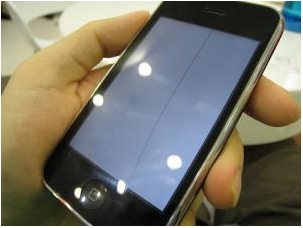
iPhone touch screen not working – steps to fix
You may hear iPhone users at times reporting – my iPhone touch screen not working. I have, in this post, discussed the causes of why at times you may see your iPhone screen not responding to touch and how to fix when you see your iPhone screen not working properly.
‘my iPhone touch screen is not working‘ is one of the most challenging issues being faced by iPhone users at times. However, there is no need to worry if for any reason the users find their iPhone screen not responding partly or fully. There are proven solutions that have been found to work in most cases when iPhone screen won’t work.
The operation of the iPhone or iPad is entirely based upon the touch feature, which is the primary mode of interaction between the user and the apps. Therefore, when the users see their iPad or iPhone not responding to touch it is a frustrating issue for the users. Some users may find their whole iPhone touch screen unresponsive, while others may find certain portions of the iPhone touchscreen not working as it should.
To troubleshoot, try to determine if any parts of your touch screen still respond. Rotate your device to landscape mode and see if you can access normally unreachable spots, or use one of the many touchscreen test apps available to help identify any dead zones. This can help you figure out whether the problem affects the entire screen or just specific areas.
When the iPhone 5 was first launched, the ‘iPhone 5 touch screen not working’ was an issue often reported by users. However, Apple took note of this problem, and the occurrence of the issue was considerably reduced in subsequent models. Though the issues like iPhone 6 touchscreen not working properly or the iPhone 7 touchscreen not working are occasionally reported, such problems don’t occur that easily in the later models.
Before I show how to fix iPhone’s unresponsive screen let’s first look into, what may be the possible causes of why your iPhone screen not responding.
Why is your iPhone screen not responding to touch? – Probable causes
Here are some of the probable causes why at times you may find that touch not working on iPhone as it should:
1. Too many programs running at the same time causing memory issues;
2. The iPhone dropped in water or liquid;
3. Accumulation of dirt or grease and foreign materials on the screen;
4. Dry soldering of touch screen connectors;
5. Faulty primary or secondary touchscreen control IC;
6. Touch screen got physically damaged;
7. A hardware issue such as a damaged connector or faulty component;
8. Battery problems, such as a failing or swollen battery, can also lead to touch screen issues;
What visible or subtle signs of display damage can cause the touch screen to stop responding?
It’s not always the big, dramatic cracks that cause your iPhone touch screen to misbehave. Sometimes, even the smallest issues with your display can interfere with its responsiveness. Here’s what to keep an eye out for:
- Hairline cracks or chips: Tilt your phone under good lighting to check for fine cracks—these can be surprisingly hard to spot unless you look closely. Even a tiny fracture in the glass can disrupt touch sensitivity, especially if the crack shifts over time.
- Unresponsive zones: If certain areas of your screen don’t register touch, it could be due to subtle display damage beneath the surface—even if everything looks alright from the outside.
- Loose or damaged internal connectors: Sometimes internal cables can get jostled or slightly damaged, especially if the phone has been dropped or opened up for repairs in the past. This might not show up as visible damage, but it can stop your screen from working altogether.
- Aftermarket screen replacements: Displays from third-party vendors can vary in quality. If you’ve recently had your screen replaced and notice inconsistent or unreliable touch response, the new screen might itself be at fault. In these cases, it’s a good idea to check with the repair shop or supplier about their warranty or replacement options.
If you notice any of the above or if software fixes haven’t helped, physical damage—even if it’s subtle—might be the culprit behind your iPhone’s touch issues.
Some iPhone users who replaced their screens with a non-apple screen, also reported that they found their iPhone screen not responding to touch after updating to iOS 11. The issue is linked to the use of third-party replacement parts as according to Apple the third-party replacement parts might not work correctly on iPhones. Nevertheless, Apple subsequently issued an update that fixed the issue.
Can iCloud Sync or certain Apps cause Touch Screen issues?
In some cases, specific apps working with iCloud—such as those in the iWork suite (Numbers, Pages, and Keynote)—can contribute to your touchscreen not responding as expected. Occasionally, syncing large documents or files via iCloud can bog down system resources, making the screen feel sluggish or entirely unresponsive.
How do you check if this is the culprit? Try turning off iCloud sync for these apps:
- Open Settings on your iPhone.
- Tap iCloud.
- Under the list of apps, look for Numbers, Pages, and Keynote.
- Switch off iCloud sync for these apps and see if the touchscreen problem improves.
If you notice performance gets better, you’ve likely pinpointed the issue! This is especially helpful if your screen freezes whenever you’re working with these specific apps or documents that update frequently.
Of course, if this doesn’t resolve things, don’t worry. There are several other reasons and solutions to explore, including hardware checks and more software troubleshooting.
If you’ve recently swapped out your iPhone screen and now find your touch function unresponsive, don’t panic—this is not uncommon, especially with third-party repairs. Replacement screens can vary widely in quality, and sometimes a new screen itself may not work as it should.
Here’s what you can try:
- Check the warranty or return policy: Contact the repair shop that did the replacement or the supplier you purchased the screen from. Explain the issue—they may offer a replacement or further troubleshooting if the part is faulty.
- Assess the quality of the parts used: Low-quality aftermarket screens are more likely to cause touch problems. Sticking with reputable brands for replacement components (like iFixScreens, uBreakiFix, or MobileSentrix) can reduce the chances of running into trouble.
- Double-check the connections: If you’re comfortable, you can inspect the screen connectors inside your device to ensure they’re seated properly. Sometimes issues arise from loose or misaligned connections after a repair.
- Consider a professional reinstallation: If adjusting the screen or reconnecting the flex cables doesn’t help, it might be best to have a technician take another look, as improper installation can also be a culprit.
- Last resort—replace the display: If all else fails and the warranty is out, purchasing a higher quality replacement screen may be necessary. Most reputable suppliers and local repair shops will offer various grade options based on quality and price.
If these steps still don’t resolve your unresponsive touchscreen, read on for other common issues and solutions that might help you get your device back to full functionality.
Bent Ground Pins: Which iPhones Are Affected and What Can You Do?
In some cases, a less common—yet surprisingly pesky—cause of unresponsive touch screens lies in something as simple (and sneaky) as bent ground pins within the home button connector. This tends to affect iPhone 7, 7 Plus, 8, 8 Plus, and also the second- and third-generation iPhone SE models, since these share similar connector designs. Most often, this trouble crops up after a screen replacement or repair where the display has been removed and reattached several times.
Wondering if this could be your issue? Here’s a quick way to check: Try connecting just the display—leaving the home button cable unplugged. If the screen’s touch suddenly springs back to life, you’ve likely found your culprit.
If you’re feeling brave (and have access to a magnifying glass or, say, eyes that rival Superman’s), take a close look at the four corners of the connector, where those ground pins reside. Sometimes, these little pins get pushed underneath the lip of the connector during repair mishaps. With extra care, a needle or a pair of fine-tipped tweezers can be used to gently coax them back into place.
Should you notice a pin that’s snapped or refuse to budge, don’t force it. At this stage, it’s best to visit a local phone repair shop—especially if you don’t have soldering experience. A specialist with the right tools can safely replace the connector and get your phone’s touch screen back on track.
How to Tell If Your Touch Screen Trouble Is Software or Hardware
Not sure if your iPhone’s touch woes are caused by tricky software or a deeper hardware hiccup? Here’s an easy way to sniff out the culprit before you make a trip to the repair shop.
Start by seeing if your touch screen responds on your home screen. If it’s only glitchy within one particular app—say, your go-to calendar app freezes but you can still swipe between home screens—it’s likely a buggy app is to blame rather than your hardware.
Here’s what to try:
- Close and Relaunch the App: Use App Switcher to swipe away the app and then reopen it. If the problem sticks around, check if there’s an update available in the App Store. Still buggy? Try uninstalling and reinstalling.
- Home Screen Not Responding?: If your entire device is unresponsive to touch (not just one app), it points more towards a hardware fault or a systemic software issue.
- Update via Computer: Can’t interact with your phone at all? Connect your iPhone to a computer, put it into Recovery Mode, and see if updating or restoring the device brings your touch functionality back. Make sure your data is backed up—it’s a full device refresh.
- Restore as a Last Resort: Restoring your device using recovery mode wipes all data but is the final step to rule out software issues. If your screen remains lifeless after a total reset, you’re almost certainly dealing with a hardware problem.
By testing across apps, updating, and trying a full restore, you can confidently separate software glitches from true hardware problems—saving you time, energy, and possibly a trip across town.
Updating Your iPhone’s Software When the Screen Won’t Cooperate
Let’s face it, nothing tests your patience like a touch screen that only works when it feels like it—or worse, doesn’t respond at all. If you suspect an outdated iOS might be adding to your touchscreen headaches, there’s still hope to get things updated and (hopefully) back in working order.
If your touch screen works occasionally or in bursts, try this first:
- Navigate to Settings > General > Software Update when you can, and install any updates waiting in the wings. Sometimes, intermittent touches give you just enough time to get the job done!
But if your iPhone is giving you the silent treatment on every tap, you’ll need to bring in the big guns—a computer:
- Connect your iPhone to a computer (a Mac with Finder, or a Windows PC with iTunes).
- Put your iPhone into Recovery Mode (instructions vary by model, so have Apple’s support page handy).
- Once your computer detects the device in recovery, look for the option to “Update.” This downloads and installs the latest iOS without erasing your data (assuming all goes smoothly).
With a bit of persistence (and a trusty computer at your side), you can get your software up to date—even if your iPhone’s screen insists on sitting this one out.
What is “iPhone touch disease” and how does it affect your device?
Among the various reasons your iPhone touch screen may not respond, one noteworthy issue you might hear about is something known as “iPhone touch disease.” This term describes a set of problems that predominantly showed up in the iPhone 6 Plus models, though similar symptoms may occasionally appear in other devices.
If your iPhone exhibits a gray, flickering line at the very top of the display or if you find features like pinch-to-zoom or Reachability are suddenly unreliable, you could be facing this particular malady. Users often notice these symptoms after the device has endured multiple drops or has been under mechanical stress.
The heart of the problem lies in the hardware. Investigations from repair specialists like iFixIt found that certain internal components—specifically, the touchscreen controller chips on the logic board—may become loose or develop faulty connections over time due to bending or stress. When this happens, the device’s ability to register touches becomes erratic, or the screen may stop responding entirely.
The good news is that Apple is aware of this defect and offers a dedicated repair program for affected users, generally charging a service fee. So, if your device begins to display these signs, a visit to an Apple Store—or a trusted Apple-certified repair center—can usually resolve the issue and restore touchscreen functionality.
Can physical pressure temporarily restore touchscreen function?
Interestingly, some users have observed that applying physical pressure to specific areas of their iPhone—most commonly the top right corner—can temporarily bring the touchscreen back to life. You might have even noticed this yourself, especially after pulling your device out of a tight pocket or bag. While this quick fix may seem handy in the moment, it’s actually a classic symptom of deeper underlying hardware issues, likely stemming from loosened connections on the logic board.
If you find yourself repeatedly coaxing your screen to respond with a gentle squeeze, it’s a telltale sign your phone may be in need of professional attention, rather than just a momentary workaround.
Is reflowing or reballing the touch ICs a permanent fix for iPhone touch screen issues?
When it comes to addressing the infamous “touch disease” or other unresponsive screen issues on devices like the iPhone 6 Plus, you’ll inevitably hear about two terms: “reflowing” and “reballing” the touch ICs (integrated circuits).
Reflowing the IC involves heating the existing solder joints beneath the chip until they reconnect—a bit like melting the glue to stick a loose tile back down. This can often bring a malfunctioning touchscreen back to life, at least temporarily. Many users (and even repair shops in a pinch) try this method since it’s less invasive and doesn’t require removing the IC from the board.
However, the key word here is “temporarily.” While reflowing may resolve touch issues for a while, it usually doesn’t offer a long-term solution. The original solder may already be fatigued, and heating it simply delays the inevitable recurrence of tiny cracks as your device experiences further stress or flexing.
Reballing the IC, by contrast, involves actually removing the chip, scraping away the old solder, and applying a fresh layer of solder balls before reinstalling it. This process is much more robust—a reset rather than just a quick fix—making it far more likely to provide a lasting repair.
What does this mean for you?
- Reflowing the IC is best viewed as a temporary measure. It may buy you some time but isn’t likely to solve the underlying problem for good.
- For a permanent fix, reballing—or even fully replacing—the touch IC is strongly recommended. This typically requires specialized tools and expertise, so seeking out a reputable repair shop with micro-soldering services is your safest bet.
In short: If you need your touchscreen to work reliably for the long haul, opt for reballing or replacement by a skilled technician rather than the quick reflow method.
iPhone touch screen not working – steps to fix
Most of the time the issue arises due to LCD screens. The protective screen cover may sometimes obstruct the touch screen from working. Therefore, when your iPhone touch screen not responding give it a try after removing any protective screen cover on your device.
If you still see your iPhone touch screen unresponsive, you need not worry. Here are 5 simple steps you can try when your iPhone not responding to touch without any apparent reason.
Step 1: Restart the iPhone
In several cases, a simple restart has done the job right. When too many programs are running at the same time, you may find your iPhone screen not working properly. The running programs take up a great deal of memory causing the screen to freeze and hang and you may not be able to close the applications. In such a situation when you see your iPhone screen unresponsive and frozen up it is best to force the running applications to stop. The problem can be resolved by restarting your iPhone. Therefore, before going for other fixes, you can restart the device. To restart the device, follow the steps below:
For iPhone X, 11, 12, or 13:
i. Press and hold either of the volume buttons and the side button (on the right side) until the power-off slider appears;
ii. Drag the slider to turn your device completely off. Most of the programs shall close when the phone is turned off;
iii. After the device turns off, to turn your device back on, press and hold the side button until the Apple logo appears;
For iPhone SE, 8, 7, or 6:
i. Press and hold the side button until the power-off slider appears;
ii. Drag the slider and wait for your device to turn off;
iii. To turn your device back on, press and hold the side button until the Apple logo appears;
The above steps should solve the issue in most cases when the touch screen iPhone not working. On rare occasions, you may still find your iPhone screen not responding after this restart process.
If your iPhone screen remains unresponsive after a restart, try performing a hard reset. A hard reset can help resolve touchscreen issues caused by software bugs, especially after updating to iOS 18.
Step 2: Reset the iPhone
Some iPhone users found that they could fix the iPhone touch screen not working issue by simply resetting all settings of their devices. To do this,
Go to Settings > General > Reset > Reset all Settings;
No data will be lost from your device for this reset.
Step 3: Clean and dry the screen
Various things like dirt and soot on the screen can interfere with the way your iPhone touch screen works. Moisture and liquid are also bigger problems. Therefore, make sure that your screen is clean and free of any debris or water.
Step 4: Remove any cases or screen protectors
Your iPhone touchscreen can stop working if you apply a too-thick screen protector which makes it impossible for the screen to sense the touch of your fingers. Therefore, remove any phone case or screen protector you are using to keep the screen from getting scratched. If after removing those accessories the touch screen works, get a different case and look for a thinner screen protector.
Step 5: Restore iPhone to Factory settings
If you see your iPhone screen responding even after following the above steps, then you may need to perform a factory reset i.e. restore your iPhone to its original factory settings. However, you need to remember that restoring your iPhone to factory settings shall erase all your data on the device. Therefore, make sure to back up your entire data before going for restoring the device.
To restore your iPhone to its original factory settings you are to follow the steps given below:
i. Connect the iPhone to your computer using a USB connector;
ii. In the iTunes app on your PC click the iPhone button near the top left of the iTunes window;
iii. Click Summary;
iv. Click Restore, then follow the onscreen instructions to complete the restoration process;
While restoring, you back up your iPhone when prompted. Once the restore is completed, you can either set your iPhone as a new phone or restore your entire data including videos, music, and other content from the backup.
Tip:
If your screen is unresponsive but you still want to back up your data before attempting a repair or restore, you can do so using a computer:
- Use iTunes or Finder:
>Connect your iPhone to a computer.
>Open iTunes (on Windows) or Finder (on macOS).
>Select your iPhone from the device list and click Back Up Now to create a backup.
This ensures your data is safe, even if you can’t interact with your screen directly. Once you’ve completed the backup and restore steps, your iPhone will be reset, and you can choose to either set it up as new or recover your data from the backup you just created.
Consider a DFU Restore for Persistent Touchscreen Issues
If you notice that your iPhone screen is still unresponsive, even after performing a standard restore, there’s an advanced troubleshooting method known as a DFU (Device Firmware Update) restore that may help.
A DFU restore goes beyond a typical factory reset. This process erases and reloads every bit of software and firmware on your iPhone, giving your device a completely fresh start. It is particularly useful if software corruption or glitches are keeping your touchscreen from working properly—even after the usual restoration steps.
How does a DFU restore work?
- It removes and reinstalls all system software, not just user data—effectively ruling out lingering bugs that may be affecting touch response.
- The process requires a computer (Mac or Windows PC) with the latest version of iTunes (for Windows or older macOS) or Finder (for newer Macs).
- You’ll need to connect your iPhone to the computer with a cable and follow a specific button sequence to enter DFU mode. Once in DFU mode, the screen will remain black. Your computer will detect a device in recovery mode and guide you through restoring.
Before you begin a DFU restore, remember to back up your important data to iCloud or your computer, as the operation will erase everything on your device. If you’re unsure about the DFU process, plenty of detailed tutorials and Apple guides are available online, and following step-by-step instructions will make the process manageable.
A successful DFU restore can resolve firmware-level issues that a basic reset cannot, offering one last effort to revive your iPhone’s touch functionality before seeking hardware repairs.
Troubleshoot Individual App Issues
In some cases, your iPhone touch screen may only stop responding when using a particular app. If this happens, the app itself could be at fault rather than your device. The first step is to check for updates, as app developers often release fixes for known issues.
To update an app, open the App Store and tap on your profile icon at the top right. Scroll down to see pending app updates and look for the app experiencing trouble. If you find it in the list, tap Update next to it. An updated version might resolve the glitch affecting your touch screen.
If the issue remains after updating, try reinstalling the app. Here’s how:
- Tap and hold the app’s icon on your home screen until a menu appears.
- Select Remove App, then confirm by tapping Delete App.
- Once the app is deleted, go back to the App Store.
- Use the search bar to find the app by name.
- Tap the download button (a cloud with a downward arrow) to reinstall it.
Reinstalling ensures the app is fresh and free from possible software corruption that might be affecting touch response.
If updating or reinstalling doesn’t help, it’s worth reaching out to the app developer. Most apps have a support section or contact information within the App Store listing that you can use to report persistent touch screen problems linked to their software.
iPhone Touch screen not working – when to seek professional help?
If you see that your iPhone screen not responding to touch even after trying the above steps, hardware damage may be one of the major causes.
Physical damage is one of the common causes of why you may see your iPhone screen not working. It is not rare for an iPhone to slip out of hands by chance and get damaged making your iPhone screen unresponsive. In such an event, realigning or replacing both the glass and the LCD could be the solution. Replacing the screen isn’t that difficult. However, if you don’t know how to realign or replace your iPhone screen you may have to take the help of professionals to do the realignment or replacement of the screen.
If you’re confident there’s no visible hardware damage and your iPhone touch screen still refuses to cooperate, you may want to try restoring it to its original settings as a next step. Before you do this, make sure to back up your iPhone—either by connecting it to your computer and using iTunes (for Windows PCs or older Macs) or Finder (for macOS Catalina or newer), or by backing up to iCloud.
A standard restore is often sufficient, but sometimes a more thorough approach called a DFU (Device Firmware Update) restore can help resolve deeper software glitches that affect touch responsiveness. This process reloads both the firmware and software of your device. You’ll need a computer, a compatible cable, and the most recent version of iTunes or Finder. Keep in mind, putting your iPhone into DFU mode involves precise button combinations, so be sure to follow step-by-step instructions carefully.
If, after all these attempts—including a full restore—your iPhone touch screen still doesn’t work, it’s likely that professional intervention is required.
Considering Touch IC Issues—is professional repair the right move?
If you suspect your iPhone’s touch screen problems stem from a faulty touch IC (the chip on the logic board responsible for processing screen input), this repair goes far beyond a basic screen swap. Fixing a touch IC often means either replacing the chip entirely or reballing it—a meticulous process involving new solder joints. While some might attempt a quick reflow (heating the chip to re-melt the existing solder), this is usually a temporary bandage and problems often resurface.
Here’s the reality: contrary to popular belief, the board itself can be repaired. However, it requires specialized tools and microsoldering know-how. This is not something most people can do themselves, but many independent repair shops can do it for you! Ask around to find board-level repair specialists near you.
If you don’t have specialized tools, micro-soldering skills, or plenty of experience working with logic boards, this is one repair best left to the experts. Look for a reputable repair shop, such as those specializing in advanced board-level repairs—many local independent shops or established service centers offer this service. Entrusting a professional ensures the job is done right, minimizes the risk of further damage, and gives your iPhone the best chance for a long-term fix.
Could a Faulty Logic Board Be Disrupting Your Touch Screen?
If you’ve exhausted every trick in the troubleshooting book and your iPhone touch screen remains stubbornly unresponsive, it’s time to consider whether the logic board could be at fault. The logic board acts as the command center of your device—if something’s amiss here, even a perfect screen won’t respond to your taps and swipes.
Warning Signs of Logic Board Damage:
- Visual Clues: Take a close look at your iPhone’s internals (if you feel comfortable opening it up). Evidence such as burnt or cracked chips, visible corrosion, liquid residue, or any unusual discoloration could point to a deeper logic board issue.
- Physical Deformation: iPhones that have suffered major drops—especially iPhone X models and newer—are susceptible to internal bending. This can cause the board to flex or even separate, breaking vital connections needed for touch to work.
- Persistent Touch Issues: If you’ve replaced the screen, checked connectors, ruled out the touch IC, and performed every software restore possible, yet still have no touch response, the root cause may be with the logic board itself.
What Should You Do Next?
- If you notice any of the warning signs above or just have a hunch the board is at fault, replacing the entire logic board is an option for the dedicated DIYer. But keep in mind, all your data lives on the original board, so this isn’t a decision to make lightly.
- For most people, having the board repaired by professionals is a smarter move than an outright replacement. Board-level repair requires highly specialized tools and micro-soldering expertise—this isn’t your average screwdriver project! Many reputable independent phone repair shops handle logic board repairs. Some are even able to recover complex touch issues by fixing or replacing tiny components without swapping the entire board.
When in doubt, it pays to bring your iPhone to a pro who specializes in advanced board-level repair. This gives your device the best shot at a touch screen comeback and keeps the rest of your phone’s features safe from accidental damage.
Liquid Damage and Other Causes
In many cases, exposure to water or liquid has also been found to be a leading cause of iPad or iPhone touch screen not responding issues. This is because liquid can disrupt the transmission of electrical currents.
In the above cases, you can go to an Apple service center or make an appointment at the Genius Bar inside your local Apple Retail Store and get the help of an expert. If you use an Apple Watch paired with your iPhone, you may need to unpair it before sending your device for repair or service. Even if you have not purchased the AppleCare plan you are still covered under a 1-year warranty which is normal for all Apple products. However, make sure you do not jailbreak your device as this may void the warranty of your phone. Alternatively, you can take your phone to an experienced repair shop where skilled hands can evaluate and calibrate the iPhone touchscreen to your satisfaction.
Checking for Bent Ground Pins on the Home Button Connector
Another culprit to consider—especially if your iPhone 7, 7 Plus, 8, 8 Plus, or one of the later SE models recently underwent a repair—is bent ground pins on the home button connector. This issue often rears its head after multiple attempts to disconnect and reconnect the screen.
How to Inspect and Fix Bent Ground Pins:
- Isolate the Problem: First, try reconnecting the display without attaching the home button cable (the outermost of the two lower display cables). If your touch screen suddenly starts responding, you may have found your culprit.
- Examine Closely: Because these pins are tiny—and love to hide just out of sight—you’ll need either a strong magnifying glass or truly excellent eyesight. The ground pins themselves are located in the four corners of the connector, and sometimes get tucked under the lip of the connector during repair work.
- Careful Adjustment: If you spot one or more stubborn pins hiding away, use a fine-tipped tool—think a sharp needle or a pair of precision tweezers—to gently nudge them back into their correct position. Steady hands and patience go a long way here.
- If Pins Are Missing or Broken: Should any pins appear damaged or broken off altogether, the connector will require a replacement. Unless you’re well-versed in micro-soldering and have the right equipment, this is a job best handled by a skilled technician at a reputable repair shop.
Attending to bent ground pins can often resolve touch screen issues that otherwise seem mysterious, but don’t force things—if you’re unsure, trust the professionals to avoid further complications.
Should you repair your iPhone touch screen or buy a new one?
If you’re facing an expensive repair bill—especially when more than just the screen is damaged—you might wonder if it’s worth fixing your current device. Here’s a practical approach:
- Repair: If only the screen is affected, many local shops can fix it at a reasonable price. In such cases, repairing makes sense if the overall cost is much less than a new phone and your device is still fairly recent.
- Replace: However, if the damage is more extensive, involving components like the logic board, camera, or battery, the costs can quickly add up. In some cases—especially with persistent or recurring issues—a simple screen replacement may not resolve the problem. For instance, if your iPhone’s touch screen remains unresponsive after trying a new display and even a full restore, the culprit may be a deeper hardware fault, such as cracked solder joints on the touch ICs (integrated circuits) attached to the motherboard. A telltale sign of this issue can be the appearance of flickering gray bars at the top of the screen or intermittent touch response that temporarily improves if you gently flex the phone’s casing. While some technicians may temporarily restore functionality by reflowing the solder on these chips with specialized tools, this is often a short-term fix. For long-lasting results, the affected ICs typically need to be professionally removed and re-soldered (a process called “reballing”) or fully replaced—a delicate repair best handled by a shop experienced with micro soldering. If you don’t have the tools or expertise for this type of repair, it’s wise to consult a reputable repair service. Attempting a temporary fix at home can sometimes bring your device back to life, but it’s rarely as reliable as a full IC replacement, and recurring problems could leave you facing the same issue again down the road.
In those instances, putting that money towards a new model—especially with ongoing trade-in deals from providers like Apple, Samsung, or major carriers—could be the smarter long-term investment. Not only will you get a warranty, but you’ll also enjoy improved performance, battery life, and features.
Consider comparing prices for repairs versus new or refurbished devices. Websites such as Swappa and Best Buy can help you gauge what your current iPhone is worth and what an upgrade might cost. Ultimately, weigh the repair cost against the benefits of up-to-date tech—sometimes an upgrade is not just a splurge, but a sensible move.
You may also like to read this post: iPhone Green screen problem? Here are 6 easy fixes
Frequently asked questions
Now that I have explained the possible solutions to the iPhone touch screen not working issue, let me also answer some of the related questions often asked by iPhone users:
Why touch not working on iPhone?
Your iPhone touch screen can become unresponsive for several reasons. Major factors include water damage, debris, app glitches, and viruses.
In addition to these common culprits, it’s important to check for obvious signs of a hardware or board issue. Look closely for burned or cracked components, liquid residue, corrosion, or any visible bends in the device. Even a slight bend, especially on newer models like the iPhone X and beyond, can sometimes cause the internal boards to separate—interrupting crucial connections needed for touch functionality.
Physical damage or exposure to liquids isn’t always obvious, so take a moment to inspect your device carefully. If you spot any signs of liquid damage, corrosion, or warping, these are likely contributors to touch issues and may require professional attention.
The issue can happen suddenly after a software update. Many users reported the problem happened after updating to a new iOS version. This issue is currently happening across various iPhone models.
How to fix the touch screen on iPhone?
If the touch screen on your iPhone is too sensitive or responds to touch intermittently then follow the steps below:
1. Restart your iPhone. Sometimes the issue resolves on its own and the device works fine after a restart;
2. Ensure that your iPhone screen is clean and free of water or any debris;
3. Disconnect any connected accessories. If the screen works after removing an accessory, try using a different outlet, cable, or charger;
4. Remove any phone cases or screen protectors;
5. If you hear unusual sounds from your device, it may indicate a hardware problem;
How to unlock iPhone with an unresponsive screen?
It is possible to unlock your iPhone without any hassle when you find your iPhone screen unresponsive, by using professional phone unlocking software such as iMyFone LockWiper, UkeySoft Unlocker, or Tenorshare 4uKey. The software will unlock the digital pass-codes by gaining access to your device with an unresponsive screen and remove the iPhone screen lock without a passcode in no time.
A hard Reboot is also a very effective method to unlock iPhone with an unresponsive screen caused due to software issues. You can hard reboot your iPhone in the following ways:
1. To hard-reboot iPhone 6s and older models with a clickable Home button, hold the Home Button and the Sleep/Wake Button simultaneously until you see the Apple logo on the screen;
2. To hard-reboot iPhone 7 and 7 Plus, hold both the volume down button and the Sleep/Wake button until you see the Apple logo;
3. To hard-reboot an iPhone with Face ID, iPhone SE (2nd generation), iPhone 8, or iPhone 8 Plus, press and quickly release the volume up button, then press and quickly release the volume down button, and finally press and hold the side/power button until you see the Apple logo
What if your iPhone’s home screen is completely unresponsive?
If the home screen remains unresponsive after a hard reboot, this could indicate a hardware issue. However, you can still attempt to update your iPhone using a computer to rule out software problems. In this situation, you’ll need to use Recovery Mode, since you can’t enter your passcode or trust the computer without touch input.
Restoring via Recovery Mode
To completely rule out software as the culprit, make sure you have a current backup of your data, then restore your iPhone using the Recovery Mode method. Keep in mind, this process will erase all data on your device. If the issue persists even after a restore, it’s likely a hardware problem that may require a professional repair.
What to do if my iPhone screen is stuck on the Apple logo?
If your iPhone is stuck on the Apple logo, follow these steps:
Step1. Make sure the progress bar on your iPhone screen hasn’t moved for at least one hour;
Step2. If the progress bar hasn’t moved for more than one hour, connect your device to a computer and put your device into Recovery Mode with the steps below:
iPhone 8 and later:
i. Press and release the Volume Up button;
ii. Press and release the Volume down button;
iii. Press and hold the Side button and keep holding it until you see the recovery mode screen;
iPhone 7 and iPhone 7 Plus:
i. Press and hold both the Volume down button and the Sleep/Wake button;
ii. Keep holding the Volume down button until you see the recovery mode screen;
iPhone 6s and earlier:
i. Press and hold both the Sleep/Wake button and the Home button;
ii. Keep holding the Home button until you see the recovery mode screen;
Step3. When asked to update or restore in iTunes, choose Update;
How to adjust the touch sensitivity on iPhone?
You can change the touch sensitivity level on your iPhone by changing the pressure you need to activate 3D Touch. To do this,
i. Go to Settings and tap Accessibility.
ii. Tap Touch, then tap 3D & Haptic Touch. Depending on the device you have, you might see 3D Touch or Haptic Touch only;
iii. Turn on the feature, then use the slider to select a sensitivity level (Light, Medium, or Firm).
Do glass screen protectors reduce touch sensitivity?
Low-quality tempered glass will make your device feel less sensitive to touches. But the application of good quality tempered glass for protection of the screen, which is designed in such a way that they don’t affect the touch sensitivity of the phone, won’t make you feel any difference.
How can I contact an app developer regarding touch screen problems with their app?
If you suspect that your iPhone’s touch screen issues might be limited to a particular app, it’s a good idea to get in touch with the app’s developer for assistance. Here’s how you can contact them:
- Open the App Store on your iPhone.
- Use the search function to find the app experiencing the touch screen trouble.
- Select the app to open its details page.
- Scroll all the way down and look for the “Developer website” link—tap on it.
- On the developer’s website, you’ll typically find a contact form or an email address listed. Use these options to describe your issue clearly, mentioning your device model, iOS version, and the specific steps that trigger the problem.
Most reputable app developers, such as those behind popular apps like WhatsApp, Spotify, or TikTok, are keen to learn about such issues from users. Providing them with as much detail as possible helps ensure a faster response and a quicker fix for bugs or glitches affecting touch responsiveness.
You may also like to read: Ghost Touch iPhone – how to fix Ghost Touch on iPhone
Conclusion
Touchscreen devices like iPhones, iPads, Tablets, etc. are very sensitive and easily damaged. It is, therefore, not unusual to find sometimes that your iPhone touch screen not working properly or your iPhone screen not responding to touch. Proper care of the iOS devices is, therefore, essential to avoid such issues as a result of physical damage or exposure to water.
To prevent malfunctioning of the touchscreen devices you may consider carrying cases and protective screen covers for your iPhone or iPad. While handling your device try to keep your hands clean so that the screen remains free from dirt and grease which begin to damage the internal components and eventually you may find your touch screen iPhone not working.
The calibration of the screen may also start to falter over time when you find screen not working iPhone properly. In such a situation, you should consult the operating manuals for instructions on how to calibrate the iPhone touch screen.
After going through the post it should be clear now that if at any time you suddenly find that the touch not working on iPhone totally or partly, you need not worry. The issue can be resolved in most cases by trying one of the fixes mentioned in the post on how to fix unresponsive iPhone screen.
You may also like to read: My iPhone won’t turn on or charge – here’s how to fix it

cases para ipad
Sep 02. 2015
I’m happy that you shared this useful info with us. Please keep us informed like this. Thanks for sharing.
radharenu ganguly
Sep 20. 2015
Hi
Thanks for your comment.
vaso
Sep 10. 2015
I tried everything but nothing helped, I had to change touch screen https://www.youtube.com/watch?v=6OObLDnPH4w
Kate
Sep 20. 2015
Today I cracked my iPhone screen not that badly but it was working most of the day but out of no where my phone screen won’t work and it won’t even let me unlock the thing
Hailey
Sep 01. 2016
I have the same problem help please
Julie
Sep 28. 2015
Thank u soooo much that worked…
m.saibaba
Sep 28. 2015
thanks for give the good suggtions in your comment it is useful to restore my i 5c dhanyavad
Barry
Sep 29. 2015
Hi,
I used step 2 to get my iPhone working again. Thanks for the help, much appreciated!
Rick
Oct 07. 2015
MAHALO / Thanks!!!! ….clearing off ALL the many apps I have running by double clicking the HOME button …AND a restart of the phone…. MY SCREEN IS FUNTIONAL AGAIN ….such a simple fix…… need to remember to clear off apps running at the end of each day …just too many things running ….
Li-Fen Chang
Oct 07. 2015
Hi, my iPhone touch screen suddenly not working this morning. I try to power off, yet the power off dose not response to touch.
Thank you for your help.
Mark B.
Oct 24. 2015
I tried something i will never regret, because it is a permanent fix. Try soaking your motherboard in witch hazel for 5 minutes, then vacuum it thoroughly (it works better than a blow dryer) and wait about 10 minutes. Hope this helps 🙂
Kestas
Oct 08. 2015
This helped me https://youtu.be/RKF26oEPb-U ^^
Sydra
Oct 12. 2015
I cannot thank you enough. Saved me a huge panic!
radharenu ganguly
Oct 26. 2015
Hi Sydra
Thanks for your comment.
Diane
Oct 16. 2015
Thank you for your help. I was so frustrated but your suggestion worked immediately and perfectly.
radharenu ganguly
Oct 26. 2015
Hi Dis
Thanks for your comment. I am happy that the blog post has helped you.
Roberto
Oct 18. 2015
THANKS!!!! step 2 did the trick
Heather
Oct 24. 2015
Thank you! Option 2 worked for me. This is a well-written and helpful guide.
radharenu ganguly
Oct 26. 2015
Hi Hubble
Thanks for your comment. I am glad that the post helped you.
Ruby
Oct 24. 2015
My phone screen worked once I had restarted it by holding the power and home buttons, I was stuck with my alarm going off for a whole 2 hrs, every 8 min because I could turn it off. Not my finest hour I have to admit!
jack
Nov 02. 2015
when i try to restart it i cant swipe to restart how can i fix it?
Mizzp
Nov 14. 2015
Thank you so much. I was getting so frustrated. You are the best. I tried step 2 and it worked.
Megan
Nov 21. 2015
Thank you so much for the help!
Killian
Nov 21. 2015
How are u meant to slide the slider when the phone touchscreen is not working 🤔😐
radharenu ganguly
Nov 22. 2015
Hi Killian,
The slider in question will appear if you hold down the sleep / power button at the top of your iPhone for a few seconds.
Lasenya
Dec 04. 2021
Ok so I rlly appreciate the info n shii srry if i don’t sound professional that’s bc im not anyway my father did something wrong with my iphone 6s pro but I found this and got a lil confused about it the only part of my iphone screen that doesn’t work is the very bottom like right above the home button so I would really appreciate it if you could help me out with this because I don’t have the money to afford to get it fixed plz n thank u 🖤
Syeda
Nov 24. 2015
Step 2 worked for me . Thank you
Scharlettysarah
Dec 06. 2015
Hi, all i want to tell you is a greatful thanks for you and for your blog post. It helped a lot for my sister and brother iphone (5s). But the saddest things thats all didnt work on my 4s iphone. I got same problems but the differences is my sleep/awake button didnt work. For this 3 months i usually use home button to turn on my iphone and to lock it i use option from accesibility touch. When my iphone not responding i try to hold lock screen option from accesibility touch with home button for 10 seconds. But it didnt works. I didnt want to erase my data just for this. If you want to help me just contact me
Email : scharlettysarah@yahoo.com
Line : yoyoyoy_
Thank you, everyone please help me to fix this rare cases.
God bless u.
Scharlettysarah
Dec 06. 2015
Im sorry for typos above
Greatful *grateful
Jayanth
Dec 08. 2015
Thanks
Jess
Jan 15. 2016
Awesome advice. The 10 second holding of both buttons worked for me. Hooray. Thanks so much.
radharenu ganguly
Jan 19. 2016
Hi Jess,
It’s great that the article has helped you!
Sandeep
Jan 25. 2016
Thank you very much…
Step2 resolved my touch screen issue…
radharenu ganguly
Jan 25. 2016
Hi Sandeep,
I am glad that my post helped to resolve your issue.
rania
Jan 29. 2016
Hi everyone, I just dropped my iphone in water one week ago. So, i repaired my iphone. These were the things they did : 1. change battery and next chemical cleaning. After that it was okay. But then after 4 days, it turns out to be like technical glitch and touch screen unresponsive. So can somebody help me? do i have to change the motherboard or just change the screen? tq
rania
Jan 29. 2016
ooops sorry *i went for a repair
not i repaired by myself
dropped phone
Feb 09. 2016
please can anyone help, i have dropped my Iphone 5c, no crack to the screen just full of lines and wont let me swipe to open 🙁
i’m thinking i need a new screen?? please help ;(
thanks in advance
Carole x
Deepti
Mar 04. 2016
Great sharing… helped me on m phone hang 🙂
radharenu ganguly
Mar 04. 2016
Hi Deepti,
I am glad that the post has helped you.
Puspendu chowdhury
Mar 11. 2016
Im using this iPhone5 over a year..
For the first time I face the problem..
I cannnot pick up incoming calls by sliding the touch is not working.. and sometimes while using its not working too and i have to lock the screen and again unlock it to fix the touch screen.. I want to whats tfe problem.. Can please help me?
nick
Mar 29. 2016
but what do you do if all that fails
radharenu ganguly
Mar 29. 2016
Hi Nick
If none of these steps resolves the iPhone Touch Screen issue you will have to take the phone to an experienced repair shop where skilled hands can evaluate and fix the problem.
Modh
Apr 21. 2016
I had this problem and while restarting it my iPhone it won’t open again. What should I do ?
Madeline
Apr 27. 2016
So what are you supposed to do if nothing on this list worked to fix my screen problem?
Manthi
May 04. 2016
Thank you. I read post and was able to fix my touch screen problem also!!
Ian
May 14. 2016
My touch pad doesn’t work at all so I can’t unlock the touchpad to restore what do I do next?
bindu
May 25. 2016
my iphone works bt touch is not working what i have to do
Pete
Jul 14. 2016
Hey Radharenu, your “Step 4: Use recovery mode” worked for me on my 5S! Unfortunately I found it too late — the people at the “Genius Bar” didn’t know about it so when “Step 2: Reset the iPhone” didn’t work, they told me I had to buy a new phone, which I did. Lesson learned (but at quite a substantial price) — don’t believe everything the Genius Bar tells you! And, your post should be elevated in the Google results somehow! Thank you for at least allowing me to access my data and maybe sell the now-working phone.
radharenu ganguly
Jul 14. 2016
Hi Pete,
Thanks for your comments. I am glad that my post has helped you.
ilijah
Jul 18. 2016
I have got my phone fixed many of times, ran diogonstics on and have been on the phone and in the store with the the great apple folks and still no work. ive tried allyour steps and the genius bar steps and still no luck. my screen is unresponsive and my camera is pretty much non eistent everytime i somehow get to camera app it is just a black screen completely not only the camera app but all involving the camera. my phone is currently “restored and set up as new” please help this is the second time ive paid to get it “fixed” but it currently still is unresponsive and no camera
radharenu ganguly
Jul 21. 2016
Hi ilijah,
It’s possible that you have restrictions turned on, so first go to settings » general » restrictions and make sure the “allow camera” option is set to on. If this doesn’t work, try powering the device off and on or try to reset the device (sleep/wake key with home key). As a last resort, back up your data and then try to restore your phone in iTunes.
Cadry
Jul 27. 2016
After struggling and finding solutions for a while everywhere with my iPhone 5s, with unresponsive and ghost touch issue, I could get my iphone working with a temporary solution. Hope someone here gets a little relief by this solution as suggested on this video.
https://www.youtube.com/watch?v=NZq8zgKH_6w
Please note this is a workaround and the solution is to get your iPhone repaired.
heavin
Aug 01. 2016
I dropped my fone the screen is not responsive but i can use siri to text n call i still see all the messages coming in i just cant tyoe and if i reset it. I gtta put thr password back in and the screen doesnt work wat do i do
TenduGangu
Aug 03. 2016
I had the same problem and tried all the above. I did not want to do a full reset and setup as new phone as I was too lazy to set everything up again. But inadvertently, I let my phone run out of charge and it shut itself off. And when it started back on, the problem was fixed.
Remember that too little space on the phone seems to create this problem as well. I suggest backing up some old pictures to reclaim some space before you do the same. Not sure why but this worked.
i will try this. hope this will work :)
Oct 15. 2016
I will try this. I hope it
Tara
Aug 15. 2016
THANK YOU THANK YOU THANK YOU
Aaron
Aug 29. 2016
I have an iPhone 6S+ and a brand new screen put on it. But every time I press the power button, I try to swipe over and I can’t. It won’t let me swipe left, right, up or down. Please help me!!!!
Julian
Sep 17. 2016
What about when you can’t swipe the power off slider?
radharenu ganguly
Sep 19. 2016
Hi Julian,
Try a hard reset by holding the power and home button together for 7 seconds, then let go of the home button and continue holding the power button. This will restart the iPhone.
Chad
Sep 20. 2016
Hi all,
I dropped my iPhone 6 in water for about 5 second. After cleaning and drying it, it came to work perfectly but the touch screen is unresponsive. there are three technicians said the problem is not with the screen, it is with the motherboard because they put a new one on it but it didn’t work. In addition, they tested my old screen on another phone and it worked. So, is there any way to solve this problem?
Do you know any program to transfer my data from iPhone to computer without required a passcode?
Thank you so much
radharenu ganguly
Sep 20. 2016
Hi Chad,
You can try Free iPhone Data Recovery tool.
Step 1: Run the iPhone Data Recovery tool on your PC and connect your iPhone to the computer via USB cable.
Step 2: Click the “Start Scan” button to let the program scan and extract data from the iPhone automatically.
Step 3: Preview and selectively recover photos, contacts, videos or text messages from your iPhone.
Imli
Sep 25. 2016
Step 2 worked for me. Thank You!
My screen was dark. Would not even let me do anything and Siri kept driving me nuts. The odd part is I was not even using Siri.and the I think the phone was in my purse when it got stuck.
Nguyen
Sep 29. 2016
My touchscreen was unresponsive, I’ve forced it to turn off but didn’t work. I’ve tried the steps mentioned above and it works like a brand new phone. Thank you for your help!!
Sree
Oct 13. 2016
Thanks for sharing.It was of great help.
Edna
Oct 17. 2016
This site is really interesting. I have bookmarked it.
Do you allow guest post on your page ? I can provide hi quality posts for you.
Let me know.
Jasoe
Oct 23. 2016
I dropped my iphone 5 and now i have lines on the right side and right side touch screen is non responsive but the left side works
Jasoe
Oct 23. 2016
Can any one help me please
Rod
Nov 01. 2016
Mine started after the latest update. I have tried everything but taking it in. On mine it seems to be a software issue. The screen works sometimes great and other times not at all. The longer I use it the worse it gets. Usually all I have to do is put the phone to sleep then open it back up and it will work for a short time. I think there is some kind of a glitch in there update causing this. Makes me want my android back!
sam
Nov 07. 2016
Hi, did you find a solution? I’m having the exact same situation. My iphone will work for maybe 2-5 minutes after I try any of these solutions. Then back to unresponsive. Sometimes it will even remain unresponsive after one of these fixes.
New update makes touch unresponsive
Nov 11. 2016
Last week I have updated my iPhone 5s it makes my touch unresponsive so I contacted apple care but they told your phone has water problem and I have a small impact at bottom on screen this is ithe issue so your phones not cones under warranty..please provide suggestion to fix this issue
Deang
Nov 11. 2016
after i updated my Iphone 5 5 days ago the screen is acting weird it will be responsive for about 5 seconds and sometimes it will zoom in and when i zoom out it is so hard the picture will either go up or down and sometimes when i’m sliding left or right it is sliding but rather slow and it is normal to the top right screen part under the front cam to be warm? i just noticed it last night
Deang
Nov 12. 2016
after i updated my Iphone 5 ios 10.1.1 5 days ago the screen began acting weird (though i don’t know if the update is the problem) also i dropped it for maybe 6 weeks ago it will be responsive for about 5 seconds and sometimes it will zoom in and when i zoom out it is so hard the picture will either go up or down and sometimes when i’m sliding left or right it is sliding but rather slow and it is normal to the top right screen part under the front cam to be warm? i just noticed it last night
Ally
Jun 15. 2017
I find that the touch screen doesn’t work in the mornings. Especially annoying when I wake up from my mom calling me, only to not be able to accept the call because it won’t recognize my finger. Next time it happens I will try this trick, but if it doesn’t work, would you have any idea why. (I always close my apps after using them with the double home click thing, so it wouldn’t be because too many programs are open I don’t think.)
Stephanie
Jul 03. 2017
Apple care tried to fob me off with something like l dropped the phone and they will fix it for £150 like they were doing me a favour! I told them that l know my phone has touch disease and that there is a class action suit against Apple because they knew the boards were faulty when they sold them. Her response was this is what they tell me to say!
Well anyhoo I have claimed on my mobile phone insurance. Paid £50 excess and they gonna send me a new phone. Apple suck!
Kumara
Sep 13. 2017
Clean the screen with a lint-free cloth.
Restart your device.
Remove your case or screen protector.
info https://peakstory.com/life-hack/iphone-touch-screen-not-working-fix.html
Aalia
Oct 29. 2017
thanks for sharing the tips, i try on my iphone
Signal Delhi
Mar 26. 2018
We are searching the iphone 7 network settings. But not getting it. Can you do some help
Alexis
May 25. 2019
So I put my phone in the microwave for two seconds now I don’t know what to do.
Jay Robert
Dec 09. 2021
I think this information is very helpful to iOS users like me. I have experienced the same problem and my friend recommended me this tool called AceThinker Fone Keeper. It is very interesting and admirable application, you can use it as an alternative if none of these solutions works. It is available to download for free.
BRYAN INFANTE WAGAN
Feb 22. 2022
I dropped my iPhone last week and the touchscreen is not very responsive. Thanks to my friend who recommended this article for me to acquire a great solution. Actually, I also stumble upon a tool that provides a similar solution, this tool is AceThinker Fone Keeper. I hope you can also associate it on your article.
Ali
Aug 31. 2022
Hi. My screen is un-responsive 100% of the time now. used to be partially. None of the steps above worked. connecting it to a PC doesn’t work because it asks me to login to iTunes and then type the 2 way authentication code from my phone, which I can’t open because the screen is not working. Any other methods? by the way, Apple’s response without touching the phone was the usual ” you need new phone”. I have iPhone 10 Pro Max
radharenu ganguly
Sep 02. 2022
Hi Ali,
If you see that your iPhone not responding to touch even after trying the steps mentioned in the post, hardware damage may be one of the major causes. Physical damage has been found to be one of the common causes of ‘iPhone screen not responding to touch’ issue. It is not rare for an iPhone to get damaged making your iPhone screen unresponsive. In many cases, exposure to water or liquid has also been found to be a leading cause of iPad or iPhone screen, not working issues. In above cases, you can take your phone to an experienced Apple authorized repair shop and take help of an expert.
BRYAN INFANTE WAGAN
Sep 08. 2022
My iPhone 7’s aftermarket screen was giving me response problems. Although I had a new apple screen installed, it is worse. I am unable to swipe or move it when it suddenly freezes. Additionally, the letters and digits on the keyboard occasionally vanish when you type messages. Fortunately, I was able to resolve the issue with the Acethinker iOs System Recovery program. I’m going to give your advised tactics a go. Thank you for providing this information.