How to fix security lock on iPhone.
How to fix iPhone Security Lockout?
In this article, I am going to explain what does security lockout mean on iPhone and how to unlock your iPhone when you receive an iPhone Security lockout message on the device screen.
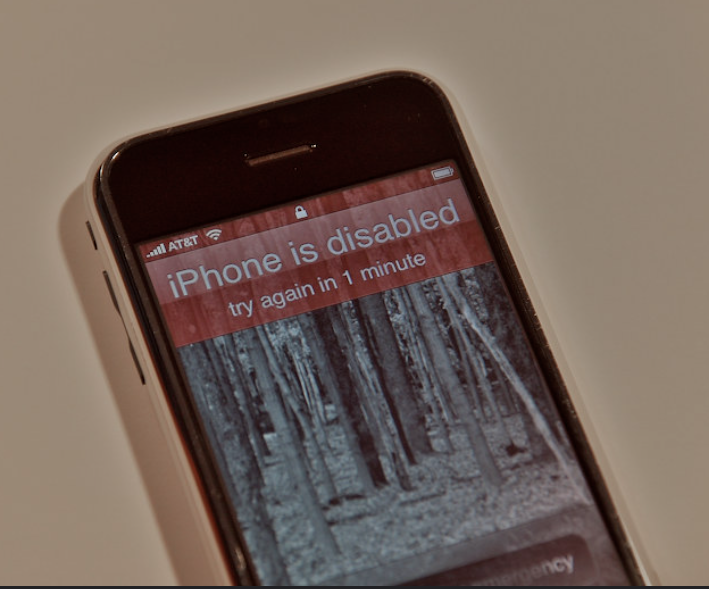
Previously, on iPhones running with iOS 15.1 or earlier if you forgot your passcode and entered the wrong passcode several times in a row and reached the 10th incorrect guess of the passcode, your iPhone would eventually lockout and you will see the message, ‘iPhone is disabled connect to iTunes’. In that case, the only option available to you to unlock the disabled iPhone was to reset your device with the help of a computer using iTunes or by using the ‘Find My iPhone app’.
Now, Apple has introduced a new ‘Security Lockout’ feature for iOS 15.2 and higher that allows you to quickly unlock your iPhone without needing to connect to a computer. This feature erases and resets your iPhone from the device itself by using your Apple ID and password.
What triggers Security Lockout?
Security Lockout is activated when you enter the wrong passcode too many times in a row. On devices running iOS 16 or later, after four to seven incorrect attempts, you’ll first see the “iPhone Unavailable” message. On iOS 15.2 or later (but before iOS 16), depending on your device settings, you’ll see either “Security Lockout” or “iPhone Unavailable.”
If your iPhone displays “Security Lockout, try again in [number] minutes/hours,” you still have a chance to unlock it by entering the correct passcode after the waiting period. However, if you’ve completely forgotten your passcode, you’ll need to erase your iPhone to regain access.
How can problems with Touch ID or Face ID cause a Security Lockout?
It’s not just forgotten passcodes that can get you into trouble—biometric features like Touch ID and Face ID can throw a wrench into things, too. If your fingerprint or face isn’t being recognized (think sweaty fingers, smudged sensors, or just plain bedhead), your iPhone will fall back to asking for your passcode.
Here’s where things can go sideways:
- If you can’t remember the passcode or keep entering it incorrectly after a few failed attempts with Face ID or Touch ID, your iPhone will count those wrong guesses towards a potential lockout.
- After several incorrect passcode entries—even if they began because your iPhone didn’t recognize you—the Security Lockout feature kicks in just as if you’d typed the wrong passcode from the start.
In short, any trouble authenticating with biometrics still leads to the same passcode guessing game, and enough mistakes will lock you out. So, if your iPhone doesn’t recognize your face or fingerprint, try to recall your passcode carefully to avoid triggering a security lockout.
Can Software Updates or Restoring from Backup Trigger Security Lockout?
You might wonder if updating your iPhone’s software or restoring from a backup could accidentally lock you out. The answer is yes, it can happen, but not automatically. During a software update or while restoring your iPhone from an iCloud or iTunes backup, your device may prompt you to enter your passcode to complete the process. If you forget your passcode or enter it incorrectly several times in a row during this stage, Security Lockout can be triggered just as it would with regular usage.
This is Apple’s way of ensuring that only the rightful owner can regain access after major changes to your device, safeguarding your personal data. So, if you’re planning to update your iPhone or restore from backup, be sure you remember your passcode before starting—otherwise, you may find yourself facing the Security Lockout screen.
How long does Security Lockout last?
The length of time your iPhone stays locked depends on your iOS version and the number of failed attempts:
- On iOS 16 or later: After nine failed attempts, your iPhone may say “Security Lockout, try again in 8 hours.”
- On iOS 15.2 or later (before iOS 16): After the ninth attempt, it will display “Security Lockout, try again in 1 hour.”
- On all versions after iOS 15.2: After the tenth failed attempt, your iPhone will remain locked indefinitely until reset.
This updated security measure not only protects your privacy and data but also streamlines the process of regaining access to your device, making it more user-friendly—no computer required.
Before I show how to fix security lock on iPhone let’s first see what is Security Lockout iPhone.
You may like to read this related post: How to unlock disabled iPhone without a computer or passcode?
What does security lockout mean on iPhone?
Apple has changed the way of resetting a locked iPhone by adding a new security feature called ‘Security Lockout’ in devices running with iOS 15.2 and later in order to protect the device from unauthorized use. Once you have entered the wrong passcode several times in a row you will receive a notification on the screen that says iPhone unavailable/ iPhone Security lockout. This message means, the wrong passcode was entered too many times.
However, there is no need to panic if you get the above message of iPhone Security Lock on your device screen. You’ll still get 10 attempts to try to guess your passcode. But once you have completed 10 attempts you won’t get the option to enter your passcode again. The messages of waiting periods against an increasing number of incorrect passcode entries are as follows:
5 incorrect entries in a row – Security Lockout, try again in 1 minute.
7 incorrect entries in a row – Security Lockout, try again in 5 minutes.
8 incorrect entries in a row – Security Lockout, try again in 15 minutes.
9 incorrect entries in a row – Security Lockout, try again in 1 hour.
10 incorrect passcode entries –Security Lockout.
The only way forward after 10 incorrect entries is to reset your iPhone. The ‘Security Lockout iPhone’ is an excellent feature to unlock your device in case you don’t have a computer nearby. Now let’s see how to fix security lock on iPhone using Security Lockout iPhone feature.
What should I do if my iPhone is locked but I remember my passcode?
If you see the “Security Lockout, try again in [minutes/hours]” message on your iPhone, don’t worry—if you remember your correct passcode, you can still regain access. Simply wait for the time displayed on your screen to pass. Once the waiting period is over, you’ll be able to enter your passcode again. Type in the correct passcode carefully, and your iPhone should unlock as usual.
However, if you continue entering incorrect passcodes, the waiting time will increase, and after 10 failed attempts, you’ll be required to erase your iPhone to start over. So, if you recall your passcode, patience is key—wait it out, enter your code, and you’ll be back to normal in no time!
What precautions can you take to prevent accidental security lockouts on your iPhone?
Avoiding a security lockout in the first place is easier than fixing one! Here are some simple tips to help you steer clear of accidental lockouts:
- Keep your passcode memorable: Choose a passcode you won’t easily forget, but don’t make it too obvious or simple (avoid combinations like “1234” or your birth year).
- Jot it down securely: If you’re prone to forgetfulness, consider writing your passcode down and storing it in a safe place (not your wallet or phone case!).
- Enable Face ID or Touch ID: Biometric authentication not only adds a layer of security but also makes unlocking your iPhone effortless, reducing the chances of entering the wrong code too many times.
- Back up regularly: Use iCloud or your computer to back up your iPhone so you won’t lose important data if you ever need to erase and reset your device.
- Stay alert for wandering fingers: If you have kids or friends who love to play with your phone, enable Guided Access or keep your iPhone out of reach to prevent accidental passcode entries.
- Be mindful of your attempts: If you forget your code, don’t rush with random tries—pause, remember, and try again later to avoid increasing lockout times.
Following these tips ensures you’re less likely to see the dreaded Security Lockout screen—and, if you ever do, you’ll be prepared to recover without stress.
How to bypass iPhone Security Lockout without a computer
Pre-Requisites to use the Security Lockout iPhone feature are,
- Your iPhone should be on iOS 15.2 and above;
- Your iPhone needs to be connected to a WiFi or a cellular network;
- You will need your Apple ID and password to set up your phone;
(Note: Do not restart your device after the “Security Lockout” message appears on your iPhone screen as it will disconnect from the WiFi network and you won’t be able to re-connect your device again until you unlock it. However, it still can reconnect to your cellular network).
Here’s a step-by-step guide on how to reset an iPhone using the Security Lockout Mode:
Step 1. From the iPhone security lock screen keep entering the wrong passcode until the device asks to try again later;
Step 2. Continue the above step until the device shows an ‘Erase iPhone’ option at the bottom right corner of the security lockout screen;
Step 3. Now tap on the ‘Erase iPhone’ option;
Step 4. Tap ‘Erase iPhone’ again to confirm and proceed;
Step 5. When prompted, enter your Apple ID and password to sign out of your iPhone to start the process of erasing the data and resetting it;
Step 6. Next, tap on Erase device to permanently delete all the data and settings on your iPhone;
Step 7. Your iPhone will now erase all the data and restart. When the device restarts, you’ve bypassed the security lockout on iPhone;
Step 8. Next, follow the on-screen instructions to set up your device as a new device and restore your data from a created backup in iCloud or your Computer and set new passwords;
What to Do if You Don’t See the “Erase iPhone” Option?
If you’re stuck on the Security Lockout screen but the “Erase iPhone” option is nowhere to be found, don’t panic—this is a pretty common hiccup for many users. Sometimes, even when your device meets all the requirements (running iOS 15.2 or later, connected to WiFi or cellular, etc.), the option simply doesn’t show up.
Here’s what you can try if you find yourself in this situation:
- Double-check your connection: Your iPhone must have an active network connection for the “Erase iPhone” option to appear. If you’re only on WiFi and rebooted after being locked out, you may have lost your connection—remember, iPhones won’t reconnect to WiFi until unlocked. In this case, make sure cellular data is enabled if available.
- Wait it out: Sometimes it takes a few more attempts or a bit more waiting for the option to show up. Continue entering incorrect passcodes until you receive the Security Lockout message multiple times, and check the bottom of the screen after each attempt.
- Try alternative methods: If you still can’t see “Erase iPhone,” you can use other tried and true methods, such as putting your iPhone into recovery mode and restoring it with a computer using iTunes or Finder. This will erase your device and let you set it up from scratch.
- Consider unlocking tools: There are reputable third-party tools out there, like Tenorshare 4uKey, to help you bypass the lock screen, especially if the official options aren’t working for you.
In short, while the new Security Lockout feature is handy, it doesn’t always work seamlessly. If you’re missing the “Erase iPhone” option, don’t worry—the traditional solutions using a computer are still there as a backup.
All set? Let’s look at what to do if you don’t remember your Apple ID or password…
Should You Reset Your Apple ID or Password After an iPhone Security Lockout?
You might be wondering whether a lockout means you need to scramble and reset your Apple ID or password. The good news? In most cases, you don’t have to reset either one just because your iPhone is locked out. The security lockout is simply a safeguard to protect your data from too many incorrect attempts—resetting your Apple ID or password won’t fix the lockout itself.
However, you will need your Apple ID and password to erase your device or set it up again afterward, whether you use the Security Lockout mode, iTunes, or a third-party tool like Tenorshare 4uKey or Dr.Fone. If you’ve forgotten your credentials or can’t remember your password, that’s when you’d need to go through Apple’s account recovery process to regain access.
So, only reset your Apple ID or password if you can’t remember your login information. Otherwise, you’re good to go with your existing credentials!
Bypassing Security Lockout on iPhone via Find My iPhone (iCloud Method)
If you’ve got Find My iPhone enabled and your locked device is still connected to a WiFi or cellular network, there’s another handy route to regaining access—using iCloud from another device.
Here’s what you’ll need:
- Find My iPhone must be turned on for your device.
- Your iPhone needs to remain online (via WiFi or cellular).
- You’ll need your Apple ID and password associated with the locked device.
Now, let’s get into the steps:
- Grab another phone, tablet, or computer and open a browser.
- Go to iCloud.com and log in using the same Apple ID linked to your locked iPhone.
- Once inside, tap on “Find iPhone.”
- At the top, look for “All Devices” and choose your locked iPhone from the list.
- You’ll see an option to “Erase iPhone.” Click it.
- Confirm your choice—this will erase all data on the phone and remove the passcode.
Once your iPhone restarts, you can set it up as a new device or restore from an iCloud or computer backup. This approach mirrors the “Erase iPhone” feature from the lockout screen, especially helpful if your device is physically out of reach but still connected online.
Can I recover my data after unlocking or erasing a Security Lockout iPhone?
Now, you might be wondering—what happens to your data once you erase your iPhone using the Security Lockout feature (or any of the unlocking methods)? Here’s the reality: when you erase your iPhone to bypass a Security Lockout, all data and settings on your device are permanently deleted. Unfortunately, if you proceed without a backup, your photos, messages, apps, and other personal data are lost for good.
On the brighter side, if you’ve been diligently backing up your iPhone either to iCloud or to your computer (using Finder or iTunes), you’re in luck. After you reset and regain access to your device, you’ll be prompted to restore from your most recent backup during setup. This way, you can recover your photos, contacts, app data, and just about everything else, getting your iPhone back to the way it was before the lockout.
How to bypass security lockout iPhone without Apple ID?
As shown above, even if you see the option to Erase your iPhone at the bottom of the Security Lockout screen, you will still need to enter your Apple ID and password to start the process of erasing the data and resetting it. But what happens when you have forgotten your Apple ID or password?
‘Tenorshare 4ukey’ is an iPhone unlock software that can help you in a few simple steps about how to bypass security lock iPhone without using your Apple ID and password. Follow the steps below to use Tenorshare 4ukey for this:
Step 1. Download and install Tenorshare 4ukey app on your computer;
Step 2. On the window that appears, click ‘start’ after connecting your iPhone to the computer;
Step 3. On the next screen that appears, click the download button to download the latest firmware for your device;
Step 4. On the next screen, click on ‘start unlock’ to start the unlocking process;
Step 5. Wait for the unlock process to complete;
Step 6. Upon completion, your iPhone will be unlocked and ready for a new setup;
Frequently asked questions
Now that I have explained what does security lockout mean on iPhone and how to unlock your iPhone when you receive the message – Security lockout on iPhone, let me also address some of the related queries often made by iPhone users.
Why does my iPhone say security lockout?
This message means the wrong passcode was entered too many times. Apple has changed the way of resetting a locked iPhone by adding a new security feature called ‘Security Lockout’ in devices running with iOS 15.2 and later in order to protect the device from unauthorized use. Once you have entered the wrong passcode several times in a row you will receive a notification on the screen that says iPhone unavailable/ iPhone Security lockout.
In short, Security Lockout is Apple’s way of making sure that, if your phone falls into the wrong hands, your personal data stays locked up tight.
What do you do when your iPhone is locked on security?
When your iPhone is locked on security the only way to disable security lockout is to reset your iPhone. To reset your iPhone Click ‘Erase iPhone’ on the bottom right corner of the security lockout screen and input your Apple ID and password.
Can you disable iPhone’s passcode lockout?
No, you cannot disable lockout. There is no built-in option to disable Apple’s passcode lockout feature in iPhone’s settings.
How do I unlock my iPhone after too many attempts?
If you enter the wrong passcode several times in a row, your iPhone will be locked out. Without factory resetting, you cannot bypass the passcode. You can reset your disabled iPhone to its factory settings, by using iTunes and you can restore all its data from a recent backup.
If you’d like to use iTunes (or Finder, if you’re on a Mac with macOS 10.15 or later) to fix a Security Lockout, here’s how:
Step 1: Turn off your iPhone.
Step 2: Put your iPhone into recovery mode. The steps vary by model—generally, you’ll press and hold specific buttons until you see the recovery mode screen.
Step 3: Connect your iPhone to your computer using a USB cable and launch iTunes (or Finder).
Step 4: Once your device is detected, you’ll see a prompt saying there’s a problem with your iPhone. Choose Restore.
Step 5: Follow the prompts to confirm. iTunes or Finder will erase your device and install the latest iOS.
Step 6: When the process is complete, set up your iPhone as new or restore it from your most recent backup.
This process wipes your iPhone, so make sure you have a backup available before proceeding.
What should I do if I don’t have a backup before erasing my iPhone?
If you need to erase your iPhone but haven’t created a backup, it’s important to understand that all data—photos, messages, apps, and settings—will be permanently deleted during the reset process. Unfortunately, once your iPhone is wiped, there isn’t a way to recover data that wasn’t previously backed up to iCloud or your computer.
Here’s what you can do:
- Check for existing backups: Before proceeding, double-check iCloud and your computer for any old backups you might have forgotten about. Go to Settings > [your name] > iCloud > Manage Storage > Backups on your iPhone, or check iTunes/Finder backups on your Mac or PC.
- Consider important accounts: If you use Gmail, Outlook, or other cloud-based accounts for your contacts, calendars, and mail, much of your information might sync back automatically after setup.
- Review social and messaging apps: Apps like WhatsApp, Facebook, and Instagram sometimes store data independently in the cloud. Log in again afterwards to see what returns.
- Think ahead: After unlocking your iPhone, make it a habit to back up your device regularly—either with iCloud or by connecting to your computer using iTunes or Finder. This will help protect your data in the future.
Remember: Proceeding without a backup means starting fresh, but it also gives your device a clean slate free from old clutter or settings.
Conclusion
Hopefully, you will be able to successfully reset your locked iPhone without the need of a computer by following the steps mentioned in the post on how to bypass security lock iPhone. But one important point that needs to be remembered is that the above method to bypass iPhone Security Lockout mode to reset your device will erase all data on your iPhone. Hence it is essential to back up your iPhone regularly to avoid unnecessary data loss. You can do it if you keep the habit of backing up iPhone data regularly so that you can restore the iPhone data after it is unlocked.
It will be appreciated if you please let us know in the comments section below if the solutions suggested in the post also worked for you.
