How to clear cookies on iPhone in simple steps.
How to delete Cookies on iPhone
iPhone users are often searching on the web – ‘how do I delete cookies on iPhone? This is because removing these small files has a number of benefits, including faster system performance, greater security, and of course an increase in available space on their device. If you happen to be one among them then you have come to the right place. In this article, I have shown how to delete Cookies on iPhone in simple steps.
Before I show how to clear cookies on iPhone let me first explain what cookies are and what benefits you could realize by removing cookies from iPhone.
What are Cookies and why do you need to delete Cookies on iPhone?
Cookies are tiny text files stored by the browser on your device when you visit a particular website. These files typically contain information about your visit to the web page such as login information, personal data, and other preferences. While cookies are saved within the browser you use on your iPhone, they aren’t tucked away somewhere obvious like your photos or files. Instead, they quietly work behind the scenes, helping websites remember you and your settings each time you return. It helps to remember the details about you when you visit the site again. Upon each return visit to any site you visit frequently, your browser sends the cookie back to the server, which makes browsing the website, much easier and faster.
When too many cookies are allowed to accumulate on your device, they overload the system and cause it to run more slowly than it should. If you remove cookies from iPhone from time to time, you can free space on your device and improve the speed and browsing performance of your iPhone.
Generally, cookies are safe and useful, as they save your login details and remember your preferences. However, they can also track your browsing habits and store personal information. That’s why deleting cookies regularly can help protect your privacy and reduce the risk of any potential security issues.
Furthermore, it is a good precaution against security breaches. While many cookies are harmless, others can be used by hackers to target information stored in cookies to retrieve your passwords and other important personal information. Some malicious websites can transfer cookies into your iPhone to monitor financial transactions, thereby stealing the identity of the site user. By setting your browser to delete cookies iPhone, each time the browser is closed you can prevent these tracking attempts and reduce the risk of a security breach.
In short, keeping your cookies in check not only helps your iPhone run smoothly but also gives you greater control over your privacy and sensitive data.
Difference Between Cache and Cookies in Mobile Browsers
You might be wondering—what exactly is the difference between cache and cookies on your iPhone? Although both store information from websites, they serve different purposes.
- Cache is like your phone’s short-term memory for websites. It stores parts of web pages—such as images, banners, or site logos—so they load more quickly the next time you visit. Think of it as keeping a ‘quick access’ drawer for frequently loaded site elements, which can make browsing feel smoother and faster.
- Cookies, on the other hand, remember your individual interactions with websites. They store details like whether you’re logged in, what items you’ve left in your Amazon cart, your language preferences, and so on. Cookies help those sites recognize you when you return, making your experience more personalized.
So, while both cache and cookies are quietly working in the background, cache focuses on speeding up page loading, whereas cookies manage your personal settings and login states. Deleting cookies logs you out of websites and resets your preferences, but clearing the cache just means images and elements may take a bit longer to load the next time around.
Now let us look into how do you clear cookies from iPhone. Removing cookies from iPhone is actually not a big thing. However, this will log you out of every single website that you were previously logged into, and wipe any other cookie-based preferences. Below are some of the ways to remove cookies from iPhone/ iPad.
Selective Cookie Deletion vs. Deleting All Cookies
So, what’s the difference between clearing all your cookies and choosing only some to remove? Think of it like tidying up your closet: you can toss out everything and start from scratch, or just get rid of the things you no longer need while keeping your favorite shirts close at hand.
With selective cookie deletion, you pick which cookies to erase—say, clearing out cookies from unfamiliar or rarely visited sites while holding on to those from websites you trust and use every day, such as your bank, Gmail, or your favorite online store. This way, you don’t lose handy conveniences, like staying logged in or remembering what language you prefer.
On the other hand, deleting all cookies wipes the slate clean. This means every website will forget you ever visited: you’ll be logged out everywhere, your cart items on Amazon and similar sites will disappear, and any website settings you’ve customized will return to their defaults.
Selective clearing might take an extra minute to manage, since you’ll need to choose which sites to keep, but it strikes a balance between convenience and privacy. In contrast, deleting all cookies ramps up privacy but can make your browsing experience a little less seamless until you start building your trusted list again.
Should you block all cookies on your iPhone?
You might be tempted to block every single cookie on your iPhone for maximum privacy, but hold on—it’s not always the best approach for daily browsing. While blocking all cookies definitely keeps websites from storing any of your information, it also means saying goodbye to many online conveniences. For instance, sites like Amazon won’t remember your shopping cart, and you’ll constantly need to re-enter your login details—even on your favorite sites like Facebook, Gmail, or Twitter.
If privacy is your top priority, but you still want to make life a little easier, you’ve got options. You can set Safari to block only third-party cookies, which are mostly used by advertisers to track your behavior across sites like YouTube or CNN. That way, you keep most of your browsing habits private from marketers, but still enjoy auto-login and saved preferences on trusted websites. Alternatively, try browsing in private or incognito mode whenever you want an extra layer of anonymity—just remember, it won’t save your site data when you close the window.
Deciding whether to block all cookies really comes down to how you use your iPhone and your own comfort level with privacy versus convenience. For most people, a balanced approach works best: clear your cookies regularly, block third-party cookies, and use private mode when needed. Either way, keeping an eye on your iPhone’s cookie settings is a smart move.
How long do cookies stay on your iPhone?
You might be wondering just how long these cookies can stick around on your iPhone. The answer isn’t that straightforward. Some cookies, known as session cookies, disappear as soon as you close your browser—poof, gone! Others, called persistent cookies, can linger on your device for much longer—sometimes for several months, or even years.
The exact lifespan of a cookie depends on how the website sets it up. For example, an online shopping site might use cookies to remember what’s in your cart for your next visit, which means those files could be stored until you clear them or until they hit their expiration date. Unless you manually remove them or adjust your browser settings, many of these persistent cookies could quietly bide their time on your device.
How to Prevent Cookies from Building Up in Safari
If you want to get ahead of the cookie game and stop them from piling up in Safari, there are a couple of handy settings you can tweak right on your iPhone.
- Block All Cookies:
Head into your iPhone’s Settings, scroll down and tap on Safari, and flip the switch for “Block All Cookies.” This will stop every website in its tracks from dropping any cookies onto your device. Just keep in mind, this is the nuclear option—sites like Amazon won’t remember your cart, and you’ll be entering your login info on, well, every page that asks. Some websites might even refuse to function altogether. - Prevent Cross-Site Tracking:
If you want most of the convenience with a dash of extra privacy, turn on “Prevent Cross-Site Tracking” (you’ll find it in the same Safari settings section). This blocks those sneaky third-party cookies used for advertisers and trackers—think Google or Facebook—while still allowing cookies that help sites remember who you are and what’s in your cart.
Using these options helps you keep tabs on your web trail, so you decide how much information gets left behind. For most folks, letting first-party cookies do their job while blocking cross-site tracking strikes a good balance—your favorite sites still know you, and marketers aren’t glued to your every move.
Now that you know how to stop new cookies from accumulating, let’s talk about how to clear out the ones already hanging around.
Let’s move on to how you can clear these cookies from your iPhone or iPad.
1. How to clear Cookies on Safari
When you visit a website on your iOS device your Safari browser by default retains browser history and cookies so that it can easily access that website when you visit the page next time. However, the accumulation of this data over time causes it to occupy considerable memory space and tends to slow down your iPhone. Sometimes the Safari browser on your iPhone may also misbehave due to storing these cookies. The only solution to fix the problem is by clearing cookies in Safari. The process is simple.
Step 1: Go to Settings on your iPhone;
Step 2: Scroll down the page to ‘Safari’ and click on it;
Step 3: Go down and find the ‘Clear History and Website Data’ option at the bottom of the screen and tap on the option;
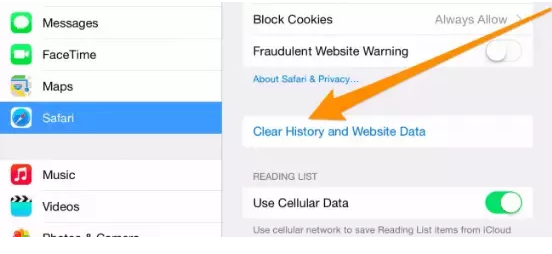
Step 4: All the Safari cookies will get cleared on your iPhone;
How to remove cookies in Safari without deleting your history
Maybe you want to ditch those pesky cookies but keep your browsing history safe for future reference. Good news—you don’t have to throw the baby out with the bathwater. Here’s how you can delete cookies in Safari without wiping out your handy list of visited sites:
Step 1: Open your iPhone’s Settings app.
Step 2: Scroll down and tap on ‘Safari’ as you did before.
Step 3: Scroll to the bottom and select ‘Advanced.’
Step 4: Tap ‘Website Data’ to see a breakdown of which sites are stashing data on your device.
Step 5: Here, you can either:
- Tap ‘Remove All Website Data’ at the bottom to clear all cookies but keep your browsing history, or
- Swipe left on individual sites if you only want to remove cookies from specific offenders (looking at you, random pop-up ads).
Just a heads-up: This will log you out of most sites, so keep those passwords handy before you go on a cookie-clearing spree. Now, you can enjoy a tidier Safari without erasing your recent web adventures.
Why is “Clear History and Website Data” Grayed Out in Safari?
You might notice that sometimes the “Clear History and Website Data” button in Safari settings appears grayed out and can’t be selected. This typically happens for one of two reasons:
- No data to clear: If you haven’t visited any websites recently or Safari has already been cleared, there may not be any cookies or browsing history left to remove. In this case, the option is unavailable because there’s simply nothing left to delete.
- Restrictions are enabled: If you have enabled parental controls or other restrictions via Screen Time, these settings can prevent changes to your browsing data. To fix this, head over to your iPhone’s Settings, select Screen Time, tap on Content & Privacy Restrictions and either turn off the restrictions temporarily or adjust the relevant settings so you can clear your data.
Once you resolve either of these issues, the “Clear History and Website Data” button should become active, allowing you to remove all cookies and history as needed.
2. How to delete Cookies on iPhone for a specific website
Follow the steps below to easily delete cookies on iPhone for a specific website.
1. Go to the setting app on your iPhone;
2. Scroll down the page to ‘Safari’ and click on it;
3. Then scroll down until you see the ‘Advanced’ option on the right-hand side and click on it;
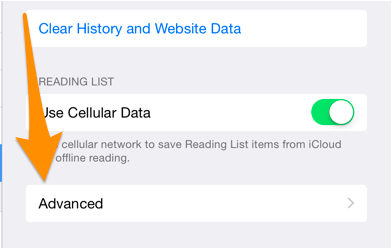
4. Now press the ‘Website Data’ button to see a list of websites that have put cookies on your device;
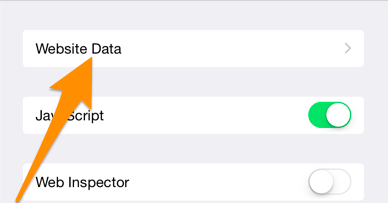
5. Tap ‘Edit’ at the top right of the screen;
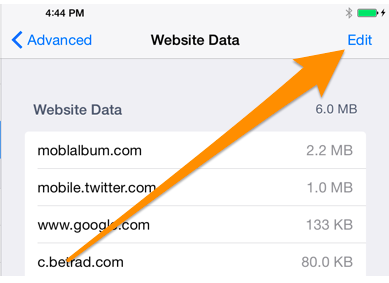
6. ‘Red minus’ icon will appear beside each of the websites. Tap on the red minus icon for the specific website whose cookies you want to delete and then tap ‘Delete’;
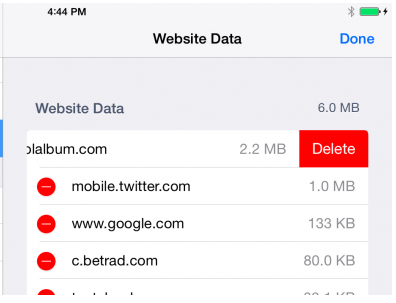
7. All the unnecessary cookies of the specific website will get deleted on your iPhone;
3. How to clear cookies on iPhone for all Apps
How to clear iPhone cookies is best answered with the use of the ‘iMyFone Umate Pro’ app. This dependable cleaner not only helps to clear cookies on Safari but also other App cookies which cannot be deleted without uninstalling the apps and it is totally free. In order to use this app follow the simple steps below to delete cookies on iPhone for all the apps on it.
Step 1. Download and install iMyFone Umate Pro on your PC or Mac, and connect your iPhone to your computer via a USB cable;
Step 2. Click the ‘Quick Scan’ button for a full scan of your iPhone for Space Saving analysis. Do not disconnect your iPhone from the computer or use your device during the scan process to ensure that the program operates properly. After the scanning is completed it will tell you how junk files, temporary files, photos, other large files, and Apps are eating up your memory;
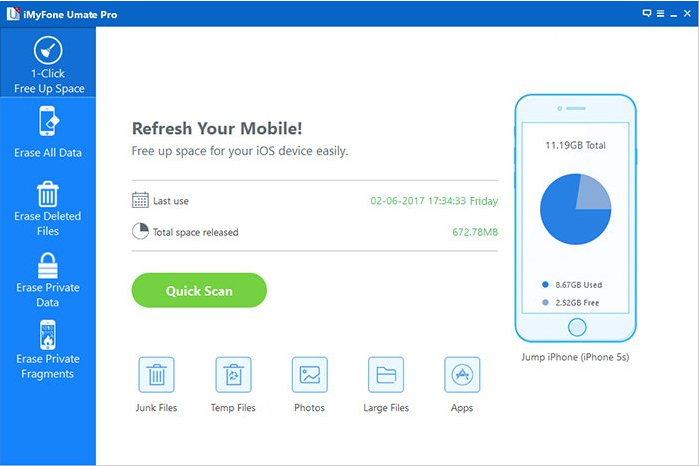
Step 3. Click the ‘Clean’ button next to the ‘Junk Files’ option to delete Cookies on iPhone for all apps besides removing other files like Photo Caches, app cache files, app temp files, etc;
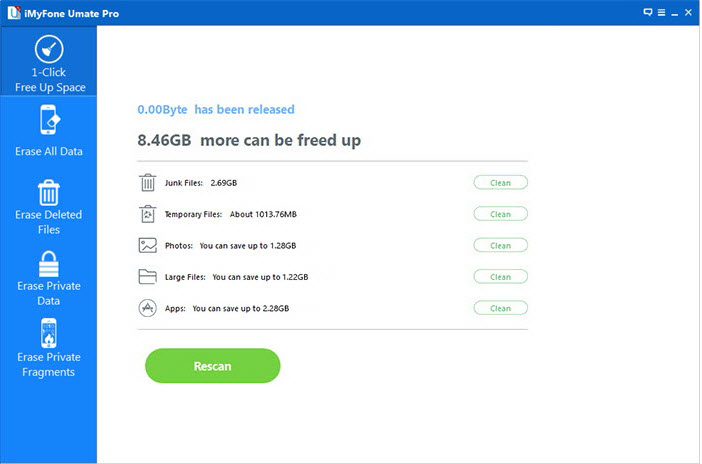
Step 4. After the ‘Junk Files’ are deleted, you will see how much space has been released;
Are iPhone cleaner apps effective for clearing browser and app cache?
If you’re thinking of grabbing an iPhone cleaner app to quickly wipe out browser cookies, cache, and leftover app junk, there’s a catch you should know about. Thanks to Apple’s strict privacy policies, third-party cleaner apps are limited in what they can actually access and remove.
Here’s what you need to keep in mind:
- Cleaner apps can remove their own temporary files and sometimes clear out items like old downloads or unused photos (if they have permission).
- However, they cannot directly access or clear cache and data from other apps (like Chrome, Instagram, or Safari). Apple’s iOS keeps app data siloed in “sandboxes,” meaning one app can’t meddle with another’s files or cookies.
- This is different from Android, where some cleaner apps have broader access and can perform deeper cleanups.
For popular apps like WhatsApp, Snapchat, or Facebook, you’ll need to dive into the individual app’s settings to manually clear cache. Look for options under ‘Storage’ or ‘Data’—many social apps include a “Clear Cache” feature tucked away in these menus. The steps vary from app to app, but poking around in the settings usually pays off.
In summary: On iOS, while general cleaner apps can help tidy up some device-wide clutter, they can’t sweep every corner. For specific app caches and browser data, manual cleanup is the way to go.
Can third-party cleaner apps remove cached data from other apps on iOS?
It’s important to note that, unlike Android, iOS has strict privacy and security measures in place. Apple’s system keeps every app in its own “sandbox,” which means apps can only access their own data and not that of other apps. In other words, no third-party cleaner app—whether it promises miracles or not—can sweep out cached files, cookies, or data from apps like Instagram, Chrome, or Facebook.
If you come across a cleaner app claiming it can deep clean all your app data at the tap of a button, be wary—Apple’s own developer rules prevent this kind of access. The most these apps can do is clear their own cache or perhaps suggest deleting and reinstalling the app to reset its data. So, for now, the only way to truly manage cache or cookies for specific apps is usually to do it manually, as described earlier, or by deleting and reinstalling the offending app.
Are there privacy-focused browsers that help reduce tracking and cookies on iPhone or iPad?
Absolutely, if you’re keen on minimizing tracking and keeping cookies in check, you have quite a few options beyond default settings. There are several browsers available for iPhone and iPad that are designed with privacy as a priority.
These privacy-focused browsers come with a variety of built-in protections:
- Block trackers automatically: Many privacy browsers prevent websites from tracking your activity across the web, helping you maintain your anonymity.
- Restrict third-party cookies: Browsers with robust privacy settings can automatically block third-party cookies, which are often used for targeted advertising and profiling.
- Private browsing modes: Most privacy browsers allow you to browse without saving local data (like cookies or history) once you close your tabs.
- Enhanced control: Some browsers allow you to easily adjust what data is stored or shared, right from their settings.
Popular choices for privacy-oriented browsing include options like DuckDuckGo and Brave, each offering easy-to-use interfaces and extra shields against invasive tracking. Using one of these browsers is an excellent step if you’re serious about keeping your personal information safer online, and making unwanted cookies a thing of the past.
If maximum privacy is your goal, consider downloading one of these browsers from the App Store and giving it a spin. It’s a simple way to enhance your security, right alongside routine cookie clean-ups.
Can websites still track you after you clear cookies?
Unfortunately, yes—clearing cookies isn’t a silver bullet for online privacy. Even after you scrub your cookies, websites have a few additional tricks up their digital sleeves. Techniques like browser fingerprinting (where sites identify you by your device’s unique characteristics), tracking your IP address, or using device identifiers can still be used to follow your online footsteps.
So while deleting cookies is a good move toward reducing the amount of personal data collected about you, it doesn’t make you completely invisible. If you’re aiming to go the extra mile, consider pairing regular cookie cleanups with privacy-focused browsers like DuckDuckGo or Brave. These browsers offer enhanced protection by blocking trackers and making it harder for websites to build up a detailed profile about you.
Frequently asked questions
Now that I have explained how do you clear cookies from iPhone, before I conclude let me also answer some of the related queries often asked by iOS users:
How to clear cookies and cache in Firefox on iPhone or iPad?
If you use Firefox instead of Safari, you can quickly remove cookies and cache to free up space and keep things running smoothly. Here’s what you need to do:
- Launch the Firefox app on your iPhone or iPad.
- Tap the three horizontal lines in the lower-right corner, then select ‘Settings.’
- Scroll down to the ‘Privacy’ section and tap on ‘Data Management.’
- Here, you’ll find options for ‘Cookies’ and ‘Cache.’ Turn on the toggles next to these options.
- Now, tap ‘Clear Private Data’ at the bottom, and confirm your choice.
If you want to target specific websites, select ‘Website Data’ from the same menu, pick the websites whose cookies you want to remove, then tap ‘Clear Items’ and confirm.
Tip: For added privacy or to minimize data tracking, you might also consider using content blockers from the App Store—these can block cookies, images, and pop-ups automatically in Safari.
You can also clear other types of private data, such as browsing history and downloaded files, from within Firefox’s Data Management settings. Just select what you’d like to remove before confirming the action.
How to clear cookies on Mac?
To clear cookies on Mac follow the steps below:
Step 1. Select ‘Preferences’ from the Safari menu or hold down the ‘Command’ and ‘Comma’ Keys simultaneously;
Step 2. Go to the ‘Privacy’ tab;
Step 3. Click the ‘Remove All Website Data’ button to remove all stored website data;
Step 4. Click ‘Remove Now’ to confirm if you are sure to remove all data stored by websites on your computer;
Cookies of all websites will get deleted on your Mac.
How to Clear Cookies and Cache in Chrome on iPhone or iPad
For those times when you’re using Google Chrome instead of Safari, wiping out cookies and cached files is also a straightforward affair. Here’s how you can do it without any fuss:
- Launch the Chrome app on your iPhone or iPad and tap the three-dot icon in the lower right corner.
- Scroll to find and tap on “Clear Browsing Data.”
- You’ll see several options—make sure to select both “Cookies, Site Data” and “Cached Images and Files.”
- Tap “Clear Browsing Data” at the bottom, then confirm your choice.
Keep in mind, if you don’t want to remove things like your saved passwords or browsing history, you can deselect those options before completing the process. This way, you get a fresh start in Chrome without losing important information.
Managing Cookies for Specific Sites in Chrome
Maybe you don’t want a total cookie wipeout—just a little targeted cleanup. Good news: Chrome on iPhone lets you manage cookies for individual sites as well. Here’s how:
- In the Chrome app’s settings, go to “Privacy and Security.”
- Visit “Site Settings.”
- Tap “Cookies” to see which sites have stored data.
- Select any site you’d like to remove data from.
This approach is handy if you want to stay logged into your favorite sites, keep your shopping carts intact, and let trusted sites recognize you, while still clearing out cookies from sites you’d rather not remember.
Can You Block Cookies or Trackers in Chrome on iPhone?
While Chrome on iPhone does let you manually clear cookies and cache, it unfortunately doesn’t offer robust options for blocking all cookies or trackers by default. Unlike the desktop version—or privacy-focused browsers like DuckDuckGo and Brave—Chrome’s iOS app is limited by Apple’s restrictions.
Currently, you won’t find built-in settings to completely block cookies or tracking scripts in Chrome on iOS. You can, of course, control stored data by regularly clearing your cookies and browsing data, but the ability to disable cookies or block trackers entirely isn’t available within the Chrome app itself. If you need more advanced privacy controls, using a specialized privacy browser or Safari with content blockers is your best bet.
How to clear cookies for a specific time range in Chrome on iPhone?
If you want a little more control—say, you only need to clear cookies from today, the past week, or another custom period—Chrome makes that possible with just a few taps:
- Open Chrome on your iPhone or iPad and tap the three-dot menu in the lower right corner.
- Select “Clear Browsing Data.”
- At the top, tap “Time Range” and pick the period you wish to clear: Last Hour, Last 24 Hours, Last 7 Days, Last 4 Weeks, or All Time.
- Make sure “Cookies, Site Data” is checked (alongside any other data you want to remove).
- Tap “Clear Browsing Data” and confirm.
This way, you don’t have to wipe everything—only the time frame you choose. A handy option if you just want to erase recent cookies without losing all your website data or sign-ins.
Can you block cookies or trackers in Chrome on iPhone?
While Chrome on iPhone does let you manually clear cookies and cache, it unfortunately doesn’t offer robust options for blocking all cookies or trackers by default. Unlike the desktop version—or privacy-focused browsers like DuckDuckGo and Brave—Chrome’s iOS app is limited by Apple’s restrictions.
Currently, you won’t find built-in settings to completely block cookies or tracking scripts in Chrome on iOS. You can, of course, control stored data by regularly clearing your cookies and browsing data, but the ability to disable cookies or block trackers entirely isn’t available within the Chrome app itself. If you need more advanced privacy controls, using a specialized privacy browser or Safari with content blockers is your best bet.
What happens when you remove all cookies?
Removing cookies from iPhone is a good precaution against security breaches. While many cookies are harmless, others can be used by hackers to target information stored in cookies to retrieve your passwords and other important personal information. Furthermore, if you remove cookies from iPhone from time to time, you can free space on your device and improve its speed and browsing performance.
That said, it’s worth noting that clearing your browser cache and cookies won’t reclaim a huge amount of storage. At most, you might free up a couple hundred megabytes—maybe a few gigabytes if you’ve never done it before. So, if your main goal is to clear out space, you’ll get better results by deleting large apps, hefty games, or videos taking up real estate on your iPhone.
Still, regularly removing cookies can tidy up your browsing experience and help your device run a bit smoother, especially if you notice websites behaving oddly or loading slowly.
It’s also worth noting what actually happens behind the scenes when you clear cookies and cache on your iPhone:
- Cookies store information about your browsing session—like if you’re logged in to a site, your preferences, or what’s sitting in your shopping cart. So, when you remove cookies, you’ll be logged out of most sites and your saved settings will be erased.
- Cache saves parts of websites—images, logos, scripts—so they load faster the next time you visit. Clearing the cache doesn’t affect your logins, but it can temporarily slow down page loading until the browser rebuilds this data.
If you’re not using a password manager or iCloud Keychain, double-check that you have your usernames and passwords handy before clearing cookies. This little bit of prep saves you from the hassle of account recovery later on.
Does deleting cookies cause problems?
Removing cookies from iPhone on a regular basis is always a good idea. The negative aspect of this is that your saved usernames and passwords will be deleted and you’ll need to re-enter them. But on the positive side, your privacy is more secure and your browser will perform better.
How often should you clear cookies?
You should remove cookies from iPhone as often as you close the browser. This is because cookies, if saved on your device long enough, can reveal some of your private information stored in cookies such as your location, Login details, and other important personal information
You may also like to read this related post: iPhone clear app cache without deleting app – 3 easy methods
Conclusion
Now that you know how to delete cookies on iPhone, it is also very important for you to have a good understanding of how to manage these cookies which store your personal data and other preferences.
These private data components, while offering the convenience of much faster and easier browsing can also be sensitive in nature. Whether it is your login information or the information of your preferred credit card, unless you delete cookies on iPhone, much of the data left behind at the end of your browsing session could potentially be harmful if those fall into the wrong hands.
Apple has taken a more proactive approach to Cookies in iOS, blocking those originating from an advertiser or other third-party website by default under the “Privacy & Security” options in settings under Safari.
If you want to take your privacy a step further and limit tracking not just in your browser, but across other apps as well, iOS gives you that control. Here’s how you can disable app tracking and cookies across your device:
- Open Settings on your iPhone or iPad.
- Scroll down and tap Privacy & Security.
- Tap Tracking to view a list of apps that have requested permission to track your activity.
- Toggle off the apps you don’t want tracking your behavior or using cookies.
This setting ensures that apps can’t use cookies to gather your data unless you specifically allow them. And if you change your mind later, you can simply revisit this menu and toggle tracking back on for specific apps.
With these built-in controls, iOS empowers you to keep your personal information private—whether you’re browsing in Safari or using your favorite apps.
If you want even greater control over cookies and cache on your iPhone, here are some simple steps to enhance your privacy:
- Browse in Private Mode: When you use Private Browsing in Safari (tap the tabs icon, then select Private and open a new tab), your cookies, cache, and browsing history aren’t saved after you close the session. Most browsers offer a similar option to keep your online activity more secure.
- Prevent Cross-Site Tracking: In your iPhone settings, go to Safari and enable Prevent Cross-Site Tracking. This feature helps block major trackers from following your activity across different websites, offering another layer of privacy.
- Choose a Privacy-Focused Browser: Consider browsers like Brave or DuckDuckGo, which are designed with privacy in mind. These browsers can automatically block cross-site trackers, third-party cookies, ads, and even those pesky cookie consent banners.
With these built-in features and a few extra habits, you can minimize the amount of data collected during your browsing sessions and enjoy a safer, more private experience on your iPhone.

Evelyn BB
Dec 03. 2022
Recently I read your post, and I just fell in love with your wiring.
Bandicut Crack
iMyFone iTransor for WhatsApp Crack
iMyFone Umate Pro Crack
iMyFone LockWiper Crack
AnyTrans for iOS Crack