Why my personal hotspot is not working iPhone?
How to fix the iPhone hotspot not working issue?
It is not uncommon for iPhone users to report at times – why is my personal hotspot not working on iPhone? It is understandably a frustrating situation when the iPhone hotspot not working for the users. This is because the Personal Hotspot iPhone feature can work as a connection backup whenever there is an interruption in users’ WiFi connection. If for any reason, while working on your laptop or other devices you don’t have access to a WiFi network, this personal hotspot iPhone feature lets you turn your iPhone into a WiFi hotspot that you can connect to for internet service. However, there should not be any cause of worry in case you see your personal hotspot not working on iPhone due to some iPhone personal hotspot problem.
In this article, I am going to show how to fix this Hotspot (Wi-Fi) issue in a few easy steps if the hotspot not working on iPhone. First, let us see what is a Personal Hotspot on iPhone.
You may also like to read this post: My Internet keeps disconnecting every few minutes
What is a Personal Hotspot on iPhone?
Personal Hotspot is a feature of iOS that lets you share the cellular data connection of your iPhone or iPad (Wi-Fi + Cellular) when you don’t have access to a WiFi network. To set up Personal Hotspot,
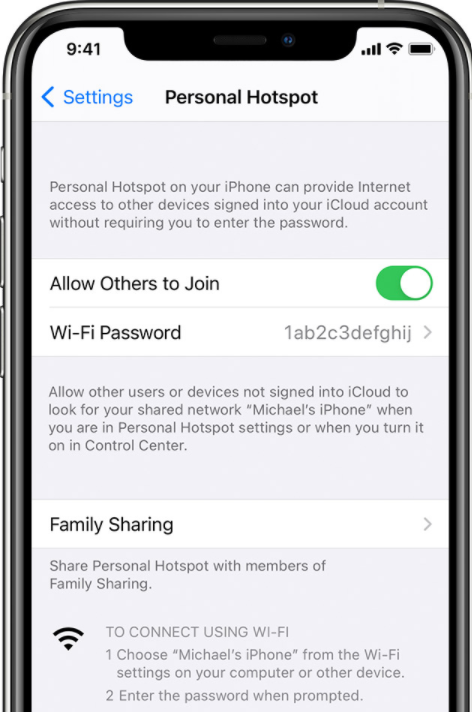
Go to Settings > Cellular > Personal Hotspot or Settings > Personal Hotspot. Next, tap the slider next to ‘Allow Others to Join’.
How to check if Cellular Data is enabled on your iPhone?
Before you can use your iPhone as a personal hotspot, it’s essential to confirm that cellular data is switched on. Here’s how you do it:
- Open the Settings app on your iPhone.
- Tap on Cellular (or Mobile Data in some regions).
- Make sure the toggle next to Cellular Data is set to on (it should show green when enabled).
If you’re unable to switch cellular data on, or the option is missing altogether, this could indicate an issue with your mobile plan. In such cases, it’s a good idea to reach out to your carrier (like AT&T, Verizon, T-Mobile, or Vodafone) to ensure your account is active and your plan supports data sharing.
Why is my Personal Hotspot not working iPhone? How can I fix it?
If you can’t connect to hotspot iPhone and you are not sure about why my hotspot on iPhone not working, then take the following actions to sort out the possible causes. After each step, try connecting again and check if it is working before going to the next one:
1. Check that the Personal Hotspot is turned on in Settings. If it is not found or turned on, check that your wireless carrier has enabled it and that your wireless plan supports it;
2. Sometimes you may need to restart your iPhone that provides Personal Hotspot as well as the other device that needs to connect to the Personal Hotspot;
3. Ensure that you have the latest version of iOS on your iPhone. To update your iPhone,
Go to Settings > General > Software Update. Click ‘Install Now’ if there is a new iOS update available;
4. If there is any issue with the cellular data network on your iPhone, which is providing the Hotspot, you will not be able to connect to its WiFi network. To fix any issue with the Cellular Data Not Working is to reset the network setting on your device that provides Personal Hotspot. To reset the network settings,
Go to Settings > General > Reset > then tap Reset Network Settings;
Note: By resetting network settings, you’ll lose any custom network settings on your iPhone, including custom DNS settings if any, VPN configurations, WiFi passwords, and other network data.
5. Make sure the devices that need to be connected to your iPhone Personal Hotspot are within the range of your iPhone, preferably with no obstructions in between;
Occasionally, when trying to use your iPhone’s personal hotspot, you might encounter a frustrating “No Internet Connection” message. Don’t worry—this usually points to something simple that can be resolved with a few checks.
Here’s what you should do:
- Test internet access directly on your iPhone: Open Safari or any browser and try loading a webpage. If your iPhone itself can’t get online, the issue is with your cellular connection rather than the hotspot.
- Check for Low Data Mode: Go to Settings > Cellular > Cellular Data Options and make sure Low Data Mode isn’t limiting your connection.
- Confirm cellular coverage: If you’re in an area with patchy service, try moving to a spot with better signal reception. For travelers, ensure that Data Roaming is enabled (Settings > Cellular > Cellular Data Options > Data Roaming).
- Double-check your carrier and plan: Reach out to support from AT&T, Verizon, T-Mobile, or your network provider if you still can’t connect, just to be certain your plan allows hotspot sharing.
By following these steps, you can quickly sort out most “No Internet Connection” issues and get your devices back online.
If you’ve plugged your iPhone into your computer to share its internet connection via USB and your computer just isn’t seeing it, don’t panic—this is surprisingly common, and there are a few straightforward checks you can make to get things running smoothly.
To get started, try the following:
- Update your operating system: Make sure your computer is running the latest system updates. This ensures compatibility and resolves many connection quirks.
- Check your USB cable: Use a reliable, data-capable USB cable (not just a charging cable), and try a different port if possible. Some generic or worn cables may only charge your device without supporting data transfer.
- Trust the device: When you connect your phone, you may be prompted with a message asking if you trust this computer. Always select “Trust” to allow the connection.
- Verify device is detected: Open your device manager (Windows) or look in your system preferences/network settings (Mac/Linux) to see if your phone is listed under connected devices or network services.
- Add or activate the connection: If your phone appears as an inactive connection, select it and enable or activate the connection. Sometimes you might need to add it as a new network service manually.
If you still don’t see your phone available as a hotspot connection, try restarting both your computer and the iPhone, then reconnecting. These steps should help your computer recognize your iPhone’s hotspot over USB and get you back online with minimal fuss.
How Misconfigurations Can Disrupt Your iPhone Hotspot
Misconfigurations are another common culprit behind hotspot woes. Even if you’re using tools or apps to help manage your device, a simple misstep in your iPhone’s settings can prevent your hotspot from working as expected. For example, if the settings are not aligned with your wireless carrier requirements, or personal hotspot permissions aren’t enabled, you may find it impossible to connect, no matter how many times you try.
Here are a couple of pitfalls to watch out for:
- Your iPhone may not have the latest iOS update, leading to compatibility hiccups.
- Personal Hotspot settings might be toggled off or improperly set up.
- Certain profiles or restrictions (often added by corporate or school management software) could be blocking internet sharing.
To prevent these headaches, always double-check that your settings match your carrier’s recommendations and the hotspot toggle is enabled. Keeping your iPhone updated with the latest iOS version, such as on AT&T, Verizon, T-Mobile, or Vodafone, will help sidestep many of these issues. If all looks correct and you’re still facing problems, a quick settings reset (as outlined above) often does the trick.
iPhone hotspot not working with WiFi- steps to follow to fix the issue
There are several methods by which you can share your data connection through the personal hotspot, such as with WiFi, USB, or Bluetooth. Most people more often than not use the WiFi connection method for Personal hotspots in their iPhones. If you see that your iPhone personal hotspot not working and you can’t connect to iPhone hotspot with WiFi then follow the steps below to fix the issue:
1. Go to Settings > Personal Hotspot;
2. Toggle ‘Allow Others to Join’ to on position;
3. Remember your iPhone’s WiFi network name and the password that appear on the screen (if you want you can also change the network name and password).
The iPhone automatically generates a random password for your hotspot. You can change this password by tapping on it and entering a new one, which can make it easier to remember or share with others. However, if your iPhone is managed by an organization (like your workplace or school), you might not have permission to change the hotspot password. In such cases, use the password shown on the Personal Hotspot screen;
4. If you are using an iPhone 12 model or a later version, turn on Maximize Compatibility feature.
This option is available under your Personal Hotspot settings and can help certain devices connect to your iPhone’s hotspot more easily. Keep in mind, though, that enabling Maximize Compatibility may reduce Wi-Fi security and performance for devices using your hotspot. It’s best to use this setting only if another device has trouble connecting without it;
5. Now try to connect the other device to your Personal Hotspot;
6. Stay on this screen until you have connected the other device to the WiFi network;
Next, follow the steps below on the other device that needs to connect to the Personal Hotspot:
i. Turn your WiFi off and then turn it back on;
ii. Connect to the correct WiFi network whose name is the same as the iOS device that provides Personal Hotspot. The Personal Hotspot icon might appear next to it;
iii. If a password error message shows up when you try to join Personal Hotspot, check to make sure that the WiFi password is correct.
To double-check the password, go to Settings > Personal Hotspot on your iPhone which provides Personal Hotspot where the password will be displayed for you. If there is any error then re-enter the correct password and try connecting to the personal hotspot again;
If you’re still running into trouble, consider these additional common error messages and fixes:
- “Personal Hotspot Not Available”: This often means your cellular carrier has disabled the hotspot feature. Double-check your data plan to ensure hotspot use is included and that you haven’t exceeded your data limits.
- “Unable to Join the Network”: If this pops up, make sure your iPhone (the hotspot source) is powered on, has sufficient battery, and hasn’t gone into sleep mode. You can also try toggling the hotspot off and on again, as some devices may automatically disable hotspot when the screen is off.
- “No Internet Connection”: Open a browser directly on your iPhone to confirm it’s actually connected to the internet. If the phone itself has no connection, troubleshoot your cellular data or check if you’re in an area with weak coverage. Also, make sure Low Data Mode or Data Saver isn’t limiting connectivity.
- Hotspot Connection Limits: Some plans restrict the number of devices that can connect at once. If you see a message about the hotspot not accepting new connections or hitting the maximum number of devices, disconnect unused devices and try again.
Addressing these error messages one by one can help you zero in on the root issue and get your Personal Hotspot up and running smoothly.
Common human errors to watch out for
Sometimes, the issue is simply the result of human error. It’s easy to forget your hotspot password, accidentally mistype it, or even unknowingly turn off the Personal Hotspot feature while troubleshooting. Double-check that the hotspot is enabled—go to Settings > Personal Hotspot and make sure ‘Allow Others to Join’ is switched on. If you’re entering the password on the other device, be mindful of capitalization and any special characters that may be in your hotspot password. Taking a moment to confirm these details can often save you a lot of unnecessary troubleshooting.
Connecting to Personal Hotspot with a USB Cable
If you’d rather use a good old-fashioned cable instead of WiFi to connect your Mac or PC to your iPhone’s Personal Hotspot, here’s how to get set up—no technical wizardry required.
- Update Your Computer
Before you begin, make sure your laptop or desktop is running the latest available operating system updates. This prevents compatibility headaches down the road. - Plug In and Trust the Device
Use a standard USB cable to connect your iPhone (or the device supplying the hotspot) to your computer. If you see a “Trust This Computer?” prompt on your phone, go ahead and tap “Trust.” This ensures they can talk to one another. - Look for Your Device
On your computer, open your usual device manager or software that recognizes external devices—whether you’re on a Mac or a Windows PC, you should be able to see your phone listed as a network source or device. - Enable the Personal Hotspot
On your iPhone, make sure Personal Hotspot is switched on under Settings > Personal Hotspot. Double-check that ‘Allow Others to Join’ is enabled, just like with a wireless connection. - Configure the Network (If Needed)
On your computer, head into the network settings or control panel. If you don’t immediately see your iPhone as a possible internet source, look for an option to add or activate a new USB network connection (“iPhone USB,” for example). Sometimes it shows up but is inactive; if so, you might need to activate it by toggling it on or applying changes. - Connect and Get Online
Once the connection is active, your computer should now be able to use your iPhone’s mobile data as its new internet connection. Browse, stream, and email away!
Quick tip:
Remember to turn off Personal Hotspot when you’re done to avoid any surprise data usage, especially if you tend to plug your phone in just to charge.
This simple USB method works with both Macs and PCs—no fancy software or settings required. And because you’re using a cable, you might even get a slightly more stable connection than with WiFi (plus, your phone charges during use, which is a nice bonus).
How to Activate the USB Network Service for Personal Hotspot
If you’re connecting your iPhone to your Mac via USB and don’t see the iPhone USB option listed in your network services, you may need to add and activate it manually. Here’s how to do it, whether you’re on a newer or older version of macOS:
- First, open your Mac’s network settings;
- If you don’t see “iPhone USB” or a similar option, use the “+” button (usually found at the bottom of the network services list) to add a new service and select your iPhone from the interface dropdown menu;
- Once “iPhone USB” appears, select it.
>On newer Macs (think Ventura and later), you might simply need to toggle “Make Inactive” and then “Make Active” to refresh the connection.
>On older systems, look for a “More” button or an options menu below the list, where you’ll find “Make Service Inactive/Active.” Click through these steps and apply the changes each time.
Giving the service a quick inactive-to-active refresh often helps your Mac recognize the iPhone as a valid source for internet sharing over USB. This can resolve connection hiccups that sometimes happen when your Mac doesn’t immediately identify the iPhone.
Once you’ve done this, your personal hotspot via USB should be up and running.
Tip: Avoid Unwanted Data Charges
To steer clear of unnecessary data usage, remember to turn off Personal Hotspot when you’re not actively sharing your connection. If you leave it enabled, simply plugging your device into your computer to charge may prompt your computer to connect and start using your mobile data in the background—potentially racking up charges you didn’t expect. So, when you’re finished tethering, switch off Personal Hotspot until you need it again.
Why my personal hotspot is not working iPhone?
iPhone users sometimes report- why my personal hotspot is not working iPhone?
At times iPhone user finds that the hotspot on iPhone not working because the iPhone hotspot sometimes becomes unstable. There could be a number of reasons why iPhone Hotspot may sometimes become unstable causing personal hotspot not working on iPhone
Find below the most common reasons why your iPhone hotspot keeps disconnecting unexpectedly.
1. Your carrier may have imposed restrictions for using a hotspot. Hotspot service offered by your carrier depends on your service plan; for example, some Verizon plans require an additional fee to enable the mobile hotspot feature, while AT&T and T-Mobile typically allow hotspot usage on many of their plans but may reduce your data speed after you reach a certain usage limit. If your hotspot keeps disconnecting or isn’t working at all, it’s worth checking your carrier’s policy or contacting customer support to confirm you have hotspot access and to ask about any data caps or fees that might apply;
2. If other devices are not within the range they won’t connect to your iPhone hotspot;
3. The problem may also be with your iPhone that provides Personal Hotspot, or with the other device(s) that are connected to it;
4. Maybe the Personal Hotspot is not properly enabled on your iPhone;
In addition to these, connectivity issues can also show up as inconsistent performance, slow speeds, or dropped connections. Sometimes, the culprit is the cellular connection itself—if your iPhone’s mobile data signal is weak or unstable, your hotspot will mirror those problems. Also, if you’re connecting via Bluetooth, keep in mind that Bluetooth is slower and less stable than WiFi. Interference from other nearby Bluetooth devices can make pairing tricky, and outdated software on either device can lead to pairing or connectivity failures. Furthermore, Bluetooth connections tend to drain the battery on both your iPhone and the device you’re connecting, which can add to the instability.
If your iPhone hotspot keeps disconnecting unexpectedly you may take the following steps to fix the issue:
1. Contact your carrier to ensure that it has not imposed any restrictions for using hotspots;
2. Ensure that the other devices and your iOS device are close to each other;
3. Ensure that your iPhone has the latest version of the iOS software;
4. Update your carrier settings on your iPhone;
5. If you’re connecting via Bluetooth and experiencing slow or unstable connections, try switching to WiFi, which is faster and more reliable for most uses;
6. Make sure there are no physical obstructions or heavy wireless interference nearby, and minimize the number of active Bluetooth connections if using Bluetooth;
7. Restart both your iPhone and the device you’re trying to connect, as this can often resolve temporary glitches in connectivity.
By checking these factors, you can significantly improve the stability and performance of your iPhone hotspot and avoid frequent disconnects.
You may also like to read: How to use Mobile Hotspot without using data
How Data Plan Limits May Restrict Hotspot Connections
Another factor worth noting is that your data plan can directly dictate how many devices can connect to your iPhone’s personal hotspot at once. Some carriers—like Verizon, AT&T, or T-Mobile—may limit the number of simultaneous connections depending on your specific plan. In such cases, you might run into a message saying no more devices can be added, even if you have plenty of data left for the month.
If you see a notification about reaching the maximum number of allowed hotspot connections, this is likely due to built-in restrictions based on your carrier or data plan. Many basic or entry-level plans allow only a single device to connect via hotspot at a time, while others—like certain family or unlimited plans—offer higher connection limits but may throttle speeds after a set amount of usage.
To resolve this:
- Double-check your mobile plan details or carrier’s support page for connection limits.
- If you experience issues and aren’t over the limit, disconnect any devices you’re not currently using, as some connections may linger in the background.
- If needed, consider upgrading to a plan that supports additional hotspot devices for greater flexibility.
Being aware of these plan-imposed limits will help prevent frustration—and keep your hotspot running smoothly when you need it most.
How to Avoid Unnecessary Data Charges While Using a Personal Hotspot
Worried about racking up extra data charges when using your iPhone as a hotspot? It’s easier than you think to keep those surprise fees at bay with a few simple habits.
- Turn off your hotspot when not in use: Every time your personal hotspot is active, devices nearby—or even your own laptop plugged in for a quick charge—might automatically connect and start using mobile data. Make it a routine to switch off Personal Hotspot once you’re done sharing your connection.
- Keep an eye on connected devices: Laptops, tablets, and even smartwatches can quietly reconnect in the background and start sipping away at your data allowance. Regularly review which gadgets are connected and disconnect any you don’t currently need online.
- Set data alerts or usage limits: Most carriers (including big names like Verizon, AT&T, and T-Mobile) offer free tools or companion apps that let you set up data usage notifications. This way, you’ll get a heads-up before you approach your plan’s data cap.
- Avoid automatic downloads and updates: When tethered, turn off auto-updates for apps and software on connected devices. These background tasks can gobble up gigabytes without warning!
A little vigilance can go a long way when it comes to minimizing data consumption—and your wallet will thank you.
Frequently asked questions
Now that I have explained how can you fix when your iPhone hotspot not working, let me also address some of the questions often asked by iPhone users related to – hotspot iPhone not working.
How do I get my hotspot to work on my iPhone?
On the device that you want to connect to, go to Settings > Cellular > Personal Hotspot or Settings > Personal Hotspot, and make sure that it’s on. Then verify the WiFi password and name of the phone. Stay on this screen until you’ve connected your other device to the WiFi network.
Why I am unable to start personal hotspot on my iPhone?
If you are unable to start personal hotspot on your iPhone, first check if your wireless carrier has enabled it and that your wireless plan supports it. For travelers or anyone using an eSIM, it’s also important to confirm that your data plan allows hotspot sharing—sometimes there are restrictions or limits, especially with international or prepaid plans.
You can usually find this information by checking your carrier’s website for details about your specific plan’s hotspot capabilities. Look for a section listing technical specs or data sharing rules; if hotspot use is listed as “allowed” or “enabled,” you’re good to go, but keep an eye out for any fine print about data caps or restrictions.
If everything seems in order with your carrier and plan but you still can’t start a hotspot, it’s time for a quick troubleshooting session: Make sure Personal Hotspot is enabled in your iPhone’s settings, double-check your cellular connection, and restart the device if needed. Sometimes, a quick reset is all it takes to get things working.
If everything is alright, restart your iPhone and the other device that needs to connect to your Personal Hotspot. Also, make sure that you have the latest version of iOS.
Why can’t my laptop connect to my iPhone hotspot?
To fix the issue do the following:
1. Turn Personal Hotspot off and then make it on again from Settings;
2. Update your iOS to the latest version;
3. Reset network settings;
How do I connect my iPhone to a Windows hotspot?
To connect from a Windows computer do the following:
1. Click on the Bluetooth icon;
2. Select ‘Join a Personal Area Network’;
3. In the upper-left corner click ‘Add a Device’;
4. Select your iPhone from the next screen and click ‘next’ to continue;
How do I connect my iPhone hotspot to Windows 10?
If you want to connect your iPhone hotspot via a WiFi network, first enable Personal Hotspot from settings, then select the name of your iPhone from WiFi settings that appear on your computer screen and enter the password when prompted. Your Windows PC will now be connected to the Internet.
What are proactive steps for IT managers for managing iPhone Personal Hotspots for remote teams?
Managing iPhone Personal Hotspots in a work environment requires a bit of forward thinking—especially if you’re responsible for keeping remote workers reliably connected.
Here are some proactive measures IT managers can take to ensure those hotspots work smoothly across the team:
- Create clear usage policies: Establish and communicate clear guidelines for when and how staff should use personal hotspots on their iPhones, especially regarding data limits and sensitive company information.
- Provide documentation and support: Offer step-by-step guides for connecting to iPhone hotspots on various devices (Windows laptops, MacBooks, tablets, etc.), and ensure that employees know whom to contact if things stop working.
- Standardize device updates: Encourage regular checks for iOS updates and carrier settings, and consider reminders or scheduled update times to ensure everyone is running the latest software.
- Test connectivity before travel: Advise remote staff to test personal hotspot features before heading out for off-site work, and keep backup solutions handy—like portable WiFi dongles from brands such as Netgear or TP-Link—for mission-critical situations.
- Monitor data security: Remind employees to use strong hotspot passwords and to avoid sharing connections in public places where possible. Tools like mobile device management (MDM) solutions from companies like Jamf or Cisco Meraki can help IT oversee device compliance and security.
- Prepare troubleshooting kits: Assemble a simple troubleshooting checklist (step-by-step resets, checking WiFi channels, verifying hotspot visibility, etc.) that employees can follow without needing IT intervention for every minor blip.
Taking these proactive steps not only prevents common hotspot headaches but also helps remote teams stay online—and productive—whenever and wherever they need to connect.
What should I do if I have issues with third-party products or websites related to Personal Hotspot?
If you run into trouble with personal hotspot connectivity while using third-party accessories (like USB WiFi adapters from Netgear or TP-Link) or are referencing an independent website for setup steps, a little extra diligence is key. Since these products and resources aren’t directly managed by your iPhone manufacturer, here’s how to troubleshoot smartly:
- Double-check compatibility: Make sure the accessory or software specifically supports iPhone hotspot features, and that it’s running the latest firmware or updates.
- Consult the vendor’s help resources: Head to the official site or support page for the third-party brand in question—brands like Netgear, TP-Link, or Belkin often have user guides and troubleshooting tips tailored for their products.
- Verify instructions from independent sources: While there are loads of helpful tech sites and tutorials online, not every guide is accurate or up to date. Cross-reference steps with more than one reputable source when possible, and prioritize official documentation.
- Contact vendor support: If your issue seems to be isolated to a particular device or accessory, reach out directly to the brand’s support team—they’ll be able to provide guidance for that specific product.
- Stay security savvy: Be careful when entering information or downloading files from lesser-known sites. Always opt for trusted sources to avoid security mishaps.
Taking these steps can help you sort out connection snags that don’t stem from your iPhone itself, keeping your hotspot setup both secure and headache-free.
You may also like to read: How to share WiFi on iPhone
Conclusion
Hopefully, after going through the post you will be able to resolve your iPhone hotspot not working issue and share your iPhone’s internet connection with other devices around you.
I have listed here just about all the available basic troubleshooting steps to fix the issue when you see your personal hotspot not working iPhone, for any reason. If none of the given solutions is able to solve the issue you have to visit the Apple store or contact Apple Support to deal with the iPhone personal hotspot problem.
If you have found any other solution that worked for you when you can’t connect to iPhone hotspot, please share the same in the comment section below to help other readers.
