How do I make laptop faster?

How to make my laptop faster?
How to make my laptop faster is a frequent query on the net from computer users. I have in this post described how to make fast laptop as suggested by the experts, which helped me to speed up my own machine significantly.
Computer/laptop users, struggling hard with their slower machines, are often seen searching over the internet today – how do I make laptop faster or how to make my computer faster? This is mainly because computers/laptops start to slow down as they get older and clogged up with files, unused software, and other digital debris. You need not, therefore, unnecessarily worry about the slow running of your machine over time even with the fastest processors. Slowing down your PC doesn’t necessarily mean you need to replace the machine with a new one or hire a computer geek to speed up your device. Then how can I speed up my laptop?
Thankfully, making a laptop faster is a lot easier than you think if you can apply the following maintenance steps about how to make your laptop faster.
How to make my laptop faster – proven steps to follow
Find below 10 proven steps on how to speed up laptop computer as suggested by computer experts after an in-depth study of what makes a laptop fast. I got significant results in speeding up my machine by applying these maintenance steps suggesting how do I make laptop faster.
Tweak Your Power Settings for Better Performance
A simple way to give your laptop a speed boost is by adjusting its power settings. Many laptops are set to a default “balanced” mode to conserve battery, but this can sometimes throttle performance when you need more speed.
Here’s what you can do:
- Head to the Control Panel and look for “Power Options.”
- Select the “High performance” plan, which tells your computer to use more of its resources for peak speed instead of saving energy.
- If you don’t see it, you can also customize your own plan by tweaking settings like processor performance and sleep timers.
These changes can help your system run at its full potential. Just remember, running on “High performance” may cause your battery to drain faster, so if you’re on the go, keep your charger handy. This small adjustment can make a noticeable difference, especially if you often find your laptop slow to respond when running multiple tasks or software.
1. Check free space on the hard disk
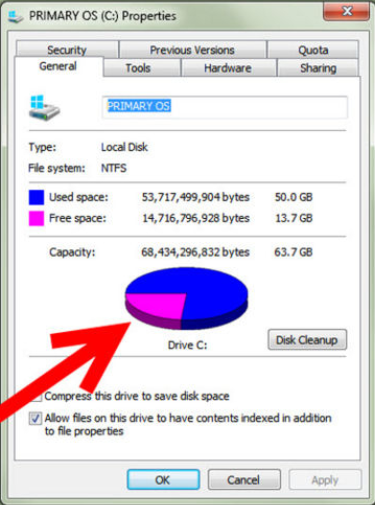
The first thing in the suggested list of how to speed up laptop computer is to check the available free space on your machine’s hard disk.
As you use your laptop/computer and load programs, files, music, photos, etc. the available space on the hard disk continually reduces. You should keep tabs on how much free space you have on the hard disk because Windows uses some of that space to keep information that it uses to run. If the available disk space drops below a certain point Windows will slow down considerably.
Going by rules, for making a faster laptop, at least 15% of the hard disk space needs to be kept free. When your hard disk free space drops below this level you need to consider either removing some of the files that are using up valuable space or buying a second hard disk.
To check this, go to Computer > Right-click on Local Drive > Go to Properties. If the Pie-chart in the window that opens up shows mostly full, you should remove any unnecessary programs and files from the hard disk to make laptop faster;
2. Remove temporary files
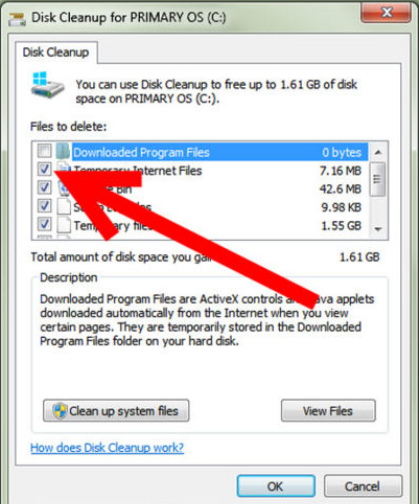
As mentioned above cluttered hard drive slows down your computer. Every time you work on your laptop or computer, many temporary files and unnecessary system files are saved on your HDD which clutter your machine. Therefore, removing these temporary files can be one of the most effective steps for how to make laptop fast. If you have less than 5 Gigabytes (GB) of free space, it’s time to clean up your computer hard drive to speed up the machine.
Now, your next question may be – how to clean my laptop to make it faster?
Windows has included a built-in disk de-cluttering tool called ‘Disk Cleanup’ which can clean up hundreds of megabytes of temporary files, sometimes even gigabytes. There are a few different types of file categories that Disk Cleanup targets when it performs the initial disk analysis such as downloaded program files, temporary internet files, Recycle Bin, Setup log files, etc. Cleaning up the computer by removing the temporary files and unnecessary system files and emptying the recycling bin helps to significantly speed up your machine.
To Open Disk Cleanup go to Start>All Programs > Accessories/Administrative tools > Disk Cleanup. It will open a window in which you can choose what to delete. Check all the boxes except for the game files and setup files.
You can also get rid of the temporary files and unnecessary system files to free up disk space easily and most effectively with a popular excellent free program called CCleaner. You can download a free version of this program from here.
Thus, disk cleaning is suggested to be one of the most important steps in how to make computer run faster. You are to check on this action once every 2 or 3 weeks;
3. Keep big files off the home screen
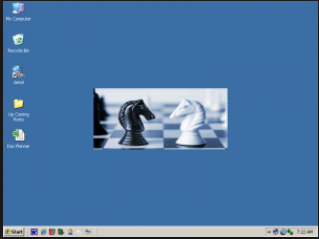
Saving all your files and programs on the home screen may be handy, but it can slow down your machine. The various files and programs saved on the home screen are represented by images, and these images, including the background image on the home screen, do take up memory space. So it follows that more images on your desktop or home screen mean more images stored in memory, which in turn means less memory available for other applications.
If you have a lot of files, you should put them in separate folders. Create shortcuts on your home screen for the folders or files you frequently use. By doing this, you will free up operating memory, reduce the time and frequency the hard drive is used, and improve the response of your computer/laptop to programs you open and things you do. Thus keeping the home screen clean is one of the most important suggested steps when someone asks – how to make my laptop faster.
Do a desktop or home screen cleanup every 2 or 3 weeks to make sure you don’t have a lot of files sitting on it;
4. De-fragment the hard drive
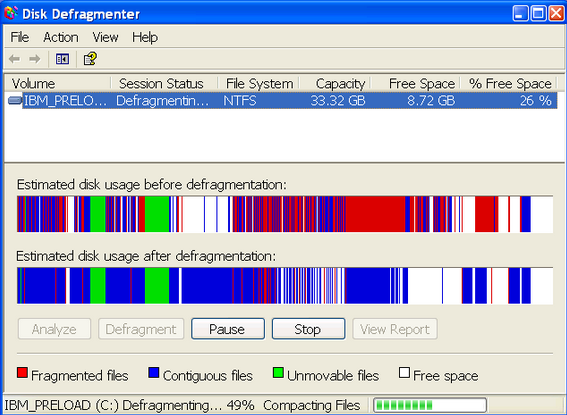
Defrag drive for making a laptop faster
Over time, a hard drive becomes fragmented with hundreds of files broken up in many locations across the drive. Ultimately, this slows down a laptop’s response time because it takes longer for it to access information. That’s why using the De-fragmenting program is found to be an important step in how to make laptop fast.
Defragmentation is a process that reorganizes the fragmented files that are on your computer’s storage. Running the De-frag program assembles the files making them easier to find and thereby minimizing the time to open/load the files which makes the laptop faster.
To run the program, open Computer > Right-click on your main drive > Choose Properties > Go to the Tools tab and choose De-fragment Now/Optimize and De-fragment. With Windows Vista, 7, and 8 this is not such a big deal anymore. They run the built-in De-fragmenter automatically on a schedule.
Therefore, to make laptop faster, make it a point to check on this action once every 2 or 3 weeks;
5. Check for disk errors
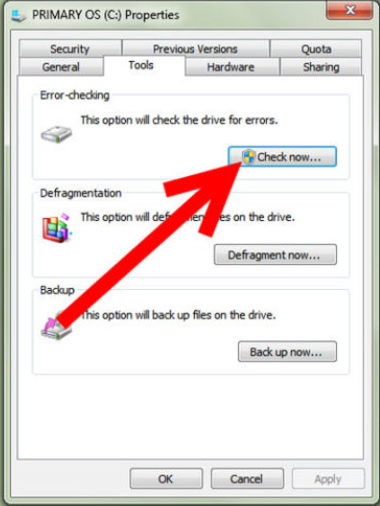
Another important step on how do you speed up a computer or laptop is to fix disk errors usually caused due to improper or sudden shutdowns, corrupted software, metadata corruption, etc.
You can make laptop faster to improve its performance and prevent it from slowing down further by checking your hard disk, once in a while for errors and making sure that the hard disk has no errors and has not developed bad sectors. In order to ensure this, go to Start > Computer > Right-click the Hard Drive > Select Properties > Tools tab > Click ‘Check Now’ under the Error-Checking area.
When the dialogue box opens, check both boxes. If you get a window saying that Windows can’t check the disk while it’s in use, click on Schedule Disk Check and then OK. It will run on your next reboot. If no errors are found after the check, you will see a message – ‘You don’t need to scan this drive’. You can, nevertheless, choose to check the drive. Click on Scan Drive to do so.
Ideally, a full scan of the machine every month, which prevents disk errors is an important step in how to make your laptop faster;
6. Remove unused programs
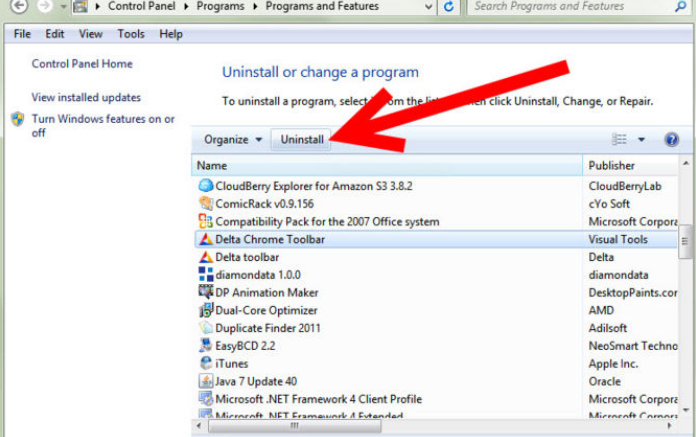
When it comes to speeding up old computers/laptops, freeing up storage space and memory by uninstalling programs that you don’t use, is another important step in how to make computer faster.
The above unused programs may include trial versions of software that came pre-loaded with your new machine which you probably don’t even know, old software or games that you no longer play, out-of-date anti-virus programs, etc. However, there may be some programs you are not familiar with and may require some examination before deletion. When in doubt, don’t remove anything you are not acquainted with. It may be critical for the functioning of your computer. The programs that you have not used for years may be candidates for removal. If you are still unsure about which programs to keep and which you don’t need, you can try a third-party program called ‘PC Decrapifier’, which is free for non-commercial use.
To see the listed programs on your computer/laptop, go to Control Panel > Add or Remove Programs /Uninstall a Program, depending on your operating system. Start removing the programs from the list right away that are not being used by you, to free up space on your machine.
Remember that creating more free space is a vital factor in how to make computer run faster. Therefore, check on this action about once a month, just to clean up your laptop;
7. Stop unnecessary start-ups
The more programs try to load during the start-up of your laptop or computer, your machine will take a longer time to boot. Your laptop takes much time to start third-party programs. Security software, printer software, and driver updates are just a few examples. The frustrating part is that many of these don’t need to run at a start-up. Some programs run in the background after loading on your machine, even though you are not using them. Therefore, one of the most effective steps to speed up your old machine is to revise the start-up programs by altering the system configuration.
For Windows 7:
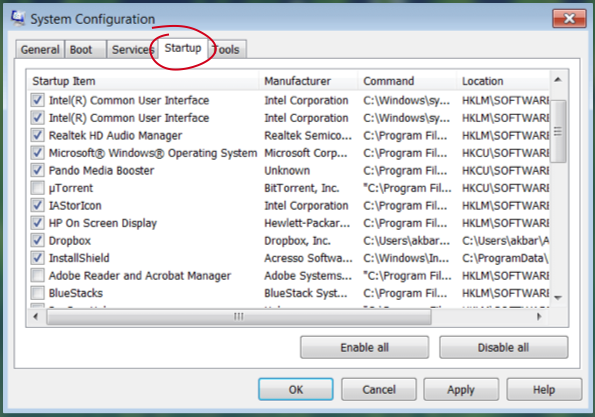
Go to Start > Run and enter ‘MSConfig’. Choose the start-up tab in the window that opens and make the necessary changes. Un-check the boxes of the programs you don’t need to run every time your computer is turned on such as iTunes or your printer. If you don’t recognize a program, leave it be.
For Windows 8 and 10:
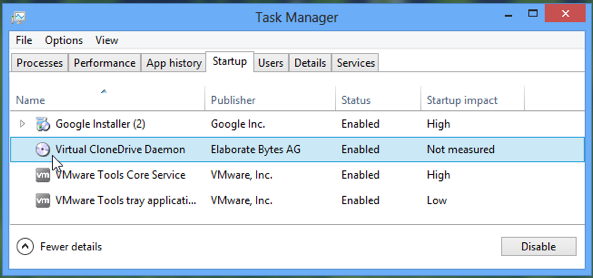
- In Desktop mode, right-click on the Windows logo and select Task Manager;
- Click on the Startup tab;
- Right-click on Enabled programs and choose Disable;
‘Autoruns’ is a free program that can also help to reduce the load at start-up. It finds and disables unnecessary programs during start-up so that they don’t slow your machine. Nevertheless, it won’t stop important start-up processes, like security software, etc.
Check on this action whenever you install a new program, or once a month to make sure nothing has changed;
8. Remove pesky viruses

‘Computer or laptop running slow’ is often the result of unwanted programs that make the machine sluggish. Speaking of unwanted programs, malware, spyware, or viruses running in the background and taking up system resources, can seriously slow down your system. They may record everything you do, or send out spam. Get rid of these, and you will be surprised to see how fast your system is running.
Therefore, installing good security software and keeping it up-to-date to combat these viruses is an important step for making a laptop faster. ‘AVG’ and ‘Avast’ are two good free options. I would also suggest installing the free version of ‘Malware-bytes Anti Malware’ for manual scanning and removal of spam.
It’s almost impossible these days to browse the internet and not pick up some form of malware along the way. Fortunately, security tools—especially Windows Defender and other free programs—make it easier to detect and eliminate these unwanted guests. Look for a comprehensive suite that not only removes malware but also doesn’t hog precious system resources. Some antivirus programs can actually slow your machine down if they’re too bulky, so aim for one that keeps a low profile while still offering strong ongoing protection in the background.
For best results, consider installing two types of software:
- One for regular malware cleanups or manual scans, to tackle any lagging or obvious issues with performance or pop-ups.
- Another for real-time protection that quietly keeps watch while you work.
A bit of research goes a long way when choosing the right tools. Free software is great, but make sure it’s compatible with your operating system and won’t introduce new glitches. The key is to find an option that fits your needs, your budget, and your machine—without weighing it down.
9. Install More RAM
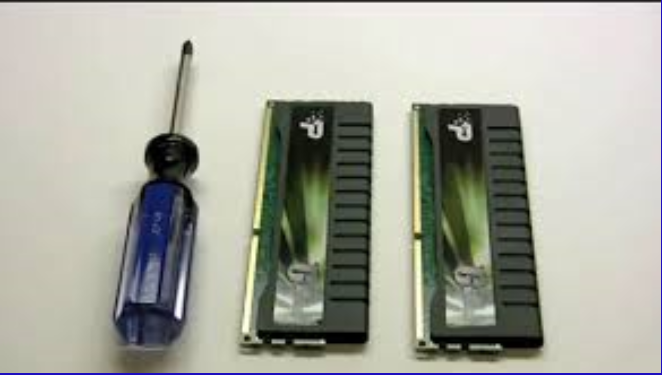
Another most likely cause for the loss of speed of your laptop/computer is the memory (or not enough of it). Larger programs (like games or MS Word) use a bigger chunk of your computer’s available memory. In addition, running several smaller applications at the same time also uses up a considerable part of the RAM. When your laptop runs out of available memory space, it starts using the hard drive instead. This is, much slower than using the RAM and one of the causes of your machine running slow.
The baseline memory of RAM in a computer is 4 GB which is what you can expect from a budget model, and it’ll just about do the job. But that is not enough when you start multi-tasking and add more and more high-intensity programs. By adding more memory you can speed up your system considerably, and relatively cheaply. 8 GB is closer to the current norm, and it’ll be enough to keep your computer/ laptop fresh for the immediate future.
How to check your RAM:
- Press + + and select Task Manager.
- Click the Performance tab, then open the Memory section.
- Here, you’ll see how much RAM you have, how much is being used, and what’s available.
If you notice that less than 25% of your total RAM is free during regular use, it might be time to consider an upgrade. There are different generations of RAM (DDR3, DDR4, DDR5, etc.), and newer ones boost performance, but make sure your laptop supports the type you want to install—they aren’t interchangeable across all machines.
Therefore, one of the easiest ways how to make laptop fast is, to upgrade its memory. Upgrading RAM is a very cost-effective upgrade and you will have to spend a little to do this hardware upgrade. Don’t forget that a 32-bit system only supports up to 4GB of RAM. Switching to the 64-bit OS should sort out this problem;
Hard drives are also seen to be one of the biggest causes of slow startup speeds on your PC. While these are not cheap, installing a solid-state drive, which has extremely fast read times, can speed up your machine’s startup considerably.
If you’re curious about how much storage you have left:
- Click the Windows button and type Settings.
- Select System, then Storage.
- You’ll see an overview of your free space and what’s hogging it.
If your storage is running low or you’re constantly getting warnings, consider either deleting some files or swapping out your old hard drive for a newer, faster solid-state drive (SSD). SSDs not only speed up boot times, but use less battery and are generally more durable than traditional hard drives.
Whether you’re boosting your RAM, moving to an SSD, or both, these upgrades can breathe new life into your laptop—making it feel almost brand new without breaking the bank.
What is a Startup SSD (Solid-State Drive) and How Does It Boost Performance?
All right, let’s talk solid-state drives, or SSDs—the secret ingredient behind those lightning-fast startups and app launches your friend brags about. A “startup SSD” is simply an SSD installed as your main drive, where your operating system lives and breathes.
Unlike traditional hard drives (HDDs), SSDs use flash memory rather than spinning magnetic disks. The result? Read and write speeds that leave old-school hard drives in the dust. When your laptop boots from an SSD, it leaps to life in seconds. Programs—especially resource-heavy ones like Photoshop, games, or video editors—load much faster, making multi-tasking far less of a chore.
Some laptops let you swap out your slow hard drive for an internal SSD, while others—especially ultra-slim models—may limit you to external SSDs that connect via USB 3.0 (thankfully, these are almost as quick these days). Even if you can’t install one inside, plugging in an external SSD for extra storage or as a dedicated work drive provides a hefty performance kick for large files and demanding applications.
When shopping for an SSD, pay attention to capacity (256GB and up is a safe bet), connection type, and compatibility with your laptop. Online resources like storage review sites can help you compare options from reputable brands—think Samsung, Crucial, SanDisk, and Western Digital—to find a solid upgrade that fits your needs and budget.
Whether you’re scrambling to meet a deadline or just want your web browser to stop crawling at a snail’s pace, moving to an SSD is one of the smartest, most rewarding speed boosts you can give your computer.
10. Restart your PC routinely
Finally, one of the best and easiest tips in the list of ‘how to make laptop faster’ is to restart your machine at least once daily. This would clean up all the unnecessary background processes and the junk that are in RAM that eat up a lot of energy and slow down your PC.
How to check your laptop’s RAM
Wondering how much memory your laptop has under the hood? Don’t worry—it’s quick and easy to find out:
- For Windows 8 and Windows 10:
Simply right-click on the taskbar and select “Task Manager.” Then click the “Performance” tab, and you’ll see a breakdown under “Memory”—this shows exactly how much RAM is installed and in use. - For Windows 7:
Click the Start button, then right-click on “Computer” and choose “Properties.” Here you’ll find your total installed memory (RAM) displayed in the System section.
Checking your RAM gives you a snapshot of your laptop’s memory capacity and usage. If you find your system regularly running out of memory, or you’re pushing up against your RAM limits, it’s definitely time to consider an upgrade for a snappier experience.
How can optimizing web browser speed up laptop?
Here’s a little secret—your web browser could be the sneaky culprit behind your sluggish laptop. Browsers love to gobble up memory, especially when overflowing with extensions or running outdated versions. The fix? A little spring cleaning under the hood.
First, make sure your web browser is up to date. Newer versions tend to deliver better performance and enhanced security, something anyone running Windows should care about. You can usually find the update check hiding under an “About” section in your browser’s menu. Set it to update automatically if possible, so you don’t have to remember in the future.
Second, take a critical look at your browser extensions and add-ons. Those handy widgets and toolbars? Each one drains a bit more memory and can create hiccups while you surf. Head into your browser’s settings, often called “Extensions” or “Add-ons,” and remove anything you no longer use or recognize. Less is more—the fewer the add-ons, the quicker your browser (and, by extension, your laptop) will run.
By keeping your browser lean and mean, you’ll free up precious system resources, making your entire computer feel nimbler—especially when juggling multiple tabs for work, streaming, or the occasional social media rabbit hole.
You may also like to read this post: How to factory reset HP Laptop- an easy step-by-step guide
Frequently asked questions
Now that you know how to make my laptop faster let me also answer some related questions often asked by computer users.
How to make my Lenovo laptop faster?
Follow the steps below on how to speed up Lenovo laptop:
1. Check which programs use the most CPU and memory. Close any unnecessary applications;
2. In Task Manager, go to the Startup tab and disable programs you don’t need to start with Windows;
3. Delete unnecessary files and uninstall programs you no longer use. Use the Disk Cleanup tool to remove temporary files;
4. Run a Virus Scan using your antivirus software to perform a full system scan;
5. Make sure your operating system, drivers, and applications are up to date. Neglecting updates is like skipping oil changes in your car—eventually, things slow down and start to sputter. Keeping your system current can do wonders for performance and security.
- Enable automatic Windows updates: This ensures you always have the latest features and security patches without lifting a finger.
- Update your drivers: Pay special attention to graphics and network drivers, as outdated versions can cause everything from laggy video playback to spotty Wi-Fi.
- Keep applications updated: Old software can bog down your laptop or even introduce security holes. Most programs have an auto-update option—turn it on if you can.
- Consider a driver update tool: If poking through Device Manager sounds tedious, utilities like Driver Booster or Snappy Driver Installer can help keep everything in sync with a couple of clicks.
Keeping everything up to date helps your laptop stay speedy and secure, saving you from future headaches.
6. If possible consider upgrading the RAM, especially if you frequently run memory-intensive applications;
7. Use a solid-state drive (SSD) to improve boot and load times.
If your laptop still runs on a traditional hard disk drive (HDD), consider upgrading to a solid-state drive (SSD). SSDs use flash memory rather than moving parts, which means your laptop can find and retrieve files much faster—often making everyday tasks up to six times quicker. Most new laptops already come with SSDs (either SATA or NVMe), but even if you already have one, upgrading to a larger or faster SSD can make a noticeable difference, especially if you keep running out of storage.
Check your storage situation:
- Click the Windows button and type Settings.
- Select System, then Storage.
- Here you’ll see how much free space you have and which files are taking up the most room.
If your drive is nearly full, consider deleting unnecessary files or upgrading your storage. Installing a 2.5-inch SATA SSD or an NVMe SSD is generally quick, and you’ll see instant results.
Tip:
Not ready to open up your laptop? You can also add an external SSD via USB. This gives you extra space instantly, helps keep your internal drive uncluttered, and is perfect if you need to access files between multiple devices or while on the move.
Upgrading to (or adding) an SSD is one of the best ways to breathe new life into a slow laptop, reducing startup times and boosting overall performance.
8. Perform a System Restore;
9. If the laptop continues to run slowly even after following the above steps, there may be hardware issues, such as overheating or failing components. In such cases consider consulting a professional; however, there are also a few other common culprits you might want to check before calling in the experts:
- Resource-hungry programs: Some software can consume a lot of memory and CPU, especially if several are running at once or launching automatically at startup. Use Task Manager to see what’s using the most resources and close or disable unnecessary applications.
- Lack of storage space: Not having enough free space on your hard drive or SSD can cause significant slowdowns. Regularly delete unnecessary files and empty your recycle bin.
- Maintenance needs: Temporary files, browser cache, or an old version of your web browser can accumulate over time and bog things down. Make it a habit to run disk cleanup tools, update your browser, and clear out old files.
- Physical factors: Dust and debris in your laptop’s vents can cause overheating, which leads to performance drops. Gently clean ventilation areas with compressed air.
- Fragmented hard drives: If you’re using a traditional HDD, running a disk defragmenter can help speed up access times.
If you’ve addressed software and maintenance issues and your laptop is still slow, it might be time to check for failing hardware components or consider upgrades like additional RAM or an SSD. For persistent problems, seeking the help of a professional technician is your safest bet.
Why is my laptop slow?
One of the most common reasons for a slow laptop/computer is that too many programs are running simultaneously in the background taking up considerable processing power which reduces PC’s performance. Some programs will continue to run in the background even after you have closed them or will start automatically when you boot up your computer.
How to make computer faster with Windows 10?
If your Windows 10 PC is running slow, you can try the following tips on how to make computer faster one by one, which might help to speed up your machine:
1. Make sure you have the latest version of Windows 10 installed;
2. Restart your PC and then open just the apps, programs, and browser windows you need;
3. Make sure that the system is managing the page file size. The paging file is an area on your hard disk that Windows uses like memory. There’s a setting in Windows 10 that manages the page file size automatically, which can help to improve the performance of your PC;
4. Free up some disk space on your PC. Windows 10 includes many visual effects, such as animations and shadow effects, which use additional system resources and can slow down your PC. Therefore, adjust the visual effects in Windows; if you’re looking for a straightforward way to do this, follow these steps:
- Open System Properties (right-click on “This PC,” choose “Properties,” then click “Advanced system settings”).
- Under the Performance section, click on Settings.
- You’ll see a list of visual effects. Select “Adjust for best performance” to turn off most effects, or customize individual settings to your preference.
Tweaking these options can free up valuable processing power, especially on older or less powerful laptops, giving your system a noticeable speed boost.
5. Disable unnecessary start-up programs;
6. Remove pesky viruses. Scan your PC for viruses or other malicious software by using Windows Security, which is included in Windows 10 ;
7. Restore your PC from a system restore point;
Can adding an external SSD make my laptop faster?
Yes, using an external SSD can help boost your laptop’s speed—especially if you’re running low on internal storage. When your hard drive is nearly full, your computer has less “breathing room” to shuffle files and manage tasks, which can lead to frustrating slowdowns.
An external SSD connects to your laptop via USB, instantly giving you extra space for large files, photos, videos, and backups. This frees up internal drive space and allows your system to perform more smoothly. It’s also a practical solution if you need to carry files between home, office, or school, or want an easy way to back up your important data.
Here’s what an external SSD can help with:
- Faster file access: Moving large files or media projects to the SSD means your laptop isn’t bogged down searching its crowded internal drive.
- More storage flexibility: You can switch between desktop and laptop or even share files with colleagues by simply plugging the SSD into another device.
- No complicated upgrades: There’s no need to open up your laptop—just plug and play.
Do keep in mind that transfer speeds depend on your SSD model and your laptop’s USB port (USB 3.0 and above deliver faster data rates). Popular brands such as Samsung, SanDisk, and Western Digital all offer high-quality external SSDs in various storage sizes and designs, so you can pick what fits your workflow and budget.
In short, an external SSD won’t upgrade your laptop’s internal hardware, but it’s a quick, cost-effective way to offload files, tidy up your system, and avoid the digital equivalent of a crowded desk. For anyone whose laptop is gasping for space or feeling sluggish, this is an easy win.
Will a hard reset (factory reset) make my laptop faster?
A factory reset can indeed give your laptop a “fresh start,” and in many cases, you may notice improved performance right after. By restoring your system to its original settings, a hard reset wipes out unnecessary applications, lingering malware, old user settings, and accumulated digital clutter that slow things down over time. Think of it as a spring cleaning for your computer—suddenly, all those background tasks and software conflicts that were bogging you down are swept away.
However, it’s important to remember that while a factory reset can fix sluggishness caused by software issues or corrupted files, it doesn’t upgrade your hardware. Your laptop’s processor, memory (RAM), and storage aren’t improved by a reset. So, if your device is older or simply underpowered, don’t expect miracles—while things may be zippier on a fresh system, you might still hit the limits of what your laptop can physically do.
Before taking such a drastic measure, try these simpler steps:
- Update your drivers and operating system.
- Disable unnecessary startup programs.
- Free up disk space by removing unused files and applications.
- Run a virus scan to remove malicious software.
If you find that even after these tweaks your laptop is still slow, and you’re ready to go for the reset, make sure to back up all your important files to an external SSD or cloud storage. After the reset, you’ll need to reinstall your essential programs and restore your files—but you’ll be starting with a clean slate.
How to reset your laptop
If you’ve decided a factory reset is the way to go, here’s how to do it on most Windows laptops:
- Open Settings.
- Go to Update & Security > Recovery.
- Under “Reset this PC,” click Get started.
- Choose whether to keep your files or remove everything.
- Follow the prompts to complete the reset process.
This process will restore your laptop to its default state, removing most software issues and giving your system a noticeable boost—at least as far as the hardware will allow.
Ultimately, a factory reset is best saved as a last resort when other optimizations haven’t worked. If your laptop is still sluggish after a reset, you might want to consider a hardware upgrade—adding extra RAM or switching to a solid-state drive (SSD) can make a dramatic difference, especially on older machines.
Why does dust slow down laptops, and how do I clean it out?
Dust is a sneaky culprit when it comes to laptop sluggishness—often overlooked, but surprisingly impactful. When dust accumulates inside your laptop, especially around cooling fans and vents, it blocks proper airflow and traps heat inside. This causes your laptop to overheat, which in turn forces the system to slow down or even throttle its performance in an attempt to stay cool.
To tackle this dusty dilemma, give your laptop a regular cleaning. Here’s how you can do it safely:
- Shut down your laptop and unplug it. Safety first!
- Turn your laptop upside down and gently tap it to help dislodge any loose crumbs or dust from the keyboard.
- Use a can of compressed air or a small air blower (Philips and Ozeri make good ones) to blow out dust from the vents and fan openings. Short bursts are enough—avoid holding the can too close or spraying continuously, as this can damage the fans.
- Wipe down the keyboard and exterior with a soft, dry cloth.
Regular maintenance like this not only helps your laptop run cooler but can also extend its lifespan. It’s a quick and inexpensive way to keep things humming along without heading to the repair shop!
You may also like to read: How to fix runtime error in simple steps
Conclusion
On going through the post it must be clear to you now how to make your laptop faster. It is not at all a difficult task to speed up your old machine and in most cases, not expensive also. Deleting unnecessary programs and files and running a few simple utilities are even easier and faster ways to get rid of computer sluggishness. It is a proven fact that by implementing the simple techniques for how to make laptop fast suggested in the post, you can restore your machine nearly to its full speed a lot easier than you think at a fraction of the cost of buying a new one.
It is a popular belief that regular running of a registry cleaner is often a beneficial step in how to speed up laptop computer. As far as I’m aware, however, there’s no evidence that a smaller registry has any positive effect on your machine’s performance. The registry in Windows keeps the information about your system and programs. So, programs that claim to “clean” the registry might end up deleting information that allows your programs to run correctly.
My advice, therefore, is to just avoid cleaning your registry altogether. While searching for – how to make my laptop faster, if you come across programs that promise to clean your registry to make your laptop faster, I would advise against them. They can even be harmful to your machine.
If you have any other innovative suggestions for making a laptop faster, post them in the comments section below to help our readers.

nerrawsoft
Sep 19. 2015
great aarticle indeed
radharenu ganguly
Sep 20. 2015
Hi
Thanks for stopping by and comments!
Hariz
Sep 21. 2015
Simple, Clear & 100% Accurate! Totally agree with all 10 tips. Your article will certainly help lots of people with computers, especially non-tech community. Respect! 🙂
Kam
Sep 30. 2015
Thanks so much for this post. My laptop had been slowing down waaaay too much, and I am often impatient. I did all the steps (besides RAM upgrades lol) and I hope I can get back to the way it was when I first bought this laptop.
loganix
Oct 09. 2015
The only one that is true is upgrade RAM. Clearing temp files is always nice, but the real solution is deleting some of your illegal movie and games to make a real impact.
john@computerconsultinginfortworthtx
Oct 12. 2015
Most vulnerable spot that are most frequently used in laptops are the sockets along its side. USB, audio and network connectors will stick out of the side around the edge of the laptop, making them prone to knocks and nudges.
Brian
Nov 29. 2015
YourVirtualHelper.net will speed up your PC if it starts going slowly. It is the same software that Best Buy and Amazon use if customers complain their computer is going too slowly or they want it to once again perform like it did on the day it was purchased.
computer-tech
Jul 25. 2016
That website is no longer up.
Stewart
Nov 30. 2015
Yes some great tips…
But my first step is to turn off most of the Windows visual effects as this can often have an instant impact on speed and responsiveness allowing you to more easily complete some of the other tweaks.
For systems with low RAM 512-2GB this can really help get things moving.
radharenu ganguly
Dec 03. 2015
Hi Stewart,
Thanks for your valuable suggestion!
laptop Ram replacement services in Hyderabad
Jun 23. 2016
That article was amazing, I am very much impressed with your thoughts. I got the best information from this site of the blog, It’s very useful to all and us. Thanks for sharing this post.
Tobias Armstrong
Jul 13. 2016
I really liked the tips about what you can do software wise to help make your computer faster. I think there are a lot of things that it’s important to know about when it comes to your own computer, but I also think it’s important to know your limitations. If you get in over your head, it can often times make it easy to mess something up even worse, and then even a repair tech can’t always figure out what’s going on. So if you don’t feel comfortable looking at your computer, taking it to someone who is isn’t a bad idea either. Thanks for sharing.
Shivam Rana
Aug 27. 2016
Nice to read this for making computer run faster. The tips provided are very helpful . I will try these tips on my computer tomorrow
laptop ram replacement services in hyderabad
Sep 20. 2016
It’s Interesting post,Excellent article its useful to all job seekers and employees, thanks for this post sharing for us, these are fantastic and get them from this blog sure it will help us. we are impressed by your thoughts for like us people thank you
JASEERA L
Oct 04. 2016
Thanks for sharing such s information. Any change in desktop file to improve the speed.delete some desk top files or move to other drive.only short cut in desktop to increase speed of computer.
Mayo
Oct 22. 2016
Thank you for sharing your knowledge. This will help me indeed.
Ricci L
Dec 08. 2016
I need a little advice and assistance. It has been a long time since I have built and /or upgraded a computer.
I have an HP Pavilion with an AMD Athlon II 610 Quad core CPU-
4 GB DDR3 Ram 2 – 2GB 240 pin Dimms-
Seagate 1TB 7200 Barracuda OS Drive-
and a Seagate 4TB secondary data drive.
I want to speed it up and use it for Photo processing with Lightroom, and Photoshop.
I plan to install 4 – 4GB DDR3 1333MHz PC3-10600 Non-ECC unbuffered 240 pin Memory for max of 16GB of Ram.
500 GB Samsung SSD with a 2 TB 7200 Barracuda secondary for data.
I have a choice of these upgraded CPUs all used:
1. AMD Phenom II X6 1090T Processor, Black Edition (HDT90ZFBGRBOX) used for $164
2. AMD Phenom II X4 945 3 GHz Quad-Core Processor – 6 MB – Socket AM3 – used for $59
3. AMD Phenom II X3 740 Black Edition 3.0GHz 3x512KB Socket AM3 Triple-Core CPU used for $69.95
4. AMD Phenom II X2 550 Black Edition Callisto 3.1 GHz 2×512 KB L2 Cache Socket AM3 80W Dual-Core Processor – used $29.95
5. AMD Athlon II X4 640 Processor used for $49.95
or 6. use the current CPU AMD Athlon II 610 Quad core CPU
Does upgrading the CPU increase the speed and performance to meet what I want to do with the PC
By upgrading the Ram and CPU along with the installation of an Samsung Solid State Drive will I get a useful PC to do what I need to do.
Thank You for any advice you can offer.
Ric
radharenu ganguly
Dec 16. 2016
Hi Ricci,
Depending upon what CPU chip you have installed in your computer determines how much speed the computer will increase. For example, if you just upgrade a 486DX to a 486DX2 you will not notice much speed increase. Even in a 486DX4 you will really not notice much more of a change in speed.
When upgrading the CPU, there will not be a dramatic speed increase in all programs. However, you should notice a small increase in program load time and performance of a program.
Tarun
May 04. 2017
Hi
I got a solution. have to install more ram. Now my old computer running like rocket
Regard
Tarun
TiggarComputer
Mar 27. 2018
Hi Radharenu,
Commendable job! Thanks for sharing this wonderful piece of article. I will surely share this information with my team members of Tiggar Computer.
Aarif A. Ahnaf
Jun 13. 2018
First of all, I want to start with thanks to the author to help me. I have been searching for an article for some time. In fact, I used to benefit from this reading.
nas
Jul 21. 2018
good artikel…thankz
Hotmail Support
Jul 23. 2018
To make a computer run faster, it is most important to check whether the RAM is working well. Because it is the RAM, that boosts the CPU and increases the performance of the system. Next comes to the Operating system that should be suitable for your System and the suitable one can make the system run faster and smoother and you’ll also be comfortable to use it.
Kaspersky Antivirus Internet Security Support
Sep 25. 2018
The essential ways of making the Laptop faster has been described in this post. I hope that we will get this kind of stuff in the future also.
Arvind
Feb 13. 2019
Great post! I found solutions for most of my problems. Very deep and clear explanations. I always confused about disk fragmentation and hopefully, I got a chance to read this article hence I could have clear knowledge about disks. Thank you so much!
sam
Mar 10. 2019
all the steps explained do some part but the real and ultimate solution is upgrading or adding extra RAM because almost every one does multitasks these days..
Lucille
Apr 03. 2019
I just wanted to keep on reading! Thanks for posting and I have most definitely learnt some tips.
When is the next post out?
Eli Richardson
Mar 17. 2021
I’m glad you talked about how to make your computer stop slowing down. The other day, I visited my parent’s house, and my dad asked me to check his computer out. He said it’s been running slow, and since he needs it for his job, it’s a must that it works fast. After reading your piece and trying some of your tips out, I think my dad’s computer might have a more serious problem, so I think we’ll have to take it to a repair shop. I appreciate your tips about how to make your PC go faster.
Daniel Miller
Dec 11. 2021
Wow its a article. In this post I have shown 10 simple steps on how to make laptop faster, which in fact helped me to speed up my own machine significantly. Thanks for the essential tips.
Replacement Laptop Keys
Mar 23. 2022
These are very helpful steps which you cover in great clarity and detail, thanks a lot! I found them to be very helpful and informative.
MBProKeys
Sep 23. 2022
Great stuff!! Thanks for sharing these considerable tips, these will really help users to make their laptop work more faster.