How to recover permanently deleted videos iPhone without backup?
How to Recover Deleted Videos from iPhone?
If by any chance, you have unintentionally deleted your rare collections of photos and videos on your iPhone and you are thinking about – how to recover deleted videos from iPhone, then you have come to the right place. In this post, I am going to show 4 easy methods of how to restore video deleted from iPhone extracting from a backup including the method to recover permanently deleted videos iPhone without backup
When you accidentally delete any of your rare Videos from your iPhone all I can say is that it is not the end of the world. With a little patience, there is every possibility to recover deleted videos from iPhone by extracting from the iTunes and iCloud backup apart from, with the help of a very good data recovery software namely, ‘iOS Data Recovery Software’.
The iOS Data Recovery Software provides the ultimate solution for recovering all deleted data from your iPhone including photos, videos, text messages, call history, etc. by extracting them from iTunes backup and iCloud backup files. The program supports all Apple iDevices namely iPhone XR, XS, XS Max, X, 8, 8 Plus, 7, 7 Plus, SE, 6S Plus, 6S, 6, 6 Plus, 5S, 5C, 5, 4S, 4 or 3GS & iPad, iPod Touch.
A quick note for iPad users:
If you’re wondering whether these recovery methods also apply to iPad, the answer is yes. Since iPhone and iPad both run on Apple’s iOS/iPadOS platform and share similar data storage and deletion mechanisms, you can use the same steps and tools to recover permanently deleted videos on your iPad as well. So whether your memories vanished from an iPhone or iPad, rest assured, the solutions below have you covered.
Follow the methods below on how to find deleted videos on iPhone in easy steps.
How to recover deleted videos from iPhone?
Here are four simple methods on how to get back deleted videos on iPhone:
Method 1: Recover deleted videos from iPhone by extracting them from the ‘recently deleted’ album;
Method 2: Recover deleted videos iPhone by extracting from iTunes backup;
Method 3: Recover deleted videos on iPhone by extracting them from iCloud backup;
Method 4: Recover deleted videos iPhone using iPhone Data Recovery software;
Method 1: How to get back deleted videos on iPhone by extracting them from the ‘recently deleted’ album
When a video is deleted on an iPhone, first it is sent to the ‘Recently Deleted’ album in your Photos app. Here all your iPhone deleted photos and videos are stored for 30 days from the date of deletion. If you have recently deleted a video you should try this method first to recover permanently deleted videos iPhone without backup as this is the quickest and easiest way to recover deleted video on iPhone.
Follow the steps below on how to restore deleted videos on iPhone without backup:
1. Tap on the Photos app > Albums > Recently Deleted (if you’re using iOS 12, this will be under ‘Other Albums’);
2. Check if the videos you have recently deleted are still available in the ‘Recently Deleted’ album;
3. Tap Select > Select the videos that you want to recover > Tap Recover;
4. Your videos will be restored back to your main Photo Album;
If you have already deleted the videos from the ‘Recently Deleted’ folder or the videos have been automatically removed after 30 days, you will have to try to find them from iTunes or iCloud backup.
Method 2: How to restore video deleted from iPhone by extracting from iTunes backup
Creating a backup of your iPhone via iTunes is a very useful measure to protect the important data on your device. When you back up to iTunes, your videos will automatically be included in the backup. This means that if you have an iTunes backup file before you delete the videos you need, you can use the ‘iOS Data Recovery Software’ to recover them.
Follow the simple process given below on how to recover deleted videos from iPhone using the recovery software:
For Window Users
First of all, don’t sync your iPhone with iTunes anymore after you detect that your video is lost. Otherwise, the backup file will be updated and you can’t get back the lost video.
Pros and Cons of Recovering Videos from iTunes or Finder Backups
Using an iTunes or Finder backup can be an effective route to recover deleted videos, especially if you regularly back up your device to your computer. There are several advantages to this approach:
Advantages:
- Speed: Restoring from a local backup is usually quick, especially for large video files, since everything transfers over a direct connection.
- Visibility: You can easily browse available backups on your computer and choose one based on the saved timestamp, making it clear when each backup was created.
- No internet required: The process is completely offline, which is perfect for users with slow or unreliable internet connections.
However, there are important points to consider before proceeding:
Disadvantages:
- Data overwrite risk: Restoring from an old backup will replace everything currently on your iPhone with the data from that backup. Any new photos, messages, or app data added after the backup date will be lost.
- Backup relevance: Your missing videos must have been present at the exact time the backup was made. If you’re not sure, you might need specialized iPhone backup extraction software to preview backup contents before restoring.
- All-or-nothing restore: Unlike some cloud solutions that let you retrieve individual files, restoring from iTunes or Finder brings back your device as a whole snapshot, leaving no room to selectively restore just videos.
Keep these pros and cons in mind before using a computer backup for recovery. If losing recent data would be a problem, or you’re not certain your videos are in the backup, it’s worth trying other methods or previewing the backup with extraction tools first.
Step 1: Download the iOS data recovery software
Download and install the free trial version of iOS data Recovery software (for Windows) on your computer.
Step 2: Select the ‘Recover from iTunes Backup File’ option
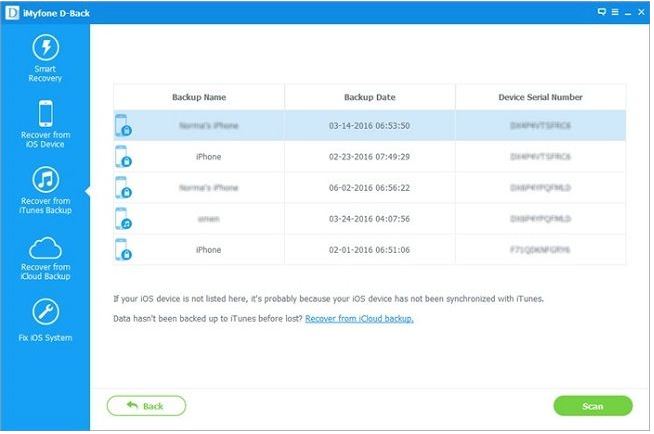
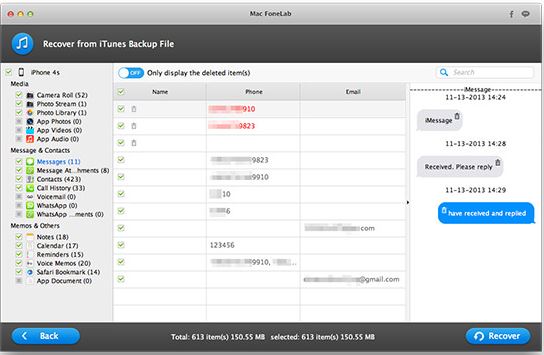
After the software is launched on your computer, you’ll be led to the “Recover from iOS Device” mode (the default mode). Switch to “Recover from iTunes Backup File” on the top of the primary window and the program interfaces will be displayed as shown below.
Step 3: Select the iTunes backup file of your iPhone for scanning
The number of backup files you will see on the program interface will depend upon how many Apple devices you’ve synced with iTunes before on this computer. All the iTunes backup files including the one containing the photos and videos of your iPhone, iPad, and iPod touch you synced with iTunes earlier will be automatically found and listed here. Now select the desired backup file of your iPhone
Step 4: Scan the file for your lost video
Click “Scan” to extract the contents from the backup file.
Step 5: Recover deleted videos from iPhone
After the scan is completed, all the contents in the backup file are extracted and exhibited as shown below. Preview the details of the contents before recovery. Select the desired videos deleted from your device and click ‘Recover’ to save them on your computer.
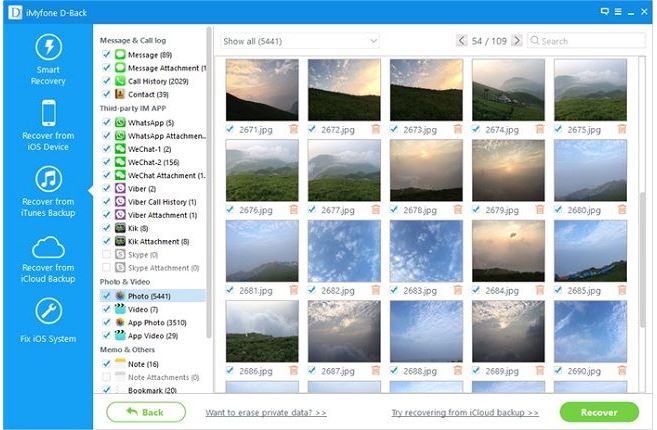
Note: The data displayed in the scan result contains deleted and existing items on your device. Both of them have their own color. If you want to separate them, you can use the button on the top – ‘Only display the deleted items’.
Restoring from Backup Without Losing Recent Data
Worried about losing your current data when restoring an older backup to recover lost videos? There’s a practical workaround you can use to keep your most recent files safe.
Instead of jumping straight into a restore, first back up the existing data on your iPhone to either iCloud or iTunes so you have a copy of everything as it is now.
Here’s how you can do it:
- Back up your iPhone: Connect to iCloud or iTunes and create a fresh backup of your current device state.
- Restore the older backup: Use iTunes or iCloud to restore the backup that contains your missing videos.
- Save your recovered videos: Once your device is restored and the videos are accessible, copy them to your computer, email them to yourself, or use AirDrop to transfer them to another device for safekeeping.
- Return to your latest state: Now, restore your most recent backup—the one you created in Step 1. This will bring back your latest apps, messages, and data, except for those newly recovered videos, which you’ve just saved separately.
Using this process, you can recover important deleted videos without sacrificing any new information you’ve added since the older backup.
You may also like to read this post: How to scan documents on iPhone – a step by step guide
Method 3: How to find deleted videos on iPhone from iCloud backup
If you can’t find your lost video by methods 1 and 2 above, there is a third way: you can try retrieving deleted videos on iPhone by extracting them from your iCloud backup by following the steps below.
On most iPhones, iCloud is enabled by default, which means some of the data will be backed up in iCloud automatically. It’s, therefore, not a bad idea to give this method a try when the video you lost is very important to you.
Quick tip: Before diving into recovery, check your iCloud account directly. Sometimes, your videos might still be available without a full restore. Head to the iCloud website or app, or go to to see your available backups.
Check iCloud.com for Your Missing Video
Before you commit to restoring a full iCloud backup, it’s worth doing a quick check online—you might be able to recover your lost video without any big changes to your device.
Here’s how to look for deleted videos directly on iCloud.com:
- Open a browser on your computer or tablet and visit iCloud.com/photos.
- Sign in with your Apple ID that’s linked to your iPhone.
- Browse through your Photos library and carefully check the timeline for the missing video.
- Be sure to open the “Recently Deleted” folder as well—sometimes files are kept here even if they no longer appear in the Photos app on your phone.
If you spot your video here, you can simply restore it to your main library with a click—no need for a full device backup or restore. This approach can save you time and avoid the risk of overwriting any new data on your iPhone.
Keep in mind: Restoring from an iCloud backup will overwrite your current device data with the content from the selected backup’s date.
(Note: Don’t backup your device with iCloud immediately when you detect the loss of your video.)
Pros and Cons of Restoring from iCloud Backup
Trying to decide if restoring your iPhone from an iCloud backup is the right move to reclaim your lost videos? Here’s a quick rundown of what you stand to gain—and what you could risk—before you hit “Restore.”
The Upside:
- No extra gadgets required: You can initiate the restore process right from your iPhone, without needing to tether it to a computer.
- Fast and free: If you already have iCloud backups enabled, this option won’t cost you anything and can be completed in a matter of minutes.
- Potent Jial to recover your lost videos: If your videos were included in a previous backup, this approach could get them back on your device with minimal fuss.
The Trade-offs:
- Current data will be overwritten: Restoring an iCloud backup puts your iPhone back in time to the moment of that backup—meaning any new photos, messages, or app data since then will be erased.
- Not a guarantee: If the videos weren’t included in the selected backup file (for instance, if the backup was made after the deletion), you won’t be able to recover them using this method.
- Lack of preview: There’s no easy way to see which specific videos are inside a backup before you restore, so you might not know for sure until after the process is complete.
Weigh these benefits and drawbacks before proceeding. If your deleted videos are truly irreplaceable, and you don’t mind losing more recent data (or you’ve already made a separate backup as a safeguard), restoring from iCloud could be worth a try. Otherwise, consider alternative recovery options that don’t involve rolling your phone back in time.
Here is how to retrieve deleted videos on iPhone from iCloud Backup File:
Step 1: Download and install the free trial version of iOS Data Recovery software on your computer and open it after installation. From the left sidebar, select ‘Recovery from iCloud Backup File’. Then you need to input your Apple ID and password.

Step 2: Once logged in, the program will list all the backup files in iCloud within the account. You can see the backup date and device of each backup file. Select one and click the download button to save it on the computer.
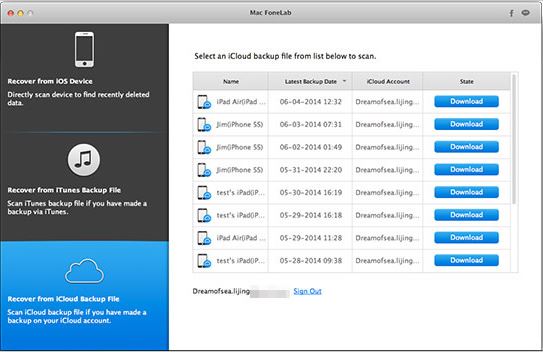
Step 3: The program will scan and analyze the downloaded iCloud files. Then list all the files on the main window. You can preview each item and make it selected. Finally, click the ‘Recover’ button to let the program restore those files to the computer.
By following these steps, you stand a good chance of recovering your deleted videos—especially if you act quickly and avoid overwriting your backups.
Note: For Mac users download and install the free trial version of iOS data Recovery software (for Mac)
Understanding iCloud’s Handling of Deleted Videos
Before you pin your hopes on iCloud as a safety net for your missing videos, it’s important to understand exactly how iCloud manages your photos and videos behind the scenes.
iCloud doesn’t work like a traditional backup drive. If you’ve enabled “iCloud Photos” on your device, it synchronizes your entire photo library across all your devices in real time. That means any video or photo deleted from your iPhone will also vanish from iCloud almost immediately.
What’s more, Apple conserves storage space by not duplicating your media in both iCloud Photos and iCloud Backups. When iCloud Photos is turned on, your videos and photos won’t be included in routine iCloud device backups. As a result, restoring from a backup won’t bring these items back if they were already removed and synced out of iCloud Photos.
Key points to remember:
- Deleting a video with iCloud Photos enabled removes it everywhere, including iCloud.
- Your videos aren’t duplicated in iCloud Backups when iCloud Photos is active.
- Once a video is gone from iCloud Photos (and not in the “Recently Deleted” album), it’s not recoverable through a backup restore.
It’s always a good idea to act quickly if you notice something missing and check the “Recently Deleted” album in your Photos app as your first stop for potential recovery.
Method 4: How to restore deleted videos on iPhone using iPhone Data Recovery software
Here are the steps to follow on how to restore deleted videos on iPhone using iPhone Data Recovery software :
Step 1. Download, install, and run the iPhone data recovery software on your computer;
Step 2. Connect your iPhone to your computer via a USB cable. The software will load your iPhone’s info into its main interface automatically;
Step 3. Click the “Scan” button on the interface and the software will scan your iPhone to find the deleted videos for you.
When the software completes the scanning, it will list all your iPhone data on the interface. You can easily find the deleted videos from your iPhone via the menu on the left side of the interface;
Step 4. You need to find the deleted videos here and click the “Recover” button to restore the deleted videos on your iPhone;
When should you use a professional data recovery service?
If you’ve tried all the steps above without luck and the missing videos are truly irreplaceable—perhaps they’re once-in-a-lifetime travel memories or important work footage—it might be time to think about a professional data recovery service. These specialists have advanced tools and experience beyond what most consumers can access at home.
However, before you go this route, there are a couple of things to keep in mind:
- Cost: Professional recovery services, like DriveSavers or Ontrack, can be quite pricey. Fees often depend on how complicated the recovery process is and how much data needs to be salvaged.
- Success isn’t guaranteed: While these experts can sometimes retrieve files when common software fails, even they can run into dead ends—especially if the phone has suffered severe physical damage or data has been extensively overwritten.
- Data privacy: Make sure to check the provider’s reviews and privacy policy. You’ll want a reputable company that handles your data with care.
As a rule of thumb, weigh the value of your lost videos against both the expense and uncertainty of professional recovery. For most everyday losses, the DIY methods above will often do the trick, but it’s good to know that there’s a final “lifeline” for truly critical files.
You may also like to read: How to restore iPhone from iCloud backup
Frequently asked questions
Now that I have explained how to get back deleted videos on iPhone before I conclude let me also address some of the related queries.
How can I recover permanently deleted videos from my iPhone?
Here’s how to get permanently deleted videos back on iPhone:
1. Open the Photos app and go to the Albums tab;
2. Scroll down and tap ‘Recently Deleted’ under the ‘Utilities’ section;
3. Tap the video you wish to recover;
4. Tap Recover at the bottom right to place the video back on your iPhone into its original location;
Bonus tip: Check cloud backups and chat apps
If you don’t see your video in the ‘Recently Deleted’ folder, don’t panic just yet. Sometimes, your videos may still be accessible through other cloud services or platforms:
- iCloud.com or Google Photos: Log into your account using a web browser and check if your video was automatically backed up or synced.
- Messaging apps: If you ever shared the video via apps like WhatsApp or Messenger, scroll back through your chat history—sometimes these apps retain shared media even after deletion from your camera roll.
Exploring these additional locations can often help you recover videos even when they seem gone for good.
Are deleted iPhone videos gone forever?
Apple has added a feature called “Recently Deleted” in the photo app, specifically designed for this situation. All deleted photos and videos are stored in the “Recently Deleted” folder for 30 days before they’re permanently deleted from your device.
How can I recover permanently deleted photos from my iPhone after 30 days?
Your best option to recover deleted photos after 30 days is to restore them from iTunes backup. To restore from iTunes backup you are to follow the steps below:
1. Connect your iPhone to your PC or Mac and open iTunes;
2. Select your device;
3. Click on the ‘Restore Backup’ button;
4. Select your backup photos and wait for the process to complete;
Should I reach out to Apple Support for help with deleted videos?
You might be wondering if it’s worth contacting Apple Support when it comes to recovering deleted videos from your iPhone. While Apple Support is always helpful and friendly, their ability to assist with deleted videos is somewhat limited.
Generally, Apple Support can:
- Walk you through checking your iCloud or iTunes backups;
- Advise on using the ‘Recently Deleted’ folder in the Photos app;
- Offer basic troubleshooting steps if your device is experiencing issues.
However, when it comes to retrieving videos that are permanently deleted and aren’t in any backup, Apple Support typically cannot restore those files for you. They don’t have access to more advanced recovery tools beyond what’s available to users via official Apple software.
It’s also important to clear up a common misconception: many third-party tools claim they can perform “internal storage scanning” to recover deleted videos directly from your iPhone’s hardware. Unfortunately, this simply isn’t possible on modern iPhones. Due to Apple’s advanced file-based encryption, once you delete a video and remove it from the “Recently Deleted” folder, the encryption key tied to that file is destroyed. Without that unique key, the file’s data is scrambled and remains inaccessible—even if it technically still resides on your device’s storage chip. This means that, unless you have a backup, the chances of recovery are extremely slim, regardless of what recovery software might promise.
If your videos aren’t recoverable through the solutions we’ve already discussed, you may have better luck with trusted third-party recovery software or, in extreme cases, specialized data recovery professionals.
That said, it never hurts to check with Apple Support, especially if you’re unsure about your available backups or if you encounter technical trouble!
Can I recover permanently deleted videos from third-party cloud services?
Absolutely—there’s a good chance your lost videos might be lurking in the cloud, especially if you’ve set up apps like Google Photos, Google Drive, OneDrive, Dropbox, or Amazon Photos for backup or auto-sync.
Here’s what to try:
- Google Photos & Google Drive: Log into your account and check both the main photo gallery and the “Trash” or “Bin” folder—deleted videos often stay here for 30 or even 60 days before they’re permanently erased.
- OneDrive or Dropbox: Open the app or website, navigate to your Photos or Camera Uploads section, and also peek in the “Deleted Files” or “Recycle Bin.” These typically preserve removed files for a limited time as well.
- Amazon Photos: Look under your main library and in the “Trash” folder.
If you find your video in any of these trash bins, simply restore it with a tap or click. Just keep in mind—once a file is deleted from the trash or bin in these services, recovery options become extremely slim. So, it’s wise to check these places as soon as you notice something missing!
You may also like to read: Recover Overwritten Files – an easy step-by-step guide
Conclusion
All hopes are, therefore, not lost and you need not get frustrated and remain clueless about how to recover deleted videos from iPhone. It is possible to recover permanently deleted videos iPhone without backup easily without any hassle by following one of the methods mentioned in the post.
Before I conclude, let me also mention one most important point that needs to be remembered in case of accidental loss of data from your iPhone.
Do not try to sync your iPhone with iTunes once you find that your videos have been lost or else iTunes may take a new backup of your iPhone overwriting the old one and you’ll never be able to recover deleted videos from your iPhone. Also, you need to move very fast as the chances of getting back your lost data would diminish increasingly with time.
To prevent any such unforeseen eventuality I would suggest setting up a backup routine for your device. Every time you take photos or shoot videos with your iPhone, do not forget to back up them on your computer first.
A Word on Regular Backups
Let’s be real—backups are your best insurance policy against losing precious memories and important files. While it’s easy to forget the importance of regular backups in day-to-day life, a little consistency here can save you a lot of stress later. Take advantage of built-in features like iCloud or iTunes for automated backups, and don’t hesitate to occasionally save your most important photos and videos to your computer or an external drive.
Think of it as “back up twice, delete never.” If you’re ever in doubt, it’s better to have too many backups than none at all. Trust me, future-you will thank present-you for a little extra diligence now.
Remember: quick action and a solid backup habit are the best ways to keep your data safe—and your frustration levels low.

albertjh
Mar 08. 2021
Awesome Information Sharing! But I had used another tool such as Stellar Data Recovery for iPhone which easily recover deleted video from iPhone, iPad, iCloud and iTunes. Thanks!
AkiCha
Dec 28. 2021
Thank you for these tips, it is true that some deleted photos will be stored in your recently deleted folder. but sometimes because of low memory, some were also deleted. i tried using Acethinker Fone keeper and I recovered my photos and created a backup on my computer.
Tony
May 18. 2022
I have an android phone and someone with an iPhone sent me a video via an icloud link and now when I open the link the video is no longer there. Is there any way to get that video back? It’s for a case I’m working that’s going to court and the person who sent it to me is no longer around nor reachable