How to wipe iPhone without password.
How to erase iPhone without password?
If you have forgotten your iPhone password and are looking for how to erase iPhone without password, you have come to the right place. In this guide, I am going to show the best methods of how to wipe iPhone without password and factory reset iPhone without password.
There are situations when you need to completely erase iPhone without passcode and restore the device to factory settings. Here are some examples of such situations when you may need to wipe an iPhone without password:
- Your iPhone is disabled due to entering the wrong passcode too many times;
- You want to sell your used iPhone;
- You have bought a secondhand iPhone;
- You want to start fresh with a clean slate to protect your private information;
If you forget your iPhone passcode, you won’t be able to wipe an iPhone without passcode straight from the device. Then how to erase iPhone without passcode? I have shown below the best methods on how to wipe iPhone without passcode.
But before you start, one important thing you need to note is that wiping an iPhone is a permanent action that cannot be undone. By wiping the device you will lose all your important data and you won’t be able to restore them unless you have a backup available. Therefore, backing up all your important data before proceeding with the wipe is important. You can back up your data using iCloud or iTunes.
If you do have a backup—whether on iCloud or iTunes—you’ll be able to restore your lost data after a factory reset. So, before you jump into any of the methods below, take a moment to ensure your photos, contacts, and other important files are safely backed up. This small step can save you a lot of stress later, making the wipe process worry-free.
If your iPhone is disabled—for example, after entering the wrong passcode too many times—resetting the device is the only way to restore it to factory settings. This process will erase everything on your iPhone, and any unsaved data will be irrecoverable. However, if you have a recent iCloud or iTunes backup, you’ll be able to retrieve your photos, files, and settings after the reset.
If you don’t have a backup, it’s a good idea to start making regular backups in the future to protect your data. Once your iPhone is wiped, you’ll need to set it up again from scratch and reinstall your apps from the App Store.
After the reset, you’ll have the option to retrieve your photos, files, and settings from an iCloud or iTunes backup—provided you have one saved. If you don’t, you’ll need to set up your iPhone as new and reinstall your apps from the App Store. This is a good moment to start regular backups if you haven’t already, so you’re prepared for the future.
Limitations When “Find My iPhone” Is Enabled
One major roadblock when trying to wipe or restore an iPhone is the “Find My iPhone” feature. If this setting is enabled and you don’t have the previous user’s Apple ID and password, you’ll run into a security wall known as Activation Lock. Even if you manage to erase the iPhone through recovery mode using iTunes or Finder, the device will still prompt for the original user’s Apple ID credentials when you set it up again.
Here’s why this can be a sticking point:
- Device Still Tied to Old Account: After a factory reset, the iPhone remains linked to the previous owner’s Apple ID until “Find My iPhone” is switched off. This means you’ll be asked to sign in with those credentials during the activation process—effectively locking the device.
- No Bypass Without Credentials: There’s no official way around Activation Lock unless you have the right login information. Apple puts these safeguards in place to discourage theft and unauthorized use.
- No Contact With Previous User: If you’re unable to reach the person whose Apple ID is linked, your options are extremely limited. Apple typically won’t remove the lock without valid proof of ownership.
- No MDM Solution: In business settings, a mobile device management (MDM) solution can streamline resets. However, without MDM in place, you’re reliant on the previous user to unlock the device or Apple’s verification process.
So, if “Find My iPhone” is still enabled and you can’t access the connected Apple ID, wiping or restoring the device won’t let you bypass the activation lock. Always double-check this setting and remove the account before handing the device over or performing a reset.
How to enable iCloud backup on your iPhone?
To make sure all your data is safe before wiping your iPhone, you’ll want to set up iCloud backup. Here’s how you can do it:
- Open the Settings app on your iPhone.
- Tap your name at the top to access your Apple ID settings.
- Select iCloud from the list.
- Scroll down and tap iCloud Backup.
- Switch the toggle to On. Your iPhone will now automatically back up your data when it’s charging, connected to Wi-Fi, and locked.
Having an up-to-date backup ensures you don’t lose your important files, photos, or contacts when you erase your device.
Here are four easy methods on how to erase an iPhone without passcode:
Method 1. How to erase iPhone without password using iTunes
The use of iTunes is the best method to wipe an iPhone without password by putting the device in Recovery mode. Below are the simple steps to follow on how to erase iPhone without password:
Step 1. Make sure that your PC has Windows 8 or a later version and that you have the latest version of iTunes installed on your computer;
Step 2. Turn off your iPhone;
Step 3. Put your iPhone in Recovery Mode. To do this, connect your iPhone to your computer while pressing and holding the Side button (for iPhone X or later), Volume down button (for iPhone 7/ 7 Plus), or the Home bottom (for iPhone 6s and earlier) until you see the Recovery mode screen on your iPhone;
Step 4. Next, locate your iPhone in the iTunes window;
Step 5. Click ‘Restore’ when you see the option to ‘Restore’ or ‘Update’ in the iTunes window and wait for your computer to download the software for your iPhone to begin the restore process;
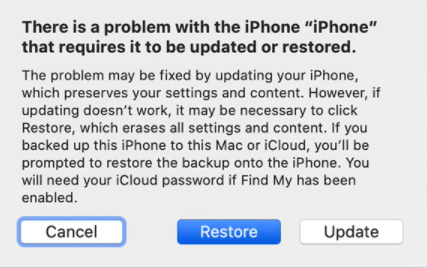
Step 6. Wait for the process to complete to erase everything on your iPhone. The process of erasing iPhone without password should not take more than 15 minutes;
Step 7. Disconnect your iPhone from the computer and you can now restore your data and settings if you have backed up them before;
Method 2. How to erase iPhone without passcode via iCloud
Follow the steps below on how to erase iPhone without password through iCloud:
1. Go to iCloud.com and sign in with the same Apple ID you used to set up iCloud;
2. Click on “Find iPhone” from the selection of tools available in iCloud and click on “All Devices”;
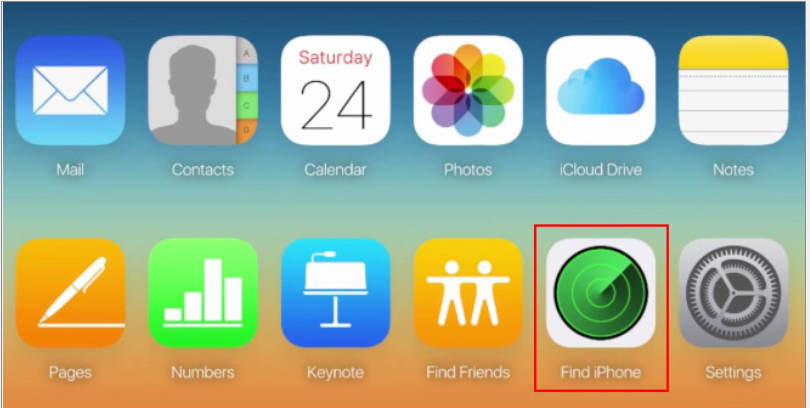
3. Select your iPhone from the list;
4. Click the “Erase” button to delete all data on your iPhone.
You are to accept the warning message asking if you understand what you are doing i.e. you are going to completely erase your iPhone;
5. All data on your iPhone will now be erased;
6. You can restore all data and settings if you have backed up them before;
Method 3. How to remotely wipe an iPhone using Exchange
If your iPhone is connected to a Microsoft Exchange account (often used for work email), you might be able to wipe the device remotely using your organization’s Exchange settings. This feature is especially helpful if your phone is lost or if you need to remove sensitive company data.
To initiate a remote wipe through Exchange, simply log in to your Outlook Web Access (OWA) or the management portal used by your organization. There, you can select your device from your account dashboard and issue a remote wipe command. The next time your iPhone connects to the internet, the wipe will begin automatically.
This method is typically used by IT administrators, but some users may have access if their company enables self-service device management. Just remember, a remote wipe through Exchange will erase all data from your device, so make sure you have a backup if you plan to restore any personal information later.
Method 4. How to wipe an iPhone clean without using iTunes or iCloud
If you want to wipe an iPhone clean without using iTunes or iCloud you can do it using a third-party program. MobiKin Eraser for iOS is a reliable third-party application for wiping an iPhone without using iTunes or iCloud.
Using a dedicated erasing tool like this is especially helpful if you’ve forgotten your iPhone’s password or simply prefer not to hassle with Apple’s built-in reset options. These programs are designed to securely erase all data, including personal information, account details, and saved settings, ensuring your device is ready for a fresh start or a new owner.
Here are the steps to follow about how to wipe an iPhone clean using the third-party program:
Step 1. Download, install, and launch the program on your Windows or Mac computer and connect your iPhone to the computer with a USB cable;
Step 2. The program will automatically detect your connected iOS device;
Step 3. Choose an erasing level according to your needs out of three levels displayed on the window (High, Medium, and Low). The default recommended level is Medium;
Step 4. Confirm the erasing process by typing ‘Delete’ in the space provided by the program;
Step 5. Next, tap on the ‘Erase’ button to start the data erasing process;
Step 6. Wait for ‘MobiKin Eraser for iOS’ to complete the process, which would take a few minutes;
During this process, the software will guide you with on-screen prompts and may require extra confirmation to ensure you really want to erase all data. For added peace of mind, most tools like MobiKin Eraser for iOS offer multiple erasure modes—so you can select the one that best fits your privacy needs. Once the process is complete, your iPhone will be wiped clean, just like new, with all personal data, passwords, and accounts removed. This method is especially useful for users who are locked out of their devices or prefer a straightforward approach without relying on iTunes or iCloud.
How to hard reset your iPhone without a computer
If you prefer not to use a computer or third-party software, you can still reset your iPhone directly using the device’s built-in buttons. The process varies a bit depending on the model you have:
- For iPhone X, iPhone 8, and newer models:
Press and quickly release the Volume Up button, then do the same with the Volume Down button. Next, press and hold the Side button until the Apple logo appears. - For iPhone 7 and iPhone 7 Plus:
Press and hold both the Volume Down button and the Side button together until you see the Apple logo. - For iPhone 6s and earlier:
Press and hold both the Home button and the Top (or Side) button simultaneously until the Apple logo appears.
This sequence will force your iPhone to restart, sometimes called a hard reset. However, please note that while this will reboot your device, it does not erase all your data or remove your passcode—it’s mainly to fix unresponsive issues or crashes. If you want to fully wipe the device, you’ll need to follow one of the previous methods listed above.
Bypassing the Lock Code on Older iOS Versions
You might be curious whether there was ever a way to skirt around the passcode on earlier versions of iOS. In fact, there used to be a known workaround—often called the “emergency call exploit”—that was effective before iOS 4.2. By making use of certain codes in the Emergency Call screen (frequently involving dialling special sequences like ###), users could sometimes trick the device into skipping the lock screen altogether.
However, Apple has since patched this loophole, and it’s no longer possible on any recent firmware. If your iPhone is running a modern version of iOS, you’ll need to use one of the official methods—such as iTunes, iCloud, or trusted third-party tools—to erase or reset the device. Always keep your iOS updated to protect against this kind of vulnerability.
Are There Emergency Call Exploits to Bypass iPhone Passcodes on Older iOS Versions?
You might have heard of some old tricks, such as using the emergency call screen to bypass passcodes on earlier iPhone models. In fact, before iOS 4.2, there was a glitch where quickly entering certain key sequences (like dialing “###” in emergency call mode) could occasionally give you access to the device. Some YouTube tutorials from years past showed this process in action.
However, it’s important to note two things:
- These exploits have long since been patched by Apple. If your iPhone is running any software newer than iOS 4.2, these loopholes are no longer available.
- Even on extremely old devices, these methods were unreliable and not recommended, as they could compromise the security of your data.
So, for nearly all iPhones in use today, bypassing the passcode with emergency call exploits is not possible. If you’re locked out, your best bet is to use one of the official erasing methods described above to reset your device safely.
Other Common Unlocking & Recovery Methods
If you’re facing a locked device, here are some additional approaches and tips commonly used by users and organizations:
- iTunes/Finder Restore: Connect your iPhone to your computer and use iTunes (Windows or macOS Mojave and earlier) or Finder (macOS Catalina and later) to restore your device to factory settings. This process erases all data, including the passcode, but may still require Apple ID credentials if Activation Lock is enabled.
- iCloud ‘Find My’ Feature: If you have “Find My iPhone” enabled and know your Apple ID, log into , select your device, and use the “Erase iPhone” option. This wipes the device remotely and removes the passcode.
- Third-Party Tools: Reputable programs like MobiKin Eraser for iOS and others can perform a factory reset or data wipe when you’re locked out. These are especially useful if you can’t access iTunes or iCloud, but always download from reliable sources.
Using Mobile Device Management (MDM) to Erase or Reset Your iPhone
Another practical solution for managing a passcode-locked iPhone, especially in organizational settings, is taking advantage of a Mobile Device Management (MDM) solution. MDM platforms like Jamf, VMware Workspace ONE, or IBM MaaS360 allow you to manage, secure, and reset company devices remotely—perfect if you’ve forgotten the passcode or need to quickly wipe data for security.
What MDM Can Do:
- Remote Passcode Reset: Many MDM tools can remotely clear or reset the passcode on an enrolled device. That means you don’t need physical access to unlock it.
- Device Wipe: You can initiate a remote wipe, erasing all personal data, apps, and settings to return the iPhone to its factory defaults—no passcode needed.
- Simple Enrollment: Most cloud-based MDMs offer straightforward enrollment—typically requiring you or your IT team to enroll the device using a web portal.
This option is especially useful for businesses, schools, or anyone managing multiple devices. Note that the iPhone must have been enrolled in MDM before you lost access—otherwise, you’ll still need to use iCloud, iTunes, or a third-party tool as previously described.
Now, let’s tackle a scenario where you’re unable to unlock your device and are considering selling it.
With that out of the way, let’s look at some common questions users have about erasing their iPhones and what to expect from the reset process.
How to Sell a Passcode-Locked iPhone?
If you’ve exhausted all the methods to erase your iPhone but still can’t access it due to a forgotten passcode, you might be wondering if selling is an option. The good news? You can usually sell a passcode-locked iPhone—as long as you are the legal owner.
Here’s what you need to know before selling:
- Ownership matters: Only sell devices that you own. Selling a lost or stolen device is illegal and could lead to serious consequences. If you find a locked iPhone that isn’t yours, try to return it to the rightful owner or hand it over to local authorities.
- Condition assessment: Select the correct model and note that it’s locked by a passcode when listing it. This information helps potential buyers understand the device’s limitations.
- Compare trade-in offers: Numerous reputable platforms, such as Gazelle or ecoATM, accept passcode-locked iPhones, though offers may be lower than for unlocked devices. You’ll typically need to provide the model, storage capacity, and condition to receive accurate quotes.
- Free shipping and payments: Most buyback services offer free shipping labels and several payment options, including bank transfer, PayPal, or check.
- Data security: Even though the phone is locked, factory resetting and wiping your data (if possible) is recommended before sending in your device.
- Save your quote: Once you find the best offer, many sites allow you to “lock in” the price for a set period—giving you time to send your phone without worrying about changing values.
This route is especially useful if you’re unable to recover access to your device. Just remember: Always use trustworthy services and double-check the terms of sale for locked iPhones.
What to Do If You Don’t Have the Previous User’s Apple ID or iCloud Credentials
Getting stuck with an iPhone that’s still linked to a former employee’s or previous owner’s iCloud account can feel like being locked out of your own house (and losing the keys in a couch belonging to someone who moved to another country). But before you consider more drastic measures (like turning the phone into modern art), here are your practical options.
- Recovery Mode Restore:
Even without the passcode, you can put the iPhone into recovery mode and restore it using iTunes or Finder. However, if “Find My iPhone” was enabled, you’ll hit a roadblock—Apple’s Activation Lock. Without the original Apple ID, you won’t be able to complete the setup after erasing. - Contact the Previous Owner (If Possible):
If there’s any way to get in touch, ask them to remove the device from their iCloud account remotely. This can be done via icloud.com. Once it’s removed, you’re free to set the iPhone up as new. - Mobile Device Management (MDM):
If your company uses an MDM platform like Jamf, Cisco Meraki, or VMware Workspace ONE, IT admins may be able to clear passcodes or remotely wipe devices—even bypassing some locks in certain situations. - Carrier Assistance:
Some carriers, like Verizon, may offer unlocking services if you can prove ownership. Check with customer support before proceeding, just in case they can help without requiring Apple ID details. - Apple Support:
As a last resort, you can reach out to Apple Support with proof of purchase and evidence of ownership. They may be able to assist in removing Activation Lock, especially for corporate-owned devices. - Remote Wipe via Exchange/Office 365:
If the device is managed through Microsoft Exchange or similar services, administrators can sometimes issue a remote wipe command from the admin portal.
Unfortunately, if none of these options are available and you can’t access the associated Apple ID, the device will remain tied to the previous account due to Apple’s security protocols. This is a tough spot—but it’s also why keeping thorough records and using device management solutions are crucial for businesses.
If you’re in this situation often, proposing an MDM solution (again) might turn a few stubborn heads. The added control is worth every penny when avoiding these headaches down the road.
What if Your iPhone Is Still Linked to a Previous Owner’s iCloud Account?
Restoring an iPhone through recovery mode or iTunes can reset the device, but it won’t remove the Activation Lock if the previous owner’s iCloud account is still connected. This means you’ll be prompted to enter that Apple ID and password before the phone can be set up again. Unfortunately, there’s no official way around this lock unless the previous owner removes the device from their account.
Here’s what you can do if you find yourself stuck at this stage:
- Contact the Previous Owner (if possible): The Activation Lock is for security, so your best bet is to reach out to whoever used the Apple ID previously and ask them to remove the device from their iCloud account. They can do this remotely by signing in to iCloud.com, selecting “Find My iPhone,” and removing the device.
- Gather Proof of Ownership: If you purchased the iPhone secondhand but can’t reach the seller, find your original purchase receipt or documentation. With this proof, you can try contacting Apple Support for assistance, although their help is limited unless you’re the legitimate owner.
- Avoid Third-Party Unlocking Services: Be wary of websites or “unlocking” companies that promise to bypass the Activation Lock for a fee. Most are unreliable or outright scams.
- Return or Exchange: If you recently purchased the iPhone from a reputable marketplace (like Gazelle or ecoATM) or a retail store and it’s locked, contact their support or return center. Legitimate platforms usually have return policies for Activation Locked devices.
In short, if you can’t get the previous owner to help unlock the device, your options are restricted. It’s always important to verify that iPhones are disconnected from old iCloud accounts before buying or selling to avoid this situation.
Resetting Other iOS Devices: Alternatives and Tips
Attempting to erase an iPhone without a password can be a challenge—but what if you’re dealing with another iOS device, like an iPad or iPod touch? The landscape is similar, but with a few nuances worth noting.
Most of the standard approaches—using recovery mode, iTunes (or Finder on macOS), contacting Apple Support, or leveraging MDM solutions—also apply to iPads and iPod touches. If you’re managing a fleet of devices, solutions from vendors like Jamf, Microsoft Intune, or Cisco Meraki can often help with remote management and erasure across the Apple ecosystem.
A few added points to keep in mind for non-iPhone iOS devices:
- MDM Is Your Friend: Many MDM platforms allow for remote wipe and passcode resets no matter the iOS device type. Whether it’s an iPad being used in a classroom or an iPod touch in a retail setting, your IT administrator may be able to help—especially if the device was enrolled before being locked out.
- Apple Configurator: For businesses or schools, Apple Configurator (available on Mac) can assist with restoring and preparing devices, even if they’re stuck or locked. It’s handy for bulk device management where recovery mode may not cut it.
- Family Sharing and Screen Time Locks: Sometimes, iPads used by children are restricted via Family Sharing or Screen Time. The process for erasing these settings or restoring the device will depend on parental controls and linked Apple IDs.
- Contact Support and Provide Proof: Just like with iPhones, always have purchase documentation handy in case you need to reach out to Apple Support for help unlocking or erasing a device.
Ultimately, the critical steps—using recovery tools, reaching out to previous owners, or consulting your IT department—apply across Apple’s mobile lineup. The main thing to remember: plan ahead with management tools where possible, and always verify ownership details when acquiring or recycling any iOS device.
Will Apple Unlock My iPhone for Free?
It’s a common question—especially when you’ve hit a frustrating roadblock. In most cases, Apple won’t unlock your iPhone for free, whether you’re on a contract or prepaid plan. Their standard policy is to only help unlock devices in very specific scenarios, such as if you’re the original owner and can provide all the necessary proof of purchase.
Typically, the unlocking process is handled by your carrier rather than Apple itself. Some carriers, like Verizon or T-Mobile, will unlock your phone once it’s fully paid off, or after certain conditions are met (check their individual policies for details). Occasionally, prepaid customers may find their phones are unlocked automatically after a set period, but don’t count on this being the norm.
Bottom line: If you’re hoping Apple will step in and do it for free, you’re likely out of luck unless there are exceptional circumstances—and carrier support is always your first port of call.
You may also like to read this post: How can iPhone clear app cache without deleting app
Frequently asked questions
Now that I have explained how to erase iPhone without password before I conclude, let me also address some of the queries by iPhone users related to how to wipe an iPhone clean.
Will erasing my iPhone remove the passcode?
Yes, erasing your iPhone will effectively remove the passcode, allowing you to set up your device as new.
Can I erase my iPhone without a computer?
No, erasing an iPhone without a passcode typically requires a computer with iTunes or Finder.
Will erasing my iPhone delete my iCloud account?
Erasing your iPhone will not delete your iCloud account.
How to wipe an iPhone clean to remove all content and settings?
Here’s how to wipe an iPhone clean to remove all content and settings:
1. Go to ‘Settings’;
2. Scroll down and tap ‘General’;
3. Tap ‘Transfer or Reset iPhone’;
4. Next scroll down and tap ‘Erase All Content and Settings’;
If you want to wipe your iPhone clean to replace it with a new one you can use iCloud storage to back up your device before you erase it. Once your iPhone restarts with all content and settings erased, you have the option to set up your iPhone as new or restore it from the backup.
How to reset iPhone without password or iTunes via iCloud?
Here’s how to reset iPhone without password via iCloud (if you have previously done an iCloud backup):
1. Go to iCloud.com on your Computer;
2. Sign in with the same Apple ID you used on your locked iPhone;
3. Next choose ‘Settings’ from the main page of iCloud.com;
4. Choose ‘Restore’;
5. Click ‘Restore’ after choosing the latest backup you made;
You can also use the above steps to factory reset your locked iPhone without iTunes.
Alternative: Using a Passcode Removal Tool
If you can’t use iCloud, or need to remove a forgotten passcode, you might consider a dedicated passcode-removing tool. These programs are designed to help you regain access to your device when you’re locked out, and typically work with all major iOS devices (iPhone, iPad, or iPod) and most iOS versions—including the latest updates.
Here’s a general outline of how these tools work:
- Download and launch your chosen passcode removal software.
- Connect your device to your computer using a USB cable.
- Follow the on-screen instructions to download the necessary firmware package for your device.
- Once the firmware is ready, confirm your selection and proceed.
- The tool will begin erasing your device’s passcode, allowing you to regain access.
- When finished, you may need to set up your iPhone as new or restore from a backup.
Tip: This method can unlock most types of passcodes, including Face ID, Touch ID, and standard 4- or 6-digit codes.
Regardless of the method you choose, always double-check that you have backups of your important data before proceeding, as resetting or unlocking your device will typically erase all content and settings.
How to reset iPhone without password and computer?
If you need to reset your iPhone but don’t have the password or access to a computer, there’s still a way to restore your device to factory settings. While the usual method—going to the “Settings” app, choosing “Reset,” and confirming with your passcode—is straightforward, it won’t help if you’ve forgotten your password. In such cases, the steps below can help you erase your iPhone remotely:
1. Log into ‘Find My iPhone’ via iCloud;
2. Enter your Apple account with Apple ID and password;
3. Select your iPhone from the drop-down device list;
4. Click “Erase iPhone” and then confirm your choice;
5. Your phone is now back to its factory settings;
6. Now access your iPhone and create a new passcode;
7. Restore your data previously backed up on iCloud, or a computer;
Note: If you do remember your passcode, the quickest way to factory reset your iPhone is by navigating to Settings > General > Reset > Erase All Content and Settings. However, this option requires your device password for confirmation.
Whether you’re locked out or just want a fresh start, these steps ensure you can reset your iPhone without needing a computer or the device’s passcode handy.
Can I factory reset iPhone without passcode of iCloud?
If you have forgotten your iCloud password or you do not have access to a computer, you can still factory reset iPhone without passcode of iCloud from ‘Settings’. To do this,
1. Disable the ‘Find My iPhone’ feature on your iPhone;
2. Go to Settings > General > Reset > Erase All Content and Settings;
This will erase all of your data and settings and you can factory reset iPhone without password.
How do I reinstall apps and set up my iPhone after a Factory Reset?
After you’ve reset your iPhone to factory settings, your device will power on just like it did the very first time you got it. You’ll walk through the initial setup steps—selecting your language and region, connecting to Wi-Fi, and signing in with your Apple ID.
If you created a backup before erasing your device (either via iCloud, iTunes, or Finder), you’ll get the option to restore your apps, photos, and data during the setup process. Simply choose “Restore from iCloud Backup” or “Restore from Mac/PC” and follow the prompts. This will bring back all your settings, apps, and personal files.
No backup? No problem—though you’ll need to download your apps again from the App Store manually. Here’s how:
- Open the App Store
- Tap your profile icon at the top right
- Go to “Purchased” to see all the apps linked to your Apple ID
- Download the ones you want back with a tap
You’ll also want to reconfigure your preferences (Wi-Fi networks, wallpaper, Face ID or Touch ID, etc.) and log back into services like WhatsApp, Instagram, or Netflix. If you previously used services like Google Photos or Dropbox, you can also reinstall these apps to access your cloud content.
Just remember, regular backups are a lifesaver for next time—you’ll thank yourself later!
You may also like to read this related post: How to unlock disabled iPhone without losing data- 3 easy ways
Conclusion
Now that you know about the 3 most effective methods on how to erase iPhone without password or how to wipe iPhone without password, you may select the suitable one based on your particular situation.
However, before beginning the process of erasing iPhone without password, it is suggested that you back up your iPhone with iTunes, iCloud, or a reliable third-party tool.
One other important point to keep in mind for the future is that when you wipe iPhone clean while going through the reset process, you should record your password beforehand somewhere safe to avoid undesirable situations in case you forget your password.
Additionally, it’s wise to make regular backups of your data before any reset or in general, so you don’t lose precious photos, files, or contacts if your device becomes locked or disabled. You can easily create an iCloud backup by going to Settings on your iPhone, tapping your name at the top, selecting iCloud Backup, and switching the slider to “On.” Your iPhone will then automatically back up daily when connected to Wi-Fi and charging.
By taking these preventive steps—safeguarding your passwords and ensuring regular backups—you’ll save yourself a lot of trouble if you ever need to reset your iPhone again.
