What to do when an Apple Watch won’t turn on after being dead?
Why is my Apple Watch not turning on – the causes and fixes.
You may find Apple Watch users are sometimes making the query – why is my Apple Watch not turning on even after repeated screen tapping and button pressing? In this article, I will show what to do if your Apple Watch won’t turn on after being dead or frozen and how you can fix the problem and get your Apple Watch to work again.
If your Apple watch does not turn on and the screen of your watch remains black and you are worried about – why won’t my Apple watch turn on, you need not panic. It is not difficult to resolve most of the causes for which your Apple Watch will not turn on after being frozen.
But before I show how to turn Apple Watch on, first you need to understand the causes when you are not sure about ‘why my Apple watch won’t turn on’.
Why is my Apple Watch not turning on?
Here are some of the most common causes when you are not sure about why won’t my Apple watch turn on after being frozen:
1. Drained battery;
2. Your Apple Watch is not charging due to a faulty charger;
3. Damaged charging cable;
4. Power Reserve mode is ‘on’;
5. Screen Curtain is ‘on’;
6. Frozen operating system;
7. Software issue;
8. Hardware issue;
What to do when your Apple Watch won’t turn on after being dead or frozen?
Now that you know some of the possible causes of your query ‘Why is my Apple Watch not turning on’, you can try the following steps on how to turn Apple Watch on after being dead or frozen.
1. Force Restart Your Apple Watch
When the display of your Watch goes dark and you see your Apple Watch will not turn on, the first thing to do in such a situation is, to perform a forced restart of the watch, unless the battery is drained out. Since force rebooting of the watch stops all processes in the device, it resolves most of the minor glitches like crashed software, frozen operating system, etc. which may be hindering your Apple Watch from turning on.
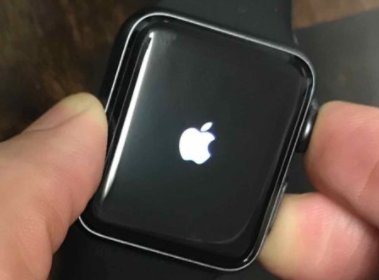
To force restart your watch when it is unresponsive follow the steps below:
i. Press and hold the Digital Crown and the Side Button (below the Digital Crown) simultaneously for 10 to 15 seconds or until you see the Apple logo on the screen. The appearance of the Apple logo means the watch is restarting;
ii. Release both buttons when the Apple logo appears on your watch;
2. Charge your Apple Watch and check the charging cable
When your Apple watch doesn’t turn on after being dead or frozen the most common reason usually is – its battery has run too low. If your watch is unresponsive due to a drained battery, put the device on a charger and let it charge for some time. Once your watch has got enough charge it should boot up automatically.
If your screen stays blank even when you press the side button, or if you see a charging cable icon, your watch’s battery might be completely depleted. In such cases, leave your watch connected to its charger for up to 30 minutes—sometimes it takes a while before the lightning bolt appears and the device begins to power up. Patience here can save you unnecessary worry, as a deeply drained battery often just needs extra time to recover before the Apple logo makes its welcome return to the screen.
If your Apple Watch doesn’t turn on even after charging, then the charging cable needs to be checked. It’s possible that the Apple Watch is not charging due to a damaged cable. Therefore, try using a different charging cable to see if the Apple Watch can be turned on.
Take a moment to double-check your charging setup:
- Make sure your charging cable is plugged securely into the USB power adapter.
- Confirm that the power adapter itself is firmly connected to a working power outlet.
- Properly position your Apple Watch on the charger; the back of the watch should align with the magnetic charging puck.
- Look for the green lightning bolt icon on the watch display when it’s on the charger—this means it’s charging. If you don’t see it, there may be an issue with the charger or cable.
- Ensure you’re using the original Apple Watch Magnetic Charging Cable or the Apple Watch Magnetic Fast Charger to USB-C Cable that came with your device.
- Remove any plastic wrap or protective film from both sides of the charger, as this can interfere with charging.
By following these steps, you can rule out common charging issues and ensure your Apple Watch is getting the power it needs to turn on.
Sometimes, you might notice a red lightning bolt icon on your smartwatch’s screen, or the display stays completely blank, even when you try to turn it on. Here’s what that usually means—and what you should do about it.
A red lightning bolt indicates the battery is critically low and the watch doesn’t have enough power to start. In this case, connect your smartwatch to its charger right away. Be patient—if the battery is fully drained, it may take up to 30 minutes on the charger before anything appears on the display or the device powers back on.
If your screen remains blank, don’t panic just yet:
- Try holding down the main side button for several seconds, just in case the watch is simply asleep.
- Make sure the charging cable and adapter are in good working order—try swapping them with another set if possible. Third-party chargers (like those from Anker or Belkin) can sometimes be less reliable, so use an original or trusted cable if available.
- Check for any protective plastic or debris that might come between the watch and charging puck.
- Double-check that your power outlet is functional—a different socket may rule out an outlet issue.
Give your watch plenty of time to recover—especially if it’s been unused for a while. After 30 minutes or so, you should see either a charging icon or the smartwatch logo appear. If not, move on to the next troubleshooting step.
Tips for Better Charging Connection
If your smartwatch isn’t connecting reliably to the charger—even when it’s lying flat—don’t worry, there are a few simple tricks you can try to improve the connection:
- Adjust the Charger Angle: Depending on your watch’s size or shape, tweaking the angle of your charging dock (like tilting it slightly or laying it completely flat on the table) can help the magnets align better.
- Remove the Watch Bands: Sometimes, the bands can get in the way and prevent the watch from making snug contact with the charging surface. Try taking the bands off and placing just the watch body onto the charger.
- Check for Third-Party Chargers: Not all chargers have the same magnet strength or shape—if your current charger isn’t working well, try a certified third-party charging stand, like those from Belkin or Nomad, which often have adjustable cradles for different models.
- Ensure Clean Contact Points: Dust, sweat, or any debris between your watch and the charger can cause charging problems. Give both the back of your watch and the surface of your charger a gentle wipe with a soft, lint-free cloth.
By experimenting with these steps, you can often solve pesky charging issues and ensure your smartwatch stays powered up and ready to go.
What should you do if cleaning the back of the watch and charger does not resolve charging issues?
If you’ve already cleaned the back of your Apple Watch and the magnetic charger (remove all those mysterious fingerprints and crumbs from your last snack break), but your watch still refuses to charge, don’t lose hope just yet. There are a few more steps you can try before writing the whole situation off as a lost cause:
- Try a different charging cable and adapter: Even if your setup looks fine, charging cables or adapters from other devices—like your iPhone, Anker, or Belkin chargers—can sometimes help. Swap them in one at a time to rule out a wonky charging accessory.
- Check the power source: Move the charger to a different wall outlet or USB port (no judgment if your current outlet is from the Jurassic era).
- Wait a bit longer: Sometimes the battery is drained so deeply that it needs to sit on the charger for up to 30 minutes before it shows any signs of life.
- Force a restart: With the watch on the charger, press and hold both the Digital Crown and the side button for 10–15 seconds, until you (hopefully) see the Apple logo appear. This is the digital equivalent of yelling “wake up!”—but more polite.
Still nothing? Don’t worry. These steps should weed out most charging mishaps and get your watch ticking again. If all else fails, there’s just one more curveball to check before assuming something more serious is going on…
Adjusting Your Charger for Larger Smartwatch Models
If you’re using a charging dock or a dual charger with a larger-sized smartwatch (such as the 44mm, 45mm, or 49mm versions), you may need to tweak how you set things up to ensure a proper connection.
Here’s what you can try:
- Adjust the angle of the charging dock—a slight tilt or laying it completely flat often helps align the magnets properly with bigger watches.
- If you have an ultra-large model and connection is still iffy, try removing the watch band before placing your watch on the charger to get a better fit.
- Some third-party charging docks (such as Belkin BOOST↑CHARGE™ Pro or Nomad Base Station) also work well, but position the watch carefully to make sure the magnetic connectors line up with the center of the watch’s back.
Taking a moment to double-check the placement can help your smartwatch make a solid charging connection, regardless of charger brand or watch size.
If your smartwatch is displaying a red lightning bolt, that’s its built-in way of sounding the alarm that the battery is nearly out of juice—so low that it won’t even power on properly yet. You’ll usually see this symbol just before the device shuts down entirely, or right as it’s trying to let you know, “Hey, I really need a charge here.”
Now, if you press the buttons and the screen is totally blank—even after you’ve tried charging—it’s possible your watch’s battery is deeply depleted. In this case, patience is key. Place your watch on its charger and give it some time (up to 30 minutes or so). Many users with devices from Garmin, Samsung, Fitbit, or Fossil report that seriously drained batteries often take a while before the display wakes up and shows signs of life.
Occasionally, you might see nothing but a charging cable icon, or just a black screen. These are further hints that the battery is exhausted and needs a prolonged charging session. Be sure your charger is functioning correctly (refer to the previous section for steps to check cables and adapters), and always use the cable that came with your device if possible.
Once your smartwatch’s battery gains enough power, you should see its charging indicator (often turning green or showing a recognizable brand logo). If nothing happens after 30–60 minutes, it might be time to try another charger or visit a service center for help.
Troubleshooting When Your Smartwatch Doesn’t Show a Charging Icon
If your smartwatch doesn’t display the charging icon after you’ve placed it on the charger, don’t panic—there are a few simple steps you can take to get things back on track:
- Double-check your charging accessories: Use only the charging cable and adapter that came with your smartwatch, or quality alternatives from trusted brands like Belkin or Anker. Third-party cables sometimes don’t play nicely, so swapping them out for the original or a reputable option can quickly pinpoint the problem.
- Inspect all connections: Make sure the cable is firmly plugged into both the USB power adapter and the wall outlet. Unseated plugs are sneakier than socks in the dryer.
- Position the watch correctly: Take a second to realign the back of your watch with the charging puck. The built-in magnets should pull it gently into place—if you don’t feel that magnetic “snap,” try adjusting it until you do.
- Clean your charging gear: Dust and debris can block proper contact. Wipe the charging puck and the back of your watch with a soft, lint-free cloth. Don’t forget to remove any protective plastic films—they love to hide on new accessories.
- Swap components: If possible, try a different charging cable and adapter, preferably ones that are known to work with your device.
- Let it sit for a while: Sometimes, if your smartwatch battery is completely drained, it might need to charge for 20-30 minutes before the charging icon shows up. Give it a little time before moving on to more drastic measures.
- Force restart as a last resort: If you’ve tried all of the above and still don’t see any response, attempt a force restart. Press and hold both the main side button and the crown for about 10-15 seconds, or until you see the device logo.
By working through these steps, you’ll be able to sort out whether the issue lies with your charging gear, a software hiccup, or something else entirely.
How long should I leave my smartwatch on the charger if the screen remains blank?
If, after checking your charging cable and adapter, your smartwatch screen still refuses to light up, it’s important to give it a proper chance to recover. Leave your watch on the charger for at least 30 minutes—even if there’s no immediate response or if you only see a battery icon pop up. Sometimes a deeply discharged battery just needs a little longer to wake up.
Be patient and resist the urge to keep pressing buttons or removing the watch prematurely. Whether you use your original charger or a reputable third-party brand like Anker or Belkin, ensure everything is connected properly and leave the watch undisturbed. With a bit of time, you may find your device springs back to life on its own.
What to do if your smartwatch battery drains too quickly?
If you find your smartwatch battery running out faster than usual, there are several practical steps you can take to extend its use between charges:
Reduce screen brightness: Most smartwatches allow you to lower the display brightness. Keeping it at a moderate level helps conserve battery power.
Limit always-on display and wake settings: Disable the always-on feature or reduce how often your watch wakes with wrist movement or notifications.
Turn off unnecessary notifications: Go through your app settings and only keep essential notifications on. The fewer vibrations and alerts your watch receives, the less battery it consumes.
Close unused apps: Background apps can use up valuable battery life. Close any apps you’re not actively using.
Update your software: Outdated software can sometimes drain your battery faster. Check for the latest updates from your smartwatch manufacturer (such as Garmin, Samsung, or Fitbit) and install them.
Limit background activity: Many watches allow you to customize background data sync, such as weather or fitness stats. Set these to update less frequently if possible.
Disable connectivity features when not needed: Turn off Wi-Fi, Bluetooth, GPS, or cellular features when you’re not using them—especially if you don’t need real-time updates or maps.
Restart your device: Sometimes, a simple reboot can solve temporary glitches causing battery drain.
Trying these steps should help maximize how long your smartwatch stays powered throughout the day. If you continue to experience rapid battery loss, it might be worth consulting your device’s support service, as the battery itself could be reaching the end of its lifespan.
Clean Your Watch and Charger for Better Charging
If your Apple Watch still isn’t charging properly, it might be time to give your charger and watch a quick cleaning. Dust, sweat, and even fingerprints can interfere with the connection between your watch and its charging puck.
Here’s how you can clean your devices safely:
- Use a soft, lint-free cloth (like the ones included with specs or smartphones) to gently wipe both the back of your watch and the charger surface.
- If you see any stubborn grime, just slightly dampen the cloth with fresh water—don’t use soap or harsh cleaners.
- Make sure both the watch and charger are dry before reconnecting.
- Look closely for any leftover packaging or protective films on the charger. Peel off any film that might be getting in the way.
- If you’re using compatible accessories from brands like Anker, Belkin, or Spigen, follow the same cleaning steps.
A clean surface ensures a better connection, so your Apple Watch can charge without a hitch.
3. Turn off ‘VoiceOver’ and ‘Screen Curtain’ features
‘Screen Curtain’ is a feature on the Apple Watch that is useful for visually impaired individuals. When this feature is enabled, the device is operated by sound using the ‘VoiceOver’ feature rather than by sight. This feature turns the screen of the Apple Watch all black even when the watch is turned on and there will be nothing visible on the display.
If your watch screen turns black, disable ‘VoiceOver’ and ‘Screen Curtain’ features so that the screen is not turned off making you think that the Apple Watch is unresponsive. To turn off these features open the ‘Watch’ App on your iPhone and navigate to,
General > Accessibility > turn off VoiceOver > turn off Screen Curtain;
4. Turn off the Power Reserve mode
The Power reserve mode aims to extend the watch’s battery life by disabling most of its features. When your watch is in power reserve mode, it shuts down almost all functions and the screen automatically goes dark. When this happens it may seem like your Apple Watch refuses to turn on, which is not the case.
If your Apple Watch is stuck in Power Reserve, don’t worry—it’s a common scenario, especially if your battery has run low. In this mode, the watch will only show the time when you press the Side Button, and nothing else will appear to work.
To exit this mode, press and hold the Digital Crown and the Side Button under it simultaneously, until the Apple logo appears. This will restart your Apple Watch and turn off the power reserve mode.
Give it a moment to restart; once the Apple logo appears, your watch should return to normal functionality. If the watch still doesn’t respond after exiting Power Reserve, move on to the next troubleshooting step.
5. Erase Your Apple Watch and Pair it again with your iPhone
As a last resort, to resolve the ‘iWatch won’t turn on’ issue, erase your watch which is found to fix many complex issues. If your Apple iWatch won’t turn on after being dead or frozen due to some software bug, the same is usually fixed when you reset your watch. To reset the Apple Watch,
Go to the ‘Watch’ app on your iPhone > General > tap on Reset > tap on Erase All Content and Settings;
Once you have successfully erased the watch, pair it again with your iPhone and get your watch working again.
You may also like to read this related post: iPhone not turning on – here are 5 proven fixes
How Bluetooth and Wi-Fi Problems Can Disrupt Apple Watch Pairing
If your Apple Watch is having trouble pairing with your iPhone, the root of the problem often lies with Bluetooth or Wi-Fi connections. Think of these two as the “highways” over which your devices talk to each other. If either route gets blocked or detoured, you end up stuck at the roadside.
Here’s what to check:
- Bluetooth: This is the main connection your Watch uses for pairing and daily sync. If Bluetooth is turned off on either device—or if it’s glitchy—the two won’t communicate. Make sure both devices have Bluetooth enabled, and try toggling it off and on for a quick reset.
- Wi-Fi: Your Apple Watch sometimes needs Wi-Fi (especially for updates or if Bluetooth is out of range). Weak or unstable Wi-Fi can interrupt pairing, so see if your home network is running smoothly.
- Airplane Mode: Double-check that neither device has Airplane Mode enabled. This mode cuts off all wireless signals, so pairing won’t work while it’s active.
If you’ve verified all the above and your Watch still resists pairing, don’t be shy about giving both your iPhone and Apple Watch a quick restart. Sometimes even the savviest devices need a little nudge to get back on track.
You may also need to reset your iPhone’s network settings if glitches persist—but consider this a later option, since it’ll erase saved Wi-Fi passwords and other network data.
Addressing connection hiccups can go a long way toward making your Watch and iPhone the perfect pair again.
Frequently asked questions
Now that I have explained how to turn Apple Watch on when you see your Apple Watch doesn’t turn on, let me also address some of the related queries made by Apple Watch users.
Why my Apple Watch is not turning on after charging?
One of the common reasons why your Apple watch does not turn on after charging is that the battery might have run too low or drained out completely and the battery has not been sufficiently charged. Once the watch has got enough charge, it should boot up automatically.
Why is my Apple Watch charging but not turning on?
If you see your Apple Watch is charging but not turning on, then the charging cable might be faulty. The cable may be broken, or damaged. Change the charging cable, repeat the process, and see if the Apple Watch turns on after charging.
Additional Troubleshooting: Common Apple Watch Problems
If your Apple Watch still refuses to power up or if you’re facing other stubborn issues, here are a few related scenarios and fixes:
- Apple Watch Not Charging Properly?
Sometimes, an obstruction or poorly seated connection can prevent your watch from charging. Make sure the back of your Apple Watch and the magnetic charger are clean and free of debris. Try reseating the watch on the charger and check your charging cable and adapter for any visible damage. Swapping out cords or power sources can help pinpoint the cause. - Apple Watch Won’t Update?
If your watch isn’t updating, it could be due to a shaky connection, not enough charge, or limited storage space. Make sure your watch has at least 50% battery and is connected to Wi-Fi. Double-check available storage under Settings > General > Usage. If updates still fail, restart both your Apple Watch and paired iPhone, then try again. - Apple Watch Not Pairing to iPhone?
Pairing issues often stem from Bluetooth or Wi-Fi hiccups. Confirm that Airplane Mode is off and Bluetooth is enabled on both devices. Restart your iPhone and Apple Watch, and try again. If pairing still won’t work, consider resetting your iPhone’s network settings (Settings > General > Transfer or Reset iPhone > Reset > Reset Network Settings).
Why my Apple Watch won’t force restart?
The main reasons why your Apple Watch won’t force restart are,
1. It has frozen, and is therefore completely unresponsive;
2. It is in Power Reserve mode;
3, Maybe it has run out of battery life and is not charging;
4. There may be some hardware issues;
Why my Apple Watch won’t turn on after a hard reset?
If your Apple iWatch won’t turn on after a hard reset then the charging cable may be the problem. The cable may be broken or damaged. Therefore, if you wonder ‘Why won’t my Apple Watch turn on after hard reset’, replace the cable and see if the Apple Watch will turn on or not.
How to hard reset an Apple Watch?
To hard reset your Apple Watch,
1. Press and hold both the side button and Digital Crown for at least 10 seconds;
2. Release both buttons when you see the Apple logo on the screen;
Where to Find Battery Troubleshooting Resources?
If your smartwatch battery seems to vanish faster than a magician’s rabbit, you’re not alone—rapid battery drain is a common issue across wearables from Samsung, Garmin, Fitbit, and more. The good news? There’s plenty of help out there.
You can:
- Check your manufacturer’s support page for step-by-step battery optimization tips.
- Browse user forums like Reddit’s r/smartwatch or the official community boards for troubleshooting advice shared by fellow gadget fans.
- Look up troubleshooting guides on leading tech sites like Android Authority, CNET, or Tom’s Guide for easy follow-along solutions.
- Reach out to the customer support teams for specialized help if your watch is still giving you battery headaches after trying the usual fixes.
Exploring these resources can help you diagnose whether it’s a settings tweak, a sneaky background app, or even a need for professional service that’s draining your watch’s energy.
Why is my Apple Watch not pairing to my iPhone?
If your Apple Watch and iPhone are refusing to become best friends, don’t panic—this is a pretty common headache among users of all brands, from Samsung to Fitbit. Usually, the pairing process gets tripped up by either Bluetooth hiccups or Wi-Fi mischief.
Here’s what you can do:
- Make sure neither device is in Airplane Mode and that Bluetooth is enabled on both.
- Give both your iPhone and your Apple Watch a quick restart—sometimes a simple reboot does wonders.
- Double-check your Wi-Fi connection, since an unstable network can seriously cramp your pairing style.
- If things are still stubborn, try resetting your iPhone’s network settings: Head into Settings > General > Transfer or Reset iPhone > Reset > Reset Network Settings.
And remember, patience pays—sometimes it takes a couple of attempts before your devices sync up happily. If pairing problems persist, jumping over to user forums or Apple’s official support page can point you toward trickier fixes or reveal if a hardware issue is at fault.
What should I do if my Apple Watch is not updating?
If your Apple Watch update seems stuck or refuses to start, don’t panic—there are a few simple steps you can try to get things moving again:
- First, make sure your Apple Watch is connected to its charger and is at least 50% charged.
- Double-check that both your iPhone and Apple Watch have a stable Wi-Fi or mobile data connection, as spotty connections can sometimes block updates.
- See if there’s enough free space on your watch for the update to download and install; if not, try deleting a few unused apps or music tracks.
- If you still don’t see any progress, try restarting both your Apple Watch and paired iPhone—often, a simple reboot can nudge the update along.
If you’ve worked through these steps and your update still won’t cooperate, peek into user forums like r/AppleWatch or well-known tech guides (like those on Android Authority or CNET) for troubleshooting tips other Apple Watch fans have found helpful. Sometimes the answer is as simple as a reset—or as mysterious as a rogue bug only a future update can squash.
You might also like to read this related post: Apple Watch functions and features- know all about Apple Watch
Conclusion
Now that you got the answer to your query, why is my Apple Watch not turning on, you should get your watch working again in most cases if you try the solutions given in the post.
However, in rare cases, if your Apple Watch won’t turn on after being dead or frozen even after trying all the above fixes, then there might be some hardware issues that you can’t fix on your own. In that case, the best option is to contact Apple support or to take your Apple Watch to a trusted repair center for professional help to diagnose why your Apple watch does not turn on and fix the problem.
Additionally, if you notice your Apple Watch’s battery is draining unusually fast, it could be a sign of an underlying issue that may need attention. Sometimes, persistent problems like rapid battery drain or total unresponsiveness indicate the need for service or a more thorough inspection by a technician.
If you’ve tried everything and your Apple Watch still refuses to cooperate, don’t hesitate to reach out for professional assistance. Sometimes, a fresh perspective—or a skilled hand—can be just what your device needs to get back up and running.
If you have encountered any of the listed issues with your Apple Watch, it would be appreciated if you could please share in the comments section below, how you could resolve the issue and turn your Apple Watch on again.

Jason
Mar 24. 2023
I got an gen2 apple watch brand new in the box on ebay. (compatible with 7plus) I opened the box and tried to turn it on got nothing. Put it on the charger for a couple hours, came home to a blinking apple icon, unplugged it and tried to turn it on, nothing. I tried to to a hard restart pushing the crown and the button under and held at different occasions for well over a minute, and got nothing. Tried to charge more, nothing. I can not get it to turn on or respond to anything. What else can I do?
radharenu ganguly
Mar 26. 2023
Hi Jason,
Try Force Restarting your Apple Watch by holding down the Digital Crown and Power Button for at least ten seconds until the Apple logo appears. If your Apple Watch won’t charge or it won’t turn on, you can also visit Apple Support to see if that has any tips.