How does an Apple Watch work?
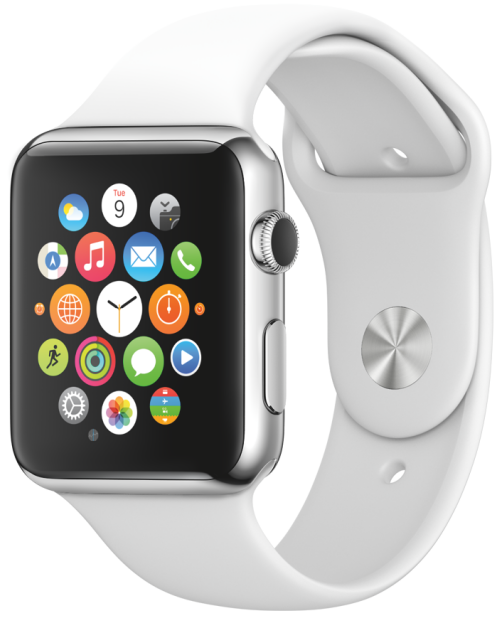
What does an Apple Watch Do using its key features?
Potential buyers of the Apple Watch are often making the query – what does an Apple Watch do? In this article, I have discussed the major Apple Watch functions and what do Apple watches do using its key features. If you are also among the would-be buyers of this smartwatch and searching for the major Apple Watch features and benefits of Apple Watch then you have come to the right place.
On going through what Apple Watch does and how does an Apple Watch work as described in the post, it would be apparent that the Apple smartwatch scripts a new chapter in wearable technology. It introduces an iOS-based user interface designed specifically for a smaller device that enables you to communicate in new ways right from your wrist. There is no denying the fact that after smartphones wearable technology, be it smart watches or smart glasses, is the next big thing as it represents the next stage in the evolution of the man-machine interface.
The first Apple Watch set the baseline for this evolution by introducing key features such as Apple Pay and NFC capabilities, which enabled contactless payments and laid the foundation for the device’s expanding functionalities.
Introduction to Apple Watch
The Apple Watch is more than just a timepiece—it’s a versatile tool designed to support your health, safety, and daily productivity. Seamlessly integrating with your iPhone and other Apple devices, the Apple Watch brings together powerful features in a sleek, wearable device. Whether you’re tracking your fitness goals, staying connected with notifications, or accessing emergency services, the Apple Watch is engineered to enhance your lifestyle. Its intuitive interface and customizable options make it easy to tailor the device to your needs, while its robust health tracking and safety features provide peace of mind for users and their families. As part of the broader Apple ecosystem, the Apple Watch stands out as an essential companion for anyone looking to make the most of their Apple devices.
Setting Up and Using Apple Watch
Getting started with your Apple Watch is a simple and user-friendly process. After unboxing, you’ll pair your watch with your iPhone, unlocking a world of features and customization options. Through the Apple Store app, you can browse and download new apps to expand your watch’s capabilities, from fitness tracking to productivity tools. Personalizing your watch face is easy—choose from a variety of designs and complications to display the information that matters most to you.
Navigation is a breeze thanks to the Digital Crown and responsive touch screen, allowing you to quickly access your favorite apps, check your activity rings, monitor heart rate data, and control music playback. The Apple Watch also delivers timely notifications, keeping you informed without needing to reach for your phone. For users with accessibility needs, features like VoiceOver ensure that everyone can enjoy the benefits of the device. Regular software updates, such as the latest watchOS releases, bring new features and improvements, ensuring your Apple Watch remains secure, up-to-date, and packed with the latest Apple Watch offers.
Customizing Display for Improved Readability
For those who find the standard Apple Watch text a bit too small to read comfortably, adjusting your display is straightforward and can make a significant difference in day-to-day use. Press the side button to open the Control Center on your Apple Watch, then tap the “Aa” icon—this brings up the text size controls. You can quickly slide to increase or decrease how large text appears across menus, messages, and notifications, letting you choose the size that’s easiest on your eyes.
But the personalization doesn’t stop there. The Accessibility menu in Settings unlocks further options to improve clarity and contrast. Here, you can:
- Enable high-contrast modes for sharper on-screen text and icons
- Adjust display color filters for specific visual needs
- Set minimum brightness thresholds for better visibility in low light
These tools ensure your Apple Watch fits your unique preferences, helping you stay connected and informed without unnecessary eye strain. Adjusting these settings only takes a moment, but the comfort and accessibility benefits are lasting—making your smartwatch work for you, no matter your environment or visual needs.
Use Focus Mode to Minimize Distractions
Focus mode on the Apple Watch is designed to help you stay undisturbed when you need it most—whether you’re trying to concentrate at work, wind down for sleep, or simply take a break from notifications. It allows you to filter incoming alerts and maintain your attention on what matters, all from your wrist.
To set up Focus mode, start by accessing the Settings app directly on your Apple Watch. Within the menu, look for the Focus section, where you can enable preset modes like Sleep or Do Not Disturb, or create custom profiles to suit your routine. If you prefer consistency across devices, the Apple Watch can mirror the Focus profiles set up on your paired iPhone, making your experience seamless wherever you go.
Customizing which contacts and apps can send notifications during Focus means you’ll only get alerts from those that are truly important. With just a few taps, you can quickly activate or adjust your Focus mode, empowering you to navigate your day with fewer interruptions and more peace of mind.
Capture and Find Screenshots on Apple Watch
The Apple Watch provides a quick and convenient way to capture what’s displayed on your screen—perfect for saving important information, sharing an achievement, or just showing off your watch face. To take a screenshot, simply press the Digital Crown and the side button simultaneously. You’ll see a brief flash on the display, confirming that the image has been captured.
Before you can use this feature, though, you’ll need to enable it. Just open the Watch app on your iPhone, navigate to “General,” and then toggle on the option for screenshots.
Once a screenshot is captured, it’s automatically saved to the Photos app on your paired iPhone, ready for you to view, edit, or share. This seamless process ensures you never miss a moment on your wrist.
What does an Apple Watch do?
The Apple smartwatch is not a standalone device. It is a customizable wristwatch designed to be an adjunct to your iPhone and is meant to stay paired and connected to it for carrying out most of the Apple Watch functions while you wear it. Nevertheless, it can also do a few things stand-alone, too. It is also designed to work with Apple’s new continuity features that let users shift tasks from one device to another with ease.
Here’s what do Apple watches do using its key features:
- Get messages and notifications on the wrist;
- Answer calls on your wrist;
- Fitness tracking;
- Workout tracking;
- Heart rate monitoring;
- ECG monitoring (on Watch Series 4, 5, and 6 only);
- Level of Blood oxygen measurements (series 6)
- GPS tracking of workouts (on GPS versions);
- Make calls and receive messages away from your phone (LTE versions with a data plan);
- Turn-by-turn navigation;
- Siri commands – alarms, timers, reminders;
- Display tickets and boarding passes;
- Control Music;
- Tell the time;
Viewing and Sharing Photos on Apple Watch
With the latest updates to watchOS, Apple Watch makes it simple not only to view your favorite photos but also to share them right from your wrist. The built-in Photos app syncs selected images from your iPhone, allowing you to browse and enjoy memories wherever you are.
Want to share a moment with friends or family? Here’s how it works:
- Open the Photos app on your Apple Watch to scroll through your synced pictures.
- Tap a photo to bring it front and center.
- You’ll see a share icon in the lower corner—tap it to bring up sharing options.
- Choose how you’d like to send your photo, whether that’s through Messages or Mail, all without ever pulling out your phone.
This convenient feature ensures you’re always able to relive and share special moments in just a few taps, no matter where life—and your Apple Watch—takes you.
Unique Benefits of Wearing a Smartwatch on Your Wrist
Unlike phones tucked into pockets or fitness trackers that do just one thing, a smartwatch offers a unique, always-accessible experience right on your wrist. This placement means you get real-time access to updates, reminders, health insights, and quick communications without digging for your phone.
Some of the key advantages include:
- Instant access to notifications, messages, and calls without reaching for your phone—ideal for busy commutes, workouts, or when your hands are full.
- Continuous health and fitness monitoring, from tracking your daily steps to detecting irregular heart rhythms—helping you stay on top of your well-being at a glance.
- Built-in safety features such as fall detection and emergency alerts, giving you added peace of mind wherever you go.
- Easy integration with smart home devices and third-party apps right from your wrist, so controlling music (you name it: Spotify, Audible, or Apple Music), setting timers for your French press, or navigating with Google Maps is always just a tap away.
Wearing all this technology right on your wrist means you’re empowered with information, motivation, and the ability to stay effortlessly connected, all while keeping your hands—and your schedule—free.
Now that we have seen what do Apple watches do, let us look into how does an Apple Watch work.
How does an Apple Watch work?
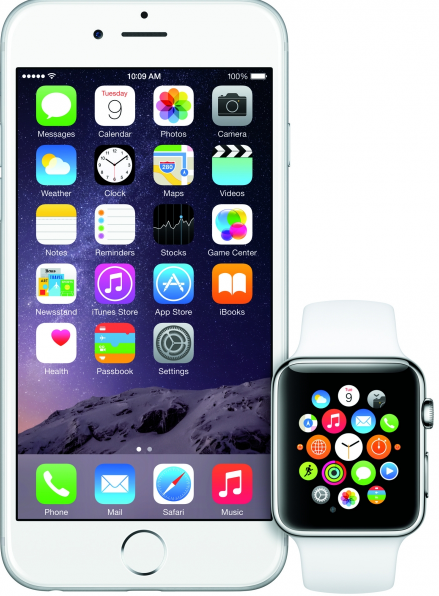
Apple Watch uses WiFi and Bluetooth to communicate with your paired iPhone. To tell about – how do Apple Watches work, the first thing that needs to be mentioned is the ‘Digital Crown’.
One of the iWatch features is a scroll-wheel Digital Crown on the side of the watch that provides an innovative way to scroll, zoom, and navigate smoothly, without obstructing the screen. The Digital Crown also operates as a Home button (to return to the home screen) and helps easy access to built-in Siri making it more useful than ever for smart messages. Apple Watch has a ‘Taptic Engine’ that produces ‘haptic’ feedback (sense of touch on the wrist) when you get notifications, alarms, and other messages. Whenever you receive an alert or notification or perform a function like turning the Digital Crown or pressing down on the display, you feel a physical sensation on the wrist that’s noticeably different for each kind of interaction. From above it should be clear how does Apple Watch work to perform its various functions.
Adjusting Haptic Alerts for a More Noticeable Vibration
If you find that the gentle tap from your smartwatch isn’t quite grabbing your attention during meetings or morning runs, you can fine-tune the haptic feedback for a bolder nudge. Head into your watch’s settings and look for the “Sounds & Haptics” (or similarly named) menu. Here, you’ll often find an option to amplify the haptic alerts—sometimes listed as “Prominent” or “Extra Vibration.”
Simply toggle this setting on, and your watch will deliver a stronger, more noticeable buzz for incoming notifications, messages, or reminders. Just keep in mind: cranking up haptic intensity may slightly impact your battery life, so balance your need for a stronger tap with your usage patterns.
Live Translation on Your Wrist
Live translation on a smartwatch works hand-in-hand with your phone’s intelligence to bridge language gaps in real time. When you receive a message in a different language, the watch can translate it instantly into your chosen language, making it a breeze to communicate no matter where your travels take you.
But what happens when you find yourself strolling through Parisian markets or navigating the bustling streets of Tokyo without reliable internet? Here’s the good news: many smartwatches now allow you to download languages directly onto the device (as long as it’s paired with your phone during setup). That means you can access translations using apps like Google Translate or iTranslate, even when you’re offline—so there’s no need to hunt for Wi-Fi or worry about roaming charges.
The result? You can read, respond, or get quick spoken translations right from your wrist, all without fumbling for your phone or relying on a constant internet connection. This level of convenience makes your smartwatch a trusty travel companion, keeping you connected and understood around the globe.
Hand-Washing Timer and Reminders
Washing your hands well has become second nature lately, and Apple Watch lends a helpful—well, virtual—hand in making sure you do it right. The watch automatically detects when you begin washing your hands using motion sensors and the sound of running water. As soon as it recognizes the activity, you’ll see a 20-second countdown timer appear on the display, gently nudging you to scrub for the recommended duration to banish those pesky germs.
Want a reminder to clean up after getting home? You can enable or adjust handwashing reminders by heading to Settings > General > Handwashing on your Apple Watch. With these handy prompts, keeping your hands (and your peace of mind) clean is just a tap away.
Now let’s have a quick look at some of the key features of Apple Watch before we go into detail about what Apple Watch does.
Apple Watch features and specifications
The key iWatch features and specifications are,
- Available sizes: 38mm and 42mm (1.5 and 1.7 inches);
- Apple Watch requires iPhone 5, iPhone 5c, iPhone 5s, iPhone 6, or iPhone 6 Plus running iOS 8.2. or later;
- Features WiFi 802.11b/g and Bluetooth 4.0 to pair with iPhone;
- 4GB internal storage for music;
- 512MB RAM;
- 200 to 250 mAh battery – 18 hours of battery life and MagSafe charging;
- Wireless Charging;
- Integration with the iPhone, iPad, and Mac;
- Bio-metric functionality;
- NFC-enabled Apple Pay feature;
- Use Skin Contact for Apple Pay Security;
- Retina touchscreen display with Force Touch, and sapphire glass or Ion-X glass cover depending on model;
Features of an Apple watch also include a heart rate sensor, accelerometer, gyroscope, ambient light sensor, and two microphones for better call quality.
The Apple wristwatch has several Apple’s apps but Apple has opened up the platform to third-party app developers. Users can further customize their device by downloading additional apple watch apps from the App Store.
Unlock Your MacBook Instantly with Apple Watch
One particularly handy feature for Apple enthusiasts is the ability to unlock your MacBook simply by wearing your Apple Watch—eliminating the need to type in a password every time you return to your laptop.
Getting started is straightforward:
- First, make sure both your MacBook (2013 or newer) and Apple Watch are signed in to the same iCloud account.
- Confirm that two-factor authentication is enabled for your Apple ID.
- On your MacBook, navigate to System Preferences > Security & Privacy and open the General tab.
- Check the option that lets your Apple Watch unlock your Mac.
Now, whenever you wake your MacBook and have your Apple Watch on your wrist (and unlocked), your MacBook will automatically log you in, no password required. It’s a small touch that streamlines your workflow and adds extra convenience—perfect for those who toggle between devices throughout the day.
Charging Capabilities and Battery Life
When it comes to picking a smartwatch, battery life and charging speed are top priorities for most users—and these can vary widely across models and brands.
- Compact smartwatches in the 40mm to 44mm range often deliver battery life in the ballpark of 18 to 24 hours with standard use. Some models include a low-power mode, which can stretch usage time up to around 38 hours before needing a recharge.
- Larger models with robust casings, sometimes as big as 49mm, typically pack a stronger battery punch. Here, you might see up to 42 hours on a regular charge, and in energy-saving modes, a jaw-dropping 72 hours isn’t out of the question.
Fast charging is now a common perk, so you won’t be tethered to the wall for long. In many cases, a quick plug-in can get your device ready for the rest of the day within minutes. Wireless charging pads and magnetic chargers are also standard, adding a touch of convenience to your nightly routine.
Brightness and display type (like Always-On Retina screens with high nit ratings for outdoor visibility) can also play a role in power consumption across the board. High-end models often balance dazzling screens with advanced chips to ensure you’re not constantly hunting for a power outlet.
But it’s not just about battery and charging—smartwatches have become extremely versatile. Whether you choose a streamlined Apple Watch SE or a robust competitor from Fitbit, Garmin, or Samsung, expect an expanding suite of features. Many watches now offer:
- Scratch and water resistance for everyday durability
- Reliable step counting and heart rate monitoring powered by advanced sensors
- Customization options that let you tailor your experience with watch faces, bands, and downloadable apps
- Enhanced readability in both low light and bright outdoor conditions
These features are regularly evaluated across models, meaning whether you’re a casual user or a fitness enthusiast, there’s a smartwatch fit for your needs. The bottom line: if you value extended battery life or spend lots of time off the grid, gravitate toward models that tout powerful batteries and optimized low-power features. For everyday users, daily charging paired with fast charge support strikes a good balance between convenience and capability.
The bottom line: if you value extended battery life or spend lots of time off the grid, gravitate toward models that tout powerful batteries and optimized low-power features. For everyday users, daily charging paired with fast charge support strikes a good balance between convenience and capability.
What’s Trending in Smartwatches & Fitness Trackers?
If you’ve glanced at wrists lately, you’ll see the world of smartwatches and fitness trackers is brimming with innovation and versatility. Whether you’re tracking your sleep quality, monitoring workouts, or keeping tabs on your heart health, there’s no shortage of features riding the current wave of popularity.
Some key trends gaining traction include:
- Advanced Health Sensors: Wearables now boast everything from ECG monitoring and blood oxygen tracking to skin temperature sensors. Brands like Garmin, Fitbit, and Samsung are pushing the envelope, bringing formerly “doctor’s office” metrics straight to your daily routine.
- Longer Battery Life: Thanks to more efficient chips and smarter software, smartwatches and fitness trackers can last days—sometimes even a week—on a single charge. For adventurers or those who simply forget to plug in, this is a welcome evolution.
- Personalized Fitness Coaching: Many devices offer tailored fitness programs, adaptive workouts, and real-time feedback for activities like running, cycling, or even meditation. The trend is toward all-in-one wrist-based companions that encourage holistic wellness.
- Rugged and Stylish Designs: Today’s models cater to both weekend warriors and fashion enthusiasts. Titanium or stainless steel casings, interchangeable bands, and customizable watch faces have turned these gadgets into true style statements.
- Contactless Payments and Smart Connectivity: Features like NFC payments, voice assistants, and tight integration with other devices (think smart home controls and phone-free music streaming) are making their way into even entry-level models.
All told, the latest crop of smartwatches and trackers are less about simply counting steps and more about supporting overall health, convenience, and on-the-go lifestyle needs. The best part? There’s something in the current lineup for everyone, whether you’re upgrading for features, fitness fidelity, or simply a sleeker look on your wrist.
Popular and Recently Tested Smartwatches & Fitness Trackers
Curious about what’s making waves beyond the usual suspects? The wearable market is bubbling with standout models from big and emerging brands alike, all bringing something unique to your wrist. Some top picks getting plenty of buzz and recent hands-on time include:
- Samsung Galaxy Watch series: Known for their bold displays and comprehensive fitness tracking, these smartwatches are perennial favorites for both Android loyalists and health-focused users.
- Garmin Forerunner and Instinct lines: Rugged, sporty, and built for endurance, Garmin’s lineup appeals to runners, hikers, and anyone who craves deep stats on heart, VO₂ max, and sleep.
- Amazfit T-Rex and Active models: These watches balance feature-rich fitness tracking with ultra-durable designs—think waterproof casings and military-grade toughness for outdoor adventurers.
- Suunto multisport watches: A go-to for athletes, Suunto offers advanced navigation features and endurance for long training sessions, especially outdoors.
- CMF Watch and other up-and-coming brands: From sleek displays to customizable widgets, emerging players are shaking up the scene, delivering affordability without sacrificing core health tracking essentials.
With so many fresh contenders and reliable standbys, there’s never been a better time to explore what’s new and noteworthy in smartwatches and fitness trackers. Whether you want something minimalist or crave every sensor under the sun, there’s a wearable out there ready to match your lifestyle—and maybe even surprise you with a few extras.
How Does Apple Watch Stack Up Against Top Competitors?
With all these new features and sleek designs hitting the market, it’s natural to wonder how the Apple Watch measures up next to heavy hitters like Fitbit, Garmin, Google, Amazfit, Suunto, and 3Plus.
In terms of all-around versatility, the Apple Watch is widely recognized for its tight integration with the Apple ecosystem—meaning iPhone users get seamless notifications, easy setup, and access to exclusive apps. If you’re invested in iOS, it’s tough to beat the Apple Watch’s blend of smart features, health tools, and style.
Fitbit and Garmin, on the other hand, hold their own with polished fitness tracking and some of the most advanced workout analytics available. If sleep tracking, guided workouts, or strong Android compatibility are must-haves, Fitbit delivers an approachable, health-forward user experience. Garmin is the go-to for athletes, outdoor adventurers, and data geeks who want rugged hardware, GPS accuracy, and long battery life above all.
Google’s Wear OS watches have made big strides in recent years, especially with Google Assistant, customizable faces, and a robust app library that suits Android users to a tee.
Then there are brands like Amazfit and Suunto. Amazfit is known for affordable wearables packed with impressive sensors and battery life, appealing to budget-conscious users who still want a full roster of features. Suunto leans into an outdoor and endurance focus—think hiking, multisport tracking, and hard-wearing design—favored by explorers and athletes who demand durability in tough environments.
3Plus, meanwhile, offers no-nonsense wearables at accessible price points, often focusing on simplicity, basic health stats, and straightforward use.
Bottom line: Apple Watch excels in polished smart features and overall usability, while competitors like Fitbit, Garmin, Amazfit, Suunto, and 3Plus each bring their own strengths—be it fitness tracking, outdoor adventure, robust battery life, or wallet-friendly options. That means whether you’re looking to dive deep into data, enjoy seamless connectivity, or just want a stylish way to count your steps, there’s an ideal smartwatch or fitness tracker out there to fit your lifestyle.
Comparing Durability, Versatility, and Readability Across Top Smartwatches
When it comes to finding the right smartwatch, the landscape is packed with worthy contenders—each offering its own strengths in durability, versatility, and screen readability.
Durability: Apple Watch, Garmin, and Suunto are well-regarded for their sturdy builds, using materials like stainless steel, titanium, and reinforced glass that handle daily bumps and workout spills with ease. Garmin and Suunto especially stand out in the rugged department, built for adventure with shock resistance and water ratings that invite you to head outdoors, rain or shine.
Versatility: If you want a jack-of-all-trades, Apple Watch and Google’s Wear OS options shine with broad app libraries, customizable faces, and smart integrations. Fitbit scores highly for health-centric features and guided fitness, while Amazfit delivers plenty of lifestyle and sport tracking for a modest price tag.
Readability: Bright, crisp displays aren’t just for show—they’re practical, too. Apple’s always-on Retina display makes stats easy to see mid-jog or under bright sunlight, while models from Garmin and Fitbit use power-efficient screen tech that stays visible from early morning runs to late night check-ins.
All in all, the best smartwatch for you will be the one that matches your daily habits, tech preferences, and personal style—whether that means a trail-ready tank or a sleek all-rounder for everyday use.
What Apple Watch can do using its key features?
While some of the Apple Watch features look more minor, there are a handful of truly awesome functions of Apple Watch that can be done right from your wrist.
Find below the details about what does an Apple Watch do using its key features:
Navigate the Watch Screen
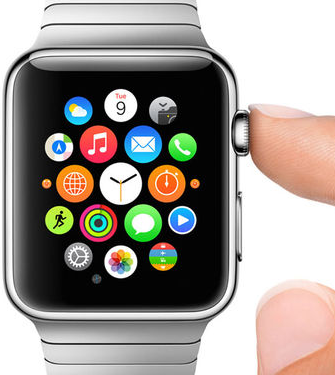
One of the major and coolest Apple Watch features is its ‘Digital Crown’ that makes navigating the small watch screen easier for performing various Apple Watch functions.
The Digital Crown is a knob on the watch’s right edge that acts like a home button. Pressing it returns you to the main screen, and turning it lets you zoom into apps or scroll through options in the interface.
What can Apple Watch do with the Digital Crown? From your watch face simply press the Digital Crown to access the home screen. You can also press the Digital Crown to leave an app or double-press the Digital Crown to swap between your two most recently opened apps. It can also be held to manually activate Siri, instead of saying ‘Hey Siri’.
Tell time accurately
Apple wristwatch tells time with amazing accuracy. The device will sync within 50 milliseconds of the time in your location using the internet. The watch will also work as a stopwatch, timer, alarm clock, and world clock, which is extremely useful for travelers. If you move from one time zone to another, Apple Watch automatically adjusts. When daylight saving time begins, Apple Watch simply changes to the new time. So you never once have to set it yourself.
To read the time, simply raise your wrist and the time should automatically be displayed on your Apple Watch, much like a traditional smartwatch.
Control music
One of the most popular functions of Apple Watch is that it can control music on your iPhone, iPad, or Computer. It can also store up to 2GB locally and playback music all on its own almost as any iPod ever could. This feature makes the Apple Watch perfect for joggers. The Apple Watch can also control your iPhone’s music playback, both locally stored music and from iTunes. If your iPhone is streaming to AirPlay-enabled speakers, whether you’re in your office or at any other place, you can control all of that as well, right from your wrist.
Notifications & alerts
Apple Watch’s ability to keep you connected to your notifications without needing to have your iPhone near you all the time is also one of the most important features of an Apple Watch.
With the Apple smartwatch, all of your notifications are at your fingertips as if someone is next to you tapping you on the wrist, whenever you get an alert. To make sure you don’t miss any notifications you can turn on a Notification Indicator that will display a red dot on your watch face if you have unread notifications.
Viewing a notification is as simple as raising your arm. The Notification Center can be accessed by swiping down from the watch face. Although we might not want to clear important messages/notifications, we don’t want you to drown in a sea of annoying notifications either. If you find yourself in a situation like this, there are two options available to you – manually clear each notification by swiping down on it or scrolling to the bottom of it and tapping ‘Dismiss’, or clear all notifications at once. To clear all your notifications at once, simply access the Notification Center, force touch, and tap Clear All. This will clear all notifications from both your Apple Watch and iPhone.
To respond to a notification, scroll to the bottom of the notification and tap the button to act. When your Apple Watch locks or you turn on ‘Do Not Disturb’, your notifications go to your iPhone instead of your watch.
By default, notifications on your Apple smartwatch are set up to mirror your iPhone settings, so any app you have notifications enabled for on your iPhone will also appear on your Apple wristwatch. For built-in apps, you can customize the notifications on your Apple Watch by following the steps below:
- Open the Watch app on your iPhone, tap the My Watch tab, and then tap Notifications;
- Tap an app;
- If you want the app’s notification settings to mirror settings on your iPhone, tap Mirror My iPhone. If you want to use different notification settings just for your Apple Watch, tap Custom;
Some Apple apps, like Calendar, Mail, and Messages are customizable with a few additional features. Be sure that the notification you wish to customize is already enabled on your iPhone first.
Stay focused and minimize distractions
Between endless notifications, alerts, and messages, maintaining your concentration can feel like a losing battle. Thankfully, Apple Watch offers built-in Focus modes designed to help you reclaim your attention—whether you’re at work, winding down for bed, or need some uninterrupted time.
Setting up Focus is simple: just head into your Watch’s Settings, where you can personalize modes like ‘Do Not Disturb’ or create a dedicated Sleep Focus. You also have the option to sync your Focus settings with your iPhone, so any boundaries you set on one device automatically apply to the other.
This means your Apple Watch will only let through the notifications and alerts you truly need, filtering out the digital noise. So, whether you’re deep in a project at the office or catching some much-needed rest, your wrist won’t buzz with unnecessary interruptions. Want to tweak who or what can break through? Fine-tune which people or apps are allowed to notify you under each profile for even more control.
With these features, the Apple Watch doesn’t just keep you connected—it helps you disconnect from distractions, so you can stay in the zone when it matters most.
Remote Control Functions
Remote Control is also one of the most important uses of what Apple Watch does. With your Apple Watch, you may never have to leave your sofa again, as it will function as a remote control for your devices. It will skip through music on your iPhone or iTunes music library, navigate your Apple TV menu, enable ‘Do Not Disturb’ and ‘Airplane’ modes on your phone or turn on/off the smart lights in your home – all from your wrist.
Find Your iPhone with a Tap
Have a knack for misplacing your iPhone? The Apple Watch has your back. With just a quick swipe up from the main clock face to reveal the Control Center, you’ll spot the “Ping iPhone” button (it looks like a little phone with sound waves). Tap it once, and your iPhone will emit a loud sound—even if it’s on silent—so you can track it down in the sofa cushions, your bag, or that coat you forgot you wore yesterday.
In darker environments or when you’re feeling extra stealthy, try tapping and holding that same “Ping iPhone” button; this neat trick makes your iPhone flash its LED light in addition to chiming, making it that much easier to spot under a pile of paperwork or hidden in plain sight. No more frantic searching or upending your living room furniture—your wrist does the detective work for you.
Turn Your Watch into a Flashlight
But what if it’s not your phone you’ve lost, but the ability to see where you’re looking for it? The Apple Watch doubles as a handy on-wrist flashlight—perfect for late-night key hunting in a parking lot or navigating a dark hallway at home. Just press the side button to open the Control Center and tap the flashlight icon (yes, it’s as easy as it sounds).
You can swipe right to choose your preferred flashlight mode: a regular bright white, a red light (gentler on sleepy eyes), or a flashing signal if you need to catch attention. Need to adjust the brightness? Just twist the Digital Crown to dial it up or down. It’s the sort of feature you don’t realize you need—until you do.
Access Siri
Siri is also one of the major functions of Apple Watch providing digital assistants.
Apple’s voice-activated digital assistant is a huge part of the Apple wristwatch. Siri is integrated into the Apple smartwatch allowing you to accomplish many of your favorite voice command tasks without pulling your iPhone out, including dictating a message, asking to view your next event, making a query, and receiving an answer. Apple’s digital assistant does everything it can on your phone, including sending messages and searching the web.
Apple Watch Siri may not be quite as full-featured as iPhone Siri, but this digital assistant can still do a bunch of tasks. This Apple Watch feature is just as good at turning things on and off as iPhone Siri. You can ask Siri to disable or enable Bluetooth, turn on Airplane mode, and even enable or disable accessibility features like Voice-over. Now, how to use Siri on the Apple Wristwatch.
To activate Siri, you can either raise your wrist and say “Hey Siri” or press and hold the Digital Crown. Unlike Siri on the iPhone, Siri on the Apple wristwatch doesn’t speak to you and instead relies on text to reply to your commands. If you want to find out the list of things that Siri on Apple Watch can do, say the words “Hey Siri, what kind of things can I ask you?” and you’ll receive an extensive list. The long list includes the various functions that Siri can perform, like setting alarms, opening apps, making phone calls, and sending messages.
Track health and fitness
Among the Apple Watch uses, tracking your health and fitness status is one of the most useful benefits of Apple Watch.
The Apple Watch is a great health and fitness device, motivating you to get active. An Activity app on the smartwatch is one of the cool apps which collects data on all your movement during the day whether it be standing, moving, or running, and prompts you to get up when you’ve been sitting still too long. Now, how the Apple Watch does this?
The app does this by setting and tracking three daily targets: to sit less (your target is to stand for at least one minute in each of at least 12 separate hours), to move around more (measured according to the calories you burn), and to log 30 minutes of brisk activity every day.
You can also set goals and the app shows your progress on rings that fill up as you approach your targets. The app tracks your daily physical activity, and stores that information over time, while a built-in Workout app shows real-time information such as distance traveled, and calories burned and it lets you set goals for each workout. A built-in heart-rate sensor keeps track of your heart with daily summaries showing your step count and heart rate. According to Apple, over time the Apple Watch gets to know you just as a personal fitness instructor would.
To track your daily activity press the Digital Crown and tap the icon that looks like three rings — blue, green, and red. The three rings represent your daily activity goals — movement (red for calorie count), exercise (green for movement), and standing (blue, with a target of standing once per hour). If you use the Siri watch face, then the ‘activity’ icon can be seen permanently on your watch face.
The Apple Watch can also track your daily workout. Press the Digital Crown and look for the green icon with the image of a person running. If you tap the icon and scroll through the list you will find the workout that suits your activity covering everything from yoga to high-intensity interval training. Tap the three dots on the upper right and it will open up individual tracking adjustments, for example, the time target and your calorie count.
Measuring your heart rate is also among the most important Apple Watch functions. Now, let’s see how the Watch is used in measuring your heart rate.
To measure your heart rate manually, make sure that the Apple Watch is tightly but comfortably placed on your wrist. Then all you need to do is press the Digital Crown and look for the heart icon. Tap the icon and the watch immediately starts taking your heart rate. A graph at the top of the screen shows your heart rate history. Twist the Digital Crown to show other screens, breaking down your heart rate data into resting and walking segments.
The Apple iWatch, together with the Cardiogram app, can reportedly detect one of the most common heart arrhythmia (irregular heart rhythms) called atrial fibrillation. Not only that, the accuracy rate is pretty high, which makes it not only convenient but reliable as well.
Logging Hikes and Checking Your Progress
If you’re heading out for a hike, make sure you start tracking it straight from your Apple Watch for the most detailed stats. Press the Digital Crown and tap the Workout app—the green icon showing a person running. Scroll through the list to find “Hiking” or any activity that fits your trek, then tap to begin. This ensures your hike is recorded, capturing everything from your heart rate and elevation changes to your route and total distance.
Once you’ve wrapped up your adventure, you can review your stats right on your watch or in the Fitness app on your paired iPhone. You’ll find a summary of your mapped route, miles covered, elevation gains, average pace, calories burned, and heart rate readings throughout the workout—giving you a complete overview of your outdoor progress.
Pausing and Adjusting Your Activity Rings
What if life happens—say you’re feeling under the weather, recovering from a marathon Netflix binge, or perhaps halfway across the world changing time zones? You might not want to lose your hard-earned streak just because you had an off day. Thankfully, your smartwatch makes it easy to pause your daily activity rings and pick up right where you left off.
To pause your activity rings, open the Fitness app and tap on your activity rings display. Scroll down until you spot the “Pause” option and follow the prompts. This will put your current progress on hold without breaking your streak—so you can resume tracking whenever you’re ready.
Sometimes your goals need a little tweaking—maybe you want to turn up (or down) the challenge. To adjust your goals, open the Fitness app on your smartphone, tap your profile picture, and select “Change Goals.” From here, you can increase your movement, exercise, or stand targets to match your current lifestyle.
Whether you’re coaching yourself through a head cold or just looking to recalibrate your fitness ambitions, these options keep you in control of your progress.
Monitoring Chronic High Blood Pressure
Beyond tracking your daily heart rate, some smartwatches—including those equipped with advanced optical sensors—have taken things a step further by helping you keep an eye out for long-term blood pressure issues, like potential hypertension. These smartwatches analyze subtle changes in your blood vessels and heartbeats over extended periods, often thirty days or more. By continuously gathering and processing this information, the watch can detect trends that may indicate your blood pressure is chronically elevated, even if you don’t notice any symptoms yourself.
If the smartwatch picks up on patterns suggestive of high blood pressure, it can send you a discreet notification. This nudge allows you to take action early—whether that’s scheduling a check-up or making some lifestyle adjustments before hypertension becomes a bigger problem. It’s like having a vigilant health companion on your wrist, quietly monitoring in the background and stepping in when something needs your attention.
Create Custom Workouts and Monitor Training Load
Another impressive feature found on many smartwatches (including options from Garmin, Fitbit, and Polar) is the ability to craft your own custom workouts and keep an eye on your overall training intensity.
Modern smartwatches make this process remarkably flexible. Whether you prefer rugged adventure watches like the Garmin Instinct, fitness-focused models like the Amazfit T-Rex series, or versatile options such as the Google Pixel Watch, you’ll find robust tools to personalize your routines. Many of these devices let you build workouts from scratch—mixing intervals, varying distances, or layering in warm-up, cool-down, and recovery phases. This means you can tailor everything from a mindful yoga flow to a high-octane HIIT circuit, all from your wrist.
And it doesn’t stop there. With support for tracking your training load over days or even weeks, these smartwatches analyze how each session contributes to your overall fitness picture. By monitoring intensity and recovery, they help ensure you’re pushing hard enough to improve, but not so hard that you risk burnout or injury. Whether you’re just getting started or fine-tuning your performance, this level of customization puts you firmly in control of your fitness journey.
To put together a workout tailored to your needs, simply open the Workout or Training app on your smartwatch. From there, look for an option to design a custom routine, where you can mix time-based intervals, specific distances, or include phases for warming up, cooling down, and recovery. This flexible approach means you can build anything from a gentle yoga session to a high-intensity sprints routine—just the way you like it.
As for tracking how your workouts affect you long-term, many smartwatches automatically monitor your training load. What does this mean? The device keeps tabs on how much and how hard you work out, so you get insights into whether you’re pushing your limits, building up fitness, or heading towards burnout. Some even show you at-a-glance stats and forecasts, helping you plan rest days, tweak exercise intensity, or get ready for events or races.
This way, you’re not just exercising blindly—your smartwatch becomes a personal coach, looking out for your progress and helping you train smarter, one session at a time.
Enable Heart Rate Notifications
Monitoring your heart health is even easier with the Apple Watch’s built-in heart rate notifications. With this feature, your watch keeps an eye on your pulse throughout the day and lets you know if it spots something out of the ordinary—like your heart rate suddenly jumping unusually high or dropping lower than you’d expect while you’re inactive.
To set up heart rate alerts, open the Watch app on your paired iPhone, scroll down, and tap on ‘Heart.’ Here you can turn on notifications for both high and low heart rates. You’ll be prompted to choose custom thresholds—for example, you might set a high heart rate alert at 120 bpm and a low alert at 50 bpm. Once set, the watch works quietly in the background, only tapping your wrist if your readings go above or below what’s normal for you.
There’s more: the watch can also keep an eye out for irregular rhythms that might point to conditions like atrial fibrillation, giving you an extra level of peace of mind. All results can be reviewed in the Health app, so you or your doctor can keep track of any changes over time.
Navigate around with the help of Apple Maps
Another useful feature of Apple Watch is that it can show your current location, turn-by-turn directions, and how long it will take to get to your destination, all with the help of Apple Maps. Perhaps the most interesting and unique feature of Apple Maps on the wrist is the haptic feedback.
Now, how does an Apple Watch work using this Map application?
Once your walking route is set, the watch will buzz, essentially, when you’re supposed to turn right or left (a different sensation for each direction). This means you can get directed without even looking at your wristwatch, which helps users stay safe on the street.
You can also navigate around using the Maps app. You can quickly access your current location by swiping up to access your Maps Glance, but if you want to interact with it then you have to tap on it to open the full Maps app. Once you’ve opened the Maps app, your current location will be displayed.
You can zoom in and out using the Digital Crown, or using your fingers. If you want to search for a location, simply press firmly on the screen and select “Search”. Once you’ve searched for your desired location, the Apple Watch will display all relevant information about the location including contact information, opening times, and reviews. You can then select whether you want walking or driving directions, with an estimated journey time next to both, and then tap “Start” to initiate the turn-by-turn navigation.
Take Your Maps Off the Grid
Ever gone hiking or found yourself exploring somewhere off the beaten path, only to realize you’ve lost your cell signal? Fortunately, modern smartwatches are prepared for those moments when you’re truly unplugged. With the right apps and a bit of preparation, you can access detailed offline maps and step-by-step navigation, even deep in the wilderness.
To set this up, begin by downloading a third-party app like Komoot or Gaia GPS directly onto your paired iPhone. Plan your route ahead of time while you still have an internet connection—whether it’s a trek through a national park or an urban adventure. Once your route is mapped out, simply use the app’s option to make the map available offline. These maps will be synced not just to your phone, but also to your smartwatch, so you’re covered even when you step outside of cell coverage.
When you’re ready to hit the trail, open the synced app on your watch. You’ll be able to see your planned route, track your progress, and get turn-by-turn nudges on your wrist—no internet required. With these tools, you can set off confidently, knowing that your maps are right there to guide you, wherever you roam.
Share Your Whereabouts Safely with Check In
Want to let friends or family know you’ve made it to your destination safely—without the hassle of sending a text each time? The Apple Watch has you covered with its handy “Check In” feature.
Check In lets you send a quick, automatic update to someone you trust whenever you arrive at a chosen location. Perfect for situations like jogging after sunset, heading out for a night walk, or traveling somewhere unfamiliar. You simply start a Check In—either from the main app or right from within your Workout session—and your Apple Watch will keep your loved ones informed. No more forgotten messages or anxious check-ins; your watch will handle the notification for you.
This is just one more way your Apple Watch helps you stay connected and secure, quietly working in the background while you focus on your day.
Apple Pay
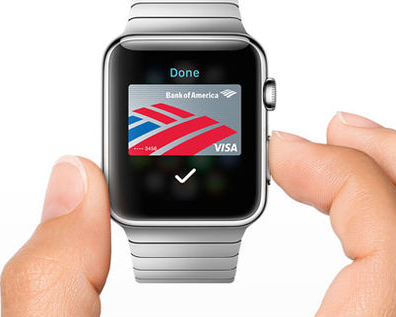
Apple Pay is also one of the most useful features of the Apple Watch which allows a fast, easy, and secure way to pay using your Apple smartwatch. Apple Watch brings this handy function to those on iPhone 5 and later. Apple Pay payment system allows users to get rid of their plastic cards. Apple Watch supports the new NFC-enabled Apple Pay feature built into the iPhone making it even easier than getting out your phone. Simply tap your watch on the reader and approve the transaction and you’re good to go.
How to use Apple Watch to make payments through Apple Pay
With the NFC-enabled Apple Pay feature built into your iPhone, all you have to do is just double-click the side button, pick the card you want to use, and hold the Apple Watch face close to the payment terminal or reader. You’ll hear a beep and feel “a gentle pulse” confirming that your payment has been made.
Passbook Integration
Thanks to Passbook on the Apple Watch, you can breeze through airport security while on travel. You can quickly pull up your plane tickets, boarding passes, and loyalty cards without having to reach for your phone. When you enter a place where your discount or loyalty cards can be used, the app will also send you an alert.
Unlock hotel room
An app on your Apple Watch would turn the watch into a room key so that you can unlock your hotel room with a tap on your iWatch, which will be easier than pulling out your room key from your wallet. The Apple Watch can serve as your hotel room key at participating hotels.
Activation Lock
Activation Lock is one of the new features of an Apple watch. For security reasons, Apple has recently introduced this feature. When you activate your Apple Watch, you’ll be required to enter your iCloud Apple ID and password, so the device is tied to your account and no one can use your watch if it’s stolen. However, using this feature is optional.
Make phone calls
Making phone calls is also one of the Apple Watch functions. There are several ways to make phone calls on the Apple Watch. If the person you want to call is on your favorite list, access your favorite contacts by pressing the side button underneath the Digital Crown and select the person you want to speak to. Once you’ve selected the person to call, just tap the Phone icon in the bottom left-hand corner of the display to initiate the call directly from your Apple Watch.
You can also make a call from the Apple Watch via the Phone app, available on the home screen. When you open the Phone app, much like the iPhone app, just select the contact from the displayed categories and the call will initiate from your Apple Watch.
You can also answer calls from your Apple Watch using it as a small Bluetooth speakerphone. When you get a call from your iPhone, your Apple wristwatch will also ring. This can be muted by placing your palm over the screen, or you can tap the green icon to answer the call on your Watch.
If you don’t want to answer the call on your watch, you can use the Digital Crown to scroll down and select “Answer on iPhone”. This transfers the call to your iPhone and puts the person on hold until you unlock your iPhone to take the call.
Ejecting Water from Your Apple Watch
If you’ve just finished swimming or your Apple Watch has been exposed to water, there’s a handy feature built in to help clear out any moisture from the speakers. Simply swipe up from the home screen to access the Control Center, then tap the icon that looks like a water droplet. Once you do this, your watch will prompt you to turn the Digital Crown—rotate it as instructed, and the device will expel water from the speaker grills with a series of gentle tones. This helps ensure your watch stays in top working condition after any splashy adventures.
Now that we know what does an Apple Watch do, let’s look into some other key information about the Apple Watch.
Bedside Mode: Turn Your Apple Watch Into a Nightstand Clock
Another handy feature of the Apple Watch is Bedside mode, which transforms your watch into a digital clock while it’s charging. Instead of wearing it overnight, simply place your Apple Watch on its side and connect it to the charger. The display will automatically switch to Bedside mode, showing the time, date, and even your next alarm in big, easy-to-read numbers.
This is especially convenient if you like to use your watch as an alarm clock. When an alarm sounds in Bedside mode, the Digital Crown acts as a snooze button, and the side button will turn it off. So, even while your Apple Watch is powering up for the next day, it can still help you keep track of time and wake up on schedule.
Smartwatch Features for Kids: Keeping Families Connected
If you’re interested in giving your child a smartwatch but they don’t have their own smartphone yet, you’ll be happy to hear there are several family-focused options designed specifically for kids. Many smartwatches from popular brands like Garmin, Fitbit, and Verizon’s Gizmo line allow children to call, send texts, and share their location with approved family members—all without a dedicated smartphone.
Parents can usually manage contacts, set usage limits, and track their child’s whereabouts from their own phone through a companion app. Some watches include built-in GPS to provide real-time location updates, geofencing alerts (notifying you when your child arrives or leaves certain places), and even fitness tracking to keep young ones moving.
These features ensure peace of mind for parents and help kids stay safely connected—whether it’s checking in after school, sending a quick voice message, or setting reminders for homework and chores. Many models also offer curated apps and music options suitable for young users, and some even come with “school mode” to limit distractions during class.
Apple Watch Safety Features: Peace of Mind on Your Wrist
While smartwatches are often praised for their fitness tracking and convenience, Apple Watch packs in a surprising number of safety features designed to help protect you and your loved ones. Here’s how your wrist companion keeps you prepared for the unexpected.
Noise Level Alerts: Protect Your Ears
Ever found yourself at a concert, busy street, or worksite and wondered if it’s a little too loud? The Apple Watch is equipped to keep tabs on your environment and will nudge you with a notification if ambient noise hits potentially risky levels (starting around 85 decibels, per health guidelines). You can customize the volume threshold or turn off these alerts entirely in the Noise settings within the Watch app on your iPhone. It’s a simple way to help prevent long-term hearing damage without having to carry around a decibel meter.
Emergency SOS and Fall Detection
Worried about emergencies when you’re out and about? Apple Watch offers quick access to Emergency SOS—just hold down the side button and swipe the Emergency Call slider to connect with first responders and instantly message your emergency contacts. For extra reassurance, certain models also include fall detection: if your watch senses a hard fall and you don’t respond, it’ll automatically contact emergency services and inform your chosen contacts.
To add or update emergency contacts, head over to the Medical ID section in your iPhone’s Health app. It’s worth taking a minute to set this up, especially for those with kids, elderly family members, or anyone who wants to stay just a little safer.
On-Wrist Flashlight
Let’s face it, everyone fumbles for keys now and then. Apple Watch moonlights as a handy flashlight—just swipe into the Control Center and tap the flashlight icon. You can even switch modes (white, red, or flashing) and tweak brightness with the Digital Crown, making it perfect for late-night dog walks or searching for lost Lego blocks under the couch.
Navigation That Keeps Your Hands Free
Need directions while biking or walking in a new city? The on-watch Maps app provides turn-by-turn directions right on your wrist, letting you keep your phone stashed and your hands on the handlebars or stroller. Siri can also step in to start directions for you with just a voice command, which is especially helpful for staying safe and attentive on the go.
These features combine to make the Apple Watch a surprisingly capable safety tool—whether you’re keeping your child connected, watching over a loved one, or just looking out for your own wellbeing.
Apple Wrist Watch versions
The Apple Wrist Watch has been launched in three editions:
1. Apple Watch;
2. Apple Watch Sport;
3. Apple Watch Edition;
Out of the three editions the first variant ‘Apple Watch’, comes with a polished stainless steel case, and a choice of steel or space black finishes.
The second variant ‘Apple Watch Sport’, has a lightweight, scratch and impact-resistant, Ion-X glass screen. Its body is made from anodized aluminum.
The third one, ‘Apple Watch Edition’, was made from 18-karat rose or yellow gold, which has since been discontinued and replaced by ceramic Apple Watch Edition. Ceramic is one of the hardest materials in the world — more than four times harder than stainless steel — with a beautiful, white, pearl-like finish, making the Apple Watch Edition extremely scratch-resistant.
In addition to these, Apple introduced the Apple Watch SE, which is known for its affordability and is ideal for new users looking for essential features at a lower price point. The Apple Watch SE (second generation) offers upgraded performance and features compared to the original SE, making it a strong entry-level option. For users seeking advanced capabilities, the Apple Watch Ultra stands out with its enhanced durability, larger size, and features designed for outdoor and rugged activities. The Apple Watch Ultra 2 further improves on this with significantly better battery life and premium features, making it especially suitable for extended outdoor use and those needing longer battery endurance.
All three editions are also offered in two sizes, depending on which better fits a user’s wrist.
Health, Safety, and Activity Features
Apple Watches are loaded with sensors and apps for health and wellness, including:
- ECG app for on-the-go electrocardiograms
- Blood Oxygen monitoring
- High and low heart rate notifications
- Irregular rhythm and low cardio fitness notifications
- Sleep tracking with sleep scores and sleep apnea notifications
- Hypertension alerts (on select models)
These features help you stay proactive about your health, alerting you to potential issues before they become serious. For fitness enthusiasts, the watches track daily activity, workouts, and even advanced metrics like elevation gain.
How to change the Apple Watch face
One of the biggest selling points of the Apple Wrist Watch is its customization ability. To change the Apple Watch face simply force touch on the watch face. This will take you to a menu where you can swipe left and right to choose between a variety of watch faces, some traditional, and some unique. Once you’ve found a watch face that you’re happy with, simply tap it to select it.
For even more personalization, tap and hold down your display and scroll to the right until you see “New” with a plus symbol. This lets you browse Apple’s extensive library of watch faces—ranging from those that highlight your activity goals or local weather, to faces that mimic classic analog designs, and even ones that track the lunar cycle. You can add your favorites to your personal collection and switch between them on the fly.
While Apple isn’t allowing developers to create faces for the Apple Watch, it is possible to personalize your watch face with some creative designs. There’s a ‘Tumblr’ site called ‘AppleFaces’ that features several designs that can be downloaded and are the correct dimensions to be used as a Watch face. You need to download them on your iPhone to have them appear on your Watch.
Customize Complications for Quick Access
Beyond the visuals, you can also tailor the information and shortcuts (known as “complications”) that appear on your watch face. Simply hold your finger down on the display until you enter editing mode. From there, you can choose which complications to display—like weather updates, calendar events, battery percentage, or text alerts—making it easy to access the info you use most without extra tapping around. This level of customization means your Apple Watch can be as simple or as informative as you want, adapting to your personal style and daily needs.
How to Charge the Device
For charging the device Apple Watch comes with a unique charging system that combines Apple’s MagSafe technology with inductive charging. You simply hold the connector near the back of the watch, where magnets cause it to snap into place automatically.
Apple Watch and iPhone Integration
One of the standout strengths of the Apple Watch is its deep integration with the iPhone and other Apple devices. This synergy allows you to start a workout on your Apple Watch and view real-time metrics on your iPhone, or plan a custom route in Maps on your phone and send it directly to your watch for easy navigation. Music lovers can stream Apple Music directly from their wrist, while health data collected by the watch is automatically synced with the Health app on your iPhone for comprehensive health monitoring.
Thanks to the Apple Watch’s internet connectivity, you can enjoy your favorite playlists, albums, or artists anywhere—right from your wrist. Pair your Watch with Bluetooth headphones like AirPods for a seamless, noise-free listening experience. When you open the companion Watch app and navigate to the Music section, you’ll find options to automatically sync curated playlists (updated whenever your Watch is charging) or manually add tracks and albums to suit your mood.
For those who prefer other streaming services, the Apple Watch Spotify app lets you take your music wherever you go, subscription or not. Just remember, the Watch will prompt you to connect headphones before playback—so keep your favorite pair handy for on-the-go tunes.
The double tap gesture on the side button makes it effortless to make phone calls or use Apple Pay, streamlining everyday tasks. Notifications, calls, and messages are mirrored between devices, ensuring you never miss important updates. You can even use your Apple Watch to control other Apple devices in your home, such as Apple TV or HomePod, making it a central hub for your digital life. With this level of integration, the Apple Watch not only enhances your iPhone experience but also brings added convenience and functionality to your entire Apple ecosystem.
Emergency Services and Safety
Safety is at the core of the Apple Watch experience, with features designed to provide help when you need it most. The Emergency SOS function allows you to quickly call emergency services and notify your emergency contacts with a simple long press of the side button. For added peace of mind, the Apple Watch can detect hard falls and automatically alert emergency services if you’re unresponsive. International emergency calling ensures you can access help wherever you are in the world.
Health notifications, such as alerts for atrial fibrillation and sleep apnea, keep you informed about potential health issues, enabling early intervention. Sleep apnea notifications and other health insights are delivered directly to your wrist, making it easier to stay proactive about your well-being. With a cellular connection, the Apple Watch can make phone calls, send messages, and stream music even when your iPhone isn’t nearby, ensuring you’re always connected in case of an emergency. These features make the Apple Watch not just a smart device, but a reliable safety companion for everyday life.
Advanced Safety Features
Modern smartwatches are packed with safety tools designed for real-world emergencies—features you hope you’ll never need, but will be grateful for if the situation arises. If you happen to experience a hard fall or a serious car accident, the watch uses advanced motion sensors and accelerometers to detect the event. When a significant impact is registered, the device can take prompt action: it displays an alert and gives you the option to quickly call for emergency assistance right from your wrist. If you’re unresponsive, the watch can automatically reach out to emergency services, share your current location, and send notifications to your pre-set emergency contacts so your loved ones stay informed.
For those who venture off the beaten path—maybe you’re exploring a remote hiking trail or enjoying a weekend camping trip without reliable cellular or Wi-Fi coverage—some smartwatches now offer satellite connectivity for emergencies. This can allow you to get in touch with emergency services even when you’re far from standard networks, providing peace of mind no matter where your adventures take you.
With these features onboard, your smartwatch acts as a silent guardian, helping you stay safer whether you’re running errands in the city or trekking beyond cell service.
Apple Watch upgrades
Apple Watch Series 3
When Apple rolled out Apple Watch 3 it removed the earlier Series 2 watches from the lineup, leaving customers with a choice between the first-generation Apple Watch Series 1 and the Apple Watch 3. While the Apple Watch features of Series 1 and Series 2 were the same, minus a few differences with things like water resistance, GPS, and the like, there was a significantly larger gap between the Series 1 and Series 3 devices from both price and feature perspectives.
The Apple Watch 3 runs on the Watch OS 4 operating system, which was a significant and useful upgrade. The Apple Watch 3 series can operate independently of the iPhone due to its cellular connectivity. It has a cellular antenna inside for making calls using your iPhone’s number, using maps, and streaming more than 40 million songs from Apple Music. Previously, the watch needed to be synced with your iPhone via Bluetooth to utilize these cellular functions.
Some of the other major features of the Apple Watch of series 3 are, that it has a new faster dual-core processor which also allows Siri to talk back to you, it has the same chip that Apple used in its Bluetooth AirPods which means its WiFi and Bluetooth are much faster than before, it sports a new sensor that can count stairs climbed and measure elevation gains, it has new features that make use of the watch’s heart rate sensor, including resting and recovery heart rate data which will have the ability to alert you when your heart rate is elevated.
Apple Watch Series 4
Apple rolled out the Apple Watch Series 4, which has been designed to be more of a health aid. It’s the first time the company has redesigned the device since it was introduced in 2015. This series 4 watch is slightly thinner than the previous version, but the black frame around the screen – what are known as the ‘bezels’ – has been removed to create a larger display area. Significantly, the series 4 watch has a faster processor which runs on Apple’s new Watch-OS 5 operating system, and better health and motion sensors. For instance, the watch can detect when a wearer has fallen down by analyzing wrist trajectory and impact acceleration. It will then initiate an emergency call and if it senses you’re immobile for 1 minute, it’ll automatically call and send a message to your emergency contacts using the SOS feature.
Perhaps one of the most impressive Apple Watch Series 4 features is the built-in electrical heart sensor. What does the iWatch do with this heart sensor?
Built into the back of the sapphire crystal and digital crown, users can now take an Electro-Cardio-Gram (ECG) at any time anywhere, straight from the wrist — the first of its kind in a smartwatch. This measures the electrical activity of your heartbeat to help diagnose heart disease and other conditions.
Apple Watch Series 5
Apple rolled out the Apple Watch Series 5 in September 2019. When compared with the Series 4, the Apple Watch Series 5 has three important new features — an always-on display, an in-built compass, and an international emergency calling service.
The Series 5 runs on a new Apple S5 chip, a 64-bit dual-core S5 processor which is up to 2x faster than the S3 processor. The Series 5 has 32 GB of in-built storage as opposed to 16GB on the Series 4. Series 5 Apple Watch is preloaded with the Watch-OS 6 operating system. Apple Watch bands now include purchasable gold options including leather straps. The Series 5 has been launched at the same price as the Series 4, which has since been discontinued.
Apple Watch Series 6
Apple rolled out the Apple Watch Series 6 in September 2020. The Series 6 Watch is identical in design to the Series 5, but there are some notable health features along with a faster chip for better performance.
There’s a new Blood Oxygen sensor in the Apple Watch Series 6 that enables Blood Oxygen monitoring that measures oxygen saturation in the blood for a better understanding of fitness and wellness. It is a sign of a serious illness when oxygen saturation (also known as SpO2) levels drop. The watch also occasionally takes background measurements when a person is inactive, including during sleep.
Newer Apple Watch models now track REM, core and deep sleep stages, providing more detailed sleep analysis and insights into sleep quality. This allows users to see how much time they spend in each stage, including core and deep sleep, for a more comprehensive view of their sleep patterns.
With the addition of sleep tracking features, you can set up a bedtime schedule and enable wind-down mode, which automatically silences notifications to help you settle in for the night. The Apple Watch monitors not just the duration of your sleep, but also the consistency of your bedtime routine. While it doesn’t analyze sleep quality in the same way as some dedicated sleep trackers, the data on your sleep stages and habits makes it easier to spot trends and work toward better rest.
A Closer Look at Overnight Health Metrics
Recent models also make it easier to get a snapshot of your overnight health status. At a glance, you can quickly review key metrics such as heart rate, respiratory rate, wrist temperature, and total sleep duration right from your wrist. This holistic approach helps you understand how your body is doing overall, not just how long you slept. Over time, these metrics can highlight changes in your health and sleep patterns—especially useful for those managing wellness goals or keeping an eye on subtle shifts in everyday wellbeing.
And yes, you can comfortably wear your Apple Watch overnight. Whether you’re aiming to create healthy sleep habits or simply want to keep tabs on your nightly recharge, these new sleep tracking features make the Apple Watch a helpful companion at bedtime.
Apple Watch Series 7
The Apple Watch Series 7 has been rolled out in September 2021. The borders of the watch are smaller with a watch face of larger screen. The buttons on the watch face are bigger and there is a full keyboard for typing. The watch has added increased workout support for biking, including e-biking. Watch- OS 8 powers the new smartwatch. The starting price is $399.
Apple Watch Series 8
The newest Apple Watch Series 8 has been rolled out in mid-September 2022. New watch faces, an always-on and larger display, and better durability are the highlights of this new series. There’s better menstrual cycle tracking for women thanks to a new suite of features, including a new temperature sensor to get ovulation estimation, among other things.
There are also new safety features, such as crash detection to provide automatic notification to emergency services and contacts. It’s made possible by updated motion sensing with a new gyroscope and accelerometer.
Low-power mode disables some of the less necessary features, like the always-on display, to extend to a projected 36 hours. The starting price is $429 at Amazon.
Apple Watch Series 9
Apple Watch Series 9 has been rolled out in September, 2023. The Series 9 watch follows the same design as previous models with two case sizes – 41mm and 45mm. One difference is that the Series 9 watch is available in pink alongside its standard color options, to match the iPhone 15 colors.
Apple Watch Series 9 is more capable, intuitive, and faster. The advanced display system in Series 9 boosts the maximum brightness. The S9 chip enables a superbright display and a magical new way to quickly and easily interact with your Apple Watch without touching the screen.
Advanced features related to health, safety, and activity provide powerful insights and help when you need it. The digital crown and the buttons remain unchanged. Watch OS 10 powers the new Smartwatch Series 9.
With this Series, you get new watch bands that are environment friendly, and Apple is getting rid of the leather bands.
The Series 9 starts at $399. The price range depends on the size of the watch and the price goes up if you decide you want a Cellular model.
Apple Watch Series 10
The Apple Watch Series 10 pairs a thinner and lighter design with bigger displays for an improved new feel on the wrist. The Apple Watch Series 10 brings several enhancements over the Series 9, but for most users, the differences are incremental. The thinner and lighter design is an improvement, but it doesn’t fundamentally alter the device’s overall appearance or experience. The slightly larger display and wide-angle OLED, while improving readability, isn’t a drastic change.
The improved speaker and microphone on the Series 10 are also worth noting as minor upgrades. The new speaker can playback media for the first time and the microphone now features voice isolation, improving call clarity in noisy environments.
One of the more significant changes is the faster charging. The Series 10 charges to 80% in around 30 minutes, compared to 45 minutes for the Series 9, which could be a noteworthy improvement for users who frequently need quick charges. Additionally, the Series 10 introduces new finishes, including polished Jet Black aluminum and polished titanium options, offering a more premium aesthetic.
The Series 10 watches start at $399 for the GPS model and $499 for the cellular model.
You may also like to read this related post: How to charge Apple Watch without Charger
Frequently asked questions
Now that it is explained in detail what does an Apple Watch do and how do Apple Watches work, let me address some of the related questions often asked by prospective buyers of Apple Watch:
What are the major advantages of Apple Watch?
The following are the major advantages of Apple Watch:
1. Features like fall detection, emergency SOS, and high and low heart rate notifications make the Apple Watch great for senior family members, even if they don’t have an iPhone;
In addition to these standout safety features, Apple Watch offers a range of health and fitness benefits that appeal to users of all ages:
- Advanced Fitness Tracking: With the introduction of VO2 Max monitoring, the Apple Watch now provides deeper insight into your cardiovascular fitness. This feature, once limited to hardcore athletes, is now available to everyone, allowing you to track your body’s ability to deliver oxygen to your blood and receive alerts if your fitness level drops below healthy standards.
- Heart Health Notifications: The Apple Watch keeps a vigilant eye on your heart rate, sending you notifications if it detects that your heart rate is too high or too low compared to your personalized thresholds. You can easily set these thresholds in the companion app, ensuring that you’re promptly alerted to potential issues and long-term heart health trends.
- Peace of Mind for Families: With these built-in health and safety alerts, families can feel more secure knowing that their loved ones are protected and that serious health concerns—like irregular heartbeats or sudden falls—won’t go unnoticed.
These features combine to make the Apple Watch not just a smart accessory, but a proactive health companion for everyday life.
2. Calling, texting, and location sharing provides an easy way to stay connected with your family.
What is Apple Watch good for?
Apple Watch is perfect for hiking, biking, running, swimming, surfing, and other water activities. But that’s just scratching the surface. Most people use Apple Watch to track their health and fitness—counting steps, monitoring heart rate, keeping tabs on sleep, and recording workouts. But beyond simply reviewing your sleep stats in the Health app each morning, you can also set up a personalized sleep schedule right from your watch. This handy feature lets you choose different wake-up and wind-down times for weekdays and weekends, so your routine actually matches your real life. The watch will gently remind you when it’s time to start winding down for bed, helping to build better sleep habits over time.
To get started, just adjust your Sleep Schedule in the Health app under your sleep data. And for uninterrupted rest, don’t forget to turn on Sleep Focus before you hit the hay—this keeps notifications from buzzing you awake in the middle of the night.
For those who love outdoor adventures, the Apple Watch is built to go the distance and depth. With features like a depth gauge, water temperature sensor, and specialized apps, it’s well suited for everything from casual swims and snorkeling to more serious activities like surfing and even scuba diving. Some models are designed to handle depths up to 40 meters, making them a reliable companion for underwater exploration.
Explore new trails and stay on course
If you’re a fan of hiking, you’ll appreciate the detailed offline maps available for national parks and popular trails. You can create your own routes, download them directly to your watch, and access them even when you’re off the grid—no phone signal required. This makes it easy to navigate unfamiliar paths and ensures you’ll never miss a scenic viewpoint.
Whether you’re heading out for a morning run, planning a weekend bike ride, or diving into new aquatic challenges, Apple Watch is designed to keep up—tracking your progress, helping you stay safe, and making every adventure a little easier.
Beyond fitness, it’s handy for listening to music or podcasts on the go, using Siri to set reminders, sharing photos, and managing notifications right from your wrist. With each software update, Apple Watch’s voice assistant becomes more helpful. Siri on Apple Watch now uses machine learning to surface timely info—like live sports scores, weather updates, or even your current heart rate during a workout—all in glanceable cards on the Siri watch face. The process is simple and intuitive: just raise your wrist to activate Siri, no “Hey Siri” required. If that doesn’t do the trick, you can always press and hold the Digital Crown to speak your command. This makes setting reminders, checking the news, or sending quick messages fast and hands-free, whether you’re jogging, cooking, or in the middle of a meeting.
Whether you’re training for a marathon, trying to close your activity rings, or just staying organized, Apple Watch is designed to make daily life a bit more convenient and connected.
Can I use Apple Watch without iPhone?
It’s not possible to set up an Apple Watch without an iPhone. The Watch must be paired with an iPhone to link an Apple ID. The Watch is designed to be a companion device to an iPhone. You cannot use Apple Watch without an iPhone for much of its functionality. However, some functions don’t depend on an iPhone, particularly related to health and exercise.
Can I Facetime on Apple Watch?
Yes, you can make Facetime Audio calls on your Apple Watch. It is better if you can find a quiet place to make the call. Though audio has much improved in newer Apple Watch models, it’s still not as good as making a call on your iPhone. Placing a Facetime call on an Apple Watch is quite easy.
Can you text on Apple Watch?
Yes, you can text on your Apple Watch. You can read and give replies and send new text messages directly on your Apple Watch.
What Charger Should I Use for Apple Watch?
Following are the top 5 Apple Watch Chargers you can try to use for Apple Watch:
1. ESR Portable Charger for Apple Watch;
2. Cordless Apple Watch Charger;
3. Anker Portable Magnetic Charger;
4. Maco Go Apple Watch Charger;
5. Scosche BaseLynx Watch Charger;
Beyond chargers, you can truly customize your Apple Watch experience with a range of smart accessories—especially interchangeable straps that add both style and function. Some advanced bands now include features like camera stabilization, built-in microphones, and even WiFi connectivity, letting you take high-resolution pictures and videos, use Siri hands-free, or share moments on the go. These innovative straps turn your Apple Watch into even more of a versatile companion, perfect for users who want to make the most out of their wearable tech.
How far can the Apple Watch be from the iPhone?
Though the normal Bluetooth range is around 10 to 15 meters when connected to a Wi-Fi network, your Apple Watch will stay in contact with your iPhone anywhere in the house where that network covers you.
Is the Apple Watch water-resistant?
Apple doesn’t market its Apple Watch as waterproof; instead, it gives the watch a high water resistance rating. Apple says it’s fine to wear the watch in the rain or while showering, but it doesn’t recommend exposing the Watch to soaps, shampoos, conditioners, and perfumes as they can negatively affect the water seals and acoustic membranes of the Watch.
If you do wear your Apple Watch in the shower, or take it for a swim, it’s important to know how to properly care for it afterward. For instance, after swimming or exposure to water, you can use the Water Lock feature to help eject any trapped water from the speaker. Just swipe up from the main home screen to open the Apple Watch Control Center, tap on the water droplet icon, and then twist the Digital Crown to expel the water. This helps maintain the integrity of the Watch’s water resistance and keeps it functioning smoothly.
You might also like to read this related post: Apple Watch not turning on – here’re 5 best solutions
Conclusion
After going through the details of the Apple Watch in the post such as major Apple Watch functions, Apple Watch features, how does an Apple Watch work and what does an Apple watch do using its features, you can very well realize that the iPhone-compatible Apple wristwatch is practical, stylish, and real fun.
Apple is encouraging third-party developers to create apps, especially for its Apple smartwatch using Watch-Kit, the software toolkit Apple built for third-party app development. It is easy to see that the possibilities of many more uses of the Apple Watch are endless over and above what Apple Watch can do at present. The primary reason many users choose to adopt or upgrade their Apple Watch is the improved health features, convenience, and seamless integration with other Apple devices.
Shortly, the features of an Apple Watch could be extended to using the watch as your electronic boarding pass or to remotely start your car, and many more services. The argument that smartwatches cause privacy issues appears baseless.
While it is a fact that wearable devices by their very disposition would require access to the cloud to function at their best, this is not a prerequisite. Just as in smartphones, smartwatches will also have privacy settings that allow users to decide what information they would like to share with the cloud or remote servers.

Fiona Manonn
Oct 09. 2021
I appreciate the way you shared such great information. I am happy to find such an informative post after so long. Hope more to come as I’m an avid reader. I tried to educate myself as much as possible.Because I don’t much know about ecosystem of Apple watch and what effect of ecosystem on apple watch so thank you so much to give this information.
radharenu ganguly
Oct 09. 2021
Hi Fiona
Thanks for your comments. I am glad that you liked the article.
Bill
Mar 18. 2022
Does the apple watch track heart rate variability.?
ALSO, does it monitor circadian rhythm while sleeping?
radharenu ganguly
Mar 18. 2022
Hi Bill,
Apple Watch automatically tracks your Heart rate variability (or HRV) while it tracks your heart rate throughout the day.
With the Sleep app on Apple Watch, you can create bedtime schedules to help you meet your sleep goals. Wear your watch to bed, and Apple Watch can track your sleep. When you wake up, open the Sleep app to learn how much sleep you got and see your sleep trends over the past 14 days.
Shivam Yadav
Mar 25. 2022
Superb! This is an adorable post. After seeing this only one word I can say “Amazing”. Thank you so much for sharing this awesome post with us. Keep it up…
radharenu ganguly
Mar 25. 2022
Hi Yadav,
Thanks for your comments. I am glad that you liked the post.
Dennis
Oct 04. 2022
Great article. I have been thinking about getting a watch, but didn’t really know what it could do for me. Now I know and a watch (Series 8) is in my future.
D
Yusaf Riddah
May 26. 2023
Informative and comprehensive! This blog post covers all the essential functions and features of the Apple Watch price in Dubai, making it a go-to resource for anyone looking to maximize their Apple Watch experience. From fitness tracking to notifications and from customizing watch faces to using Siri, every aspect is explored in detail.
The inclusion of lesser-known features, such as ECG monitoring and fall detection, adds value to the article. Whether you’re a new Apple Watch user or someone looking to uncover hidden gems, this post provides a well-rounded understanding of the device’s capabilities.
Ronnie
Jul 10. 2023
This article is a gem for tech enthusiasts like myself. It provides a comprehensive overview of the latest advancements in wearable technology and highlights the seamless integration between Apple’s smartwatch and iPhone devices. The author’s attention to detail and clear explanations make it easy for readers to understand the benefits of this innovative product. I particularly appreciate the inclusion of real-life user experiences, which adds authenticity to the article. This informative piece has undoubtedly sparked my interest in exploring the possibilities of owning an iPhone-compatible Apple smartwatch. Kudos to the writer for delivering such a positive and unique perspective on this exciting topic!
radharenu ganguly
Jul 10. 2023
Hi Ronnie,
Thanks for stopping by and your comments