A step-by-step guide for home WiFi network setup
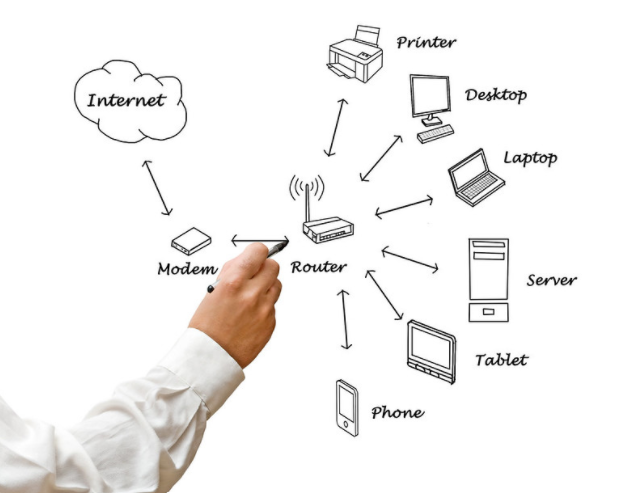
How to get WiFi at home – home WiFi network setup guide
If you are searching for how to get WiFi at home and going to setup a home WiFi network for the first time, then you have probably hit upon the right article for your assistance.
Before I show the steps for how to get WiFi in house let me first give an overview of WiFi technology for a better understanding of the wireless home network.
What is WiFi technology?
Let’s first know what WiFi stands for. WiFi is an acronym for Wireless Fidelity and a trademark of the WiFi Alliance. It is a technology and a set of standards that allows connection between devices without wires or cables.
To go wireless, WiFi has now become the preferred mode of internet connection almost anywhere be it at home, at work, in libraries, or at schools. WiFi technology has not only helped us to break away from wire connections for internet access but has also made it possible for different users to share an internet connection all at the same time.
What is a wireless home network?
Now, what is Wireless networking? Wireless networking is a method by which homes or business installations avoid cables for connections between various equipment locations. A wireless home network allows your devices such as personal computer, smartphone, tablet, video-game console, etc. to communicate with each other with the help of a tool called WiFi Router. The home WiFi network has a limited range which depends on the WiFi router being used. A wireless home network having a typical Wireless Access Point (that allows other WiFi-capable devices to connect to a wireless network) with a stock antenna, normally supports a range up to 15m indoors and 30m outdoors.
What is a WiFi gateway and how does it work?
A WiFi gateway is essentially an all-in-one device that streamlines your home internet setup. Instead of juggling both a modem and a router, a gateway combines these two roles under one hood—it connects to your Internet Service Provider to bring the signal into your home and then broadcasts it wirelessly through your rooms.
Think of the gateway as the nerve center of your home network. It takes the incoming internet signal—whether it’s broadband via cable, DSL, or even fiber—from companies like Spectrum, Xfinity, or Airtel, and shares it with all your devices using WiFi. This means your laptops, tablets, smartphones, smart bulbs, and gaming consoles can all jump online without bothering with a nest of wires.
- Single device, dual purpose: Unlike older setups where a modem and router sat side by side, a gateway merges both. This not only saves space but also simplifies setup and troubleshooting.
- Plug-and-play convenience: Just connect the gateway to your internet line and power it up. Most modern gateways come with easy-to-follow instructions, and some even allow you to configure network names and passwords right from your phone.
- Supports multiple devices: Gateways today are built to handle the growing number of smart gadgets at home, ensuring stable and speedy connections throughout the household.
In short, a WiFi gateway is your entry point to a hassle-free, wire-free internet experience—keeping the tech out of sight and your home humming online.
This is a common question for many setting up their home network for the first time: is having only a router enough to get WiFi at home? The short answer is—only if you already have an internet source to connect to.
A router, on its own, acts like an air traffic controller for your devices—it manages and distributes the internet signal inside your home, but it doesn’t create the signal itself. What you really need is an internet connection provided by your Internet Service Provider (ISP) such as Spectrum, Xfinity, Airtel, or BSNL. The ISP delivers the signal into your home, usually through a modem or WiFi gateway, and then the router takes over to beam that connection wirelessly to all your gadgets.
Here’s how it works in practice:
- With just a router (no internet connection): The router can create a local network, letting your devices talk to each other within your home for things like file sharing or printing. But you won’t be able to surf the web, stream Netflix, or join Zoom calls.
- With an internet source + router: The router shares your ISP’s internet signal wirelessly, bringing the world wide web to your phones, tablets, laptops, and smart speakers.
So, while you need a router for WiFi, you also need that vital pipeline of internet coming in from your provider. The router and internet connection work hand-in-hand—a dynamic duo to keep your household connected.
Data transfer frequency of wireless home network
The wireless home network normally transmits data at a frequency level of 2.4 GHz or 5 GHz. In order to communicate with each other freely, the devices using radio waves are tuned to a specific frequency. This allows them to avoid interference from any other wireless device in the vicinity.
However, the transmission frequency level of 2.4 GHz used by most of these devices creates network congestion and interference. Because of this problem modern WiFi routers use a frequency level of 5 GHz, which is less crowded and provides better transfers as compared to a 2.4 GHz router. Nevertheless, as the frequency level of radio signal rises, its range becomes shorter and hence a 2.4 GHz router covers a larger area than a 5 GHz device.
What can interfere with your WiFi signal?
It’s important to understand that your WiFi signal doesn’t travel in a vacuum. The 2.4 GHz frequency, in particular, is commonly used by many household devices—think cordless phones, baby monitors, and even your microwave. This crowding can lead to interference, slowing down your connection or causing it to drop altogether. Devices on the 5 GHz band generally face less interference, but their signals don’t travel as far or penetrate walls as well.
Physical obstacles, like thick walls and heavy furniture, also weaken WiFi signals. Materials such as brick, concrete, and metal are especially tough for wireless signals to pass through. If your home is full of dense materials or multiple floors, you might notice dead zones where your connection is weak or non-existent.
Even electronic devices that aren’t designed to use WiFi—such as old televisions, wireless speakers, or even Bluetooth gadgets—can sometimes interfere with your wireless network. If you notice a dip in performance when many devices are running, it’s worth checking if these might be the culprits.
For larger spaces or tricky layouts, some people use WiFi extenders or mesh systems to boost their signal, especially for the faster 5 GHz network. This helps ensure a strong and stable connection throughout your home, even with physical barriers or competing devices.
There are several versions of WiFi. The most common WiFi standard is known as 802.11a, which was released in 1997. At that time WiFi only supported connections of up to 2 Mbps. With each iteration, the speed has improved drastically – 802.11b, 802.11a, 802.11g, 802.11n, and most recently 802.11ac (also known as Gigabit WiFi). WiFi has come a long way since then, with the latest standard (802.11ac) supporting speeds up to 1,300 Mbps (although the actual speed is often closer to 200 Mbps). On top of speed, the maximum number of connected devices has also increased with 802.11ac, boasting up to 4 simultaneous devices.
How to get WiFi at home – a step-by-step guide
Now that you know the basics of WiFi technology let me show the steps about how to setup WiFi at home.
For home WiFi setup, you will need a wireless Router, a computer or laptop with wireless capabilities, a Modem (cable, fiber, DSL, etc.), and two Ethernet cables.
Here are the steps to follow for home WiFi setup: :
Step 1. The first thing about how to get WiFi in house is to find the best location in your house to place the wireless router. Its optimal placement is in a central location of your house, free from obstructions that could cause interference to wireless signals;
Ideally, position your router away from thick walls, metal objects, and large appliances, as these can weaken or block the signal. If your home is particularly large, has multiple floors, or includes areas where the WiFi signal tends to drop (commonly called “dead zones”), you may want to consider using WiFi extenders or a mesh network system. Mesh extenders, such as those offered by brands like Netgear, TP-Link, or Google Nest, can help blanket your entire living space with a stronger, more consistent signal—sometimes covering up to 5,000 square feet with no dead zones.
If you’re unsure whether you need a WiFi extender, look for signs like slow speeds in certain rooms, devices regularly dropping their connection, or areas where WiFi simply doesn’t reach. Many third-party apps and tools are available for both Apple and Android devices to help identify weak spots in your home and suggest optimal extender placement.
A well-placed router combined with extenders ensures your wireless coverage reaches everywhere you need it—from the basement to the attic—so you can enjoy seamless connectivity throughout your home.
Keep in mind that physical objects can weaken WiFi signals—walls, especially those made of dense materials like concrete or brick, and large pieces of furniture can significantly reduce your WiFi performance. Conductive materials, such as metal doors or filing cabinets, are notorious for blocking signals altogether, which can result in weak or even dead zones in certain parts of your home.
Additionally, electronic devices—even those that don’t broadcast wirelessly, like microwaves or cordless phones—can introduce interference if they’re placed too close to your router or your wireless devices. If you notice diminished performance, consider whether an excessive number of electronics could be causing the problem, and try repositioning either the router or the interfering devices.
By placing your router centrally, away from thick walls, large objects, and electronic clutter, you’ll set yourself up for a more reliable and far-reaching WiFi signal throughout your home.
Step 2. Turn off the cable or DSL modem provided by your Internet Service Provider.
Step 3. Connect the wireless router to your Internet modem if they are separate devices. To do this plug an Ethernet cable provided by the router, into the square port in the back of the modem, then attach the other end of the cable to a square port in the back of the router;
Step 4. Power on your modem (wait for a minute or two) and power-on your router (wait for a minute or two). When starting up, router and modem lights will generally blink;
Step 5. Use another Ethernet cable to connect your PC to the router’s LAN port and turn on your PC. This connection is temporary;
Step 6. Open a browser and enter the router’s IP address provided in the router manual, which will look something like 192.168.0.1, into the browser’s address bar and press enter;
Step 7. You will see the router’s login screen asking for the default administrator username and password, which you will get in the router manual;
Step 8. Change the default administrator username and password for your router to secure your home network. Keeping the default password compromises your wireless network security and can leave your router exposed to anyone;
Step 9. Make sure your router is running the latest firmware released by the manufacturer. This is a good practice because you never know how long the router was lying in the shop before it made it into your hands. Also, firmware updates can address many potential issues before you ever encounter them;
Step 10. Add WPA2 security before you setup the home network. WPA2 security is essential for your home wireless network setup. You can find this setting in the wireless security section, where you’ll select which type of encryption to use and then enter a password. The more characters and the more complex the password, the better.
The most advanced method of encryption to secure your home WiFi network setup is, the newer WiFi Protected Access 2 (WPA2), which is the best wireless encryption standard currently available.
Note: WPA2 encryption has two modes – Personal mode and Enterprise mode.
Personal mode: It is meant for home networks and networks for small offices which do not require the complexity of an authentication server. Here wireless network device encrypts the network data using a 256-bit key and allows users to set a strong password.
Enterprise mode: It is designed for Enterprise networks and needs an authentication server. This mode requires a more complex setup, but provides advanced security and is not recommended for home or small office use;
Step 11. Change the wireless network name (SSID). Choose a descriptive name for your SSID (Service Set Identifier) to make it easy for you to identify your network;
If you’re on the hunt for your Wi-Fi network name (SSID) and password, there are a few easy ways to track them down depending on your wireless router or gateway.
- Check the underside of your router: Most routers come labeled with the default wireless network name (often called the SSID) and password. Look for a sticker on the bottom or side. Brands like Netgear, TP-Link, Linksys, and ASUS typically print this info right on the device.
- Login to your router settings: If you’ve already changed your SSID or password, or just want to confirm them, open a web browser on a device that’s connected to your network. Enter your router’s IP address (common ones include 192.168.0.1 or 192.168.1.1) in the address bar, then log in using your admin credentials. From here, navigate to the “Wireless” or “Wi-Fi” section to view or update your network name and password.
- Already connected? On Windows, click the Wi-Fi icon, select ‘Network & Internet settings’, then pick ‘Wi-Fi’ and ‘Manage known networks’. Select your network and click ‘Properties’ to show your SSID. For the password, jump to the Command Prompt and use the command netsh wlan show profile name=”YourNetworkName” key=clear—your password appears under “Key Content”. On macOS, open ‘Keychain Access’, search for your Wi-Fi network, and double-click to reveal the saved password (you’ll need to enter your Mac’s admin login).
Once you have your SSID and password, you’re ready for the final setup steps.
Step 12. After saving the above configuration settings on the router, you can unplug the temporary connection of your computer to the router. Now plug your USB or PC card wireless adapter into your laptop, if it doesn’t already have a wireless adapter installed or built-in (a lot of older machines do not have one). Your computer may automatically install the drivers or you may have to use the setup CD that came with the adapter to install it;
How a Wi-Fi USB Dongle Connects You to the Internet
If your laptop doesn’t have built-in Wi-Fi, or you’re looking for on-the-go connectivity without fussing with a full wireless network, a Wi-Fi USB dongle steps in as an easy alternative. Here’s how it works:
A Wi-Fi USB dongle is a small device that plugs directly into your computer’s USB port. Instead of connecting to your home router, it taps into cellular data networks—the same kind your phone uses. Most dongles come with a slot for a SIM card, so you just insert a SIM from your preferred mobile carrier and set up a data plan.
Once connected, the dongle acts as a miniature modem, creating a direct link between your computer and the internet over 4G or 5G networks (coverage and speed may vary depending on your provider and your location—think highways, rural retreats, or even busy coffee shops). There’s no need to fuss with complex router settings or multiple cables; just plug in, let your computer install the required drivers (often automatically), and you’re online.
This setup is great for students in dorm rooms, travelers catching up on emails at the airport, or anyone working remotely who needs a fast, easy connection on a single device—no network setup required. Just keep in mind that, like any mobile connection, you’ll be bound by data caps and network coverage.
Step 13. Finally, connect to your wireless home network;
Note: In the earlier days, the broadband modem and the wireless router were always separate devices. Your ISP used to provide the modem, and you used to buy the router. But today, most ISPs offer a combined device that is both a Modem and a wireless Router.
Gateway vs. Router: What’s the Difference?
A router is a device that broadcasts a Wi-Fi signal throughout your home. It typically connects to a modem, which links you to your internet service provider (ISP). This means, in the traditional setup, you’d have a standalone modem for bringing internet into your home and a separate router to distribute that connection wirelessly.
A Wi-Fi gateway simplifies things by combining both the modem and router functionalities into a single device. This all-in-one unit connects directly to your ISP and also creates your home Wi-Fi network.
However, it is suggested to use a separate Modem and WiFi router, as routers with a built-in modem can get unstable due to overheating under heavy load conditions.
How do I reboot my Wi-Fi gateway or router?
If your WiFi seems sluggish or you’re troubleshooting a stubborn connection, a quick reboot can often do wonders. Here’s how you can reboot your Wi-Fi gateway or router at home:
- Locate the power button on the back of your wireless router or gateway. If there isn’t one, simply unplug the device from its power source.
- Wait about 10–15 seconds. This brief pause helps to clear out any leftover memory in the device.
- Plug the router or gateway back in, or press the power button to turn it on.
- Allow the device a couple of minutes to fully restart. You’ll know it’s ready once all the usual status lights stop blinking and remain steady—typically a solid green or blue.
After rebooting, your network should be back up and running. If your connection issues persist, you may need to dive a little deeper into your router settings or consult your device manual, just like you did during initial setup.
How to choose the Router for wireless home network setup
For wireless home network setup, a WiFi router is an essential hardware. A WiFi router is an electronic device that sends data from the internet cable to a device and also functions as a wireless access point so this data can be shared through radio signals instead of another cable. Therefore, choosing the best Router is very important for how to get WiFi at home.
While choosing a WiFi router that will best fit your home WiFi, there are certain things you should keep in mind. Figure out for what purpose the router will be used (i.e. for gaming, video streaming, etc), the number of devices to be connected to it, the desired range that the signal will need to go, etc. Most of today’s laptops, smartphones, and connected home devices use 802.11n. Therefore, an 802.11n router is a good fit for households that have a handful of these devices sharing Internet access.
Difference between Single band and Dual-band routers
Single-band routers use a frequency band of 2.4 GHz and do not support 5 GHz. Its range and speed are limited compared to dual-band routers, which support both the 2.4 GHz and 5 GHz frequency bands but can work with only one band at a time. Dual-band routers are faster, have a longer range, and are less prone to interference from other wireless devices in the vicinity. However, the efficiency of Dual Band Routers maximizes when using devices compatible with 5 GHz. When 5 GHz gadgets are not within range, only the 2.4 GHz frequency band gets used. There is another type of router called ‘Simultaneous Dual-band Router’, which works with both frequency bands at the same time and is faster and more flexible.
Benefits of Mesh Extender Technology for Home Wi-Fi
If you’ve ever found yourself pacing the house with your laptop or smartphone desperately searching for that elusive Wi-Fi signal, mesh extender technology is worth considering. Here’s why these systems are increasingly popular for home networks:
- Seamless Whole-Home Coverage: Mesh extenders work together to create a unified wireless network, blanketing your entire home—upstairs, downstairs, attic to basement—without the frustration of dead zones or signal drop-offs.
- Consistent Speed Across Rooms: Unlike traditional range extenders, mesh systems maintain a single network name, so your devices automatically connect to the closest and strongest access point as you move about the house. Whether you’re streaming Netflix in the living room or attending Zoom calls in a backyard office, your connection remains strong and stable.
- Expandable and Flexible: Most mesh solutions, such as those from Netgear Orbi or Google Nest, let you add additional extenders as needed. Have a sprawling floor plan or thick walls? Just plug in another mesh unit—no complicated wiring or technical headaches.
- Smart Network Management: Mesh extenders often come with user-friendly apps, allowing you to monitor devices, set parental controls, or create guest networks in minutes. Several also offer automatic updates, bolstering network security without requiring you to lift a finger.
- Minimal Interference, Even in Busy Homes: By supporting both 2.4 GHz and 5 GHz frequency bands—sometimes simultaneously—mesh systems can juggle multiple devices and minimize interference from microwaves, cordless phones, and neighboring Wi-Fi.
If you’re looking to maximize your home’s wireless coverage without complicated setup or unsightly wires, mesh extender technology offers one of the most effective and future-friendly solutions out there.
Cheapest Ways to Get Wi-Fi at Home
If you’re looking to get Wi-Fi at home without breaking the bank, there are a couple of budget-friendly options to consider before investing in a full-fledged router setup:
- Use Your Phone’s Hotspot: Many mobile carriers offer unlimited data plans that allow you to use your smartphone as a Wi-Fi hotspot. This is often the simplest and most cost-effective way to get internet in your home if your needs are basic and you don’t have a lot of devices to connect. Just be mindful of any data speed restrictions or limits your carrier may enforce after a certain usage threshold.
- Tap Into Public Wi-Fi: While not always the most reliable or secure solution, public Wi-Fi networks in cafes, libraries, or community centers can offer free internet access in a pinch. Just remember that public Wi-Fi comes with its own set of security risks, so avoid accessing sensitive information when connected to these networks.
Different Types of Routers to Choose From
Following are different types of Router to choose from:
Basic router
If you want an entry-level simple router at a reasonable price, the Net-gear WGR614, which is an excellent performer, will get your job done. However, in case you need a router with a built-in modem, the cheapest one that can fulfill your basic wireless needs is the TP-Link TD-W8951ND, which has many of the features that we would only expect on more expensive routers.
You may also like to read: How to setup Netgear Extender to extend range of your wifi network
WiFi Router with USB support
If you want a router at a reasonable price, with USB support so as to connect a printer without the hassle of wires then the Asus RT-N13U WiFi router that comes with a USB port looks to be a great unit. You can also use the port to connect an external hard disk to make it possible to access the contents of the disk from any device that is connected to the same WiFi network. The router USB port also supports wireless internet dongles from mobile operators to connect to WiFi networks making the router a portable WiFi Hotspot (an area with an accessible wireless network).
WiFi routers with a built-in modem
Normally, broadband connections to households are provided via ADSL or DSL modems connected to a phone line. WiFi routers with built-in ADSL or DSL modems are available in the market, which takes away the need to purchase modem and router separately for broadband connection for WiFi system for the home.
Understanding WiFi Extenders: How They Boost Coverage and Their Limitations
If you’re finding that certain corners of your home stubbornly refuse to cooperate with your WiFi—resulting in sluggish speeds or outright dead zones—a WiFi extender might just be your new best tech friend.
How WiFi Extenders Work
A WiFi extender acts a bit like a relay runner for your home network. It picks up the wireless signal from your main router and re-broadcasts it to areas where your WiFi tends to give up. This is especially handy in larger homes or places where thick walls, floors, or large furniture pieces might be blocking that precious signal.
Here are some scenarios where a WiFi extender comes in handy:
- You have rooms—basement office, backyard porch, or attic studio—where WiFi barely registers.
- There’s noticeable lag or drops during video calls or streaming in certain spots.
- Moving a device just a few meters away from the router results in a drastic speed decrease.
Limitations of WiFi Extenders
However, as wonderful as they sound, WiFi extenders aren’t magic wands. Here are a few important caveats to keep in mind:
- Speed drops: Extenders often rebroadcast your existing signal, so the speed in the extended area may be less than what you get right next to your router.
- Placement matters: For best results, place your extender somewhere between your router and the WiFi dead zone—not in the dead zone itself. If it can’t catch a good signal, it can’t amplify it.
- Potential interference: Devices like microwaves, cordless phones, or even thick concrete walls can affect the performance of your extender, just as they do for routers.
- Compatibility: While most extenders are designed to work with any standard router, always check for compatibility—especially if you have newer or specialized network equipment.
In short, WiFi extenders can significantly broaden your wireless coverage, but their effectiveness depends on where they’re placed, what’s in their way, and your expectations for speed in those distant nooks and crannies.
The Drawbacks of Relying on a Phone Hotspot for Internet
Using your smartphone as a mobile hotspot can be a quick fix when WiFi is out of reach, but it’s far from a perfect substitute for a dedicated internet connection. There are a few key tradeoffs to be aware of:
- Battery Drain: Hotspots are notorious power gluttons. Keeping your phone tethered to multiple devices or streaming for any length of time can gobble up battery faster than you can find your charger.
- Data Limitations: Most mobile plans come with data caps or “fair usage” restrictions. Go over these and you could run into slower speeds or unexpected charges. Burning through gigabytes with video calls or downloads? Watch for those warning texts from your provider!
- Speed Constraints: While fine for emails or a spot of web browsing, mobile hotspots often struggle with heavy-duty tasks like video streaming or large file downloads. Network congestion or spotty cellular coverage can leave you staring at that spinning buffer wheel.
- Device Wear and Tear: Prolonged hotspot use can heat up your phone, which—apart from being uncomfortable—may affect your device’s overall lifespan in the long run.
So, while mobile hotspots are handy for quick internet fixes or travel, they’re better kept as a backup plan rather than your primary internet solution.
You may also like to read: How to get internet without cable or phone line
If you’re looking to cut the cord on traditional cable or landline services, there are several ways to get online. Options like mobile hotspots, satellite internet, and fixed wireless internet open up new possibilities—especially handy if you live in a rural area or simply want to avoid the tangle of wires. Mobile hotspots tap into cellular data networks (think using your phone or a dedicated device), while satellite and fixed wireless connect you via satellite dishes or radio towers, bypassing the need for cables entirely. These alternatives can be true lifesavers when wired connections just aren’t practical.
How can I determine if I need a Wi-Fi extender for my home?
Spotty WiFi in certain rooms, videos stopping to buffer mid-binge, or devices that just refuse to connect? You might be running into the infamous WiFi “dead zones.” If some areas of your home have noticeably weaker signal strength, slower speeds, or dropped connections, it’s a sign your router’s reach could use a little helping hand.
Before shopping for a WiFi extender, here are some quick checks:
- Test from different rooms: Move around your home with your phone, tablet, or laptop and check the WiFi bars or run a simple speed test.
- Identify common obstacles: Thick walls, metal appliances, or multiple floors can weaken WiFi signals, leaving some corners signal-starved.
- Compare device experiences: If only some devices or users consistently lose connection in specific spots, a range issue is likely at play.
If you regularly encounter dead zones or persistent slow speeds far from your main router—even after rebooting it or relocating it to a more central spot—a WiFi extender may be just what your network needs. Popular options from brands like Netgear, TP-Link, and Asus are easy to set up and can help cover those hard-to-reach corners, so every streaming night or video call goes smoothly.
Remember, a WiFi extender works best when placed about halfway between your router and the problem area—not too far from the main signal, and close enough to cover the dead zone. Setting it up may also require some experimenting with locations for the strongest boost.
How can you use your phone as a Wi-Fi hotspot?
Let’s say your home internet goes out or you’re working from a park bench—your smartphone can swoop in as a makeshift WiFi lifeline. Most modern smartphones (both iPhone and Android) come with a built-in “mobile hotspot” or “tethering” feature. Here’s the basic rundown:
- First, open your phone’s settings—look for sections labeled “Connections,” “Network & Internet,” or “Personal Hotspot.”
- Turn on the mobile hotspot option. You’ll be prompted to set a network name (SSID) and password—pick something secure.
- On your laptop, tablet, or another device, scan for nearby WiFi networks. Select your phone’s newly created hotspot, enter the password, and you’re online!
A few quick caveats:
- Using your phone as a hotspot eats into your mobile data, so keep an eye on your plan’s limits to avoid surprise charges or throttled speeds.
- Hotspotting can drain your phone’s battery faster than streaming your favorite Netflix show, so plug in if you’ll need it for more than a quick email.
- For basic browsing and emails, a hotspot works like a charm; but for binging 4K movies or gaming marathons, a home WiFi network is still your best bet.
It’s a great backup trick for those “no WiFi? No problem!” moments.
What should you consider when using a mobile hotspot?
Using your phone or a dedicated device as a mobile hotspot can be a lifesaver—whether you’re working remotely from a coffee shop, traveling, or your home internet is on the fritz. But before you lean too hard on this backup internet option, there are a few things worth keeping in mind:
- Watch your data usage: Mobile hotspots tap directly into your cellular data plan. Streaming videos, downloading files, or even just browsing for hours can quickly eat through your monthly allowance. Make sure your plan offers enough data—or better yet, unlimited data—before you start binge-watching your favorite series on your laptop.
- Security matters: Always set a strong, unique password for your mobile hotspot. Leaving it open can invite unwanted guests to your network, potentially gobbling up your data or worse, compromising your privacy. Think of it like leaving your front door wide open at a block party—not a great idea.
- Potential limits and throttling: Even with “unlimited” plans, many carriers have a soft data cap for hotspot usage. If you blow past it, you might notice your connection slows to a crawl or additional charges quietly appear on your bill.
- Battery drain: Running a mobile hotspot is a power-hungry activity, especially if you’re connecting multiple devices. Keep a charger or battery pack handy—nobody wants their Zoom call dropped due to a dead phone.
In short, mobile hotspots are incredibly handy for short-term use or as a backup, but keep an eye on your data, battery life, and security settings to avoid surprises.
How do mobile hotspots work for internet access?
Picture this: you’re away from home, the coffee shop’s WiFi feels slower than a dial-up modem, and your deadline is looming. That’s where mobile hotspots step in to save the day. A mobile hotspot acts like a pocket-sized router, drawing in 4G or 5G cellular data from providers like Verizon, AT&T, or T-Mobile and converting it into a WiFi network that your devices—laptops, tablets, even smart TVs—can join just like they would at home.
Mobile hotspots are especially handy if you travel frequently, work remotely from anywhere (think park benches, hotel rooms, or the backseat of your car), or live in areas where standard broadband hasn’t made an appearance yet. Some models come with extra perks like all-day battery life, the ability to connect several devices at once, and a longer broadcast range than simply using your smartphone’s hotspot feature.
A couple of things to remember, though:
- Data limits: Most mobile hotspot data plans come with caps. Go over, and you might see slower speeds or added fees.
- Portability: These are entirely portable—toss one in your bag, and you’ve got WiFi almost anywhere you have cell coverage.
- Great for emergencies: If your home internet ever goes out, a mobile hotspot is the tech equivalent of a spare tire.
In short, mobile hotspots are a solid solution for on-the-go internet access—but keep an eye on your data usage to avoid any surprises on your bill.
Now, let’s tackle some frequently asked questions about home WiFi setup.
Frequently asked questions
Now that I have explained how to setup WiFi at home and the steps to follow for setting up a wireless home network let me also answer some related questions often asked by people.
How do I setup a private home network?
For private home WiFi setup, first, open your Windows Control Panel and select the ‘Network and Sharing Center’ icon. Next, select your current network connection and click ‘Customize’. Now choose ‘Private’ for your network type.
Can I get WiFi without an Internet provider?
Public WiFi hotspots are great options to access WiFi without an internet provider. There may be several public WiFi hotspots available around you. Depending on where you live, you can even access them from inside your home. These hotspots may belong to businesses such as restaurants or coffee shops.
Why might someone still need a traditional internet service provider (ISP)?
While public WiFi hotspots or alternative options can come in handy for the occasional check-in, streaming session at the coffee shop, or those rare times your neighbor’s signal “accidentally” drifts across your living room, there are plenty of reasons most households still rely on a dedicated ISP.
If your daily routine involves working from home, juggling smart devices, streaming HD shows on Netflix or Disney+, or gaming online, a traditional ISP delivers the speed, reliability, and bandwidth needed to keep everything running smoothly. Unlike most public or short-term alternatives, an ISP means your household gets a consistent, always-on connection—no awkward buffering or unexpected dropouts when you’re in the middle of a video call.
Beyond speed and stability, internet service providers usually include customer support. If your WiFi is on the fritz, it’s nice to have a real human (sometimes with a headset, sometimes with a clipboard) to walk you through troubleshooting or to arrange repairs.
That said, if you only hop online occasionally, want to avoid contracts, or you’re all about saving money, experimenting with alternatives like mobile hotspots or neighborhood WiFi can be a solid short-term option. But for most folks who want dependable, around-the-clock access at home, sticking with a trusted ISP is still the most straightforward—and headache-free—choice.
Can you get WiFi without signing a contract?
Yes! If you’re not ready to lock yourself into a long-term agreement, you still have plenty of ways to get WiFi at home—or on the go—without signing on the dotted line. Consider these flexible options:
- Prepaid internet plans: Many providers now offer prepaid options that let you pay month by month, so you’re never stuck with a contract you don’t want.
- Mobile hotspots: Devices like the Verizon Jetpack or AT&T’s Nighthawk let you buy a portable hotspot and purchase data as needed—perfect for renters, travelers, or anyone who needs WiFi on a temporary basis.
- No-contract broadband: Some ISPs have begun rolling out true no-contract or month-to-month home internet packages. This means you can try out their service without worrying about awkward cancellation fees or long-term obligations.
These alternatives work well for people who want to experiment with different providers, need WiFi for a short-term living situation, or simply like the freedom to switch things up when their needs change. Just make sure to compare the available options in your area, check device compatibility, and look for any upfront equipment or activation fees to avoid surprises down the road.
Which apps provide access to free internet by sharing Wi-Fi passwords?
If you’re hoping to hop online without relying on your cellular data plan, there are handy apps out there designed to crowdsource WiFi passwords from users all around the globe. For example, apps like Instabridge and WiFi Map let you search for nearby WiFi hotspots—public or private—and access shared passwords contributed by other users.
Just open the app, and you’ll see a map peppered with available networks around your area. Tap one to get helpful details like signal strength, reliability tips, and, of course, the password (if it’s available). It’s especially useful in airports, coffee shops, or when you’re traveling in an unfamiliar city and need to get online fast.
Of course, remember that with great convenience comes a pinch of caution:
- Only connect to networks you trust—avoid any that seem suspicious.
- Protect your privacy by using a VPN when connecting to any public or shared WiFi network.
With these apps, scoring a quick connection on the go is much easier, even if you’re miles from your home router.
Where can you find public WiFi networks, and how do you connect to them?
You’ll spot public WiFi networks in all sorts of bustling places—think coffee shops, airports, hotels, libraries, and even some grocery stores. Cities and college campuses tend to offer a wider selection of free or low-cost hotspots compared to quiet country towns, so your options may depend on your geography.
Curious if you’re within reach of any public WiFi? Simply open your device’s WiFi settings and scan the list of available networks. If you see network names that aren’t locked with a padlock icon (meaning they’re unsecured), these typically won’t require a password to connect. Just tap to join, and you’re online!
A quick tip: For regular access in public spaces like Starbucks, McDonald’s, or libraries, you’ll often find free WiFi that only asks you to accept their terms before you start browsing. And in case you’re relying on this for crucial tasks, remember that public networks can be less reliable and secure—so avoid logging into sensitive accounts or sharing private info when browsing out and about.
Let’s wrap up with a few key things to keep in mind before you settle on a home WiFi setup through a broadband connection.
What are the risks of using public WiFi, and how can you stay safe?
Tapping into free WiFi at your favorite café, library, or airport can feel like unlocking a secret superpower. But before you dive into your next streaming session or share vacation pics, it’s worth knowing that public WiFi isn’t all sunshine and rainbows.
The risks:
Public WiFi networks are typically open or only lightly secured, making them prime hunting grounds for digital eavesdroppers. When you’re on an unsecured connection, hackers can snoop on your online activity, potentially grabbing sensitive information like login credentials or credit card numbers. Man-in-the-middle attacks, rogue hotspots (WiFi impostors pretending to be legitimate networks), and data interception are just a few common threats that lurk in these shared spaces.
How to protect yourself:
- Stick to secure sites: Only enter personal details on websites that use HTTPS (look for the little padlock icon in your browser).
Use a VPN: A virtual private network (VPN) creates a secure tunnel for your data—think of it as your personal invisibility cloak on public WiFi.
Avoid sensitive transactions: Hold off on internet banking, shopping checkouts, or accessing confidential work documents until you’re on a trusted connection.
Disable auto-connect: Make sure your device doesn’t automatically join unfamiliar networks without your approval.
Forget networks when done: After using public WiFi, remove it from your preferred networks list to avoid accidental reconnects later.
Public WiFi is handy for checking maps, reading the news, or catching up on email, but it’s best to save your heavy-duty, private activities for your secure home network.
You may also like to read: How to get WiFi without Internet Provider
Conclusion
Now that I have explained all you need to know about WiFi technology and how to get WiFi at home, here are a few important points to note before you go for a home WiFi setup through a broadband connection:
- If you connect several gadgets such as streaming videos, music, etc. to the router all at a time via your wireless home network, a basic router may hang due to overloading;
- If you want to connect more than 8/10 devices to your home WiFi network you should go for a Dual-band Router;
- For connecting devices like streaming HD videos or gaming videos which require speed and a lot of bandwidth, it is advisable to go for a Simultaneous Dual-band Router;
- Since WiFi technology has gained wide popularity you should not go for buying a 2.4 GHz router due to increased possibility of interference from surrounding networks in the vicinity;
- In order to ensure that there is no interference from other WiFi networks nearby, for home WiFi setup, you should buy a router that supports the 5 GHz frequency;
- However, in such a case, before changing over to this frequency band exclusively, make sure that all your gadgets support the 5 GHz band;
You may also like to read: My internet keeps disconnecting every few minutes – how to fix

JordanAlbert
Feb 27. 2021
It’s an interesting article..!! Thanks for sharing this useful information. For any queries related to Asus Router Setup, Check in to our site..!!
howlondon
May 04. 2021
Informative, This is quite basic information about wireless home networking. infographics especially helped me. There is also something after making secure the wireless network that we need to secure our home too. Now we have more and most up-to-date home network security setup. Now we can monitor our all cameras from anywhere, but to avoid any kind of cyber-attack we have to make sure that our network setup is safe.