Can you watch YouTube on Amazon Fire tablet smoothly?
How can you get YouTube on Fire tablet?
Can you watch YouTube on Amazon Fire tablet smoothly? Probably not. Viewing YouTube for Amazon Fire tablet can present some challenges. People use different methods to access YouTube on these devices, such as using the Silk browser or sideloading apps. If you haven’t installed the YouTube app tailored for Fire tablets, navigating through videos might be inconvenient and installing YouTube can require a lot of steps and effort. In this article, I will walk you through the steps as a way to help you enjoy a smooth video-watching experience on YouTube on Fire tablet.
How can you watch YouTube on Amazon Fire Tablet smoothly?
A common grievance among Fire tablet users is the difficulty in watching YouTube in Amazon Fire tablet without issues. Many report that the YouTube app for Fire tablet either fails to load or operates inconsistently, leading to a frustrating viewing experience. Some installation methods may not work as expected on Fire tablets, which adds to the challenge.
Users of Amazon Fire tablets frequently inquire whether the YouTube app is available on their devices. While the Kindle Fire Tablet series is an impressive lineup from Amazon, powered by the Android Operating System and loaded with fantastic features, the confusion arises primarily because YouTube apps are not pre-installed on any of the Fire tablets, including the Kindle Fire, Kindle Fire HD, and Kindle Fire HDX.
The YouTube app does not come pre-installed on Fire tablets, nor can it be added directly through the Amazon App Store. This limitation arises because the YouTube apps found in the Google Play Store are absent from the Amazon Stores. The lack of availability results from a longstanding tech rivalry between Google and Amazon, which keeps apps like YouTube, YouTube Kids, and others, available in the Google Play Store, off the Amazon platform. So, how can you enjoy YouTube on Amazon Fire tablet?
To watch YouTube on your Kindle Fire Tablet or any Amazon Fire tablet without issues, you need to install the YouTube app using methods outside the Amazon App Store. Find below, a complete guide on how to successfully obtain YouTube for Amazon Fire tablet through alternative means.
What if you have a first-generation Kindle Fire? Is YouTube still an option?
Now, before you get your hopes up, let’s address a common roadblock: first-generation Kindle Fire tablets. If you dusted off an early model from Amazon’s archives and are wondering how to join the YouTube fun, here’s the reality check—these original devices (running old FireOS versions built on ancient Android) don’t support the “workarounds” used by newer tablets. Simply put, sideloading the YouTube app or related services won’t work here due to hardware and software limitations.
But all is not lost. There’s still a workaround if you’re determined:
- Use the Silk Browser:
While a dedicated app isn’t in the cards, you can still visit YouTube’s mobile website by opening the pre-installed Silk Browser. Just go to www.youtube.com and enjoy most YouTube features right from your browser. - Consider upgrading:
If you plan to use your tablet for streaming regularly, it might be worth investing in a newer Fire tablet model. The latest versions support more third-party apps and have smoother video performance. - Alternative streaming devices:
If swapping tablets isn’t your thing, think about affordable streaming sticks like the Amazon Fire TV Stick, Roku, or Google Chromecast, which support YouTube via their respective app stores. These devices easily connect to your TV and turn almost any screen into a YouTube-capable entertainment center.
While the original Kindle Fire can’t run the YouTube app itself, a little ingenuity with the Silk Browser—or the right hardware upgrade—will still get you back to your favorite cat videos and music playlists.
How can you get YouTube on Fire tablet?
The Kindle Fire tablet features a larger screen that enhances video viewing. This is especially beneficial for children, as they enjoy a more immersive experience watching YouTube Kids videos on a larger device screen compared to smaller mobile phones. Although the official method to access YouTube on a Kindle Fire Tablet is via the Amazon App Store, accessing the app can be challenging since it is not available there. So, how can you download YouTube on Fire tablet despite its absence in the Amazon App Store?
If the app you want isn’t available in the Amazon store, side-loading refers to the process of installing an app on your Android tablets from a source other than the official app store, which in this instance is the Amazon App Store. Another popular method is to download Google Play Store on the Fire tablet, which allows you to access and install YouTube directly.
Hence, if you find that YouTube is not functioning properly on your Kindle Fire, you may need to install the YouTube app via side-loading. Fortunately, side-loading Android apps onto a Kindle Fire is a relatively straightforward method. When downloading APK files for installation, always use trusted links to avoid potential security risks.
Follow the simple steps below to side-load and install the YouTube app on Fire tablet for a better video experience. Using the Silk browser or the Play Store can also result in fewer ads compared to other approaches. If you want a quick and easy way to watch YouTube videos on your Fire tablet, simply visiting YouTube.com in the built-in Silk browser gives you access to a YouTube layout designed for larger screens—no downloads or workarounds required. This not only saves you time but also helps preserve your tablet’s storage, which is especially useful since Kindle Fire devices typically have limited space. By streaming directly in your browser, you avoid cluttering your device with extra apps that could slow things down, all while enjoying a smooth YouTube experience.
Is the browser version slower?
The browser loads videos reliably but without full app features. While you get the essentials—search, recommendations, playlists, and a clean interface—the experience isn’t quite as seamless as using the dedicated YouTube app on other devices. Features like notifications, offline downloads, or picture-in-picture may not be available, and sometimes video playback controls are more basic. Still, for most users who just want to watch videos, the trade-off is minimal, and it’s a solid alternative if you’re looking for simplicity and minimal hassle.
Why choose the browser method?
The Silk browser is the fastest route to watching YouTube on any Fire tablet, requiring no APK installs or system tweaks. While the browser version delivers reliable video playback, it doesn’t offer every feature you’d find in the full YouTube app—think background play and advanced settings. Still, for most people, it gets the job done with minimal fuss.
Looking for the full YouTube app experience?
If you’d rather have all the bells and whistles, you can install the Google Play Store and download the official YouTube app. This option offers better performance and the complete suite of YouTube features. Just keep in mind: you’ll need to enable app installations from unknown sources in your device’s settings. It’s a bit more involved, but it unlocks the full YouTube experience on your Fire tablet.
Both the browser and Play Store methods work on every Fire tablet. The browser is best for speed and simplicity, while the Play Store route is your ticket to a more robust YouTube app—choose whichever fits your needs and comfort level.
How do I check the Fire OS version and device model on a Kindle Fire?
Before you get started with side-loading, it’s smart to confirm which version of Fire OS your device is running. The steps you’ll follow may vary slightly depending on your Fire OS version or device model, so it’s always best to check first.
Here’s how:
- Open the Settings menu from your Kindle Fire’s home screen.
- Scroll down and tap on Device Options.
- Look for About Fire Tablet (sometimes labeled as Device Model or System Updates on certain models).
- Here, you’ll find details about your device model and the exact Fire OS version it’s running.
Jot down this information—you’ll need it in a moment to make sure you download the correct files for your Fire tablet.
Which Kindle Fire models and Fire OS versions support sideloading YouTube?
Not all Kindle Fire tablets are created equal when it comes to sideloading the YouTube app. Your ability to install and run YouTube outside the Amazon App Store depends on your device’s generation and the specific version of Fire OS it runs.
Here’s a practical guide to compatibility:
- Fully Compatible:
Fire tablets running Fire OS 5, 7, or 8—including most 4th generation models and newer—are generally able to sideload and use the YouTube app reliably. This includes popular devices like the Fire HD 8, Fire HD 10, and Fire Max models released over the past several years.
- Limited or No Support:
>1st and 2nd generation Kindle Fire tablets (with Fire OS 1 or 2) are simply too old for modern app sideloading. Attempting to get YouTube working on these devices generally leads nowhere fast.
>Some 3rd generation models can encounter compatibility issues or may require older versions of YouTube, if they work at all.
- Tips for Success:
>Always match the APK file with your specific Fire OS version. For example, if you’re running Fire OS 7 (Android 9 base), be sure to download the variants of the YouTube app that support that Android version for smoother results.
>If your device is several years old, double-check compatibility before proceeding—it saves you from trial, error, and potential frustration.
So, in short: If you’re using a Fire HD 8, Fire HD 10, or newer with Fire OS 5, 7, or 8, you’re set for sideloading. Owners of the very first Kindle Fires, however, will want to stick with browser-based YouTube or consider an upgrade for a better experience.
Now, let’s walk step-by-step through the installation process.
Steps to install YouTube app on Amazon Fire tablet by side-loading
Here’s how to download and install the YouTube app on Amazon Fire tablet:
1. Begin by enabling the option for installing apps from unknown sources on your tablet. To accomplish this,
Swipe down on the Home screen > Tap ‘More’ > Choose ‘Device’;
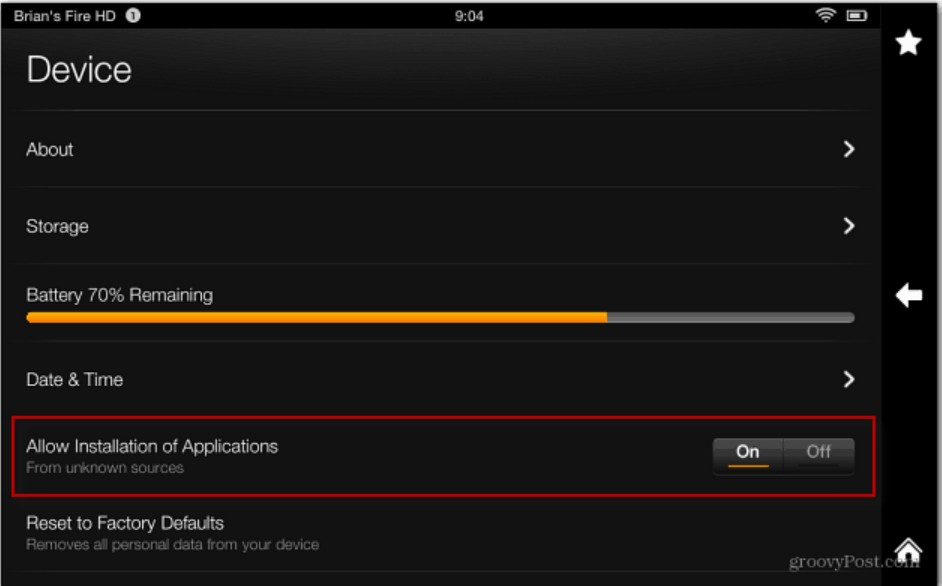
2. Next turn ‘on ‘Allow Installation of Applications’. This may bring up a warning note telling you that downloading apps outside the Amazon App Store could be harmful. Tap ‘OK’;
3. Now download the youtube.apk file to your computer by following a safe and verified link;
4. After the download is complete connect your Fire tablet to your computer;
5. In just a few seconds, the ‘AutoPlay’ option should appear on the screen;
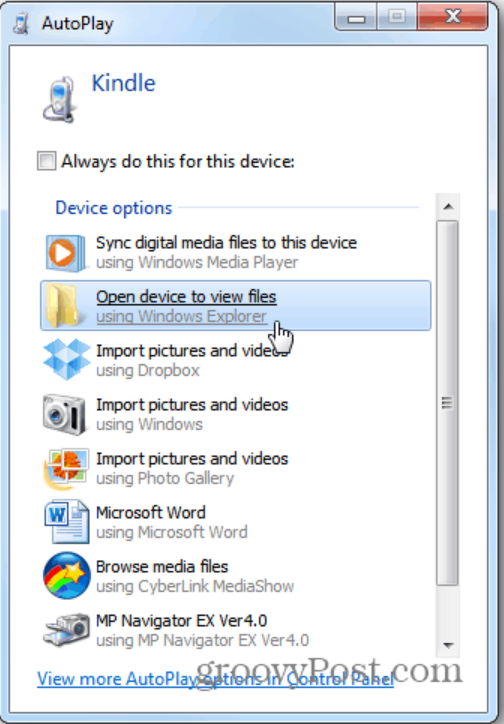
6. Once AutoPlay appears, select ‘Open Device’ to access your files;
7. Navigate to the Download Folder and transfer the APK file there;
8. Next, download ES File Explorer app and install it on your tablet, which is essential for side-loading apps, then open the ‘Download’ folder to view all downloaded files;
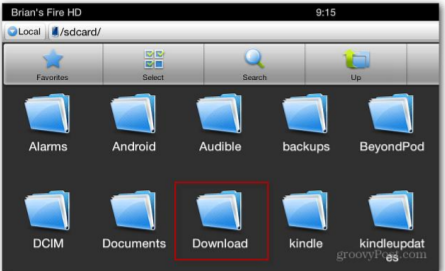
9. Tap the YouTube icon and before proceeding, check the details of the APK file to ensure its authenticity and safety, then follow the on-screen prompts to install the YouTube app on Fire tablet. After a few moments, the installation will complete;
10. Return to the Home screen to verify the installation of YouTube for Kindle Fire. If all steps were followed correctly, the YouTube app should now be visible alongside your other apps;
11. Tap the ‘YouTube’ icon to launch the app and enjoy watching YouTube on Fire tablet effortlessly.
Using a Third-Party App for Video Streaming on Fire Tablet
If sideloading isn’t for you, there are alternative apps that allow you to stream popular video content with a similar look and feel to the official app experience—no hacking required.
One reliable option is “Video For YouTube” by Freeman Apps, which is available for direct download from either the Amazon Appstore or via the Amazon Shopping app. Here’s how you can get set up in just a few taps:
- Open the Amazon Appstore on your Fire tablet.
- Use the search bar to look for “Video For YouTube” (published by Freeman Apps).
- Tap the app in the search results, then tap ‘Download’ or ‘Get’ to install.
- After installation, you’ll find the app icon on your home screen alongside your regular apps.
- Open the app and start browsing and watching your favorite content right away.
While it isn’t an official app, these alternatives often provide a smooth browsing and playback experience—sometimes even with extra features like background play or pop-out windows. If you have questions or run into any oddities, the developer usually provides support right from the app’s Amazon listing.
If you’re looking for even more versatility, you can explore additional Android app stores for a broader selection of streaming apps, but always make sure to use trusted sources to keep your device secure.
Adding a YouTube Shortcut to Your Fire Tablet Home Screen
If you prefer quick access to youtube.com—without searching through your app drawer or browser bookmarks—you can easily place a shortcut right on your tablet’s home screen. Here’s how to do it:
- Open the Silk browser on your Fire tablet and navigate to youtube.com.
- Once YouTube loads, look for the menu icon (usually represented by three vertical dots) at the upper right corner of the browser.
- Tap this menu, then select “Add to Home screen.”
- Confirm by tapping “Add,” and you’ll see a YouTube shortcut appear among your other apps.
This little trick gives you near-instant access, just like having the real app front and center.
Troubleshooting Tips for YouTube and Play Store Issues on Fire Tablet
Sometimes, even after carefully following the side-loading steps, things don’t go quite as planned. If you’re running into trouble with installing or launching YouTube or the Play Store on your Fire tablet, don’t panic—most hiccups are easily fixed with some quick troubleshooting.
Here’s what you can try if something’s not working as it should:
- If the Play Store won’t open:
>Restart your Fire tablet (a quick reboot works wonders).
>Head to Settings > Apps & Notifications > Manage All Applications.
>Find the Play Store app, tap it, and clear its cache.
>If the Play Store finally loads, check for updates—especially for Google Play Services, as an outdated version can cause headaches.
- If YouTube refuses to load or keeps crashing:
>Go to Settings > Apps & Notifications > Manage All Applications.
>Locate both YouTube and Google Play Services, then clear their caches.
>Uninstall and reinstall the YouTube app if the problem persists.
>Restart your device for good measure.
- For APK file or installation errors:
>Double-check that you’ve downloaded the correct version of the APK files for your specific Fire OS version.
>If the file seems corrupt or won’t install, delete it and download a fresh copy from a trusted source.
>Power off your Fire tablet, then turn it back on before attempting installation again.
Working through these steps usually solves most common issues. If your tablet is still being stubborn, take a deep breath and give each fix a try—you’ll often get things running smoothly in no time.
What to Do if You Get a Download Error on Your Fire Tablet
Encountering an error message when downloading apps on your Fire Tablet? Don’t worry—it happens to the best of us, and there’s usually a quick fix:
- Start by restarting your Fire tablet; this simple step can clear up minor glitches.
- If the error persists, double-check your internet connection to ensure you’re not dealing with a weak Wi-Fi signal.
- Make sure your device has enough available storage—downloads will fail if you’re running low on space.
- Navigate to Settings > Apps & Notifications > Manage All Applications, find the app store or browser you’re using, and clear its cache and data.
- Still not working? Try downloading the app again after powering your tablet off and back on.
These quick fixes typically resolve most download hiccups on Fire tablets, letting you get back to adding new apps without a hitch.
Fixing App Purchase Failures on Your Fire Tablet
So, you’re trying to buy an app on your Fire tablet, but you keep running into a “Purchase Failed” message. Annoying? Absolutely. Impossible to fix? Not at all. Here are some handy steps you can take to get your app purchases working again:
- Check Your Internet Connection: A spotty Wi-Fi signal or lost connection can prevent purchases from going through. Make sure you’re connected to a stable network before trying again.
- Review Payment Methods: Head to your Amazon account and make sure your payment method is up to date and valid. An expired card or missing billing info is often the culprit.
- Update Your Fire Tablet: Outdated software sometimes causes glitches. Go to Settings > Device Options > System Updates and make sure your tablet is running the latest version of Fire OS.
- Clear App Store Cache: Navigate to Settings > Apps & Notifications > Manage All Applications, find the Amazon Appstore, and clear its cache and data. This can often clear up stubborn payment hiccups.
- Restart Your Device: As always, a quick restart can work wonders—sometimes all your tablet needs is a fresh start before things work smoothly again.
Check Region Restrictions: Some apps or purchases may not be available in your area. Double-check the app details if you’re having persistent issues.
Trying these steps should clear up most app purchase problems, so you can get back to enjoying new downloads without the headache.
Troubleshooting APK Installation Issues on Your Fire Tablet
If things hit a snag during installation, don’t worry—most APK errors on Fire tablets can be fixed with a few quick steps. Here’s what to try if you run into trouble:
- Check Compatibility: Double-check that the APK file matches both your Fire OS version and device model. An outdated or mismatched APK will almost always throw errors.
- Re-download the File: Sometimes downloads can get corrupted. Delete the problematic APK, download it again (making sure you’re using a trusted source), and try installing it once more.
- Clear App Caches: If the Play Store or YouTube won’t cooperate, head into your Fire tablet’s settings and clear the cache for these apps as well as Google Play Services. This often resolves loading and installation issues.
- Restart Your Device: When in doubt, a quick reboot can work wonders—restart the tablet and attempt the installation again.
- Update Services: Make sure essential services like Google Play Services have been updated; outdated background components sometimes block smooth installs.
A few more things to keep in mind:
- After installing the Play Store, the app may take a few minutes to function properly. That’s normal—it’s updating itself and Google Play Services in the background.
- If you run into persistent trouble, try logging out and back into your Google account via the Play Store app.
- On rare occasions, a major Fire OS update may break the Play Store or cause YouTube to stop working. If that happens, you may need to repeat the installation process using the latest APK files, or in some cases, reset your Fire tablet and start fresh.
With these fixes, you’ll usually be able to resolve the most common stumbling blocks and get your APK up and running on your Fire tablet.
Keeping the YouTube App Up to Date on Your Fire Tablet
Now that you’ve got YouTube up and running, it’s important to keep it updated to ensure smooth performance and security. Good news—if you installed the Google Play Store during your side-loading adventure, updates are pretty much hands-off.
Here’s how to make sure your YouTube app stays current:
- Open the Google Play Store on your Fire tablet.
- Tap your profile icon in the top-right corner.
- Select Manage apps & device to see available updates.
- Hit Update all (or just update YouTube if you spot it in the list).
It’s worth checking in from time to time, since updating through the Play Store keeps all your apps—including YouTube—optimized and running smoothly. And here’s a quick pro tip: sometimes, after a big Fire OS update, your tablet might reset certain permissions for Google apps. If YouTube starts acting up, open your Settings and double-check those permissions. That’ll keep your experience hassle-free and your videos playing without interruption.
Tips for Even Better Performance
If you want YouTube to run at its best, here are a few extra tricks:
- Use a 5 GHz Wi-Fi network when possible. You’ll notice snappier loading and smoother playback compared to 2.4 GHz.
- Restart your tablet weekly to clear out any background processes that could slow things down.
- Keep at least 2 GB of free storage on your device. Low storage can cause apps to lag or crash unexpectedly.
A little routine maintenance goes a long way—combine these steps with regular updates and you’ll keep your Fire tablet running like a champ.
What to Do If Your Fire Tablet Feels Slow After Adding More Apps
If your Fire tablet starts lagging after you’ve installed a few new apps, you’re not alone—these devices aren’t exactly famous for their extra storage space. When performance takes a dip, here’s what you can do:
- Uninstall any apps you don’t use regularly. Keeping things lean helps free up valuable memory and keeps your tablet zippy.
- Clear cache for apps that tend to grow large over time (like YouTube or browser apps). Head into Settings > Storage > Apps & Games, tap the culprit, and hit “Clear Cache.”
- Keep your downloaded content (videos, music, etc.) to a reasonable minimum. Offloading files you don’t need right now can make a big difference.
- Shut down background apps you’re not actively using by swiping them away from the app switcher.
Regular housekeeping like this will help keep your tablet running quickly—no need for a full reset every time things slow down. And remember, the fewer extra apps and files you have, the more room your Fire tablet has to breathe.
Boosting the Volume on Your Amazon Fire Tablet
If your Fire tablet’s built-in speakers just aren’t loud enough for your taste, you have a few options that’ll pump up the sound—no shouting required!
- Try a Volume Booster App:
There are several apps available in the Amazon Appstore designed to amplify your tablet’s maximum volume output. For example, apps like “Super High Volume Booster” or “Volume Booster GOODEV” can give you that helpful extra boost for videos, music, or podcasts. Just download your preferred app, follow the simple setup, and adjust the slider to ramp things up. - External Speakers and Headphones:
For even bigger sound, consider pairing a Bluetooth speaker or headphones with your tablet. Even a budget-friendly portable speaker can outperform your tablet’s onboard sound, making movies and music much more immersive.
A quick reminder: turning the volume up past the default maximum (especially with booster apps) can occasionally lead to some distortion or tinny audio, so start low and increase gradually to find your tablet’s sweet spot.
With these tricks, you’ll get every word, beat, or cat video at the perfect volume.
Watching Downloaded YouTube Videos on Kindle Fire HD
If you’d rather watch YouTube videos offline on your Kindle Fire HD, downloading them to a supported format like MP4 or WebM is your best bet. The Kindle Fire HD works well with files in these formats, so you’ll enjoy smooth playback without any hassle.
Here’s a step-by-step guide to downloading and transferring YouTube videos for offline viewing:
Choose a Trusted YouTube Video Downloader:
Pick a reliable online tool or software that allows video downloads from YouTube. Be sure it can save videos in MP4 or WebM formats for maximum compatibility.- Download Your Videos:
- Copy the link of the YouTube video you’d like to save.
- Paste the URL into your chosen downloader.
- Select MP4 or WebM as your output format.
- Start the download and wait for the video to save on your computer.
- Connect Your Kindle Fire HD:
- Use a USB cable to link your Fire tablet to your computer.
- When prompted, select “Open Device” to view your tablet’s storage.
- Transfer the Video:
- Navigate to your downloaded video file on your computer.
- Copy and paste (or drag and drop) the file into your Fire tablet’s “Videos” folder.
- Play the Video on Your Kindle Fire HD:
- Safely disconnect your tablet from the computer.
- Open the “Videos” app or your preferred video player on the tablet.
- Locate your transferred file and tap to play.
A quick note: Besides YouTube, you can use similar methods to save and transfer videos from other popular sites like Vimeo, Facebook, and Dailymotion. Just make sure you download files in a Fire-compatible format like MP4 for smooth viewing, and always stick with reputable downloaders to keep your device safe.
Should you remove your microSD card before sideloading apps?
If you have a microSD card inserted as expanded storage in your Fire tablet, it’s a good idea to take it out before you start sideloading apps like YouTube or the Google Play Store. Here’s why: When an SD card is present, there’s a chance your tablet might try to install these new apps directly onto the card instead of the device’s internal storage. This can sometimes cause installation errors, loading glitches, or make it trickier to find and open the app later on.
Remove your microSD card:
Before you continue, if you use an SD card as expanded storage, remove it now to prevent the Google apps from installing on the card. You can reinsert it when you’re finished installing the Play Store or any other sideloaded apps.
For best results, simply eject the microSD card before you begin installing any APK files. You can always pop the card back in as soon as you’re finished. This small step can save you headaches and ensures all your newly installed apps work seamlessly right from your tablet’s main storage.
Installing the Google Play Store on Your Fire Tablet
If you want to expand the range of apps available on your Fire tablet, installing the Google Play Store is a great solution. Since the Google Play Store is not offered through the Amazon App Store, you’ll need to manually install it using APK files. This process unlocks access to thousands of Android apps, including those not listed in the Amazon ecosystem.
Here’s how you can install the Google Play Store on your Fire tablet:
Prepare Your Fire Tablet
Open the Settings menu on your Fire tablet. Navigate to “Security & Privacy” and toggle on the option to allow installation of apps from unknown sources. This step is essential for installing APK files outside the Amazon App Store.
Download the Required APK Files
Using the Silk Browser on your Fire tablet, visit a reputable website that offers the latest versions of the necessary Google Play Stor APK files. You’ll typically need four files: Google Account Manager, Google Services Framework, Google Play Services, and the Google Play Store app itself. Make sure to download the versions compatible with your Fire OS.
A Few Tips Before You Download:
- Pay close attention to the download source. Some sites can have misleading ads with fake download icons—always confirm the download button matches the site’s style and indicates the correct file size.
- Choose the right version for your device.
>8th Gen and newer tablets: Download Google Account Manager 7.1.2
>7th Gen and older tablets: Download Google Account Manager 5.1
- Stick with APK files. Avoid app bundles and beta versions to ensure smooth installation.
- Just download for now. Hold off on opening or installing the files—you’ll install them in a specific order in the next steps to make sure the Play Store works correctly.
Taking a moment to verify each file helps avoid installation headaches and gets your Play Store up and running without a hitch.
Which files do you need?
- Google Account Manager: The version depends on your tablet model:
>8th Gen and newer: Google Account Manager 7.1.2
>7th Gen and older: Google Account Manager 5.1
Always grab the most recent non-beta APK file—avoid app bundles and ensure you’re not downloading a beta version.
- Google Services Framework:
>Fire Max 11 (13th Gen), Fire HD (9th & 11th Gen), Fire HD 8 (10th Gen), Fire 7 (9th Gen, FireOS 7), Fire HD 8 (8th Gen, FireOS 7): Google Services Framework 9-4832352
>Fire 7 (12th Gen, FireOS 8): Google Services Framework 10-6494331
>Fire 7 (9th Gen, FireOS 6), Fire HD 8 (8th Gen, FireOS 6): Google Services Framework v7.1.2
>Fire HD 8 (7th Gen & older), Fire 7 (7th Gen & older), Fire HD 6, Fire HDX 8.9: Google Services Framework v5.1
- Google Play Services:
>Fire Max 11 (13th Gen), Fire 7 (12th Gen): 64-bit ARM, Android 11+
>Fire 7 (9th Gen): 32-bit ARM, Android 6.0+
>Fire HD 8 (10th Gen), Fire HD 10 (9th & 11th Gen): 64-bit ARM, Android 9.0+
>Fire HD 8 (8th Gen): 64-bit ARM, Android 6.0+
>Fire HD 10 (7th Gen & older), Fire HD 8 (7th Gen & older), Fire 7 (7th Gen & older), Fire HD 6, Fire HDX 8.9: 32-bit ARM, Android 5.0+
- Google Play Store: The latest stable version is usually fine—just make sure it’s not labeled as a beta.
Pro tips for downloading:
When downloading APK files, double-check that you’re selecting the correct version for your device’s generation and Fire OS version. Pay attention to file descriptions, avoid beta releases, and ensure you’re only grabbing APK files (not app bundles). For each download, confirm the file is verified as safe and double-check the file size and details if the site offers them.
Once you have all four files downloaded, you’ll be ready to move on to the installation step.
- Install the APK Files in Order
Open the Downloads folder on your tablet and install each APK file one by one, following the order above. Tap each file and select “Install” when prompted. If you’re asked to confirm installation from unknown sources, tap “Continue” or “Allow.” - Restart Your Fire Tablet
Once all APK files are installed, restart your Fire tablet to ensure the Google Play Store app works correctly. - Sign In and Start Downloading
After your device restarts, open the new Play Store app from your apps list. Sign in with your Google account, and you’ll be able to browse, search, and download apps just like on any Android device.
Downloading Apps Like YouTube from the Google Play Store
With the Play Store now on your Fire tablet, you can find and install popular apps previously unavailable on Amazon’s Appstore. For example, to install YouTube:
- Open the Play Store app.
- Tap the Search bar at the top (or use the magnifying glass icon) and type “YouTube.”
- Locate the YouTube app in the search results and tap it.
- Tap Install to download and install the YouTube app onto your device.
That’s it! You can now launch YouTube and any other apps you download directly from your apps list.
Important Note:
Always download APK files from trusted sources to protect your device from malware. If you encounter any issues, double-check that you’ve installed the correct versions for your Fire tablet’s OS.
Enable Apps from Unknown Sources
Before you get started, remember: this process isn’t officially supported or certified by Amazon. Installing APK files and changing device settings always carries some risk—including the (rare, but real) possibility of bricking your Fire tablet if something goes wrong. Only proceed if you’re comfortable with sideloading apps and are confident in your ability to follow instructions carefully.
When choosing where to download, pay close attention to the download links—some sites may display misleading ads with fake download buttons. Look for indicators like the file size, a “Verified safe to install” message, and make sure you’re downloading an APK file (not an app bundle or a beta version unless specifically recommended). The exact version you need will depend on your Fire tablet model:
- 8th Generation and newer: Download Google Account Manager 7.1.2
- 7th Generation and older: Download Google Account Manager 5.1
Take your time with each step, and always double-check sources and file details before installing. Careful preparation now will help ensure your Fire tablet runs smoothly with the Play Store.
For all APK files, always select the latest stable release that matches your device. It’s best to download all necessary files first, then install them in the recommended order—installing out of sequence can cause the Play Store to malfunction.
Additionally, keep in mind that future FireOS updates may break the Google Play Store. If this happens, simply repeat the installation process using any new APK files that are available for your device. In some cases, you might need to reset your Fire tablet and start from scratch.
If you notice the Play Store isn’t working properly after a system update—or if you’re unable to open downloaded apps—don’t panic. This issue is relatively common, and it usually means you’ll need to re-download the latest compatible APK files and reinstall them in the correct order. Be sure to check for updated versions of each required file, as newer releases may be needed to restore full functionality. If reinstalling doesn’t resolve the problem, a factory reset (followed by repeating the installation steps) can usually get things running again.
By staying aware of these occasional hiccups, you can continue enjoying the flexibility of the Play Store on your Fire tablet.
App Compatibility with Google Play Store on Fire Tablets
It’s important to keep in mind that not every app you find in the Google Play Store will necessarily work on your Kindle Fire tablet. Some apps rely on features, services, or device certifications (like SafetyNet) that aren’t supported by Fire OS. As a result, while installing the Play Store dramatically expands your choices, you might still run into occasional compatibility issues—especially with banking apps, certain games, or services that check for a “certified” Android device. If you discover an app that won’t install or doesn’t function properly, this is often the reason.
To get the best results, focus on apps that don’t have strict device requirements or look for alternatives designed to run smoothly on a wider range of Android devices.
Does Installing Google APKs Void My Fire Tablet Warranty?
A common concern when modifying your Fire tablet is whether sideloading Google Play Store or other APK apps will void your Amazon warranty. The good news: installing apps or APK files from outside the Amazon Appstore generally does not affect your device’s warranty. Amazon’s warranty usually covers defects in materials and workmanship, regardless of what software you’ve chosen to install.
That said, if you later run into issues, Amazon support may recommend resetting your device to its factory settings—removing all non-Amazon apps—before offering warranty assistance. And while the warranty itself remains intact, keep in mind that unsupported third-party apps might not work perfectly or could cause unexpected glitches. If an app behaves oddly, it’s more likely because of compatibility limits with Fire OS—not because of anything related to your warranty.
So feel free to explore, but always keep backups of your important data just in case you need to reset your tablet down the road!
How to Reset Your Amazon Fire Tablet
If you ever need to give your Fire tablet a fresh start—whether to fix stubborn software glitches or prepare it for resale—a factory reset is the way to go. Fortunately, the process is straightforward and doesn’t take long.
Here’s how to reset your Fire tablet:
- Back Up Your Data: Before you begin, make sure to back up any important files, photos, or apps you want to keep. A factory reset will erase everything on the device, so a quick backup is your safety net.
- Open Device Settings: Go to “Settings” on your Fire tablet. Scroll down and tap “Device Options.”
- Select Reset Option: Choose “Reset to Factory Defaults.” You may see a warning that all personal data and downloaded apps will be deleted.
- Confirm the Reset: When prompted, confirm your choice. Your tablet will restart and begin the reset process, which usually takes a few minutes.
Once your device reboots, it’ll be restored to its out-of-the-box state. You can set it up as new—or repeat the previous steps for installing the Play Store and sideloaded apps if you wish. Just remember to restore your backups and re-sign into any necessary accounts.
Limitation
At times, YouTube may not function properly on your device if the Google Play Service.apk is not installed alongside it, as YouTube requires authentication from that app. If, after downloading the YouTube APK for Kindle Fire, you encounter a message indicating that YouTube cannot run on your Fire Tablet without ‘Google Play Service’, you will need to side-load and install Google Play on your Kindle Fire to resolve this issue.
To install the Google Play service follow this simple guide: how to install Google Play on Fire tablet.
Important Update:
As of July 2021, the YouTube app became accessible through the Amazon App Store, allowing users to download it just like any other available app. However, some users still report experiencing issues, prompting them to revert to the above-mentioned methods for installing YouTube on their Kindle Fire devices.
You may also like to read: How to use Apple Pay on Amazon on iPhone
Frequently asked questions
Having detailed the steps to obtain YouTube on Fire tablet, I would now like to address some common questions frequently raised by users.
Can you watch YouTube on Fire tablet 10?
Yes, you can! Here’s how to watch YouTube on your Amazon Fire HD 10 tablet: First, ensure that your device is running the latest software version. Once updated, head to the app store and follow these steps:
i. Search for the YouTube app;
ii. Tap on the app and choose download;
iii. Allow the app to download;
iv. Once it’s downloaded, open the app;
v. Now you can enjoy all your favorite videos!
Can you watch YouTube on Fire Max tablets?
Yes, YouTube can be accessed on Fire Max tablets, even though the official app is not available in the Amazon App Store. You can use the Silk browser to visit the YouTube website, or install the YouTube app by first installing the Google Play Store or by sideloading the APK file. In both cases, you may need to log in to your YouTube account to access personalized content.
It’s worth noting that while Amazon now offers a YouTube app for Fire tablets, this version is essentially a “web wrapper,” meaning it simply presents the YouTube website within an app. This is not the official Google-supplied YouTube app, so you may encounter some limitations compared to the version found on Android devices with Google Play.
Additionally, be aware that there are other apps in the Amazon Appstore that use the YouTube name or logo but are not developed by Google. For instance, you may find apps labeled “YouTube” by publishers other than Google—these are not official and may offer a different user experience.
Alternatively, while the official app may not be directly offered, there are third-party apps designed specifically for Fire tablets that replicate the YouTube experience. For example, the app ‘Video For YouTube’ by Freeman Apps is available and mimics much of the familiar interface. This app can be downloaded from the Amazon Appstore or via the Amazon Shopping app. If you prefer not to sideload or install additional services, this provides another user-friendly way to watch your favorite videos.
In summary, while you can enjoy YouTube on your Fire Max tablet through web browsers, third-party apps, or by sideloading the official app, be mindful of which version you’re installing—especially if you’re looking for the full range of features and seamless playback.
If you’re new to installing apps on your Fire tablet, here’s a quick overview of your options:
- Amazon Shopping App Method: You can use the Amazon Shopping app to search for and download third-party apps like ‘Video For YouTube’ directly to your Fire Max tablet. This approach is straightforward and doesn’t require any technical workarounds.
- Sideloading APK Files: For those comfortable with a bit of tinkering, downloading the APK file for your desired app and installing it manually is another route. Just remember to enable the option to install apps from unknown sources in your tablet’s settings.
- Google Play Store: Some users opt to install the Google Play Store itself on their Fire Max tablet, which then allows access to a broader range of apps. This process requires extra steps—like downloading and installing several APKs in a certain order—but it opens up much more than just video apps.
So, whether you choose to use the Silk browser, install the Google Play Store, sideload the APK, or try a purpose-built third-party app, you have several ways to enjoy video content on your Fire Max tablet.
Does Amazon Fire tablet have YouTube?
Applications such as YouTube, YouTube Kids, and various others are currently unavailable in the Amazon App Store. This issue arises from an ongoing technological dispute between Google and Amazon, with Google (the owner of YouTube) restricting access to its services on all Amazon devices.
Can you download apps on Amazon Fire?
Fire tablets restrict app downloads to the Amazon Appstore. Ensure your Fire tablet is connected to a WiFi network; otherwise, you won’t be able to access the Appstore. When searching for apps outside the Appstore, be aware that posts in online forums may contain links to APK files or external websites for downloading apps. Always be cautious when clicking on links in posts, as they may not be secure.
How to Download & Install Apps on Amazon Fire?
1. Navigate to the Home screen and tap on the ‘Appstore’;
2. Use the search bar at the top of the screen to find the specific ‘app’ you’d like to download;
3. Next, click on the ‘Get App’ button;
4. Finally, tap on the ‘Download’ button to initiate the app download.
How to get YouTube kids on Fire tablet?
As previously noted in the article, a longstanding dispute between Google and Amazon has led to the absence of popular apps, like YouTube, YouTube Kids, and various others that are typically found in the Google Play Store, from the Amazon App Store. Consequently, you cannot install YouTube on the Fire tablet for kids through the standard method via the Amazon App Store.
To begin, you must first install the Google Play Store on your tablet, allowing you to download the YouTube Kids app directly from there. Installing the Google Play Store on your Amazon Fire tablet involves downloading four APK files from a source outside the Amazon App Store.
Follow this simple guide to successfully install Google Play on your Amazon Fire tablet.
Which files do you need to download?
Among the four APK files required, one is the Google Account Manager. The version you need depends on your specific Fire tablet model:
Gen 8 and newer: Download Google Account Manager 7.1.2
Gen 7 and older: Download Google Account Manager 5.1
Make sure to download the latest version that isn’t marked as Beta and that you’re selecting an APK file—not an app bundle. For all downloads, use a reputable site such as APK Mirror. Be cautious: some ads on these sites look like download buttons, so verify that the icon matches the site’s style, displays the file size, and says “Verified safe to install.”
Tip: At this step, just download the necessary files—you’ll install them in a specific order later. Installing them out of sequence can prevent the Play Store from working properly.
Do I need an account to use YouTube Kids on a Fire tablet?
No account is required to use YouTube Kids on your Fire tablet. Once you’ve installed YouTube Kids—typically via the Google Play Store as described above—you can launch the app without signing in. While signing in unlocks extra parental controls and lets you track watch history across devices, it’s entirely optional. For basic video access and content browsing, you can use YouTube Kids as a guest without creating or linking any account at all.
How do I set up a child’s profile on Fire tablet?
To set up a child’s profile, go to the device settings and select the option to add a new profile. You will need to enter the child’s date of birth and other details. This allows you to manage which apps and content are accessible through the child’s profile.
How do parental controls work on Fire tablets?
Parental controls on Fire tablets allow parents to manage and restrict access to apps and content, including blocking YouTube to help children focus on appropriate content. You can use the blocked setting in the child’s profile to prevent access to YouTube and other apps. This helps in creating a safe environment for the family and ensures children stay within safe digital boundaries. Parents play a key role in managing device usage and monitoring what their children can access.
How do YouTube recommendations and personalization work?
YouTube recommendations are influenced by things you search for, watch, or interact with. The content you see is personalized based on your activity, so things like the content you’re viewing or searching for can affect future recommendations.
Is it possible to watch YouTube videos on Kindle Fire HD without Internet?
Sometimes, you might want to enjoy YouTube videos on your Kindle Fire HD even when you’re offline—perhaps on a road trip or in a spot with unreliable WiFi. Good news: it’s entirely possible with a little preparation.
First, you’ll need to download YouTube videos ahead of time in a format compatible with your Kindle Fire HD. This tablet supports popular video formats such as MP4 (.mp4) and WebM (.webm), so make sure you choose one of these when saving your videos. There are reputable video downloader apps and browser extensions—such as 4K Video Downloader, YTD Video Downloader, or ClipGrab—that can help you save videos from YouTube directly to your computer.
Here’s a step-by-step outline to get you started:
- Use a trusted video downloader tool to download your chosen YouTube video in the MP4 format.
- Once the video is saved on your computer, connect your Kindle Fire HD to your computer using a USB cable.
- Drag and drop the downloaded MP4 file into the “Videos” folder on your Kindle Fire HD.
- Safely disconnect your device, then open the native video player app on your tablet to watch your downloaded content, no internet required.
A few tips:
- Opt for the highest quality available (like 1080p) for the best viewing experience, just be mindful of your device’s storage limits.
- Many of these downloader tools also support a wide array of platforms beyond YouTube, including Vimeo and Dailymotion, so you can build a library of content for offline viewing.
By taking these steps, you can watch your favorite YouTube videos on your Kindle Fire HD wherever and whenever you like, without needing to worry about your WiFi signal.
How do I enable Flash to watch YouTube on Kindle Fire HD?
To watch YouTube videos using Flash on your Kindle Fire HD, you’ll need to first install a reliable web browser that still supports Flash content—for example, the Dolphin Browser. Next, download and install the Adobe Flash Player APK on your device, since this is not available through the standard Amazon Appstore. Once both apps are installed, open your chosen browser and navigate to its settings (usually found in the upper right corner). From there, ensure that Flash is enabled. After setting this up, you should be able to visit the YouTube website through the browser and watch videos that require Flash support.
You may also like to read: How to get spectrum TV on Firestick
Conclusion
Now that you understand how to watch YouTube on Fire tablet, after successfully installing the app, you can seamlessly enjoy streaming your favorite videos on your Kindle Fire. With this knowledge, accessing YouTube on your device should be a straightforward experience.
Now, can you enjoy YouTube on an Amazon Fire tablet without restrictions? While it is indeed possible to install YouTube on devices like the Kindle Fire HD or Kindle Fire HDX, there are some limitations. Users will find that certain features are not available; for instance, you cannot subscribe to channels. However, you can still enjoy an uninterrupted viewing experience with countless videos by installing YouTube on your Fire tablet. This is one of the trade-offs associated with using YouTube on a Kindle Fire.

Ryan
Aug 25. 2015
Can’t be done sadly. You can install the youtube apk just fine but when you run the app it says that you also need to install Google play services. The all for that one however will not run on the kindle. Or its simply my bad luck that I’ve come to this conclusion.
Julia Softorino
Dec 22. 2015
on andorid phones it doesn`t work yes
but if you have Softorino YouTube converter you can easily save videos to iOS devices
Krissy
Dec 11. 2020
Please, please, help. I want to buy one of these tablets for my mother for Christmas and it’s so important that it work for her. Can you tell me; couldn’t we just navigate to youtube without the app and watch videos? I’m sorry if it’s a dumb question, I’m just not tech savvy.
Thank you,
Krissy
radharenu ganguly
Dec 11. 2020
Hi Krissy,
You can’t watch YouTube on Amazon Fire tablet without problems (YouTube may fail to load or load erratically) unless you install a Kindle YouTube app i.e. an app compatible with Kindle Fire.
Steve
Dec 26. 2015
I downloaded the YouTube.apk file fine as well then got the message that it can’t play without google play. Is there a workaround for this as well?
radharenu ganguly
Jan 03. 2016
Hi Steve
In such case simply download Google play Services APK and install it on your device.
Peter C.
Nov 05. 2015
Thanks for the sharing here. Yes, I remember there’s no YouTube app in Amazon Appstore in the past, so we need workaround. But now Amazon has the YouTube app already, seems it’s working fine:
https://www.amazon.com/youtube-com-YouTube/dp/B00LV4D70O/ref=sr_tr_sr_1?s=mobile-apps&ie=UTF8&qid=1446693124&sr=1-1
But good to know that we have other choices, when this app doesn’t work well.
Jack
Apr 19. 2017
Hiya, unfortunately 1st and 2nd generation fires don’t work with the official app, vTube on the appstore works well with my fire, but sometimes crashes so I looked here for help, as soon as I got both youtube and google play services this app works best.
Thanks for the help
radharenu ganguly
Apr 19. 2017
Hi Jack,
I am glad that the post has helped you.
Patrick
Nov 15. 2015
I read this detailed article with interest and then the first comment says sorry no, doesn’t work, and second comment says there is a kindle app for YouTube, not necessary to do this. What is the accurate technical real truth?
Ravenna
May 28. 2017
Technically there are multiple youtube apps for kindle, all of which are essentially web browsers without an address bar and youtube as the home page. And you can’t install and use the official youtube app from google without rooting the kindle and installing google play services.
radharenu ganguly
May 28. 2017
Hi Ravenna,
Yes, in some cases you are to simply download Google play Services APK and install it on your device.
Jeremy
Jan 09. 2016
Youtube 5.0.21 .apk works for kindle fire. You can’t sign in but you can watch videos.
Elaine
Nov 30. 2016
Just ordered a Fire tablet for hubby.
Can he access the App Store & download a pool game compatible with this tablet?
If not, does Amazon have pool games?
Thanks!
radharenu ganguly
Dec 04. 2016
Hi Elaine,
Amazon has many ingenious Pool toys and floats for Adults which can be installed on the Kindle, Kindle HD, Kindle HDX, any Android phone/tablet, PC, or iPhone/iPad.
Pascal
Mar 25. 2017
How can i play youtube playlists on kindle fire? It doesnt work with amazon since recent update.
Rod
Jan 27. 2018
My daughter has the kindle kids and we downloaded YouTube kids and it works fine. You can change the age restrictions and watch all YouTube videos
radharenu ganguly
Jan 27. 2018
Hi Rod,
Thanks for the information.
how can i sell on amazon
Apr 30. 2018
Wonderful items from you, man. I’ve take into accout your stuff prior to and you are simply
extremely wonderful. I really like what you’ve got right here, certainly like what you’re saying and the way in which wherein you assert it.
You make it entertaining andd you continue to care for to keep it sensible.
I cant wait to learn much more from you. This is actually a great web site. https://www.amazon.com/Building-Successful-Amazon-Business-automating-ebook/dp/B074NB8LYV
disappointed
May 10. 2018
Didn’t work. My fire tablet said Google Play was incompatible, also said it needed updated. I tried various things, but finally just uninstalled all of it. Disappointed in Google and Amazon for not working this out. I was getting ready to order a new Fire 10 inch for hubby, but without YouTube it’s not happening. That is his main watch.
radharenu ganguly
May 11. 2018
Hi Susan,
Step 1: First up, Install the new Google Account Manager 5.1-1743759.
Follow this guide (https://saintlad.com/install-google-play-store-on-kindle-fire/) if you want to know on how to download these .apk files (it’s the same as downloading the four .apk files when you first got your Google Play on your Kindle Fire.)
Step 2: Install Google Services Framework 5.1-1743759.
Step 3: Finally restart your Kindle. That’s it!
CBD Oil Kansas City Ebook
Jan 25. 2019
So I guess Google is more advanced than Amazon when it comes to apps and other techs stuff
Fire Help
Feb 27. 2020
I want to add to the easiest way to download YouTube Kids, you can use the Google Play Store which you can find at this link.
https://firetablethelp.com/google-play-store-on-kindle-fire/
George
Apr 16. 2024
i want to download youtube app