My iPhone 7 Home button not working – how can I fix it?
Fixes for iPhone Home button not working issue
The iPhone home button not working is not an uncommon issue. Due to its extensive use, it is not unusual to find the home button not working on iPhone as it should or has become less responsive. In fact, I have also come across a user making the query – my iPhone 7 Home button not working, how can I fix it?
The iPhone home button is not working or the iPhone has become unresponsive is a most frustrating and annoying issue because it is the single button in non-Touch ID-enabled iPhone models, that has multiple functions and is central to using iOS devices. Besides its standard tasks of returning you to the home screen and letting you quickly switch between apps, the iPhone Home button wakes up the lock screen, opens the multitasking interface, summons Siri, and does several other functions. Because of such extensive use of the button, it is not unusual to find sometimes, the iPhone 6 or iPhone 7 home button not working and getting stuck.
What functions does the iPhone home button control?
Now, you might be wondering just how crucial the home button is on your iPhone, especially if it suddenly stops responding. Despite being just a single button, it’s the real multitasker of the device. Here’s a quick rundown of all the key things it controls:
- Wakes up your iPhone: A quick press lights up your screen, so you’re ready to use your device in seconds.
- Returns to the home screen: No matter what app you’re lost in, one press brings you right back to your main screen—almost like clicking your heels in Oz.
- Switches between apps: Double-tapping opens up the multitasking interface, letting you jump between recent apps without any hassle.
- Summons Siri: On some models, a long press calls up Siri, your digital assistant for all things Apple.
- Opens Reachability (on certain models): Double-tapping (not pressing) makes the screen slide down, so you can reach the top with one hand.
- Accessibility Shortcuts: Triple-click if you’ve set up accessibility options for even more shortcuts.
With all these responsibilities, it’s no surprise the home button is prone to wearing out over time.
In this article, I am going to show a few good options to fix either by yourself or by some professional repair agency in the worst situation, if you find the home button iPhone not working properly.
iPhone Home button not working – major causes
When you see the home button not working on iPhone the question may come up in your mind – why is my home button not working?
When the users report that their iPhone 6 or iPhone 7 home button not working or for that matter if the issue is with any iPhone model, there may be a number of reasons behind this iPhone home button problem. No matter how careful you are about keeping your iPhone safe and sound, there is still a chance of the iPhone home button not clicking eventually due to the effects of normal wear and tear. Normally, the cause of the home button in iPhone not working falls into three categories:
- Hardware problems;
- Software problems;
- General wear and tear;
Software problems and general wear and tear can usually be fixed at home, but if you see your iPhone button not working as it should, because of a hardware problem, you may have to take the help of a professional agency providing an iPhone home button repair service.
Hardware problems
Hardware problems are usually caused due to physical or liquid damage to your phone. Sometimes, if iPhone’s display, which is physically attached to the home button, is damaged or if your iPhone got wet, you may find the home button not working. One of the cables that connects the home button to the logic board to carry the home button signal, can also be damaged which may cause the iPhone home button not working issue.
It’s worth noting that this cable is often the outermost one inside your device, making it especially prone to accidental damage—particularly if tools slip or are inserted too far during repairs or screen replacements. If you suspect this is the problem, try testing your device with a known good display. If the home button function returns, replacing the display assembly is likely the best solution.
Physical trauma, repeated opening, or mishandling can easily lead to such issues, so always handle repairs with extra care and consider professional help if you’re unsure.
How can a misaligned home button affect functionality and how to check for this?
A misaligned home button is another common culprit that can prevent it from functioning correctly. The button needs firm, even pressure to engage the mechanism underneath; if it’s not lined up properly, you may find that pressing it yields no response or that the button feels loose or “mushy.”
Here are a few signs your home button may have shifted out of place:
- Gasket check: The gasket, which forms a seal between the button and the screen, can wear out or become dislodged over time. Carefully examine if the button feels wobbly, if you see obvious tears around the edge, or if it dips in unevenly. Replacing the gasket is advisable if there’s noticeable damage—grab a couple from a reputable supplier like Spigen or MobileSentrix, just in case alignment proves tricky the first time.
- Screw and bracket inspection: The mounting bracket beneath the home button keeps everything stable. Occasionally, screws securing the bracket may come loose or go missing (the iPhone 6 and 6s are especially prone to this). If you’re comfortable popping open your device, look for any absent or misplaced screws, such as one that’s made its way over to the Taptic Engine. Return it to its rightful spot and check whether the button returns to full function.
- Bracket flatness: Rarely, the bracket itself may have become warped or bent, making the button unresponsive or causing inconsistent clicks. Laying the bracket on a flat surface will reveal any curvature—swapping it out for a new one, readily available online, is the best course.
If you notice any of these issues, addressing alignment might restore your home button’s feel and function—no software fixes or heavy-duty repairs needed.
Docking Port Realignment: A Quick Fix for Home Button Woes
Sometimes, a surprisingly simple mechanical tweak can help: realigning the docking port. Over time, daily plugging and unplugging of your Lightning or 30-pin connector can knock the dock assembly off-kilter—which, believe it or not, can subtly shift the home button just enough to mess with its responsiveness.
Here’s how to give your docking port a gentle nudge back into place, no fancy tools required:
- Start by plugging a charging cable (like an authentic Apple or Anker one) firmly into the port.
- While the cable is connected, gently press upward on the connector—aiming your pressure toward the back of the home button itself. This helps seat the internal components back against each other.
- With this upward pressure, click the home button several times. You’re essentially encouraging everything to snap back into alignment.
- Finally, unplug the cable and test the button for improvement.
This trick works best when the misalignment is subtle, rather than the result of drops or major hardware damage. If you notice improvement, fantastic! If not, don’t force anything—there may be deeper issues needing attention from a pro.
Risks of Using a Charger to Realign the Home Button
A quick word of caution before you go poking around: while this docking port technique is generally safe, it isn’t entirely risk-free. If you press too hard or use an awkward angle, there’s a chance you could dislodge or damage delicate components inside your charging port—which is about as much fun as finding a stripped screw during reassembly.
Be mindful not to wrench the cable itself (whether it’s Apple, Anker, or similar) at odd angles, as breaking off a connector inside the port can turn a home button hiccup into an all-out repair headache. Removing a stuck charging tip often requires specialized tools and, in some unlucky cases, professional intervention.
So, exercise patience and a gentle touch. If you feel resistance or things start to shift in the wrong direction, it’s best to stop and reassess before anything goes permanently awry.
Common causes of cable damage during repair attempts
Another sneaky culprit responsible for a non-functioning home button is accidental cable damage—often the result of repair attempts at home or by less-experienced shops. The home button and its companions rely on extremely thin ribbon cables that connect these parts to your iPhone’s main logic board. These cables have a knack for hiding in tight corners, and unfortunately, it doesn’t take much to damage them.
The most common causes of cable damage during repairs include:
- Inserting tools too deeply or at the wrong angle when opening the iPhone, which can nick or sever a ribbon cable without you even noticing.
- Mishandling the display when disconnecting or reconnecting it, especially since the cable carrying the home button’s signal is usually the first in harm’s way.
- Not using a proper tool kit with ESD (electrostatic discharge) protection, leading to accidental zaps or tears during an attempted fix.
These ribbon cables are delicate—think of them like the electrical equivalent of angel hair pasta. They’re especially vulnerable at the corners and folds, where tears and nicks love to hide. The cable that runs from the home button to the logic board is often the outermost, making it the first victim if a prying tool slips or goes in too deep. Even experienced technicians sometimes miss a tiny tear, so don’t feel bad if you do, too!
How to Spot and Handle Cable Damage
If you open your iPhone and spot any tears or even the tiniest nicks along the cable (usually at the corners), that’s likely your culprit. These tears can be especially tough to spot—they love to hide in the bends and folds near the edges. It’s worth carefully inspecting the home button cable and the cable that runs from the display to the logic board, as both are frequent victims during DIY repairs. The outermost cable, in particular, is often the first casualty if a prying tool slips or is inserted too far.
While there are highly skilled microsoldering experts who can sometimes mend these delicate connections, in reality, most folks are better off replacing the affected components—whether that’s the button itself or the display assembly if its attached cables are damaged. Although repairing a torn cable technically involves bridging the break with tiny jumper wires, this is a job even many pros would rather avoid.
A quick way to confirm whether a cable is to blame: try swapping in a known-good display assembly to test the home button function. If everything springs back to life, replacing the damaged assembly is usually the simplest and most reliable fix.
In summary: If you notice any torn or nicked cables, replacement is typically far easier (and safer) than attempting a micro-repair. Save yourself the headache and opt for a new button or display if you spot visible damage—your thumbs will thank you.
Suspecting Logic Board Issues? Here’s What to Know
If you’ve exhausted the usual suspects—hardware, software glitches, and years of wear—but your iPhone home button still refuses to cooperate, the culprit could be hiding deeper inside: the logic board.
Unlike more obvious fixes, logic board problems aren’t always visible on the surface. In rare cases, internal components can get damaged, perhaps from liquid exposure, physical trauma, or simple component failure over time. If you’re up for a little detective work, gently inspect for warning signs like corrosion, unusual discoloration, or bent connectors (best done under good light—no need for spy gadgets!).
What to look for:
- Burned or cracked components on the board;
- Any signs of liquid residue, sticky patches, or corrosion;
- Obvious bends, dents, or damage to connectors;
If you do spot any telltale clues, or if nothing else has revived your button, you have a couple of choices:
- Professional repair: Replacing or repairing the logic board is advanced stuff—definitely not your average weekend DIY project. If your data is precious or if you rely on features like Touch ID, it’s wise to consult a reputable repair shop. Many local technicians now specialize in “board-level” repairs, which might save both your phone and your wallet. Contrary to popular belief, the board itself can sometimes be repaired; skilled microsoldering experts can work wonders even when things look grim. If liquid damage is involved, specialized cleaning and repair may give your device a second lease on life.
- Replacement: Installing a new logic board is sometimes the practical solution, but be aware: for iPhone 7 and newer, swapping the board means losing fingerprint reading and possibly home button functionality due to Apple’s security pairing. It’s a price to weigh carefully.
If you’re not sure where to start, don’t hesitate to seek help. Sometimes, a second opinion from an expert makes all the difference between bringing your iPhone back to life or sending it to that lonely drawer with chargers from 2008.
Logic Board Repairs: When Home Button Issues Run Deep
So, you’ve investigated every common suspect but your home button remains stubbornly silent—now what? Sometimes, the issue lies deep within your phone’s logic board, where damage isn’t always apparent but can spell trouble for the whole device.
Here’s how to approach logic board mishaps:
- Do a thorough visual inspection—look for scorched or cracked components, corrosion, sticky residue from liquid exposure, or bent connectors lurking near the area where the button connects.
- If you suspect water damage, a closer look (under a bright light or even a magnifying glass) can reveal tarnished contacts or greenish fuzz. Repair shops have clever tricks for cleaning and reviving such messes, but a DIY cleaning kit sometimes does the trick for minor corrosion.
- Feeling brave? If you’ve got the patience for a puzzle and a few good guides, replacing your entire logic board is an option. Just know this isn’t like swapping out a battery. For iPhone 7 and newer, the logic board and home button are digitally “paired” for security—so a board swap means you’ll likely lose Touch ID forever, and on some models, the button function itself. It’s a tradeoff to consider carefully.
If you’re not handy with a soldering iron, don’t worry—there’s good news. There are independent microsoldering experts across the country (think Jessa Jones at iPad Rehab, or Rossmann Repair Group in New York) who specialize in logic board repairs. Many common issues—like broken traces or damaged connectors—can be mended with a steady hand, the right gear, and a little magic. This approach often keeps your device’s biometric functions and data intact.
Ultimately, for board-level woes beyond a simple swap, let an experienced technician take over. With the right help, your iPhone might escape the graveyard—and get your home button working like new.
What hapens if home button is not transferred during screen replacement?
Let’s say your Apple iPhone’s screen needs replacing and you or a repair shop handles the swap—but the original home button doesn’t make the move. Here’s where things get interesting (and a bit tricky):
For models with Touch ID—from iPhone 5s onward, but especially iPhone 7 and up—the home button and logic board are a matched pair. Apple designed it this way for security. If you don’t transfer the original home button to the new screen:
- You’ll lose Touch ID entirely—no more fingerprint unlock or Apple Pay.
- On iPhone 7 and newer, the home button itself might stop working altogether, not just Touch ID.
What if your original button is damaged or lost? Some third-party vendors offer replacement buttons. These can restore basic home button functionality (think: returning to the home screen), but Touch ID won’t come back unless you go through Apple’s official repair process.
A few options to consider:
- If you still have your original home button, prioritize moving it to your new display for full fingerprint and button function.
- If you buy a replacement, double-check that the seller specifies it restores at least home button function—some don’t.
- For Touch ID restoration, Apple’s authorized service is currently the only way to pair a new home button with your iPhone’s logic board. This restriction becomes especially important with iPhone 7, iPhone 8, or SE models.
In summary: If the home button isn’t transferred during a screen replacement, you risk losing both Touch ID and, on newer models, the button’s function entirely. Always weigh your repair options carefully before deciding who opens up your iPhone.
Home Button Woes After a Screen Swap? Here’s What to Do
So, your home button has gone on strike after a screen replacement—don’t panic just yet. This is a classic iPhone hiccup, especially with any model sporting Touch ID (think Apple iPhone 5s and up). Apple pairs each home button with its logic board for security reasons, so if the original button isn’t transferred to the new display, trouble follows.
Here’s your roadmap out of finger-flailing frustration:
If you still have the original home button: Your best bet is to gently move it to the new screen. There are plenty of guides and videos that can walk you through the transplant, or you can ask a pro for help. This preserves both Touch ID and the home button itself on all models.
If the original is MIA or damaged: Third-party replacement buttons are available from vendors like iDoc, Mobile Defenders, or Injured Gadgets. These can get the basic home button function back (think: returning to the home screen), but Touch ID won’t work—only Apple or an official service can restore full fingerprint recognition by pairing a new button with your phone’s logic board.
If Touch ID is a dealbreaker: You’ll need to visit an Apple-authorized repair center or go through Apple’s repair program. They’re currently the only ones who can restore both the button function and fingerprint unlock.
If you’re considering DIY repairs on a model like the iPhone SE (2022) or newer: Be sure to read the fine print—the Self Service Repair program has its own quirks and extra steps to watch for.
In short, if your home button gives up after a screen replacement, your next steps depend on whether you have that original button. Transplant if possible, replace with a third-party button for basic use, or opt for an Apple-authorized repair if you miss Touch ID’s magic touch.
How to Transplant the Original Home Button to a New Screen?
So, you’re ready to move your original home button over—good call! Keeping your original button is the best recipe for keeping both fingerprint unlock and full home button functionality, especially on models like the iPhone 7 and newer.
Here’s a general roadmap for a safe transplant:
- Work Slowly and Carefully: After removing your old display, gently disconnect the home button cable—these connectors can be delicate and sometimes as stubborn as a cat in a carrier.
- Use Proper Tools: Precision screwdrivers and a spudger are your best friends here. Avoid metal tools when prying out the button to prevent accidental damage.
- Transfer the Button: Once disconnected, move the home button assembly over to the corresponding spot on your new display. Take care not to stretch, bend, or pinch the little cable; it’s heartbreakingly fragile.
- Reconnect and Test: Secure the button, reattach the cable, and test fingertip recognition and click before sealing everything up. Nothing’s worse than button déjà vu after everything’s been screwed back together.
If your original button is missing, all is not lost: some reputable third-party suppliers, such as JC or QianLi, offer replacement home buttons. These typically restore basic click functionality, but Touch ID remains exclusive to Apple’s own repair services due to the board pairing. If full fingerprint functionality matters, your best bet is to let Apple (or their Self Service Repair program, for tech-savvy folks with newer SE models) handle the job.
Bottom line: For a happy home button and full Touch ID, a careful transplant is key. Take your time—and don’t be afraid to phone a friend or professional if things get tricky!
What to do if the home button feels soft under your finger or refuses to depress fully?
If you notice that your iPhone’s home button feels soft under your finger, doesn’t “click” like it used to, or refuses to depress fully, there’s a good chance some stray debris has worked its way into the mechanism. Dust, pocket lint, or the mysterious crumbs from your favorite coffee shop (no judgment here) can accumulate and prevent the button from functioning smoothly.
You have a couple of options to tackle a sticky or unresponsive button:
- Gentle cleaning on the outside: Start by lightly blowing compressed air around the button to dislodge any loose particles. Avoid using high-pressure cans, which might force debris deeper inside. If crumbs or dirt are visible, use a soft-bristled brush to sweep them away.
- Deeper cleaning, if you’re hands-on: If the button still feels off and you’re comfortable with a bit of DIY, you can use a small amount of isopropyl alcohol (at least 90% pure) on a cotton swab. Carefully run it around the edges of the button, pressing it gently and working the alcohol in. This can help dissolve sticky residue without harming your phone.
- Professional cleaning: Not sure about poking around delicate parts, or still no luck? A visit to a phone repair specialist—look for reputable names like uBreakiFix or local independent shops—can get your button safely cleaned and inspected for other issues.
Many times, a careful cleaning is all that’s needed to restore that classic home button “snap.” But if the problem persists after cleaning, it might be time to consider repair or replacement.
Impact of an overtightened screw on home button functionality.
Sometimes, in the quest to secure everything firmly during a repair (perhaps a DIY screen replacement), the screws holding down the home button bracket get a little too much love in the tightening department. On iPhone 7 and newer models, this is particularly problematic because the home button isn’t a simple mechanical switch—it’s a sensitive touch sensor carefully aligned beneath those mounting screws.
What can happen if that center screw is overtightened? In short, it can pinch or compress the underlying sensor, making the home button unresponsive or erratic. In severe cases, overtightening may even cause lasting damage to the delicate components underneath.
A quick way to check: Loosen the bracket screws just a little—sometimes a quarter turn is enough. Then test the button for signs of life. If it starts working, you’ve likely found the culprit.
If adjusting the screws doesn’t restore functionality, and you suspect overtightening caused permanent harm, the options become a bit limited. For devices relying on the fingerprint sensor, replacing just the button typically means losing Touch ID capabilities, though brands like iFixit, GIGA Fixxoo, and others offer replacement buttons that provide basic home button use (minus fingerprint features). Be sure to review the product details to avoid getting a purely cosmetic replacement.
Careful during reassembly—sometimes, a gentle touch is all that stands between a working home button and a visit to your local repair pro or ordering a new part altogether.
How to check missing or loose screws near the Home Button?
Before you book an appointment with your local repair wizard, it’s worth inspecting the screws securing the home button assembly—especially if you’ve recently had your iPhone opened for service or a screen replacement.
Start by carefully opening your iPhone (using a proper toolkit like those from iFixit or Wiha minimizes accidental slips). Once inside, focus on the small screws that hold the metal bracket over the home button in place. These screws not only keep the button stable but also provide the precise surface the button presses against.
Common signs of trouble include:
- Missing screws from the bracket (often found rattling loose inside near the Taptic Engine or caught in the device’s nooks).
- Loose screws, which may cause a wobbly home button or inconsistent clicking.
- A bracket that shifts or doesn’t sit flush with the rest of the assembly.
If you spot any wayward screws, reinstall them in their correct spots and gently tighten—no need to overdo it. Always use the right-sized screwdriver (typically a small Phillips or Pentalobe), since stripping the screws can turn a quick fix into a major headache.
With everything snug and in its proper place, reassemble your iPhone and test the home button again. Sometimes, such a tiny detail makes all the difference when it comes to responsiveness and that satisfying click.
Fixing an Overtightened Anchor Screw.
Another less obvious, but surprisingly common culprit, especially after a recent repair or screen replacement, is an overtightened anchor screw. On the iPhone 7 and later, the home button itself works a bit like a miniature touch screen, and the center mounting screw on the bracket sits right over the sensitive component that reads your touch. If this screw is even a bit too tight, it can cause the home button to malfunction—or in nasty cases, result in permanent damage.
Here’s what you can try:
- Gently loosen the screws: With your device powered off, carefully loosen all screws on the home button bracket by about a quarter turn. Sometimes, this small adjustment is enough to restore normal function.
- Test in another display: If you have access to a spare, known-good screen, try installing your home button there. If it starts working, you’ve confirmed the issue relates to pressure from the assembly rather than the button itself.
- When it’s bad news: If loosening the screws doesn’t help, the damage may be more serious as the button assembly itself is sealed and not easily repairable. Unfortunately, for iPhone 7 and later, internal repairs can’t restore Touch ID if this component is damaged.
- Alternative options: If Touch ID is no longer a priority, you can opt for a replacement home button from third-party brands like GHome or Aiworth. These replacements will restore click functionality but won’t bring back fingerprint recognition. Make sure any replacement is advertised as functional and not just for “cosmetic purposes.”
While this situation can be frustrating, especially if you lost Touch ID, you can still get your main home button back in working order. Proceed with care or seek help from a pro if you’re not sure about opening the device—sometimes, a small turn of the screwdriver really does make all the difference.
The Role of the mounting bracket in Home Button performance
If you’ve ever peeked inside your iPhone or trusted a friendly neighborhood technician to do so, you might have noticed a tiny unsung hero tucked away beneath the home button: the mounting bracket. While easy to overlook, this little piece of engineering quietly works behind the scenes to keep your home button feeling snappy and secure.
So, what exactly does it do? Simply put, the mounting bracket provides the stable surface that the home button mechanism depends on to register clicks. It keeps everything firmly in place—think of it like a backstage manager ensuring the stage doesn’t wobble while the star (your home button) performs for the crowd.
A few things to keep in mind:
- Missing screws can spell trouble. If any screws holding the bracket in place go missing (and they’re notorious for wandering off, especially in the iPhone 6S), you may notice the button becoming loose or unresponsive. A quick check inside can sometimes reveal a stray screw hiding somewhere it shouldn’t be—like hitchhiking on the Taptic Engine!
- Warped brackets dampen your click. Occasionally, the mounting bracket itself can become bent or misshapen, whether from a prior repair or a particularly hard bump. Even a slight bend increases the gap between the button and its contact, making presses feel mushy or inconsistent, much like the worn gasket scenario.
Paying attention to these physical details during inspection or reassembly can restore that crisp, satisfying click and potentially save you a trip to the repair shop.
What is the Home Button gasket and how to know if it needs replacement?
If your home button doesn’t quite “click” the way it used to—or maybe feels mushy or uneven under your finger—the gasket could be to blame. This small but mighty rubbery ring sits snugly between the home button and the screen to keep everything firmly in place. Over time (or with enthusiastic button pressing), the gasket can stretch, tear, or just wear out, making your button act fussy.
Here’s how to spot gasket trouble:
- The button feels loose or wobbles instead of sitting firmly.
- Pressing your home button doesn’t result in a satisfying click, or it seems to press sideways instead of straight down.
- You notice visible tears or gaps around the button—time to break out the magnifying glass (or, if you’re like me, your phone’s camera zoom).
If you’re considering giving the gasket a fresh start, here’s a pro tip: When ordering replacements (try parts from reliable vendors like Mobile Sentrix, Injured Gadgets, or PhonePartsUSA), grab an extra. Gaskets are glued in place and can be fiddly to align just right, so having a spare on hand will spare you having to reuse one with tired adhesive.
A fresh, well-fitted gasket can restore that familiar “click” and keep your home button working—and feeling—like it should.
Software problems
You may also find your iPhone home button stuck or not responding correctly to the signals sent by the hardware of the device if your phone’s software becomes corrupted or overloaded in the background.
If your iPhone has been very slow lately or if you notice apps have been crashing or if you find your iPhone home button won’t work after upgrading your device to a new version of iOS, a software problem may be the cause of the problem with home button on iPhone.
How to pinpoint if an app or iOS is causing your home button problem
Let’s say your Home button has suddenly stopped cooperating, but you’re not sure if it’s a full-blown hardware issue or just a cranky app misbehaving. Here’s a quick way to separate the two—and potentially save yourself an unnecessary trip to the Apple store.
- Test the Home button outside the stuck app: First, press the Home button while you’re on your Home screen, or while opening and closing different default apps (like Settings, Safari, or Messages). If the button responds normally everywhere else except when you use a particular app, you can bet the app is likely at fault, not your iPhone’s innards.
- Still unresponsive everywhere? If your Home button acts up no matter which part of iOS you’re in, or if it won’t wake the lock screen, the problem is more than likely system-wide, or hardware-related.
- Troubleshooting the app culprit: If you suspect just one app is the troublemaker, try these quick fixes:
>Swipe up or double-press the Home button to close the problematic app completely.
>Head over to the App Store to check for updates—sometimes the solution is a simple app refresh.
>No update available? Delete the app, restart your iPhone, and reinstall it.
- If the button stays unresponsive: Before assuming the worst, try updating your iOS version using iTunes or Finder on a computer. Occasionally, a glitchy iOS update is the reason your iPhone is acting stubborn.
- Ultimate software check: If all else fails, consider making a full backup and restoring your iPhone to factory settings using your computer. This will completely refresh your device’s software (but remember, this wipes all your data—so don’t forget to back up first).
If, after all this, your Home button is still giving you the silent treatment, it’s probably time to look into hardware repair options.
General wear and tear
In some cases, and especially when your iPhone is used in dusty or dirty environments for a prolonged period, the home button on iPhone can become less sensitive to touch. With the kind of little spaces that the home button’s edge has, it is very much possible that your home button in iPhone not working due to dust clogged in it. Now that you got the answer to your query – why isn’t my home button working, here’s what you should do if you face such a situation.
What to do when my home button isn’t working on my iPhone?
When the home button not working on iPhone, the biggest problem is that you cannot return to the Home Screen. Basically, you get stuck inside your apps. Now, what to do in such a situation?
Fortunately, there is a feature called ‘AssistiveTouch’ in your iPhone ‘settings’ that can virtually replace the Home button and let you take full control of your device. Here is how to turn on assistive touch iPhone and show the virtual Home Button on your iPhone’s screen:
1. Open iPhone home button settings;
2. Go to General > Accessibility;
3. Scroll down to the section labeled ‘Interaction’ and tap on AssistiveTouch;
4. On the next screen, toggle AssistiveTouch to the green ‘On’ position;
5. A white circle with a grey box will appear on the screen. Tap this circle to expand it to a big box on the screen. The square ‘Home button’ at the bottom of the box functions exactly like the physical home button. You can use the button even if there is a hardware problem. The grey box remains visible and usable in all apps;
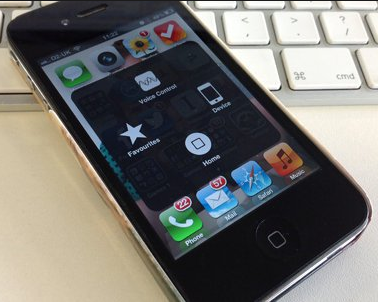
What to do if the iPhone home button doesn’t work
When assistive touch for iPhone is enabled, its menu is superimposed on the home screen menu. If you find assistive touch for iPhone confusing, you can disable the feature in the device’s settings menu to return to the iPhone’s standard mode. If you don’t want to completely disable ‘Assistive Touch’, you can hide the assistive touch menu to use the device in standard mode while leaving the ‘assistive touch’ feature activated.
However, ‘assistive touch’ isn’t a real fix, but it is a good temporary solution. It will hold you over until you fix the ‘home button not working’ issue or you’re ready to purchase a new phone.
How to fix when iPhone home button is not working
Now let us see how to fix when home button on iPhone not working due to any of the causes mentioned above.
Hardware issues
If you guess your iPhone Home button is not working because of a hardware problem, take a close look at the button and your iPhone’s display, for any possible damage. On inspection, if you discover any physical or liquid damage to your phone, you can doubtlessly conclude that your iPhone home button won’t work properly because of a hardware problem.
Physical damage or liquid exposure
Physical breakage or liquid contact is a common culprit behind a malfunctioning Home button. This issue can affect any iPhone, but is especially common in models with touch-sensitive buttons, like the iPhone 7 and newer. Here’s what to look for:
- Cracks or chips: Examine the Home button closely—tilt your phone under a light to spot hairline cracks or chips that might be hard to notice at first glance. Just like a cracked touchscreen, damage here can cause the button to lose responsiveness.
- Signs of liquid entry: The Home button isn’t fully sealed off from the elements. If your iPhone has been exposed to moisture, look for subtle signs like rust, corrosion, or discoloration around the button or on its back side. This type of damage may not always be obvious, but it’s a telltale sign the hardware has been compromised.
- Touch ID issues: If the Touch ID sensor stops working along with the Home button, it’s another clue that physical or liquid damage is to blame.
If you’re comfortable sacrificing Touch ID, keep in mind that third-party replacement Home buttons are available online and from many repair shops. These can restore basic Home button functionality, though they won’t bring back fingerprint recognition.
In such a case your device needs to be taken to a professional repair agency for iPhone home button repair.
If you’re still under warranty and your phone doesn’t show signs of accidental damage, you can straight away head over to an Apple Store or Authorized Apple Repair Center (you can also make an appointment with the Genius Bar) or start a mail-in repair on getsupport.apple.com. As long as you’re covered by a warranty, the company may go for your iPhone home button replacement or perform any necessary repairs free of cost.
When your iPhone is out of warranty and requires repair, if you go to any repair agency other than Apple there is an important limitation. Although the iPhone Home button repair or replacement can be done by any agency at a cost much less than Apple (iResQ is a high-quality Apple device repair agency), only Apple can re-enable the Touch ID, the fingerprint sensor built into the Home button. Touch ID contains security features that link a specific Home button to a specific iPhone, and for security reasons, Apple is the only company that can crack the code. Therefore, if you have a Touch ID-enabled iPhone and get your phone repaired by anyone other than Apple, the Home button will function without the Touch ID functionality.
Third-Party Home Button Replacements
If you’re comfortable living without Touch ID, replacing the Home button is still an option. Several reputable third-party manufacturers offer replacement buttons that restore basic Home button functionality, although Touch ID will not work with these replacements. Before purchasing, always double-check that the product listing specifically states it will restore the Home button function—not merely for cosmetic purposes. Some vendors provide clear information about what their button does and doesn’t do, so review their descriptions carefully.
With these replacements, you’ll regain the ability to navigate your device more easily, but fingerprint authentication and Apple Pay will remain disabled. For many users, this trade-off is worthwhile—especially if your main goal is simply to get your Home button working again without breaking the bank.
Whether you choose a professional repair service or a DIY part swap, be sure you understand the limitations and weigh them against your needs before moving forward.
Where to Find Compatible iPhone Home Button Replacement Parts
If you’ve decided a home button replacement is right for you, finding compatible parts is fairly straightforward—just make sure you’re using sources that clearly list which iPhone models their buttons will fit. Trusted third-party suppliers like GIGA Fixxoo and Mobistealth are popular for offering affordable kits that come with all the necessary components and tools.
Most replacement kits provide step-by-step guides or include links to online tutorials, helping DIYers of all skill levels tackle the repair process. Be sure to select a kit that matches your exact iPhone model to ensure proper fit and functionality. Reading through customer reviews and any included instructions before you begin will set you up for a smoother experience.
By choosing established parts suppliers and double-checking product compatibility, you’ll have the best shot at restoring your iPhone’s usability—just be sure you understand exactly what features will (and won’t) be coming back with your new button.
Risks of Using Third-Party Replacement Home Buttons
Before opting for a non-Apple replacement, it’s important to understand the downsides of third-party parts. While companies like GIGA Fixxoo or Mobistealth offer home button replacements at lower prices, there are several risks you should keep in mind:
- Loss of Touch ID: Only Apple can program a new home button for secure fingerprint recognition. Third-party replacements will not restore Touch ID or Apple Pay functionality, meaning you’ll lose biometric security and convenience features.
- Potential Compatibility Issues: Not all third-party buttons are created equal. Some may fit poorly, respond inconsistently, or even stop working after a software update. Always scrutinize product descriptions to confirm they restore actual Home button function—some are purely decorative.
- Warranty Concerns: Using third-party components may void any remaining Apple warranty or complicate future repairs at authorized centers. If staying within Apple’s ecosystem matters for service or resale, this is a critical consideration.
- Security Risks: Since Touch ID is part of your iPhone’s security infrastructure, swapping for unauthorized parts could expose your device to vulnerabilities or tampering if sourced from unreliable providers.
Despite the savings, weigh these drawbacks carefully against your priorities. If basic navigation outweighs the need for biometric security, a third-party button may be all you need. However, if you rely on Touch ID or Apple Pay, sticking with Apple’s official service is your safest bet.
When Repair Isn’t Feasible
No matter how careful you are, everyday wear and tear can eventually cause your iPhone’s home button to stop working. If none of the available repair options—whether DIY, third-party, or official—are practical or affordable, you still have alternatives. You can enable the on-screen AssistiveTouch home button as a workaround to keep your device usable. For some, however, the cost of repair may be high enough that it makes sense to consider putting that money toward a new or refurbished iPhone instead, especially if your device is already showing its age elsewhere.
Take the time to consider your device’s condition, your security needs, and your budget before making a decision. Sometimes, a simple workaround is enough to keep you going; other times, investing in a repair—or even a new phone—might be the smartest move.
What if your home button isn’t the original?
Keep in mind, the logic board and home button on Touch ID–equipped iPhones are uniquely paired during manufacturing. If your screen was replaced at an independent shop, or you’ve swapped screens yourself, it’s crucial to transfer the original home button to the new screen to retain both home button function and fingerprint recognition. On models like the iPhone 7 and newer, failing to do so will result in the home button not working at all.
- If you still have your original button: Use a reliable guide or service to transplant it onto your new display.
- If you’ve lost the original button: Some vendors offer replacement home buttons that restore basic home button functionality (clicking and returning to the home screen) but not Touch ID. Always verify with the vendor that the button will restore basic function before purchasing.
- If you want full Touch ID capability restored: Only Apple can pair a new home button to your logic board for security reasons. Third-party repairs, while often more affordable, cannot restore fingerprint functionality.
This security pairing is why non-Apple repairs, while cost-effective, come with limitations—especially for newer iPhones where even the basic home button function can be compromised if the original isn’t transferred.
Logic board repairs for home button issues
You might be surprised to learn that in some cases, repairing your iPhone’s logic board can actually bring a non-working Home button back to life. The logic board is the hub that handles nearly everything your phone does—including interpreting signals from the Home button. Sometimes, failure or damage to the tiny components on this board can cause the Home button to stop working altogether. Restoring home button functionality at the board level involves advanced microsoldering techniques and specialized equipment. Most local repair shops won’t have the expertise to handle this, but there are reputable independent specialists (such as uBreakiFix or iResQ) who do board-level repairs.
If you suspect your Home button issues may stem from damage to the logic board, ask nearby repair professionals if they handle board-level work or can recommend a trusted shop in your area. Remember, while this type of repair can resolve certain hardware issues, always check the reputation and reviews of the service provider you choose.
Software issues
As mentioned earlier, you may find the Home button on your iPhone not working correctly if your iPhone’s software doesn’t respond the way it should when you press the Home button. If you see your iPhone home button not responding due to software-related issues here are some feasible methods for getting this resolved:
Method 1: Restart your device
First, try the least invasive troubleshooting step – turn off your iPhone and turn your device back ‘on’ again. When your iPhone is turned off, all the programs that keep your iPhone running, including carrying out the process of the event like ‘Home button press’, are forced to shut down. When you turn on your device again, those little programs start afresh. Sometimes that is enough to fix any minor software malfunction. If this does not fix your iPhone home button not responding issue, just move on to the next method;
Method 2: Re-calibrate your iPhone Home Button
Sometimes re-calibration of the Home button of your iPhone has been found to fix the issue if you find your iPhone home button stuck or unresponsive. It is not clear how and why this method works, but it seems to work quite well and makes the Home button more responsive than before. In case you find the home button on iPhone not working properly, just follow these simple steps to re-calibrate the button:
- Launch any app that came pre-installed on your device such as Notes, Weather, Calendar, or anything else;
- Press and hold the Power (Sleep/Wake) button for about 4 seconds until the “slide to power off” slider appears on the screen;
- Release the power button and press and hold the Home button until the “slide to power off” slider disappears;
That’s all. You will notice that the app gets terminated by this re-calibrate action and also your Home button on your iPhone becomes more responsive and work better now. Try repeating the process a few more times if the process did not have any effect on the first attempt.
If this method does not fix the issue and your iPhone Home button doesn’t work even after this, then just move on and try the other methods.
Method 3: Restore your iPhone
Restoring your iPhone is the most common fix for major software problems causing the ‘iPhone buttons not working’ issue. This would help to resolve your ‘iPhone home button not working’ problem in most cases. By restoring your device you erase and reload all the software on your iPhone. If you make an appointment at the Apple ‘Genius Bar’ to fix a Home button issue, the technical persons there will always restore your iPhone to make sure it’s not a software issue before making a repair.
To restore your device do the following:
i. Back up your iPhone to iTunes or iCloud before restoring your device as a safeguard against data loss. To backup do the following:
Backup with iTunes: Connect your iPhone to your PC, open iTunes, and select your iPhone when it appears in iTunes. Click “Back Up Now” and your iPhone will be backed up on your computer without encryption;
Backup with iCloud: First of all, make sure your iPhone is connected to a WiFi network. Go to Settings > iCloud > Backup and turn it on, and choose ‘Back Up Now’ to backup your iPhone to iCloud;
ii. Now, connect your iPhone to iTunes and select it under ‘Devices’. Find the ‘Summary’ tab, then click ‘Restore’. This will restore your iPhone back to its original settings keeping all your contents intact;
Using DFU Mode to Restore Your iPhone
If the standard restore doesn’t solve your Home button woes, there’s one more tool in the troubleshooting toolbox: DFU mode. DFU, or Device Firmware Update mode, allows your iPhone to interface directly with iTunes (or Finder on macOS Catalina and later) for a deep-level restore. This process reloads both the software and the firmware, clearing out even the most stubborn glitches that might be affecting your Home button’s performance.
What is DFU Mode?
DFU mode puts your iPhone into a minimal state—more powerful than standard recovery mode—where it can still communicate with your computer but hasn’t yet loaded iOS or the bootloader. This is the method professionals use to revive an iPhone that even a regular restore can’t fix.
How to Enter DFU Mode on iPhone 6/6s, 7, and 8 Series:
Before you start, make sure you’ve backed up your important data, as this process will erase everything from your device.
For iPhone 6, 6s, or 6s Plus:
a. Connect your iPhone to your computer and open iTunes (or Finder).
b. Press and hold both the Power (Sleep/Wake) button and Home button for 8-10 seconds.
c. After 8-10 seconds, release the Power button but keep holding the Home button until your iPhone appears in iTunes or Finder.
d. Once detected, release the Home button. If the screen remains black, you’re in DFU mode.
For iPhone 7 or 7 Plus:
a. With the iPhone connected and iTunes/Finder open, press and hold the Power (Sleep/Wake) button and the Volume Down button together for 8-10 seconds.
b. Release the Power button but continue holding the Volume Down button until your device appears in iTunes or Finder.
c. Release the Volume Down button. The screen should stay black if you’ve done it properly.
For iPhone 8, 8 Plus:
a. Connect your device and launch iTunes/Finder.
b. Quickly press and release the Volume Up button, then quickly press and release the Volume Down button.
c. Press and hold the Side button until the screen turns black, then—while still holding the Side button—press and hold the Volume Down button for 5 seconds.
d. After 5 seconds, release the Side button but keep holding the Volume Down button until your device is recognized by your computer.
e. Release the Volume Down button. The iPhone’s display should remain blank.
If your iPhone screen is black and iTunes/Finder has detected your device, you’ve entered DFU mode successfully. If not, simply repeat the steps; timing is key.
Once in DFU mode, follow the prompts in iTunes or Finder to restore your device. This should eliminate any deep software or firmware issues causing your Home button to act up.
After the restore process is completed the problem with the Home button on your iPhone is expected to be resolved permanently;
Method 4. Clean the Home button
Prolonged use of your iPhone in a dusty environment may make your iPhone Home button not working correctly or make it less sensitive, due to dust clogging the edge space of the button. Instead of spending money on repair, clean the Home button on your iPhone by yourself. Press the Home button and blow the dust away with a blast of air. Repeat the process a few times and it might help you get back your iPhone Home button in normal working condition.
How to Clean the Interior of the Home Button?
If regular external cleaning didn’t do the trick and your iPhone Home button is still acting up—especially on older models like the iPhone 6s or earlier—there could be debris lodged inside the button mechanism itself. Over time, dust or other particles can sneak into the small space beneath the button, making it squishy or unresponsive.
To give your Home button a more thorough cleaning without opening your phone, try the following steps:
- Start by wiping the Home button with a clean, dry microfiber cloth to remove any obvious grime or fingerprints.
- If the button still feels sticky or unresponsive, lightly dampen the corner of the cloth with high-purity isopropyl alcohol (at least 90%). This evaporates quickly and is safe for electronics.
- Gently rub the alcohol over the Home button while repeatedly pressing it. The action of pressing can help the alcohol work its way around the edges, loosening up stubborn dirt or residue that might be causing issues.
If these steps don’t solve the problem, you may need to take things further and clean the interior of the Home button assembly—which, as we’ll cover next, is best left to those comfortable with opening up their iPhone.
To tackle this, you’ll need to open up your iPhone (only attempt this if you’re comfortable with basic gadget repairs):
- Begin by following a reliable step-by-step teardown guide (there are plenty available online for every iPhone model) to safely open your device.
- Once you’ve accessed the button assembly, carefully remove the plate securing the Home button.
- Gently clean around the button mechanism using a blast of compressed air to remove loose particles.
- For sticky grime or residue, lightly dampen a cotton swab with isopropyl alcohol (make sure it’s at least 90% pure) and wipe the area. Avoid flooding the area with liquid.
- Reassemble your device, ensuring everything clicks back into place securely.
This hands-on cleaning can often give new life to a sluggish Home button, saving you a trip to the repair shop. However, if you’re unsure at any step, it might be best to consult a professional technician or visit your local Apple Store for assistance.
You may also like to read this post: iPhone volume buttons not working- try these 6 proven fixes
Frequently asked questions
Let me now address some of the common queries relating to iPhone home button problem:
What to do when the home button on iPhone not working?
As already mentioned in the post, iPhone has a feature called ‘AssistiveTouch’ in your iPhone ‘settings’ that can virtually replace the Home button and let you take full control of your device. To activate this,
Go to Settings > tap ‘General’ > select ‘Accessibility’, then scroll down to the section labeled ‘Interaction’ and tap on ‘AssistiveTouch’. Now toggle ‘AssistiveTouch’ to the green ‘On’ position.
How can I open my phone when the home button on my iPhone not working?
To open your iPhone without pressing the ‘Home button’ go to,
Settings>Tap ‘General’>Select ‘Accessibility’>Tap ‘Home Button’.
Then toggle the switch to the ‘on’ position.
Now you can open your iPhone with Touch ID without having to press the home button.
How do I reset my phone when the home button not working iPhone 7?
1. ‘Backup’ your iPhone by connecting it to a computer using iTunes;
2. Next, go to Settings > General > Reset > Erase All Content and Settings;
5. Restart your iPhone and go through the initial setup;
6. After the setup is complete, check the Home button;
You might also like to read: iPhone touch screen not working -fix it in 5 simple steps
Still having trouble with your Home button?
If your iPhone’s Home button refuses to cooperate despite your best efforts, don’t worry—you’re not alone. This is a common issue, and sometimes even the best cleaning or software tricks aren’t enough.
Here are a few extra steps you can try:
Double-check your iPhone model: Some solutions or replacement guides are model-specific, so make sure to confirm your exact device type before attempting any hardware fixes.
Look for help from the community: If you haven’t found a fix that works, you might find helpful advice from other users on reputable tech forums or Apple’s support discussions.
Keep an eye on common trends: Home button issues are frequently discussed, with hundreds of people searching for solutions every week. You’re in good company!
Remember, if you’re ever unsure about opening your device or attempting a repair, it’s always a safe bet to consult a professional technician or visit your local Apple Store. Taking that extra precaution can save you from accidentally turning a small glitch into a bigger headache.
If you’re considering more advanced fixes, keep in mind:
- Replacing the logic board is sometimes suggested for stubborn Home button issues. However, this is a tricky road: on iPhone 7 and newer, swapping out the board will break both your fingerprint reading (Touch ID) and the Home button functionality due to Apple’s security pairing.
- Contrary to popular belief, the board itself can sometimes be repaired without full replacement—but this isn’t a typical DIY project. It requires specialized equipment and serious microsoldering skills. Most people are better off seeking out a reputable independent repair shop with board-level expertise.
When in doubt, ask around in your area for trusted technicians or board-level repair specialists. There’s no shame in letting the pros handle the heavy lifting, especially when it comes to something as central as your Home button.
Conclusion
Although the issue of the iPhone home button not working has been quite widespread, it has been observed that more recent Touch ID-enabled iPhone models are less prone to such problems than earlier models. Compared to the old physical button, the touch-sensitive home button on iPhone has been designed to be more durable and responsive. Powered by the Taptic Engine (technology that provides tactile sensations in the form of vibrations to the users), the Home button for Apple provides haptic (use of the sense of touch in a user interface) feedback when pressed. In order to prevent the Home button from being worn out too easily, Apple has introduced a pressure-sensitive Home button on iPhone 7 and 7 Plus.
Why Does the iPhone Home Button Stop Working?
Despite these improvements, the home button can still become unresponsive over time. Understanding the underlying causes can help you address the issue and even prevent it in the future.
- General Wear and Tear: Even with advanced engineering, repeated use can eventually cause any button to fail. The accumulation of dust, lint, or moisture around the button area can also contribute to its malfunction.
- Software Glitches: Sometimes, a software update or a temporary glitch can cause the home button to stop working, even though there are no physical issues.
- Physical Damage: Dropping your device or exposing it to liquid can affect the internal components connected to the home button.
- Connector Issues: The cable connecting the home button to the logic board may become loose or damaged over time.
By being aware of these potential causes, you can take proactive steps—such as keeping your device clean and dry, and handling it with care—to prolong the life of your home button. If the issue does arise, knowing whether it’s likely hardware or software can save you time in troubleshooting.
Before I conclude let me make it clear that the fixes suggested here to resolve the ‘home button not working on iPhone’ issue are applicable not only to solve ‘iPhone 6 or iPhone 7 home button not working‘ problems but also are applicable to other versions of iPhone. Moreover, these fixes should work well for home buttons on the iPad and iPod Touch also.
If you have any other better solutions for the ‘home button not working’ issue, please share the same in the comment section below to help others who may be struggling to fix when their iPhone home button not responding.

Will Smith
May 05. 2017
Yes, you are right. Home button is very important part of iPhone, because it is the only button in iPhone that can be used for multiple functions. I know sometime problems occur in hardware due to misuse, but you can enable the on screen home button. Moreover you can clean your home button with isopropyl alcohol.
iFixEgypt
Nov 21. 2017
I totally agree with Will Smith! Home button is a single button that has multiple functions and perfect to switch between apps. In fact the home button make iPhone easy to use. Thanks for sharing this interesting post.