How to clear app cache on iPhone?
How can iPhone clear app cache without deleting app?
iPhone users often ask – how can my iPhone clear app cache without deleting app to make the device run faster? In this post, I am going to show how do you clear cache on iPhone without deleting app and clean out all the junk and memory-clogging files to free up more space and boost the speed of your device.
Now, I am going to show the ways to clear app cache iPhone without deleting apps, which will help to make your device function a lot faster and more efficiently. Below is a step by step guide to clearing app cache on iPhone without deleting the app.
But before I show how to clear app cache on iPhone let me first explain what is app cache.
What is app cache and why do you need to delete iPhone app data?
For the sake of enhancing user experience, every time we use an App on our iPhone or iPad, it collects information and stores it in a reserved memory space called Cache. These stored data can be retrieved quickly from the Cache for future use. For example, Safari uses a Cache to store information about the sites you visited and will use them later on to speed up your browsing experience.
Even though this is crucial when it comes to making the site faster, these cache files generated through everyday usage are eating up your iPhone storage as time progresses and reduce the running speed and efficiency of your device. The iPhone’s cache, if not managed regularly, can accumulate and significantly impact both storage space and device performance.
Cached browsing data aren’t the only files that eat up your iPhone’s storage space. Cache data like scripts, images, and other media files that are automatically generated by the apps could also eat up the storage space. An increase in the number of installed apps with time and an increase in the frequency of use of apps may cause the accumulation of more cache files resulting in the use of additional storage space on your iPhone making the device slower.
No matter which iPhone you use, regularly deleting cookies, hidden junk files, and clearing the iPhone app cache, are not only a great way to make your iPhone clean and free up more space but also to boost its running speed.
Moreover, if you delete app cache iPhone, app cookies, junk files, and temporary files sometimes you will find it would fix many battery issues and improve battery life in case your iPhone Battery is draining fast.
Why doesn’t Apple make clearing app cache easy?
You might wonder—if clearing app cache helps with speed and storage, why doesn’t Apple simply provide a clear option for every app? The reason is rooted in Apple’s focus on privacy and security. By restricting easy access to app data, Apple helps maintain tighter control over what gets stored and deleted on your device, reducing the chances of accidental data loss or privacy issues.
Additionally, Apple encourages app developers to handle cache management within their own apps. Unlike Android, which often offers a straightforward “Clear Cache” button in device settings, iOS is designed to keep the operating system streamlined and user actions deliberate. While this approach helps protect user data, it does make managing cache a bit more tedious, often requiring workarounds or third-party apps for relief.
But don’t worry—while it may require a few extra steps, there are still several practical ways to free up storage by clearing app cache without having to delete your essential apps. Let’s explore these simple methods.
Now, I am going to show the ways to clear app cache iPhone without deleting apps, which will help to make your device function a lot faster and more efficiently.
How can iPhone clear app Cache without deleting app – 3 easy methods
Here are three easy methods on how to clear iPhone app cache without deleting app. These methods help you remove cached data from individual apps and free up storage space on your device.
Clearing Cache Within Individual Apps
You might be wondering—can you clear cache within the app itself, without resorting to workarounds or deleting anything essential? In some cases, the answer is yes. Certain apps, such as Safari, provide built-in options that let you wipe out cached data directly from their settings menus. For example, with Safari, simply head to Settings > Safari > Clear History and Website Data to remove saved browsing history, cookies, and temporary files.
Other apps like WhatsApp or Netflix sometimes offer their own options for managing storage or clearing downloads. You’ll usually find these cache-clearing features by opening the app, going into its settings or storage management section, and looking for buttons labeled “Clear Cache,” “Remove Downloads,” or “Delete Temporary Files.” While not every app offers this convenience, it’s worth poking around the settings of your most-used apps—especially those handling lots of photos, videos, or messages—to see if they provide a simple solution for reclaiming space.
1. Uninstall the app and then reinstall it;
2. Restart your iPhone;
3. By using a third-party app;
For certain apps, such as Safari, there may be built-in options to clear cache directly within the app. However, for other apps, you will need to use these methods. You can manage app cache and storage through iPhone settings to further optimize your device’s performance.
1. How to clear app cache on iPhone by uninstalling the app and then reinstalling it
One of the most common ways on how to clear cache on iPhone apps without deleting the app is, to uninstall the app entirely and then reinstall it. This process is often referred to as ‘reinstall apps’ to clear out cached data and improve app performance.
Almost all the apps that are installed on your iOS device occupy some memory space in addition to their download size. There is no option on iPhone or iPad to clear the cache data of an individual app other than Safari and you cannot clean its memory space unless you uninstall the app entirely from your device. When you uninstall an app from your iPhone, everything you have in that application, including the cache and preferences, will be deleted.
Why reinstalling works:
Reinstalling the app is the most foolproof method to clear out cached data, especially for apps that don’t provide a built-in cache-clearing option. If you back up your app data via iCloud or the app’s own login system, most of your important app data—like saved game progress or account info—will be restored once you log back in after reinstalling. However, do keep in mind that certain app-specific preferences or locally stored documents may be lost, so it’s best to double-check what data is synced before deletion.
Find below how to delete app cache iPhone or iPad using the ‘Usage’ option in Settings by deleting the biggest space eater app and then reinstalling it:
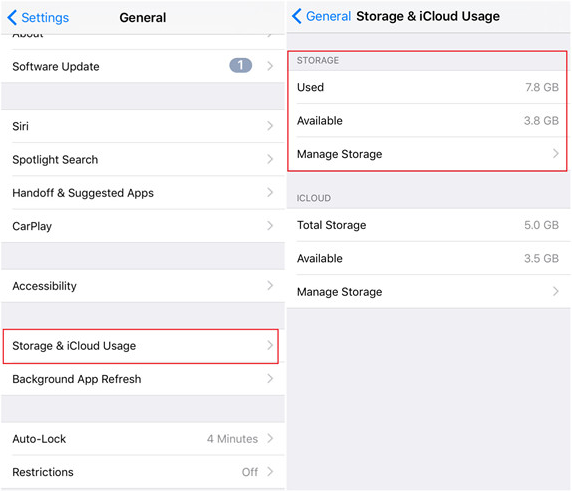
1. Go to Settings > General > Storage & iCloud Usage;
2. In the top section (Storage), tap Manage Storage;
3. You should now see a list of all your apps, along with the memory they each take. Select the app, which takes up a lot of space on your iPhone. Reinstalling every app might take a long time. So you can view how much space is taken up by each app and reinstall only the biggest “space eaters”;
4. Take a look at the entry for Documents & Data. If you find an app is taking up more than 500MB, it’s worth deleting the app to clear your device space;
5. Tap Delete App, then head to the App Store to re-install it. This will be a clean install without all the data and documents;
This method is effective for clearing up valuable storage, especially if you notice certain apps have ballooned in size over time. Remember, apps like Facebook, Instagram, and Snapchat are notorious for accumulating large caches.
If reinstalling apps does not resolve persistent storage or performance issues, you may consider performing a factory reset as a last resort to restore your iPhone to its original settings. Alternatively, you can try resetting all settings—this option won’t erase your personal data like photos or messages, but it will revert system settings such as Wi-Fi passwords and customizations back to default. This process has occasionally been reported to help clear out temporary system files and cache indirectly, which can sometimes improve performance without the need for a full reset.
How to Reset All Settings:
- Go to Settings > General > Reset (or Transfer or Reset iPhone on newer iOS versions).
- Tap Reset All Settings.
- Enter your passcode if prompted, and confirm your choice.
This method does not delete your apps or personal files, but it does reset preferences like Wi-Fi networks, Bluetooth connections, Home screen layout, and privacy settings. While not a guaranteed cache-clearing solution, many users have found that it can help with sluggishness or odd system behavior—without the headache of a full wipe.
Is reinstalling an app a safe way to clear cache without losing your data?
Reinstalling an app is indeed a reliable method to clear its cached data and free up storage. However, you should be aware that when you delete an app from your iPhone, all associated data and documents stored locally within that app will be removed as well. The only exception is if the app syncs data through iCloud, Google, or its own account system—then some information may be restored upon reinstallation.
What you need to know before reinstalling:
- You might lose app data: Unless your app backs up its data online (like Instagram or WhatsApp with iCloud/Google backups enabled), deleting the app wipes everything, including cache and user data.
- Offloading vs. Deleting: iOS also offers an “Offload App” feature in Settings > General > iPhone Storage. Offloading removes the app itself but keeps its documents and data on your device, so when you reinstall, personal data is restored and cache files are usually cleared out.
- Best practice: Before uninstalling any important app, check its backup settings, make sure you’re logged into the relevant account, and if possible, perform a manual backup to cloud storage.
Reinstalling apps can refresh their performance and clear out unnecessary files, but always double-check for in-app backup options or cloud sync capabilities to avoid accidentally losing valuable information.
2. Clear app cache iPhone by restarting your iPhone
It is found that occasionally restarting your iPhone is a good way to free up more memory space for use by important apps.
Follow the steps below to restart your device to clear iPhone app cache;
1. Hold down the power button (also known as the Sleep/Wake button, located on the top or at the top-right of the device) until “slide to power off” appears;
2. Swipe the power off slider;
3. Wait until the device has fully powered down, then press and hold the Sleep/Wake button to turn on the iPhone;
How to Clear RAM on iPhone (Even Without a Home Button)
If your iPhone is running slow or freezing up, it might be time to give its RAM a quick refresh. This can help your device run more smoothly—especially if you frequently use resource-heavy apps or notice sluggish performance over time.
Here’s a simple process to clear your iPhone’s RAM, even if your device doesn’t have a physical Home button:
For iPhones Without a Home Button
- Turn on AssistiveTouch:
- Open Settings > Accessibility > Touch > AssistiveTouch and switch it on. You’ll see a floating button on your screen, which you’ll use in place of the Home button.
2. Access the Power Off Screen:
- Quickly press and release the volume up button, then the volume down button. Next, press and hold the side (lock) button until you see the power-off screen appear.
3. Clear the RAM:
- On the power-off screen, tap the AssistiveTouch floating button, then press and hold the Home icon shown in its menu. Keep holding until your device flashes and the lock screen appears. Enter your passcode if prompted.
Your iPhone’s RAM is now cleared! Apps running in the background will reload, often resulting in improved performance and better battery life.
For iPhones With a Home Button
- Press and hold the power button until you see the power-off slider.
- Release the power button, then press and hold the Home button until the screen flashes and the lock screen appears.
This process works across most iPhone and iPad models, helping you free up temporary system memory without deleting any data or apps.
If you notice your device lagging often, giving it this quick refresh can make everyday use much smoother and more responsive.
How to Close Apps and Free Up RAM on iPhone
If your iPhone starts acting sluggish or certain apps freeze, the problem might be that your device’s RAM is overloaded. This is especially common if you’re multitasking with several apps open, or if you have an older model. Thankfully, there’s a quick fix to clear your RAM and get things running smoothly again.
Does Closing Background Apps Actually Help?
Say what? You might not love it, but closing apps running in the background manually could actually help. It’s not the holy grail, but every bit counts! While iOS is pretty smart at managing memory, sometimes too many open apps can slow things down—especially on older devices or when a particular app misbehaves. So, taking a moment to close out apps you’re not using can give your iPhone a noticeable boost.
Steps to Free Up RAM by Closing Apps
Whether your iPhone has a Home button or uses Face ID, the process is straightforward:
For iPhones without a Home button (Face ID models):
- Swipe up from the bottom of the screen and pause in the middle to bring up the app switcher.
- Swipe left or right to browse through your open apps.
- Swipe up on each app’s preview to close it—this removes the app from memory.
For iPhones with a Home button:
- Double-press the Home button to reveal the app switcher.
- Swipe left or right to view all open apps.
- Swipe up on the app previews to close them.
By closing unnecessary apps, you’ll free up RAM, allowing your iPhone to perform better and reducing battery drain. If things still feel slow, try restarting your device—sometimes a simple reboot can refresh your system memory and resolve lingering issues.
If you’re looking for a deeper refresh, using the AssistiveTouch feature can also help clear RAM. Head to Settings > Accessibility > Touch > AssistiveTouch to enable it, and follow the on-screen steps to clear your phone’s memory.
Closing unused apps regularly and restarting your iPhone when needed are simple habits that can keep your device running efficiently.
Keep your iPhone in Shape with ongoing maintenance
Regular upkeep can go a long way in keeping your iPhone running smoothly and maximizing your storage. Restarting your device from time to time clears out temporary files and refreshes the system, which often frees up hidden memory hogs and resolves minor glitches before they turn into bigger headaches.
Just as important, keeping your iOS up to date with the latest version ensures you benefit from Apple’s newest storage management tricks and performance enhancements. These updates often include smarter ways to handle cached files and unwanted data, so you’re less likely to run out of space unexpectedly.
Don’t forget about your photos and videos, either! Periodically trimming old media, moving memories to cloud services like Google Photos or iCloud, or offloading them to your computer can help keep your storage in the green.
Taking a few minutes each month to restart your phone, update iOS, and tidy up your media can help prevent storage issues from creeping up—and keep your iPhone feeling fresh for longer.
Does Manually Closing Apps Actually Help Free Up Storage or Clear Cache?
Let’s clear this up: Manually closing apps on your iPhone isn’t a magic solution for freeing up storage or directly clearing out app cache. While shutting down unused apps can help speed things up—especially if you’ve noticed sluggish performance or an app is frozen—it doesn’t actually remove stored files or cached data eating up your storage space.
iOS is pretty sharp at managing resources behind the scenes, and forcing apps to close won’t clear out their saved files or disappear gigs of data. However, if an app is acting glitchy, closing and reopening it may resolve temporary issues or free up a bit of RAM. For real storage gains, though, you’ll need to dig into each app’s settings to delete cache, offload unused apps, or use Apple’s storage recommendations under Settings > General > iPhone Storage.
Still, making a habit of closing truly unneeded apps can keep things snappy if you’re multitasking or running on an older iPhone model. Just remember: for a true cache or storage cleanse, you’ll need more than a quick swipe.
If you’re thinking, “Wait, does manually shutting down all those background apps really do much?”—you’re not alone. It’s a common myth that flicking away every app equals instant storage wins. In reality, it’s not the holy grail for freeing up space, but every bit can count, especially if you notice your iPhone lagging or an app refusing to cooperate. Think of it more as a quick tune-up for memory and performance, rather than a deep clean for your storage.
Bottom line: Manually closing apps is a handy trick in your iPhone maintenance toolbox, but when it comes to clearing cache or reclaiming meaningful storage, you’ll need to dive a bit deeper.
3. Delete iPhone app data by using a third-party app
By uninstalling and reinstalling apps it may be quite easy for iPhone clear app data without deleting app. But if it is required to delete iPhone app data across a dozen apps it would be a long journey. Therefore, a more efficient way for iPhone clear app cache without deleting app is to use a third-party app cache cleaner iPhone app.
There are various apps available that can help you quickly get rid of files on your iPhone, you don’t need. These app cache cleaner iPhone apps are normally downloaded onto your Mac or PC and then connected to your iPhone or iPad to clear Caches on the devices. ‘PhoneClean’ by iMobie is one such powerful iOS cleaner app capable of eliminating 30 types of junk files including caches.
Proceed with Caution:
While third-party apps can be a convenient solution, it’s important to be selective about which tools you use. Always choose reputable, well-reviewed options from trustworthy sources to avoid malware or other security issues. Avoid downloading anything from unfamiliar sites or developers—your data is too important to risk!
Are Third-Party Cache Cleaners for iPhone Reliable and Safe?
Third-party cache cleaning tools, like PhoneClean or iMyFone Umate, can be effective at quickly scrubbing out hidden junk files from your iPhone or iPad—especially when you want to clear app data in bulk instead of diving into each app individually. These programs often find and erase cached files, cookies, and leftover data that iOS itself might leave behind.
However, not all third-party cleaners are created equal. Stick to reputable tools from trusted developers with plenty of solid reviews and a history of security—think PhoneClean, iMyFone, or Tenorshare. Random downloads from unfamiliar websites are a gamble and could put your data (and privacy) at risk.
It’s smart to do a little homework: check user ratings, look for recent software updates, and see what reputable tech sites have to say before you dive in. And always back up your device before running any cleaning tool, just in case. If you choose wisely, third-party cleaners can be a handy shortcut for reclaiming storage—but caution is key.
Follow the steps below on how to clear cache from iPhone apps which will help your iPhone or iPad clear app cache without deleting app with the help of ‘PhoneClean’ and make space on your iPhone or iPad:
- Attach the iPhone to your Mac or PC using the USB Cable;
- Open ‘PhoneClean’ and click Scan;
- Once the scan is complete, click Clean;
By following these steps, you can efficiently manage app data across multiple apps at once, saving time and freeing up valuable storage space.
Follow the steps below on how to clear cache from iPhone apps which will help your iPhone or iPad clear app cache without deleting app with the help of ‘PhoneClean’ and make space on your iPhone or iPad:
1. Attach the iPhone to your Mac or PC using the USB Cable;
2. Open ‘PhoneClean’ and click Scan;
3. Once the scan is complete, click Clean;
By following these steps, you can efficiently manage app data across multiple apps at once, saving time and freeing up valuable storage space.
Are There Risks to Using Third-Party Apps?
While third-party app cache cleaners like PhoneClean or iMyFone Umate can be helpful, it’s important to proceed with some caution. Not all apps found online are created equal—some may compromise your privacy, introduce malware, or even cause unwanted changes to your device. Always choose trusted names from reputable developers, and check reviews before downloading anything to your Mac or PC.
Generally, Apple doesn’t endorse third-party cleaners, so keep this in mind as you weigh your options. Stick with well-reviewed tools, check for compatibility with your model and iOS version, and make sure you’re downloading directly from the official websites. Taking these simple steps can protect your data and keep your device safe as you clear out unnecessary files.
You may also like to read this post: How to delete everything on iPhone
Steps for how to clear cache on iPhone apps in Safari browser?
Safari, being the default web browser on iOS devices, is one of the most commonly used browsers on iPhone. The Safari app stores information in the Cache memory so that it can be accessed quickly. Compared to other apps it has, therefore, the most cached memory. Follow the steps below to clear app cache iPhone in the Safari browser:
1. Go to Settings;
2. Scroll down and tap on the Safari app tab;
3. Scroll down the new screen showing settings for ‘safari’ and tap Clear History and Website Data, then tap Clear History to confirm;
4. This will not only delete app data from iPhone but also remove history, cookies, and other browsing data in Safari;
5. Now your Safari browser should be just like the new one;
Tips for Clearing iPhone’s Cache
Keeping your iPhone running smoothly and maintaining ample storage space often comes down to how well you manage your app cache and temporary files. Here are some practical tips to help you clear your iPhone’s cache and optimize performance without losing important data:
1. Start with Safari Cache: Since Safari is the default browser on most iOS devices, its cache and website data can quickly accumulate and slow down your device. Make it a habit to clear your Safari cache by going to Settings > Safari > Clear History and Website Data. This removes browsing data, cookies, and temporary files, freeing up valuable iphone storage and helping your device run faster.
2. Offload Unused Apps: If you have apps you rarely use, enable Offload Unused Apps in Settings > General > iPhone Storage. This feature automatically removes unused apps while keeping their app data and documents safe, so you can reinstall them later without losing information. It’s a great way to clear cache and reclaim storage space without deleting app data.
3. Reinstalling Apps: For apps that are taking up the most space, consider deleting and reinstalling them. This process clears out cached data and temporary files that may be causing slow performance. Just remember to back up any important app data before you tap delete app and reinstall from the App Store.
4. Disable Background App Refresh: Many apps run in the background, constantly updating and storing temporary data. To reduce unnecessary cache buildup, go to Settings > General > Background App Refresh and turn it off for apps that don’t need to update in the background. This not only helps with clearing cache but can also improve battery life.
While iOS doesn’t offer a direct button to wipe app cache, disabling Background App Refresh is a smart workaround. By preventing apps from running and fetching new data when you’re not actively using them, you’ll keep temporary files from piling up in the first place. This strategy won’t remove existing cached data, but it does slow down the rate at which cache accumulates—especially for social media, news, and shopping apps that love to update themselves in the background. Consider reviewing your app list and disabling this feature for any app that doesn’t need to stay constantly updated. This small change can free up storage and keep your device running more efficiently.
5. Use iCloud Optimization: Large files like photos and iMessage attachments can quickly fill up your storage. Enable iCloud Optimization for photos and messages by going to Settings > Your Name > iCloud > Photos > Optimize iPhone Storage. This moves full-resolution files to iCloud, reducing local cache and freeing up space on your device.
6. Regularly Clear Browser Cache: Don’t forget about other browsers like Google Chrome. Open the browser’s settings and clear browsing data, including cache and cookies, to keep your device running at peak performance. Regularly clearing browser cache helps prevent slow performance and storage issues.
7. Delete Unnecessary Apps: Periodically review your home screen and remove unnecessary apps. Touch and hold the app icon until it jiggles, then tap delete app. This not only frees up storage but also reduces the amount of cached data on your iPhone.
8. Periodically Check iPhone Storage: Stay on top of your storage usage by going to Settings > General > iPhone Storage. Here, you can see how much storage each app is using and identify which ones are taking up the most space. This makes it easier to decide which apps to offload, delete, or clear cache from.
9. Clear Cache on Other Apps: Some apps offer built-in options to clear cache or browsing data. Check the app’s settings for a clear cache or clear browsing data option. If it’s not available, consider reinstalling the app after backing up any important data.
10. Restart Your iPhone: A simple restart can work wonders for clearing out temporary data and refreshing your device’s memory. Power off your iPhone and turn it back on to help clear cache and improve overall performance.
Bonus Tip: Keep Your iPhone’s Software Updated
Regular maintenance goes beyond just clearing cache. Make it a habit to restart your device occasionally, install the latest iOS updates, and manage your photos and videos efficiently. Apple’s firmware updates often include behind-the-scenes tweaks and new features that can optimize storage and boost performance. Staying up to date ensures your iPhone is running as smoothly—and efficiently—as possible.
By following these tips, you can effectively manage your iPhone’s cache, keep your storage space optimized, and enjoy faster performance. Regularly clearing cache and monitoring your device’s storage ensures your iPhone stays in top shape, free from unnecessary files and slowdowns. Make cache management a routine part of your iPhone maintenance for the best results!
Frequently asked questions
Now that I have explained how iPhone clear app data without deleting app, before I conclude let me also address some related queries often asked by cell Phone users.
How to Delete App Cache on iPhone Via Third-Party Apps
You can also use third-party software both paid and free to Delete Cache on iPhone. There are several third-party app cache cleaner apps for clearing app cache iPhone like PhoneClean, iMyFone Umate, and more. You can delete Cache on iPhone by following the steps below:
1. Install any of the software on your Windows or Mac OS systems;
2. Then, connect your iPhone to your PC;
3. Once connected, you can easily and quickly delete all the cache files;
A few words of caution:
While third-party tools can be helpful for managing and clearing cache, it’s important to use only reputable software from trustworthy sources. Not all cache cleaner apps are created equal—some may promise quick results but could actually introduce security risks, malware, or privacy concerns to your device. Always research the app, read user reviews, and download directly from the official website. When in doubt, stick with manual cache clearing or official recommendations from Apple to keep your device safe and running smoothly.
How do I clear my app cache on an Android phone?
To do this,
- Go to Settings;
- Tap ‘Storage’;
- Tap ‘Internal Storage’ under ‘Device Storage’;
- Tap ‘Cached data’;
- Tap ‘OK’ when asked if you are sure to clear all app cache;
How do I clear the cache on my iPhone?
To clear cache on iPhone, you must ‘Offload’ the App. Here’s how to clear cache on iPhone apps:
1. Go to Settings;
2. Tap on General;
3. Tap on iPhone Storage;
4. Click the app you’d like to clear, from the list of apps on your phone and tap Offload App;
5. You’ll get a message informing you that the app will be deleted, but its documents and data will remain. Tap Offload App;
Important Note:
Currently, iOS does not provide a direct option to clear the cache of individual apps (except for Safari). Offloading an app removes the app itself, freeing up storage space, but keeps your documents and data. When you reinstall the app, your data is restored, but most cached files are cleared out.
Alternatively, if you want to remove all data—including cache, preferences, and any saved information—from an app, you’ll need to delete the app entirely and then reinstall it. Uninstalling erases everything stored within the app, offering a more thorough cleanup than offloading.
In summary:
- Offload App: Removes the app but keeps documents and data intact.
- Delete App: Erases the app, including all cache, preferences, and saved info.
Choose the method that suits your needs—whether you want to reclaim some storage without losing your app data, or you want a completely fresh start with the app.
How to clear app data on iPhone?
1. Go to settings;
2. Tap on General;
3. Tap on iPhone Storage and see the storage usage of all apps on your iPhone;
4. Click the app whose data you want to clear;
5. Tap on ‘Delete App’ to uninstall the app and erase all its data;
How to clear cache iPhone application?
Here’s how to clear app cache iPhone:
1. Go to Settings on your iPhone, scroll down, and tap on the Safari app tab;
2. Scroll down the new screen showing settings for ‘Safari’ and tap the ‘Clear History and Website Data’ option, then tap Clear History to confirm;
3. This will clear safari cache and remove browsing history from your iPhone application;
Will clearing the cache delete pictures?
By clearing the cache, you only remove the temporary files in the app cache and not other app data like settings, downloaded photos, conversations, etc. So clearing the cache of the Camera app won’t delete any of your photos.
What’s the Difference Between Clearing Cache and Cookies on iPhone?
It’s easy to get confused between clearing cache and clearing cookies, but they serve different purposes:
- Cache: Temporary files and data stored by apps to speed up performance and reduce load times. Clearing cache helps free up storage and can fix certain glitches, but it does not erase important app data or personal files.
- Cookies: Small data files websites save on your device, mainly in browsers like Safari or Chrome. Cookies store login info, site preferences, and tracking details. When you clear cookies, you’ll be logged out of websites and your browsing preferences will be reset.
So, while clearing your cache helps your iPhone run more efficiently by removing temporary clutter, clearing cookies is more about privacy and resetting website-specific data in your browsers. Neither action will delete your photos, contacts, or essential app information. If you’re aiming to solve performance issues or free up space, start with clearing cache. If you want to protect your privacy or troubleshoot website problems, consider clearing cookies as well.
You may also like to read this related post: How to delete Cookies on iPhone
Conclusion
Now that you know, how do you clear cache on iPhone you can use any of the aforementioned options for your iPhone clear app cache without deleting app, to boost up running speed and efficiency of your device.
We have seen that the longer we use our iPhone, the slower it gets because cache data generated through everyday usage are eating up our iPhone’s storage. It is, therefore, healthy to clear app cache iPhone once every few months or so, because we don’t always use the same websites forever and the stored information might just be slowing down your device.
In fact, regardless of the model or type of iPhone you use, regularly deleting cookies, hidden junk files, and clearing cache on your iPhone is not just about freeing up space—it’s also one of the most effective ways to boost your device’s performance. By clearing app cache, cookies, junk, and temporary files, you not only free up valuable storage, but you might also notice improved battery life and the resolution of those frustrating battery drain issues. Think of it as a quick tune-up: the less clutter your iPhone has to deal with, the more resources are available for the apps and tasks you care about.
Apps are encouraged to use as little memory as possible so that the system may keep more apps in memory or dedicate more memory to important apps that truly need it. There is a direct correlation between the amount of free memory available to the system and the relative performance of your app. To ensure there is always enough free memory available, you should minimize your app’s memory usage and be responsive when the system asks you to free up memory.
When the system dispatches a low-memory warning to your app, respond immediately. Low-memory warnings are your opportunity to remove references to objects that you do not need. Therefore, use the warnings to clear the cache on iPhone apps and release images.
By making a habit of clearing your cache and unwanted data, you’ll keep your iPhone running smoothly, apps launching faster, and battery lasting longer.
If you’ve any other suggestions relating to how can iPhone clear app data without deleting app or how to clear app cache on iPhone, share them with your fellow readers in the comment section below.
You may also like to read: How to make iPhone faster

Mark Koech
Jan 27. 2022
I have found that offloading and re-installing the app works well.
martin
Mar 21. 2022
its nice it helped me out , also check out my site at http://www.martinarchive.com
Rating
Jul 11. 2022
After reading your post, I was able to clear the cache on my iPhone on my own. Now it works much faster. Thank you!
radharenu ganguly
Jul 11. 2022
Hi,
I am glad that the article helped you to clear your cache.
Rynn
Oct 18. 2022
Most of the setting options you used do not exist on my Iphone. How do you clear an app cache with IOS 14 or higher
radharenu ganguly
Oct 18. 2022
Hi Rynn,
Follow the steps below:
1. Go to Settings > General;
2. Next, tap the “iPhone Storage” option and then wait a while;
3. Now scroll down to the list of apps, and select one;
4. On that app’s page, select the “Offload App”;
5. Tap again to confirm and you’re done;
To reinstall an app find the app’s grayed-out icon in your App Library or on your home screen and tap it to commence reinstallation.