How do I screen record on my iPhone with or without jailbreak?
How to record your screen on iPhone with or without jailbreaking?
You may often find iPhone users asking – how do I screen record on my iPhone with or without jailbreak? In this post, I am going to show how to record screen on iPhone free of cost for both – with and without Jailbreaking your device.
Due to security and privacy reasons, Apple doesn’t permit any applications to record your iOS device’s screen. However, there are free applications, which are not available in the Apple Store, that allow you to record screen on iPhone directly from the device.
‘Record My Screen’ and ‘Shou’ are two such free screen recorder apps with which you can screen record iPhone, iPad, or iPod touch with or without jailbreaking the device.
How to record screen on iPhone without Jail-breaking
‘Shou’ screen recorder is an excellent iPhone screen recorder app with no jailbreak. All you need to do is to install the program on your iOS device and you are ready to record your iPhone screen free effortlessly. This app is compatible with almost all iOS devices
Below is a simple guide on how to record screen on iPhone without Jailbreak with the help of the Shou App. This app is available from a website, called Emu4ios, which provides different apps and emulators. This guide is also applicable for recording iPad screen.
Step 1: Launch ‘Safari’ on your iPhone and open the URL- https://emu4ios.net;
Step 2: Download and install Emu4ios Store on your device. From the Emu4iOS Store, you’ll be able to download apps that are not in the iOS App Store;
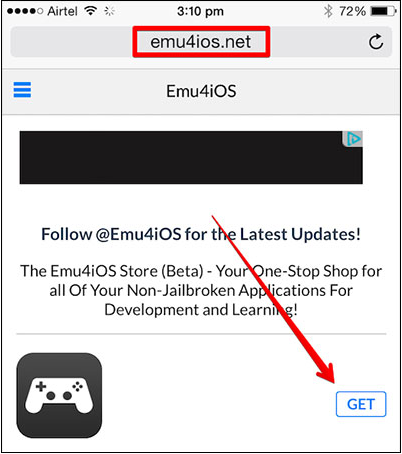
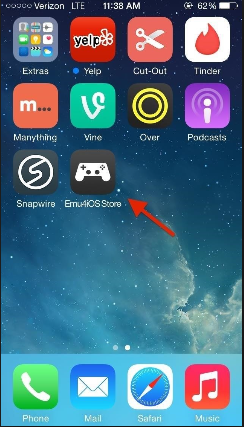
Step 3: After successful installation of Emu4ios Store on your iPhone open Emu4iOS app;
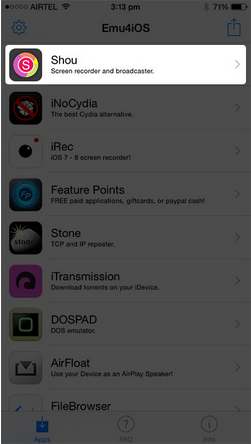
Step 4: Find the Shou screen recorder app from the list of several Apps displayed on the screen and install it for free;
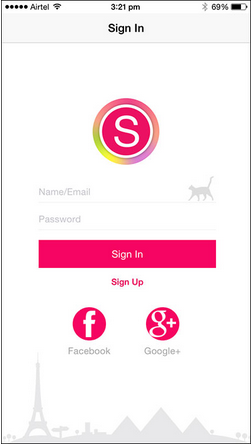
Step 5: After installation of the app is completed launch the Shou App. You are required to sign up before you can launch the app. You can use your Facebook account or Google+ account to sign up;
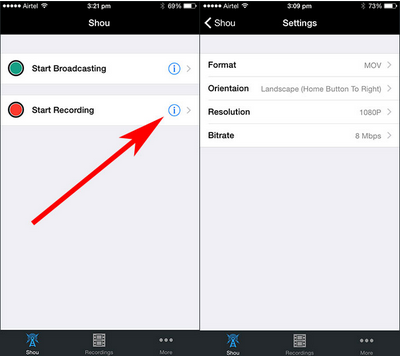
Step 6: After you have launched Shou App, you will see two options – Start Broadcasting & Start Recording. You can change the recording screen resolution, orientation, and format before starting to record your iPhone’s screen. To do so, tap on the tiny “i” next to the Start Recording and choose your preferred option;
Step 7: After selecting your settings tap the Start Recording button to start the process of recording your iPhone screen. A red banner will appear on top of your screen after the recording starts. You can use your device normally once the recording begins;
Step 8: If you want to stop recording, go to Shou and press Stop Recording;
How do I screen record on my iPhone when Jail-broken
One of the best tweaks out there to catch my attention, which allows Jail-broken iPhone users to record iPhone screen is, the ‘RecordMyScreen’ app. It is a free open-source screen recorder app that allows live recording of what’s on the device screen.
It is optimized for iPhone, iPad Air, and iPad Mini. You won’t get this tweak in App Store. Cydia is an alternative to Apple’s App Store for “Jail-broken” devices, where users can go and download plenty of interesting Cydia apps and tweaks to install on their iPhone, iPad, or iPod Touch.
Steps to record iPhone Screen with ‘RecordMyScreen’ App.
1. First have a Jail-broken iOS Device. Now, when the device has been Jail-broken it leaves an App on the home screen called the Cydia App;
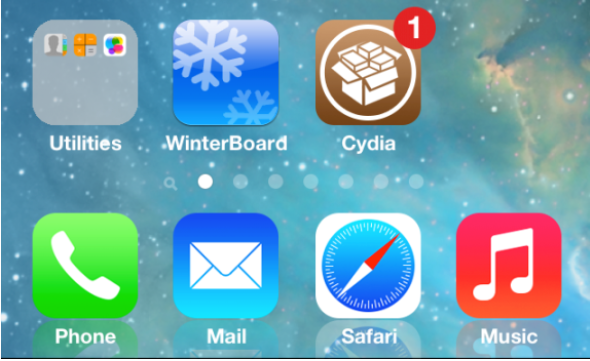
2. Launch Cydia app on your device’s home screen;
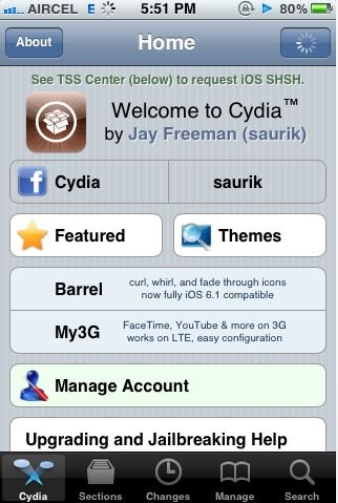
3. Search for “RecordMyScreen (Tweak)” in Cydia’s search function (without quotes), and install this Cydia screen recorder tweak onto your Jail-broken iPhone. Installation takes less than a minute;
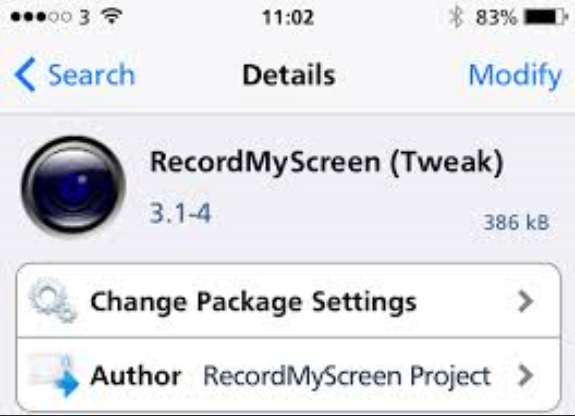
4. A blank white icon with the name ‘RecordMyScreen’ will appear on your device upon installation;
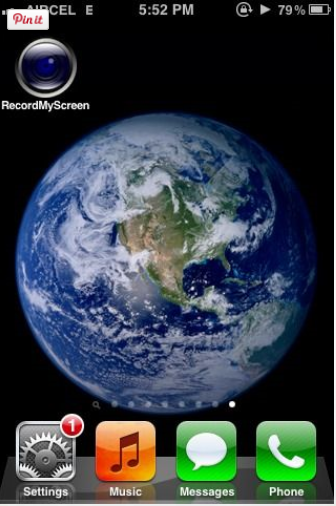
5. Click on the ‘RecordMyScreen’ icon. You will see two options on your screen, one is “Record” and the other one is “Stop”;
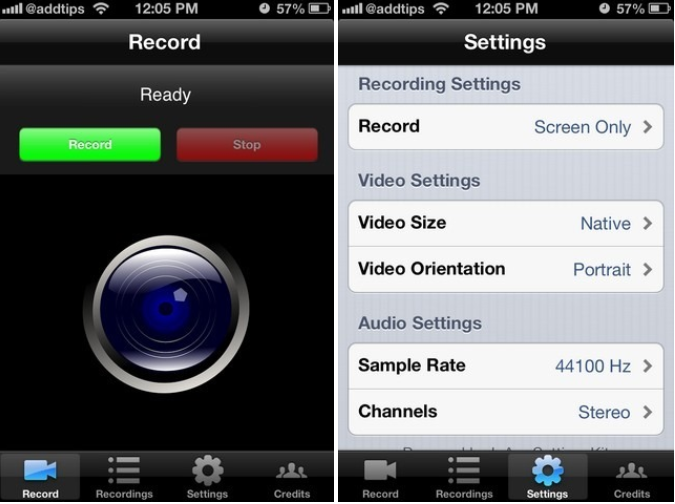
7. Click on the ‘Record’ button to start recording your iPhone’s Screen;
8. Click on the ‘Stop’ button once you are done;
The screen recording will be saved automatically under the Recording tab. To access your recording, simply open the Recordings tab within the app—here you’ll find all your captured videos neatly stored, ready for viewing or sharing whenever you need.
The ‘RecordMyScreen’ is a pretty slick Cydia screen recorder app and takes no time to record the iPhone screen with everything on it. Advance options like ‘save to Dropbox’ and ‘send via mail’ are available under the Recordings tab only.
You may also like to read this post: How to record call on iPhone without app for free
Frequently asked questions
Before I conclude let me address some of the questions often asked by iPhone users related to how to record your screen on iPhone
How do I screen record on my iPhone, iPad or iPod touch?
To make quality screen records on your iPhone, iPad, or iPod touch,
1. Go to Settings > Control Centre and tap More Controls (if you have iOS 14 or later) or tap Customize Controls (if you have iOS 13 or earlier) > then tap the Add button next to Screen Recording;
2. Open Control Centre on your iPhone or iPod touch, or on your iPad;
3. Touch and hold the Record button;
What if the Screen Recording button Is missing?
If you’ve opened your Control Centre only to find the screen recording button nowhere in sight, don’t panic! Here’s a quick fix:
- Head over to Settings and tap on Control Centre.
- Depending on your iOS version, look for either “More Controls” (iOS 14 or later) or “Customize Controls” (iOS 13 or earlier).
- Find “Screen Recording” in the list and tap the green plus (+) to add it to your Control Centre.
Still not showing up after that? Sometimes a third-party screen recorder app, like DU Recorder or TechSmith Capture, can be a handy workaround—these apps often offer more control and extra features versus the stock tool. Just remember that you may need to grant some permissions when you first use them.
Now, with the record button back where it belongs, continue capturing your iPhone shenanigans—with or without the help of extra bells and whistles!
How long can you screen record on iPhone?
There is no time limit to how much you can record your screen. The only limit is the amount of empty space on your iPhone hard drive. However, your video recording can randomly stop during very long recordings.
How do you record high-quality screen?
If you want to record an entire screen in a more precise way or if you want to capture a specific portion of the screen, a high-quality screen recorder can do it. Here’re the top 5 high-quality screen recorder tools:
1. OBS Studio;
2. Apowersoft Unlimited;
3. Screencast-O-Matic;
4. AceThinker;
5. ScreenFlow;
What are some common Screen Recording Mistakes on iPhone?
While screen recording on your iPhone is fairly straightforward, there are a few pitfalls that trip up even seasoned users. Here are some classic missteps to watch out for:
Accidentally Recording Notifications: Forgetting to enable Do Not Disturb mode is a common blunder. Incoming calls, messages, or app notifications can pop up mid-recording and make their (often awkward) debut in your video.
Low Storage Surprises: As noted above, your only real limit is available storage. If your device is running low on space, your recording may suddenly stop—or not save at all.
Microphone Missteps: Want to capture your voice-over? Double-check that you’ve turned on the microphone in Control Centre before you start, or you’ll wind up with a silent movie.
Unstable Orientation: Rotating your device mid-recording can lead to odd video proportions. Lock your orientation if you want a consistent, polished look.
Leaving Personal Content On-Screen: Sometimes, people forget to clear sensitive info—like messages or emails—from their screen, only to realize it’s all been captured.
Avoiding these mistakes can save you a lot of editing time (and accidental oversharing!) down the road.
What should you do if you need more help with screen recording?
If you’re still running into issues or have questions about iPhone screen recording—even after trying the steps above—don’t worry, you’re not alone. Here are a few quick suggestions to get you back on track:
- Check YouTube tutorials: Channels like Tech With Brett or iDeviceHelp offer step-by-step guides (sometimes with solutions for lesser-known problems).
- Visit discussion forums: Drop your specific question in communities like Reddit’s r/iPhone or the Apple section on XDA Developers—chances are, someone’s been in your shoes.
- Consult third-party guides: Websites such as iMore, MacRumors, and TechRadar regularly update their troubleshooting tips and visual walk-throughs.
- Contact app developers: If you’re using a third-party screen recording app (like AirShou or RecordIt!), reach out through their support channels or FAQs.
And of course, never hesitate to reach out to enthusiastic techy friends—they often enjoy the chance to troubleshoot!
Can you record your screen and use screen mirroring at the same time?
A common query among users is whether you can screen record and mirror your display simultaneously. Unfortunately, most screen recording tools (including third-party options like OBS Studio and Apowersoft) don’t allow both features to work together—the phone typically restricts one when the other is running. So, if you try to mirror your iPhone screen to another device and start recording, you’ll likely find one function disables the other.
If you need to capture what’s being mirrored, consider recording directly on the receiving device instead. It’s a handy workaround for presentations or tutorials that need a proper record of your mirrored screen activity.
You may also like to read this related post: Airshou Screen Recorder iOS 10 – a guide to download it on iPhone
Conclusion
Now that you know how to record your iPhone screen free of cost, you can proceed to install a ‘Shou screen recorder’ to screen record iPhone without Jailbreaking the device. Or, if you are having a Jail-broken device you can install the ‘Record My Screen’ App to record your iPhone screen.
You need not worry about any security issues as the steps mentioned in the guide on how to record screen on iPhone are completely safe and you can feel free to install the free screen recording apps mentioned above on your iPhone.
If you found this article helpful, please leave a comment in the section below.

Beakley
Nov 29. 2015
This does not work with iOS 9
jeffcard
Oct 12. 2016
Nice guide, thanks for sharing your experience. I used to record my iPhone screen with acethinker iphone screen recorder, worked like a charm. Share it here as an alternatieve method.
Mellisa Miller
May 10. 2017
Great! I use this: https://www.videostudiopro.com/en/pages/screen-recorder/ to record screen on my PC but I had no Idea how to do that with my iPhone. Thank you for this helpful guide 🙂