How to install Google Play Store on Amazon Fire tablet – 3 easy steps.
How to install Google Play on Fire tablet?
In this article, I have explained how you can install Google Play on Fire tablet in easy steps and get access to multiple Google apps.
For security reasons, Amazon’s Fire Tablets normally restrict you to the Amazon AppStore and by default, don’t let you install apps from outside sources. Since the Google Play Store and all of Google’s own apps such as Gmail, Chrome, YouTube, Google Maps, and other multiple apps are missing from the Amazon App Store, the Fire tablets, by default, won’t allow installation of these popular apps from the Google Play store.
Why Install the Google Play Store on Your Fire Tablet?
If you’ve ever felt limited by the Amazon Appstore’s selection, you’re not alone! The Amazon Fire Tablet is a budget-friendly device with decent specs, but its true potential remains locked without access to the world of apps available on the Google Play Store.
Here’s why installing the Play Store is a game changer:
- Access to Essential Google Apps: Popular apps like Gmail, Chrome, YouTube, Google Maps, and countless others simply aren’t available through Amazon’s marketplace. If you depend on these for productivity, streaming, or staying in touch, the Play Store is your gateway.
- Millions More Apps and Games: The Amazon Appstore offers a fraction of what’s available through Google Play. By installing the Play Store, you’re opening up your Fire tablet to a far wider universe of entertainment, productivity, and educational apps.
- Automatic Updates and Seamless Experience: With the Play Store, apps update just like they do on any other Android device. No need to hunt down updates from questionable sources!
- Make the Most of Your Fire Tablet: Let’s face it, a tablet is only as useful as what it lets you do. Adding the Play Store transforms your Fire device from a basic e-reader into a powerful tool for work, fun, and everything in between.
In short, sidestepping the app limitations of Fire OS gives your tablet a new lease on life. Unlock the full breadth of Google’s app ecosystem, boost your productivity, and enjoy much more with just a few simple steps.
But as the Fire tablets run Fire OS, which is based on Android, it is possible to install Google Play on Fire tablet and gain access to all of Google’s own apps without even requiring rooting or modification of your device.
The good news is that adding the Play Store doesn’t require any complicated “hacking,” rooting, or running scripts from your PC. Instead, you can enable Google Play in just a few minutes by downloading and installing a handful of APK files directly on your Fire tablet. Once installed, you’ll enjoy the full Play Store experience—millions of Android apps and games—just like you would on any standard Android device.
Let’s walk through the simple process so you can start using Google Play apps on your Fire tablet right away.
Follow the 3 simple steps given below on how to install Google Play Store on Amazon Fire tablet by downloading the APK Files for the Google Play Store.
Precautions you should take before installing the Google Play Store
Before you dive into the installation, there’s a quick precaution that can save you from potential headaches. If your Fire tablet has a microSD card inserted, it’s a good idea to remove it temporarily. Why? Sometimes, files may get mistakenly installed on the microSD card, or you might encounter storage conflicts during the process. Popping out the microSD ensures everything related to Google Play lands cleanly on your tablet’s internal storage.
Once you’re all set up and the Play Store is working, you can just slide your card back in—no harm done! With that out of the way, let’s move on to those all-important steps.
Enabling Developer Options and USB Debugging on Your Fire Tablet
If you’re planning to use advanced tools like Android Debug Bridge (adb) or simply want more control over your Fire tablet, you’ll first need to unlock developer features and enable USB debugging. Here’s how to do it:
- First, open the Settings app on your Fire tablet and scroll down to find Device Options (sometimes labeled as “My Fire Tablet” on newer models).
- Look for About Fire Tablet and tap on it. Now, locate the serial number listed on this page.
- Tap the serial number rapidly—about seven times in a row. This “Easter egg” unlocks the hidden Developer Options menu.
- Return to the Device Options menu. You’ll now see a new entry: Developer Options.
- Open Developer Options, and scroll down the list until you spot USB Debugging. Flip the switch to enable it.
With USB debugging turned on, your Fire tablet is now ready to communicate with adb or similar tools from your computer. This makes advanced troubleshooting or sideloading even more flexible, should you wish to customize your device further.
Setting Up Android Debug Bridge (adb) on Your Computer
Once USB debugging is enabled, you can connect your tablet to your computer and use more advanced features. Here’s a quick overview to get you started:
Download and Install adb:
Grab the latest version of the Android Debug Bridge from Google’s developer resources. Install it on your Mac, Windows, or Linux machine.
Connect Your Fire Tablet:
Plug your tablet into your computer using a USB cable. Open a terminal or command prompt on your computer and type:
adb devices
The first time you do this, your Fire tablet will display a prompt asking whether to allow USB debugging from this computer. Tap “Allow.” If you see “unauthorized” listed next to your device in the terminal, don’t worry—just confirm the prompt on your tablet, then run again. Now your device should be listed as “device.”
Running Commands and Next Steps:
With adb connected, you can now run commands from your computer to customize your Fire tablet, from removing unwanted software to installing new apps. The exact commands will vary depending on your goals. For detailed walkthroughs and lists of specific apps you can safely disable, check out resources from the Android developer community, such as XDA Developers. If you’re unsure about your Fire tablet’s exact model or software version, a quick web search with those details can help you find model-specific instructions.
Enabling these features opens up a world of options for personalizing your Fire tablet, whether you’re looking to optimize performance or dig deeper into customization.
What Is Android Debug Bridge (adb) and How Does It Help With Fire Tablets?
Let’s talk about the Android Debug Bridge—commonly known as adb. If you’ve ever wished you could reach under the hood of your Fire tablet and really tinker, adb is your new best friend. This nifty tool (courtesy of Google) acts as a pipeline between your computer and your tablet, allowing you to send powerful commands straight from your desktop.
So, what exactly can you do with adb? Once both your tablet and computer are set up, adb lets you:
- Install or remove apps without fiddling with touchscreen menus
- Disable Amazon apps or bloatware that you never use
- Dive into advanced settings hidden from standard users
- Troubleshoot device issues with command-line precision
To get going, you’ll follow a straightforward process:
- Grab the latest version of adb from Google’s Android developer resources for your operating system.
- Make sure you’ve already enabled Developer Options and USB debugging on your tablet (see above).
- Connect your Fire tablet to your computer via USB.
- Open your computer’s terminal or command prompt and type:adb devices
The fi Jrst time, you’ll likely see your device marked as “unauthorized.” Just approve the connection when prompted on your tablet, and re-run the command. You should then see your device listed as “device,” meaning you’re good to go!
From here, the world’s your oyster: with adb, you can send commands to fine-tune your Fire tablet just the way you want. Need inspiration or specific app names to remove or disable? The Android developer community—especially forums like XDA Developers—offer up-to-date guides and app lists for nearly every Fire tablet model. Just make sure to search for instructions that match your device’s model number and software version for best results.
Armed with adb, personalization is just a few keystrokes away.
How to install Google Play on Fire tablet?
Here are the steps to follow on how to get Google Play on Fire tablet.
Step 1: Enable ‘Apps from Unknown Sources’
The first step in the process of how to install Google Play on Fire tablet is to enable ‘apps from Unknown Sources. This is because you need to install some applications from outside the Amazon App Store to set up Google Play on Amazon Fire tablet.
To enable ‘Apps from Unknown Sources’ follow the steps below:
1. Go to the main ‘Home’ page and open the ‘Settings’ app;
2. Tap ‘Security & Privacy’ (older models may label it ‘Security’);
3. Enable ‘Apps from Unknown Sources’ under Privacy;
4. Click ‘OK’ to dismiss the warning about installing apps from unknown sources;
You might see a pop-up warning you about the risks of installing apps from unknown sources—don’t panic. This is standard practice and just Amazon’s way of reminding you to tread carefully outside their app garden. If prompted, simply tap OK or Continue to proceed.
Your Fire Tablet is now ready to download the APKs needed to install Google Play on Amazon Fire tablet.
Why You Should Turn Off ‘Apps from Unknown Sources’ After Installation
After you’ve finished installing the necessary APKs for Google Play, it’s wise to switch off the ‘Apps from Unknown Sources’ setting you enabled earlier. Leaving this option on makes your Fire tablet more vulnerable, as it allows any app—whether intentional or not—to be installed from outside trusted sources. Hackers love this open door, as it’s one of the easier ways for malware and unwanted apps to sneak onto your device.
By disabling this setting (just head back to ‘Settings’ > ‘Security & Privacy’ and toggle it off), you’re putting up a digital “do not disturb” sign that blocks potentially risky installs in the future. This quick step helps keep your apps—and personal data—safe, so you can enjoy your new Play Store access with peace of mind.
Step 2: Download the APK Files for the Google Play Store
To install Google Play Store on Fire tablet you need to install first the following four different APK files in the given order:
1. Google Account Manager;
2. Google Services Framework;
3. Google Play Services;
4. Google Play Store;
An APK (Android Package) file is the format used to distribute and install apps on Android devices. Normally, when you use an app store, the process of downloading and installing an APK happens behind the scenes. However, for this process, you’ll need to manually download each APK file yourself.
You can use Amazon’s Silk web browser to download these files. Keep in mind, though, that by default, Silk is not able to install APK files directly—it can only download them. You’ll handle the installation step separately, after downloading.
Since different Fire tablets run different Android versions, the exact APKs you require to download will depend on your version of the Fire tablet. So, before downloading the APK files check your device model. To check this, open the Settings app and tap ‘Device Options & System’ (or just ‘Device Options’), and find out your device version listed under ‘Device Model.
Also, check your Fire OS version which is listed in the ‘System Updates’ menu of ‘Device Options & System’ (or just ‘Device Options’).
Double-Check Your Device Compatibility
Before you begin, make sure your Fire Tablet is from 2014 or later. This process may not work with old Kindle Fire tablets, as you need to enable ‘Apps From Unknown Sources.’
To confirm your model and Fire OS version:
- Go to Settings > Device Options > About Fire Tablet. You’ll see your ‘Device Model’ name here.
- To see your Fire OS version, go to Settings > Device Options > System Updates.
Identifying the correct device and OS version ensures you download the correct APK files for your model.
Download the Required APK Files
Once you find your device model, download the APK files listed below.
Google Account Manager
To download Google Account Manager, find the appropriate link for your device in the list below and tap the main ‘Download APK’ button on the linked page.
i. Fire HD 10 (9th Gen), Fire 7 (9th Gen), Fire HD 8 (8th, 10th Gen): https://bit.ly/3a1n4IY
ii. Fire HD 10 (7th Gen and older), Fire HD 8 (7th Gen and older), Fire 7 (7th Gen and older), Fire HD 6, Fire HDX 8.9: https://bit.ly/2Y7A910
After you download the file don’t open the file yet and move on to download the next one.
Google Services Framework
To download Google Services Framework, find the appropriate link for your device in the list below and tap the main ‘Download APK’ button on the linked page.
i. Fire HD 10 (9th Gen), Fire HD 8 (10th Gen): https://bit.ly/3FcvewM
ii. Fire 7 (9th Gen) on Fire OS 7, Fire HD 8 (8th Gen) on Fire OS 7: https://bit.ly/3oniEoo
iii. Fire 7 (9th Gen) on Fire OS 6, Fire HD 8 (8th Gen) on Fire OS 6: https://bit.ly/3DjRwLp
iv. Fire HD 10 (7th Gen and older), Fire HD 8 (7th Gen and older), Fire 7 (7th Gen and older), Fire HD 6, Fire HDX 8.9: https://bit.ly/3ml4OA2
Don’t open the file now and move on to download the next one.
Google Play Services
To download Google Play Services, find your device in the list below and click the link for your device. Once the link opens, click on the download link of the first version of the list which doesn’t have ‘beta’ in the name.
i. Fire HD 10 (9th Gen, 2019), Fire HD 8 (10th Gen): https://bit.ly/2YeepRa
ii. Fire 7 (9th Gen, 2019): https://bit.ly/3B4E9h9
iii. Fire HD 8 (8th Gen, 2018): https://bit.ly/3CZe4Rc
iv. Fire HD 10 (7th Gen and older), Fire HD 8 (7th Gen and older), Fire 7 (7th Gen and older), Fire HD 6, Fire HDX 8.9: https://bit.ly/3uu6oU8
Don’t open the file yet after the download and move on to download the next one.
Google Play Store
For all models use this link: https://bit.ly/3B2lC5j
After the link opens, again click on the download link of the first version in the list which doesn’t have ‘beta’ in the name.
Remember:
- Download each APK in the order listed above.
- Do not open/install any APK until all four have been downloaded.
- Make sure you are downloading APK files and not app bundles or other file types.
Once all four files are downloaded, you’re ready for the next step.
Known Issues with Installing the Play Store on 2022 Fire Tablets
If you’re using a 2022 Fire 7 or Fire HD 8, you might run into some bumps when installing the Google Play Store. These newer models introduced a few quirks. At launch, users reported that despite following all the right steps, the Play Store simply wouldn’t run properly. The culprit? Compatibility issues tied to the new Fire OS version shipping with these tablets.
The good news: Amazon has since released system updates that resolve most of these headaches. Before pulling your hair out over failed installs or persistent errors, verify that your Fire tablet is running the latest version of Fire OS (as of now, look for at least Fire OS 8.3.1.8 or higher).
What to Remember:
- If you hit problems—like the Play Store not opening, crashing, or refusing to log in—double-check for any pending system updates. Installing updates often magically fixes things.
- Occasionally, you may need to factory reset and go through the setup again if glitches persist after updating.
- Sticking with the steps above, and confirming your device is up to date, should help avoid most known issues.
Once your software is current, the Play Store installation process should work just like it does on earlier models.
Step 3: Install the Apps
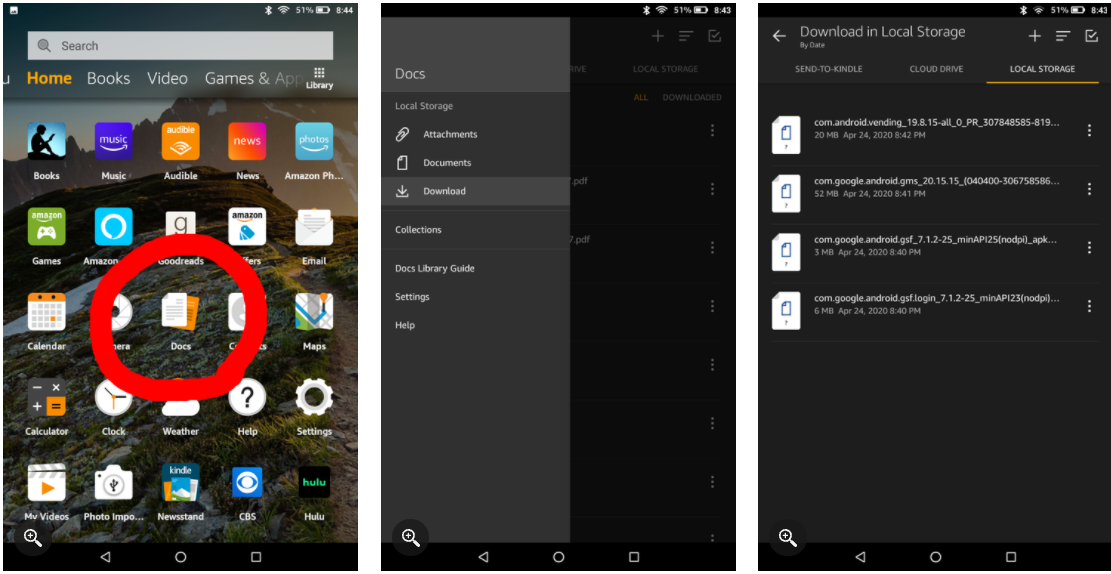
To install the apps first thing to do is to find the downloaded APK files. To find the APKs open the ‘Docs’ file on the Home screen of your tablet (which may also be called ‘Documents’ or ‘Files’).
Next, find the ‘Downloads’ folder of your device which is located in the side menu on most Fire tablets, and click it. In this folder, you will see all four APK files that you have downloaded.
Now to install the apps click the APK files one at a time in the order you downloaded them from the list shown above. Don’t try to install the apps in a different order in which case the Google Play Store won’t work. The files should be opened in the following order:
1. com.google.gsf.login;
2. com.google.android.gsf;
3. com.google.android.gms;
4. com. android.vending;
After you have installed all four apps, all you need to do is – hold down the power button and tap ‘Restart’ (for older models, just power off your device and turn it on again). Once your tablet reboots, you can see the Google Play Store icon on the home page. Now open the Play Store from the home screen and log in with your Google account. Wait for some time after you sign in when Google Play Store and Google Play Services will get updated in the background. You may notice that the Play Store doesn’t work perfectly right away—don’t worry, this is normal. Both the Play Store app and Google Play Services need a few minutes to finish updating themselves, which happens automatically in the background. Just leave your tablet connected to Wi-Fi and let it sit for up to ten minutes. After this short wait, the Play Store should be fully functional and ready for you to download and install your favorite apps. Finally, the Google Play Store is ready to use for downloading and installing apps.
Troubleshooting a Greyed-Out Install Button
If you run into an issue during installation where the “Install” button is greyed out and won’t let you proceed, don’t panic—this is a common hiccup on Fire tablets. The fix is simple: just quickly lock your tablet screen, then unlock it again. After doing this, the “Install” button should become active (usually turning orange), and you can continue installing your APK files as normal. This little trick sorts out the problem almost every time—no need to restart your device or redownload the file.
Accessing and Using the Google Play Store for the First Time
After your tablet has restarted and you’ve given things a few minutes to update in the background, you’re all set to use the Google Play Store—just like you would on any regular Android device.
- Find the Play Store icon on your home screen and tap to open it.
- The first launch might feel a bit sluggish as updates continue behind the scenes. Don’t worry—just stay connected to Wi-Fi and let it settle.
- Once you’re in, sign in with your Google account if prompted (you may have already handled this during setup).
- Now you can browse, search for your favorite apps, and start installing them—everything from YouTube and Gmail to games and productivity tools is at your fingertips.
If you’re after something specific, like Yeti Smart Home or any other app, just use the search bar at the top of the Play Store to track it down and hit “Install.”
That’s it! Enjoy your newly unlocked Fire tablet, now running apps straight from the Play Store.
Manually Granting Permissions to the Play Store App
If you find that the Google Play Store isn’t working quite right on your newer Fire tablet—especially if you’re using models like the Fire 7 (2022, 12th Gen) or anything running Fire OS 8—you might need to manually adjust a couple of permissions before the app will behave itself.
Here’s a quick way to grant the necessary permissions:
- Locate the Play Store icon on your home screen.
- Press and hold the icon. A small menu will pop up—tap on “App Info.”
- In the App Info screen, find and tap on “Permissions.”
- Look for options labeled “Phone” and “SMS.” For each, tap and select “Allow.”
That’s it! Go back and try opening the Play Store again. With these permissions set, you should be able to continue with the installation process without hiccups. If you don’t see these exact options or if the Play Store now works without further tweaks, you’re good to go—no extra steps required.
A Note on Fire Tablet Software Updates
If you’re running into trouble even after tweaking those permissions—say, the Play Store just refuses to cooperate—double-check that your Fire tablet is running the latest version of Fire OS. Amazon’s 2022 tablets, like the Fire 7 and Fire HD 8, shipped with some quirks when it came to sideloading the Play Store. Early on, many users found that the Play Store wouldn’t install or launch properly, no matter how closely they followed the instructions. Thankfully, these headaches have mostly been ironed out with subsequent Fire OS updates.
So, before you spend your afternoon troubleshooting, take a quick detour to Settings > Device Options > System Updates and make sure you’re on the newest available version. Many issues (especially with Fire OS 8 and above) resolve themselves as soon as the tablet is updated—sometimes turning a frustrating process into a five-minute fix.
Bottom line: If something isn’t working, check for updates first. You might save yourself a lot of hassle.
Installing the Google Apps in the Correct Order
Getting the Play Store up and running isn’t just about permissions—order matters, too. For a smooth setup, you’ll want to install the required Google apps in this exact sequence: 1,2,3,4
After each installation, tap Done—not Open—and move on to the next file. The Play Store won’t work as expected if these apps are installed out of order.
Pro Tip: If your Fire tablet has an SD card inserted, take it out during these installations to avoid any unexpected hiccups.
During the process, you might see a warning about your personal data’s safety since you’re using external APKs. Don’t worry—just tap Continue to proceed.
With the correct order and permissions in place, your Play Store should be ready to roll.
Frequently asked questions
Now that I have explained how to download Google Play on Fire tablet before I conclude let me also answer some of the frequently asked questions relating to how to install Play Store on Fire tablet.
How to get Google Play on Kindle Fire?
First, make sure that your Fire Tablet version is from 2014 or later as this process does not work with old Kindle Fire tablets since the process needs to enable “Apps From Unknown Sources.”
1. Open ‘Settings’ app;
2. Go to ‘Security & Privacy’;
3. Select ‘Apps From Unknown Sources’;
4. Next, find ‘Silk Browser’ and then toggle on ‘Allow From This Source’;
Now, start downloading the Play Store files specific to your Fire Tablet;
How do I uninstall Google Play?
Here’s how to uninstall the Google Play Store:
1. Open Settings on your phone or tablet;
2. Go to Apps (App & notifications), and under All apps, tap on ‘Google Play Store’;
3. Tap on the Disable button;
4. A confirmation pop-up will appear. Confirm when asked;
Why does Google Play not recognize my device?
When Google Play does not recognize your device it appears to be an issue with Google’s Android operating system. When you get the error message ‘your device is not compatible with this version, to fix the issue, try clearing the Google Play Store cache, and then data. Next, restart the Google Play Store and try installing the app again.
Troubleshooting: When Google Apps Don’t Recognize Your Account on Fire Tablet
Every now and then, you might run into the classic predicament: you’ve installed a Google app like Chrome, Gmail, or Drive on your Fire tablet, but the app stubbornly insists that your Google account simply isn’t there—or worse, says “This account already exists on your device” and refuses to let you proceed. Don’t worry, it’s not personal, and there’s a straightforward fix.
Here’s what to do if a Google app can’t detect your account:
- First, close the troublesome app completely. Swipe it away from the Recents or multitasking screen, just to be sure it’s not running in the background.
- Head over to the Fire tablet’s Settings and tap on “Apps & Permissions” (if you don’t see this option, look for “Apps” or “Applications”—naming can vary slightly on different Fire OS versions).
- Scroll through the list and find the Google app that’s giving you grief. Tap it, then go into “Permissions.”
- Sometimes the problem is as simple as a missing permission. Make sure all the available permissions are turned on, especially crucial ones like “Contacts.” Sometimes, flipping them all on for good measure helps nudge things along.
- Once you’re done, reopen the app and try signing in again. If you’re using Chrome, you may also need to tap the “Continue as [Your Name]” button at the top of Chrome’s Settings menu.
A quick round of tweaking permissions usually does the trick—no need for more advanced troubleshooting. If not, a simple restart of your tablet might help the changes take effect. Now you should be able to use your favorite Google apps without running into that pesky account recognition issue.
How do I enable Google Play on my Android?
To enable the Google Play Store,
1. Click on the ‘Quick Settings Panel’ at the bottom right of your screen;
2. Click the Settings icon;
3. Scroll down to ‘Google Play Store’ and click ‘turn on’;
4. Read the terms of service and click ‘Accept’;
Are Play Store Apps Compatible with Amazon Kids+?
One thing to keep in mind: not every app you install from the Google Play Store will necessarily play nicely with Amazon Kids+ profiles. In some cases, apps brought in via the Play Store may not appear or function as expected within the Amazon Kids+ environment, since Amazon manages Kids+ content separately and applies its own set of parental controls and compatibility checks. So, if you’re hoping to give your child access to a Play Store app through Kids+, you may run into some limitations—sometimes, these apps simply won’t show up for selection in the Kids+ dashboard.
If you need a specific app available for your child, you may have better luck installing that app directly through Amazon’s Appstore or checking that it’s approved within the Kids+ content library. This helps avoid compatibility headaches and ensures the app integrates smoothly with Amazon’s parental controls.
Why are some apps hidden or unavailable on Fire Tablets in the Play Store?
You may notice that certain apps just don’t show up when you search the Google Play Store on your Fire tablet. This happens because Amazon’s tablets aren’t certified by Google’s SafetyNet system, which is a requirement for some apps to work or even appear in the Play Store. For example, popular apps like Netflix may be missing in your search results even after you’ve installed the Play Store.
But there are workarounds! If you’re looking for an app that’s missing in the Play Store, first check whether it’s available through the Amazon Appstore. If not, you can often download trusted APK files from sites like APKMirror and install them manually. Just remember to double-check the compatibility with your device and always use reputable sources for app downloads.
Can I use Google Family Link to manage a Fire Tablet after installing the Play Store?
Unfortunately, installing the Play Store doesn’t magically transform your Fire tablet into a fully Google-managed device. Even with Google Play up and running, you won’t be able to control your Fire tablet with Google Family Link. Amazon’s parental controls and user management remain separate from Google’s ecosystem, thanks to how Fire OS is built.
If you want to set up parental controls or create accounts for kids, your best bet is to use Amazon’s built-in tools, like setting up a Child Profile directly on your Fire tablet. This allows you to customize access, restrict content, and monitor activity all within Amazon’s environment.
Why Installing LineageOS on a Fire Tablet Isn’t Advisable
If you’ve been eyeing LineageOS as an open-source alternative for your Fire tablet, there’s a good reason most folks steer clear. Fire tablets come with locked bootloaders, making it nearly impossible for the average user to install custom operating systems like LineageOS without risking permanent issues. Even for more tech-savvy tinkerers, the process is complicated, with no official support for Fire hardware—which means you’ll often run into glitches and incomplete functionality.
To add to the headache, even successful installations don’t guarantee long-term stability. Updates can easily cause problems, and it’s not uncommon for users to “brick” their devices while experimenting—leaving them with an expensive paperweight. For those truly set on running LineageOS, Samsung tablets are usually a safer and far less stressful alternative, thanks to better community support and unlockable bootloaders.
In short, unless you love a challenge and don’t mind the risk, sticking with Fire OS or exploring other supported tablets is usually the smoother path.
What are the risks or challenges with installing alternative operating systems like LineageOS on a Fire Tablet?
Thinking about taking the plunge and swapping Fire OS for something like LineageOS? Proceed with caution—this road isn’t just bumpy, it’s littered with “road closed” signs for most users. Fire tablets don’t come with unlockable bootloaders, which means installing third-party operating systems is far from straightforward, and usually demands a lot of technical know-how (plus nerves of steel).
Even if you do manage to get LineageOS or a similar system running, you’re likely to hit snags: features may break, hardware might not be fully supported, and software updates can quickly become a headache. Tinkering too far could risk “bricking” your tablet entirely (translation: it becomes a very unhelpful paperweight). And as of now, there simply isn’t a version of LineageOS that plays nicely with all of Amazon’s hardware—expect things like cameras, Wi-Fi, or touch features to occasionally misbehave.
If you’re set on customizing your Android tablet experience with LineageOS, your best bet is to start with a device from a brand like Samsung, where support is more robust and installation guides aren’t peppered with as many red flags. But for most Fire tablet owners, sticking with Fire OS and using workarounds for app access will save you a lot of time—and possibly, a trip to the recycling bin.
Which Smart Home App Works with Google Play on Fire Tablets?
Once you’ve got the Google Play Store installed on your Fire tablet, a popular option for controlling your smart home devices is the Yeti Smart Home app. You can grab it directly from the Play Store—no need for workarounds. With Yeti, you’ll be able to connect and manage a variety of smart devices right from your tablet, offering a centralized way to switch things on and off, set schedules, and keep tabs on your home automation gadgets.
To get started, just search for “Yeti Smart Home” in the Play Store, install it, and follow their setup prompts to link your devices. This can be especially handy if you want a single dashboard to wrangle different brands and gadgets together on your Fire tablet.
You may also like to read this related post: How can you watch YouTube on Amazon Fire tablet smoothly?
Making Your Fire Tablet Feel Like Standard Android
If you’re after that classic Android look and feel on your Fire tablet—without all the extra Amazon bloat—there’s an easy fix: install a custom launcher from the Play Store. Launchers like Nova Launcher, Microsoft Launcher, or Action Launcher can completely overhaul your home screen experience, letting you rearrange, hide, or even ditch Amazon-specific apps you don’t need.
Here’s why you might love using a custom launcher:
- Clean, familiar layout: Swap in standard app drawers, widgets, and navigation styles you’re used to on other Android devices.
- Personalization: Change icon packs, themes, and grid sizes to match your preferences.
- More control: Customize gestures, shortcuts, and quick actions for a smoother workflow.
After installing one, simply set your new launcher as the default when prompted, and enjoy a user interface that feels much more like the “stock” Android you might know from a Samsung, Pixel, or OnePlus device. If you ever want to switch back, it’s just a settings change away.
Now that your Fire tablet looks and behaves more like an Android device, you’ll likely find daily use much more intuitive—especially if you’re already comfortable with Google’s ecosystem.
Turn Your Fire Tablet into a Smart Home Hub
So, you’ve got the Google Play Store up and running—now it’s time to get creative and make your Fire tablet pull double duty as a smart home controller. With Play Store access, you aren’t limited to just Amazon’s ecosystem; you can install a variety of third-party smart home apps and create a convenient control center right from your couch.
Here’s how to get started:
- Open the freshly installed Play Store and search for a smart home management app that fits your setup—think options like Yeti Smart Home, Google Home, or Samsung SmartThings.
- Download and install your app of choice. If the app seems sluggish at first, give it a moment; Play Services might still be updating in the background.
- Once installed, follow the app’s prompts to add and organize your smart devices, whether it’s lights, plugs, cameras, or thermostats.
- Place your Fire tablet somewhere central and accessible—a kitchen counter or coffee table works great—and you’ve basically got a ready-made, budget-friendly home dashboard.
Now, you can adjust the lights, check a security feed, or tweak the thermostat without reaching for your phone every time. It’s a handy way to get more value (and fun) out of your tablet, especially if you have Alexa, Google Assistant, or other smart home gear in the mix.
Conclusion
Now that I have explained how to install Google Play store on Amazon Fire tablet one important point needs to be mentioned in this connection.
In order to fix most problems you might encounter it is advisable to install Google Play on Fire tablet in its original state to clear the app’s local data. To do this,
1. Go to Settings app > select ‘Apps & Notifications’ section > tap ‘Manage All Applications;
2. Next, find the Play Store in the list of apps and tap it;
3. In the next screen press the ‘Force Stop’ button to stop the Play Store from running;
4. Then press the ‘Storage’ menu option and tap ‘Clear Data’ or ‘Clear Storage’;
5. Finally return to the Play Store app;
6. Restart your Tablet before trying to open the Play Store;
Additional Troubleshooting Tips
Sometimes, after you install the Play Store and Google Play Services, you might notice a few hiccups or delays before everything runs smoothly. This is normal—both the Play Store and Google Play Services often update themselves in the background once installed. Give your tablet a little time (up to ten minutes) for these updates to finish before expecting everything to work perfectly.
If you continue to face issues after waiting and clearing data as described above, it’s worth noting that major Fire OS updates can occasionally break Play Store functionality. Should this happen, repeat the entire installation process and check for the latest APK files that match your device version.
As a last resort, if nothing else seems to work, consider resetting your Fire tablet to its factory settings and starting the installation process from scratch. This will usually resolve any stubborn problems and give you a clean slate.
Patience is key—most issues sort themselves out with a bit of time and a few simple steps.
How to Factory Reset Your Fire Tablet and Start Fresh
If you find yourself at a dead end—apps still not working despite your best troubleshooting—sometimes a full factory reset is the fastest path to a clean slate. Just remember: this will wipe everything from your tablet, returning it to its original out-of-the-box state. Be sure to back up important photos, files, or any app data you don’t want to lose before proceeding!
Here’s how to factory reset your Fire tablet:
- Open the Settings app.
- Scroll down to Device Options (it might just be called “Device” on some models).
- Tap Reset to Factory Defaults or Reset, then follow the on-screen confirmation prompts.
Once the reset is done, your tablet will reboot. You can then set it up as new and repeat the Play Store installation process with a clean slate. Sometimes, this extra step makes all the difference, especially after major updates or persistent bugs.
Boosting Fire Tablet Performance After Play Store Installation
While having Google Play on your Fire tablet unlocks a world of apps, you might notice things running a tad slower than before. Don’t worry—there are some straightforward steps to help your device keep up:
- Manage Background Apps: After installing new apps, especially from the Play Store, be sure to close apps you’re not using. Fire tablets can get bogged down if too much is running at once.
- Disable/Remove Unused Apps: Both Amazon and Google apps will vie for attention. If you aren’t using certain apps (especially any that run in the background), consider disabling or uninstalling them in Settings > Apps & Notifications.
- Restart Regularly: A quick restart can freshen up your device’s memory and close lingering background processes that slow things down.
- Limit Widgets and Live Wallpapers: Fun as they are, these consume resources. Stick to a static background for better speed.
- Clear Cache Often: Over time, installed apps accumulate cached data. Visit Settings > Storage > Cached Data to clear it out periodically.
Giving your tablet a little regular maintenance will keep it snappy—even with the extra capabilities the Play Store provides.
I hope if you correctly follow the steps mentioned in the post on how to download and install Play Store on Fire tablet, there should not be any problem getting access to all the popular Google apps.
However, in case you encounter any major issues in adding Google Play Store to Fire tablet, feel free to share the same in the comment section below.

Cassie
Jan 16. 2022
Ugh I’ve been trying to get this to work for days without any luck. I’m going to try again with the last step that You’ve posted.
Cate
Apr 10. 2022
When I go to open and download the first file it says “app not installed.” Not sure what to do. Any help is much appreciated.
radharenu ganguly
Apr 10. 2022
Hi Cate,
To install Google Play Store on Fire tablet you need to install first the four different APK files as explained in the post, after enabling ‘apps’ from Unknown Sources. If it is done correctly there should not be any problem.
David
Apr 18. 2022
When I try to install com.android.vending_30 I constantly get a can’t open message.
Sly
Apr 29. 2022
Fire 10 (7th generation) I followed all the directions. I have Google settings icon on home screen but no Play Store.