How to insert signature line in Word document?

How to create an Electronic Signature in Word?
How can I create electronic signature in Word document without printout is a query you may often hear from computer users. Today in this post I will show how to create an electronic signature in Word or how to draw a signature in Word in simple steps, without printing the document.
It is never a problem to make digital signature in Word or Worksheet in MS Office when the document page is printed. However, to create a signature in Word without printing the document requires a little workaround. This is because to create a signature in Word without a printout first you are to insert signature line in Word document where exactly you will put your digital signature.
Before I show how to make an e-signature in Word document, let’s first look into what an electronic signature is.
What is an electronic signature?
Electronic signature or e-signature refers to data in electronic form. An electronic signature is a digital mark or symbol that is used to sign electronic documents, making them legally binding. Electronic signatures are commonly used to approve, consent, or authenticate documents in a digital format.
An electronic signature could be considered a virtual representation of a pen-and-paper signature. It is handy and popular feature of Microsoft Office. An electronic signature is intended to provide a secure method for the signatory to provide a smooth transaction. It is used to demonstrate the authenticity of a message or document. Digitally signing a document helps maintain document integrity by ensuring that any changes to the document after signing can be detected.
When you create electronic signature in Word it gives the recipient of the document assurance that the content was created by a known sender (authentication), that the sender cannot deny any association with the signed content (non-repudiation), and that the content has not been changed or tampered with in transit (integrity). Now let’s see how to create an electronic signature in Word document.
To make an electronic signature in Word you need to know where to place the signature. Therefore, to add digital signature to Word document first, you are to insert a signature line in Word document where the signer would put his signature. Now let’s see how to generate electronic signature Word document by inserting a signature line.
Are electronic signatures more secure than handwritten signatures?
Many users wonder whether electronic signatures offer an extra layer of security compared to the traditional pen-on-paper approach. In fact, electronic signatures generally provide enhanced protection. Unlike handwritten signatures, which can be easily forged or altered, electronic signatures rely on advanced technologies—such as encryption, audit trails, and two-factor authentication—to safeguard the signing process.
For instance, when you use Adobe Sign or DocuSign, each electronic signature is often attached to a unique digital certificate, recording detailed information about who signed the document and when. This helps verify the authenticity of the signer and maintains document integrity, flagging any changes that occur after signing. So, not only are electronic signatures more difficult to tamper with, but they also leave behind a clear, traceable digital footprint.
Can a handwritten signature be used as an electronic signature, and what are the implications?
You might be wondering if your good old-fashioned handwritten signature counts when it comes to electronic documents. The answer is yes—your handwritten signature can become an electronic signature once you scan it or snap a photo and insert it into a digital file like a Word document. This is a common shortcut used by many, from freelancers finalizing contracts to HR professionals signing off on reports.
However, while this method creates a digital version of your signature, it’s important to be aware of a few key points:
- Security: Simply adding an image of your handwritten signature does not provide robust security. Unlike signature solutions from providers like DocuSign or Adobe Sign, which use encryption and authentication methods, a scanned signature is easy to copy, paste, or misuse.
- Legal standing: While digitized signatures are widely accepted for everyday documents, they may not meet stricter legal or compliance requirements without additional verification—especially for sensitive agreements or official forms.
- Best practice: For enhanced security and legal backing, many businesses use digital signature tools that offer features such as digital certificates, audit trails, and identity verification. These features help ensure the person signing is indeed who they say they are.
In summary, you can use a scanned handwritten signature as an electronic signature for most general purposes, but for higher-stakes documents, it’s wise to take advantage of specialized digital signature solutions.
Benefits of Electronic Signatures
Electronic signatures in Word documents bring a host of advantages to both individuals and organizations. By allowing users to sign documents digitally, the entire signing process becomes faster and more efficient—eliminating the need for printing, scanning, or mailing paper copies. This not only saves time but also reduces costs associated with traditional document handling.
Security is another key benefit. Electronic signatures help verify the identity of the signer and protect the integrity of signed documents, making it much harder for unauthorized changes to go unnoticed. In addition, electronic signatures are legally binding in most regions, providing peace of mind that your signed documents are recognized by law.
Flexibility and Integration
You’re not limited to just what Word itself offers—many electronic signature tools, such as DocuSign and Adobe Sign, integrate smoothly with Word. These platforms let you upload documents directly, embed your signature, and sometimes even customize your signing experience—all without leaving your workflow. Advanced features like encryption, audit trails, and secure authentication measures further ensure the integrity and legality of your signed documents.
Electronic signature solutions aren’t just about scribbling your name—they’re equipped to handle nearly every form-filling need you can imagine. Not only can you add your signature, but you can also insert text, select checkboxes, input the current date, or add initials wherever they’re required. Often, it’s as simple as choosing the function you need, clicking the right spot, and entering your information. This flexibility means you’re able to complete entire forms, agreements, or contracts without ever printing a single page.
Apps explicitly designed to sign documents add even more layers of protection. For instance, each time you sign a document, a certificate is instantly created that includes a timestamp and the date of completion. This not only strengthens the security and authenticity of your signature, but also provides a verifiable record for your files—giving you added peace of mind with every signed document.
One of the biggest advantages of electronic signatures is sheer convenience. Signing documents online is often as simple as two clicks, letting you bypass the hassle of printing, scanning, or mailing paperwork. With just a few quick steps, you can sign and send documents to other users, clients, or contract parties—without ever leaving your desk. Plus, the process automatically saves your documents for easy sharing and future reference. Despite the simplicity, electronic signatures carry the same legal weight as traditional ink signatures, ensuring your agreements are both valid and enforceable.
While the built-in tools in Word are great for quickly adding simple signature images or handling basic digital signing, sometimes you might need more robust capabilities. If your workflow calls for features like real-time tracking, centralized storage, and seamless integration with your existing apps, these third-party solutions can help elevate your signing process. Not only do they add convenience, but the extra layers of security and compliance can give you peace of mind when handling sensitive agreements.
It’s important to consider your specific needs when choosing your e-signature approach. Word’s native tools are convenient for everyday documents and straightforward approvals, but if you require features such as tracking, notifications, long-term storage, or deeper analytics, a dedicated signature platform may offer a more comprehensive solution. With these advanced tools, you also gain insights to help streamline your workflow and support your business growth.
Ultimately, it’s about choosing the option that best fits your needs—whether that’s sticking with Word’s straightforward features or leveraging more powerful, integrated signature platforms to streamline and safeguard your document workflows.
Streamlined Document Management
Using electronic signatures in Word also streamlines document management, making it easier to track, store, and retrieve signed documents. This digital approach supports remote work and collaboration, allowing multiple parties to sign documents from anywhere in the world.
In summary, electronic signatures enhance productivity, reduce paperwork, and ensure that your Word documents remain secure and authentic throughout the signing process. Whether you’re managing contracts, approvals, or official forms, the right e-signature solution can help you work smarter and with greater confidence.
Environmental Benefits of Electronic Signatures
Switching to electronic signatures isn’t just good for speed and efficiency—it’s also a smart move for the environment. By eliminating the need to print documents, electronic signatures help reduce paper consumption, cutting down on waste and lowering your organization’s carbon footprint. Less printing also means less energy spent on things like copying, faxing, and shipping physical paperwork from place to place.
But the environmental impact goes beyond saving paper. With digital solutions, there’s no need to rely on ink cartridges, overnight courier services, or storing stacks of paper in file cabinets. This sustainable approach not only conserves resources but also supports a more eco-friendly workplace—one where your day-to-day operations can be streamlined and greener at the same time.
Word Format vs. PDF Format for Electronic Signatures
When deciding between Word and PDF formats for documents with electronic signatures, it’s important to weigh their respective strengths and limitations.
Advantages of Word Format:
- Easy Editing and Collaboration: Word documents are great when you need to collaborate or revise the content before finalizing. You can make updates seamlessly, which is especially helpful for working drafts or documents needing multiple rounds of input.
- Track Changes: Microsoft Word’s built-in tools allow contributors to suggest edits and view revision history, ensuring everyone stays on the same page.
Disadvantages of Word Format:
- Security Concerns: Because Word files are easily editable, there’s a greater risk that someone might make unauthorized changes, even after a document has been signed.
- Formatting Issues: If the receiver uses a different word processor or version, formatting can sometimes appear skewed, which may undermine the professionalism of your document.
Advantages of PDF Format:
- Consistency and Professionalism: PDF files preserve the layout, fonts, and appearance of your document across all devices and platforms. What you send is exactly what the recipient will see and print.
- Enhanced Security: PDFs are generally harder to edit without leaving a trace, making them a more secure choice for finalized, signed agreements.
- Legal Recognition: PDF signatures are widely accepted for official and legal documents, as software like Adobe Acrobat embeds secure encryption.
Disadvantages of PDF Format:
- Limited Editing After Signing: Once you’ve signed and saved a PDF, making further changes can be complicated. Any modifications typically require special tools and may invalidate the signature.
- Less Flexibility for Collaboration: PDFs are not designed for ongoing collaborative editing; comments and markups are possible but not as dynamic as in Word.
In summary:
Choose Word format for drafts and collaborative projects where flexibility is needed. Opt for PDF when you need a polished, secure document ready to be shared or submitted for legal purposes. Both formats support electronic signatures, but your selection should depend on how much security and finality you require versus ease of editing and review.
Printing and Legal Validity of Electronic Signatures
If you’re wondering whether you can print an electronic signature onto a paper document, the answer is yes—it’s technically straightforward. After signing a document electronically in Word, PDF, or via a platform like DocuSign or HelloSign, you can simply print the signed file as you would any other document. The digital signature will appear as part of the page.
However, it’s important to note that while printing an electronically signed document creates a physical copy with your signature image, the legal strength lies in the digital version. Electronic signature solutions embed various security features—like timestamps, audit trails, and encryption—that verify authenticity. These security details don’t transfer to the printed page. If you later need to prove when or how the document was signed, or who signed it, the digital file will serve as the authoritative version.
The legal recognition of a printed electronic signature may also differ depending on local laws and the nature of your agreement. For formal, highly regulated, or high-value transactions, it’s wise to keep the original electronically signed file and refer to the relevant regulations in your jurisdiction. In many cases, businesses and courts accept the digital copy as the official record, while the printed version is just for reference.
In short: you can print an electronic signature, but if legal validity is critical, trust the secured digital document as your source of truth.
How Third-Party Apps Enhance Compatibility and Transferability
Third-party electronic signature apps—like DocuSign, Adobe Sign, and HelloSign—bring several advantages when it comes to working smoothly across devices and converting documents between formats. Unlike Microsoft Word, which may have varying features on different platforms (Windows, Mac, iOS, or Android), these apps are designed for consistency. You can start signing a document on your desktop, review the details on your tablet, and finalize the signature on your phone—without losing any features or security along the way.
Uniform Experience Across Devices
Most reputable e-signature solutions offer dedicated apps or web platforms that are fully compatible with multiple operating systems. This means whether you’re using a PC at the office or a mobile device on the go, you get the same streamlined signing process and feature set. That uniformity is particularly useful for teams and clients working remotely or in diverse digital environments.
Seamless Format Conversion
Need to send a signed file in PDF format, even if the original was created in Word? Third-party apps typically allow you to upload a document in one format (like .docx), apply your signature, and export it as a PDF—or vice versa. This flexibility ensures that your document looks professional and retains its security, no matter how you need to share or archive it.
Added Security and Traceability
Another benefit is that many of these tools automatically generate a certificate of completion each time a document is signed. This certificate often includes details like timestamps, signatory information, and a unique document identifier, adding an extra layer of authenticity and helping maintain compliance with legal and organizational requirements.
In short, if you work across multiple devices, frequently need to convert file formats, or require robust security features, third-party electronic signature apps offer a smoother, safer, and more versatile experience than relying on Word’s built-in tools alone.
Legal Considerations by Country
It’s important to note that while electronic signatures are widely recognized and legally binding in many regions—including the USA, UK, Canada, Ireland, and much of the European Union—acceptance can vary. Most developed countries have established regulations like the U.S. ESIGN Act or the EU’s eIDAS, ensuring that electronic signatures hold the same legal weight as handwritten ones for most transactions.
However, some countries impose stricter requirements or don’t recognize electronic signatures for certain document types. For example, in places like North Korea, Nepal, Afghanistan, and Fiji, electronic signatures may not be legally valid or widely accepted for official documents. Always check local regulations before sending signed files internationally, especially when working with sensitive legal, financial, or government paperwork.
Understanding the landscape not only helps ensure compliance but also avoids unpleasant surprises when closing deals across borders.
Compliance and Regulatory Considerations in Different Industries
When it comes to digital signatures, compliance is not a one-size-fits-all matter—especially across different industries and jurisdictions. Financial institutions, healthcare organizations, and legal professionals, for example, often face stricter requirements than other sectors. In regulated industries, documents may need to be signed using digital certificates issued by trusted Certificate Authorities (CAs) to meet auditing standards, satisfy industry regulations, or ensure admissibility in court.
Unverified or self-generated digital signatures typically don’t pass muster under these rules. While they might suffice for informal documents or internal approvals, they may fall short of industry-specific standards or broader regulatory frameworks like HIPAA (healthcare), GLBA (finance), or even procurement guidelines in public sector work. For businesses operating internationally or in highly regulated fields, choosing a solution that offers third-party verification—such as DocuSign, Adobe Sign, or HelloSign, which frequently provide CA-backed certificates—helps safeguard legal standing and reduces compliance headaches.
Keep in mind that industry regulations can and do evolve. As the regulatory environment continues to develop, organizations must remain vigilant, ensuring their chosen signature solutions remain up to date and widely recognized. This proactive approach minimizes risk, keeps workflows running smoothly, and—most crucially—keeps your digital paperwork airtight in the eyes of the law.
Types of Digital Certificate Solutions for Office and PDF Files
If you’re evaluating digital signature certificates, your choice often hinges on the file type you plan to use. For Microsoft Office documents like Word, Excel, and PowerPoint, most people rely on personal digital certificates (often called identity certificates). These allow you to create digitally signed files with a unique cryptographic fingerprint and, in many cases, display a visible signature banner inside the document itself. Popular e-signature services like DocuSign, Adobe Sign, and HelloSign can also issue these certificates or provide integrations for a seamless workflow.
For PDFs, the situation is slightly different. PDF signatures rely on special digital certificates that follow industry-recognized trust lists—think Adobe’s AATL (Adobe Approved Trust List). When applied, a trusted certificate verifies the authenticity of the document and displays a recognizable blue ribbon or seal within most PDF readers. This is particularly important for legal, government, and enterprise use cases where the signature’s validity must stand up to intense scrutiny.
To recap:
- Microsoft Office Documents: Use a personal digital certificate or integrate with trusted e-signature services for easy identity verification and document integrity.
- PDF Documents: Opt for certificates recognized by major trust lists, which maximize security and legal acceptance, especially in regulated workflows.
Choosing the right type ensures your digital signatures are both secure and widely accepted—no matter which file format you’re working with.
Challenges of Deploying Digital Signatures at Scale
Scaling up digital signature deployment across an entire organization can be trickier than it first appears. For starters, not every digital signature solution offers the same level of security, reliability, or convenience. Businesses often discover that some platforms handle a handful of signatures just fine, but struggle with the sheer volume required for enterprise-level workflows.
A key obstacle? Volume management. If your team processes hundreds or thousands of documents daily, you need a platform—like DocuSign, Adobe Sign, or HelloSign—that can keep up without bottlenecking. Lesser tools sometimes lack the infrastructure to support the heavy lifting, leading to delays, errors, or even failed transactions.
And then there’s integration. Modern organizations don’t run on standalone apps—they rely on an ecosystem of business tools: CRMs, cloud storage, HR platforms, custom portals, and more. Ensuring that your chosen e-signature solution seamlessly integrates with everything your company uses is no small feat. Clunky or incomplete integrations can disrupt workflows, force tedious manual steps, or even create compliance gaps.
Bottom line: when scaling digital signature deployment, it’s critical to vet providers thoroughly. Make sure they can handle both your current demands and any future growth, and scrutinize integration capabilities to ensure the solution fits smoothly into your existing digital toolkit. This attention up front saves considerable headaches down the line—keeping your document flows both secure and efficient.
How to insert signature line in Word
To make digital signature in Word first, you are to insert signature line in Word. Find below how to add a signature line in Word document where the signer would put his digital signature:
How to add a signature line in Word (these steps are relevant to the MS Office 2007 Word document)
Step 1: In the Microsoft Office Word in which to make digital signature, place your pointer where you want to insert signature line in Word document;
Step 2: Click the Insert tab and in the Text, section click Signature Line and then click Microsoft Office Signature Line from the list;
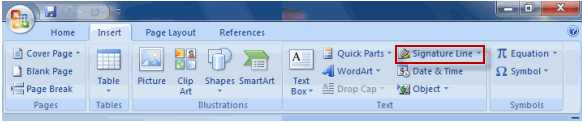
Step 3: Wait for the Signature Setup dialog box to appear;
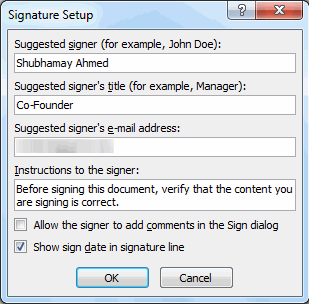
Step 4: In the Signature Setup box, type a name in the Suggested Signed box. Also, add a title in the Suggested signer’s title box;
Step 5: Click ‘OK’
Step 6: A signature line now appears with a cross and a line to signify where the signer would insert signature in Word ;

Step 7: To insert additional signature lines, repeat steps 1 through 6.
Step 8: Now send the document to the intended signer i.e. who will put his electronic signature in Word;
These steps complete the signature line process in Word.
How to Add an Electronic Signature in Different Versions of Word
The process for signing a Word document electronically is fairly consistent across versions, from Word 2007 all the way to Office 365. Here’s a simple walkthrough for adding your electronic signature:
Step 1: Place your cursor exactly where you want the signature to appear in the document.
Step 2: Head to the Insert tab. In older versions, you’ll find Signature Line under the Text group. Newer versions might call it Signature List or similar—just look for anything that refers to “signature.”
Step 3: A Signature Setup window will pop up. Here, fill in details like the signer’s name and their title—these help clarify who needs to sign and in what capacity.
Step 4: Click OK, and a signature line will appear in your document, complete with a handy “X” and line as an indicator of where to sign.
Step 5: To actually sign, right-click on the new signature line and choose Sign.
- You can upload an image of your handwritten signature,
- Type your name for a printed-style signature,
- Or, if you’re on a touchscreen device, draw your signature directly.
If your document needs more than one signature, just repeat these steps for each signer. This approach ensures your Word document maintains a professional, consistent appearance—no matter which version of Word you’re using.
How to add a digital signature in Word using an add-in
If you prefer to add a digital signature in Word with the help of a third-party tool, Microsoft Office supports add-ins you can install directly from the Microsoft Store. Here’s how to get started:
Step 1: Open your Word document, then navigate to the Insert tab and select Get Add-ins (or Store, depending on your version).
Step 2: In the add-in window, browse or search for a reputable electronic signature provider, such as DocuSign, Adobe Sign, or similar. Click Add or Get It Now to install the add-in to Word.
Step 3: Once installed, you’ll notice a new tab or sidebar for the chosen add-in. Click this to launch the plugin panel inside Word.
Step 4: Sign in to your account within the add-in panel, or create one if you’re a new user. Follow the on-screen prompts to connect your account.
Step 5: After logging in, you’ll typically see options like sign the document yourself or send for signature. Choose the desired action.
Step 6: Insert your electronic signature by following the app’s steps, or assign signature spots for others as needed. The add-in will guide you through the finalization, whether you’re signing or collecting others’ signatures.
For those seeking enhanced security and additional features beyond just signing—such as multi-party signing, audit trails, and tamper-evident documents—many third-party providers like DocuSign or Adobe Sign offer robust options directly within Word. These functionalities can streamline the process for larger teams or sensitive documents, providing peace of mind and a comprehensive record of all actions taken on the document.
Step 7: Once all signatures are completed, you can usually download or save a certified copy of your signed document directly from Word, often including a signature certificate for added peace of mind.
This approach streamlines the process—no printing, scanning, or switching between apps required.
Prefer to keep things in the browser and skip the hassle of installing yet another app? You can easily create and apply electronic signatures to Word documents using reputable online e-signature tools like DocuSign, Adobe Sign, HelloSign, or similar services. These platforms typically support not only Word files, but also formats like PDF, Excel, images, and text documents.
Here’s a step-by-step guide to signing Word documents online:
1. Upload Your Document
Start by navigating to your chosen e-signature website. Look for an “Upload” or “Select File” button—these are usually front and center. Drag and drop your Word file (or PDF, XLS, TXT, or image file) into the uploader, or click to browse and select it from your device.
Within seconds, your document will be ready for editing.
2. Edit and Prepare the Document
Once uploaded, most platforms present an editing interface where you can:
- Insert signature fields
- Add text boxes (handy for filling in names, dates, or other details)
- Check off boxes or initial areas as needed
Just click on the relevant tool in the sidebar and place it exactly where you want on the document.
3. Create and Insert Your Signature
When it’s time to actually sign, you usually get a few options:
- Draw: Use your mouse, stylus, or a touchscreen to hand-sketch your signature
- Type: Enter your name and let the software convert it into a stylized signature
- Upload: If you already have a scanned image of your handwritten signature, you can upload and place it onto the document
Position the signature exactly where it belongs—most platforms let you drag, resize, and fine-tune the placement.
4. Complete the Rest of the Document
While you’re at it, you can also fill in other details: type today’s date, check boxes, or add required initials. These tools are usually only a click away and can be added wherever necessary before you finalize.
5. Download or Share Your Signed Document
Once you’re happy with all edits and signatures, click the “Finish,” “Done,” or comparable button. Most services then let you download the signed document instantly, often without requiring you to create an account. Some platforms also allow you to send the signed file directly via email or generate a secure sharing link.
This online approach is fast, secure, and means you can sign and send Word documents from anywhere, with no need for printers or scanners.
How to fill out a Word document online (in addition to signing)
In addition to adding your electronic signature, many online tools allow you to complete your Word documents directly within your browser. Rather than merely signing, you can:
- Enter text into designated fields
- Check off boxes for forms that require selections
- Input the current date automatically
- Add your initials where prompted
- Complete other required form details as needed
Popular add-ins and online services like DocuSign, Adobe Sign, or similar platforms make it easy to not just sign but also fill out the entirety of your document, all without downloading extra software or printing physical copies. This not only speeds up the workflow but ensures that all essential sections—whether a checkbox, a date, or a note—are filled out accurately before submitting or sharing your completed file.
How to create an electronic signature in Word (steps for the intended signer)
If you are the signatory then follow the steps below about how to make electronic signature in Word:
1. To make digital signature in Word, you’ll need to follow the above instructions and insert a signature line or signature field first. Make sure to position the insertion point where you want the signature block or signature field to appear;;
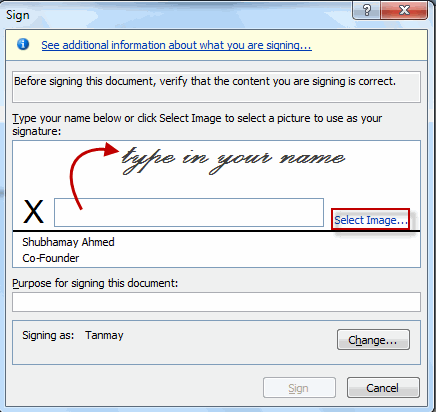
2. Double-click next to ‘X’ or right-click on the signature line;
3. A Sign box will appear next to ‘X’;
4. Type your name in the box to add a printed version of your signature as typewritten text Or upload a digital image of your handwritten signature you might have stored on your computer by clicking ‘Select image‘;
(The digital image of your signature can be created easily by scanning your signature and then saving the file as a separate file in a common file format such as PNG or JPG. This makes it easy to insert into any word file)
5. After inserting the signature image, you can use the Picture Tools Format tab to crop, resize, or edit the inserted picture before finalizing your signature. If you wish to adjust the image further, simply click on it to activate the Format tab. From here, you can use the Crop tool to trim any excess background or whitespace around your signature for a cleaner look. Once you’ve made your adjustments, right-click the image and select Save as Picture if you’d like to save this refined signature as a separate file for future use. This can be especially handy if you plan to insert your signature into other documents later on.
6. When you are ready to insert electronic signature in Word, click the Sign button to complete the process.
Tip: For documents requiring multiple signatures, you can insert additional signature fields or signature lines for each signer. If you need to send a signature request or manage multiple signatures, consider using an add in to streamline the process in your word file.
Once the process is properly followed, creating an electronic signature Word shall be completed. Now, Word will confirm that the signature has been added.

After you create e-signature in Word, it will become read-only to prevent modifications to its content. You can, however, edit the digital signature in a Word document whenever you need to;
Save Your Signature and Details as a Reusable Block in Word
Want to avoid re-creating your signature (plus all your credentials) every time you send a document? You can easily save a signature block—including your handwritten signature image and typed info like your job title or phone number—as a reusable building block in Word.
Here’s how to do it:
- First, type out any text you’d like to accompany your signature—think phone numbers, job titles, or email addresses—directly below the inserted signature image.
- With both your signature picture and the accompanying text selected, head to the Insert tab, then choose Quick Parts (in the Text or Explore group, depending on your version).
- Select Save Selection to Quick Part Gallery… A new dialog box will pop up.
- Give your signature block a clear name (for example, “Default Signature”) and choose AutoText under the Gallery dropdown.
- Click OK to save.
Next time you need to insert your signature block:
- Place your cursor at the desired spot.
- Navigate back to Insert > Quick Parts > AutoText, and select the name you just saved.
No more copy-and-paste hassles—your full signature block is ready to drop in with just a couple of clicks.
Using Invisible Digital Signatures in Word
Invisible digital signatures provide a discreet yet powerful way to sign documents in Word. Unlike visible signatures, these do not appear on the document itself but are embedded within the file’s metadata, ensuring the document’s authenticity and integrity without altering its appearance.
To add an invisible digital signature, open your Word document and go to the “File” tab. Select “Info,” then click on “Protect Document” and choose “Add a Digital Signature.” Follow the prompts to select your digital certificate and complete the signing process. This method is especially valuable for scenarios like OFR submissions, where a visible signature is not required but a secure, tamper-evident record of the signing process is essential.
Invisible digital signatures help maintain the professional layout of your word documents while providing robust security. They ensure that any changes made after signing will invalidate the signature, alerting recipients to potential tampering. By using invisible digital signatures, you can confidently sign documents and protect their integrity without affecting their design or readability.
Security Considerations for Electronic Signatures
When adding an electronic signature to Word documents, security should always be a top priority. One of the most effective ways to secure your signed documents is by using digital certificates, which authenticate the signer’s identity and encrypt the signature for added protection. This ensures that only authorized individuals can sign and that the signature cannot be forged or altered.
It’s also important to safeguard your Word documents by enabling password protection and storing them in secure locations, such as encrypted drives or trusted cloud services. Using reputable electronic signature software that adheres to industry security standards further enhances the reliability and legal standing of your signatures.
Beyond these basics, many professional document management services—such as DocuSign and Adobe Sign—offer additional security features for electronic signatures. These platforms provide multi-party signing workflows, audit trails for tracking document activity, and tamper-evident seals that highlight any unauthorized modifications. Advanced options may also include timestamping, long-term validation, and seamless integration with cloud-based storage, further supporting compliance and workflow efficiency within organizations.
Be mindful of potential risks, such as phishing attempts or malware, which can compromise the security of your electronic signatures. Always verify the source of signature requests and keep your software up to date. By following these best practices, you can ensure that your electronic signatures in Word are both secure and legally binding, protecting the integrity of your signed documents.
What Security Measures Protect Your Documents When Signing Online?
When signing documents online, robust security safeguards are essential. Reliable e-signature platforms use industry-standard encryption protocols—such as Secure Sockets Layer (SSL) and Transport Layer Security (TLS)—to ensure that data exchanged between your device and their servers stays confidential and safe from prying eyes. This level of encryption is similar to what you encounter when banking online or making secure purchases.
To further protect your privacy, most reputable services automatically delete your uploaded files from their servers after your session ends or after a short retention period. This minimizes the risk of unauthorized access and ensures your documents don’t linger online longer than necessary.
Look for platforms that are compliant with internationally recognized standards, such as ISO 27001 for information security management, and that adhere to industry best practices, like Microsoft Azure or Amazon Web Services data protection policies. These third-party validations add an extra layer of confidence that your digital signature and sensitive information are handled with care.
By choosing platforms with strong encryption, thoughtful data retention practices, and recognized compliance certifications, you can be confident your signed documents remain private and secure while online.
The Pitfalls of Self-Signed and Personal Digital Certificates
While it may be tempting to create your own digital signature using a self-signed or personal certificate, this approach comes with several notable drawbacks—ones that can easily undermine your efforts to keep documents secure and legally defensible.
Lack of Automatic Trust
Unlike certificates issued by reputable Certificate Authorities (CAs) like DigiCert or Entrust, personal or self-signed certificates aren’t automatically trusted by other recipients or organizations. Anyone opening your signed document will likely see warning messages or be required to manually add your certificate to their list of trusted sources—an extra hoop that most people aren’t willing (or able) to jump through.
Inadequate Authentication and Verification
The power of a digital signature lies in its ability to authenticate the signer’s identity and reassure recipients that the document hasn’t been tampered with. CA-issued certificates undergo a thorough vetting process, confirming that you are who you claim to be. Self-signed certificates, on the other hand, skip this step entirely—meaning anyone could generate one and claim any identity. This makes it very difficult for colleagues or partners to verify that a document truly comes from you, opening the door for impersonation or fraudulent activity.
Compliance and Industry Standards
The regulatory landscape around electronic signatures is increasingly stringent, with standards like eIDAS in Europe and ESIGN in the US specifying requirements for secure, trusted signatures. Self-signed digital signatures typically don’t meet these requirements and may not be recognized as valid in legal or industry contexts. They are also excluded from trusted lists like Adobe’s Approved Trust List (AATL) or Microsoft’s Root Certificate Program, meaning their utility is limited for most professional or regulated environments.
Heightened Security Risks
Without the robust validation and oversight provided by recognized CAs, self-signed certificates can leave your organization exposed to security threats. Cybercriminals can exploit weaknesses in the trust model, potentially using counterfeit certificates to impersonate signers or distribute malicious documents.
The Bottom Line
If your goal is to ensure authenticity, maintain legal defensibility, and keep your documents secure, it’s best to rely on CA-issued digital signatures. Not only do they offer a higher level of trust, but they also help ensure compliance with industry norms—so you can sign with confidence.
How to remove an electronic signature in Word document or worksheet?
Here are the steps to follow to remove an electronic signature in Word document:
1. Open the Office document that contains the e-signature you want to remove;
2. Click the Microsoft Office Button, point to Prepare, and then click View Signatures;
3. In the Signatures task pane, point to the signature that you want to remove, click the arrow that appears on the right, and then click the ‘Remove Signature’ option;
4. When you are asked if you want to remove the signature permanently, click ‘yes’;
5. You can edit your electronic signature in Word by clicking the ‘Signature Setup’ option;
Important Considerations When Removing or Editing Electronic Signatures
Keep in mind that once you remove an electronic signature from a Word document, that action will permanently invalidate the signature and its associated authenticity. Electronic signatures are designed to ensure document integrity—removing or altering them signals that the document has changed since it was signed. If you need to make edits, it’s best to remove the signature, make your changes, and then insert a new signature to reflect the updated content. Attempting to modify the signature itself (rather than removing and re-signing) is not recommended, as it undermines the trust and verification that digital signatures provide.
For minor revisions, you might consider using Word’s “Track Changes” feature to document edits transparently before re-signing. Always be aware that any modification after signing will require the signature to be reapplied to maintain document security and compliance.
Troubleshooting Common Issues with Electronic Signatures in Word
While electronic signatures in Word are generally straightforward, users may occasionally encounter issues during the signing process. If you’re unable to insert a digital signature, first check that your digital certificate is properly installed and that the signature line is correctly set up in the document. Sometimes, permissions or document restrictions can prevent signing—ensure that you have the necessary rights to sign the document.
If the signature line appears but cannot be signed, review the document’s settings to confirm that it is not marked as final or restricted from editing. For issues with the visibility of digital signatures, verify that the signature is properly embedded and that you are using compatible software to view the document.
Should you encounter problems with the signing process, such as error messages or missing options, updating your version of Word or repairing your Office installation can often resolve these issues. By addressing these common challenges, you can maintain a smooth workflow and ensure that your electronic signatures in Word documents are applied correctly and securely.
Frequently asked questions
Now that I have explained how to do electronic signature in Word document, before I conclude, let me also give short replies to some of the questions often asked by people about how to draw signature in Word document.
How do I write my signature on a Word document?
1. Write your signature on a piece of paper;
2. Scan the page and save it on your computer in a common image file format;
Tip: For detailed instructions on scanning, refer to your scanner’s manual or the manufacturer’s website—popular brands like Canon, Epson, or Brother offer step-by-step guides for every model.
1. Open the signature image file, Right-click the image, and click Save as Picture;
2. To add the signature to a document, click Insert > Pictures;
How to make electronic signature in Word?
Follow the steps below on how to do an electronic signature in Word:
i. First add a signature line where you will sign the document. To do this, open the Microsoft Word document and place the cursor (pointer) in the location where the signer will sign;
ii. Next, select the ‘Insert tab’ and then click ‘Signature Line’;
iii. Then click the ‘Microsoft Office Signature Line’ option. A Signature Setup dialog box will appear;
iv. Enter your information in the text fields and click OK. A signature line will appear;
v. Finally, to draw a signature in Word document right-click on the signature line. A Sign box will appear next to ‘X’. Type your name in the Sign box Or upload a digital image of your written signature stored on your computer by clicking ‘Select image’. Then click ‘Sign’;
How to insert signature line in Word?
To insert signature line in Word document, select the ‘Insert tab’, click ‘Signature Line’ and then select the ‘Microsoft Office Signature Line’ option from the list. A Signature Setup dialog box will appear. Fill out the required fields in the setup box and click ‘OK’. Now, the signature line in Word would appear.
How do you add a signature to a Word document on a Mac?
Follow the steps below to add a signature to a Word document on a Mac:
1. Open the document where you want to put your signature;
2. Move the cursor to the place on the document where you want to insert your signature;
3. Next, click the ‘Media’ button in the toolbar, select the location of your stored signature image, and select the image;
4. Click Insert.
If you don’t already have a saved image of your signature, you can easily create one using the built-in tools on your Mac:
- Open either Pages or Microsoft Word and create a blank document.
- Sign your name on a piece of white paper, then take a clear photo or scan it using your Mac, iPhone, or iPad.
- Save the image as a PDF or a standard image file (like .jpg or .png).
- If you want a cleaner version, use Preview to open your PDF or image, crop it as needed, and save.
Alternatively, you can use Preview’s Sign tool to digitally draw your signature. Simply open a blank PDF in Preview, click the Markup icon, and use the Sign tool to create and save your signature. Then, use [CMD + Shift + 4] to take a screenshot of the signature area—this lets you save it as an image.
Once your signature is ready, just insert it into your Word document using the steps above. You can resize and reposition the image so it fits perfectly where you want your signature to appear.
Adding a Signature Line in Word for Mac
While Word for Mac doesn’t offer built-in digital certificate signature tools like the Windows version, inserting a signature image is a straightforward and effective solution. If you’d like to add a signature line, simply underline a blank space or use the “Shapes” menu to draw a line where your signature should go.
For a quick method:
- Place your cursor where you want the signature line.
- Hold down the underscore key () to create an underlined blank space.
- Adjust the length to accommodate your signature, just as you would on a printed form.
Or, go to Insert > Shapes, select the straight line, and draw a line where your signature will appear.
This way, you can easily add a professional-looking signature or signature line to any Word document on your Mac—no special software or plugins required.
You might also like to read this post – How to recover unsaved Word document
Conclusion
The above facility to insert signatures in Word or Excel worksheets in Microsoft Office has been introduced in the 2007 MS Office system, which made it possible to use a paperless signing process for important documents.
If you follow the steps shown in the post correctly about how to create an electronic signature in Word document it will be easier for you to assure the recipient about the authenticity of a message or document.
Unlike signatures on paper, digital signatures can provide a record of exactly what was signed, which can be used in the future to verify the signature. When the signer adds a visible representation of his or her signature to the document, an electronic signature is added simultaneously to authenticate the identity of the signer. However, this feature of creating digital signatures can only be used in Word and Excel workbooks .While Word and Excel offer built-in support for digital signatures, keep in mind that if you need to add electronic signatures to other types of files—such as PDFs, scanned images (PNG or JPEG), plain text (TXT), or rich text (RTF) documents—you’ll need to use additional tools or online e-signature services. Microsoft Office focuses primarily on Word and Excel for digital signature functionality, so for other formats, consider exporting your file to PDF first or using a platform that supports a wider range of document types.
This ensures that, no matter the file format, you have a way to electronically sign important documents and maintain a streamlined, paperless workflow.
It’s important to note, though, that there’s a distinction between electronic signatures and digital signatures:
- Electronic signatures are simply virtual marks—such as a handwritten signature image or typed name—added to a document to indicate agreement or approval.
- Digital signatures, on the other hand, are much more secure and involve encryption, a digital certificate, and often specialized software. To use digital signatures, you must first obtain a digital certificate from a trusted certificate authority. A digital signature is a specific type of electronic signature that incorporates advanced security through encryption—most commonly using Public Key Infrastructure (PKI). This system relies on a pair of cryptographic keys that are securely created and stored, adding an extra layer of protection to your documents.Typically, a digital certificate is issued by a third-party organization known as a Certificate Authority (CA), such as DocuSign, DigiCert, or Entrust. These organizations verify your identity and issue certificates that can be used to sign documents in Word or Excel. With a valid certificate, you can digitally sign a document, ensuring not only authenticity but also integrity—since features like timestamps can be included to confirm exactly when the document was signed.
Both the sender and the recipient may need these certificates, which are used to confirm the authenticity of the signature and can include details like timestamps.
If you’re using Word, you can add a digital signature by inserting a signature line. Just go to Insert and select Signature Line. A dialog box will prompt you to enter information such as your position, name, and email address, as well as the signature itself. Once the details are filled in, clicking OK creates a placeholder for your digital signature.
Keep in mind, a digital certificate is required to complete the signing process. Microsoft Word allows you to acquire a certificate from your organization, or you can obtain one from a recognized certificate authority like GlobalSign or Comodo. This certificate is crucial for validating the authenticity and integrity of your digital signature.
Depending on the software and the method you use, electronic signatures may also come with added security features, such as certificates with timestamps, to further ensure the integrity and authenticity of your document.
Why the Signature Line Matters?
There’s a very real possibility that your recipient might return a document unsigned if they don’t see a designated signature line. In other words, no signature is truly complete without a signature line—it acts as an unmistakable prompt for action and reassures both parties about where the signature belongs. Including a clear signature line not only guides the signer but also helps maintain document integrity.
Another point that needs to be noted in connection with drawing signatures in Word is that any editing is not allowed after the signature line. Therefore, to create electronic signature in Word document make sure to insert signature line in Word at the very end of the document.
