Why I can’t hear phone calls on iPhone?
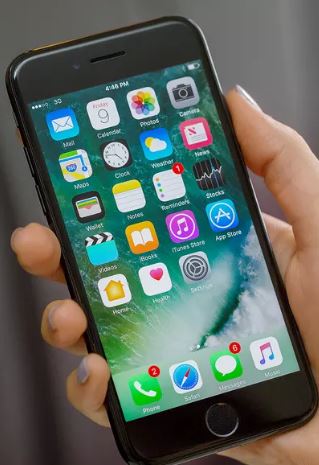
iPhone no sound on calls – how can you fix the issue?
iPhone users are sometimes facing the issue – iPhone no sound on calls or there is no sound on phone calls iPhone.
iPhone sound not working on calls or iPhone can’t hear caller issue is mostly reported by iPhone 6 and 7 users, though this issue may be faced by users of various iPhone models, including the latest ones, as well. I also once found that my iPhone 7 speaker not working during calls. Similar sound issues have also been reported on other Apple devices such as the iPad and iPod Touch.
No doubt it’s very annoying if you can’t hear incoming calls on iPhone or the person at the other end can’t hear caller on iPhone or if the iPhone sound not working on calls. If you happen to find yourself in a situation like this when your iPhone can’t hear caller then you have come to the right place that suggests possible solutions and clear answers to the problem of iPhone no sound on phone calls.
If there is no sound on phone calls iPhone and you are not sure why you can’t hear on iPhone calls, first try the following steps for fixing your ‘iPhone no sound on calls’ issue yourself before contacting Apple Support for help.
Checking Basic Settings
Before diving into more complex solutions, it’s important to check your iPhone’s basic settings if you can’t hear sound during phone calls. Start by making sure your phone isn’t set to silent mode—use the volume buttons on the side of your iPhone to increase the volume level, and check the switch above the volume buttons to ensure silent mode is off. Sometimes, the “Do Not Disturb” feature can block incoming calls and notifications, so go to Settings > Focus > Do Not Disturb and make sure it’s disabled.
Next, check your Bluetooth settings. If your iPhone is connected to Bluetooth devices like headphones or speakers, the sound from phone calls may be routed there instead of your phone’s speaker. Go to Settings > Bluetooth and disconnect any connected devices to ensure you hear sound directly from your iPhone. By double-checking these basic settings, you can often resolve issues with hearing incoming calls or improve overall sound quality during calls.
iPhone no sound on calls or can’t hear phone calls on iPhone – steps to fix
For any reason, if you find that your iPhone sound not working and you can’t hear on iPhone, you may try the following fixes for troubleshooting iPhone no audio on calls.
After each step check if iPhone calls no sound is still there or if you still can’t hear incoming calls on iPhone, before going to the next step.
Step 1. Clear any blockage of the iPhone receiver
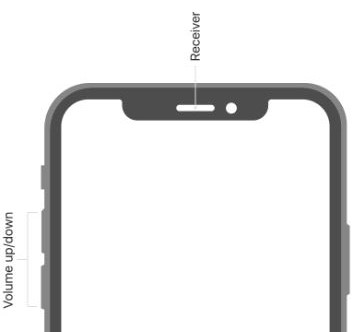
If the receiver of your iPhone is blocked or exposed to dirt and dust it won’t work properly. The receiver is the part you hold to your ear during calls, so any blockage can affect your ability to hear the other person’s voice. Therefore, take the following steps to clear any possible blockage in your iPhone receiver when you experience iPhone no sound on calls:
- Clean the receiver opening with a soft clean bristled brush or any small pointed thing that is not made of metal;
- Remove any case or screen protector that may be blocking your iPhone receiver;
Step 2. Increase the volume if the iPhone sounds low on calls
If you find your iPhone volume low on calls or your iPhone can’t hear the caller unless on speaker make sure that the volume of your phone is suitably adjusted by the volume buttons so that the conversation can be heard and followed properly. Also, check if you can hear the person’s voice clearly while talking during a call.
Step 3. Do not connect a headset to your iPhone
Ensure that nothing is plugged into the headphone jack or the dock connector of your iPhone. If your phone is connected to a headset the iPhone can’t hear calls through its receiver or from the speaker-phone. Also, check if your iPhone is stuck in headphone mode—if you see the headphone icon even when no headphones are connected, try plugging and unplugging headphones a few times or restart your device to resolve it.
Step 4. Turn off Bluetooth
Turn off Bluetooth to disconnect any wireless speaker or headset from your iPhone. To disable Bluetooth, go to Settings > Bluetooth > Toggle Bluetooth to ‘Off’;
Step 5. Check any issue with your network or reception
Turn on the speaker phone while you are on a call. Even after turning on the speaker phone if you still find your iPhone sound not working on calls or sound is unclear during phone calls, then your network or reception could be a network issue. In such a case, reset your network settings and check your cellular network connection to ensure you have a normal network connection for proper call audio. Try calling again from a different location. To reset network settings,
Go to ‘Settings’ > General > tap ‘Reset’ > tap ‘Rest Network Settings’
(This is only going to change the network settings and not your data or content)
Check Wi-Fi Calling Settings
Another factor that can affect call audio on your iPhone is Wi-Fi Calling. This feature lets your iPhone make and receive calls over a Wi-Fi network instead of relying solely on your cellular signal. While this can be helpful in areas with poor mobile coverage, it can also lead to sound issues—especially if your Wi-Fi connection is unreliable or suffers from frequent dropouts. Call quality may decrease, resulting in muffled or intermittent audio.
To see if Wi-Fi Calling is the culprit, try turning it off with these steps:
- Open Settings
- Tap Cellular (or Mobile Data)
- Select your SIM or phone number if you have multiple lines
- Tap Wi-Fi Calling
- Toggle off Wi-Fi Calling on This iPhone
Once disabled, your calls will route through your carrier’s network. Place a test call to see if the audio improves. If so, the issue likely stemmed from your Wi-Fi network’s strength or stability.
Step 6. Test the speakerphone function
During a call, activate the speakerphone to check if you can hear the other person’s voice through the speakerphone. If sound works on speakerphone but not through the receiver, the issue may be with the earpiece.
Step 7. Play music or video to test audio output
Play music or a video to see if your iPhone speakers are working for other audio outputs. If you can hear music or video sound but not call audio, the issue may be specific to calls.
Step 8. Try different calling apps
Make calls using different apps such as FaceTime, WhatsApp, or other calling apps to determine if the issue is app-specific or affects all apps. This can help identify if the problem is with a particular app or the device itself.
Sometimes the issue isn’t with your iPhone, but with the streaming platform or other apps you’re using. Certain apps have their own sound settings that can interfere with your phone’s audio, occasionally causing no sound in other apps. If you notice the problem is isolated to one app, dig into that app’s settings—look for in-app volume controls or audio preferences that might be muted or misconfigured. This extra step can save you time before diving into more advanced troubleshooting.
Additionally, check if you have any third-party call-blocking or filtering apps installed. Sometimes, these can interfere with your iPhone’s sound during calls. Try uninstalling any such apps and see if the sound issue resolves. This extra step can help rule out interference from third-party applications, especially if you’ve recently added or updated them.
Step 9. Restart your iPhone
By restarting your iPhone you can fix many issues with the device. It refreshes the iPhone’s memory and erases all the loading glitches. You may, therefore, try this to fix the issue, iPhone no sound during calls.
To restart your iPhone,
Press and hold the side button until the ‘power off’ slider appears;
Drag the slider to turn your device off;
After your iPhone is turned off, press and hold the side button again until you see the Apple logo.
Step 10. Hard reset your iPhone to resolve call audio issues
If you’re still having trouble hearing sound during calls after trying the previous steps, performing a hard reset can often resolve lingering glitches. The process for force restarting your iPhone depends on the model:
- iPhone 6, 6 Plus, and iPhone 6s: Press and hold both the Home button and the Side (or Top) button at the same time. Keep holding until the Apple logo appears, then release.
- iPhone 7 and 7 Plus: Press and hold the Side button together with the Volume Down button. Wait for the Apple logo to appear, then let go.
- iPhone 8, iPhone SE (2nd generation and later), and iPhone X or newer: Quickly press and release the Volume Up button, then the Volume Down button. Next, press and hold the Side button until you see the Apple logo.
After your device restarts, check if the call audio issue has been resolved. This quick refresh can sometimes clear up stubborn software problems that affect sound during calls.
Step 11. Upgrade your iPhone to the latest iOS version
Even after trying the above steps if you find the iPhone call sound not working or the iPhone sounds low and the iPhone can’t hear caller, you need to check the iPhone speaker. Maybe your iPhone speakers not working on calls.
On checking if it is detected that your iPhone speakers not working during calls, then update your iPhone to the latest software update of iOS and test again.
Check for iOS System Glitches and Errors
Every so often, a pesky software bug or system hiccup within iOS can scramble your iPhone’s audio settings, leading to issues where you can’t hear the caller—even if everything else seems normal. These glitches can sneak in with a recent update, or sometimes crop up after an app misbehaves. The audio pathway for calls can get disrupted, making it hard (or impossible) to catch what the other person is saying.
If your iPhone’s sound works fine for music and notifications, but goes quiet during calls, a temporary iOS glitch might be the culprit. Restarting your iPhone often clears up these gremlins, but if the problem persists, updating to the latest iOS version is your best bet. Apple regularly squashes audio bugs with new software releases, so staying current can keep system errors from interfering with your call audio.
Step 12. Turn off the ‘Do Not Disturb’ option
Turn off the “Do Not Disturb” option if it is enabled. With “Do Not Disturb”, you can silence calls and notifications
Step 13. Check for any hardware issue
If you still can’t hear on iPhone calls then check if there is any hardware issue like a damaged iPhone receiver or earpiece. In case of any hardware damage, it’s better to get your iPhone checked by an Apple Retail Store or Apple Authorized Service Provider. You can also contact Apple Support for necessary repairs in such cases.
Keep in mind, hardware problems can sometimes stem from accidental drops or water exposure. Even a brief encounter with moisture or a fall from a significant height could cause internal damage that affects call audio. If you suspect your iPhone might have suffered such mishaps, reaching out to Apple Support for guidance is a smart move. They can help diagnose the issue and recommend the best course of action to get your device back in working order.
Performing a Factory Reset to Fix Sound Issues
If you’ve tried every trick in the book—restarts, updates, hardware checks—and you’re still struggling with call audio on your iPhone, a factory reset may be your last resort. This process wipes your device completely, returning it to its original, out-of-the-box state. It’s one of the most effective ways to clear up stubborn software problems that nothing else seems to resolve, including those mysterious sound bugs.
Back Up Your Data First
A word of caution: a factory reset erases everything—apps, messages, photos, contacts, and all your personal data. So, before you take this nuclear option, be sure to create a full backup using iCloud or iTunes (Finder on Macs running macOS Catalina or later). That way, you can restore your important files and settings once your device is reset and hopefully working as expected.
How to Factory Reset Your iPhone
- Open the Settings app.
- Tap on General.
- Scroll down and select Transfer or Reset iPhone.
- Choose Erase All Content and Settings.
- Follow the prompts to confirm your choice (you may need your passcode or Apple ID password).
Once your iPhone restarts, you’ll be greeted with the setup screen, just like when it was new. If the sound problem is gone, you can restore your backup during setup and get back to normal.
Lost Data? Recovery Options Exist
In rare cases, if you were unable to back up or if some data seems to disappear, not all hope is lost. Trusted third-party programs such as Stellar Data Recovery for iPhone can help retrieve lost photos, messages, contacts, or even WhatsApp chats, supporting a wide range of iPhone models including iPhone 8, iPhone X, iPhone 12, and newer.
A factory reset can feel drastic, but if nothing else works, it’s often the most direct path to solving stubborn audio glitches—just be sure to back up first, so you don’t lose what matters most.
Check for Phone Noise Cancellation
Another troubleshooting step for iPhone sound issues, especially if you’re using an iPhone 12 or earlier, is to review your device’s noise cancellation feature. Phone Noise Cancellation is designed to minimize ambient background noise so your voice comes through more clearly during calls. However, in some cases, this setting can unintentionally affect call audio quality—either muffling your voice or interfering with sound clarity.
To check or adjust this option:
- Go to Settings > Accessibility > Audio/Visual
- Look for Phone Noise Cancellation
- Try toggling the switch off and on, then make a test call each way
Sometimes, turning this feature off can actually improve your sound if the microphone is picking up less noise than anticipated, or if there’s an issue with how it processes ambient sounds. Testing both settings will help you determine which delivers the best audio experience on calls.
Review Call Forwarding Settings
If you’re still missing incoming call sounds or notifications, it’s a good idea to check whether Call Forwarding is turned on. When Call Forwarding is enabled, your iPhone silently redirects calls to another number, meaning you won’t hear them ring or show up as missed calls.
To check and disable Call Forwarding, follow these quick steps:
- Open the Settings app, then tap on Phone.
- Tap on Call Forwarding (you may need to wait a moment for it to load).
- If you see that Call Forwarding is switched on, simply toggle it off.
Once disabled, have someone call you to confirm calls are reaching your device as expected. This simple check can often resolve “silent calls” that may seem like audio or receiver problems but are actually a result of an overlooked Call Forwarding setting.
You may also like to read: Call Forwarding on iPhone – how to set it up
Check Wi-Fi Calling Settings
If you’re finding that your call audio sounds choppy or drops in and out—especially when you’re at home or in the office—Wi-Fi Calling could be the reason. This handy feature routes your calls over your local wireless network instead of the cellular network, which is great if you have poor cellular reception. However, if your Wi-Fi connection isn’t stable or tends to drop for even a moment, it can lead to sudden dips in audio quality or even cut out your call entirely.
To see if Wi-Fi Calling is playing a role in your call sound issues, try turning it off temporarily and making a test call. Here’s how:
- Head to Settings
- Tap Mobile Data or Cellular
- Select your number (especially if you have multiple SIMs or eSIMs)
- Tap Wi-Fi Calling
- Toggle Wi-Fi Calling on This iPhone off
Make another call and pay attention to the audio quality. If you notice a clear improvement, you might want to leave Wi-Fi Calling off unless you really need it in areas with weak cellular signal. Being mindful of your Wi-Fi connection’s reliability can make all the difference in call clarity.
Inspect Call Forwarding Settings
Before you pull your hair out wondering why calls have mysteriously gone silent, it’s worth double-checking your Call Forwarding settings. When Call Forwarding is active, your incoming calls are silently redirected to another number—so your iPhone won’t ring or alert you at all. This can easily be mistaken for a problem with your call audio, when in reality, your calls are simply going elsewhere.
To make sure this isn’t causing your sound woes, follow these steps:
- Open the Settings app and tap on Phone.
- Wait a couple of moments for the options to load.
- Tap Call Forwarding.
- If you see that Call Forwarding is switched on, tap to disable it.
Once Call Forwarding is off, ask a friend to give you a quick test call to confirm you’re receiving calls—and hearing that familiar ringtone—loud and clear. It’s a simple fix, but one that can save a lot of troubleshooting down the line.
What to do if the iPhone microphone not working during calls
It is not uncommon to hear sometimes from iPhone users – why I am unable to hear phone calls on iPhone when I call someone’s iPhone?
If you see iPhone no audio on calls i.e. the person at the other end can’t hear you on the iPhone or there are problems of sound during calls on iPhone, there may be an issue with the microphone on your device.
You may find your iPhone microphone not working during calls if it is exposed to dirt and dust. If the microphone is blocked with dirt particles the person at the other end won’t be able to hear you. In such case of no sound on phone calls iPhone, you’ll need to clean the microphones the way described in ‘Step 1′ above, to clear any debris.
There are three different microphones on your device,
1. The one at the bottom and on the left side of the lightning port is meant for calls;
2. The one at the top is used for Face-Time calls and voice memos;
3. The one at the back of your device and on the right side of the camera is used for an audio recording of videos;
In the case of iPhone no audio on calls and the person at the other end can’t hear you even after cleaning the microphones, try the following steps:
- Turn off Bluetooth to disconnect any wireless speaker or headset from your iPhone;
- Make sure that the microphone is not blocked with your fingers or case while holding the device;
- Remove any case or screen protector that may be covering the microphone;
- Restart your device;
- Upgrade your iPhone to the latest iOS version;
Don’t Forget the Ear Speaker!
If you’re finding it hard to hear the other person—especially if you’re always switching to speakerphone or cranking the volume up to max—the culprit might be your iPhone’s ear speaker, not just the microphone. Over time, the fine mesh grille protecting the ear speaker can get clogged with dust, lint, or grime. This buildup muffles sound and can make calls frustratingly quiet.
How to Clean the Ear Speaker:
- Use a soft, lint-free cloth (just barely damp with a tiny bit of rubbing alcohol) to gently wipe the ear speaker grille.
- For stubborn debris, try lightly dabbing the grille with a small piece of Blu-tac to lift out gunk.
- If you’ve recently installed a screen protector, double-check that it’s not misaligned and covering the ear speaker. Even a slight overlap can weaken audio.
By giving both your microphones and your ear speaker a gentle clean, you can often restore call audio clarity without any tech wizardry. If sound issues persist after these steps, you may want to seek professional support or further diagnostics.
You may also like to read this post – iPhone volume buttons not working?- Try these 6 proven fixes
When Calls Are Silent but Everything Else Works
Sometimes, you might experience a situation where your iPhone connects calls—whether you’re calling out or receiving a call from someone else—but absolutely no audio comes through for either person. It doesn’t matter if you try using the earpiece, speakerphone, or even plug in headphones; the call stays silent. Strangely, everything else on your device works perfectly: you can make FaceTime audio or video calls with clear sound, your microphone responds for voice-to-text, voice memos, and you can watch videos or play music without missing a beat.
This points to an issue specific to the phone call function itself, rather than a general hardware problem. Your speakers and microphones are working in other apps, and your iPhone connects to cellular networks just fine for data, texts, and FaceTime calls—even over cellular—not just Wi-Fi. So, if you’re scratching your head because everything except regular phone calls has sound, you are not alone.
Could Your Custom Ringtone Be Causing the Silence?
Believe it or not, sometimes the culprit behind call audio issues is as simple as your ringtone choice. If you’ve set a custom ringtone—perhaps a catchy tune or a favorite sound clip—it may not play nicely with the latest iOS update. This can occasionally result in calls coming in with no sound at all, making it appear as though your phone isn’t ringing or call audio isn’t working.
Here’s a quick way to rule this out:
- Head to Settings > Sounds & Haptics > Ringtone
- Switch to one of the default Apple ringtones (like “Opening” or “Reflection”)
- Ask a friend to call you and see if you get sound as expected
If calls start ringing as they should, your custom ringtone may have become incompatible after the software update. You can always try re-syncing or re-downloading your custom ringtone later, or simply stick with one of the built-in options to avoid the issue.
Network-Related Issues
Sometimes, problems with hearing sound on phone calls are caused by network-related issues rather than your iPhone’s hardware or settings. If you’re experiencing trouble hearing during calls, first check your network settings to make sure you have a good signal. Poor reception or a bad network connection can affect call quality and sound.
Try moving to a different location to see if you get a better signal or connect to a more stable Wi-Fi network. If the issue persists, you can reset your network settings by going to Settings > Transfer or Reset iPhone > Reset Network Settings. This will restore your network settings to their default state, which can help fix connection problems. Another quick fix is to toggle Airplane Mode on and off—go to Settings > Airplane Mode, switch it on, wait a few seconds, then switch it off. This can refresh your network connection and may resolve issues with hearing sound during phone calls.
Advanced Troubleshooting
If you’ve checked your basic settings and network connection but still can’t hear sound during phone calls, it’s time to try some advanced troubleshooting steps. Start by reviewing your audio routing settings to make sure your iPhone isn’t sending audio to another device, such as a Bluetooth headset. Go to Settings > Accessibility > Audio/Visual and check your audio routing preferences.
While you’re there, look for an option called Call Audio Routing. This feature allows you to customize how audio is routed during calls. By default, it’s usually set to “Automatic,” but if you’re having trouble hearing calls, double-check that it hasn’t been changed. Setting it back to “Automatic” ensures your iPhone manages the audio correctly and sends sound through the appropriate speaker or headset. If you’ve used headphones or a car’s Bluetooth recently, sometimes the setting can get stuck—so it’s worth toggling this option.
You can also reset all your iPhone’s settings to their default values by going to Settings > Transfer or Reset iPhone > Reset All Settings. This will reset your volume settings, Bluetooth settings, and other preferences without deleting your data, which can help resolve persistent sound quality issues. Finally, make sure your iPhone is running the latest version of iOS, as software updates often include important fixes for audio and network problems. Keeping your device updated ensures you have the best possible sound experience during phone calls.
Preventing Future Issues
To avoid future problems with hearing sound during phone calls on your iPhone, it’s a good idea to regularly check your settings and keep your device updated to the latest version of iOS. Make sure your network settings are optimized and consider resetting your network settings from time to time to maintain a stable connection. Staying in areas with good network reception can also help prevent call quality issues.
Regular maintenance, such as gently cleaning your iPhone’s speaker and microphone with a soft brush or cloth, can improve sound quality and prevent blockages that affect hearing during calls. If you continue to experience issues, use Apple’s built-in Troubleshooter tool or contact Apple Support for further assistance. By following these preventive steps, you can ensure clear sound and reliable phone calls on your iPhone.
Recovering Lost Data After a Factory Reset
If you’ve performed a factory reset and found that you can’t restore your data from iCloud or iTunes, all is not lost. There are reliable third-party data recovery tools designed specifically for iPhones that can help recover lost information—including contacts, messages, photos, videos, calendars, WhatsApp chats, and more.
Many of these applications, such as Dr.Fone or Tenorshare UltData, are compatible with a wide range of iPhone models, from older devices up to the most recent releases. Typically, you just need to install the software on your computer, connect your iPhone, and follow the on-screen instructions. These programs scan your device for any recoverable files and let you preview the data before restoring it.
It’s important to use reputable recovery software to ensure the safety and security of your personal information. Most tools offer a free trial, so you can check if your data is recoverable before making any commitment. This can be a helpful final step if you’ve tried all the built-in options and still need to retrieve important files.
Frequently asked questions
Before I conclude let me also reply to some queries often asked by iPhone users related to iPhone no sound on calls.
Why can’t I hear anything on my phone calls iPhone?
If there is no sound on phone calls iPhone, go to Settings > Sounds (or Sounds & Haptics). Then drag the ‘Ringer and Alerts’ slider back and forth a few times.
If still the ‘iPhone call no sound’ issue is not fixed, or if your speaker button on the Ringer and Alerts slider is dimmed, then maybe your iPhone speaker not working on calls.
Why is my phone microphone not working?
If your microphone doesn’t work first check the sound settings of your device. If the call volume is very low or mute simply increase the call volume setting and media volume of your phone. If you see still your iPhone call volume not working clear any debris from the microphones the way mentioned in the post. As already mentioned, dirt particles can also accumulate and easily clog the microphone of your device.
Why is my iPhone speaker not working during calls?
To find the answer to your query about why is my iPhone speaker not working during calls,
Go to Settings > Sounds (or Settings > Sounds & Haptics), and drag the Ringer and Alerts slider back and forth a few times.
If you see your iPhone calling sound not working or if your speaker button on the Ringer and Alerts slider is dimmed even after this, your speaker might need service. In such cases, you are to contact Apple Support for help.
You may also like to read: How to Fix iPhone Force Restart Not Working – an easy guide
Conclusion
I hope, after going through the post you got the answer to your query – why I can’t hear phone calls on iPhone and realized that there should not be any cause of worry if you happen to find that iPhone sound not working on calls. It has been found that in most cases, the issue of ‘iPhone no sound on calls‘ could be solved by following the steps mentioned above.
However, in the worst case, if none of the above fixes could solve the sound problems of your device such as iPhone call sound not working, the iPhone sounding low, can’t hear caller on iPhone, the iPhone speakers not working on calls, or poor sound quality from your iPhone, you can contact Apple Support for help.
You may also like to read: How to Record Calls on iPhone Without App

Sara
Jul 15. 2021
THANK YOU! THANK YOU! THANK YOU! I had tried for two days on You Tube University with no luck. I couldn’t take pictures or hear any sound on my phone. I got through Step 6 and VOILA! Resetting the network was the key! I really appreciate your steps and how easy they were to follow. We’re on vacation so hitting an Apple store would have been a pain. Now I’m all set! Thanks again!
radharenu ganguly
Jul 16. 2021
Hi Sara
Thanks for your comment! I’m glad you found the article useful.
Sanaullah Ansari
Sep 23. 2021
Hey, here I have an iphone SE 2020. When I am on call, or in a google meet, and at that time if someone else calls me I am not able to hear my ringtone. At first it used to ring properly but now it doesn’t.
My version is up to date, I have checked sound settings, etc. Still no effect. Please give me a solution
radharenu ganguly
Sep 24. 2021
Hi Ansari
Sometimes you might need to reset the iPhone to get it working correctly again. You can do this by pressing and holding the “Power” and “Volume Down” buttons simultaneously (“Power” and “Home” on older devices) for about 5 seconds. After holding the buttons, the iPhone should shut off. From there, simply power it back on and give the ringer another try.
Cindy
Feb 07. 2022
So I’ve tried everything, I updated my iPhone X to the latest IOS and now my speaker doesn’t work on my phone. When a call comes in I can look at the screen and see that a call is coming in but there is no ring sound and when I answer it they can hear me but I can’t hear them, when I play a video it plays but no sound comes out.
Pete
Oct 06. 2021
Thanks for your assistance it worked
radharenu ganguly
Oct 06. 2021
Hi Pete,
I am glad that the post helped you.
S
May 03. 2022
Hi please help my iPhone 6 speaker don’t work wen receiving call and make call at times but all everything works only on calls I can’t hear anything please help
radharenu ganguly
May 03. 2022
Hi,
In case there is no sound on iPhone while calling, go to Settings > Sounds (or Sounds & Haptics). Then drag the ‘Ringer and Alerts’ slider back and forth a few times.
If you still don’t hear any sound, or if your speaker button on the Ringer and Alerts slider is dimmed, then may be your iPhone speaker not working on calls. In such case your speaker might need service for which you can contact Apple Support.
Mark
Jan 23. 2022
I have an iPhone 7 Plus can’t here any1 on a call and they can’t here me any idea ringing ok and all other sounds work
Faith
Jan 29. 2022
Hello I’m also facing that problem everything is fine except when making or receiving call can’t hear anything… and I even lost a job because of that😩😩😩please help!!!!
SaulGB
Feb 10. 2022
I tried step 6 and it works right after. Thank you for your tips! Great article by the way
radharenu ganguly
Feb 10. 2022
Hi SaulGB,
Thank you for your comments. I am glad that the article helped you.
J
Feb 16. 2022
This bricked my iPhone 7 at the reset network settings, step 5. It is stuck on the Apple screen and unrecoverable from iTunes.
Mile Blue Bryan
Mar 16. 2022
Since iPhone 6 is an old version of all the iPhone devices encountering some issues like this is no longer new. Due to beta applications and more software update glitches are more often to lower versions. I also have iPhone 6 which I seldom use to communicate but whenever I need it I am using it for video calls and other communicating options. So, I have searched some information on the internet and I found two options to resolve the error. Using AceThinker Fone Keeper and the solutions you have mentioned in your post. Luckily these two works and my iPhone =6 runs smoothly and conveniently now.
Peter
Jul 23. 2022
Thanks! Did the slider on reset sounds and restarted the phone – it worked! Looking forward to another 2 years with my iPhone 6SE.